

Managing Failed Delivery Orders
08/26/2024

How to Check Failed Delivery Orders
We have introduced a new 'Failed Delivery' tab to help you monitor your failed delivery orders that have been returned to you.- Simply go to Orders > Manage Orders, and you will see 'Failed Delivery' as the last tab.
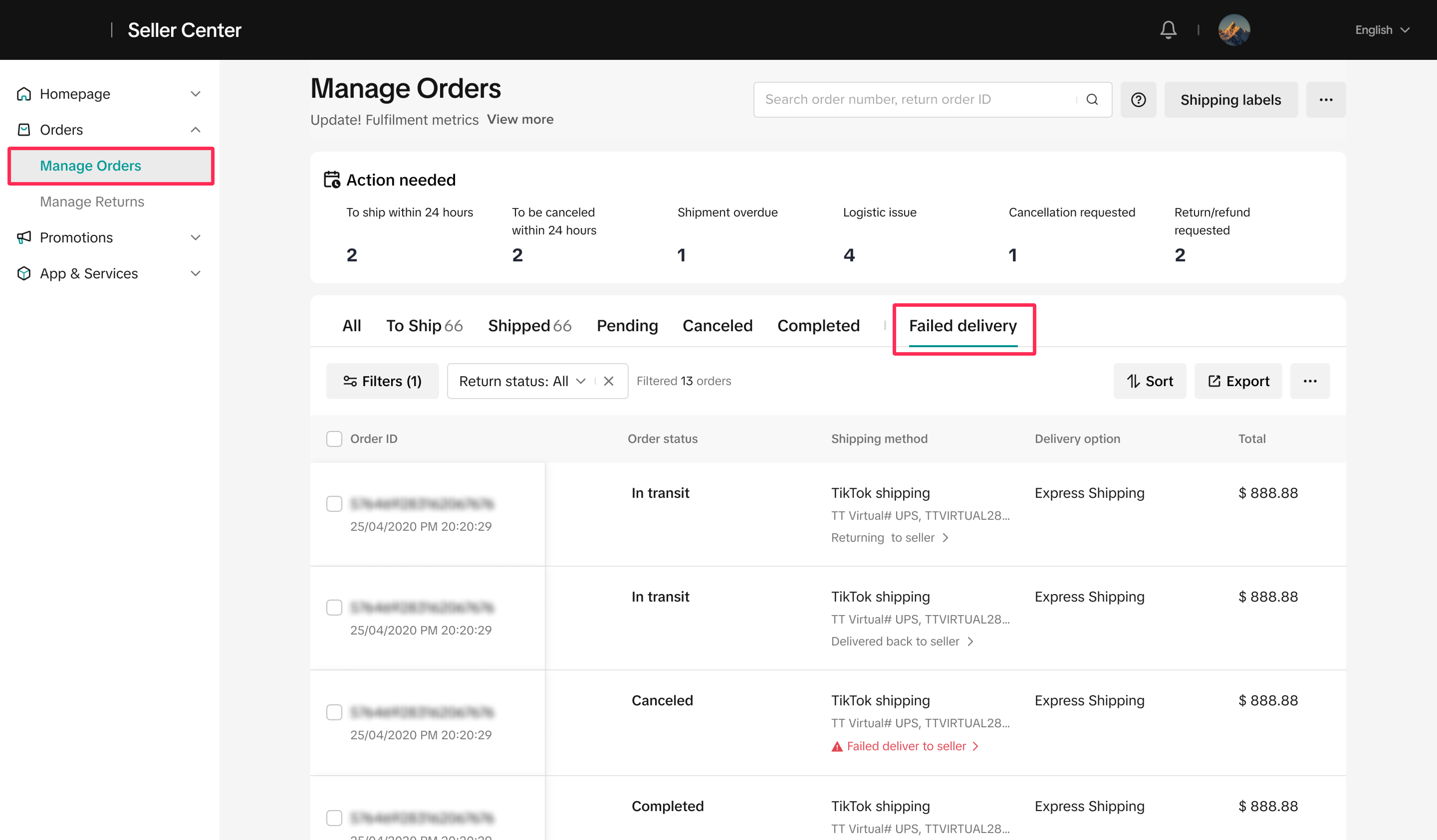
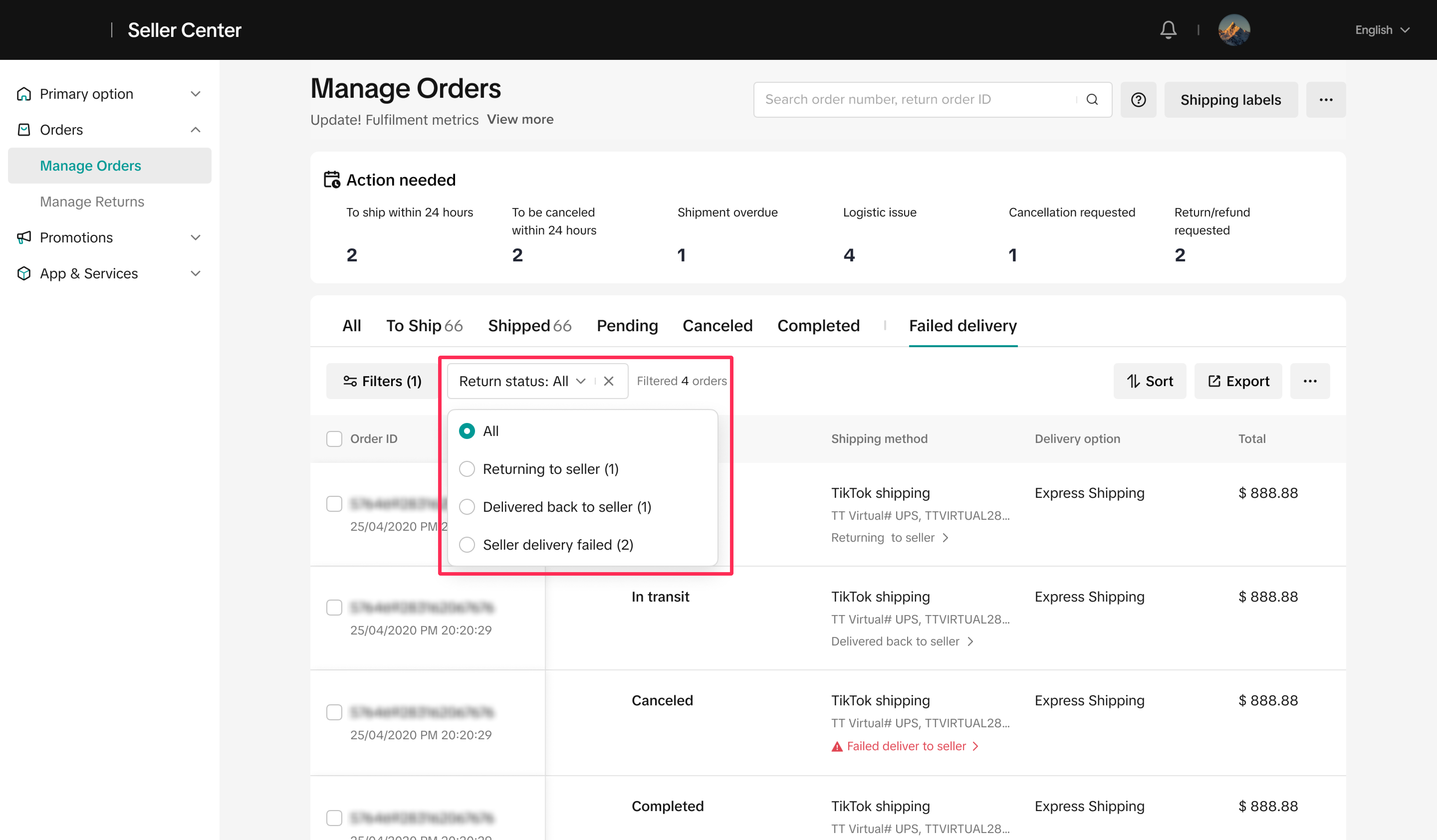
- Returning to Seller: The parcel is on its way back to the seller.
- Delivered Back to Seller: The package has been returned to the seller, and the order will be automatically cancelled and refunded.
- Seller Delivery Failed: The carrier couldn't deliver the package to the seller. There will be an alert in red to draw your attention to these parcels.
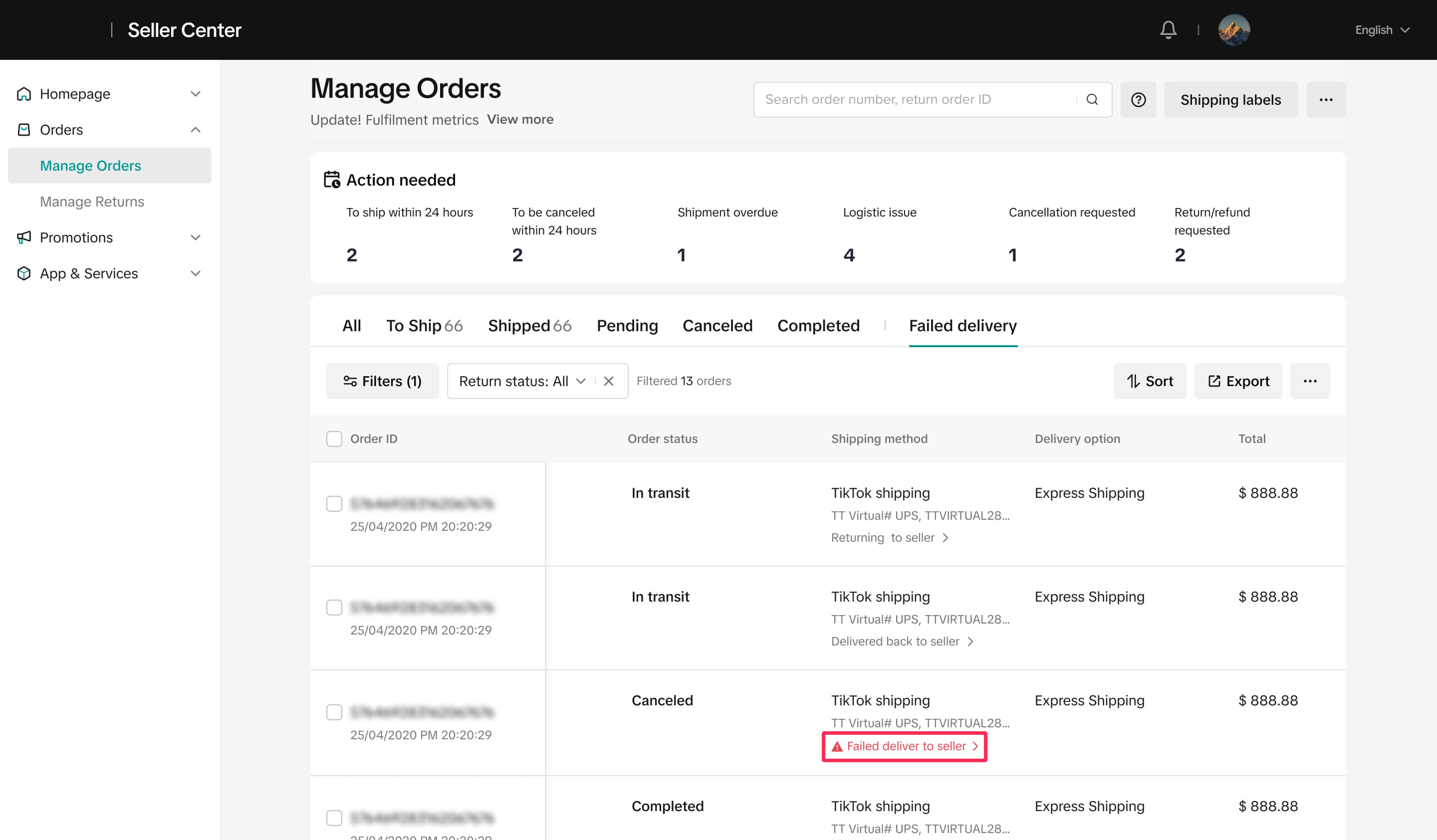
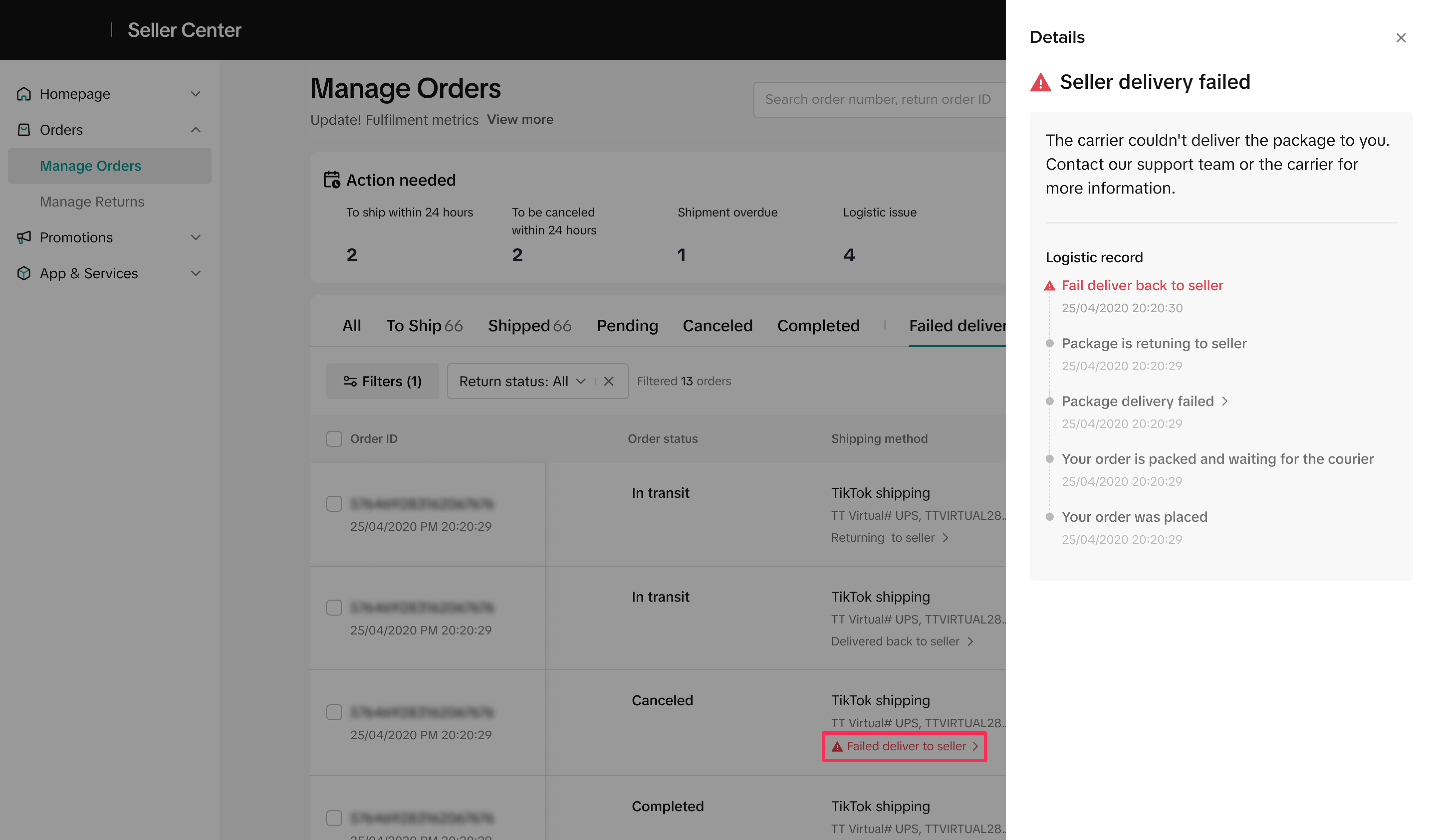
- To track your returned parcel further, click on the returned status under the Shipping Method column to see more details and guidelines from the platform.

How to Filter Failed Delivery Orders
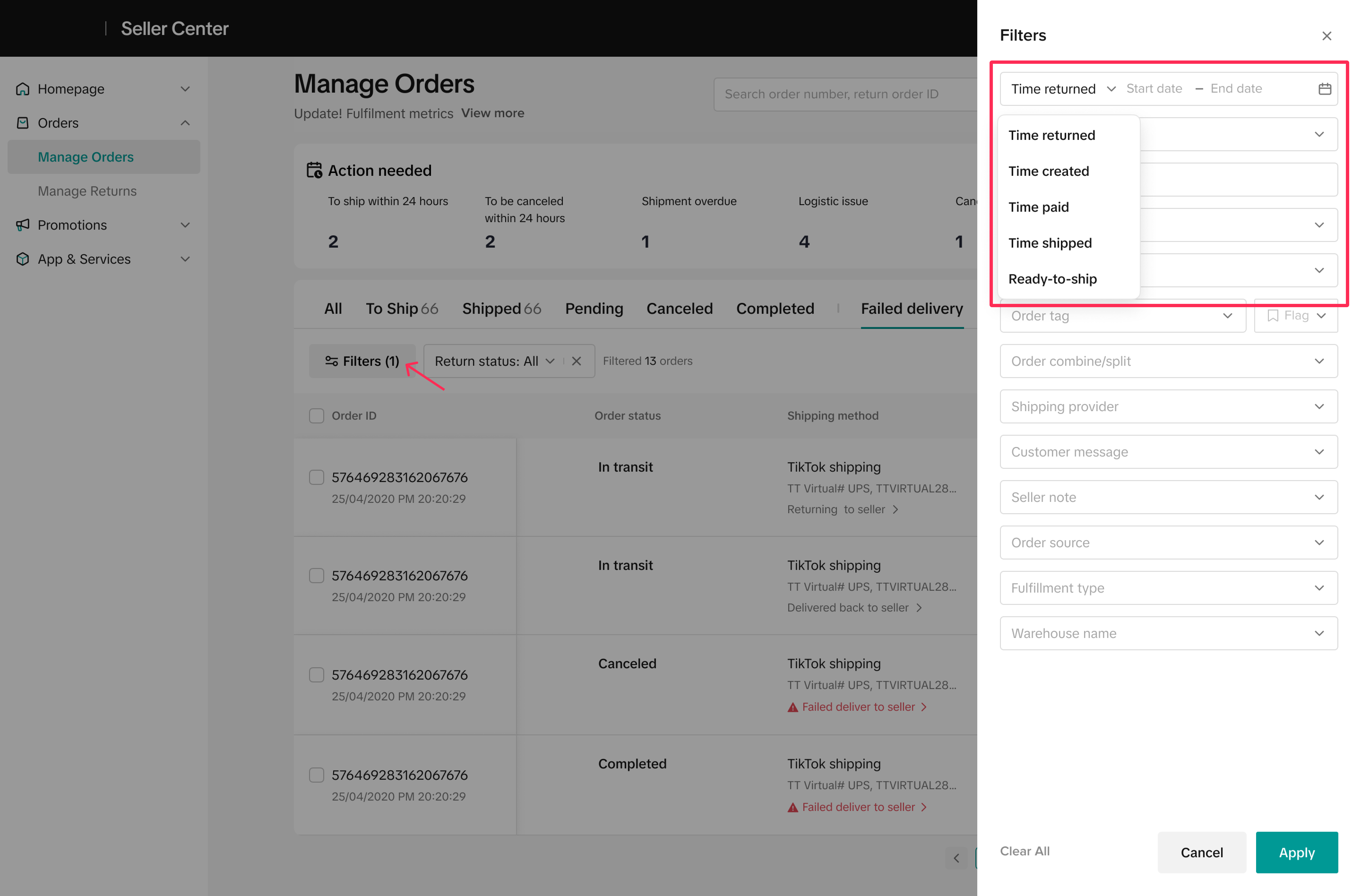
- You can easily filter your failed delivery orders based on their status by using the Return Status filter.
- Refine your results further by using the Time Returned date range filter to view orders within the date range you want.

How to Raise a Ticket with Logistics Providers
As a seller, you can now raise a ticket with logistics providers to swiftly address any logistics issues such as failed deliveries or pickups, and receive prompt support.Follow these simple steps to raise a ticket and contact logistics service:
- Navigate to Orders > Manage Orders. You will see a list of orders under different status tabs. If your orders are tagged with logistics issue tags, you can raise a request and contact the logistics service.
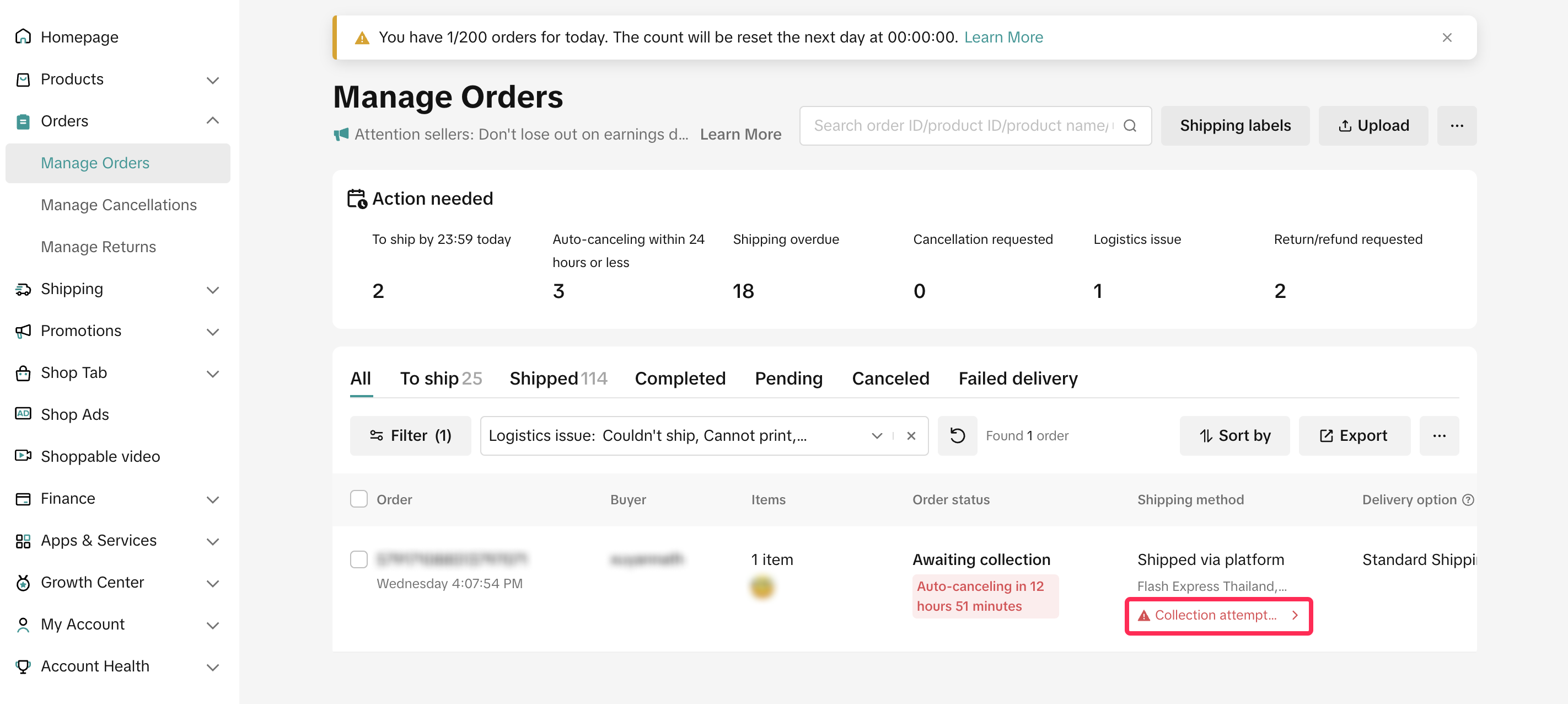
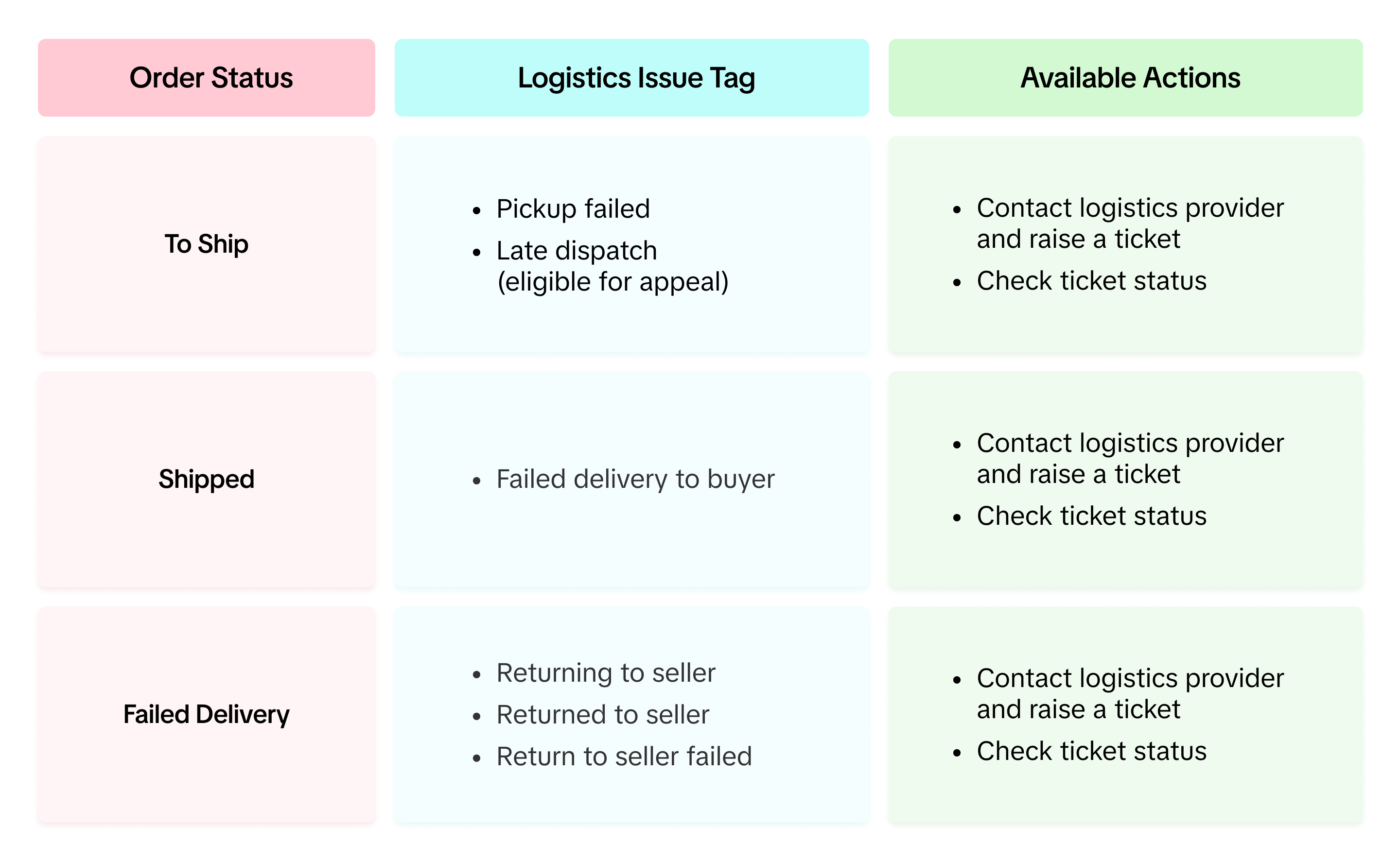
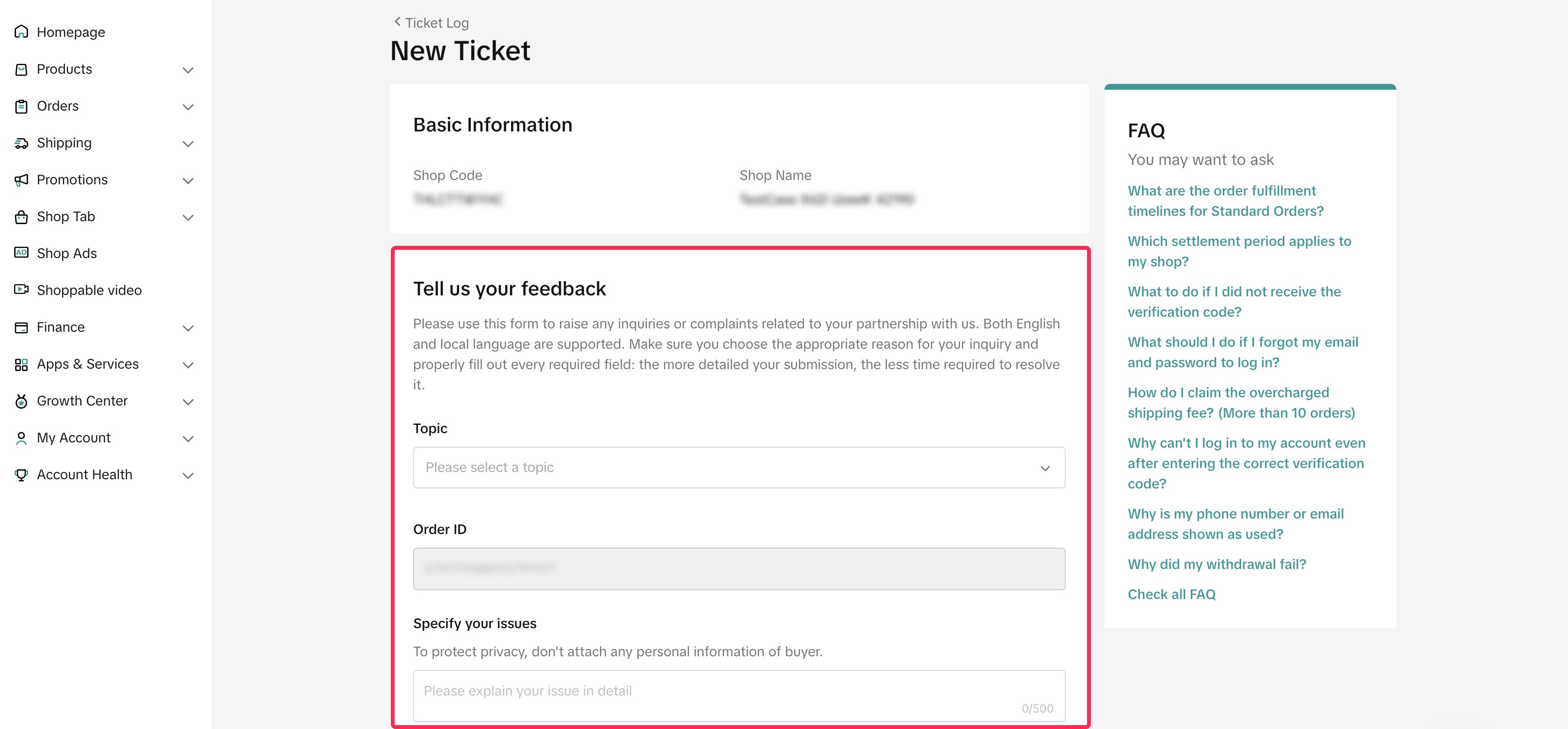
- Once you locate the order with a logistics issue, click the logistics issue tag and select 'Contact Logistics Service.'
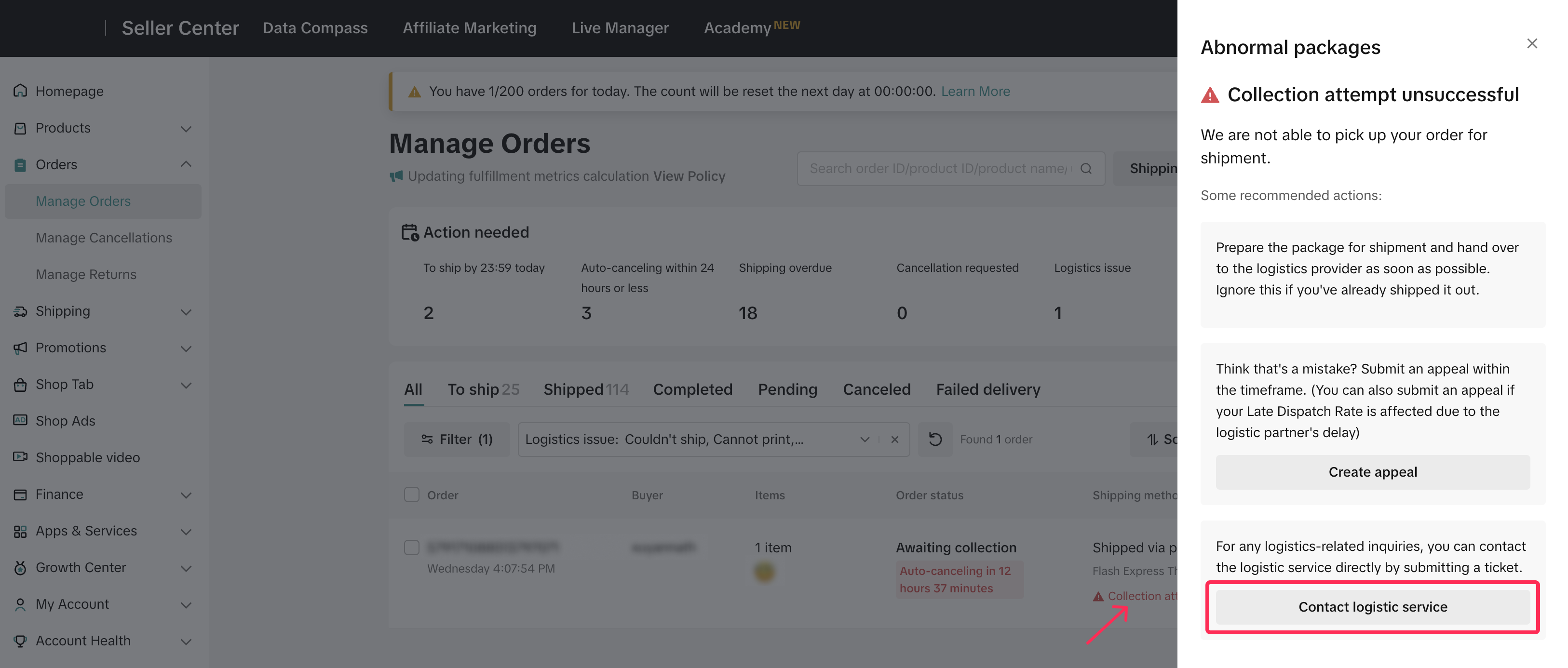
- The system will redirect you to the New Ticket page, where you can directly contact logistic providers. Please ensure you provide the correct order ID, explain your issue, and upload any relevant evidence before submitting the ticket. After receiving the ticket, the logistics provider will contact you to resolve the issue.

How to Track the Status of a Logistics Ticket
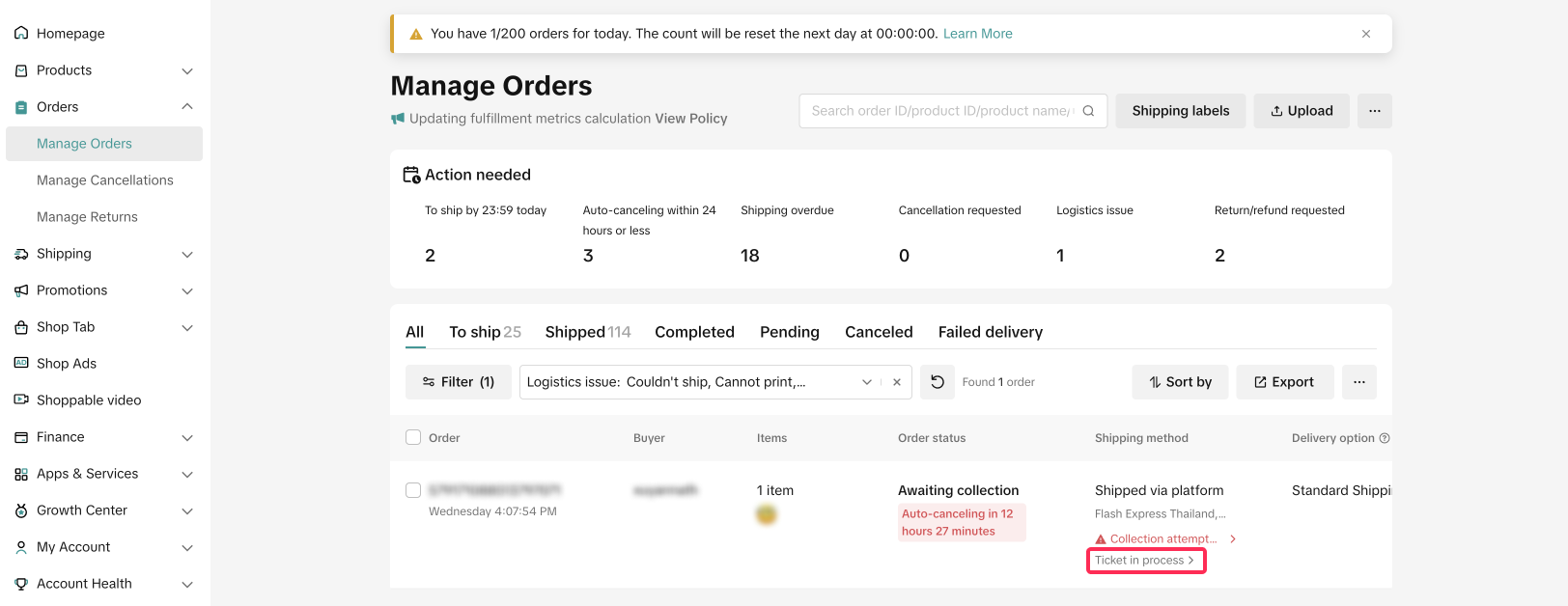
- Once you have raised a ticket, you will see its status under the Shipping Method column. The status will be shown as 'Ticket in process' or 'Ticket closed.'
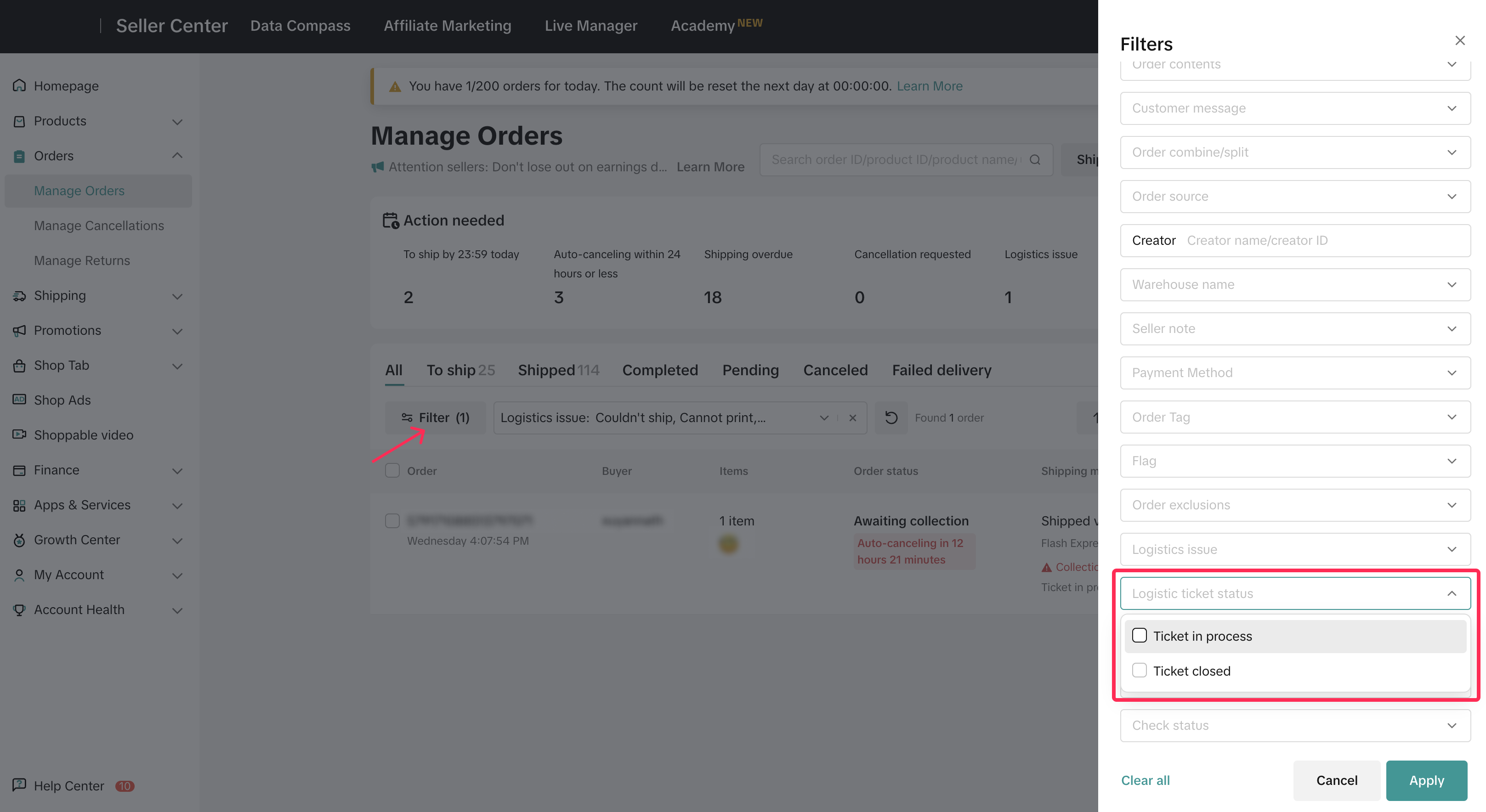
- Alternatively, you can use the Logistics Ticket Status filter to refine your results.
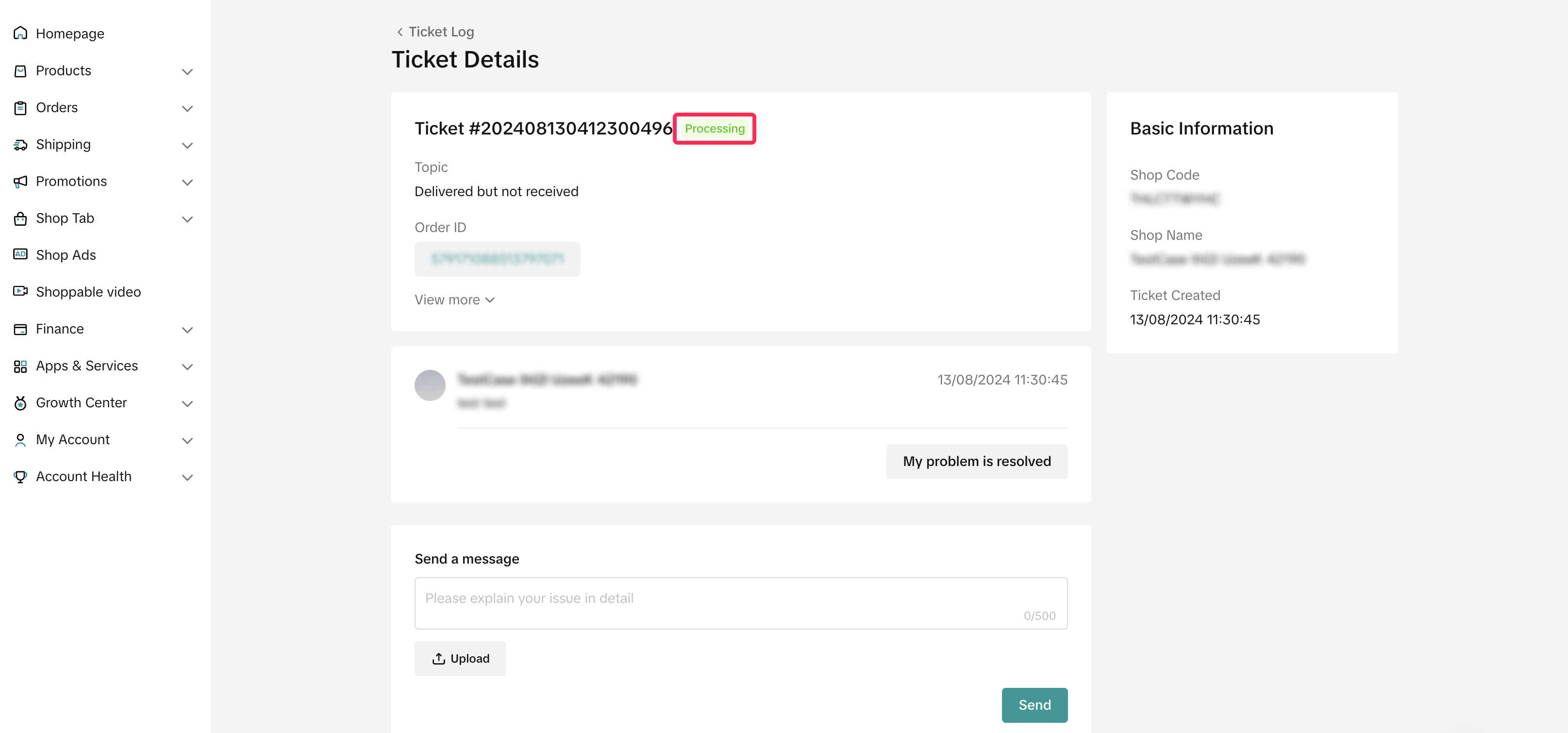
- To see the details of your ticket, click on the ticket status to view further information.
You may also be interested in

Managing Orders on Seller Center App
In this article, we will introduce you to the new Orders page on the Seller Center app and how you c…

What should I do if wrong information is printed on the ship…
Unfortunately, if you made a mistake on your pickup/return warehouse address on the shipping label,…

Can I switch between the "Ship by Platform" and "Ship by Sel…
Currently, we don't support switching the shipping method for existing orders. Please proceed with…

When is an order status considered "Abnormal"?
It is likely that the order is still in transit for seven (7) days or more. If the order is still wi…

What do I do if my order is lost or damaged?
Only Shipped via Platform orders are eligible for reimbursement. You will be reimbursed under the fo…

What if a buyer rejects my order?
If a buyer rejects your order, the course of action you take depends on whether the order is Cash on…

Managing Orders
This article will guide you through our new Manage Orders page to help you become familiar with the…

Combining Orders into a Single Package
This article provides a simple guideline on combining multiple orders into a single package, giving…

Late Dispatch Rate (LDR)
Note: Orders with Instant, Sameday, and Sameday 8-hour delivery are only available via Tokopedia. Cl…

A Complete Guide to 'Shipped via Platform'
In this article, we will guide you through the updated 'Shipped via Platform' shipping process, enab…