

Shipping Labels
03/27/2026

Types of Shipping Documents
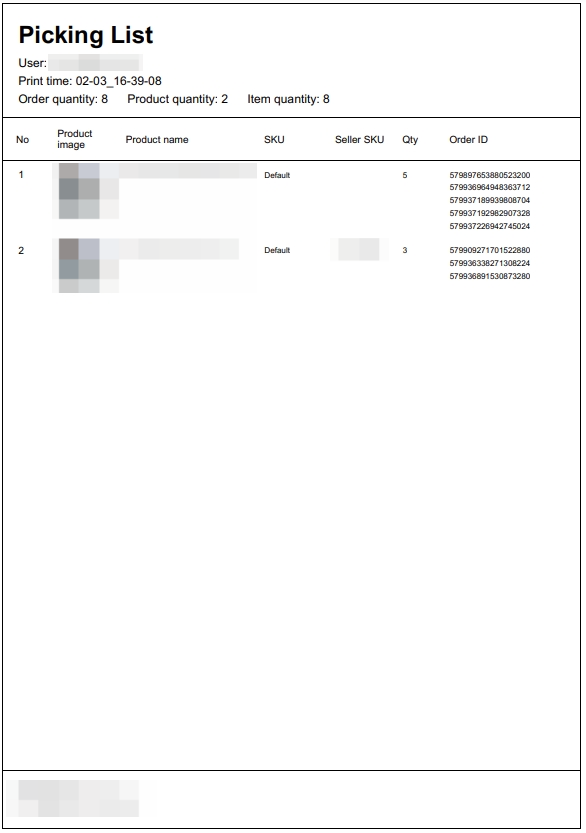
There are 3 documents available: Picking List, Packing List, and Shipping labelPicking List
The picking list will display SKU information line by line with variations and quantity. If it includes multiple orders, it will consolidate all items and their corresponding quantities across those orders.The packing list can be printed BEFORE arranging shipments and can print multiple packages by selecting bulk actions.
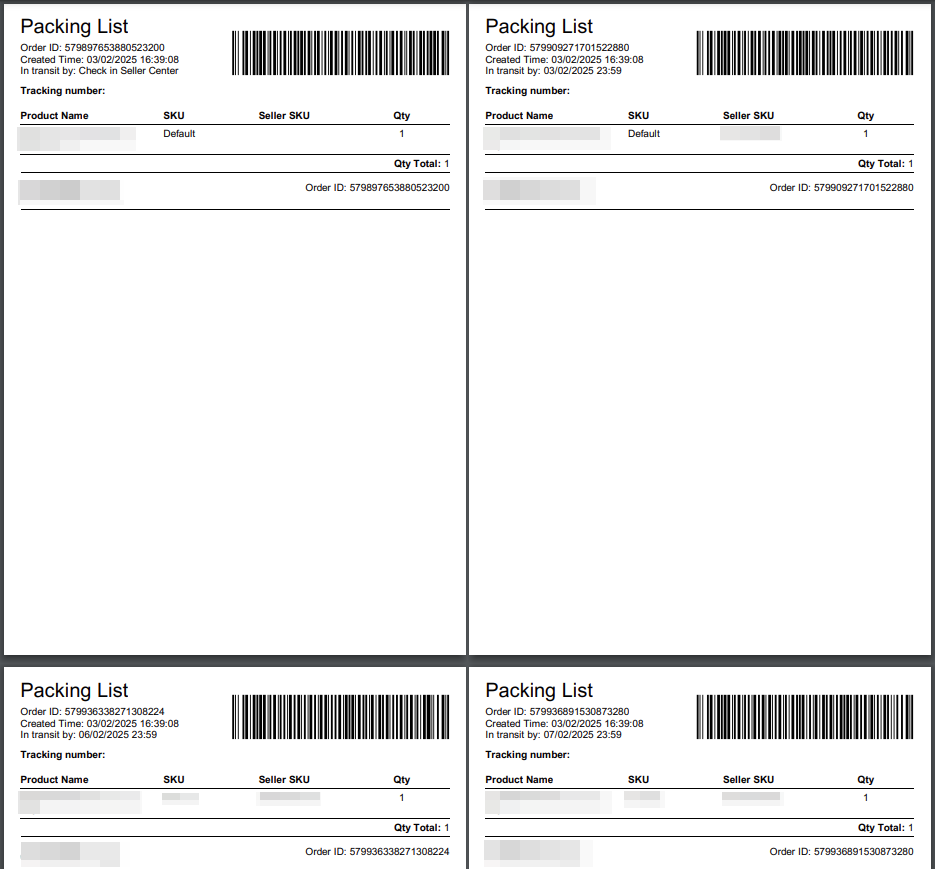
Packing List
Each packing list page represents a single package and includes the order ID, SKU name, SKU variation, and item quantity for that package.The packing list can be printed BEFORE arranging shipments and can print multiple packages by selecting bulk actions.
Shipping label
The shipping label can be printed DURING arranging shipments and can print multiple packages by selecting bulk actions.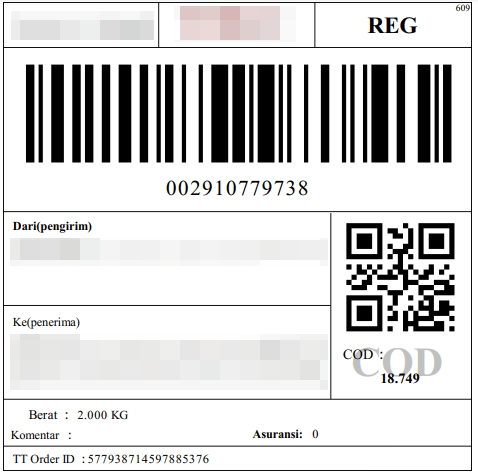
How to Set Up Label Printing?
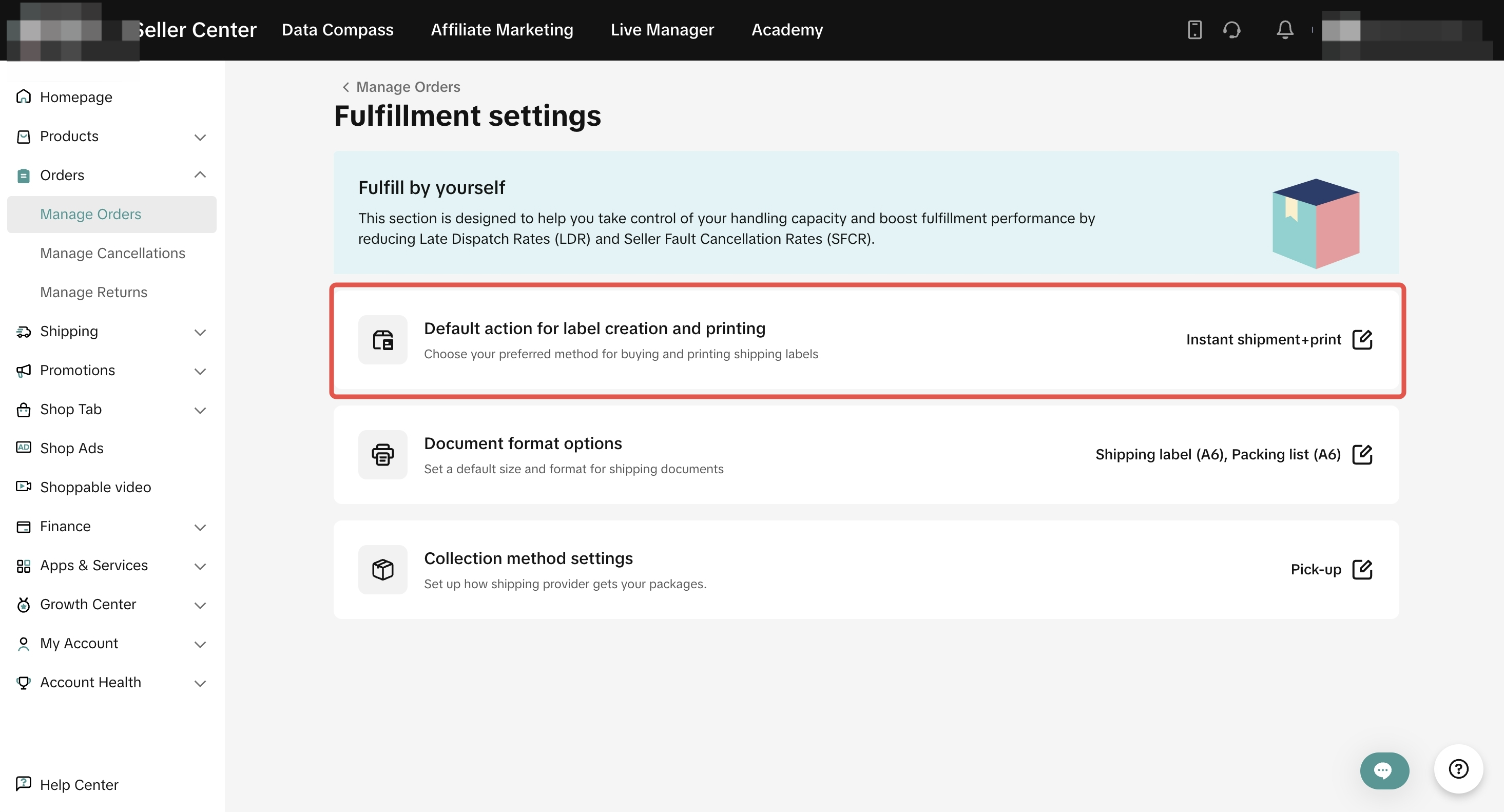
In order to start shipping orders, it is recommended that sellers set up the default actions for creating and printing labels, as well as configure the document format options.- Go to Fulfillment Settings
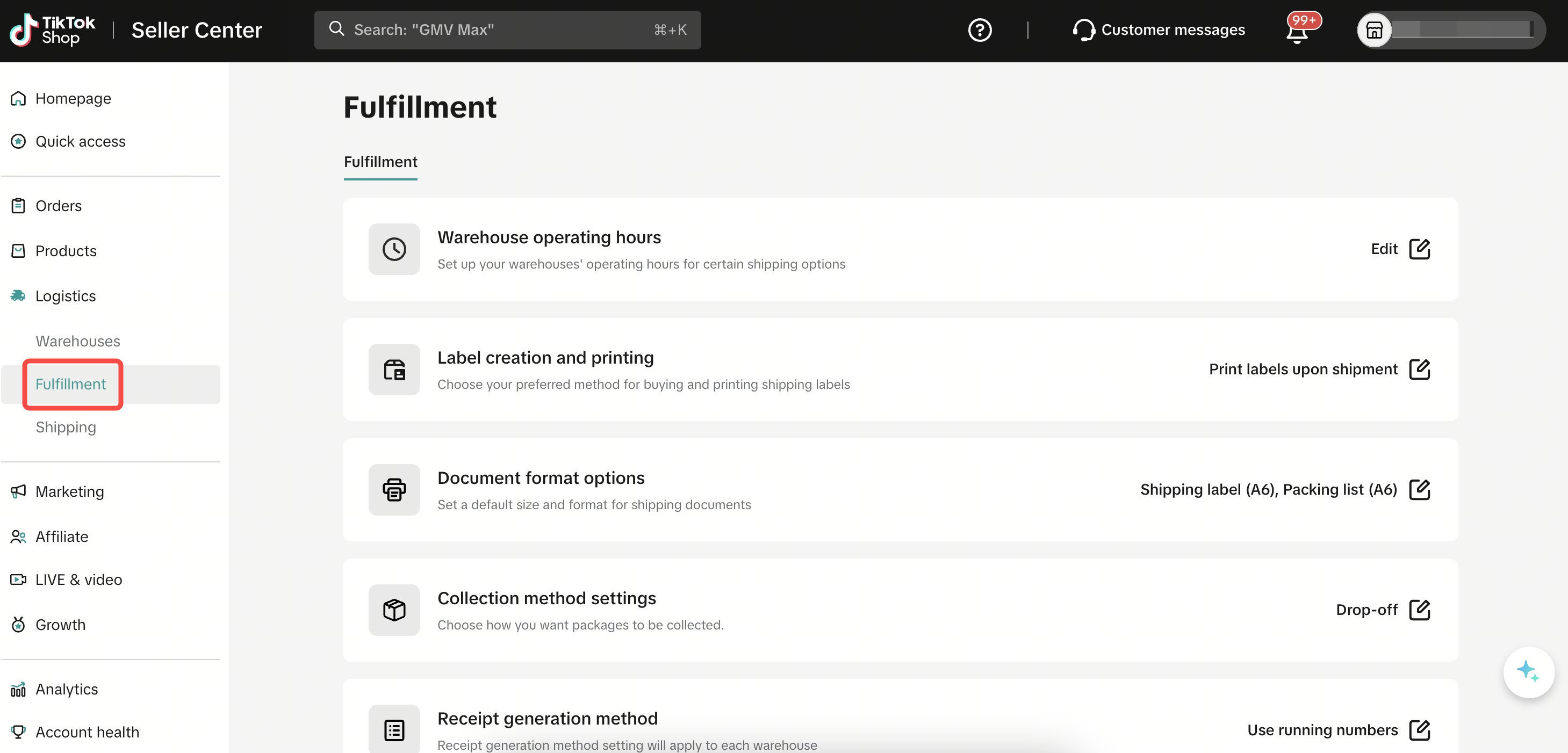
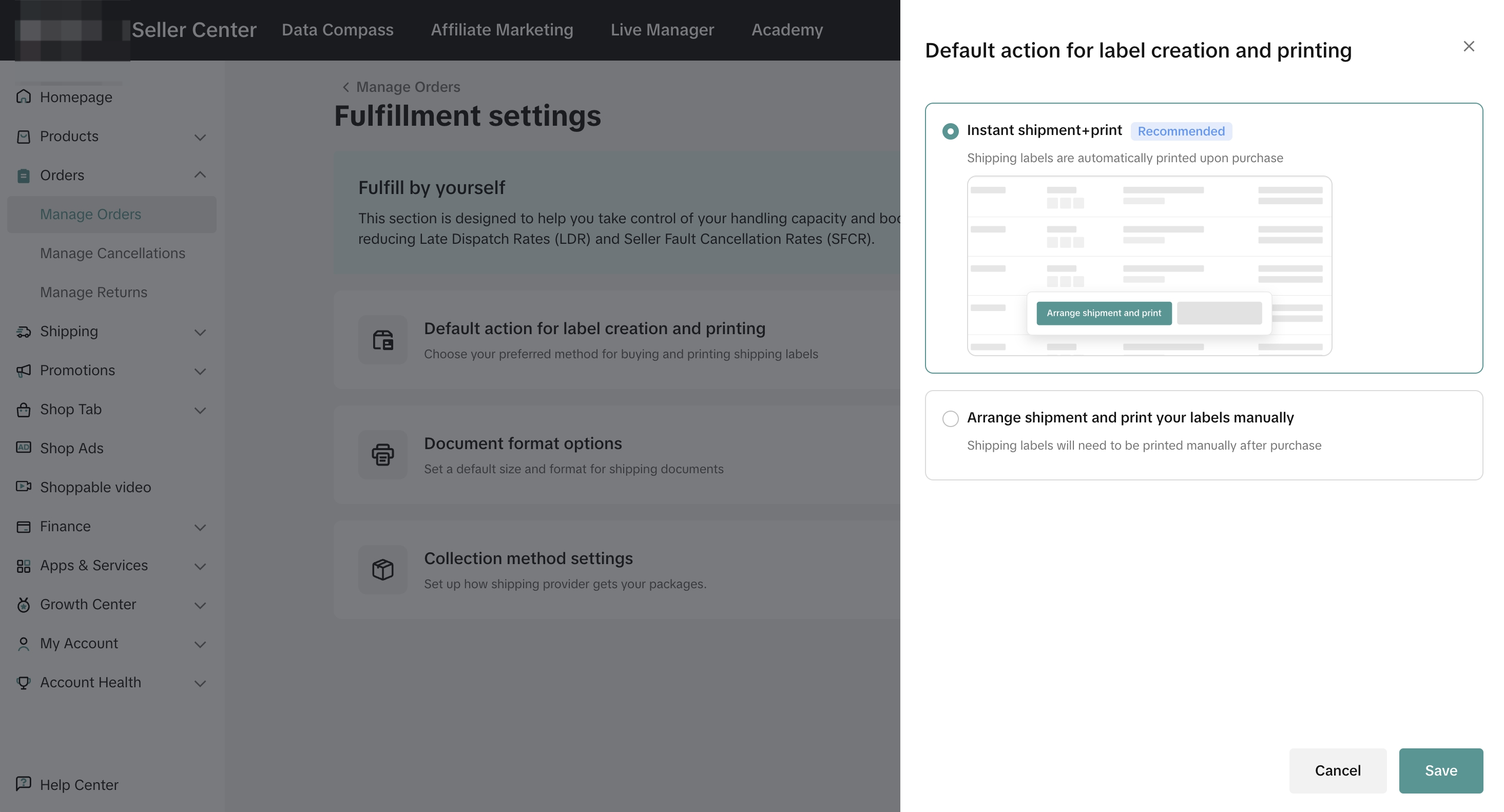
- Go to 'Default actions for label creation and printing' to configure your preferred option when arranging shipments
- Instant Shipment + Print: Automatically prints documents when a shipment is arranged
- Arrange Shipment and Print Manually: Allows manual printing of documents after arranging shipment.
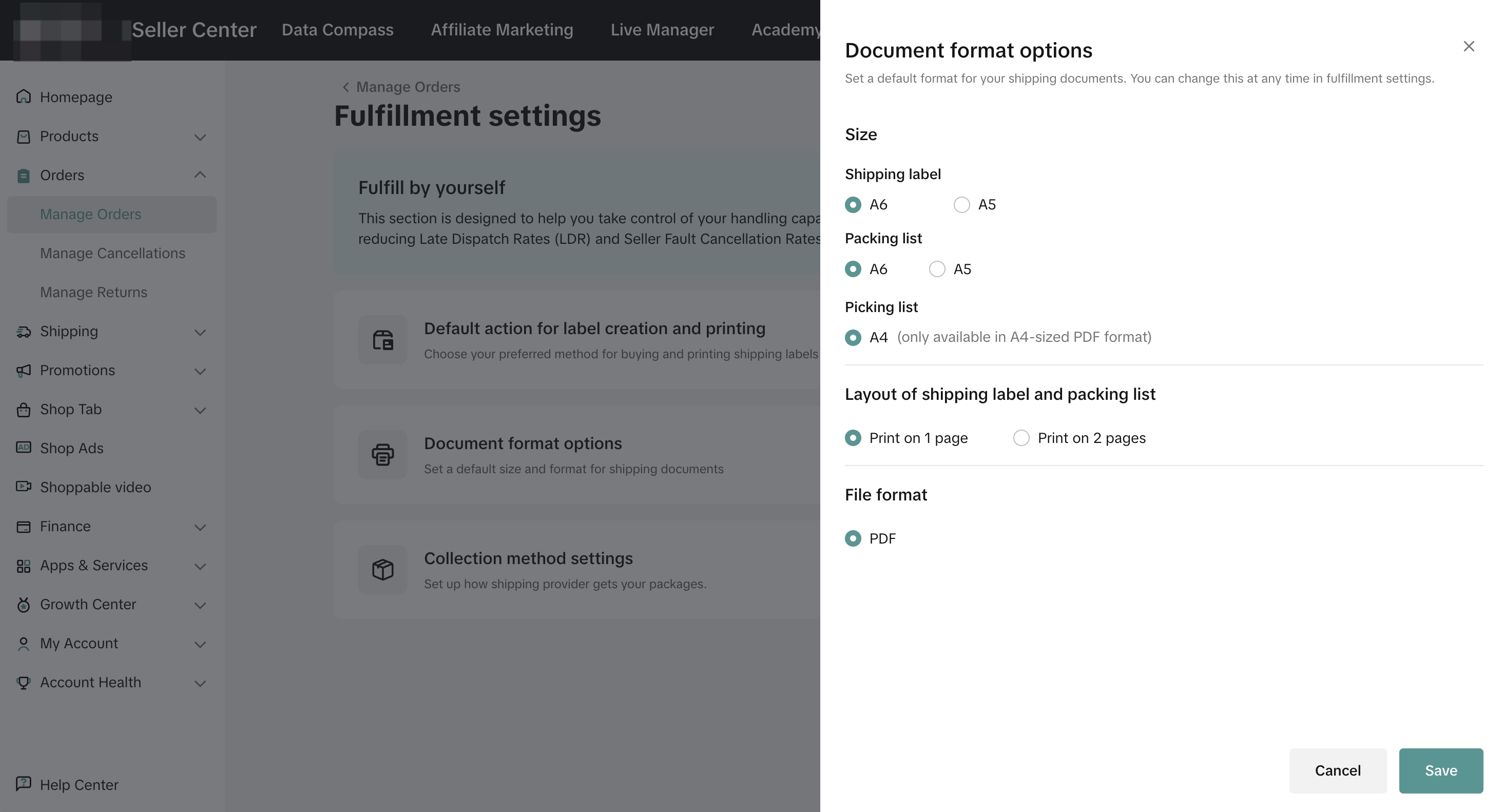
- Go to 'Document format options' to configure your document format for shipping labels, packing list, and picking List

How to Print Shipping Labels?
Once the label printing setup is completed, follow these steps for label and document printing:- Go to the Manage Orders page and select the orders you wish to print labels for. You can select multiple orders for batch printing or choose individual orders for printing. The default action will be displayed based on the setup of 'Default Actions for Label Creation and Printing'.
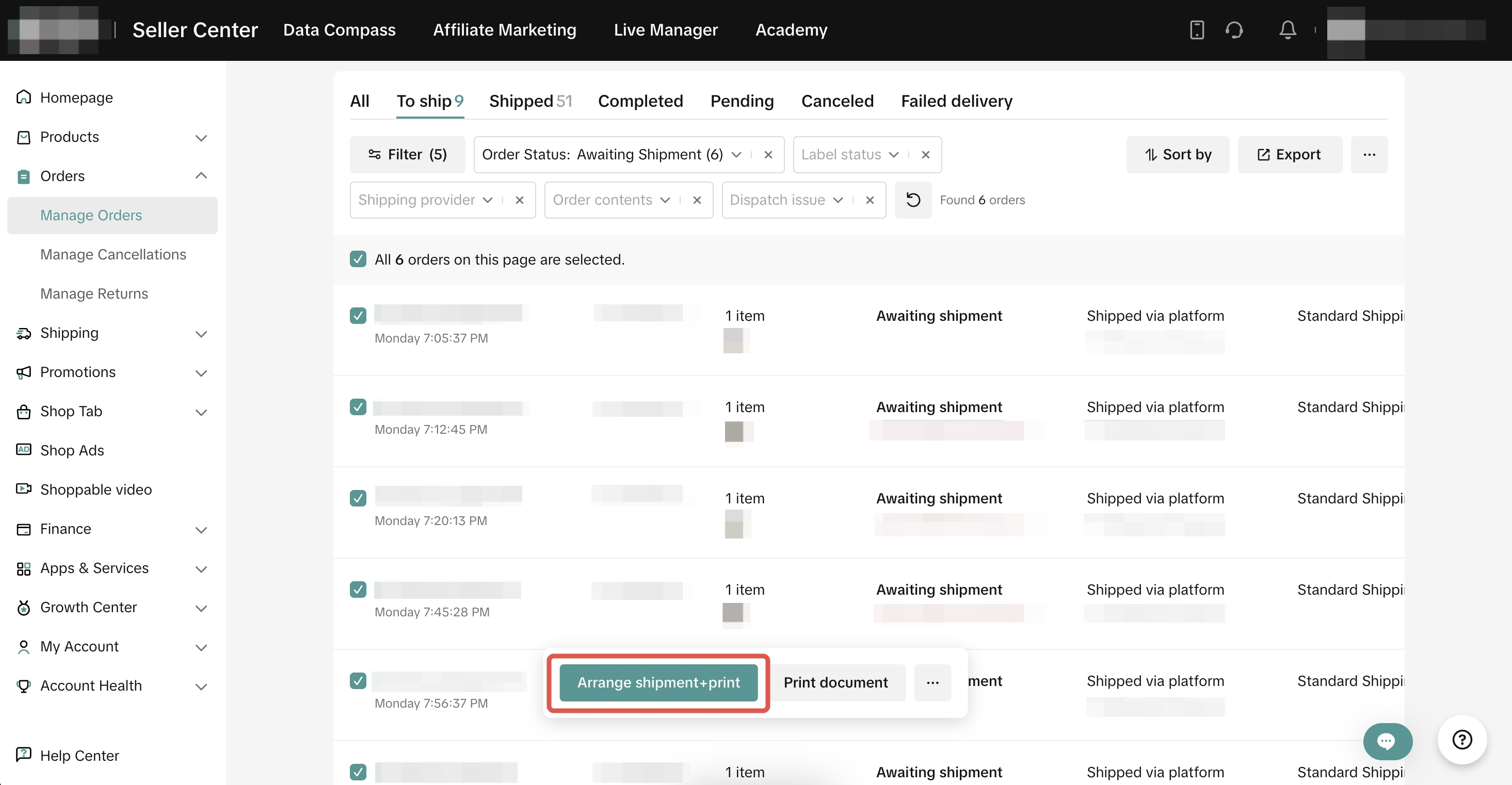
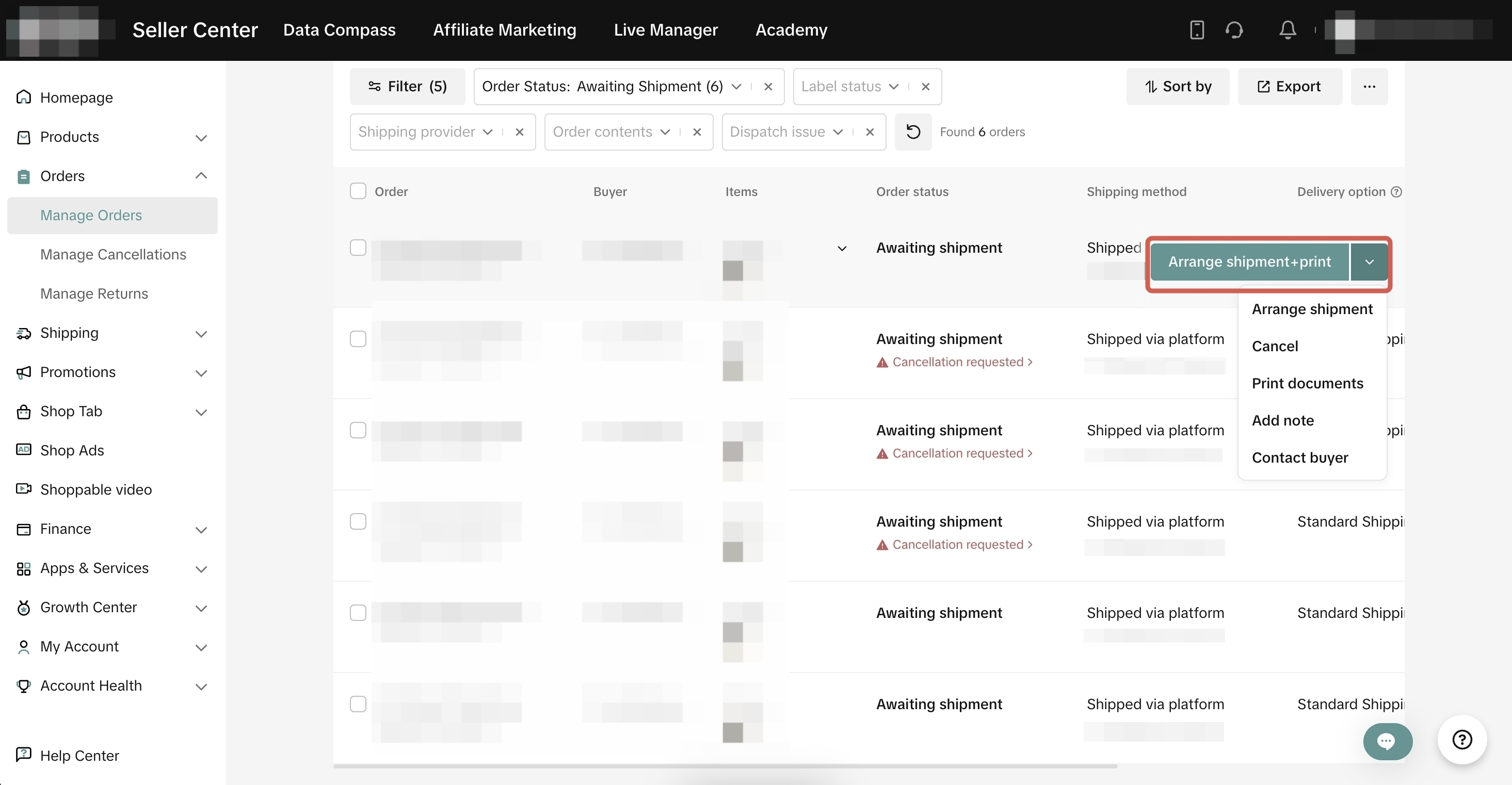
- If you would like to change the action, click on the ... and select the desired action, or navigate to the 'Default Actions for Label Creation and Printing' page to update the setup.
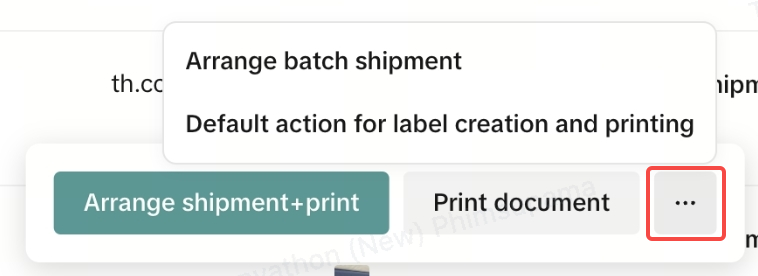
- The printing documents can be set up by placing your cursor over the 'Arrange Shipment' button and then selecting Edit to choose and select document to print.
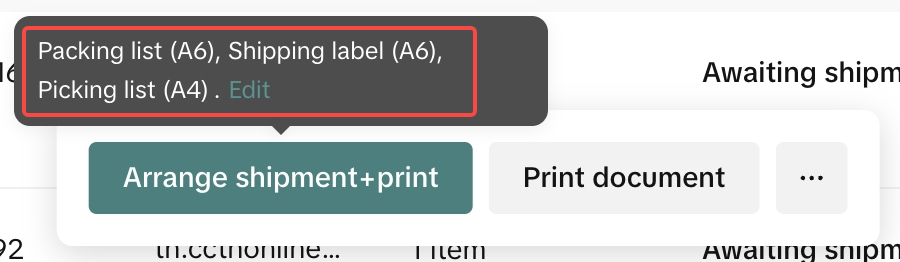 Click edit to do print settings
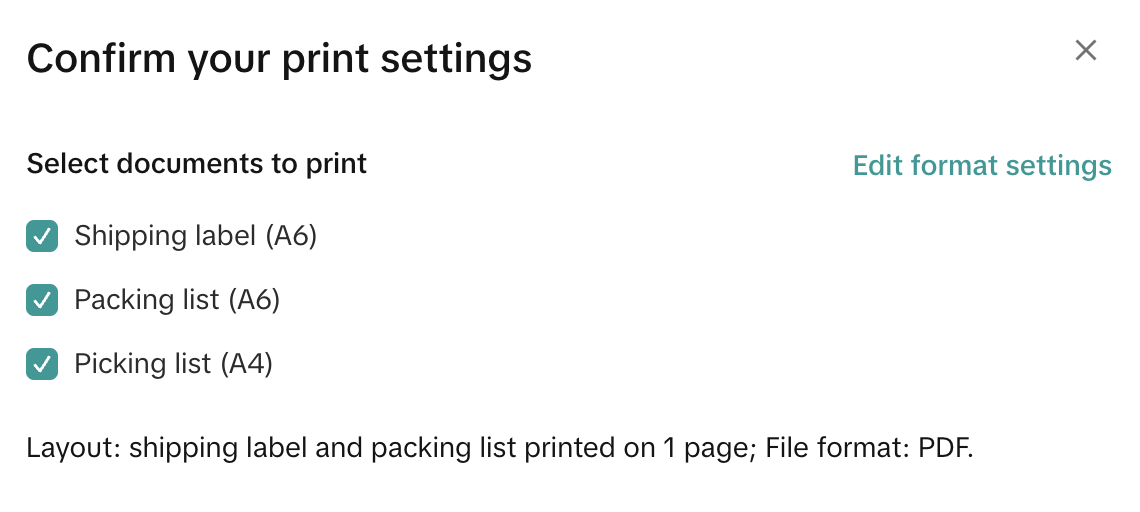 select documents to print
- The system will automatically generate shipping labels and all related documents. In case of any errors, the system will provide you with a comprehensive overview of the printing results. Take a moment to check for any issues and follow the brief instructions for your next steps.
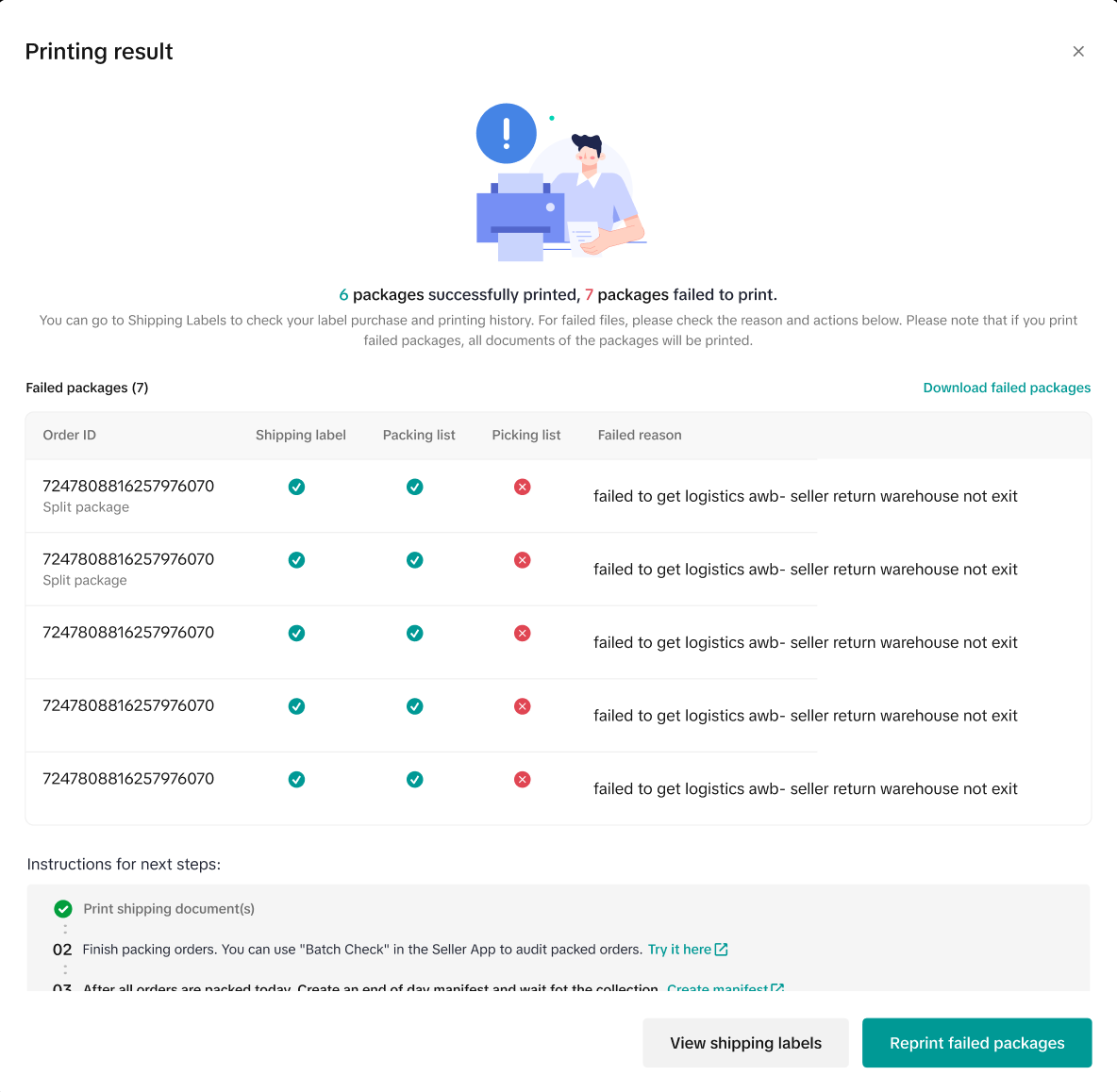
- If you wish to print another batch of shipping labels, navigate to the Manage Orders page, and repeat all the steps mentioned above once again.

Troubleshooting Shipping Label Issues
While creating and printing shipping labels, you may encounter common issues. Don't worry; we have a guide to assist you in troubleshooting these concerns.My Shipping Label is Rejected
When generating shipping labels, the platform must verify shipping information with shipping providers. If we receive an error code from them, the shipping labels may be rejected.Here's what you need to do:
- Check the reason for the rejected label by hovering over the 'Label Rejected' status. The platform will provide reasons for the error and suggest the next steps to resolve the issue.
- An issue with the buyer's address
- An oversized product
- An order failure with the shipping provider
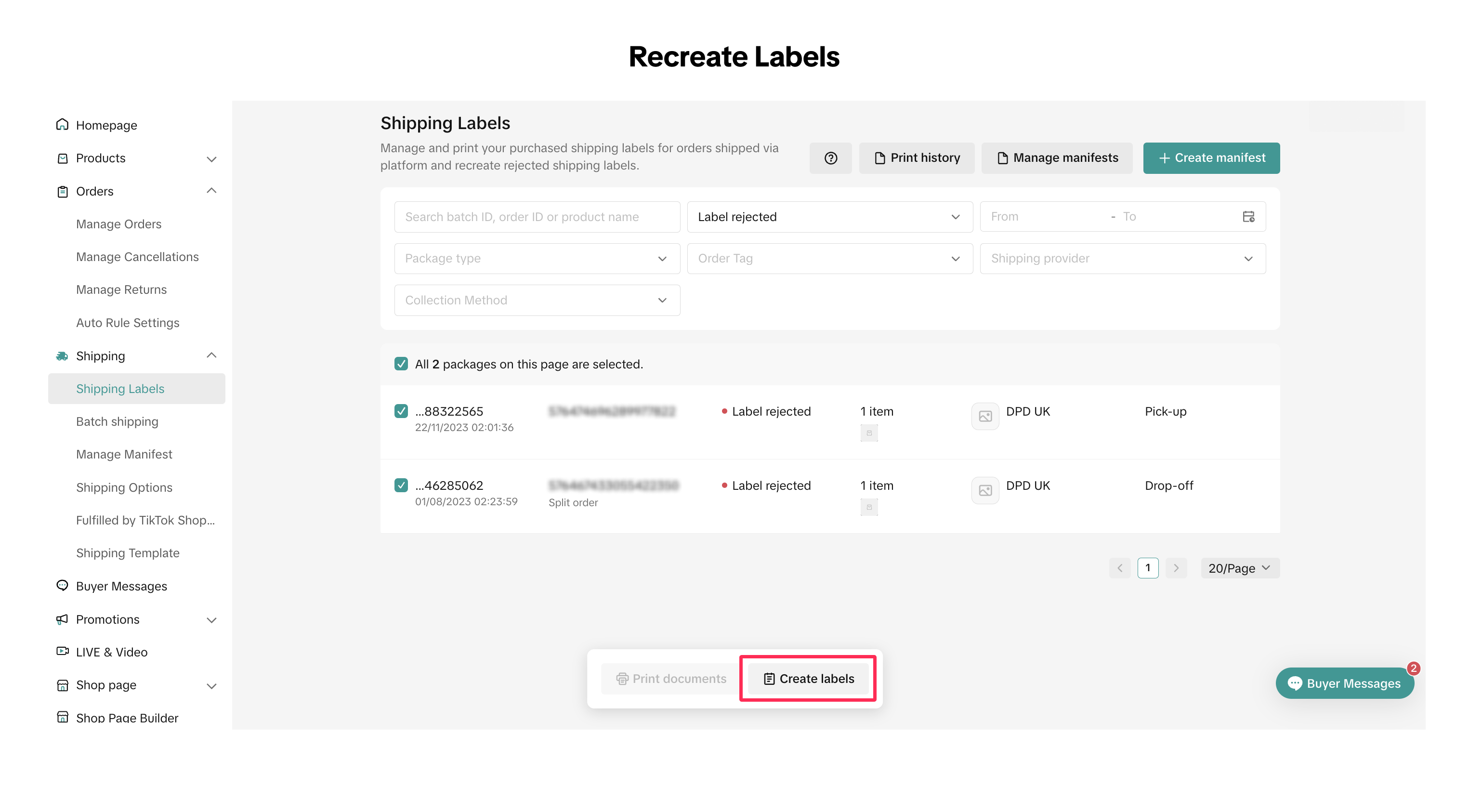
- Once the error has been resolved, you can click 'Recreate Label' to obtain the shipping label again. Alternatively, navigate to Manage Orders > Shipping Labels page, locate the specific shipping labels you want to recreate, and click 'Recreate Label.'
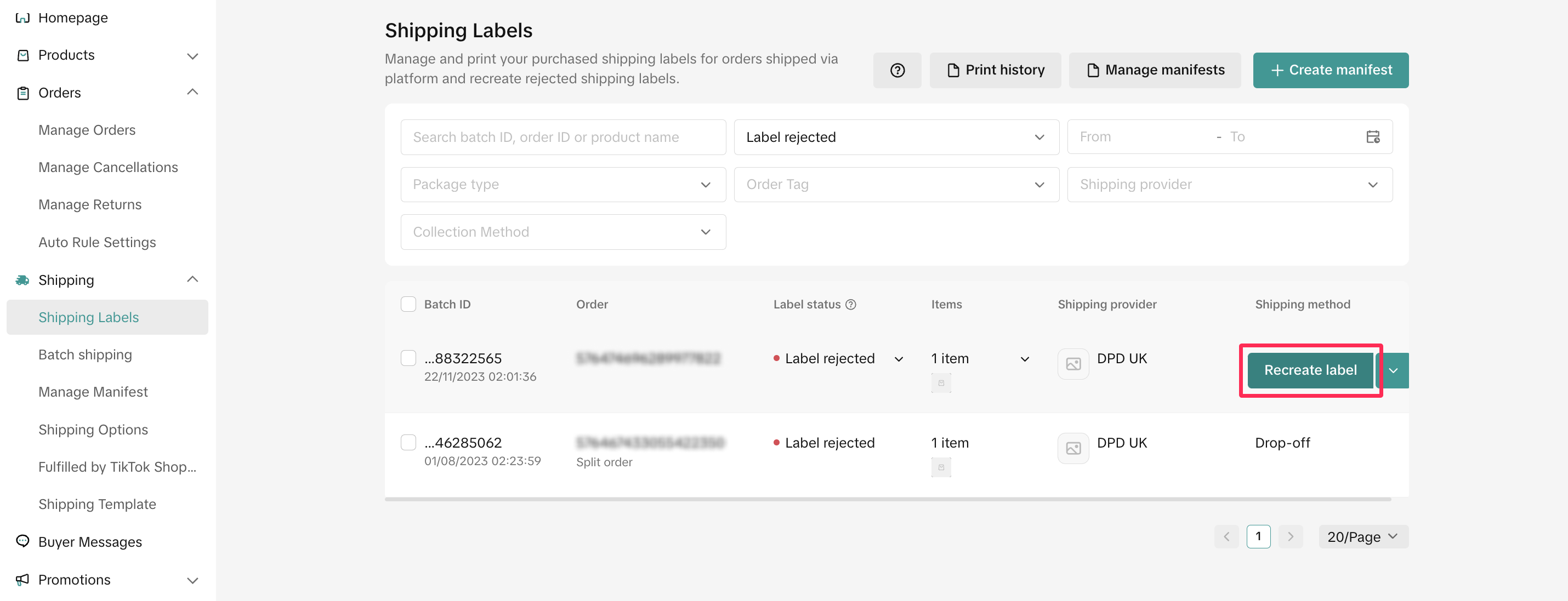
Printing Failure
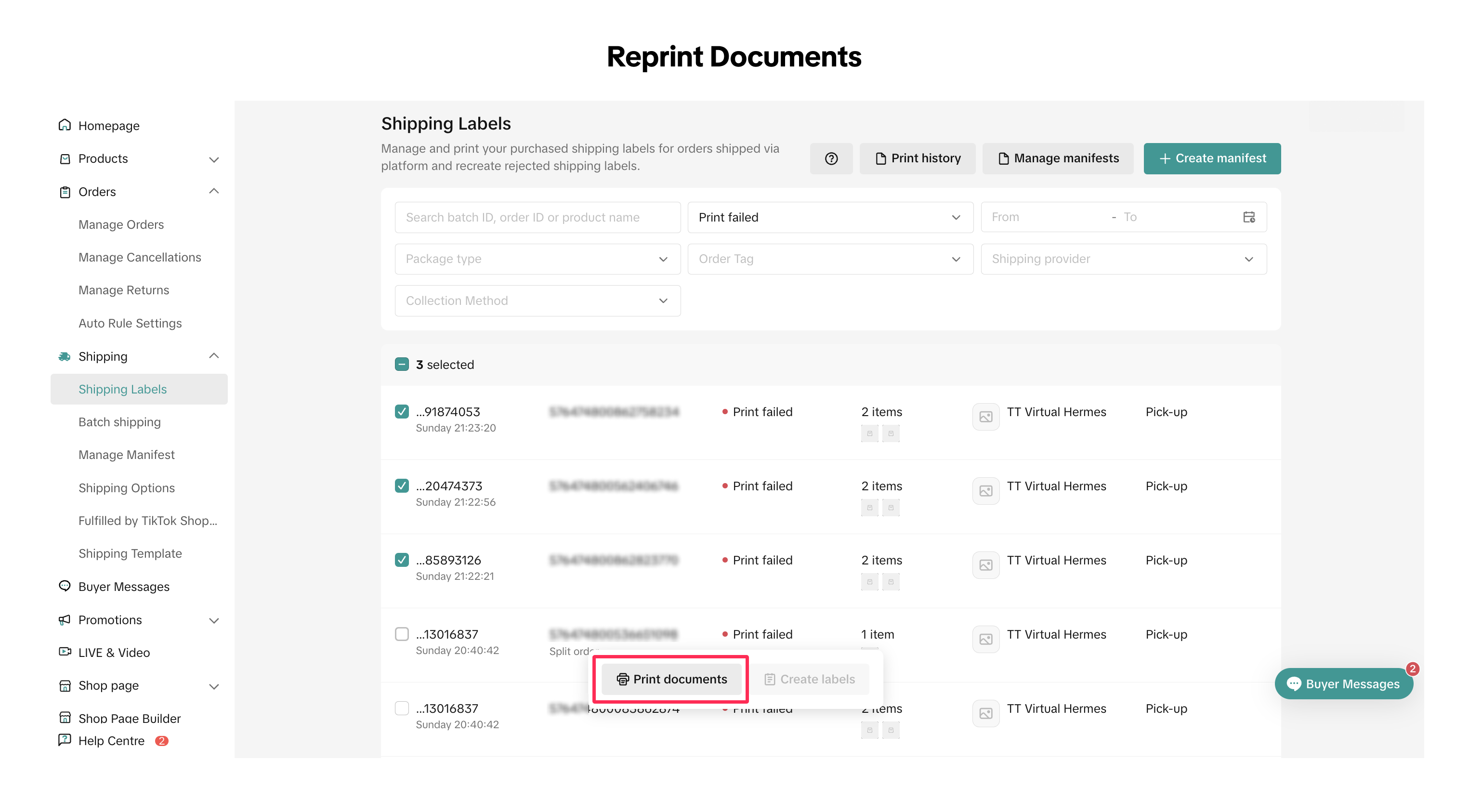
If your attempt to print a shipping label and packing list encounters an issue, any failures will be showcased in the Printing Result. The display will include order IDs and the reasons for the printing failure.You can retry printing by clicking 'Reprint Failed Packages' or you may choose to 'View Shipping Labels' for more detailed information.
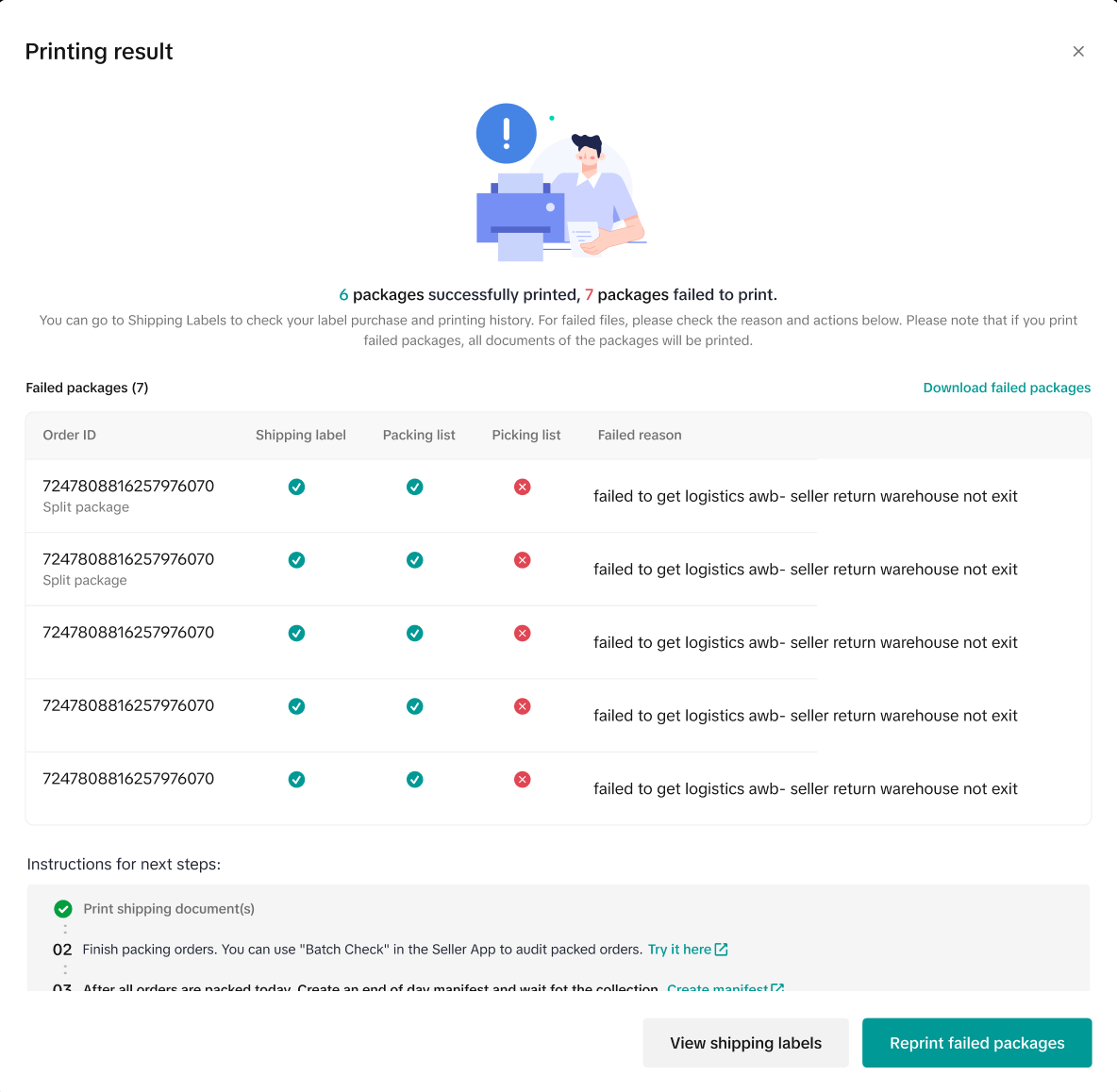

Recreating or Reprinting Shipping Labels
Once you have successfully addressed any issues with your failed labels and are prepared to recreate or reprint them, follow these steps on the new Shipping Labels page.- Access the Shipping Labels page by navigating to Manage Orders > Shipping Labels. Here, you will find a comprehensive list of all the shipping labels you have generated.
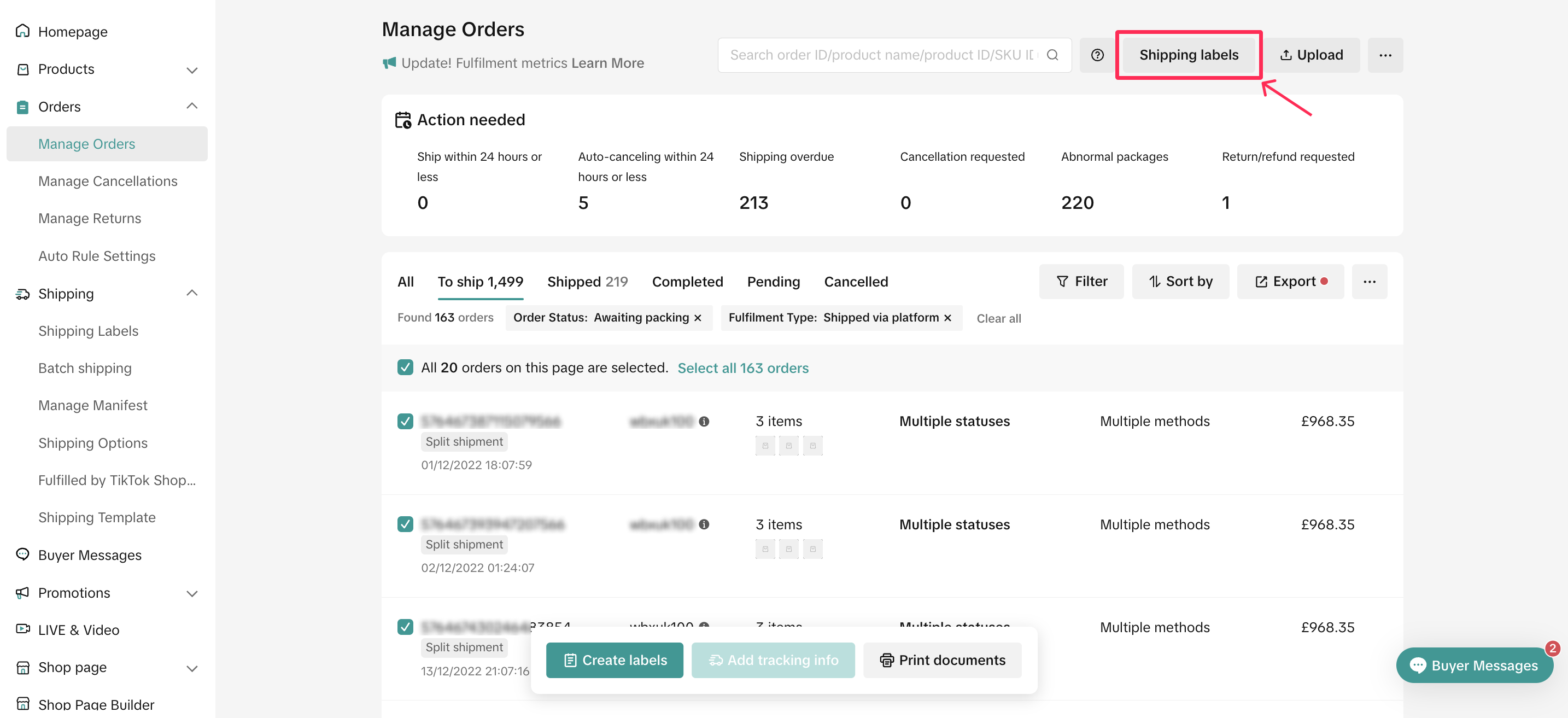
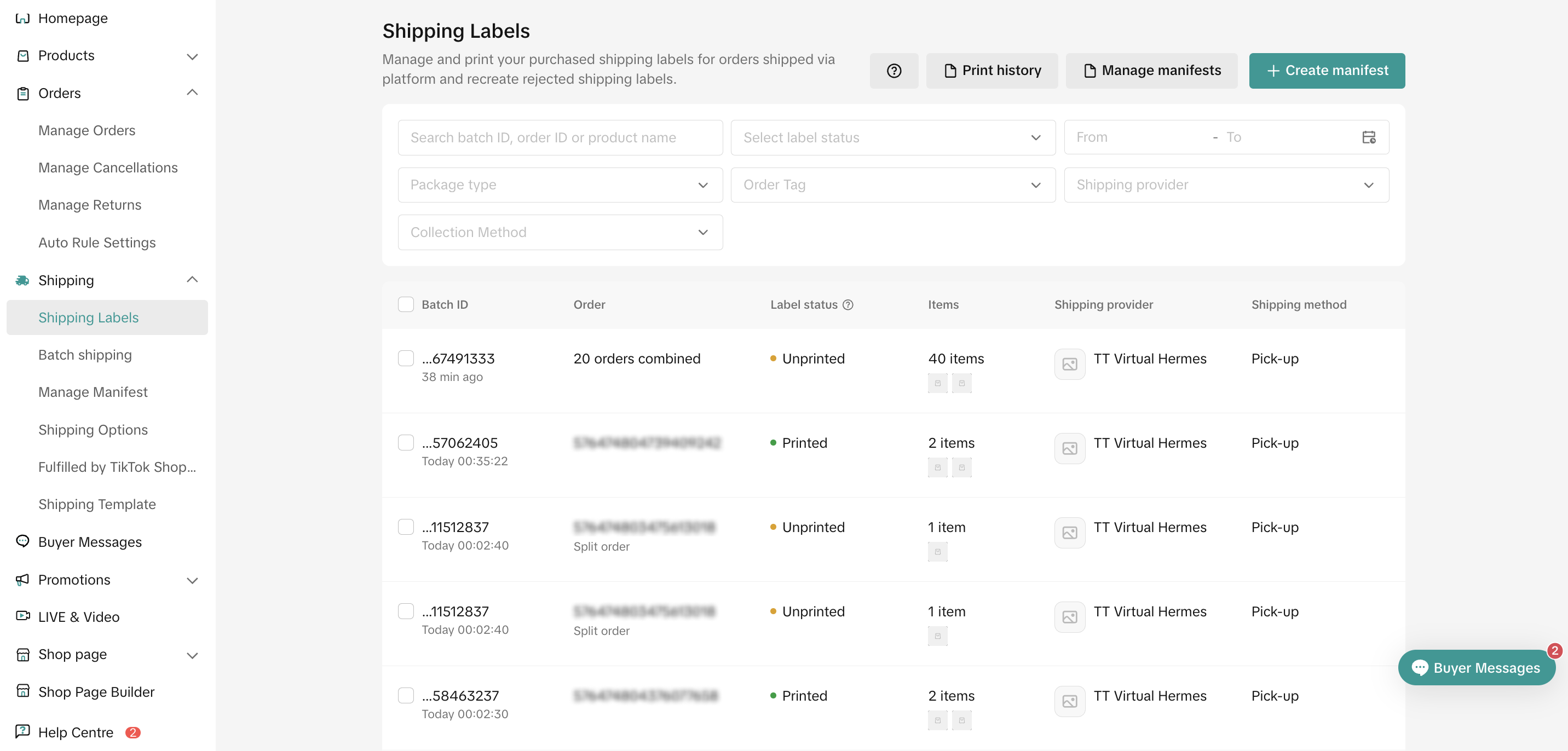
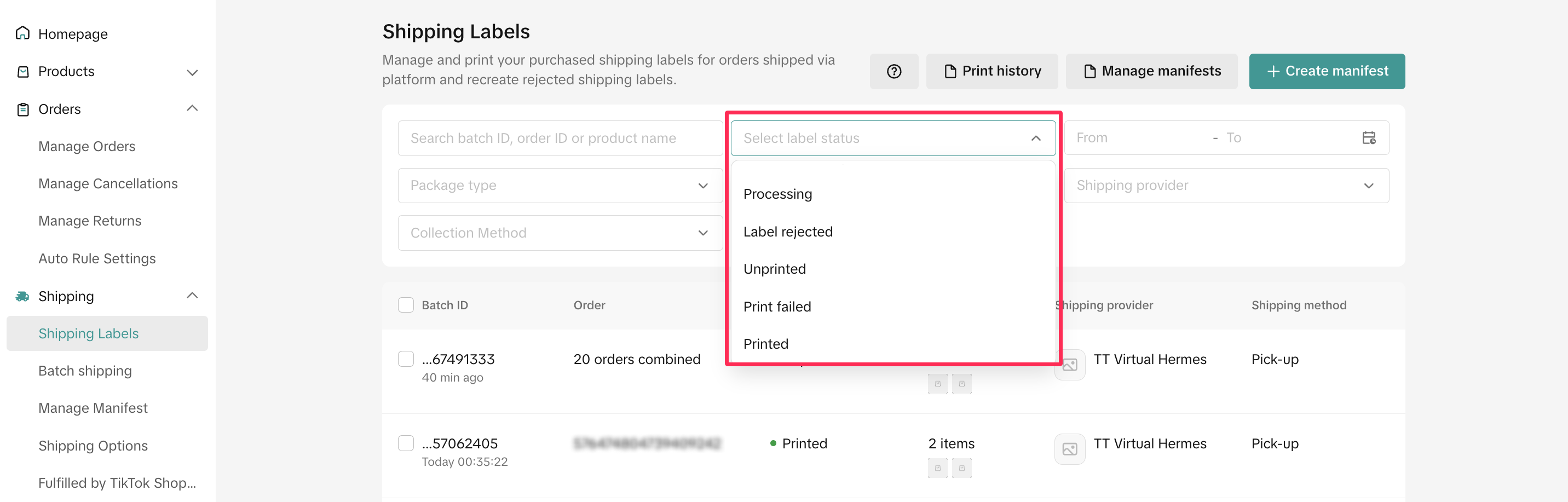
- Locate the specific orders for which you want to recreate or reprint shipping labels by filtering the orders based on the label status.
- After filtering your orders, select the individual orders or use multi-select, then click 'Create Labels' or 'Print Documents,' depending on the action you wish to take.

Viewing Printing History
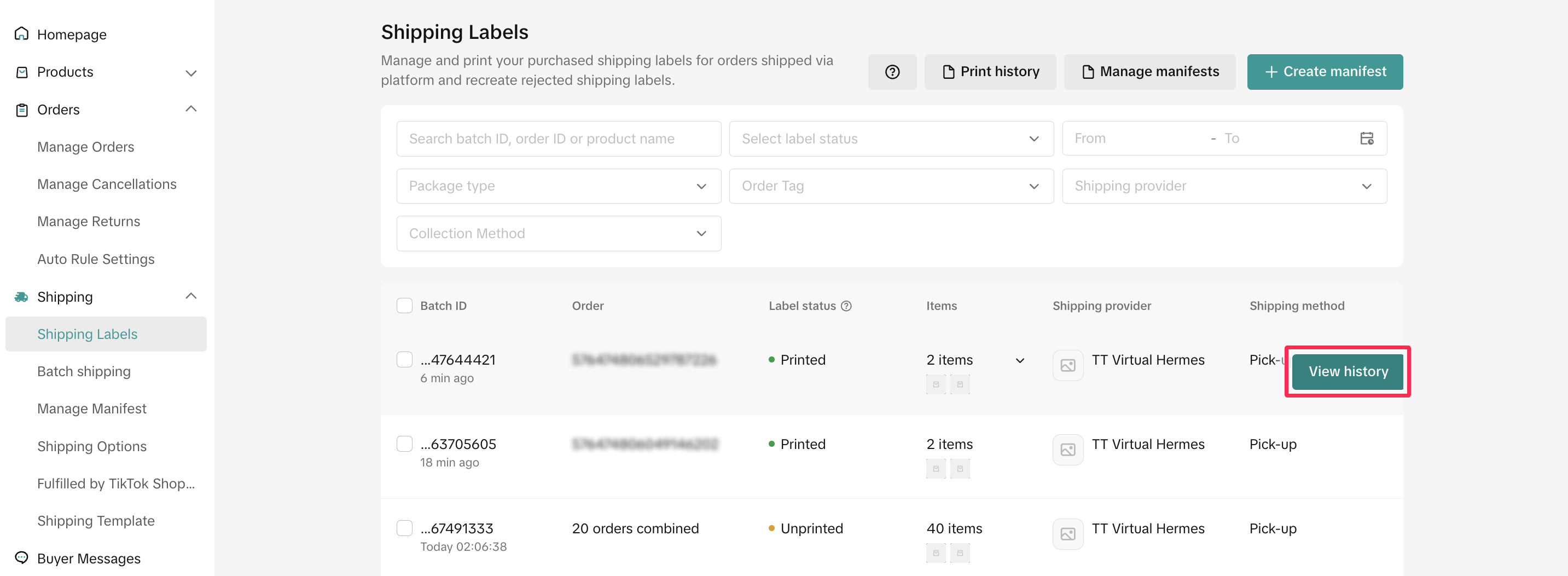
You can effortlessly review detailed package information, monitor the status of your labels for each order, and view your printing history on the Shipping Labels page. Simply follow these steps:- Navigate to Manage Orders > Shipping Labels page and click on 'View History' for the order you wish to explore the shipping label history, from label creation to label printing.
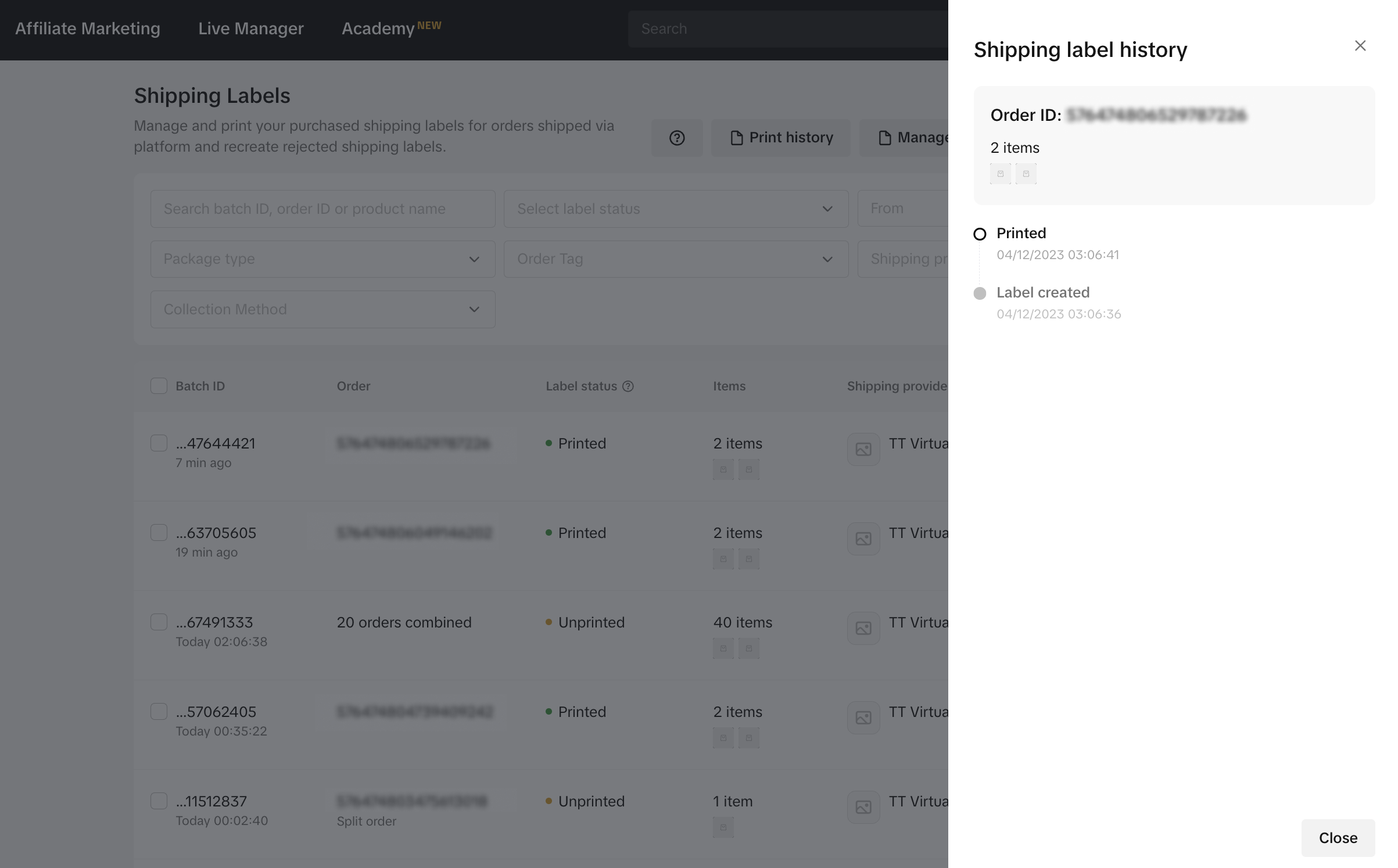
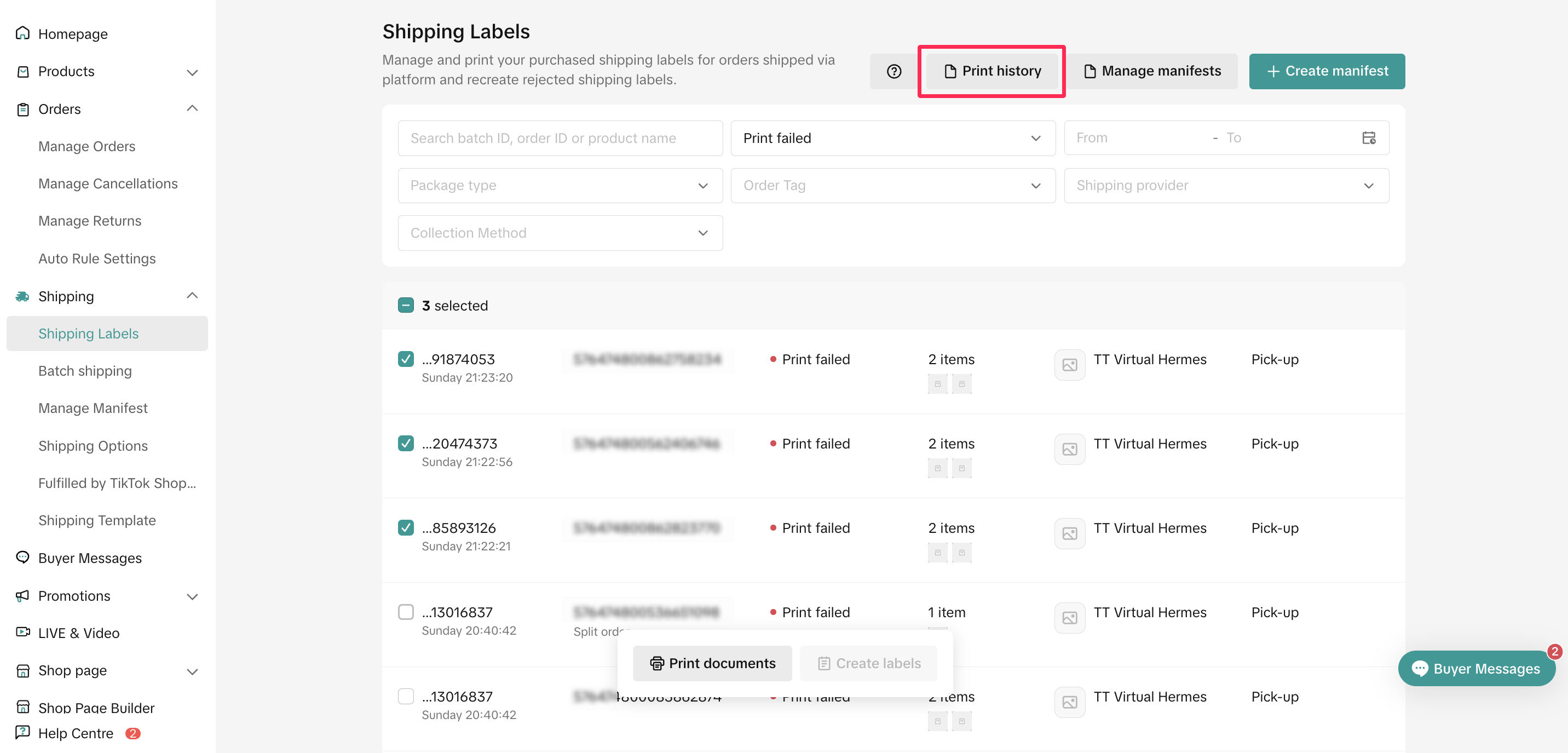
- Alternatively, click 'Print History' at the upper right corner of the Shipping Labels page to review the past printing records.
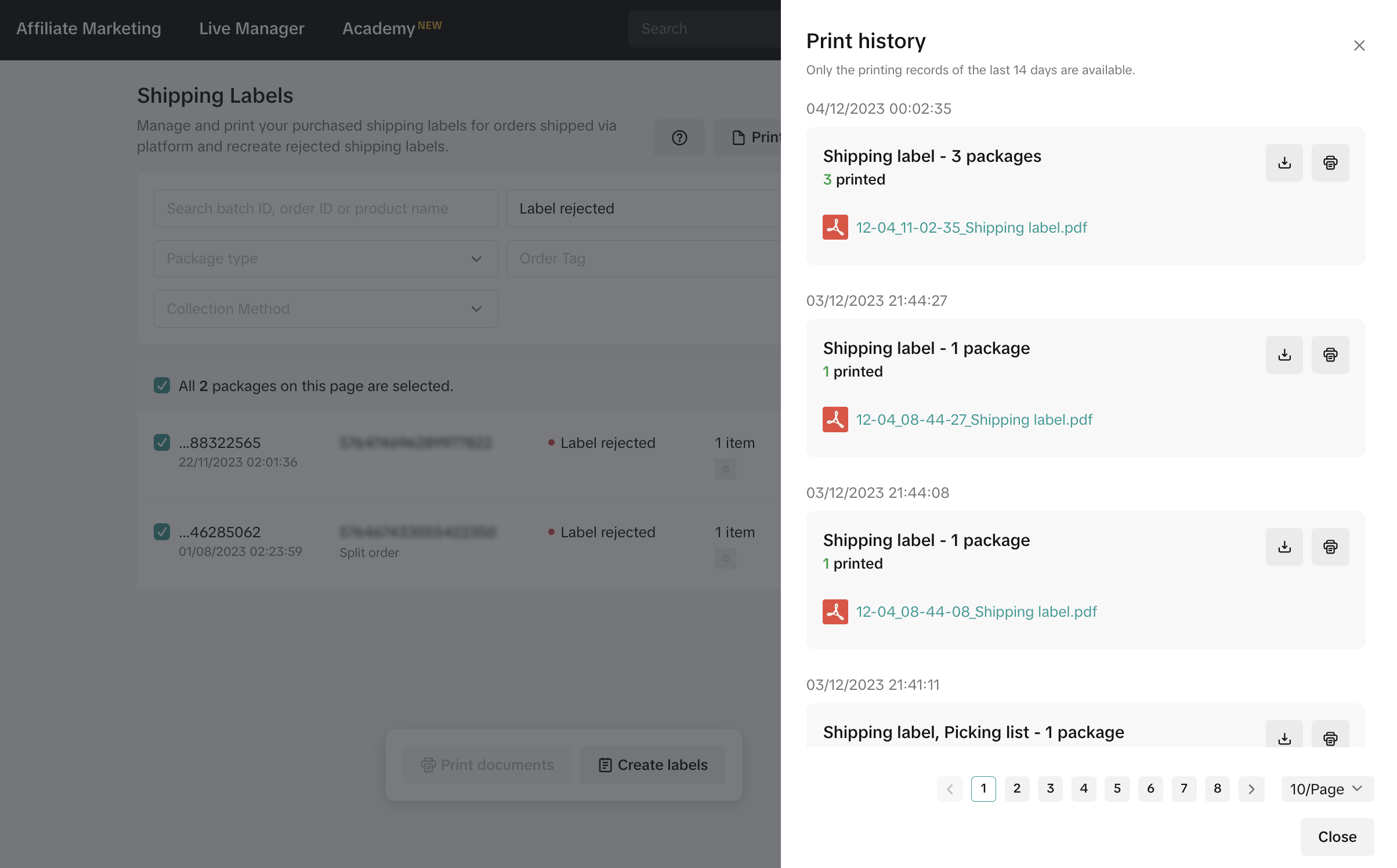
- Within this section, you can see the printing records from the last 14 days, where you have the option to download the PDF file of shipping labels or print them again.
You may also be interested in

Managing Orders on Seller Center App
In this article, we will introduce you to the new Orders page on the Seller Center app and how you c…

Managing Failed Delivery Orders
In this article, we will guide you on how to manage and keep track of failed delivery orders. You wi…

What should I do if wrong information is printed on the ship…
Unfortunately, if you made a mistake on your pickup/return warehouse address on the shipping label,…

Can I switch between the "Ship by Platform" and "Ship by Sel…
Currently, we don't support switching the shipping method for existing orders. Please proceed with…

When is an order status considered "Abnormal"?
It is likely that the order is still in transit for seven (7) days or more. If the order is still wi…

What do I do if my order is lost or damaged?
Only Shipped via Platform orders are eligible for reimbursement. You will be reimbursed under the fo…

What if a buyer rejects my order?
If a buyer rejects your order, the course of action you take depends on whether the order is Cash on…

Managing Orders
This article will guide you through our new Manage Orders page to help you become familiar with the…

Combining Orders into a Single Package
This article provides a simple guideline on combining multiple orders into a single package, giving…

Late Dispatch Rate (LDR)
Note: Orders with Instant, Sameday, and Sameday 8-hour delivery are only available via Tokopedia. Cl…