

A Complete Guide to 'Shipped via Platform'
03/27/2026
- For new incoming orders from both platforms AFTER the integration*, you will need to manage and process these orders in the ShopTokopedia Seller Centre.
- For historical or existing orders (including pre-orders) from Tokopedia BEFORE the integration, you will need to manage and process them from the Tokopedia Seller Dashboard. This means you must monitor the Tokopedia Seller Dashboard until all orders and aftersales requests have been fully processed, which may take up to 90 days if you have any 90-day pre-orders.

Important Shipping Timelines
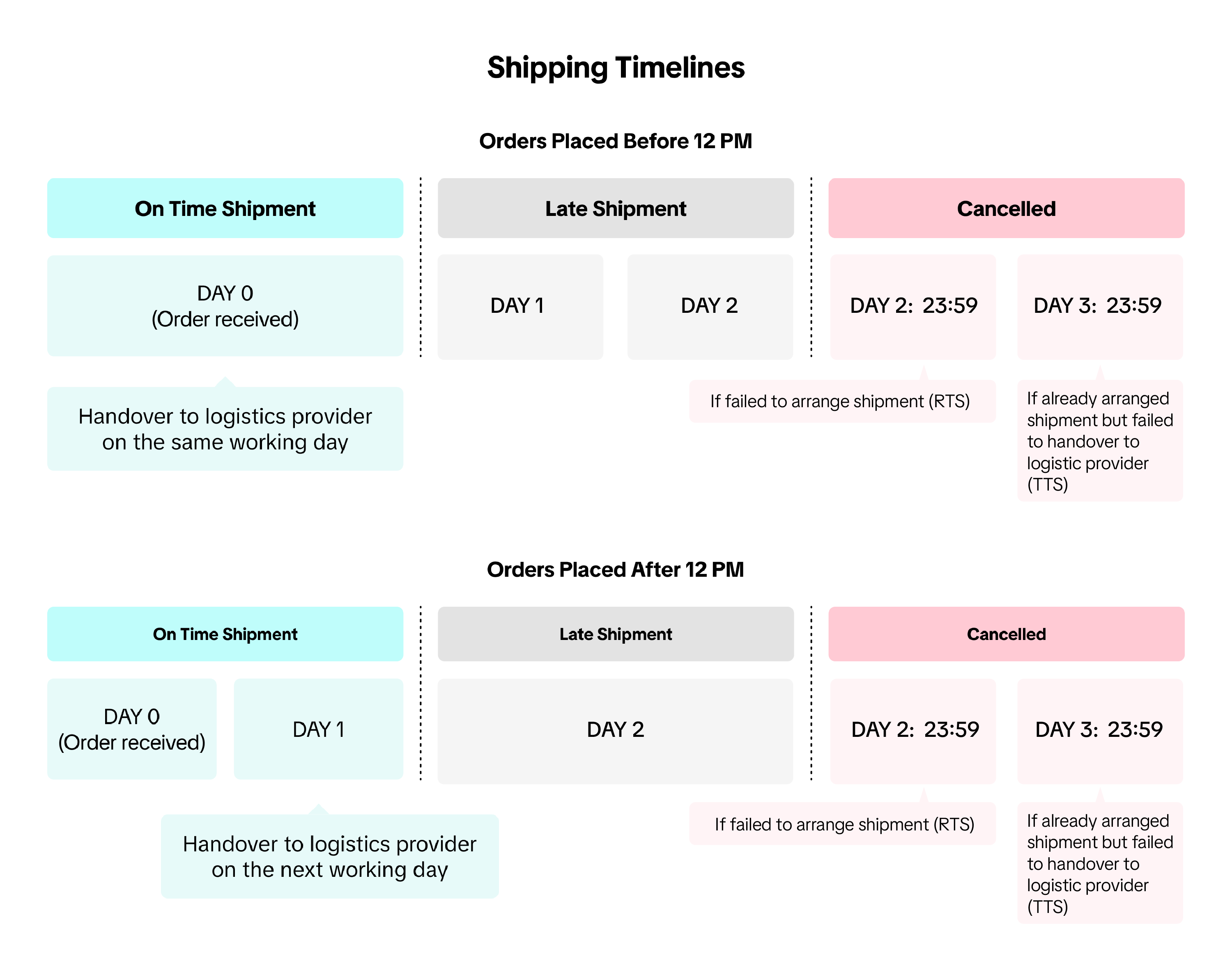
To avoid late dispatch, which impacts your LDR (Late Dispatch Rate), follow these shipping timelines for Standard, Economy, and Cargo orders:- Orders placed before 12:00 (12 pm): Update the order status to 'Shipped' by 23:59 on the same working day.*
- Orders placed after 12:00 (12 pm): Update the order status to 'Shipped' by 23:59 on the next working day.
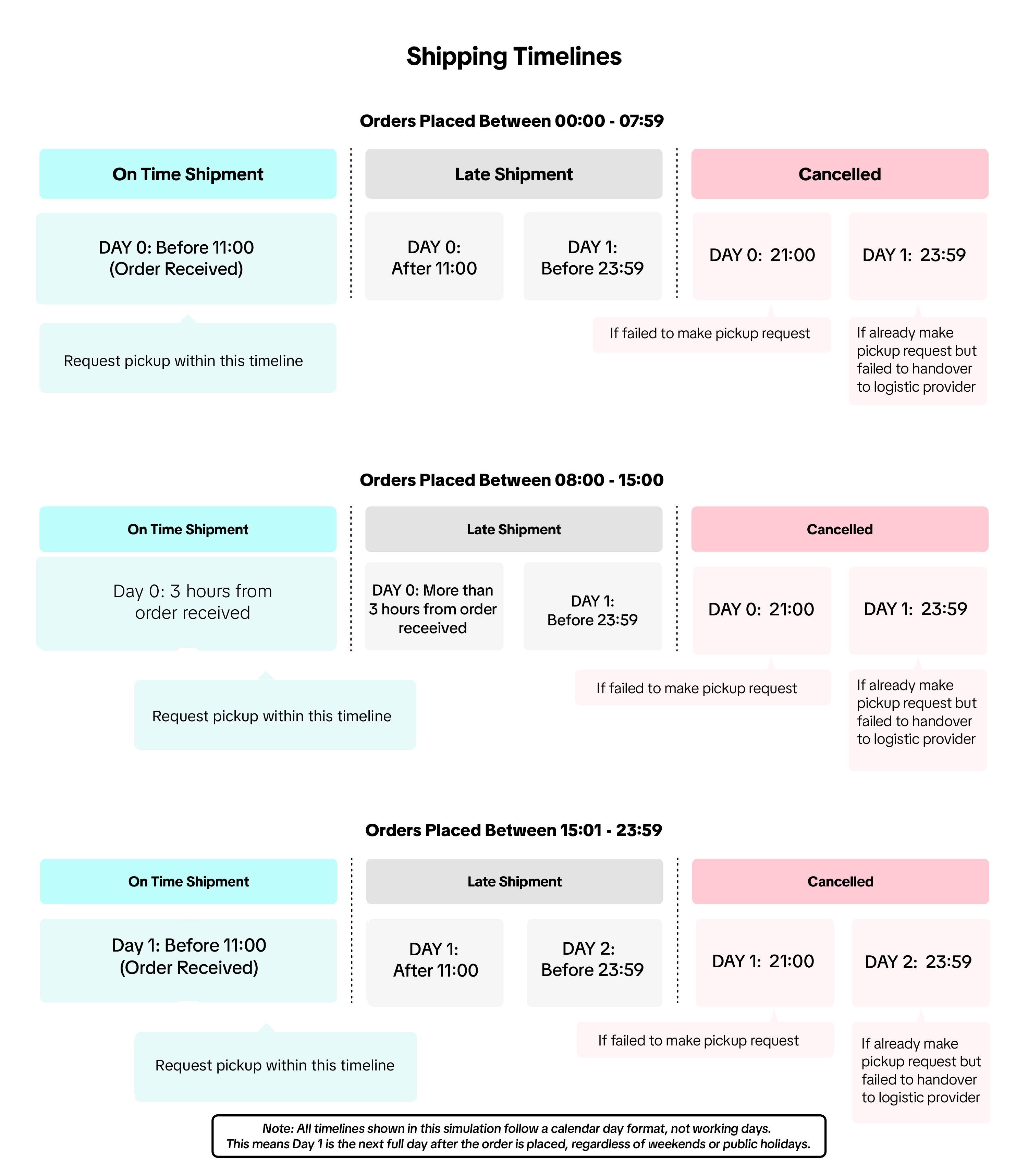
- Orders placed between 00:00 - 07:59: Seller must do pickup request by 11:00 within the same calendar day*
- Orders placed between 08:00 - 15:00: Seller must do pickup requests 3 hours from when the order was placed*.
- Orders placed between 15:01 - 23:59: Seller must do pickup request by 11:00 within the next calendar day
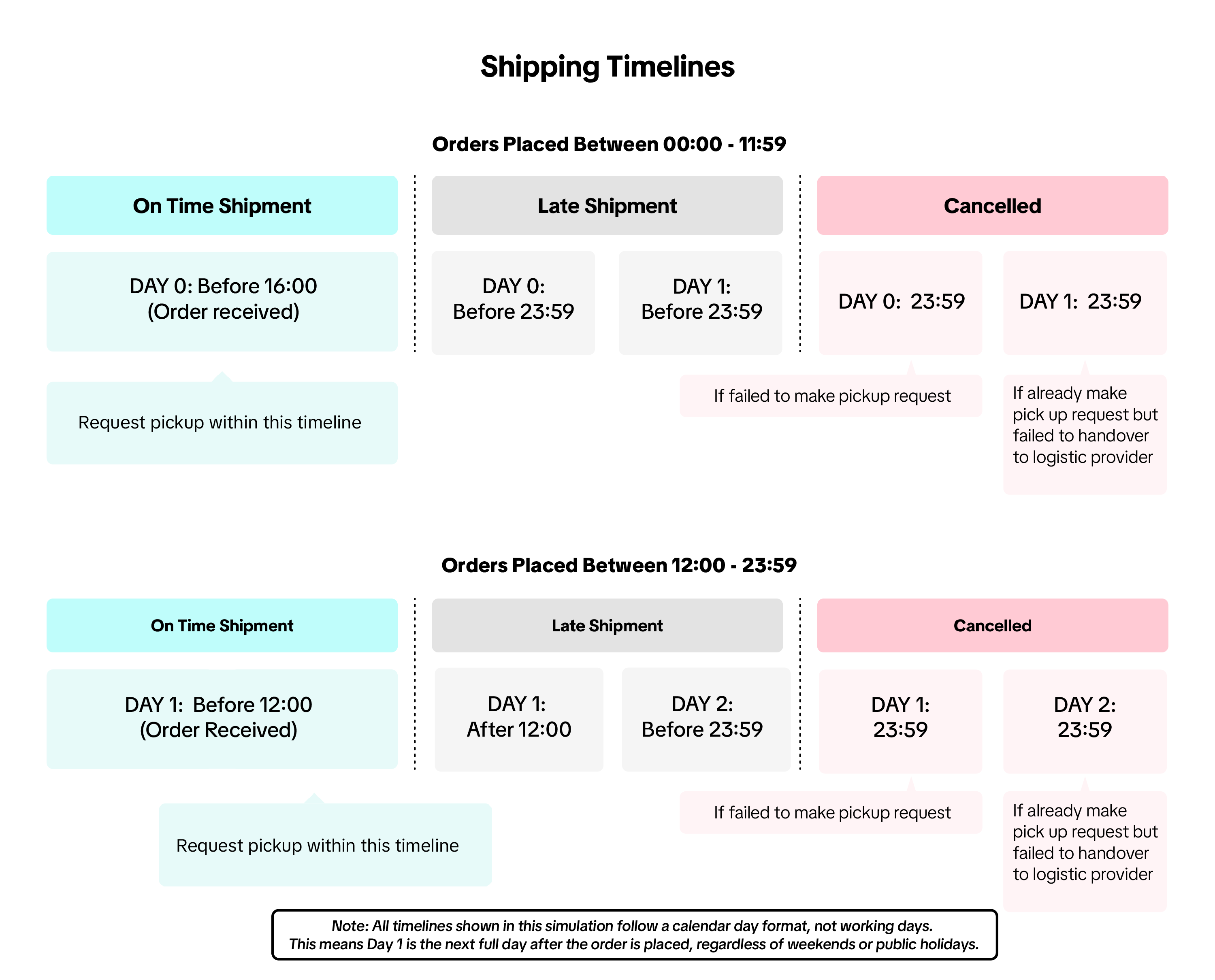
- Orders placed between 00:00 - 11:59: Seller must do pickup request by 16:00 within the same calendar day*
- Orders placed between 12:00 - 23:59: Seller must do pickup request by 12:00 within the next calendar day
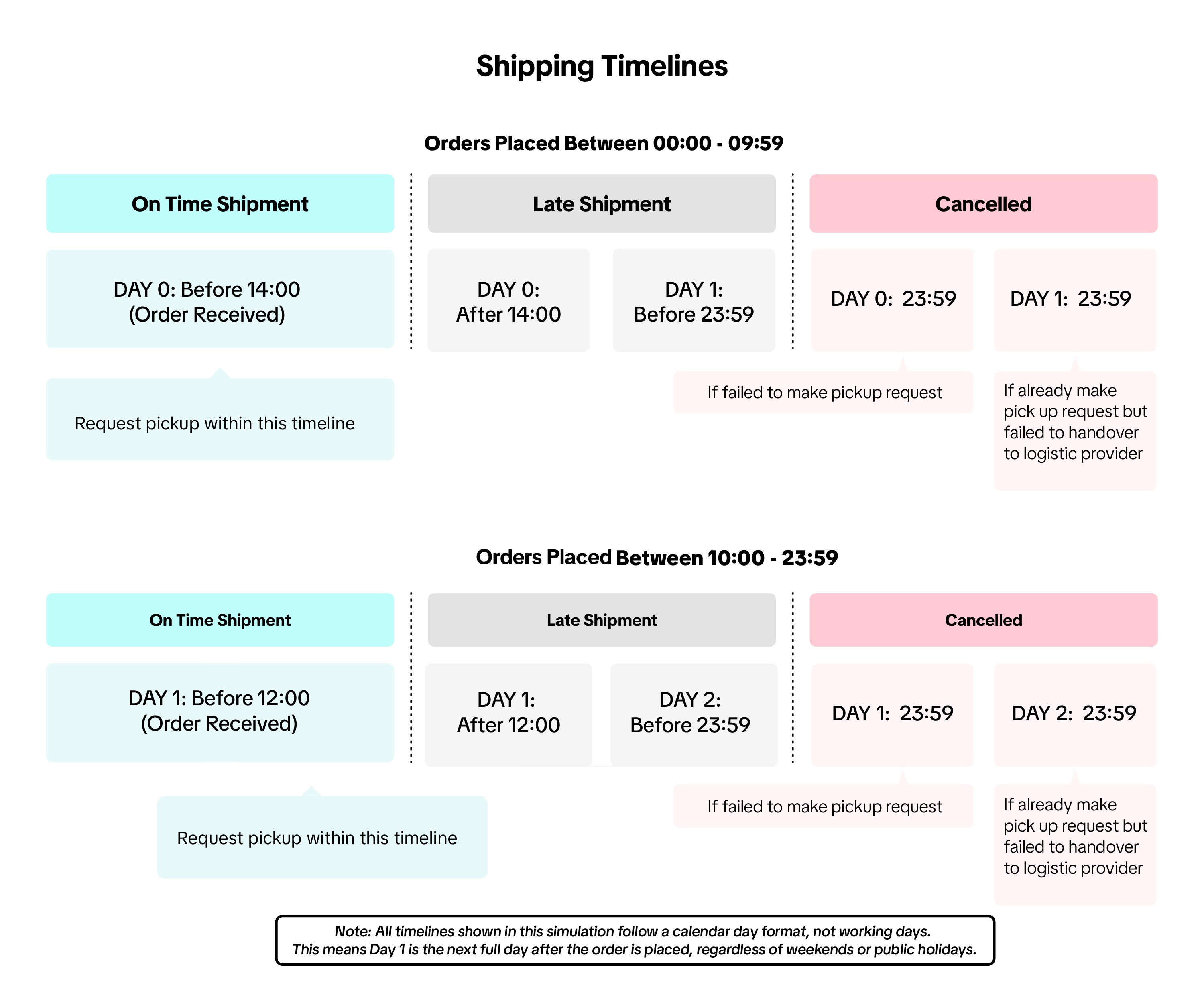
- Orders placed between 00:00 - 09:59: Seller must do pickup request by 14:00 within the same calendar day*
- Orders placed between 10:00 - 23:59: Seller must do pickup request by 12:00 within the next calendar day

How to Ship Your Orders
Take a look at this flowchart to understand the steps involved in shipping your orders from start to finish.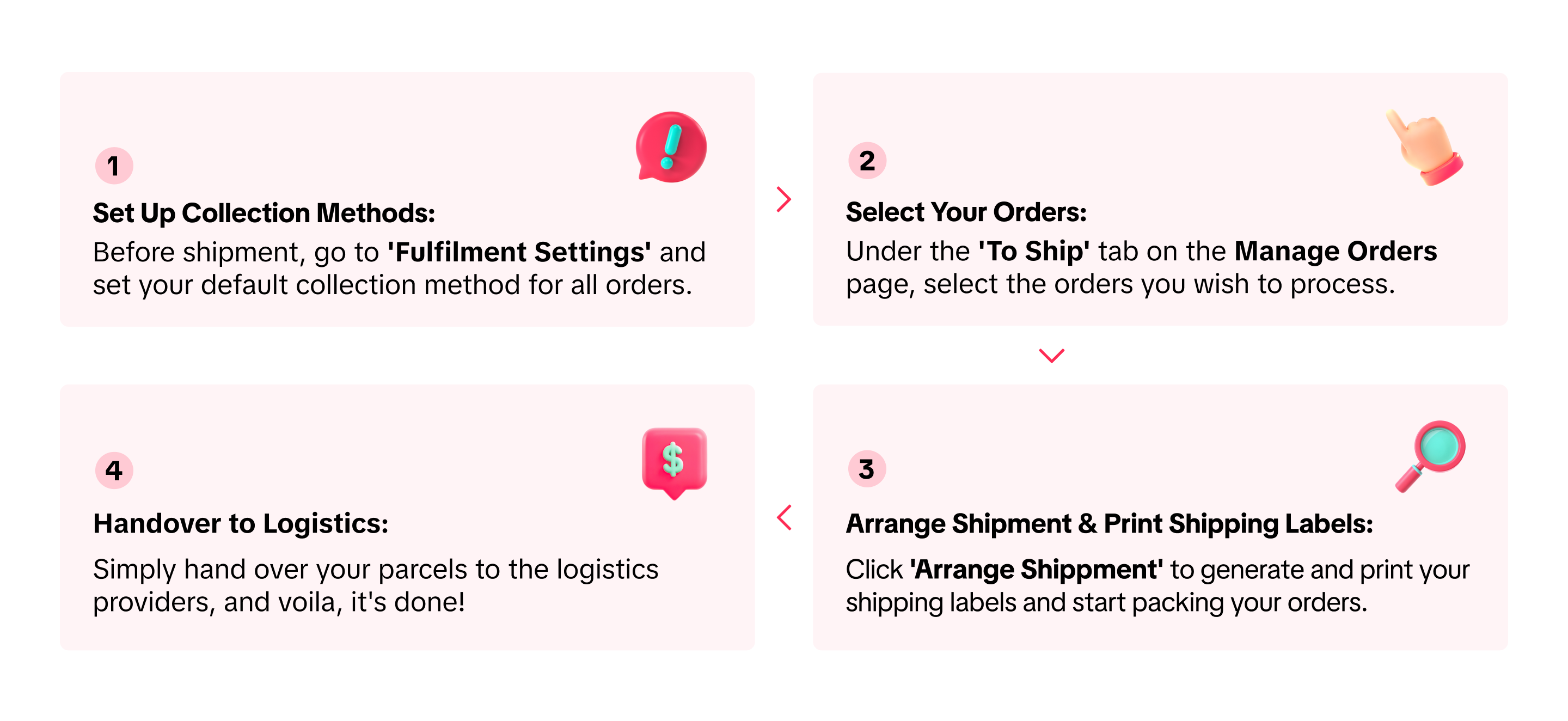

Set Up Collection Method
To start shipping, you need to set up your default collection method first. You only need to do this the first time you ship orders or if you decide to change your default collection method.You can easily choose your default collection method in Fulfilment Settings, where you can select between pick-up or drop-off.❗️Attention: for instant, same day 8 hours, and same day service, only pick-up collection method will be available and this setup will NOT apply to these services.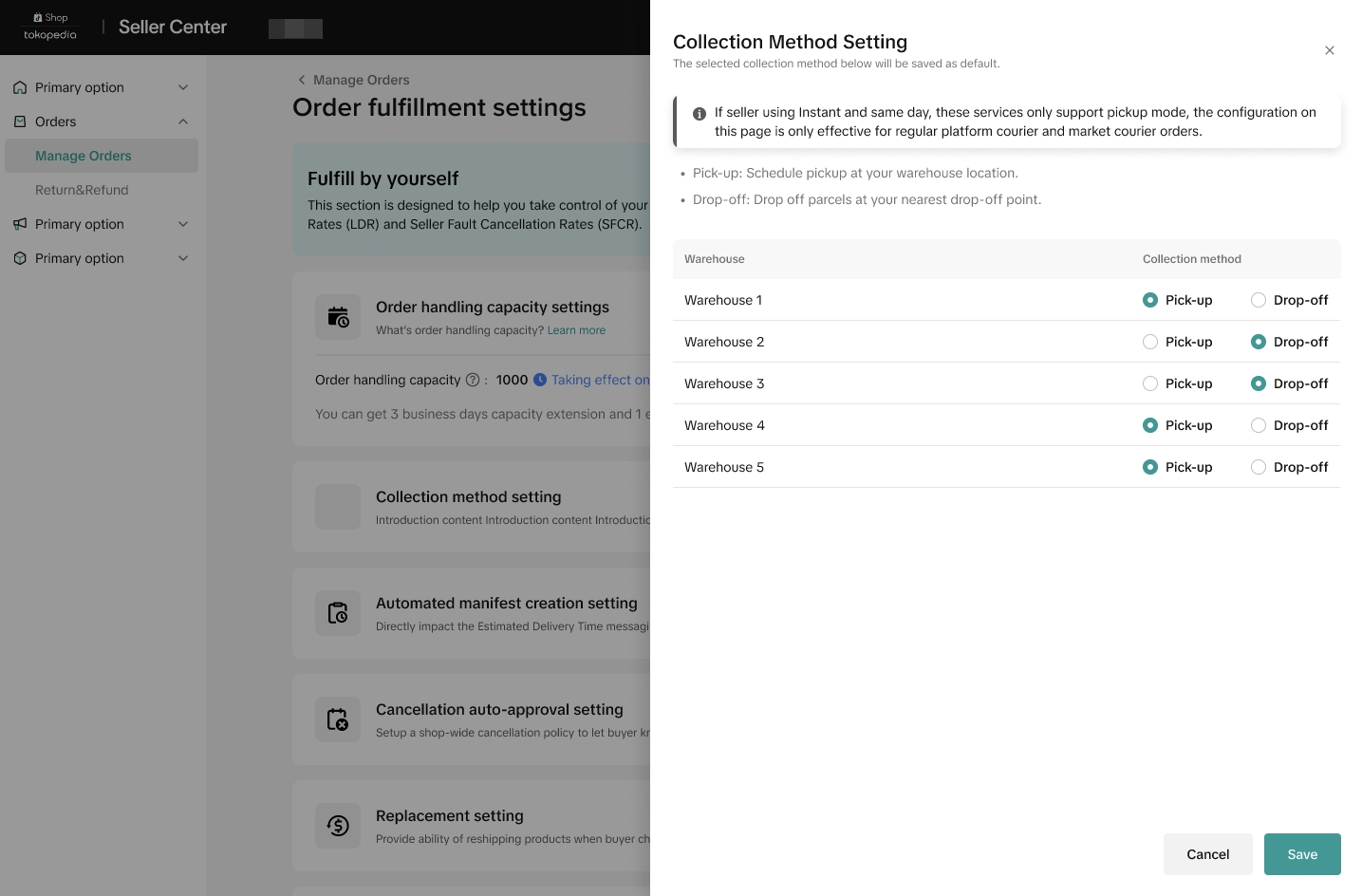
🚚 Note: For existing sellers, the default collection method will be based on the seller's last selection.For detailed instructions on how to access and configure your collection method settings, please refer to this article.

Select Your Orders
- After customers successfully place orders, find them in your Seller Centre under Orders > Manage Orders. Here, you can see an overview of all your orders in various statuses.
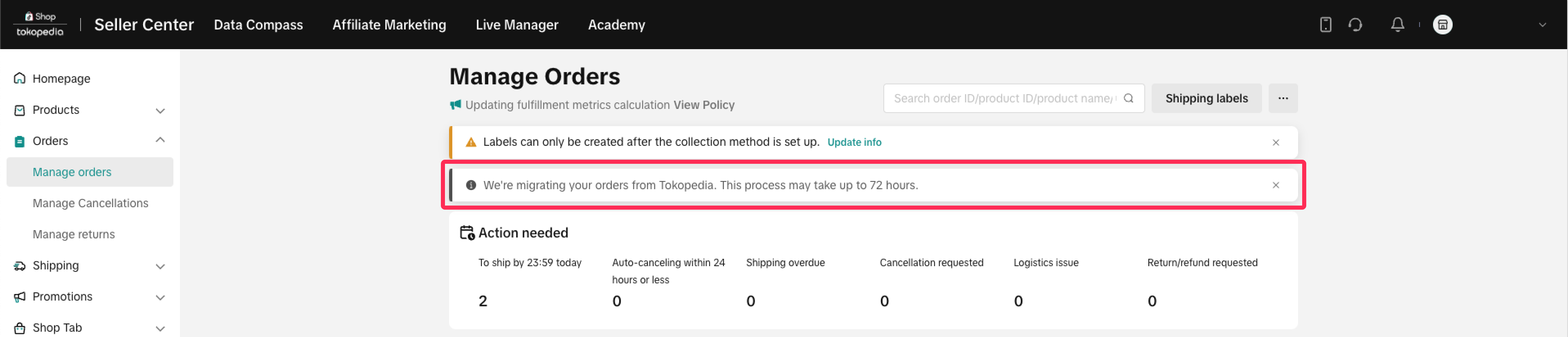
For more details about order statuses, check out our Managing Orders article.
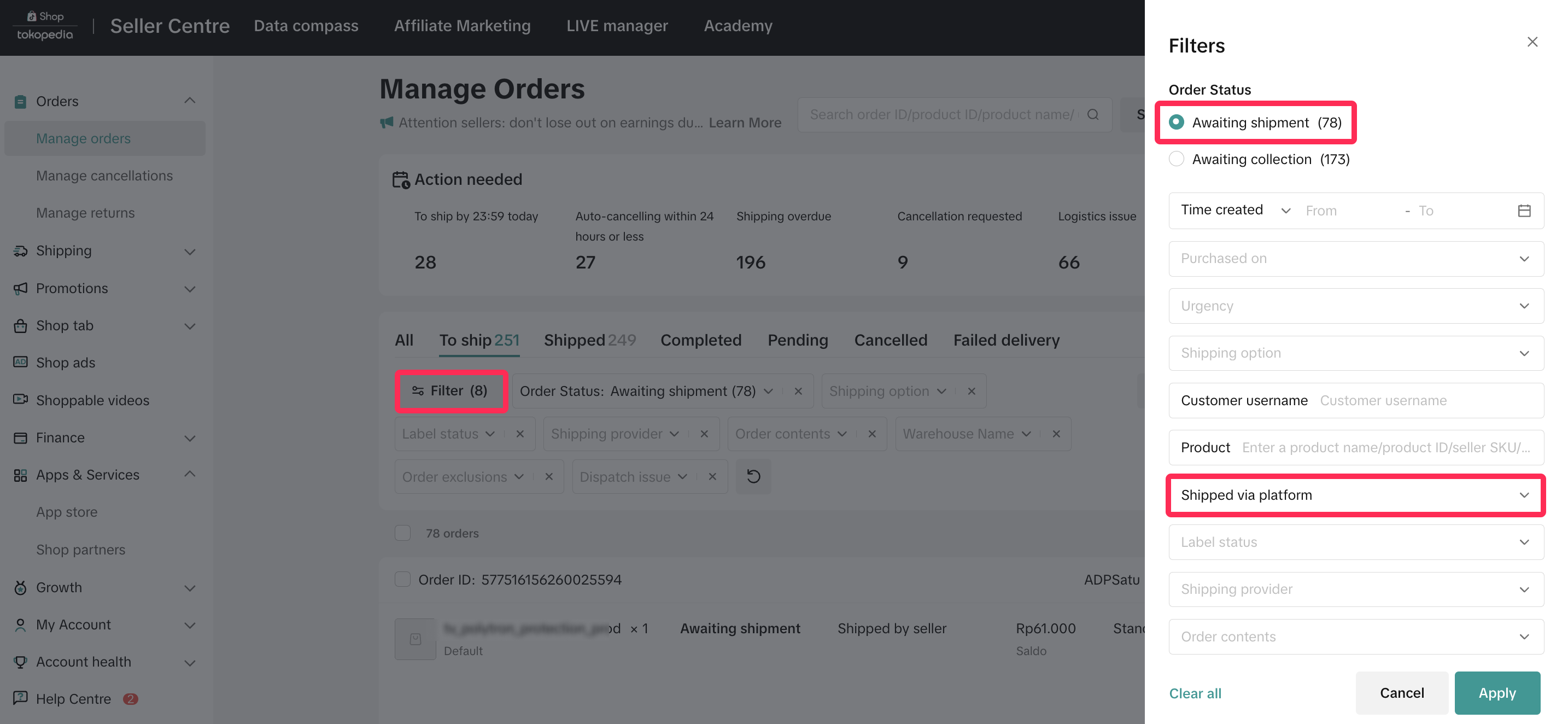
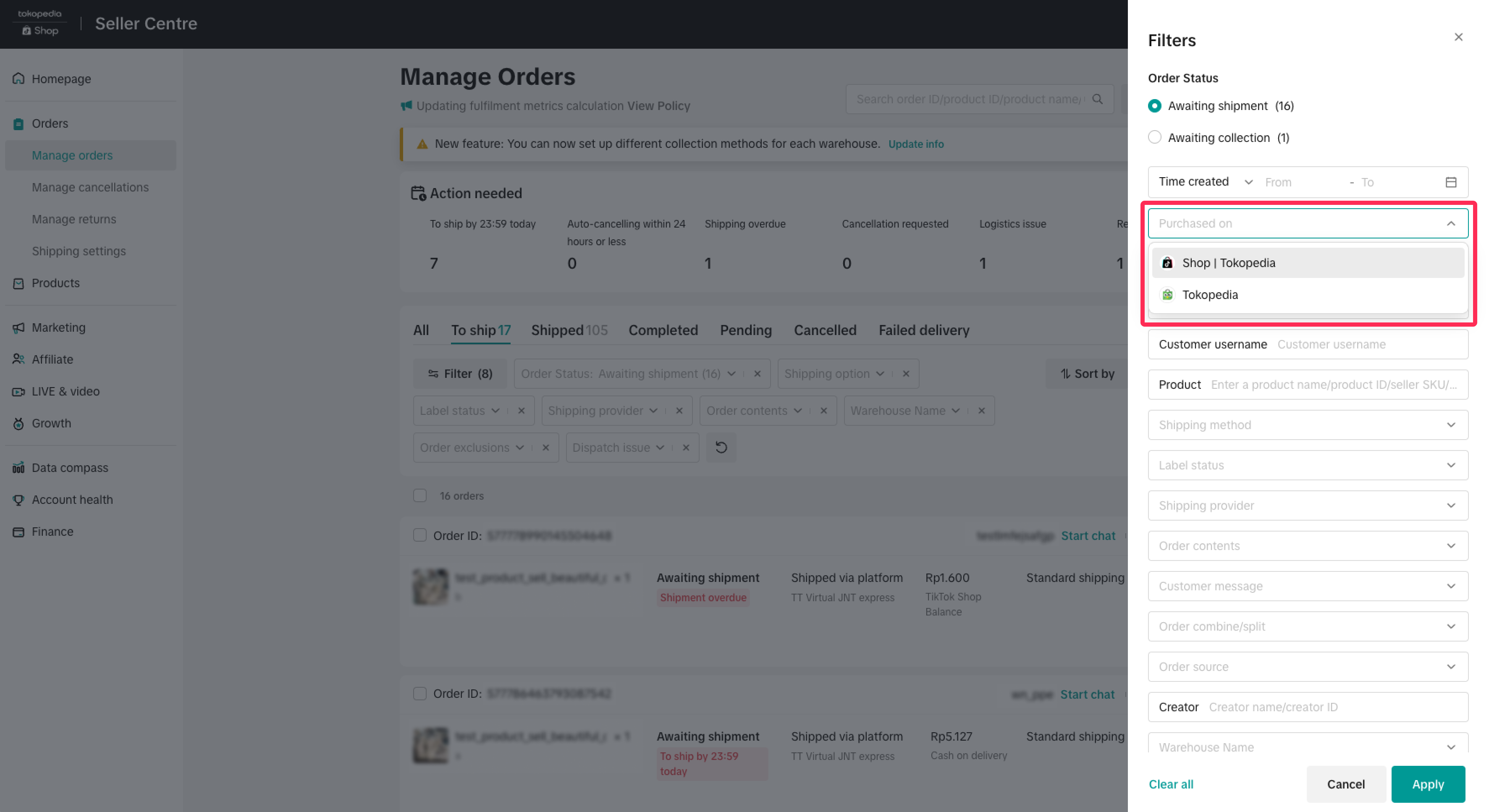
- Navigate to the 'To Ship' tab to view the orders you need to process and ship. Use our filter options to refine your orders to Fulfillment Type: Shipped via Platform and select Order Status: Awaiting Shipment to identify new orders that haven't been processed yet.

Arrange Shipment & Print Shipping Labels
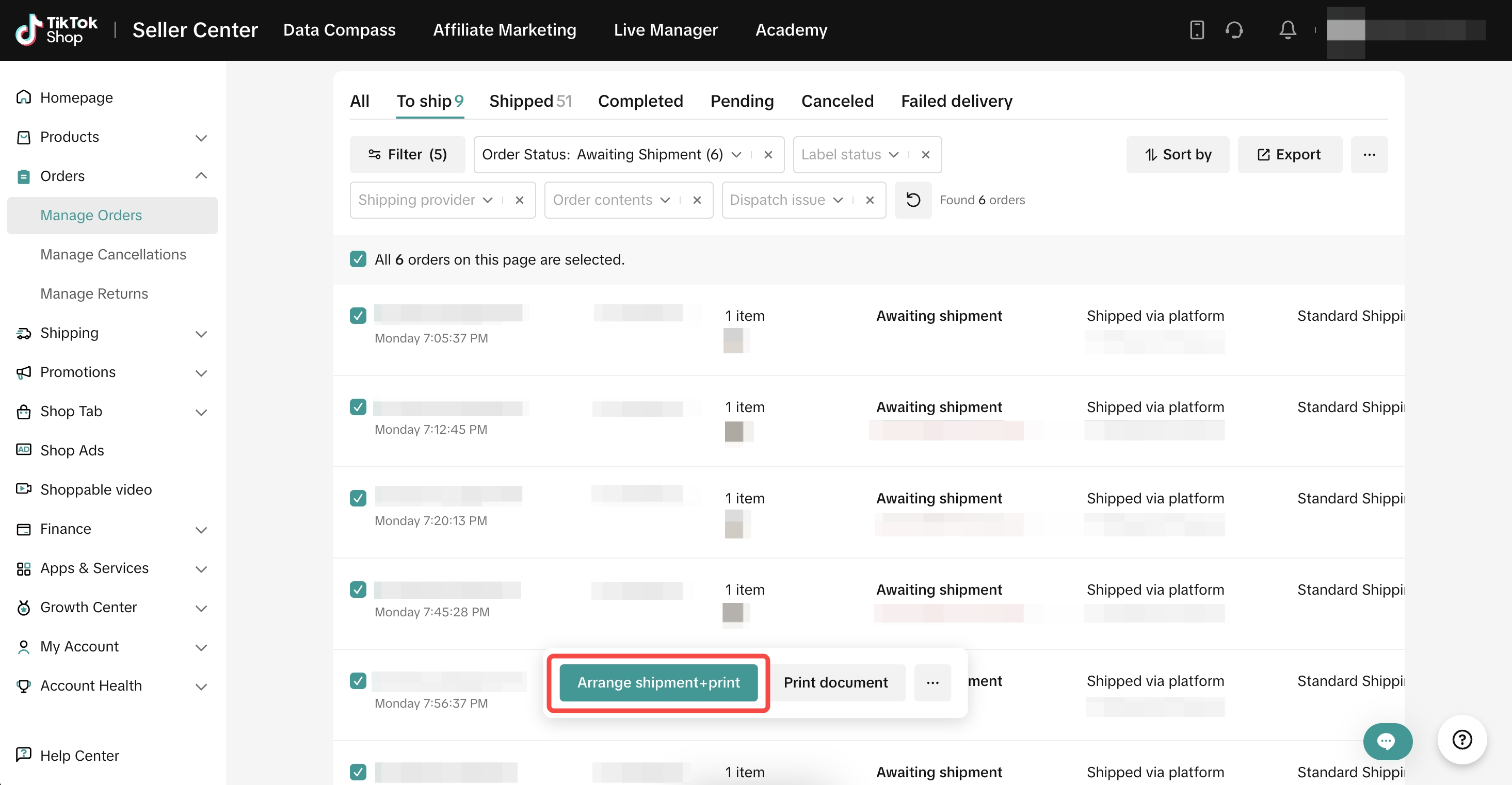
- To process orders, mark the checkbox in front of the single or multiple orders you wish to select, then click 'Arrange Shipment+print' or 'Arrange shipment' based on your 'Default Actions for Label Creation and Printing'
For further details, refer to our Shipping Labels article.
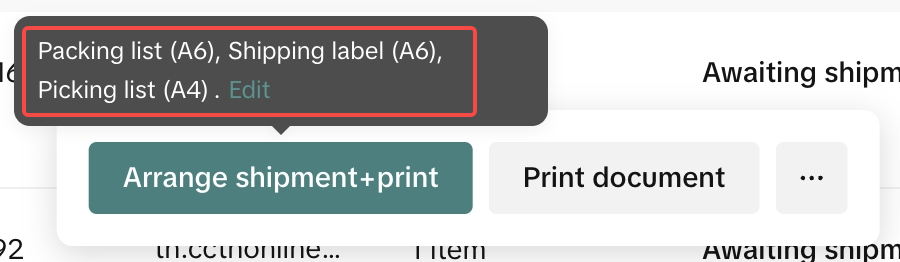 Click edit to do print settings | 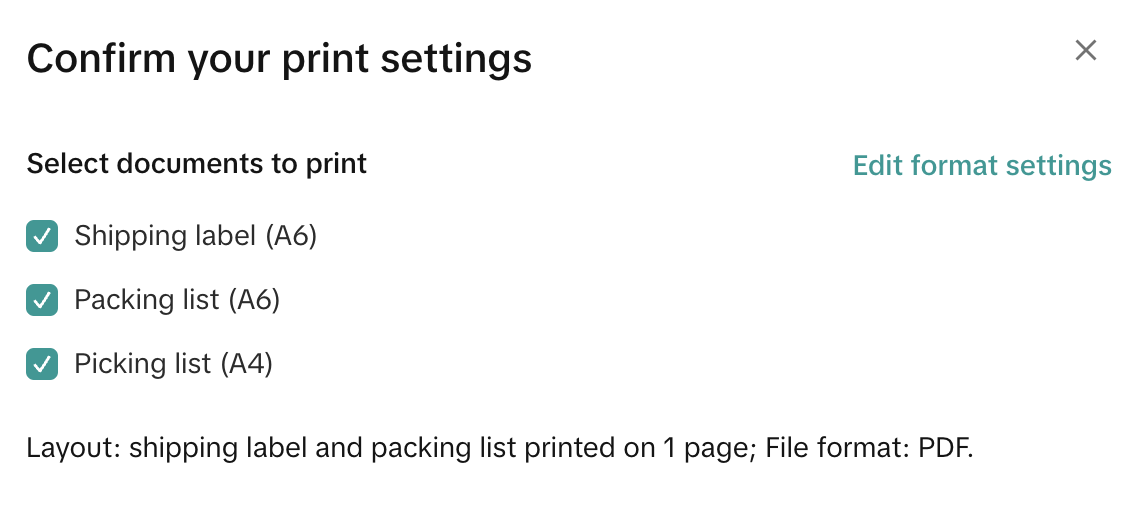 Select documents to print |
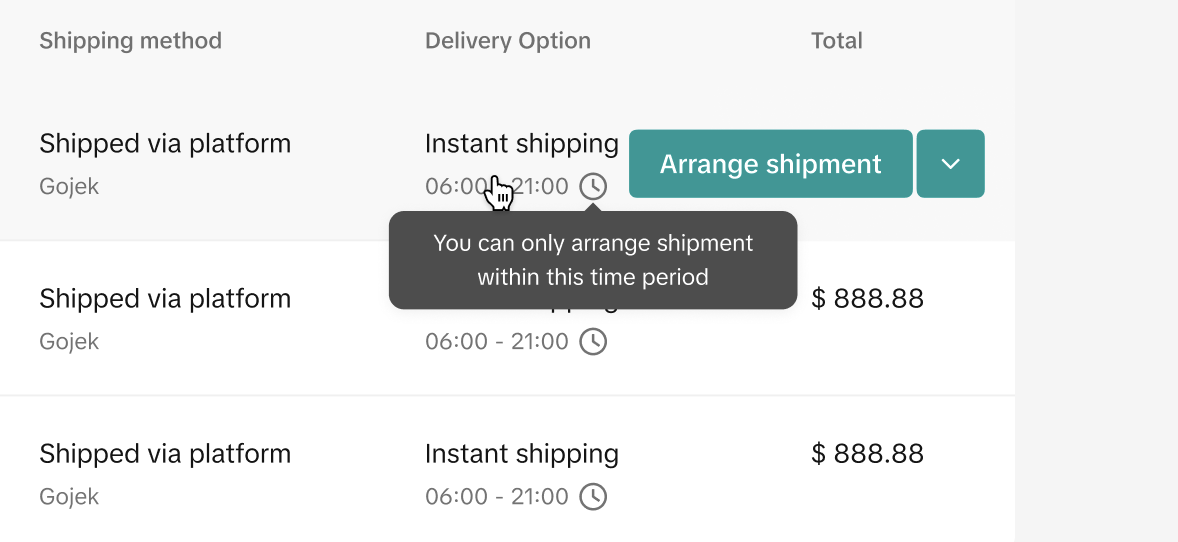
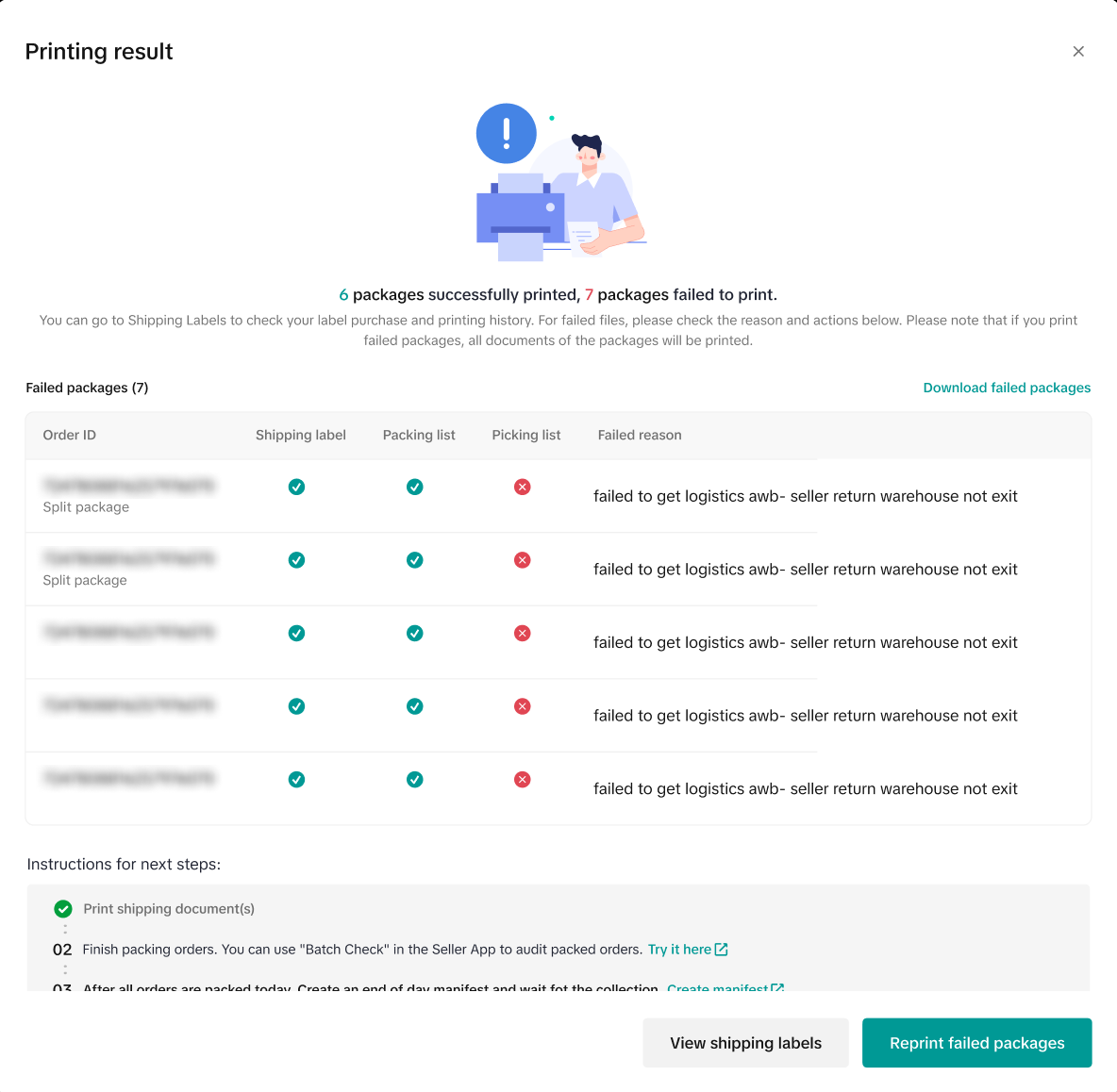
- The system will automatically generate shipping labels and all related documents. In case of any errors, the system will provide you with a comprehensive overview of the printing results. Take a moment to check for any issues and follow the brief instructions for your next steps.
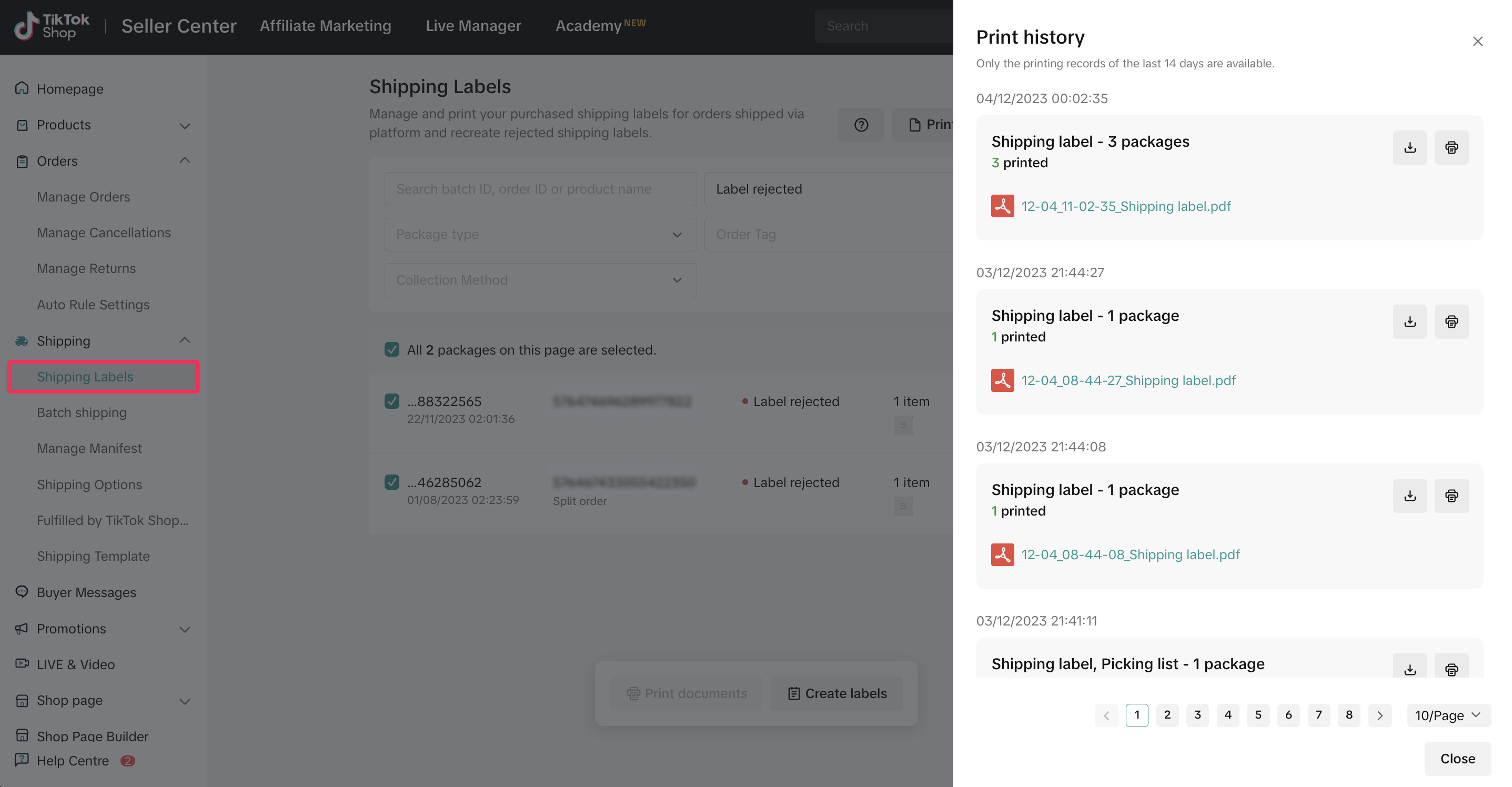
- For any unsuccessful labels or failed prints, visit the new Shipping Labels page to recreate, print, or view the printing history.
For further details, refer to our Shipping Labels article.
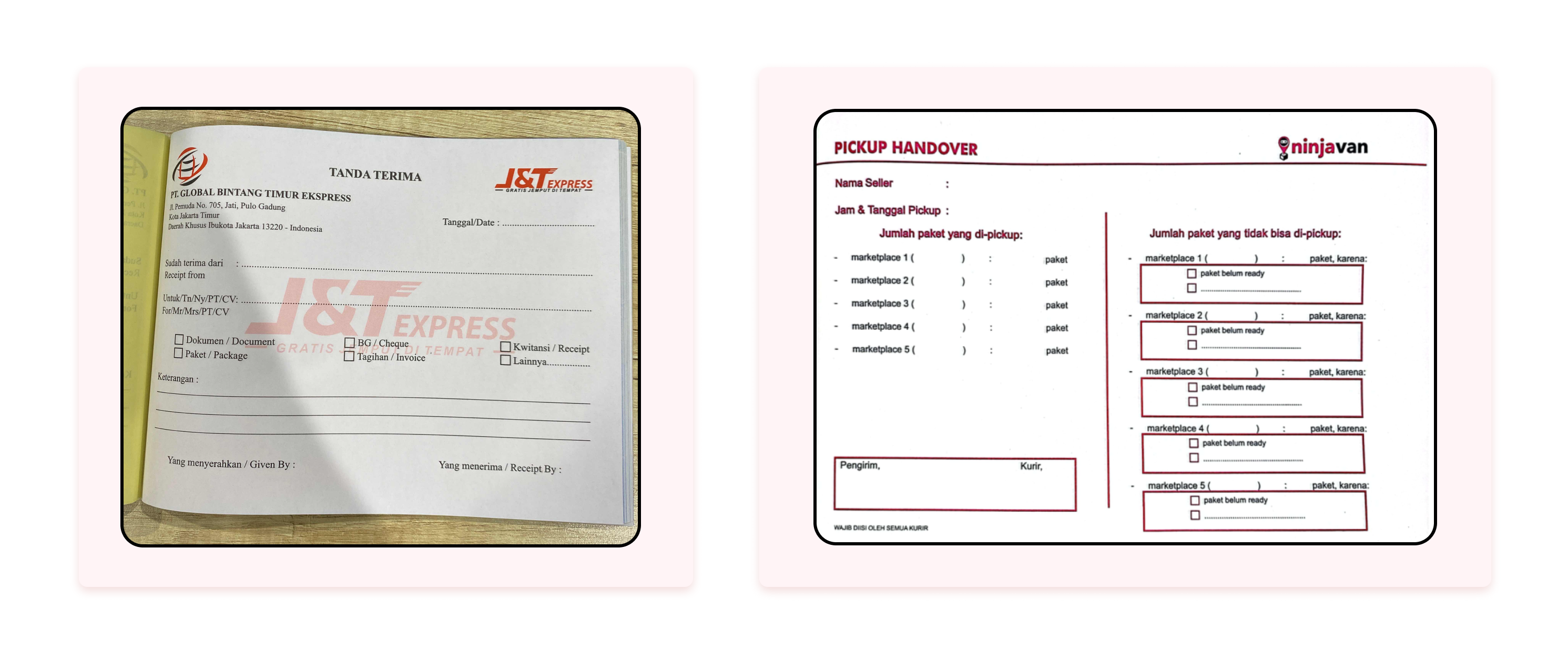
- Now that your shipping labels are ready, you can begin packing your orders and getting ready to handover.

Handover to Logistics
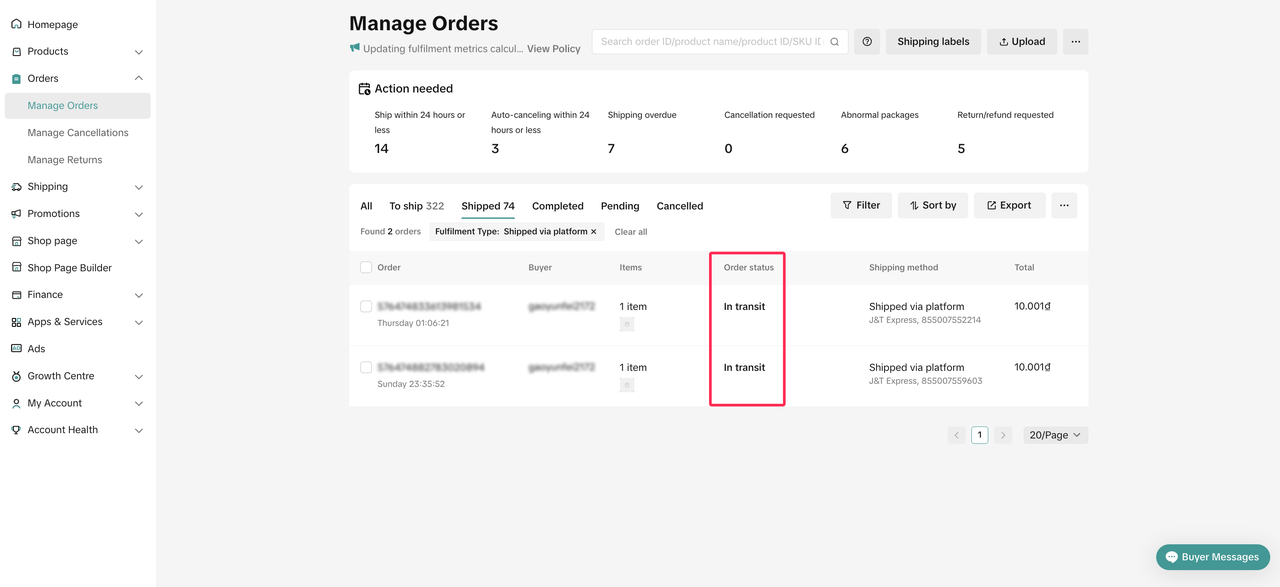
- After your orders are packed and ready, you have the option to either drop off your parcels or wait for the logistics providers to pick up your orders according to your Collection Method Settings. The logistics providers will scan all your parcels to confirm collection, and the order status will automatically update to 'Shipped.' You can track your order status, whether it's 'In-Transit' or 'Delivered,' on the Seller Center.
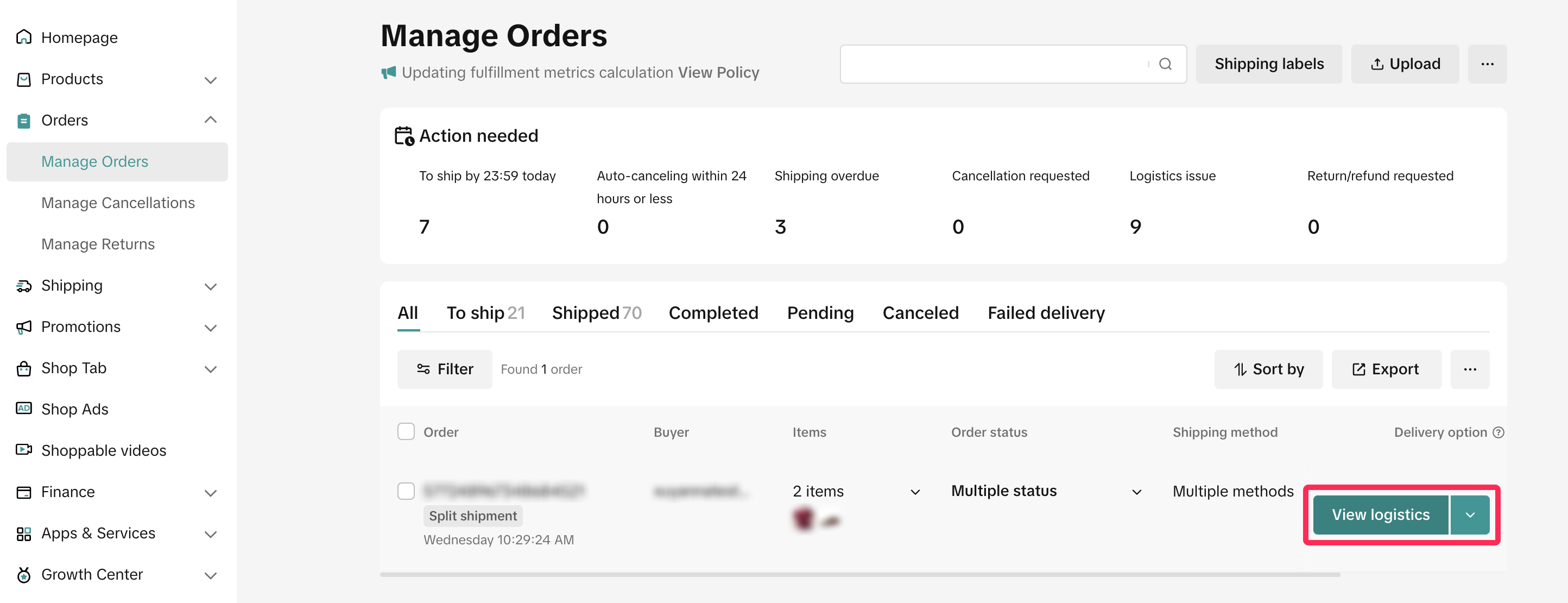
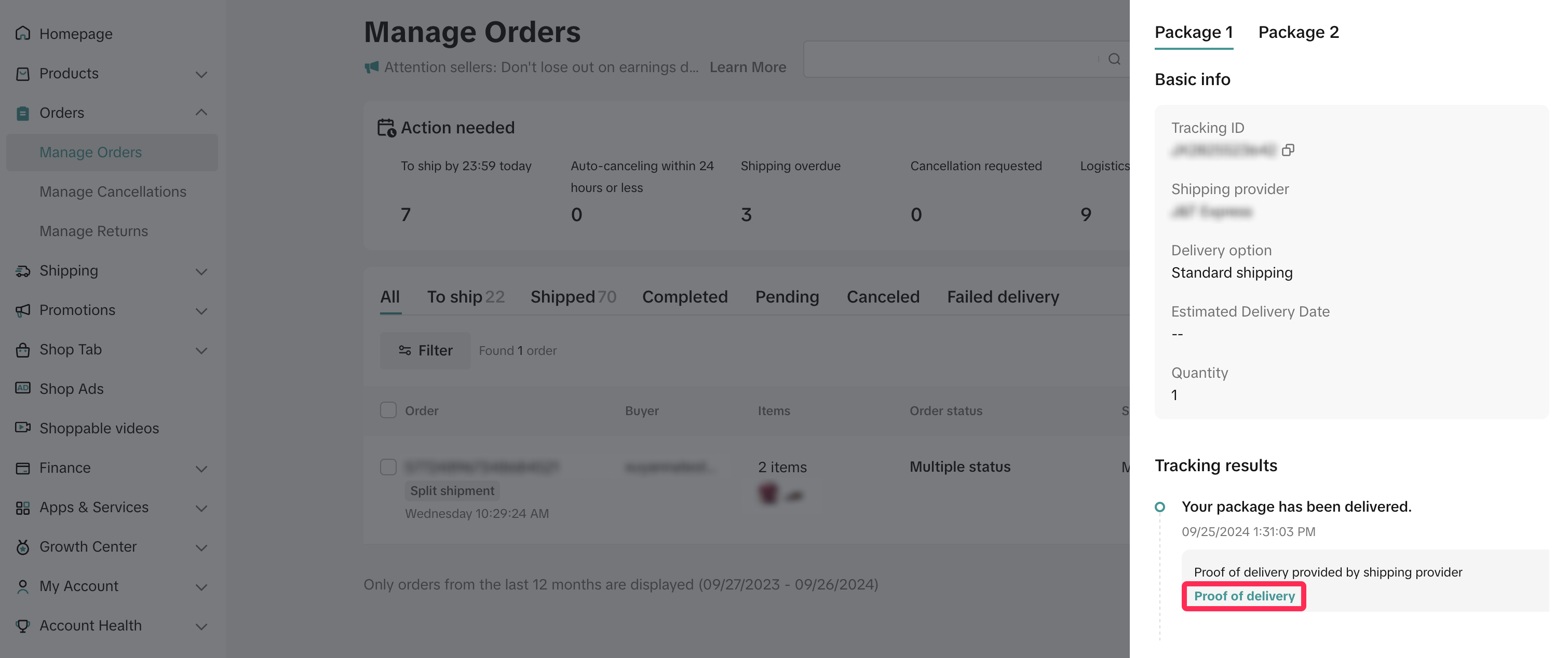
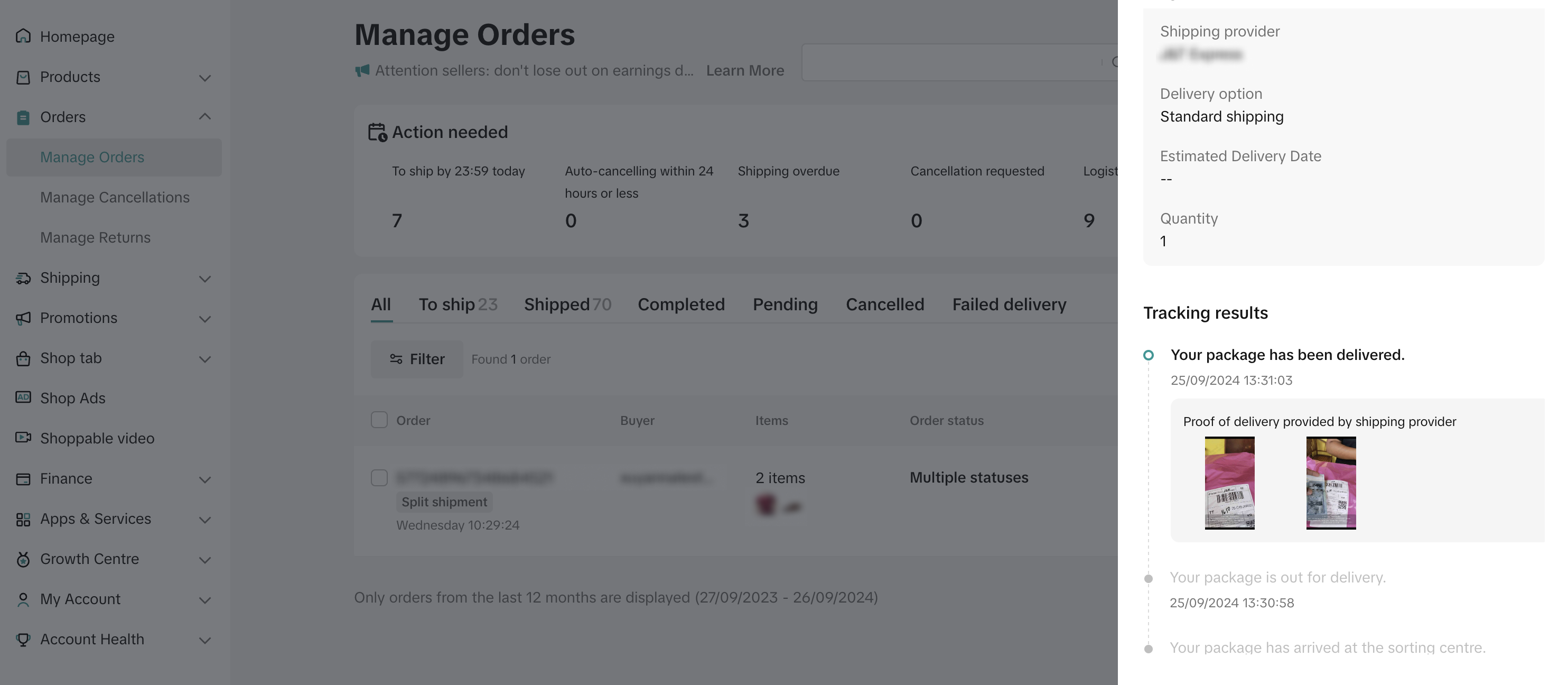
- After your orders are delivered, you can view the proof of delivery by clicking 'View Logistics' and then 'Proof of Delivery' to see the details from the logistics provider.

FAQ
- Is it possible for me to choose the shipping providers for 'shipped via platform'?
- How can I differentiate the orders coming from Tokopedia and ShopTokopedia?
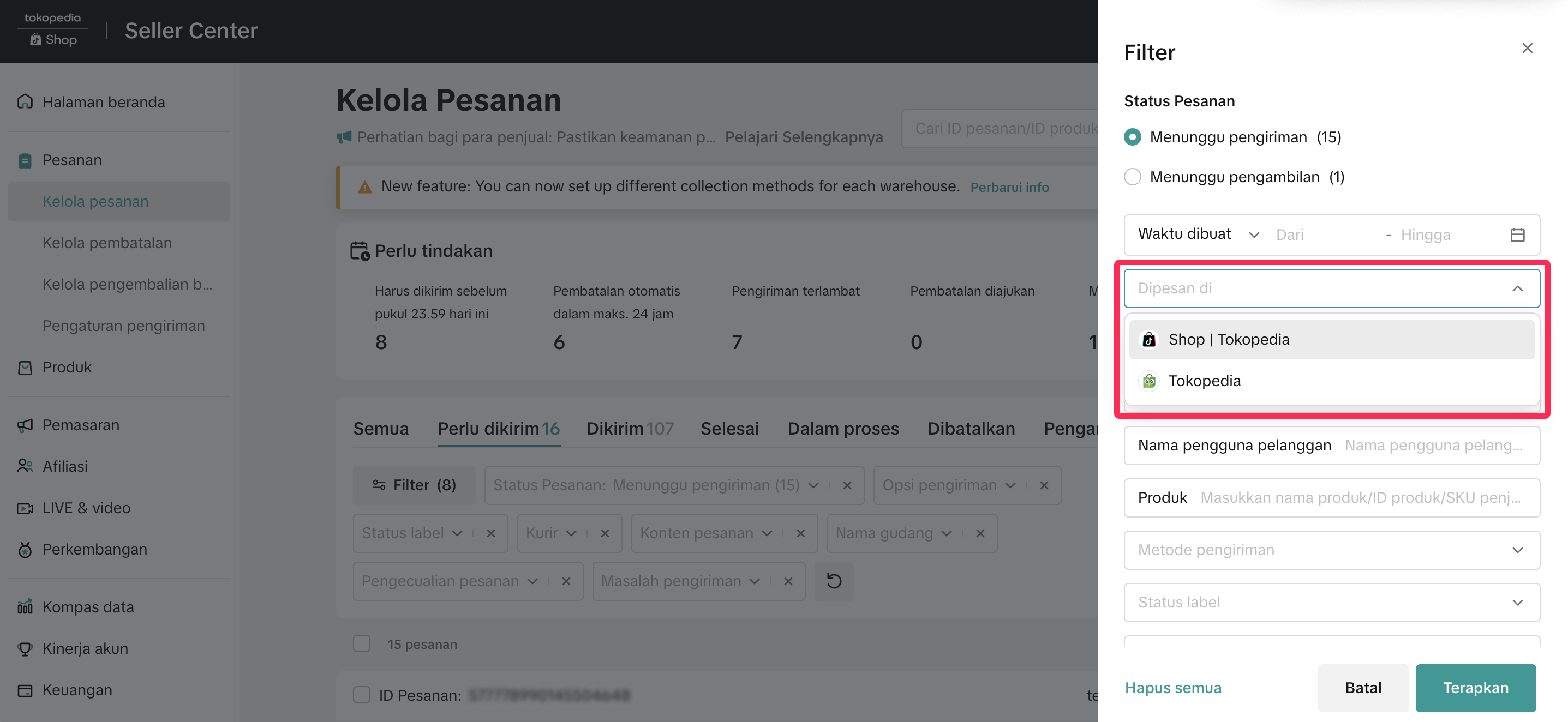
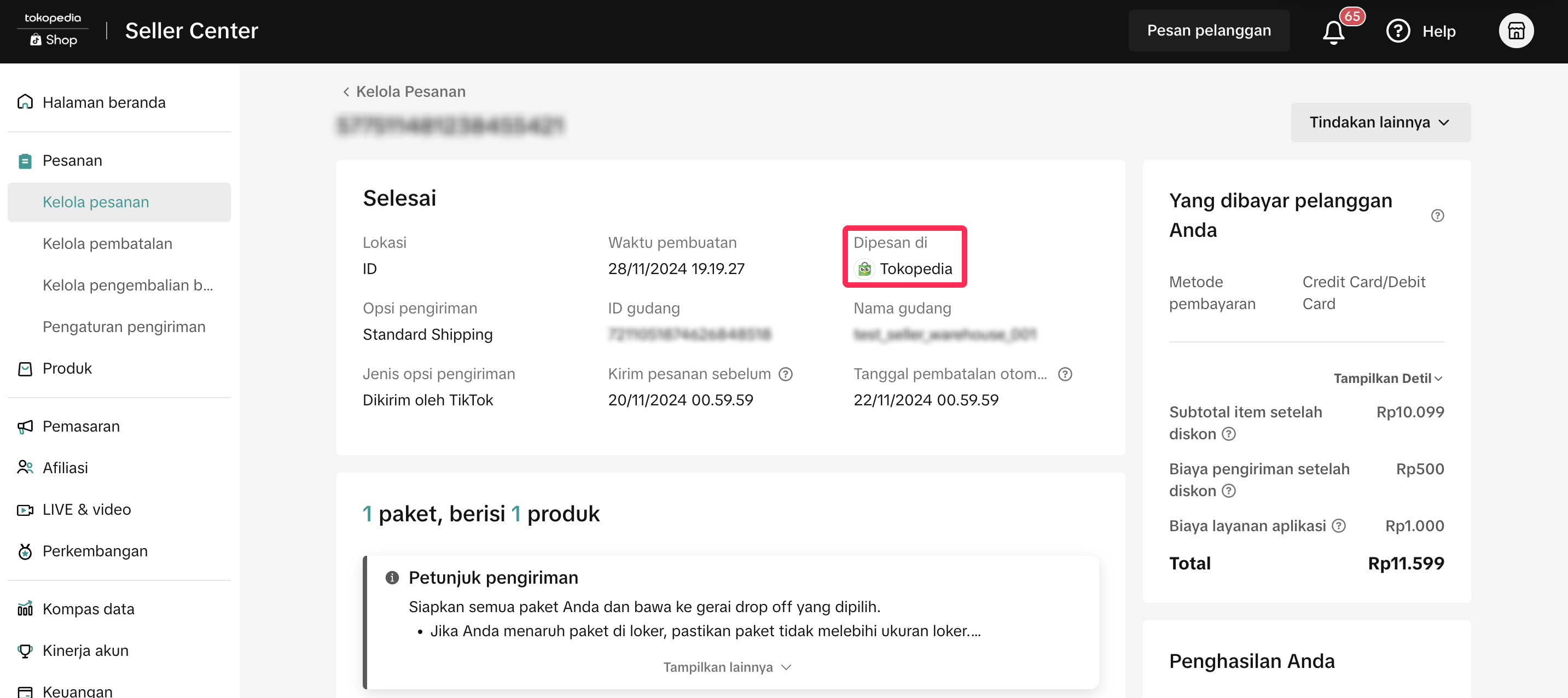
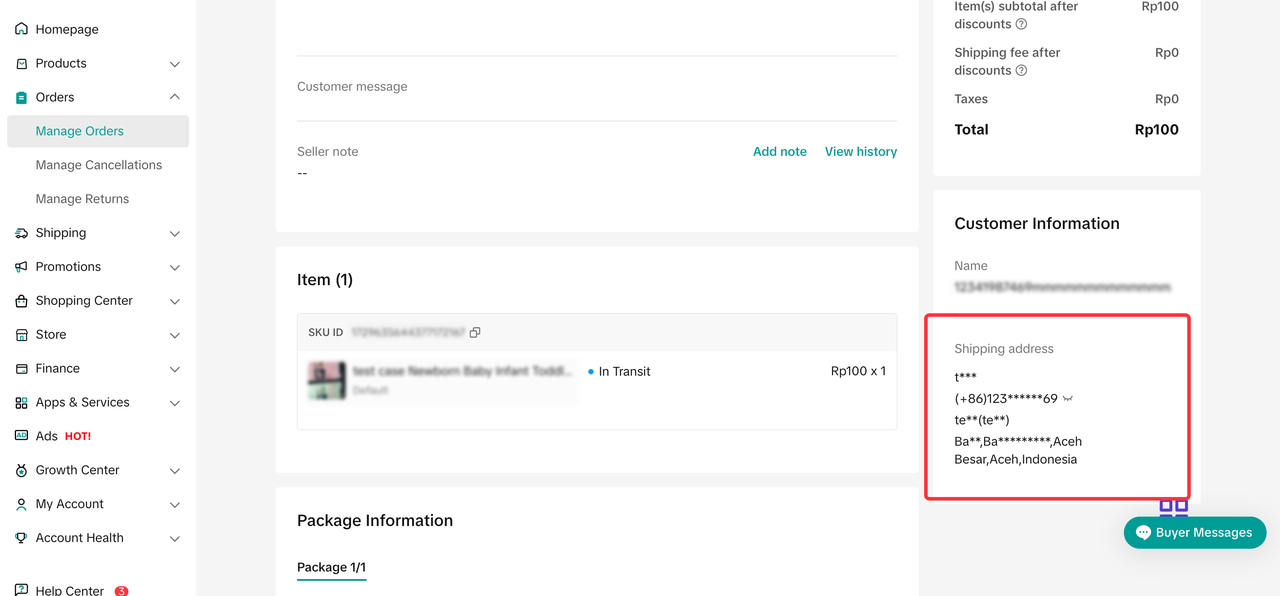
- Why can't I see the buyer's information on the Order Detail page?
- I'm using the Label Status filter and selected "Unprinted," but I don't see any shipping labels. What should I do?
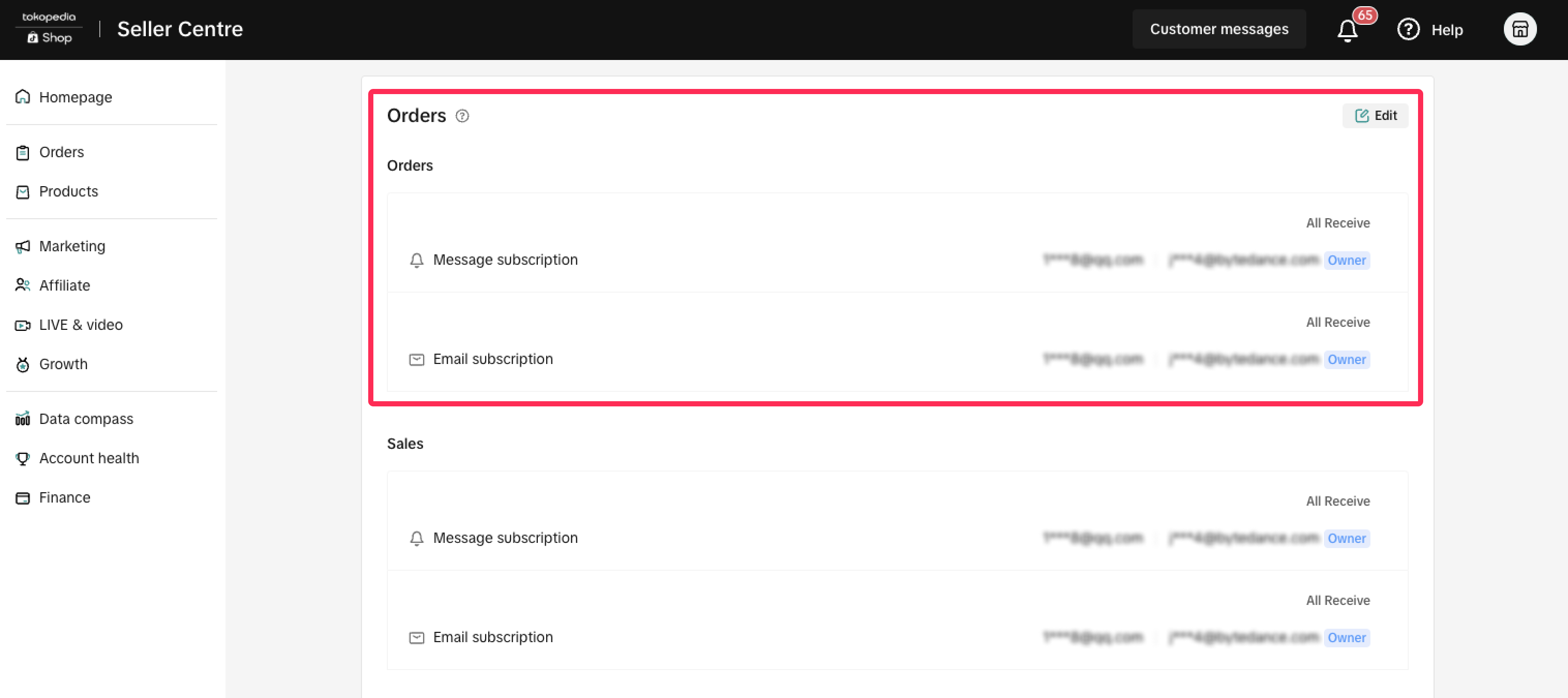
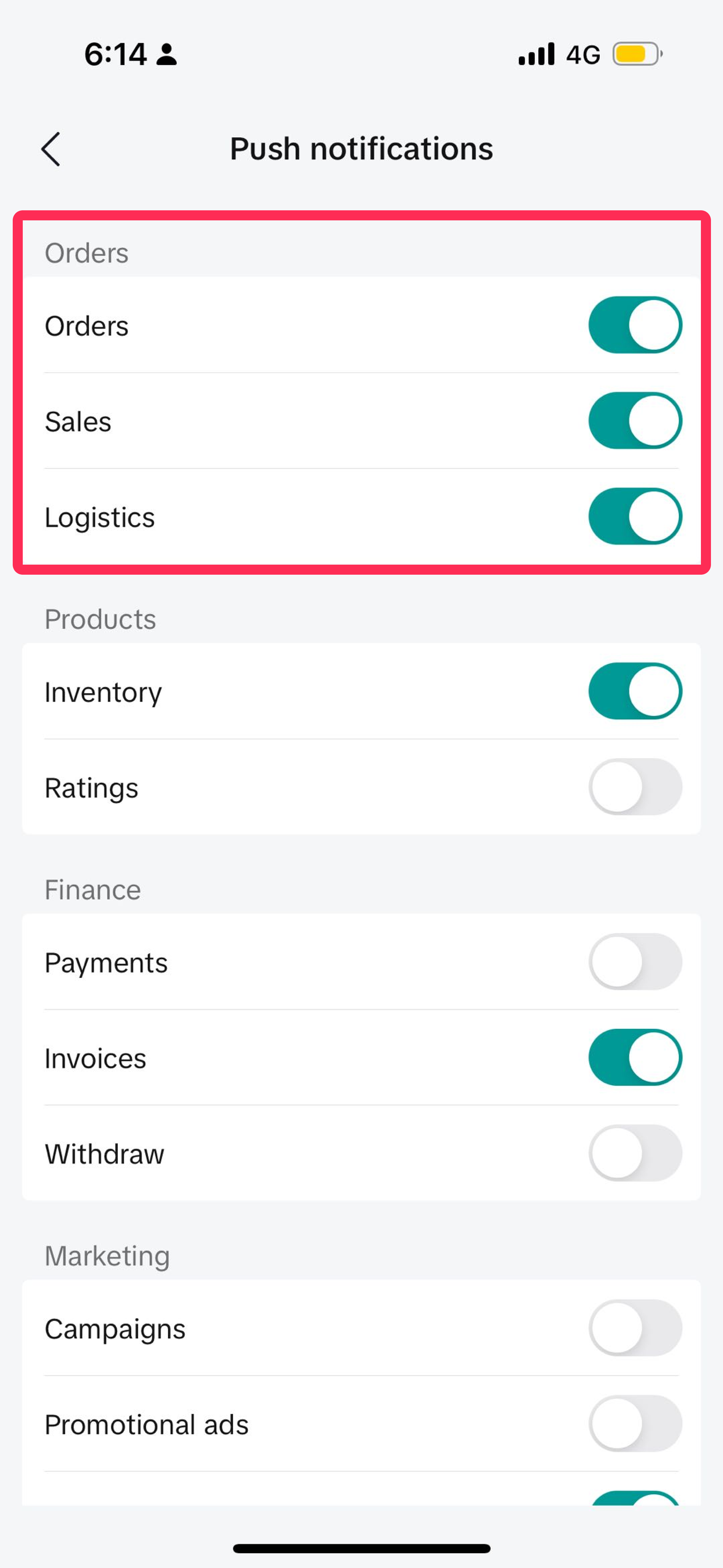
- Why am I not receiving notifications about new orders? What should I do?
- On the Seller Center (desktop): Go to My Account > Account Settings > Communication Preferences
- On the Seller Center app: Go to Settings > Push Notifications
You may also be interested in

Managing Orders on Seller Center App
In this article, we will introduce you to the new Orders page on the Seller Center app and how you c…

Managing Failed Delivery Orders
In this article, we will guide you on how to manage and keep track of failed delivery orders. You wi…

What should I do if wrong information is printed on the ship…
Unfortunately, if you made a mistake on your pickup/return warehouse address on the shipping label,…

Can I switch between the "Ship by Platform" and "Ship by Sel…
Currently, we don't support switching the shipping method for existing orders. Please proceed with…

When is an order status considered "Abnormal"?
It is likely that the order is still in transit for seven (7) days or more. If the order is still wi…

What do I do if my order is lost or damaged?
Only Shipped via Platform orders are eligible for reimbursement. You will be reimbursed under the fo…

What if a buyer rejects my order?
If a buyer rejects your order, the course of action you take depends on whether the order is Cash on…

Managing Orders
This article will guide you through our new Manage Orders page to help you become familiar with the…

Combining Orders into a Single Package
This article provides a simple guideline on combining multiple orders into a single package, giving…

Late Dispatch Rate (LDR)
Note: Orders with Instant, Sameday, and Sameday 8-hour delivery are only available via Tokopedia. Cl…