

Access Management on Seller Center
03/24/2026
You can also create and customize your own roles and set their permissions according to your needs.

Permissions and Default Roles
Permission Details
Permissions are set according to the menu (subject to changes) of Seller Centre and split into "Viewing only" and "Viewing & Editing".Please note that some permissions are not splittable.
Default Roles
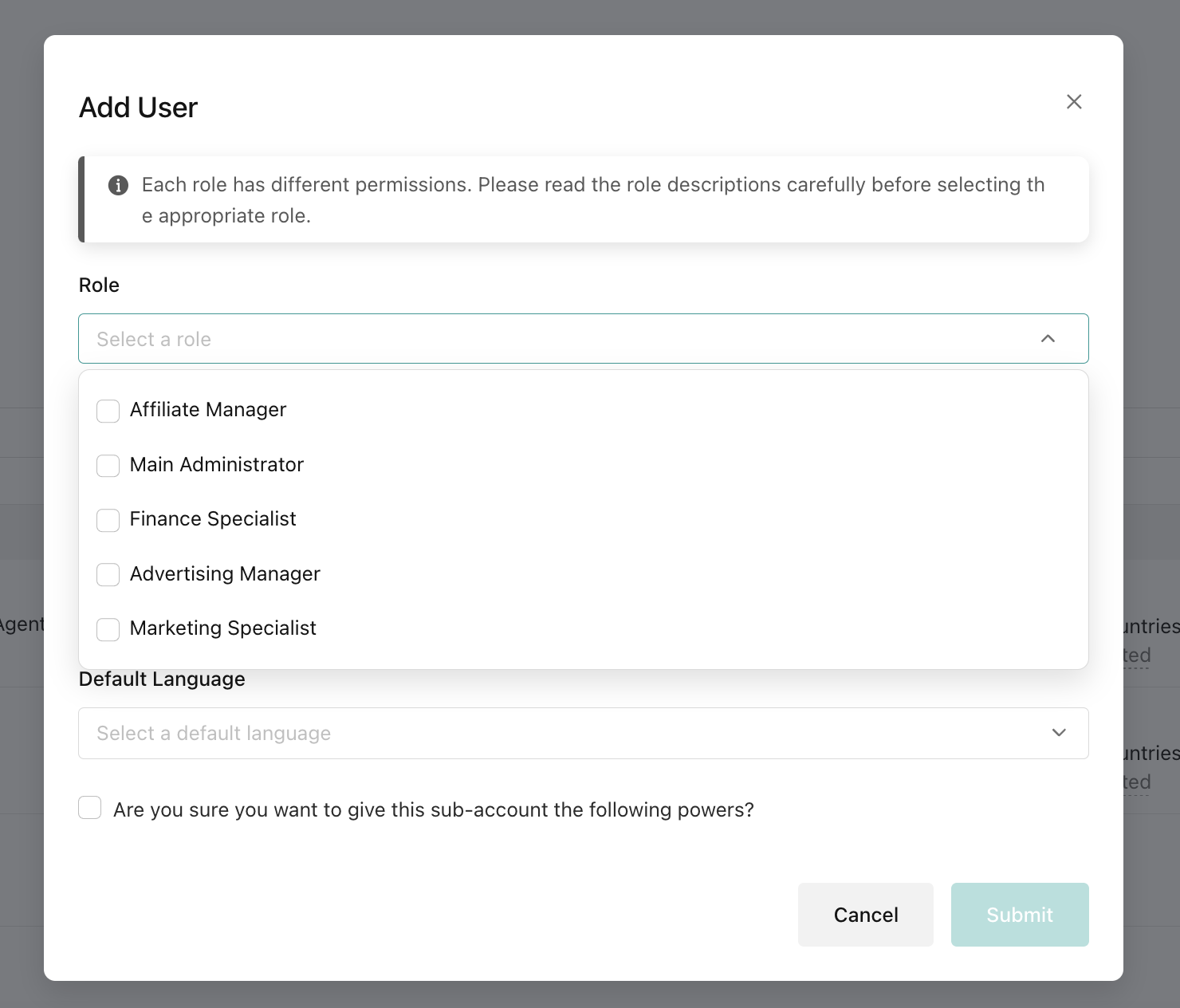
Currently, the following nine default roles are available.Sellers can find the latest roles and permissions through: Seller Centre > My Account > Account Settings > User Management > Add User > Select Role.

Add Users as Sub-Account
- Go to My Account > Account Settings > User Management in Seller Center.
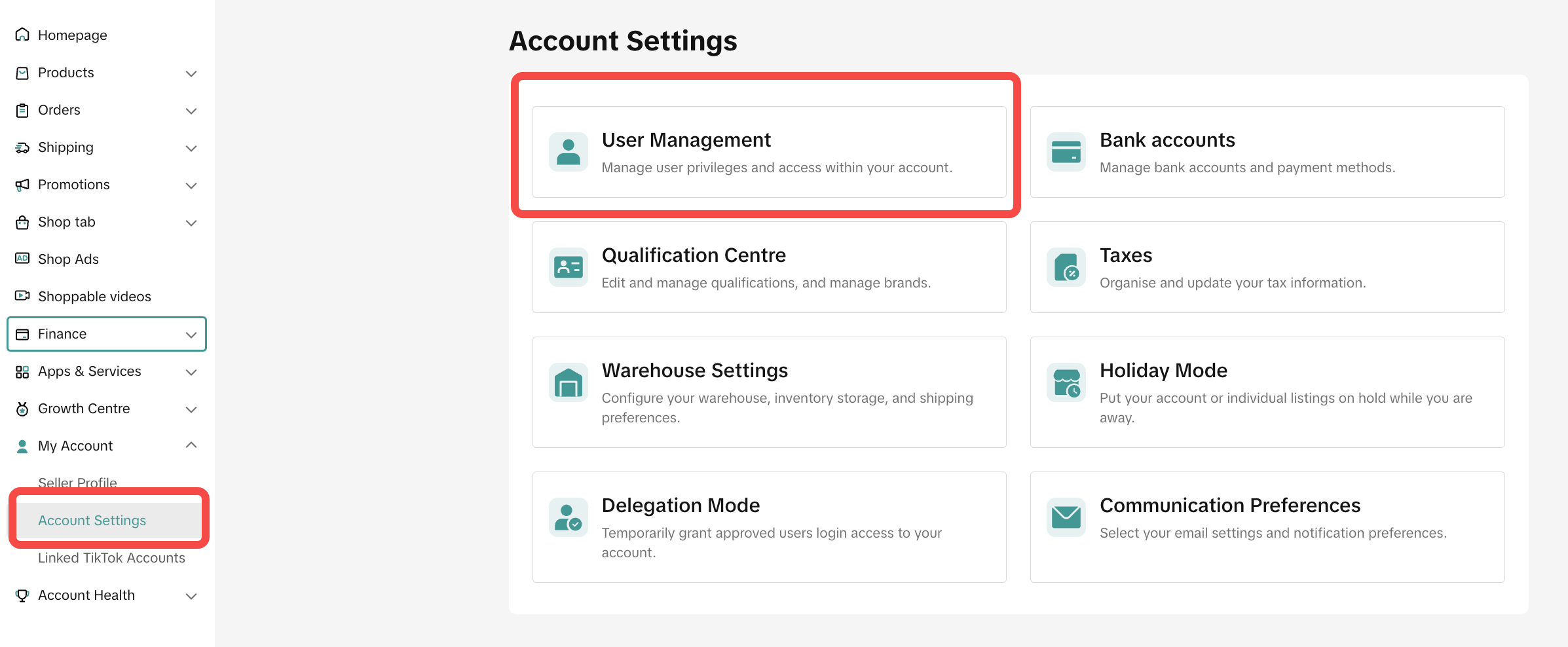
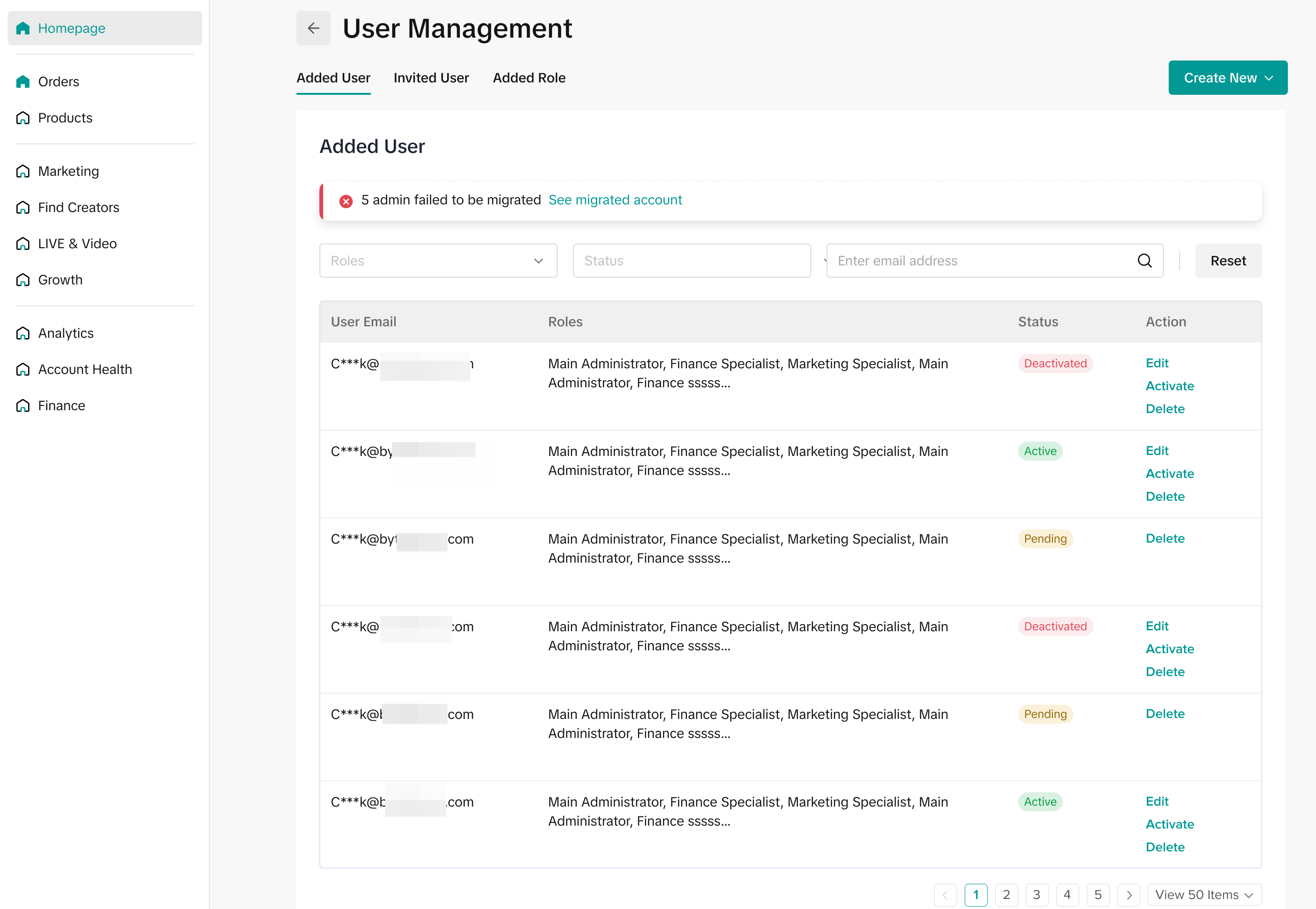
- You can search for users that you have added through the filter bar on the top. It can be based on roles, status, and email address.

- Click Create New
- Choose role for user that you want to add
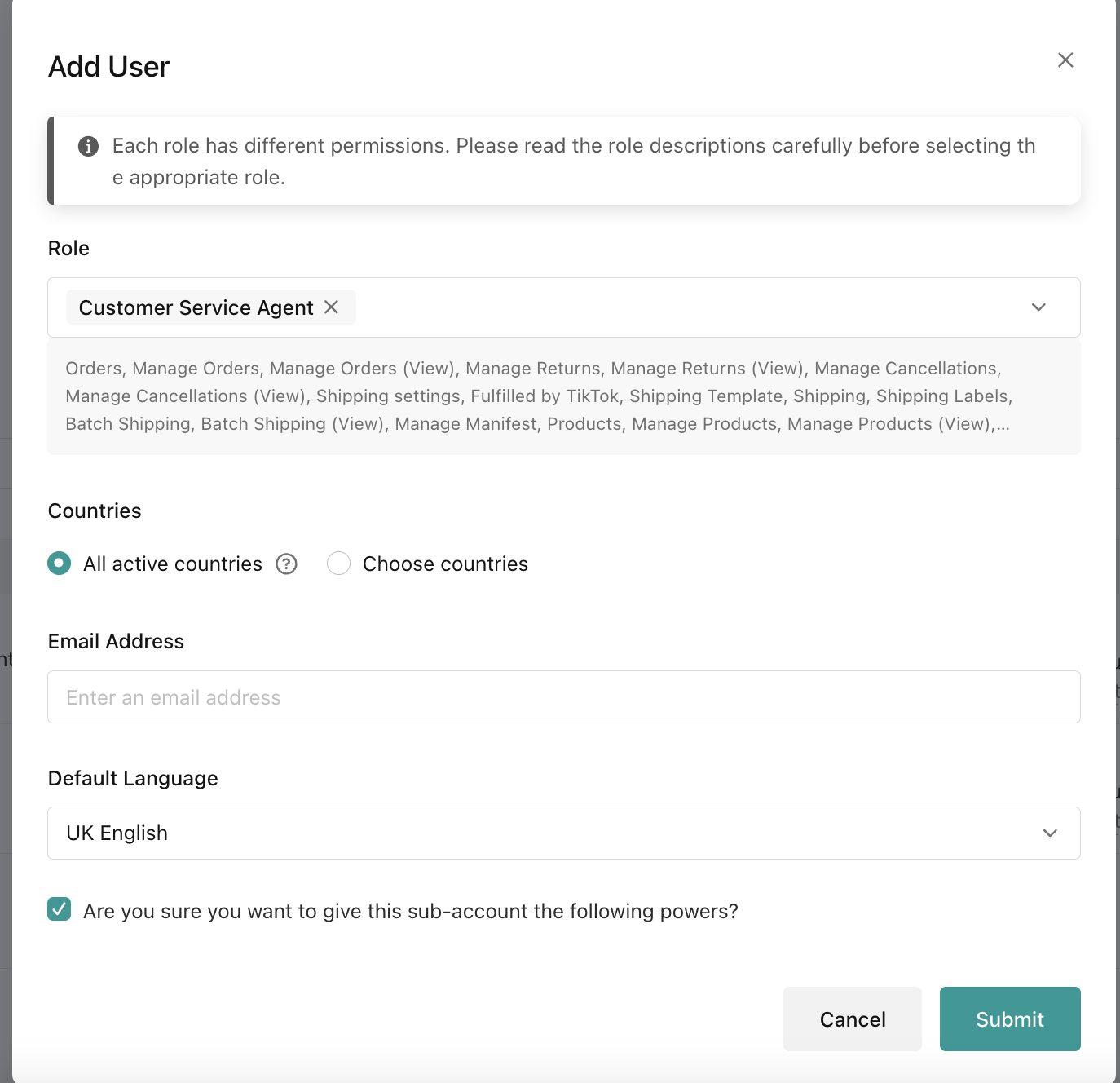
- Type the email address of the new user you want to add
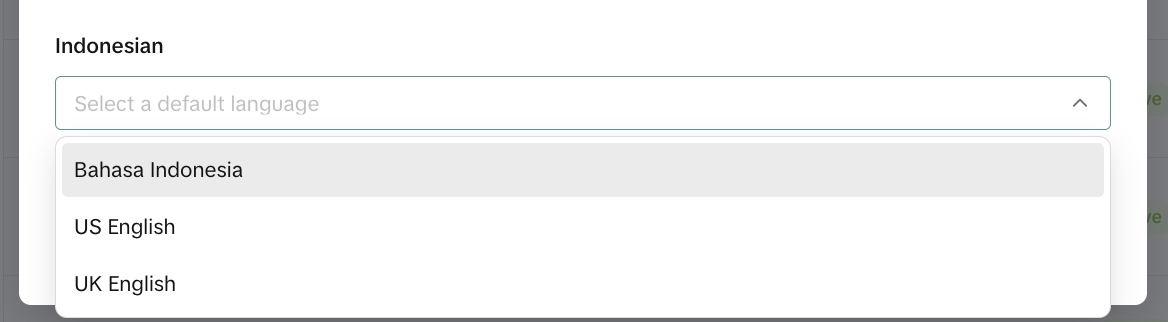
- Choose the default language then click submit.
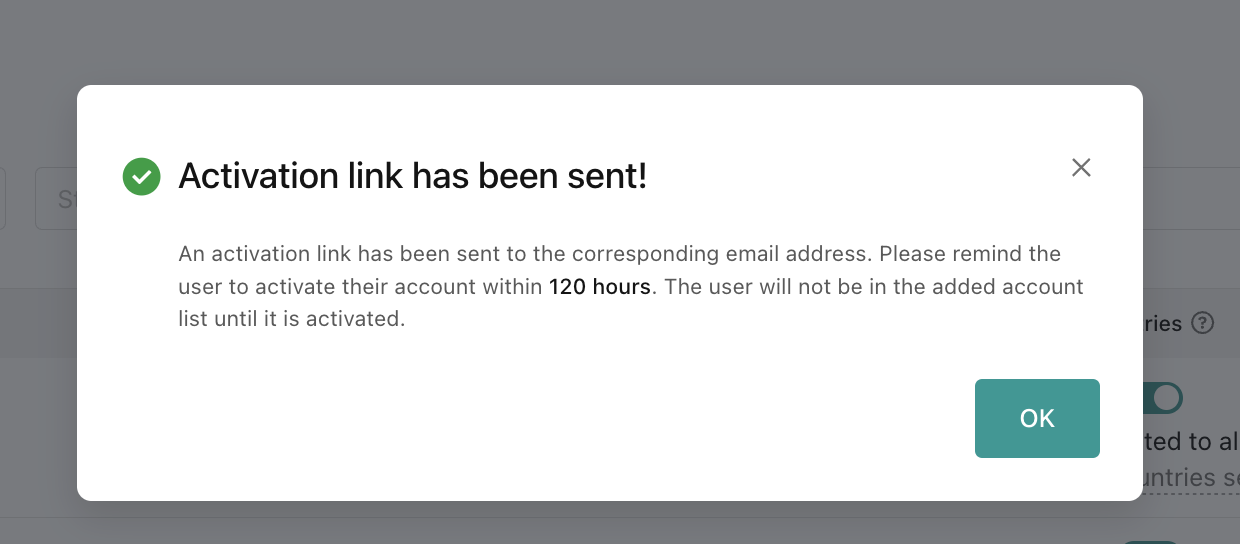
- Verification notification will pop up and tell that the system has sent an activation email to the corresponding email address. The user needs to activate their account within 120 hours and can only access the seller center account after they activate their account.
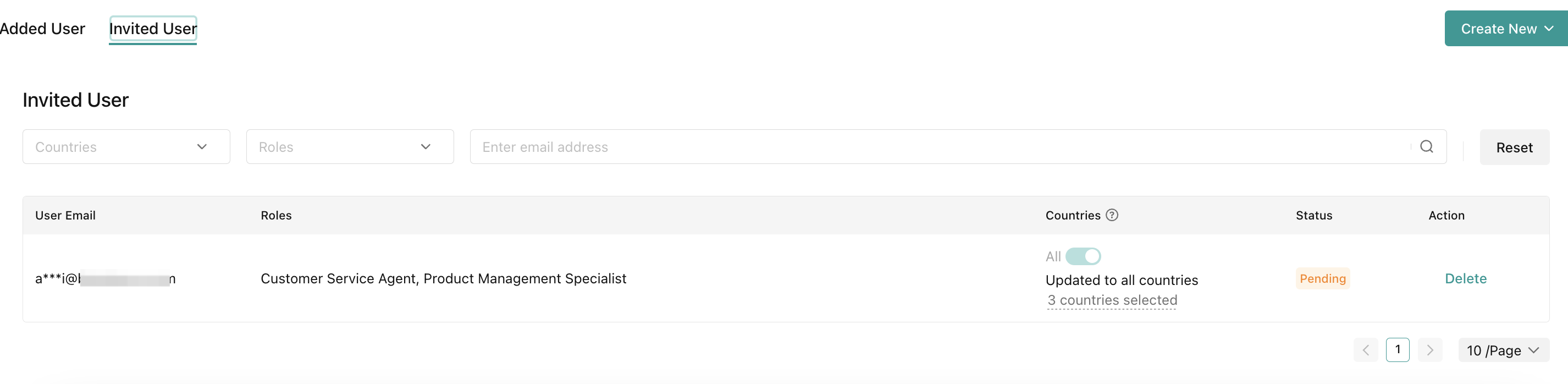
- If you go back to the User Management page, you can see the user that you have just added and their activation status.
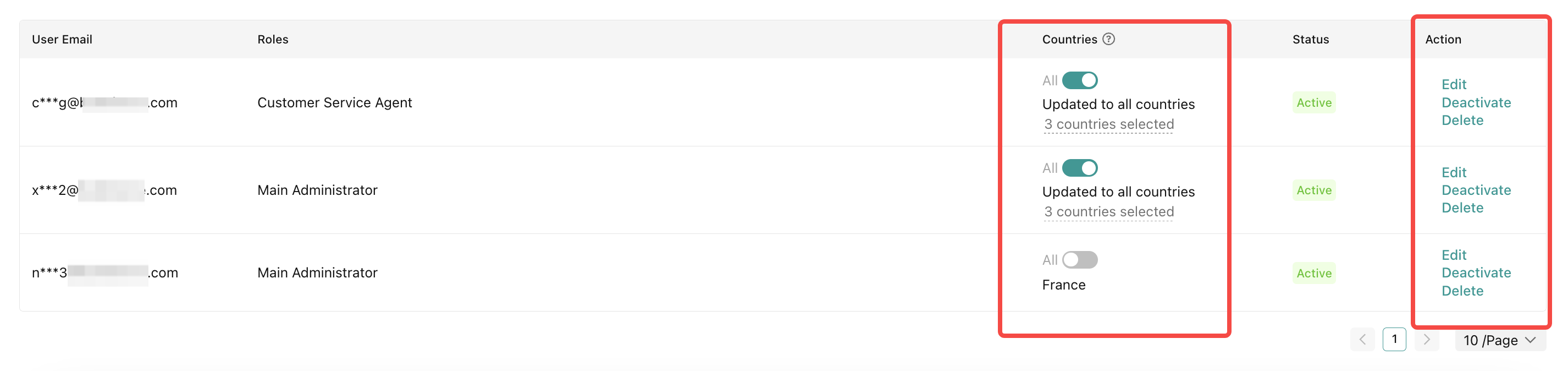
- You will also be able to edit users' roles anytime after their account is active.

Shop Administrator from Tokopedia
After integration, shop admins will automatically be copied from Tokopedia to become TikTok Shop by Tokopedia sub-accounts. The roles that were previously assigned in Tokopedia will be mapped to the role equivalent in TikTok Shop by Tokopedia as shown in the table below:Tokopedia Roles Access | TikTok Shop by Tokopedia Role Equivalent |
| Kelola Toko (Manage shop)Access to shop settings and can help edit shop info, courier and details, including shop decoration and shop profile | Main Administrator |
| Atur Produk (Manage Products)Access to product list page and shop etalase where the admin can help add, edit, and delete products in the store, but cannot make changes to product stock | Product Management Specialist |
| Ubah Stok Produk (Change Stocks)Access to product list page but can only edit product stock | Product Management Specialist |
| Balas Pesan Pembeli (Reply buyer’s chat)Access to manage and reply to messages on the Chat, Discussion and Review pages | Customer Service Agent |
| Kelola Pesanan Toko (Manage shop orders)Access to Pusat Resolusi page, respond to chat from buyer, can help to handle all transactions, from accepting orders, rejecting orders, and also input airway bills and manage Security Deposit deduction (Official Store only) | Order Fulfillment Specialist |
| Pantau Statistik (View shop statistic)Access to monitor, download and manage all the statistics pages | Main Administrator |
| Pengaturan Iklan & Promosi (Manage Ads and Promotion)Access to create promotions on the Iklan & Promosi page according to the Seller's membership status and monitor ongoing campaigns | Marketing SpecialistAdvertising Manager |
| Kelola Keuangan (Cash Withdrawal) - Official Store only for Security DepositAccess to monitor and withdraw Tokopedia balance to registered bank accounts and manage Security Deposit deductions | Finance Specialist |
| Location Admin | |
| Kelola Pesanan Lokasi (Manage Order in Specific Location)Access to handle all transactions, starting from accepting orders, rejecting orders, and also inputting airway bills for designated location | Order Fulfillment Specialist |
| Atur Jumlah Stok (Manage stocks in specific location)Access to the product list page but can only edit product stock for designated location | Product Management Specialist |
- Admin account no longer active
- Admin is the owner of another shop in TikTok Shop by Tokopedia
- Admin is already a sub-account in another shop in TikTok Shop by Tokopedia. When this happens, shop owners can assign another sub-account through TikTok Shop by Tokopedia User Management page.

Shop Account Binding
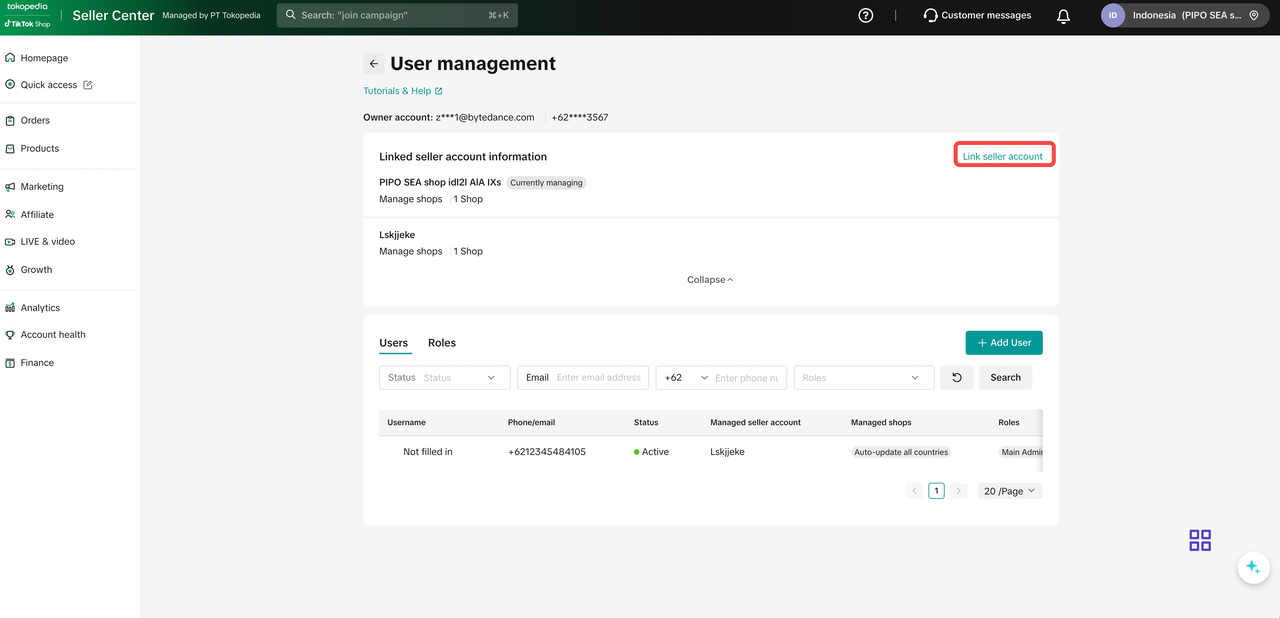
Seller Center now allows you to switch between all your shops instantly without having to log out of Seller Center and log back in every time. The shop owner can bind other related local shops to the main Seller Center.Please note that this feature is only visible to shops that have been registered under the same business license.
All screenshots provided in this guide are for illustrative purposes only, and the data displayed is not real.
Binding a new shop
|  |
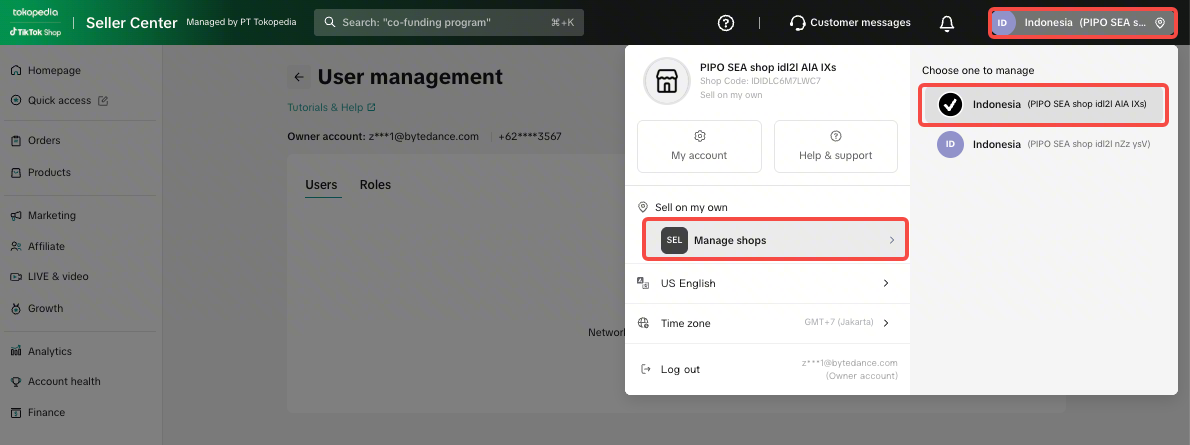
Switch between the bound shops
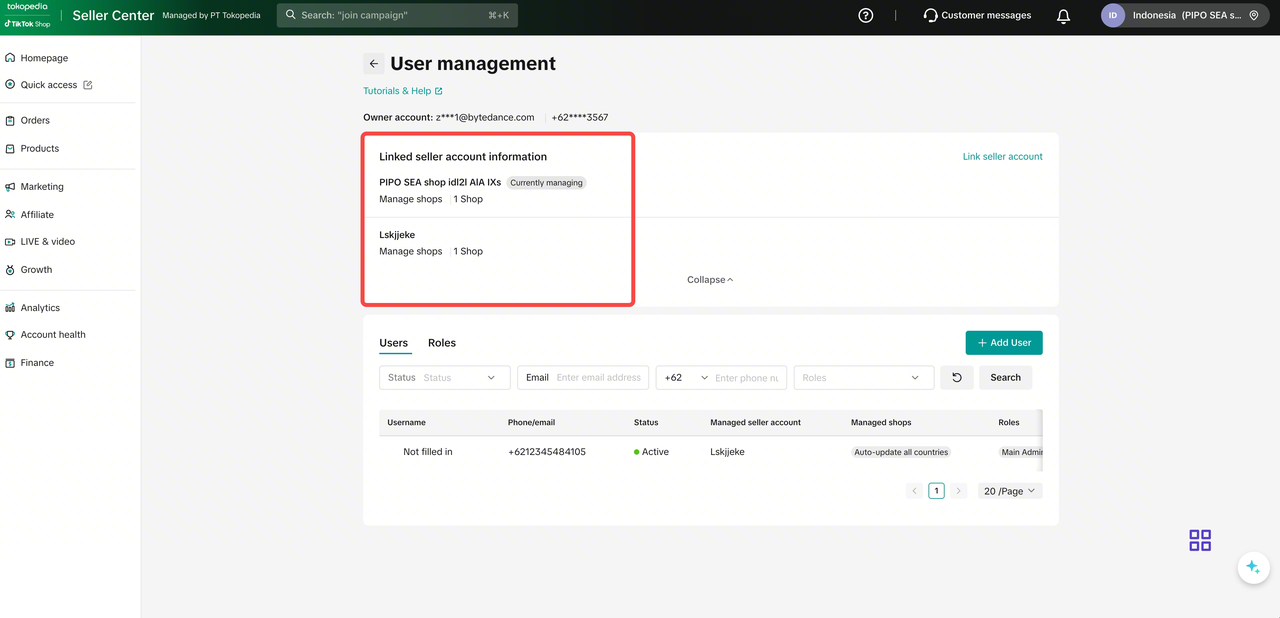
Once you have more than 1 shop linked, you can jump from one to another in seconds in 2 easy ways.
|  |
|  |
Important: permission change of the bound shop owner
| Seller Center user type | Status after binding | Manage permission |
| Original bound shop owner | Main admin | No (view only) |
| Current/Primary owner | Owner | Yes (full control) |
| Sub-account/operation staff | No change | No |

FAQs
- Can I directly assign permissions to a sub-account?
The sub-account will have all the permissions under the roles assigned.
- Who can assign and customize roles?
- Why can't I edit/create products/orders etc.?
For example, a sub-account with the role Customer Service Agent may find that they suddenly lose the permission to edit products/orders. You can ask the account owner to add other roles with permissions to the sub-account. The account owner can also create a new role and assign it to the sub-account.
- Does TikTok Shop by Tokopedia have a location-specific sub-account type/role?
- Can my Tokopedia admin continue to have access to the Tokopedia seller center upon my shop merging?
- Upon shop merging completion, can I still make edits to my shop admin management in Tokopedia?
- See the list of admins that are added prior to integration and;
- Deactivate active shop admin - edit, add, delete, activate capability is no longer available
You may also be interested in
- 5 lessons
Account Management
Learn how to maintain your account performance, understand key metrics, and ensure long-term shop he…
- 6 lessons
Getting Started & Registration
Step-by-step guidance to help you create a TikTok Shop by Tokopedia account, complete registration,…

Tokopedia & TikTok Shop Commitment for Your Integration Expe…
Thank you for the trust and constructive feedback you've shared with us. We’ve heard your feedback a…

Integration to Tokopedia App
This feature guide is intended for TikTok Shop by Tokopedia sellers, both who don't have and already…
Shop Ownership Change Process
Note: You will only be able to change ownership to corporate sellers (individual to corporate, or co…

What should I do if my account has been compromised?
If you are unable to sign in to your account or can no longer have access to the registered email or…

Late Dispatch Rate (LDR)
Note: Orders with Instant, Sameday, and Sameday 8-hour delivery are only available via Tokopedia. Cl…
New Shop Adjustment Period
All new shops on TikTok Shop by Tokopedia start in the Shop Adjustment Period. During this period, y…
What is the Seller Performance Evaluation Policy?
TikTok Shop by Tokopedia Seller Performance Evaluation At TikTok Shop by Tokopedia, we value safety,…
Inactive Seller Accounts
When will I be considered an Inactive Seller? Sellers that do not interact with their TikTok Shop by…