

Order Handling Capacity Tool
01/13/2026
This tool is currently in the pilot phase and will be available only to selected sellers starting 13 January 2026. If you have access, you will see this feature in your . Further announcements will be shared when the tool is fully rolled out.
Key Points:
- The Order Handling Capacity (OHC) tool enables sellers receive fulfillment deadline extensions when they receive more orders than they can normally handle.
- By using the OHC tool, sellers can help to protect their shop's fulfillment performance metrics.
What is the Order Handling Capacity (OHC) Tool?
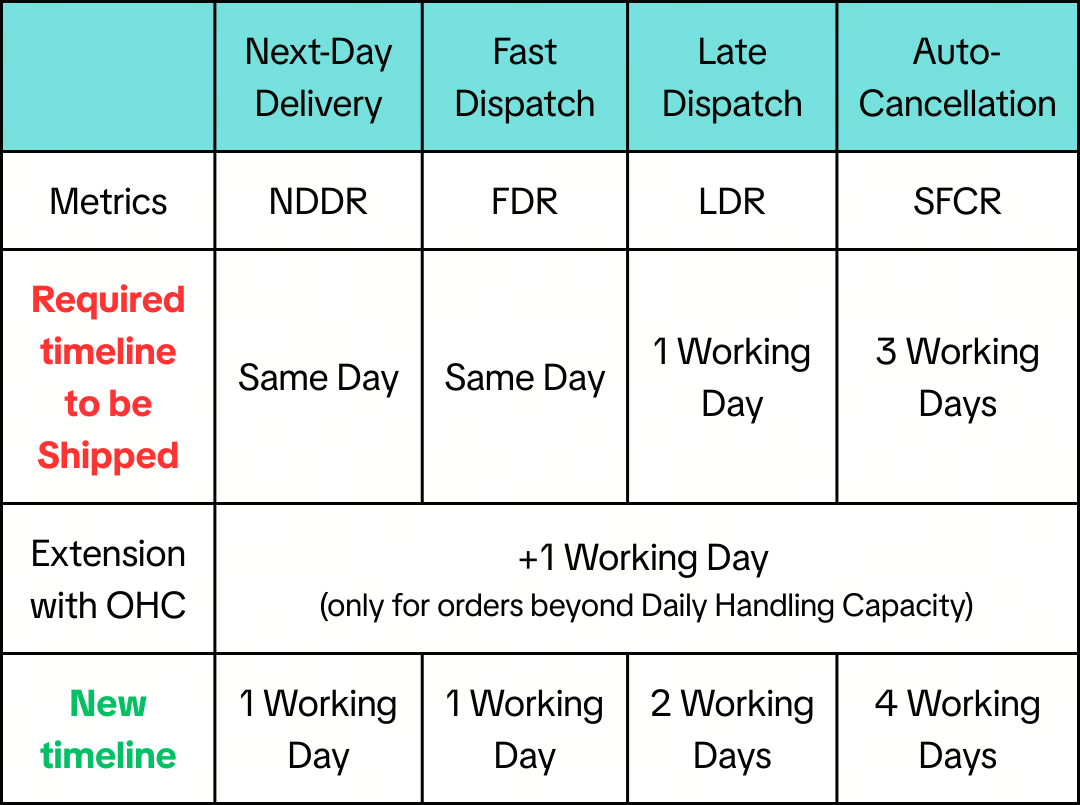
The OHC Tool is a feature that allows Sellers to take additional orders beyond what they can usually handle on a daily basis. Excess orders will be given a fulfilment deadline extension*, allowing you to protect your metrics!*Note: This extension applies to your Late Dispatch, Fast Dispatch, Next-Day Delivery and Auto-Cancellation timelines.
ExampleNote: The timelines below are for illustration only.
- Pre-Orders, Instant/Sameday/8h/4h delivery orders.
How does the OHC Tool Work?
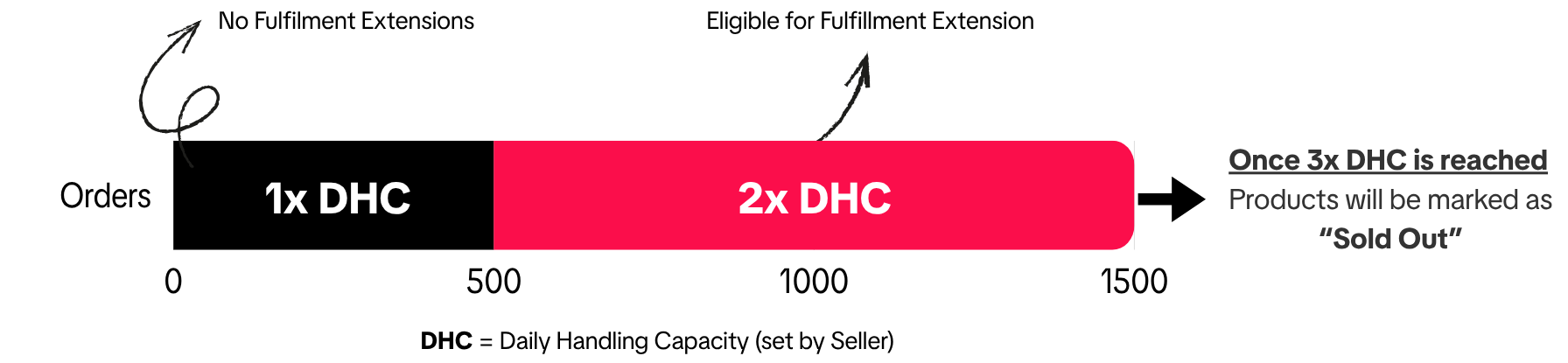
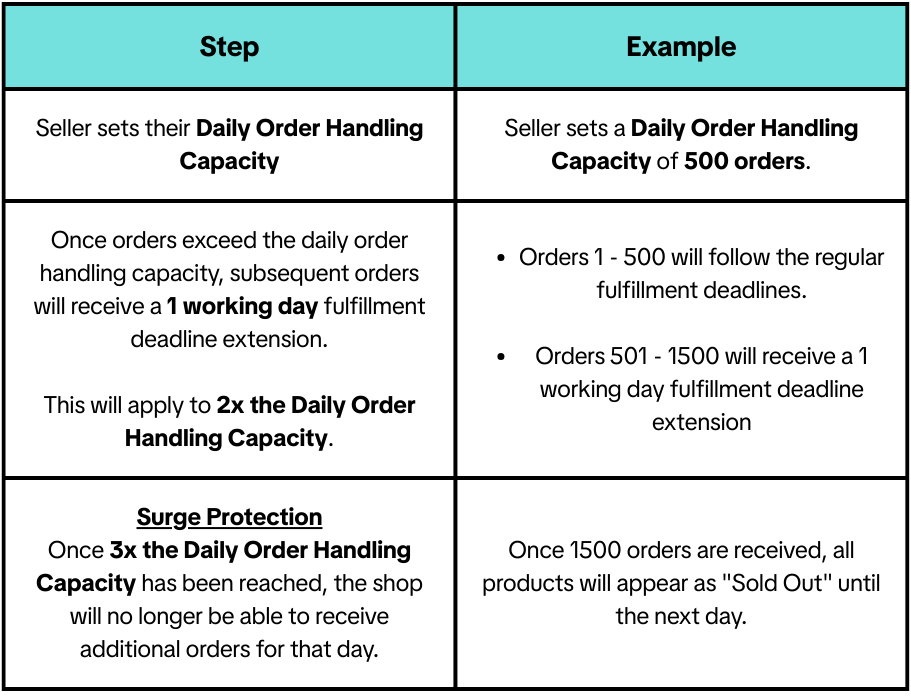
How should I determine my Daily Order Handling Capacity?
For the OHC and the Fulfillment Deadline Extension features to work as intended, sellers should provide a realistic estimate of their shop's capacity.To calculate your shop's daily order capacity, consider the following factors:
- Historical Order Volumes: Analyze past order output volume and the time it takes to dispatch orders. This helps to identify an optimal daily order capacity.
- Operational Capacity: Assess how many orders your fulfillment process can manage each day. Be sure to consider staff, warehouse space, and processing speed, if applicable.
- Order Volume Spikes: Plan for increases during holidays, sales, and live events. Review previous order volumes during peak sales periods to determine the best strategy.
- Inventory Levels: Ensure you have consistent stock availability and regular restocking to meet daily demand.
Order Handling Capacity tool setup guide
To set up the OHC tool, go to Seller Center and follow the below steps:- Using the side menu (on the left), click on Account Health->Shop Health and click "View Details" under the "Fulfilment Deadline Extension" box.
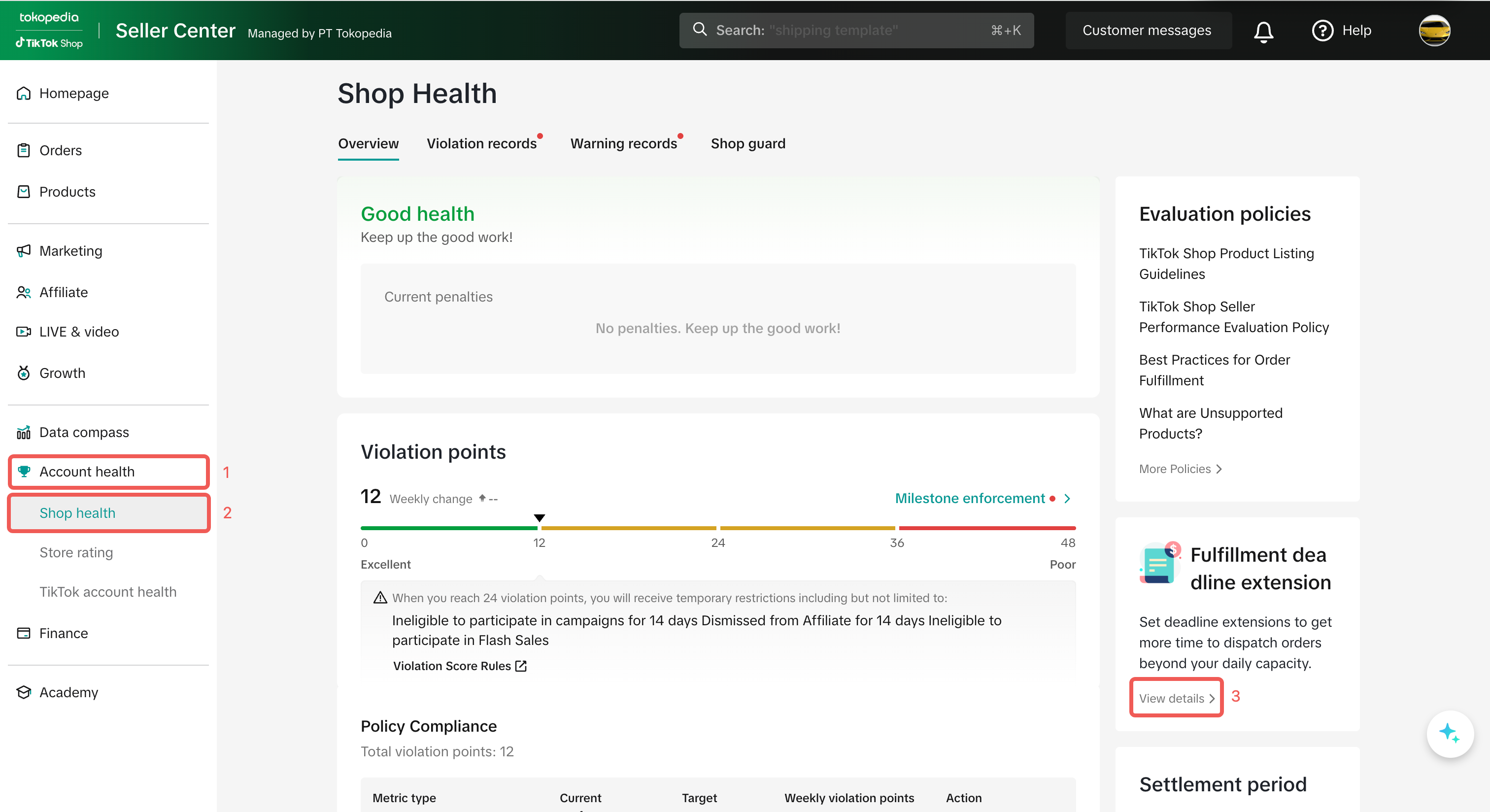
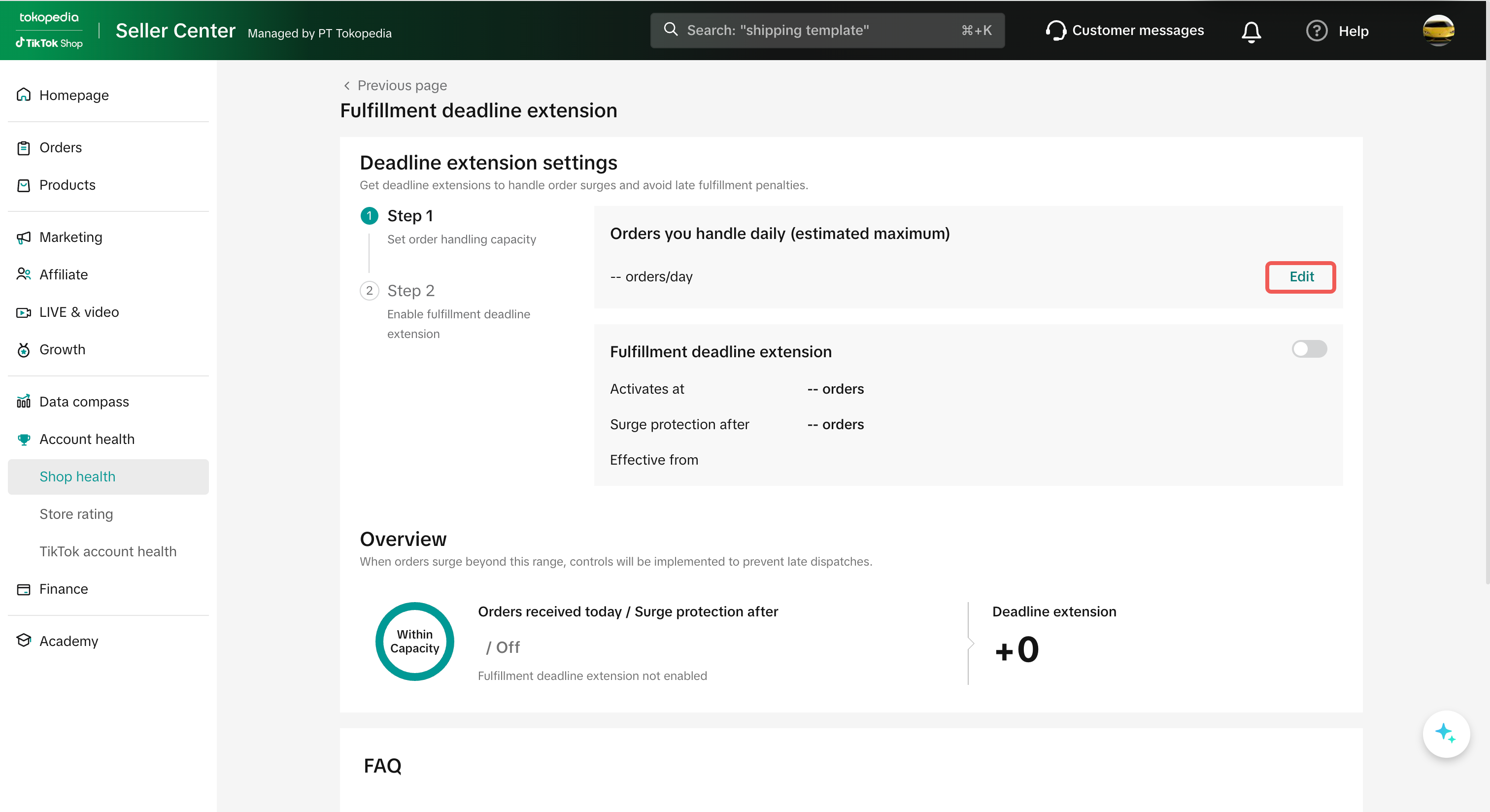
- Click the Edit button to set your Daily Order Handling Capacity.
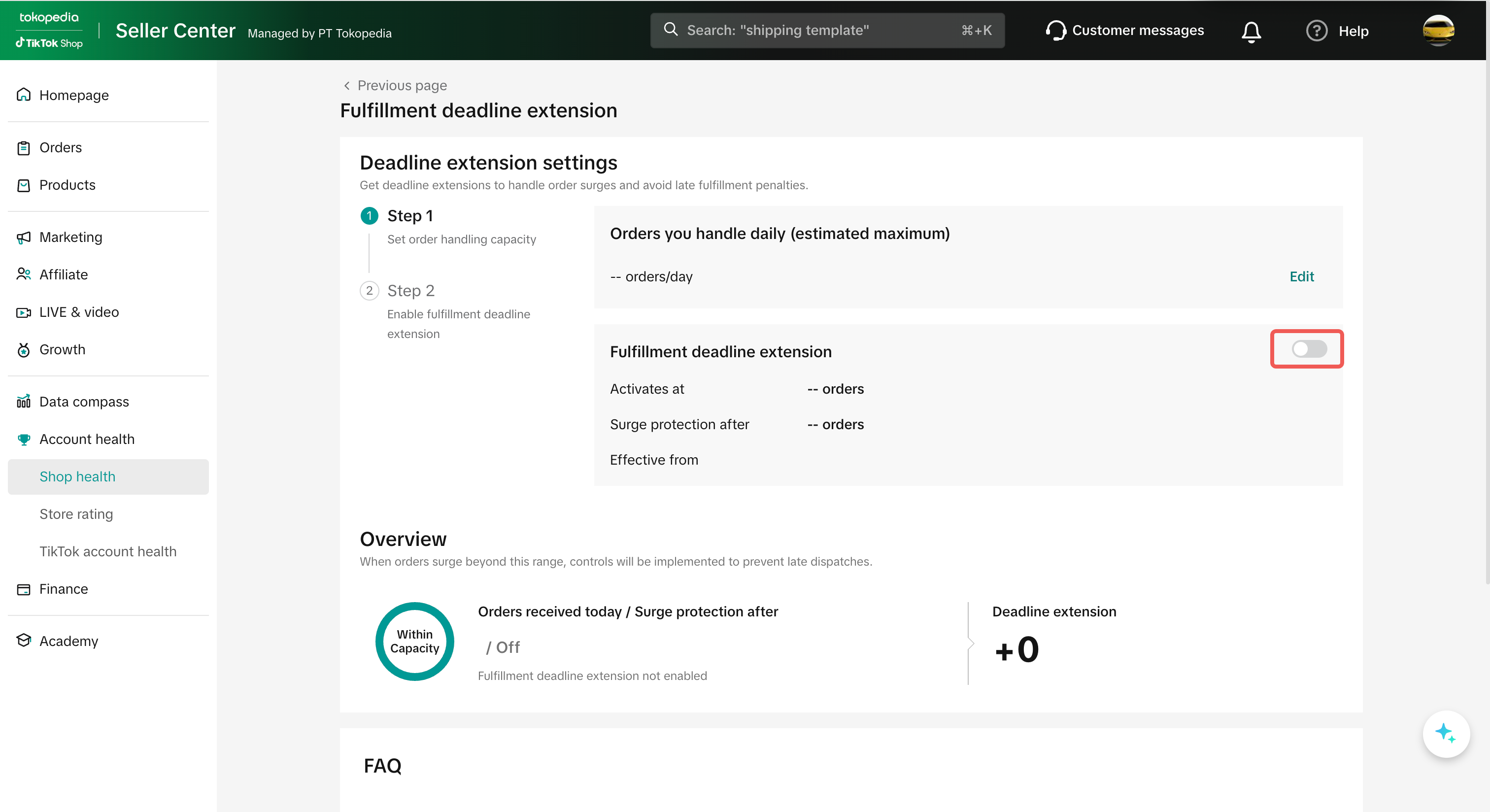
- Toggle the "Fulfilment Deadline Extension" to enable your additional orders to receive an SLA extension. This will apply to orders placed from the next day.
Frequently Asked Questions
How will I know when my limit is reached?
- You may monitor your existing capacity and limits on the OHC Tool page. When your limit is reached, you will receive an "Order Volume Limit" notification via your Seller Inbox, Email and on the Seller Center.
How do I increase my Order Surge Protection limit?
- By default, users have a limit of 3 times their Daily Order Handling Capacity.
- In the future, we will be introducing a premium version of this function that allows sellers to customise these limits.
How often can I change my settings?
- You may change your settings at any time. However, any changes will only take effect the next day (from 00:00H).
What happens when there are fulfillment extensions for campaigns or other events?
- Any fulfilment extensions you receive during campaigns or special events will stack with ad-hoc extensions.
- You receive a 2-day fulfilment extension for the 9.9 campaign
- The OHC tool grants an additional 1-day extension
- These extensions are added together, giving you a total fulfilment extension of 3 days