

Managing Combined & Split Orders: Fulfillment Made Flexible
09/22/2025
Need more flexibility in fulfilling orders? With Seller Center, you can now combine multiple orders into one package or split one order into multiple shipments — all while maintaining accurate tracking and clear operations.
This guide helps you choose the right method for your fulfillment flow and execute it efficiently.

Why Combine or Split Orders?
Every seller has different operational needs. Sometimes combining orders is faster and more efficient, other times splitting is necessary to avoid delays.


When Should You Combine or Split Orders?
Scenario | Combine Orders | Split Order |
| Buyer is the same | ✅ Yes | — |
| Same shipping address | ✅ Yes | — |
| Same shipping option and courier | ✅ Yes | — |
| COD orders | ❌ Not allowed | ✅ Allowed |
| Meets weight & size limits | ✅ Required | — |
| Items are out of stock or delayed | — | ✅ Yes |
| Buyer requests partial delivery | — | ✅ Yes |
| Fragile or bulky items need separation | — | ✅ Yes |
| Courier supports multi-package shipment | — | ✅ Required |
| Within platform shipping policy | ✅ Yes | ✅ Yes |

How to Combine or Split Orders?
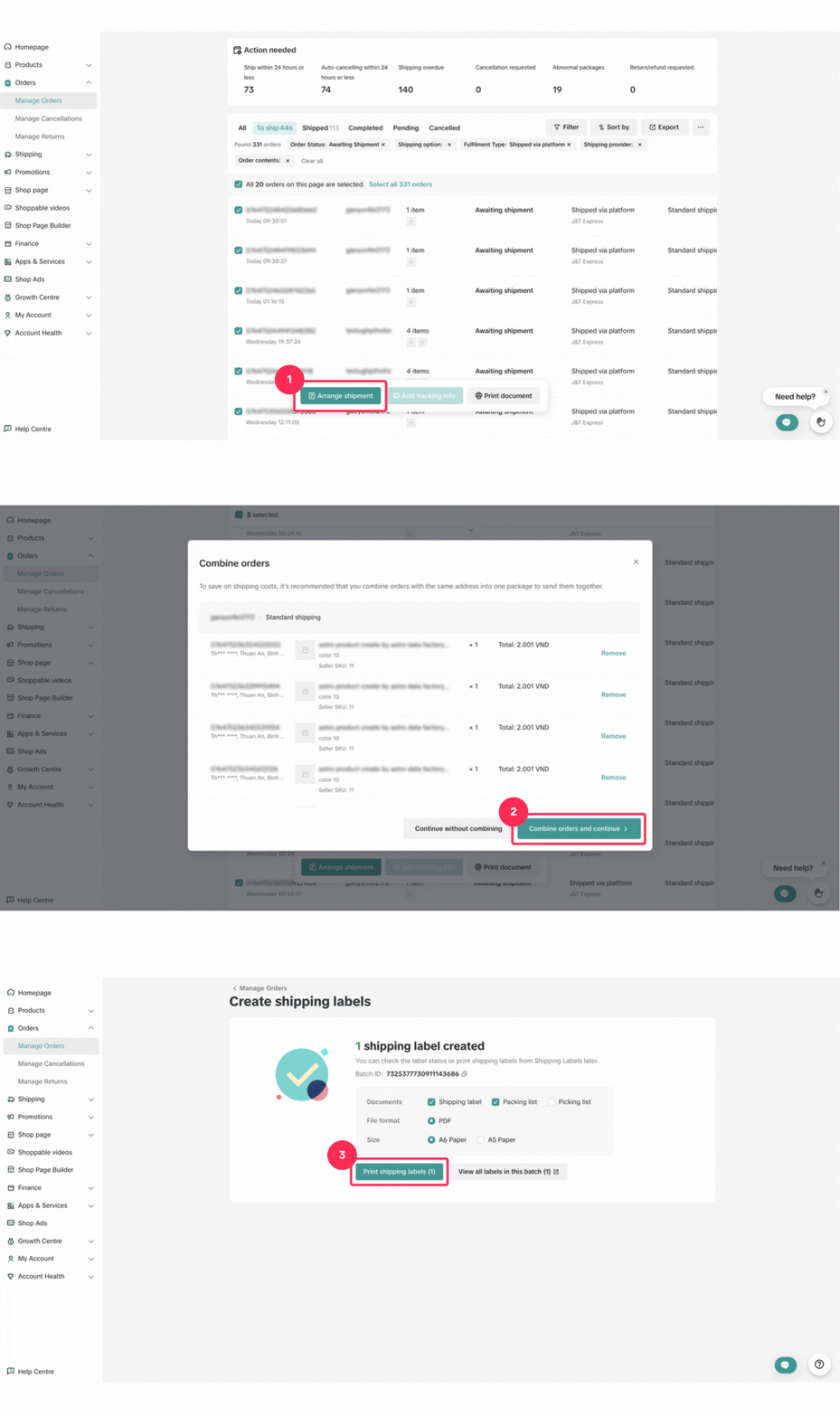
How to Combine Orders
|  |
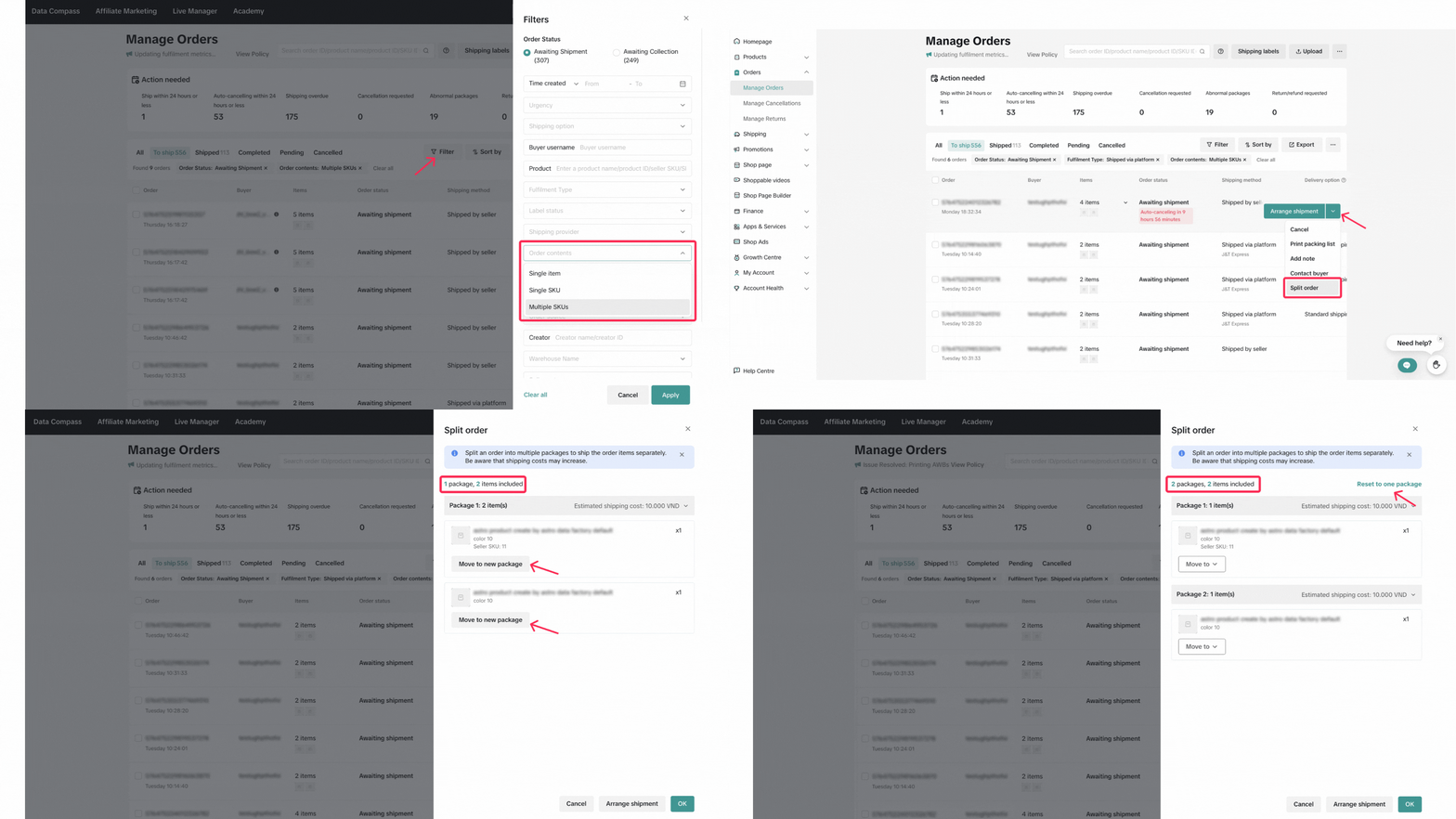
How to Split Orders
|  |

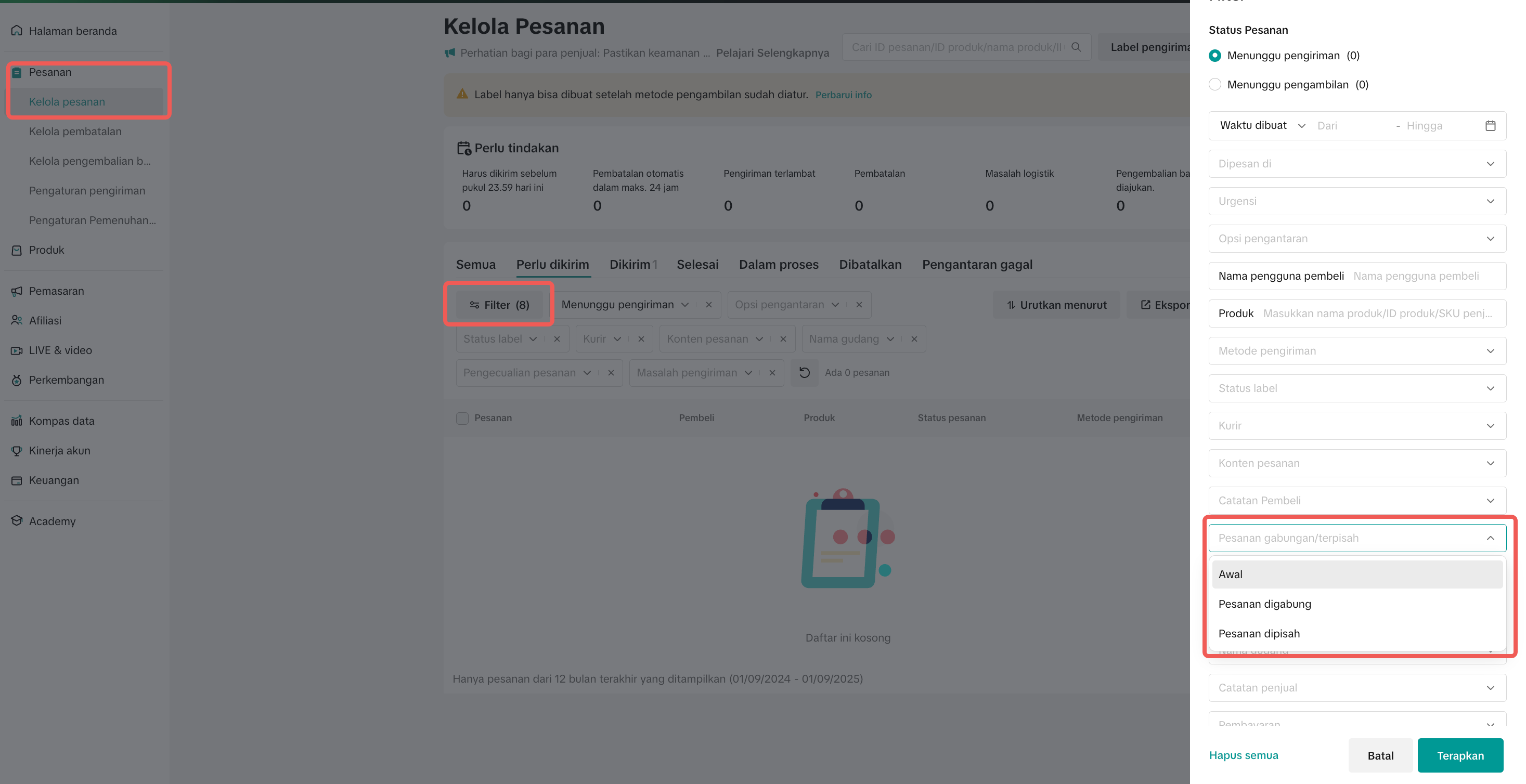
Review & Fulfillment – Combined vs Split
To review combined orders:
| To review split orders:
|
 | |

Common Mistakes & How to Avoid Them
Mistake | Impact | How to Avoid |
| Combining orders with different shipping couriers | Orders can’t be fulfilled properly, delays may occur | Double-check that all orders use the same courier and shipping option before combining |
| Trying to combine COD orders | Combination will fail, and processing is blocked | Only combine non-COD orders as COD is not supported for combining |
| Forgetting to check weight/size limit before combining | Courier may reject the package | Review the courier’s max weight/volume limit before confirming combine action |
| Splitting orders unnecessarily | Adds workload and multiple tracking points | Only split when operationally needed (e.g., stock delay, different warehouses) |
| Forgetting to update fulfillment status on split packages | Causes confusion in tracking and buyer communication | Treat each split package as a separate order — fulfill them individually |
| Not informing team of split/combine actions | Misalignment in packing and shipping | Use internal notes or tags to flag combined/split orders for your ops team |

Go to Seller Center > Manage OrdersUse the Combine Orders or Split Order tools to optimize your packing flow today.
You may also be interested in

Tokopedia & TikTok Shop Commitment for Your Integration Expe…
Thank you for the trust and constructive feedback you've shared with us. We’ve heard your feedback a…

Integration to Tokopedia App
This feature guide is intended for TikTok Shop by Tokopedia sellers, both who don't have and already…
Shop Ownership Change Process
Note: You will only be able to change ownership to corporate sellers (individual to corporate, or co…

What should I do if my account has been compromised?
If you are unable to sign in to your account or can no longer have access to the registered email or…

Late Dispatch Rate (LDR)
Note: Orders with Instant, Sameday, and Sameday 8-hour delivery are only available via Tokopedia. Cl…

What is the Seller Performance Evaluation Policy?
TikTok Shop by Tokopedia Seller Performance Evaluation At TikTok Shop by Tokopedia, we value safety,…

Inactive Seller Accounts
When will I be considered an Inactive Seller? Sellers that do not interact with their TikTok Shop by…

Access Management on Seller Center
As a shop owner, you can add sub-accounts for your employees to help manage and operate your shop. I…

Shop Marketing Account
This article will introduce a marketing account for your Shop. Shop Marketing account is TikTok acco…

Shop Official account
The TikTok account that represents the official identity of the TikTok Shop by Tokopedia official ac…