

Buy More Save More
12/04/2025
This promotional tool is available on both Tokopedia & TikTok Shop platforms. Read more about the integration of Tokopedia & TikTok Shop

What is Buy More Save More?
Seller Buy More Save More (BMSM) is an order-based promotional tool for sellers to set discounts on selected sets of products after the purchase criteria are met. This promotion is funded by sellers.
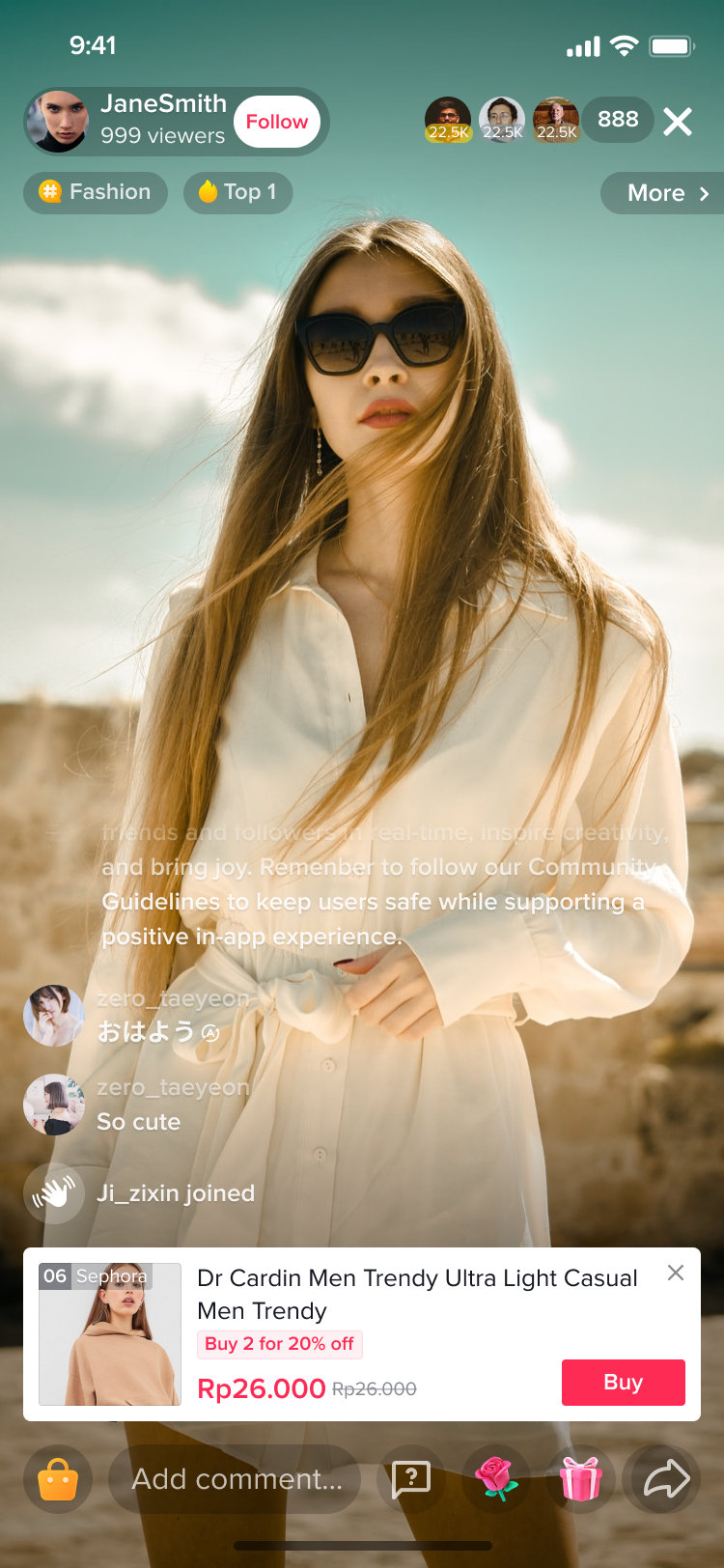
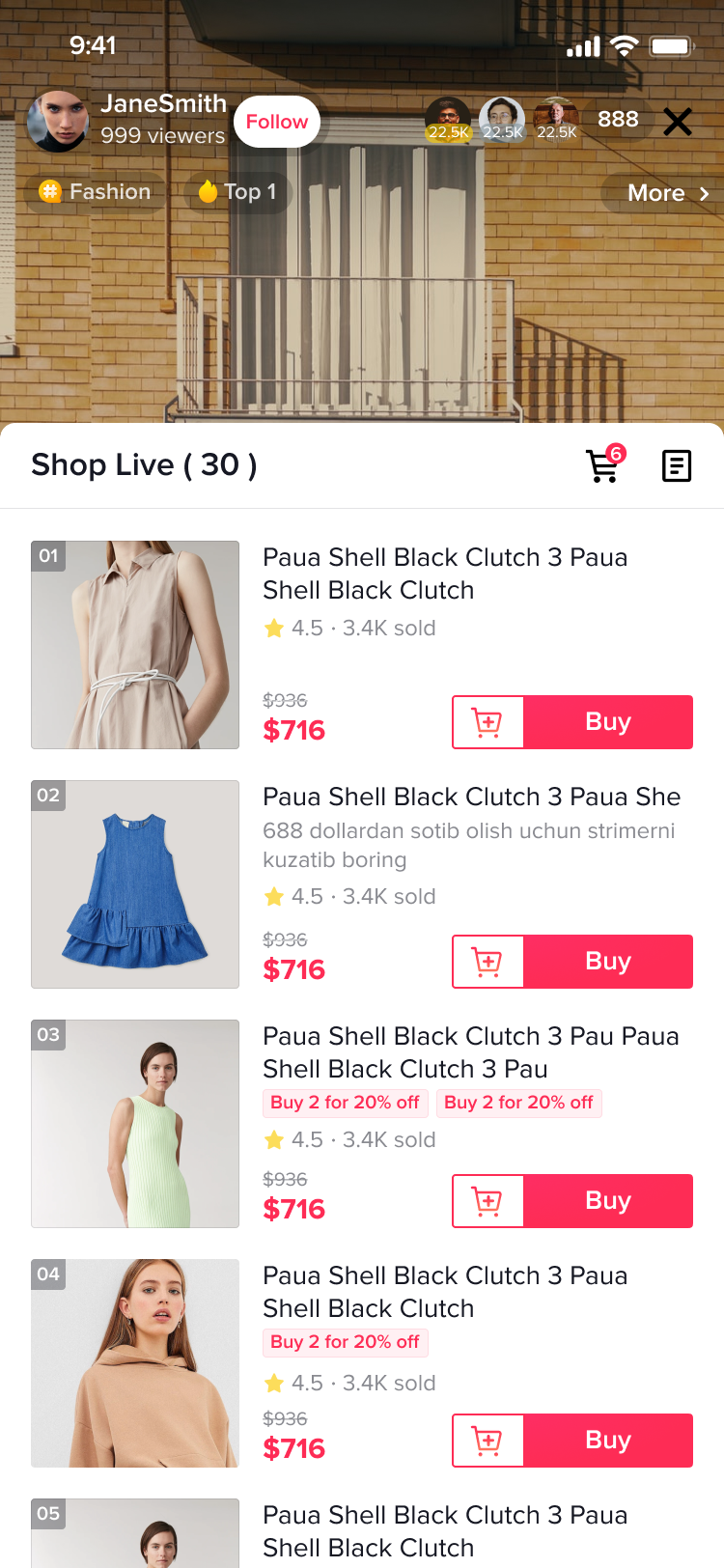
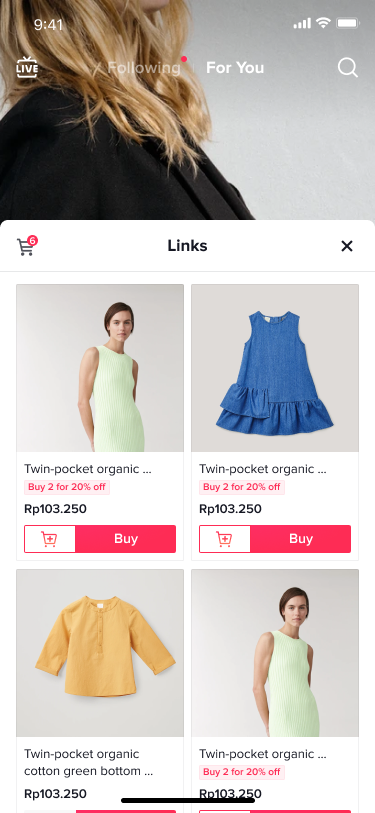
| TikTok Shop by Tokopedia - Livestream Pinned Product | TikTok Shop by Tokopedia - Livestream Shopping Bag | TikTok Shop by Tokopedia - Short Video | TikTok Shop by Tokopedia - Product Label | TikTok Shop by Tokopedia - Shopping Cart | Tokopedia - Product Detail Page | Tokopedia - Shopping Cart |
 |  |  |  | 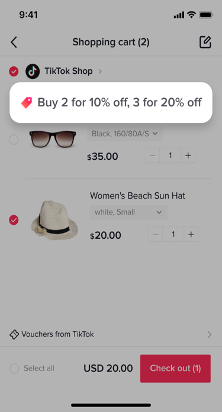 | 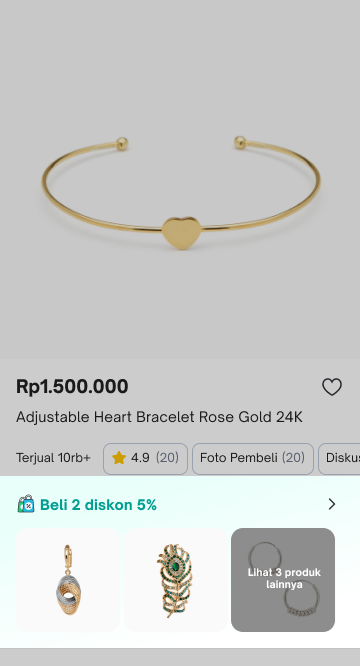 | 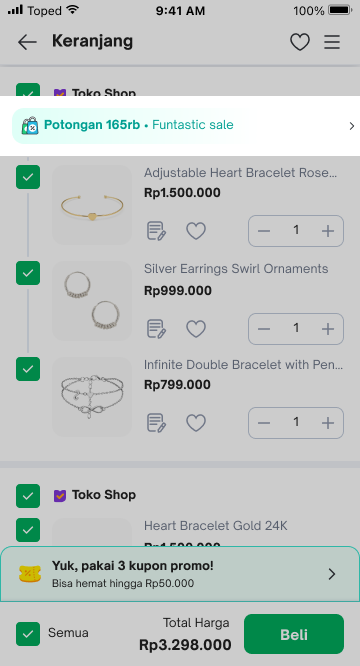 |
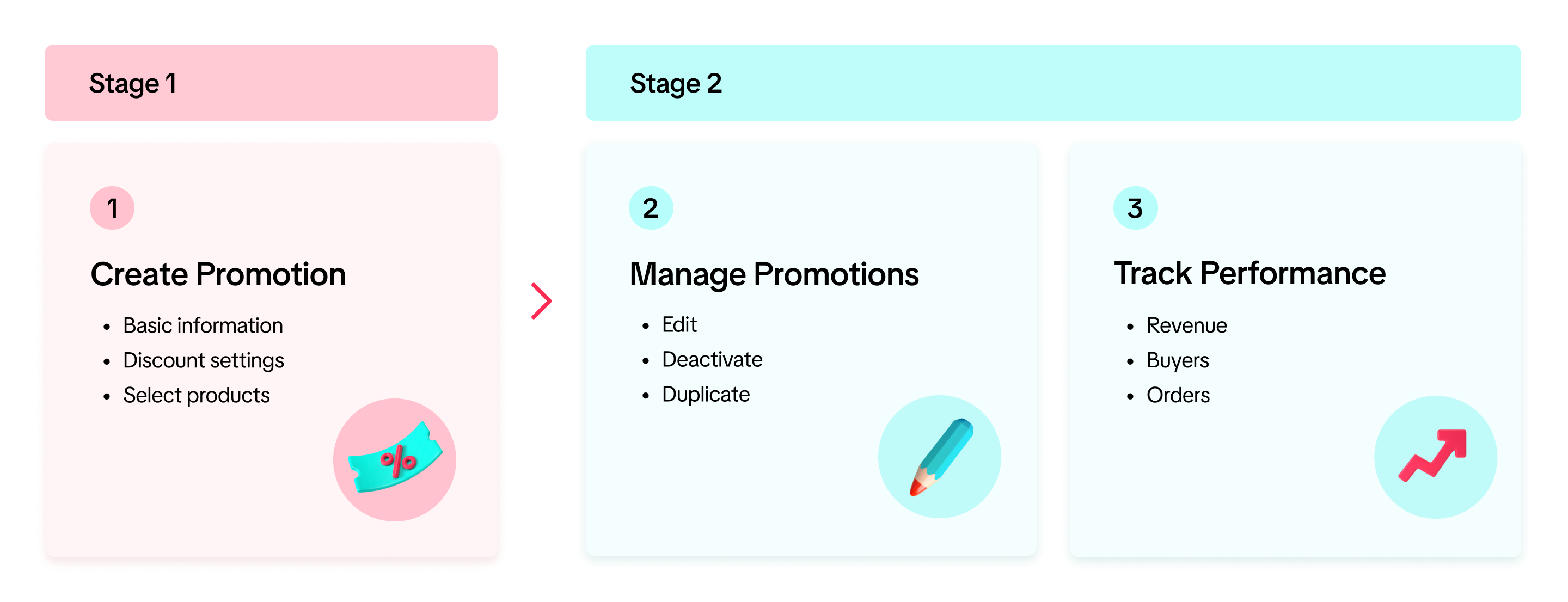

Create Buy More Save More promotion
On Seller Center PC
To create a Buy More Save More promotion on the Seller Center on PC, visit the Promotions tab and create a promotion.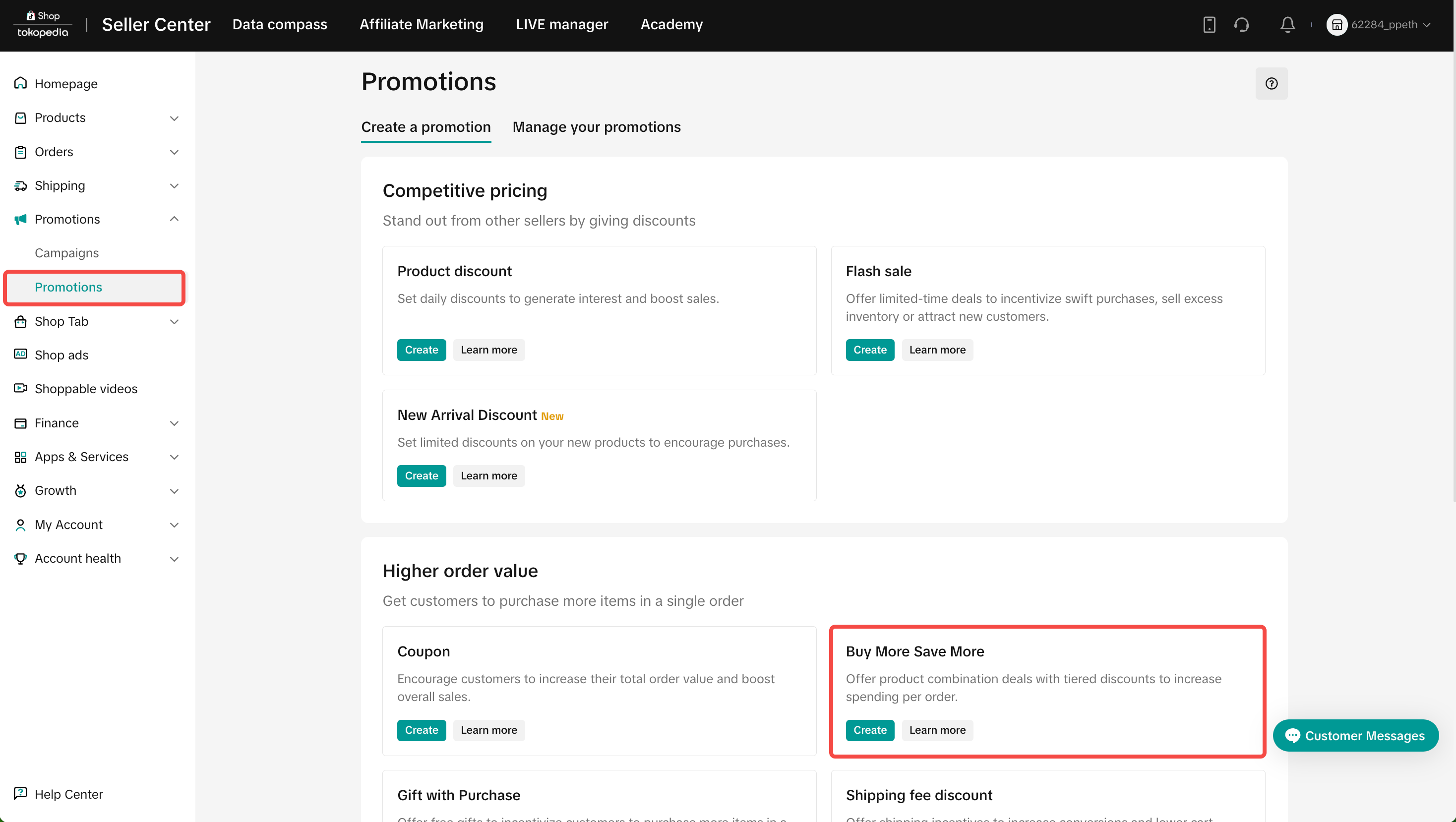
- Promotion Name
- Promotion Period: Select the date and time of your promotion start and end period (Minimum 10 minutes, maximum 365 days)
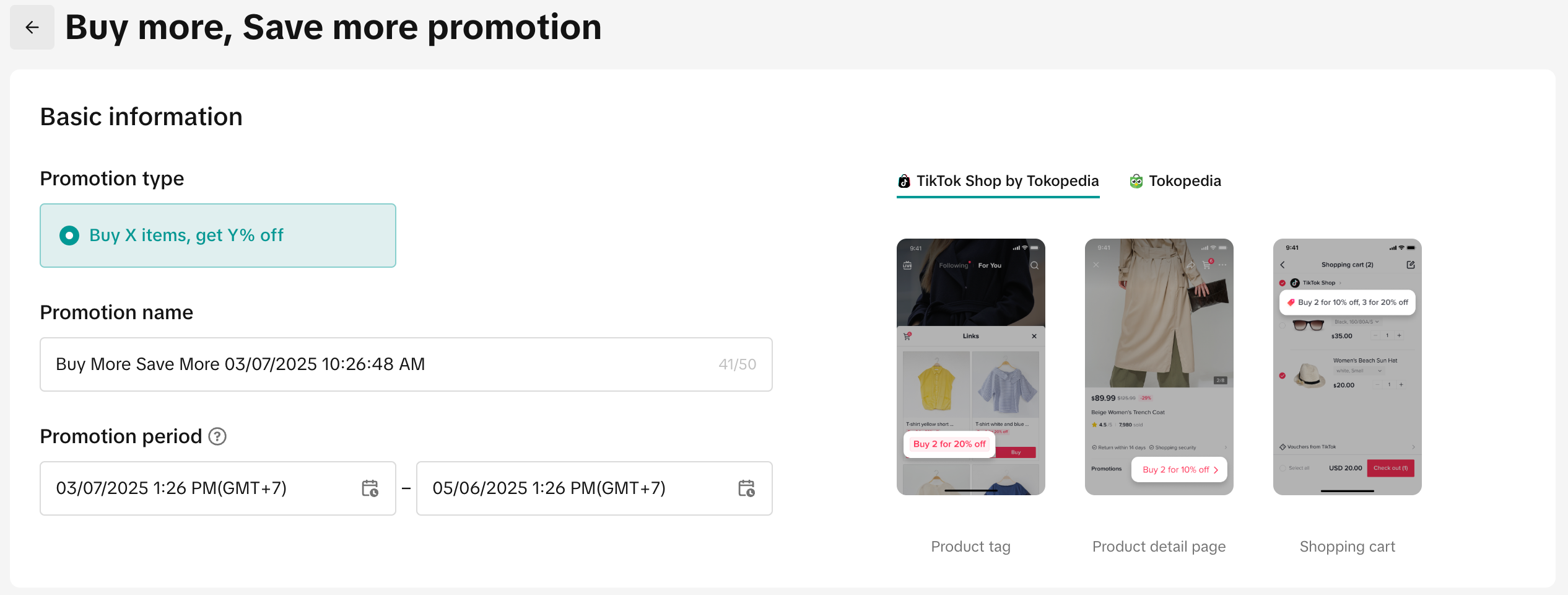
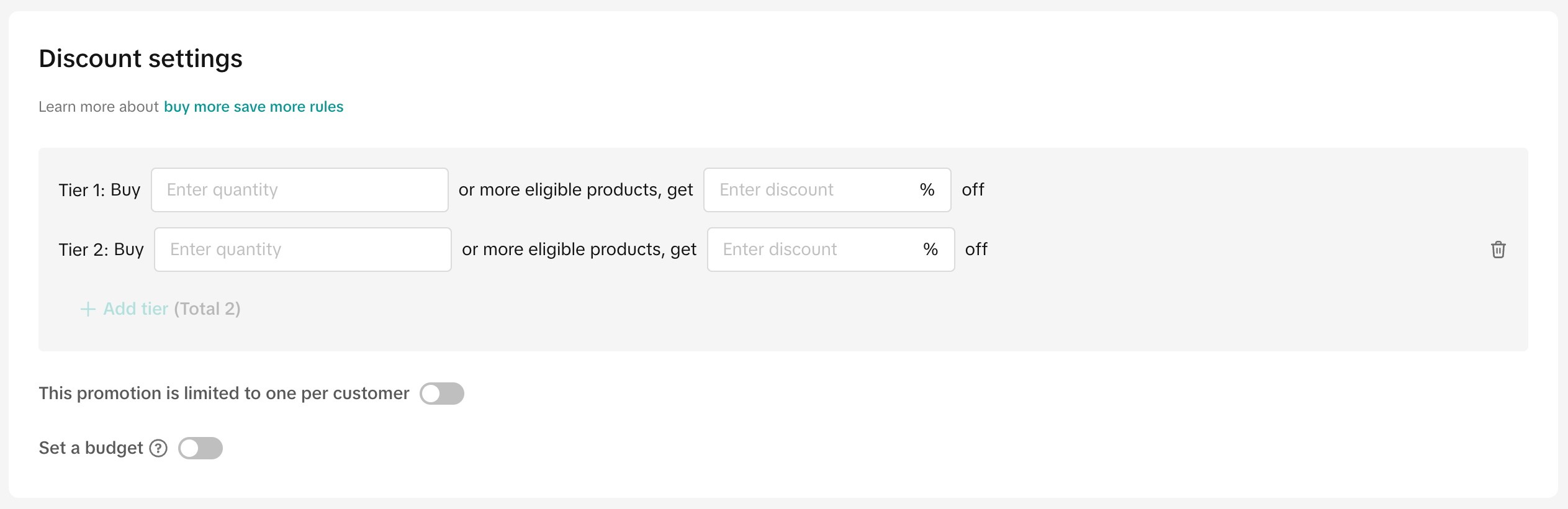
- Input the Buy More Save More condition: Enter the product quantity and discount percentage
- Add tier: You can add up to two tiers of discounts to offer bigger discounts for buying more products. If you to choose to have a two-tiered Buy More Save More promotion, tier 2's purchase quantity and percentage discount must be greater than tier 1.
- Limit to one use per customer: Toggle on if you wish for customers to enjoy the promotion once.
- Set budget: If you set a budget for your promotion and the budget runs out before the promotion ends, the promotion will deactivate.
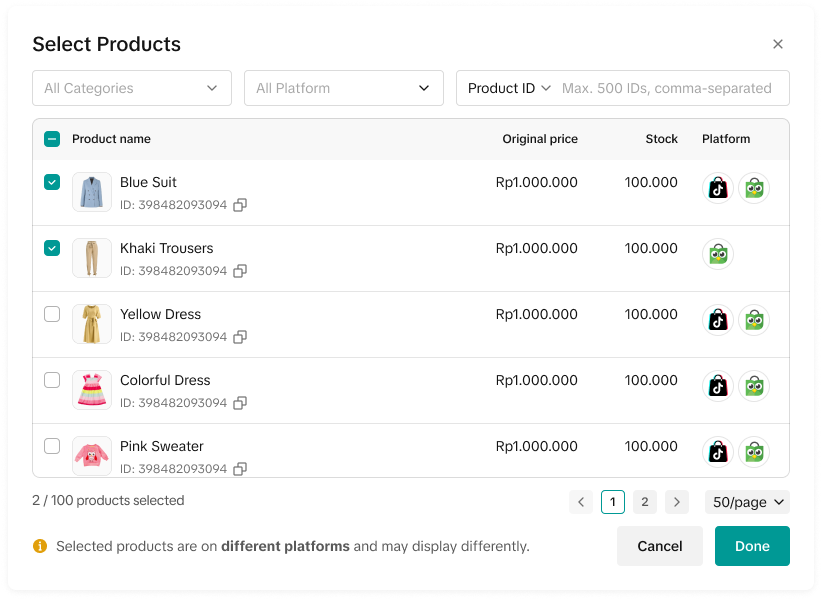
- Apply the Buy More Save More promotion to the entire shop or specific products.
- After all the settings are completed, click Agree to Publish to create the Buy More Save More promotion.
 |  |
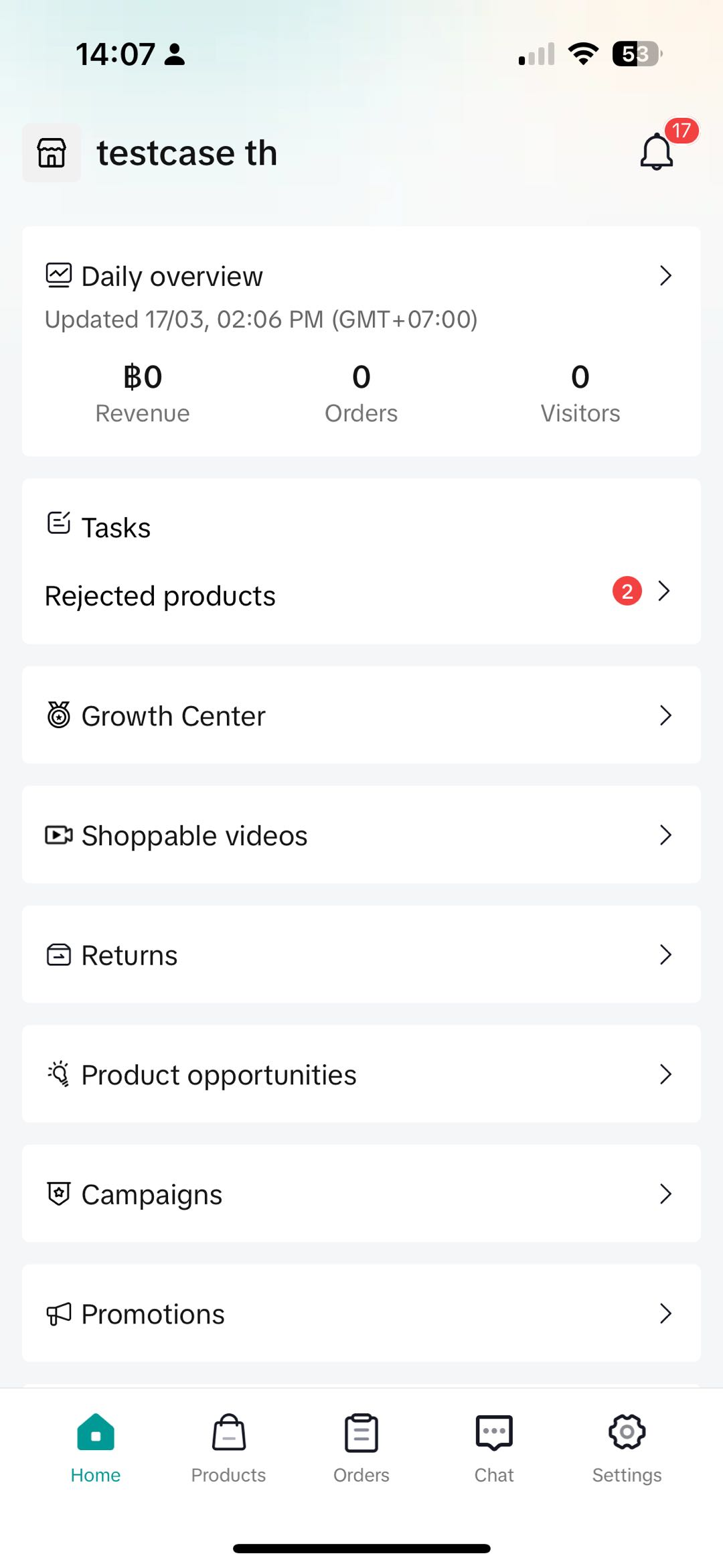
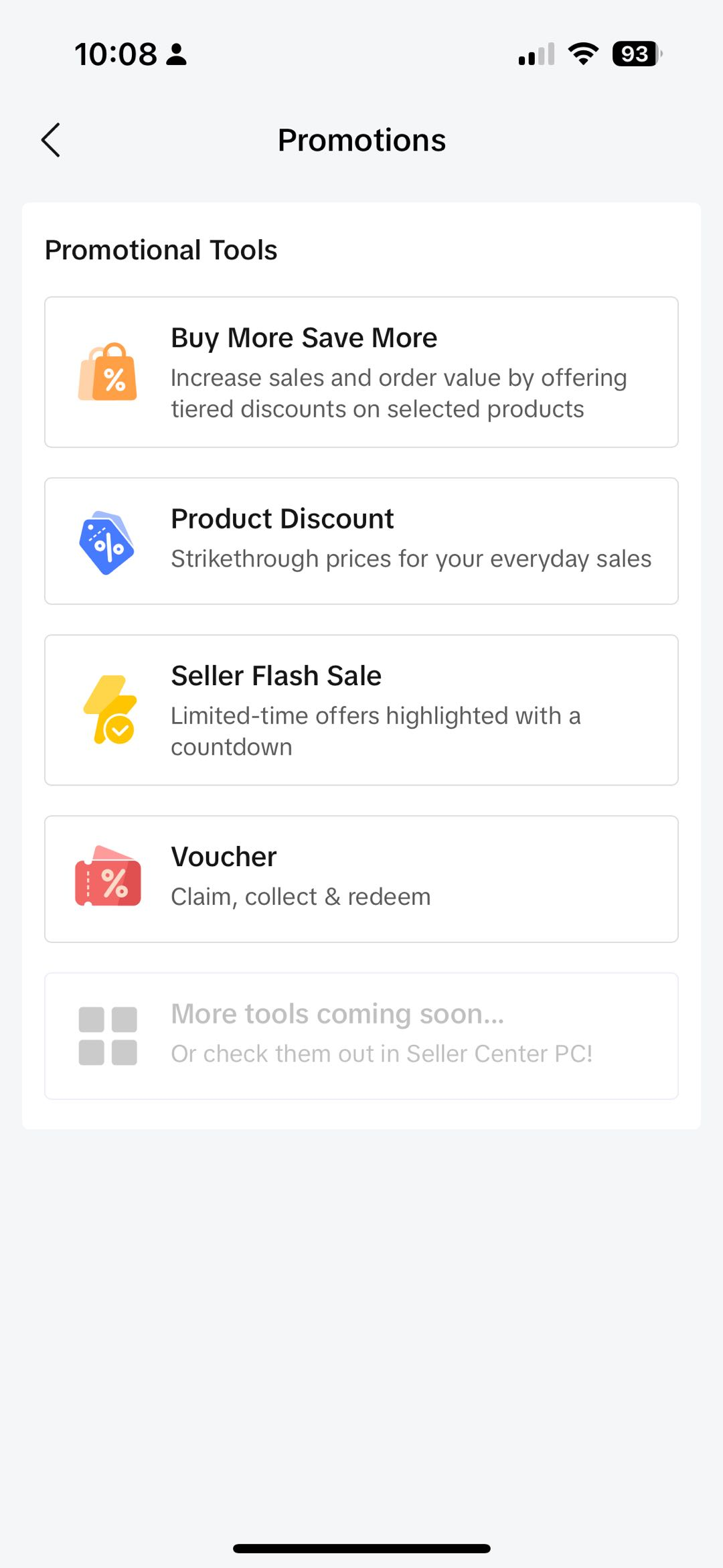
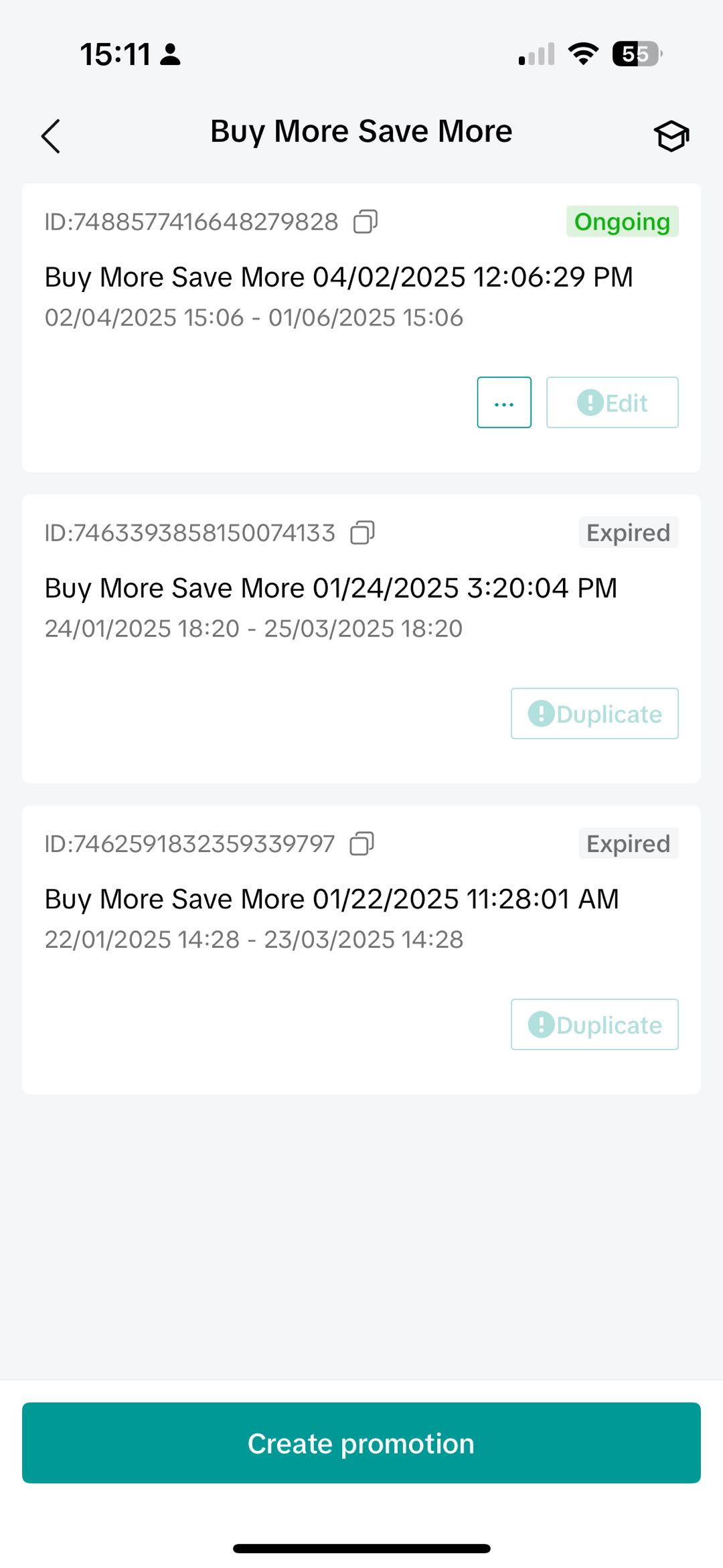
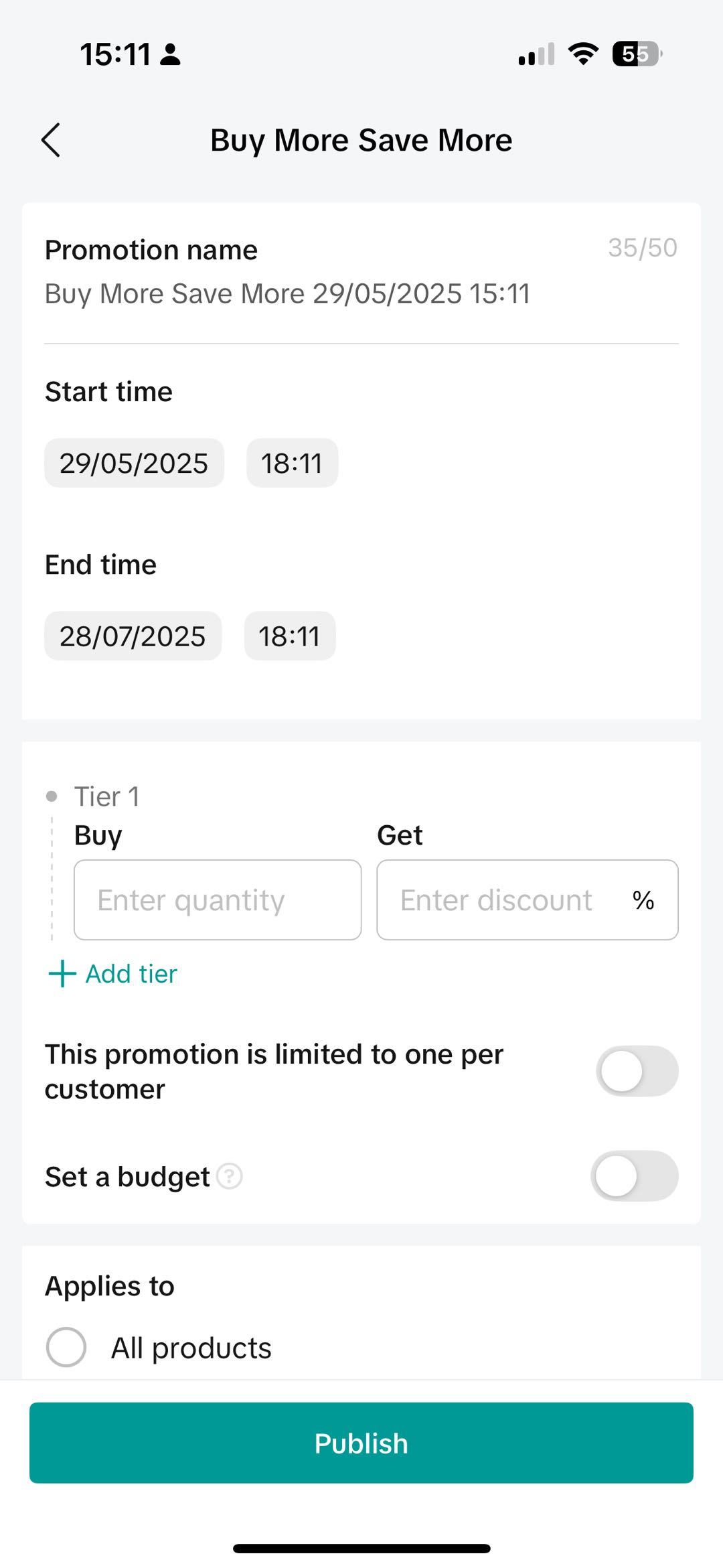
On Seller Center App
To create a Buy More Save More on the Seller Center App, visit the Promotions tab and select Buy More Save More- Set a promotion name and promotion period
- Input the Buy More Save More condition: Enter the product quantity and discount percentage and budget
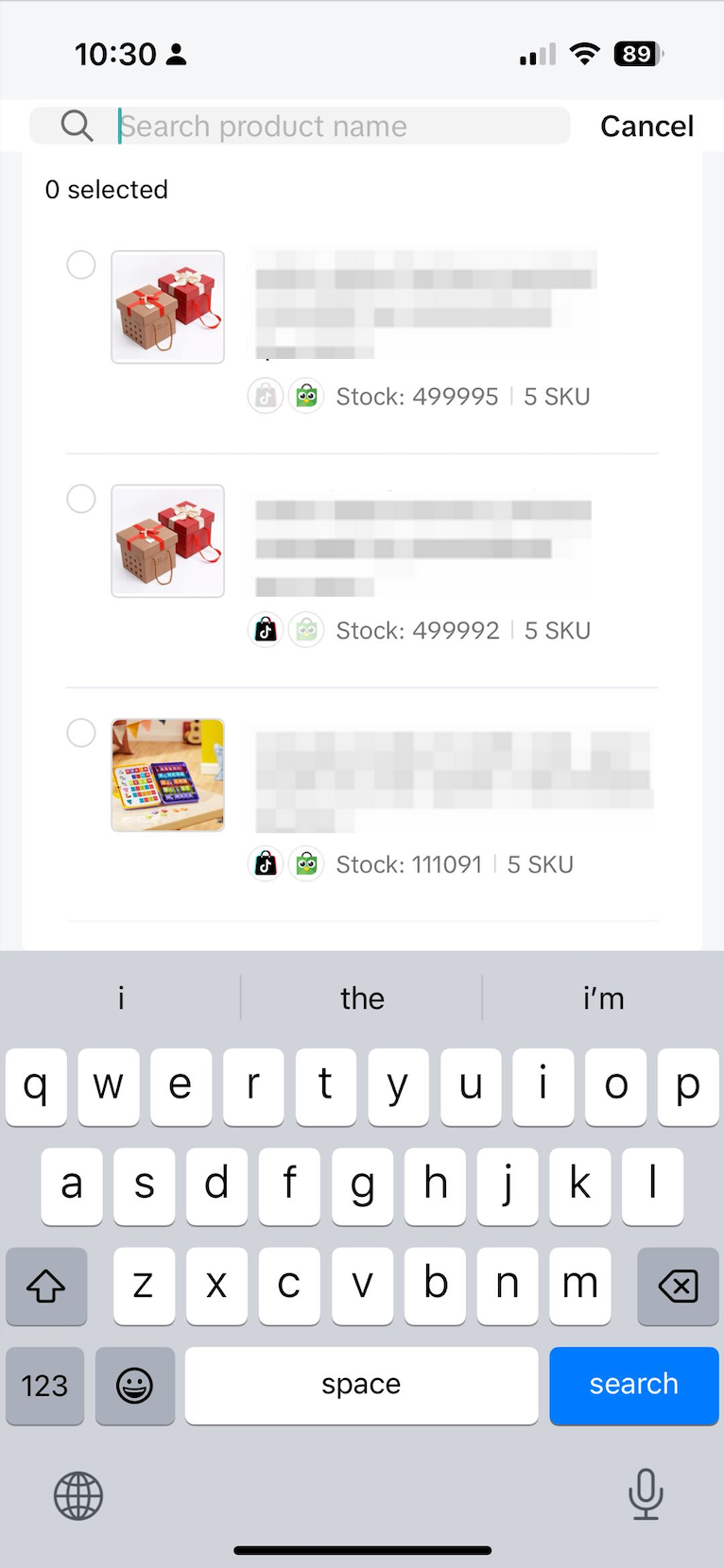
- Select whether to apply Buy More Save More to all products or specific products, you can easily find the products you want to include by searching for product names.
- Once you have reviewed the promotion details, click Publish
 |  |  |  |  |
- Apply Buy More Save More to your entire shop: Allow customers to mix and match products freely making it easier for them to reach the minimum threshold
- Know your products: If you prefer to apply Buy More Save More to specific products, choose similar or complementary products to ensure the success of your promotion, for example:
- Products suitable for bulk purchases
- Products that are recommended to be used together
- Products that are great for purchase in different variations such as styles or colors
- User tier discounts: Set up two minimum purchase thresholds, offering bigger discounts as customers buy more
Promotion Previews for Tokopedia & TikTok Shop customer-end displays
After Integration (Read More), sellers will be able to create and manage Product Discount promotions for products that are on both Tokopedia & TikTok Shop.This will be covered under "Promotion Platform" when the promotion covers products that are across both platforms as follows:
| When products are available on both platforms with the same promotional mechanism | 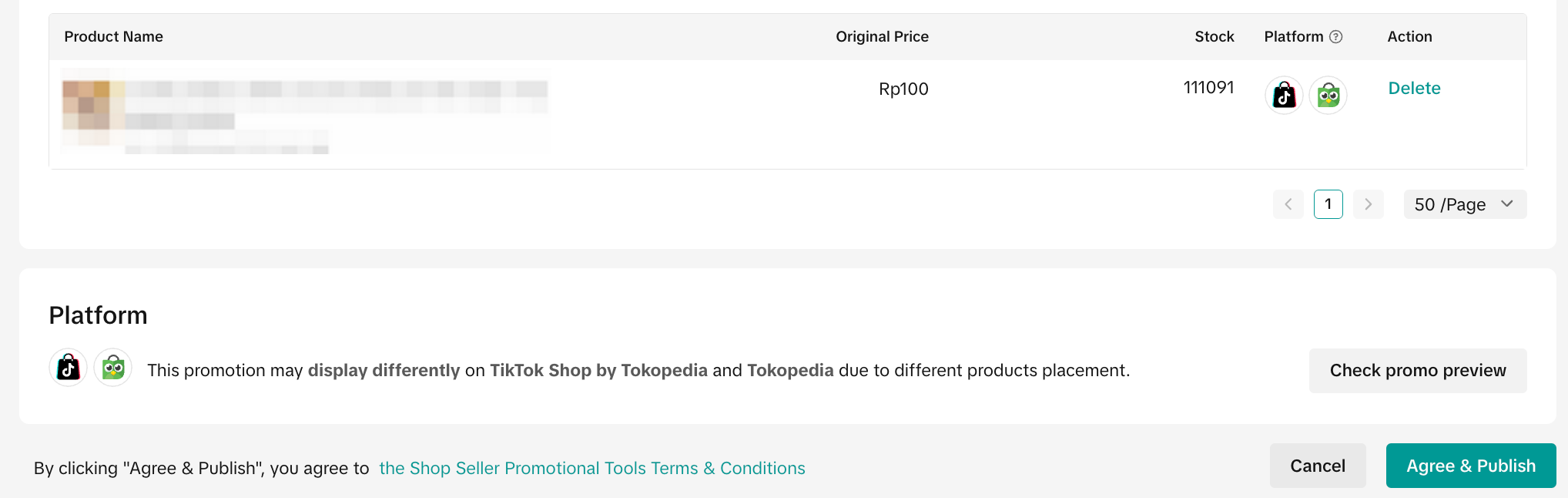 | |
| When products are available on either platform with different promotion mechanisms | 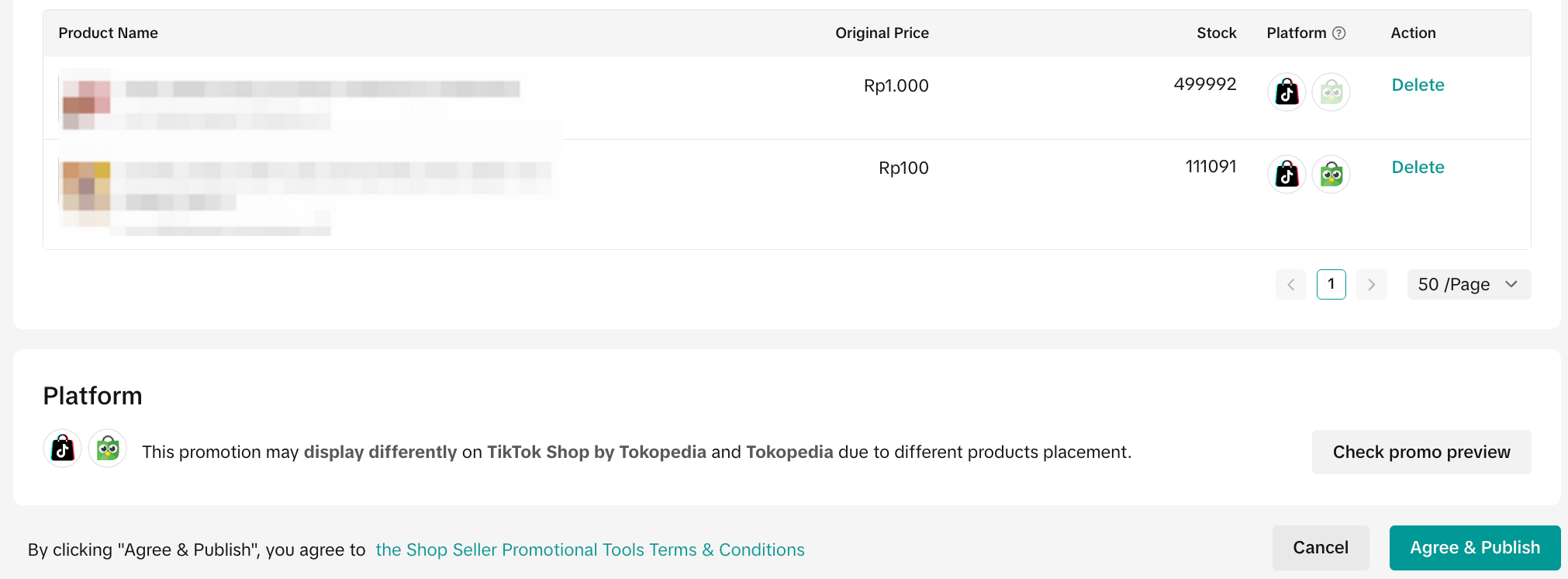 | |
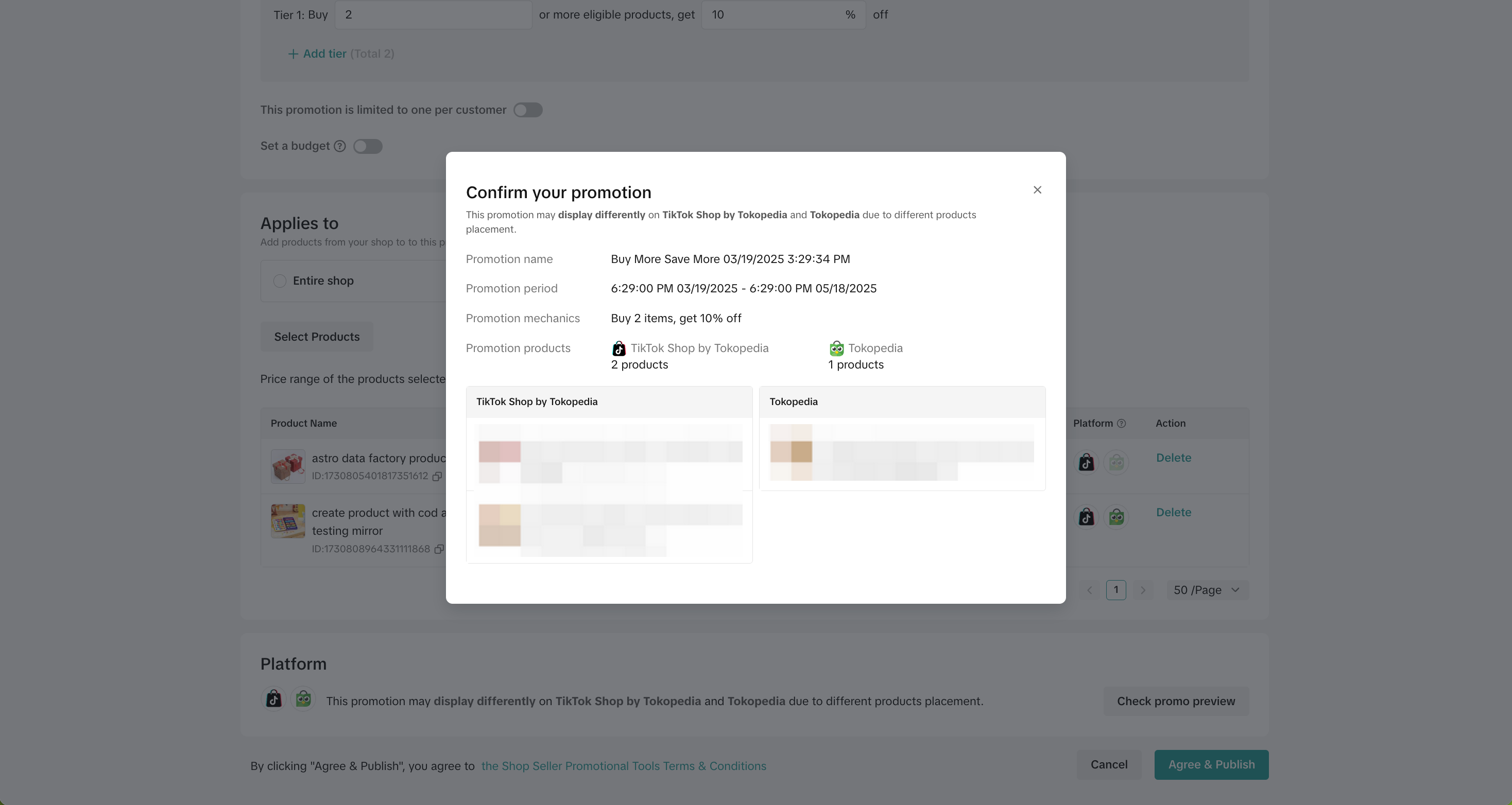 Check Promo Preview on PC | 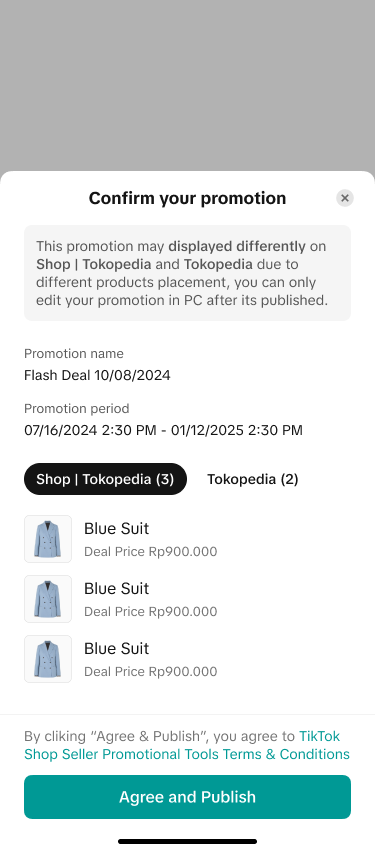 Check Promo Preview on App | |
| When products are only shown on 1 platform | 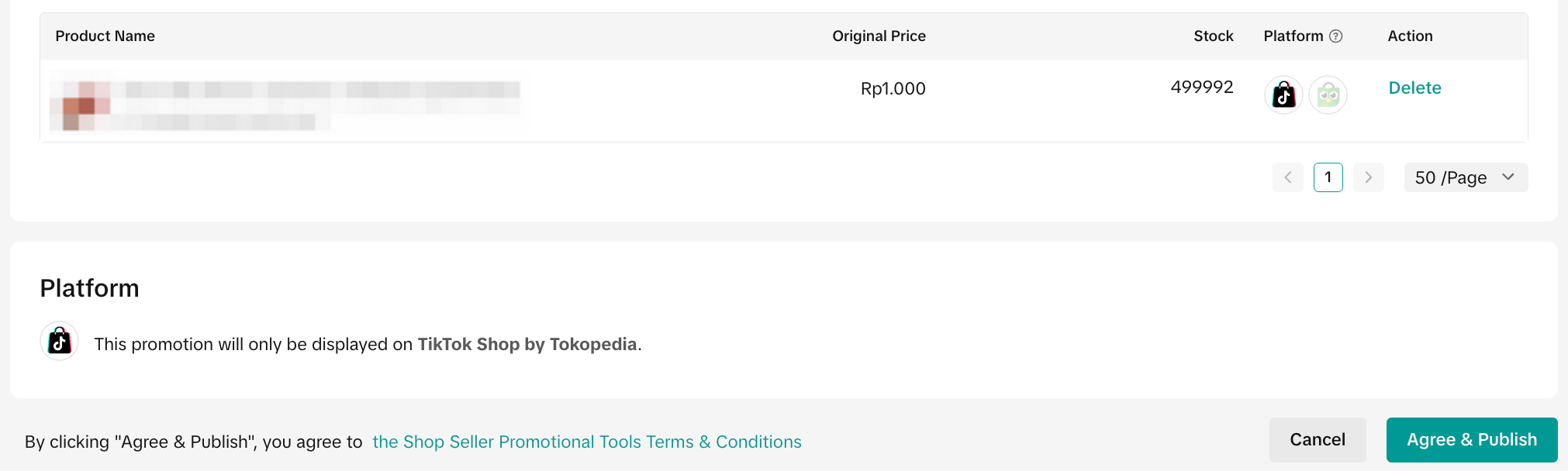 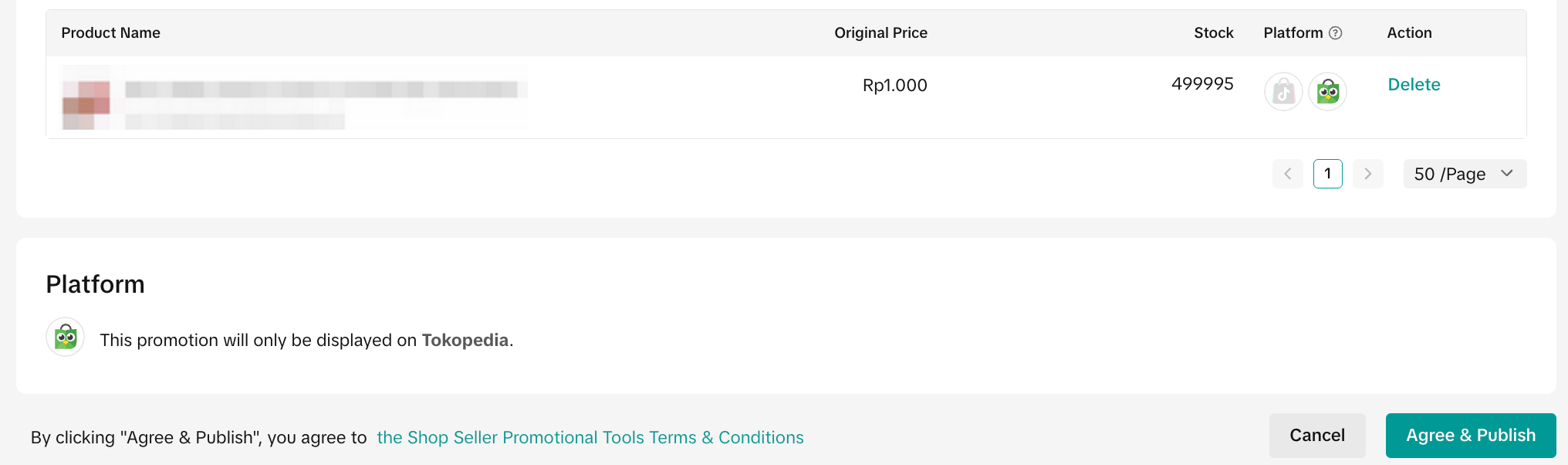 | |

Manage Buy More Save More promotion
To manage a BMSM promotion on the Seller Center, visit the Promotions tab and manage your promotion.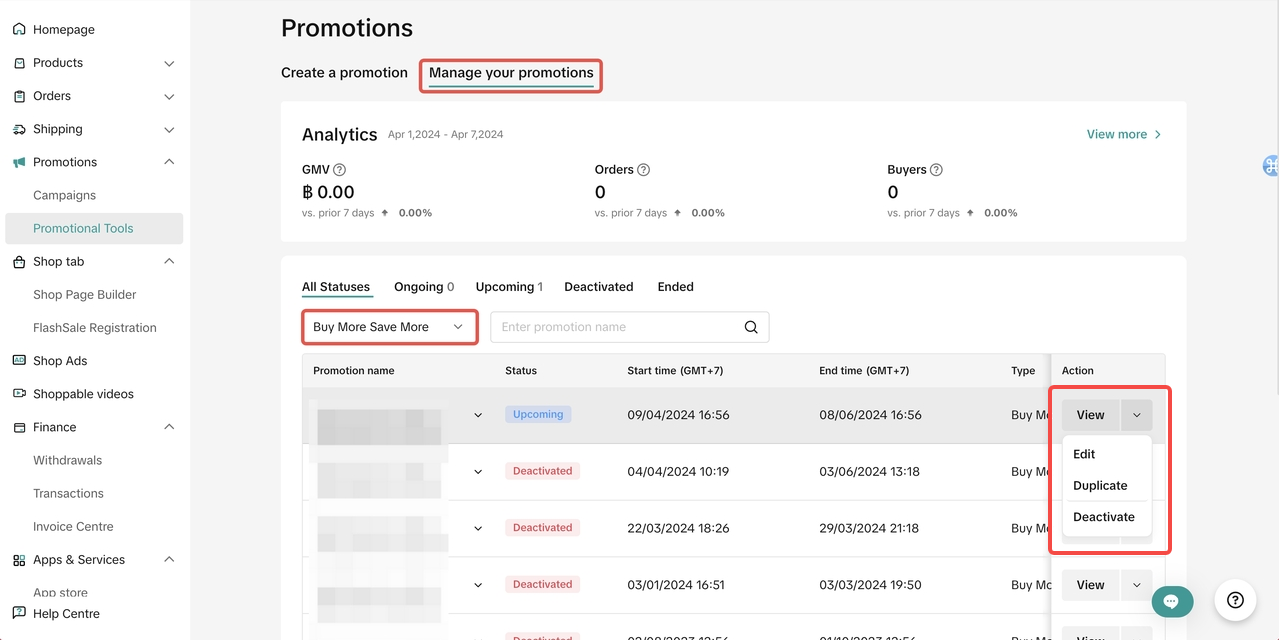
- Click Edit:
- To edit upcoming promotions, sellers can change the promotion period, change the promotion settings, increase the promotion budget (the added budget will be added to the current budget).
- To edit ongoing promotions, sellers can extend the promotion period and increase the promotion budget (the added budget will be added to the current budget).
- Click Deactivate: To end an upcoming or ongoing promotion
- Click Duplicate: To copy and paste the promotion setting to help you quickly set up another one.

Track Buy More Save More promotion performance
To monitor your BMSM promotion performance, visit the Promotion Analytics page.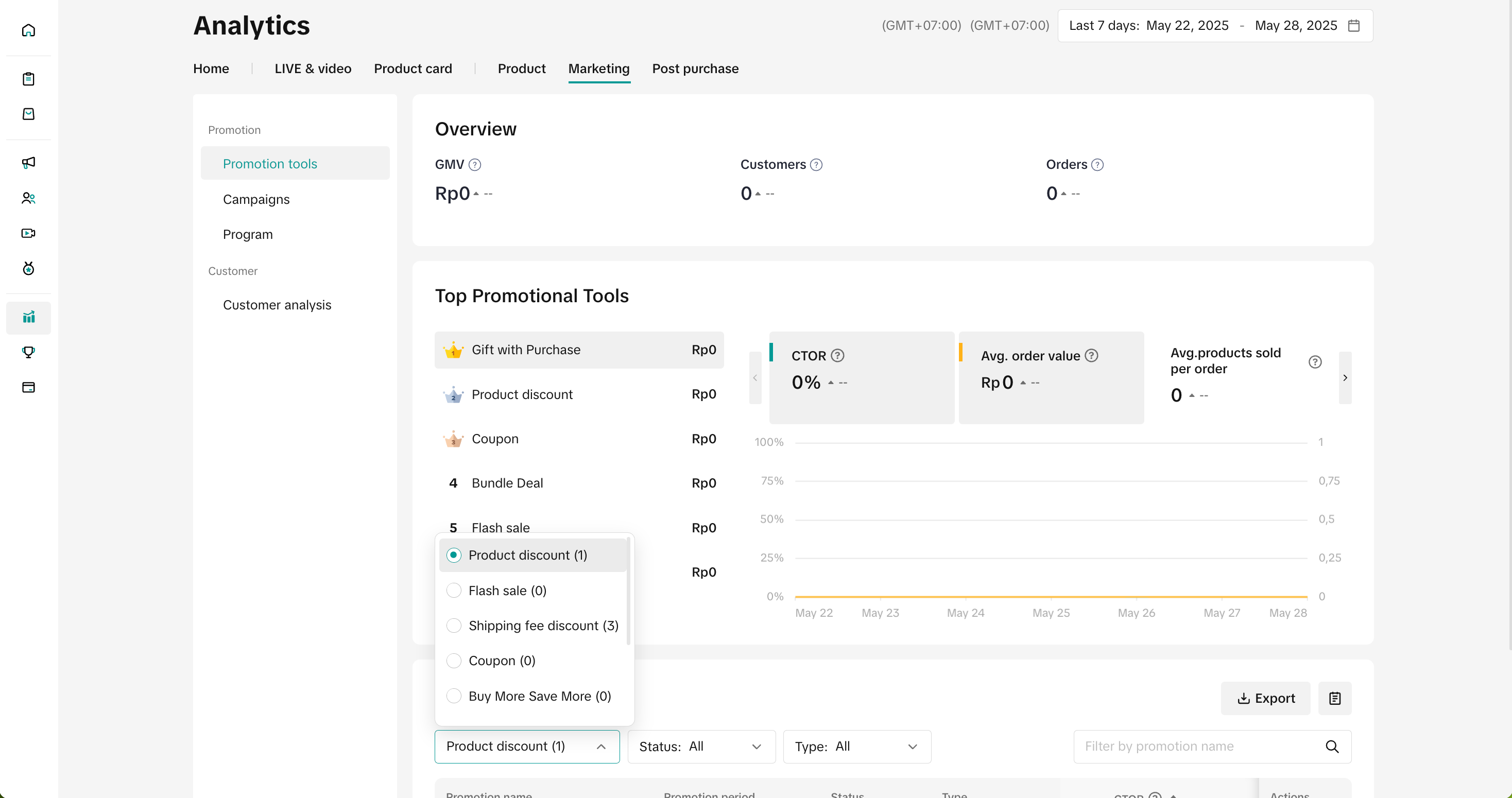
- You can select a Promotional Tool to display its core data and trends. Core Data includes metrics such as BMSM promotion usage, Revenue, Orders, and Buyers. You can also check the status and conversion performance of each promotion through the Promotion List.
- You can use the list to analyze which promotion generates the most revenue or ROI and optimize your promotional events in terms of product, event time, and event channel.
- Learn how to analyze the performance of your seller promotional tools through this guide.
- Compare the revenue, orders and conversion rate generated by your BMSM promotions with other BMSM promotions you have created previously. Monitoring past promotions will help you determine the most effective BMSM product offering for your business.
- Track the average items per order to understand buyers' preferred quantity for your product selection. Using these insights, you can experiment with higher or lower minimum quantity thresholds and offer more enticing discounts.

FAQs
- How many Buy More Save More promotions can I create at the same time?
- How come I cannot select products in Buy More Save More promotion?
- A product can only participate in one BMSM promotion at the same time period (If you already have a BMSM promotion for the entire shop, you cannot create a BMSM on selected products during the same time period)
- What happens if a buyer exceeds the 'minimum quantity product purchase' criteria on multi-tiered BMSM promotion?
- Buyer buys 6 products that are selected under the multi-tiered BMSM promotion:
- Buy 2 products and get 20% discount
- Buy 3 products and get 30% discount
- Buyer will get 30% off for all 6 items.
- Buyer buys 6 products that are selected under the multi-tiered BMSM promotion:
- How does the budget work? What if my budget runs out?
- The budget can only be increased once the BMSM promotion is created, regardless of the promotion status.
- The budget will decrease based on the promotion cost incurred from BMSM transactions.
Example:
- Buy 2, Get 10% off promotion is created.
- Original price of product A = $10.00
- Buyer buys 2 product A.
- Promotion Cost = ($10.00 * 2) * 10% = $2.00
- Total Promotion Budget indicated by Seller = $100.00
- Total Promotion Budget left after the transaction from deducting Promotion Cost = $100.00 - $2.00 = $98.00
- If the buyer cancels the order before shipping, the Promotion Cost will be refunded to the Total Promotion Budget.
- If the buyer requests a refund only or to return and refund after the order is shipped, the Promotion Cost will not be refunded to the Total Promotion Budget. This is automatically calculated by the system.
- Does Seller BMSM promotion stack with other seller funded promotions?
Example: Seller BMSM and Seller Voucher stacking calculation
- BMSM: Buy 2, Get 20% off promotion is created.
- Storewide seller voucher: Minimum spend $60, discount $10
- Buyer purchases the product: $8*8 = $64
- BMSM applies 20% off = $51.20
- Seller voucher applies at the same minimum spend. In this order, the buyer will qualify for seller voucher as total order value before BMSM is $64 exceeding the minmum spend for seller voucher set at $60
- Therefore, the final customer paid price is 51.20-10 = $41.20
You may also be interested in
- 1 lesson
Tokopedia PLUS
Tokopedia PLUS, now with More and Better benefits!
- 1 lesson
Promotion
Leverage promotions to attract more customers and boost sales!
- 7 lessons
Promotional Tools
Utilize vouchers, discounts, and bundling features to encourage purchases and attract buyers.

Bundle Deal
This article teaches you how to use Seller Bundle Deal to increase the Average Order Value in your s…
Bundle Deal Terms and Conditions
As a special limited time promotion, we, sellers of certain products on TikTok Shop, are offering yo…
Promotional Tools - Shipping Fee Discount Eligibility
What are shipping fee discounts? You may choose to offer a shipping discount on orders by bearing al…
Gift with Purchase
This article teaches you how to use Gift with Purchase to increase your average order value and conv…

Seller LIVE Interactive Voucher
This article teaches you how to use LIVE Interactive Vouchers to increase your average order value a…

First order discount
If it is the customers first order, the discount coupon is only available for new user/customer who…

Seller Regular Voucher
This article teaches you how to use Seller Regular Vouchers to increase your average order value and…