

Seller Flash Sale
03/16/2026
This promotional tool is available on both Tokopedia & TikTok Shop platforms. Read more about the integration of Tokopedia & TikTok Shop
Watch this short video to learn more:

What is Seller Flash Sale?
Seller Flash Sale is a seller-funded promotion tool to create limited time offers with a countdown timer.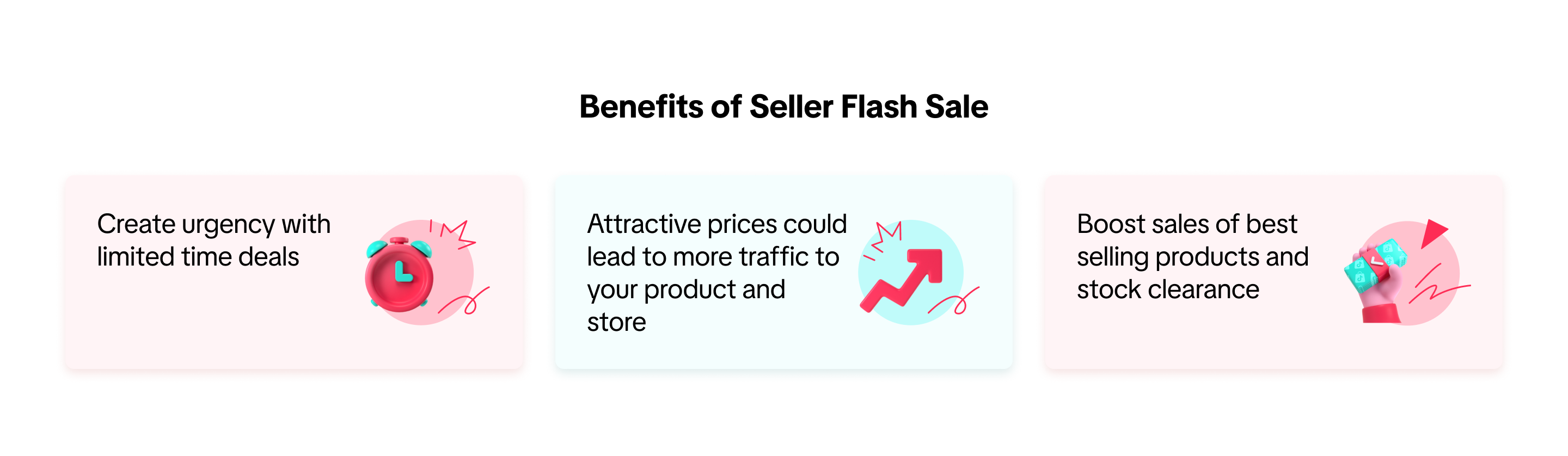

Seller Flash Sale Promotion Eligible Criteria
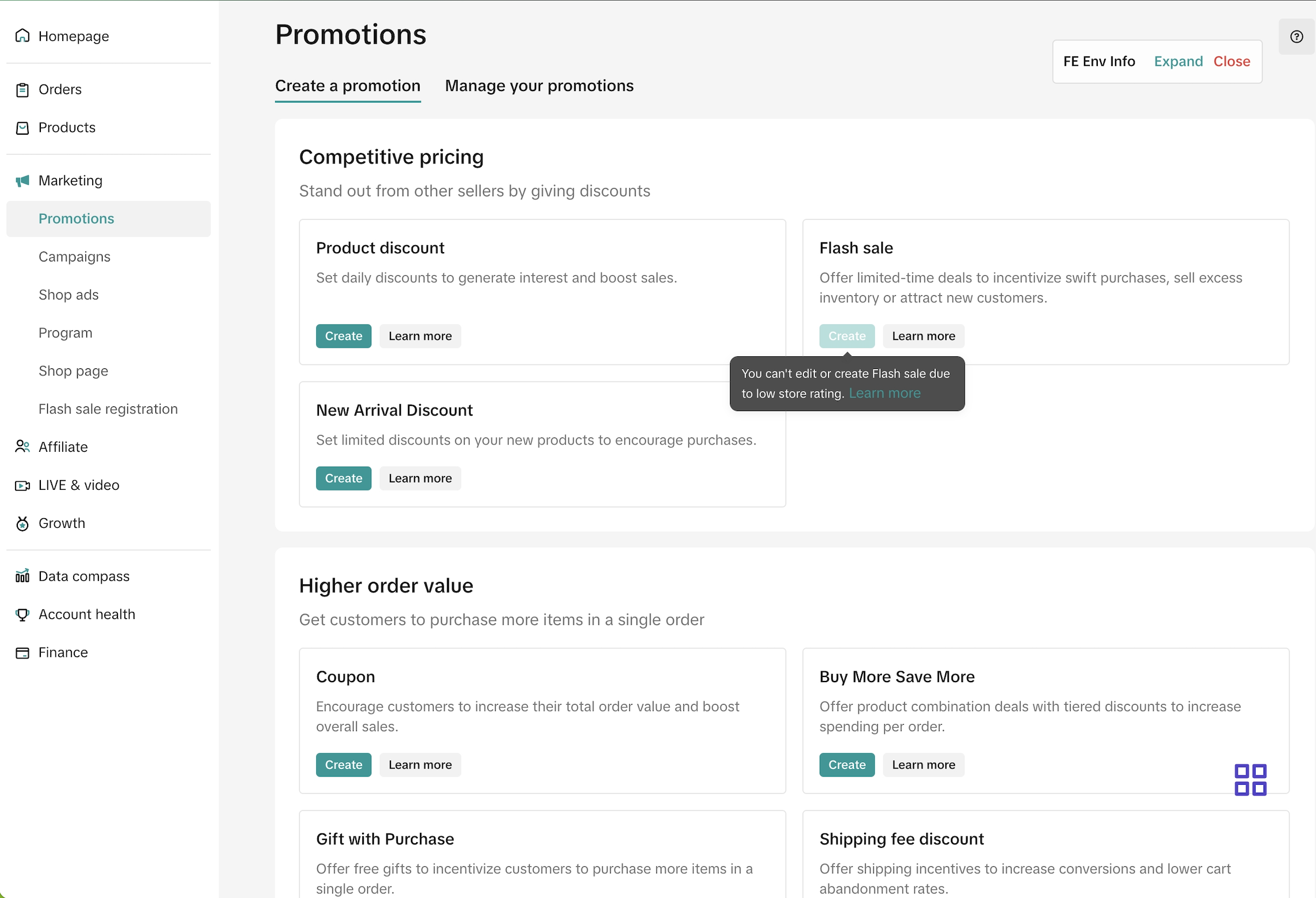
Sellers must have Store Ratings equal to or larger than the indicated score for each market AND Violation Points less than 36 to be eligible for Seller Flash Sale.- Sellers who do not meet the Seller Flash Sale eligible criteria cannot create or edit Seller Flash Sales on Seller Center PC, Seller Center App, and TTS Open API.
- The eligible criteria is applicable to all types of Seller Flash Sales currently available (Seller Flash Sales, LIVE Flash Sale and Creator LIVE Flash Sale)
- Sellers may have ongoing and upcoming Seller Flash Sales. If sellers drop below the eligible criteria, the ongoing or upcoming promotions will remain active and continue as scheduled.
| ID | TH | VN | PH | MY | SG | |||
| Eligible Criteria | Seller with Store Rating | Store Rating | >= 3.0 | >= 2.5 | >= 3.0 | >= 2.5 | >= 3.0 | >= 3.0 |
| Violation Point | <36 | <36 | <36 | <36 | <36 | <36 | ||
| Seller without Store Rating | Store Rating | - | - | - | - | - | - | |
| Violation Point | <36 | <36 | <36 | <36 | <36 | <36 | ||
| Remark | The seller balance must be higher than - 100 USD | |||||||
| Seller promotion homepage | Manage promotion page |
 |  |

Types of Seller Flash Sale
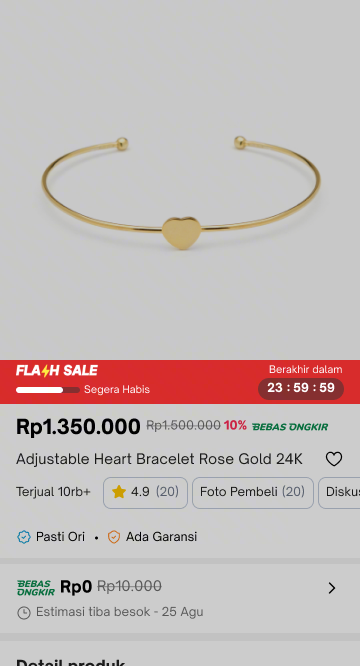
Currently, Tokopedia & TikTok Shop offers three types of Seller Flash Sales- All Channels: This type of Seller Flash Sale is displayed across all channels, including the product page, livestreams, short videos, and showcases of all account types. It is effective for driving conversions on best-selling or newly launched products, as well as for stock clearance.
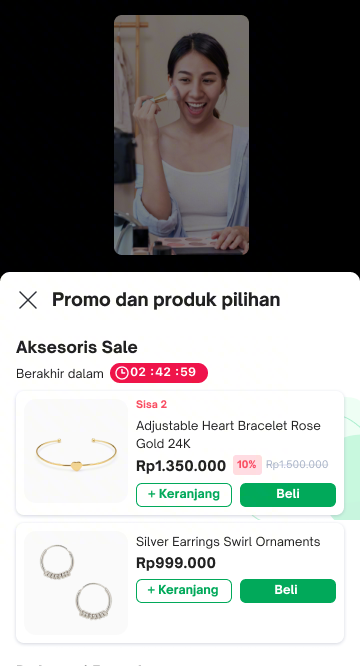
- LIVE Flash Sale: This type of Seller Flash Sale is displayed only on livestream channels of official and marketing accounts. This is helpful for sellers looking to boost livestream sales and retain live audiences. (Read more about LIVE Flash Sale here)
- Creator LIVE Flash Sale: This type of Seller Flash Sale is displayed only on livestream channels of affiliate creator account. Creator LIVE Flash Sale allows sellers to provide exclusive prices and stock for selected creators during their livestream. (Read more about Creator LIVE Flash Sale here)
| TikTok Shop by Tokopedia - Shopping Center (Product Label) | TikTok Shop by Tokopedia - Product Detail Page | Shop Tokopedia - Livestream Shopping Bag | Shop Tokopedia - Short Video | Tokopedia - Product Detail Page | Tokopedia - Livestream |
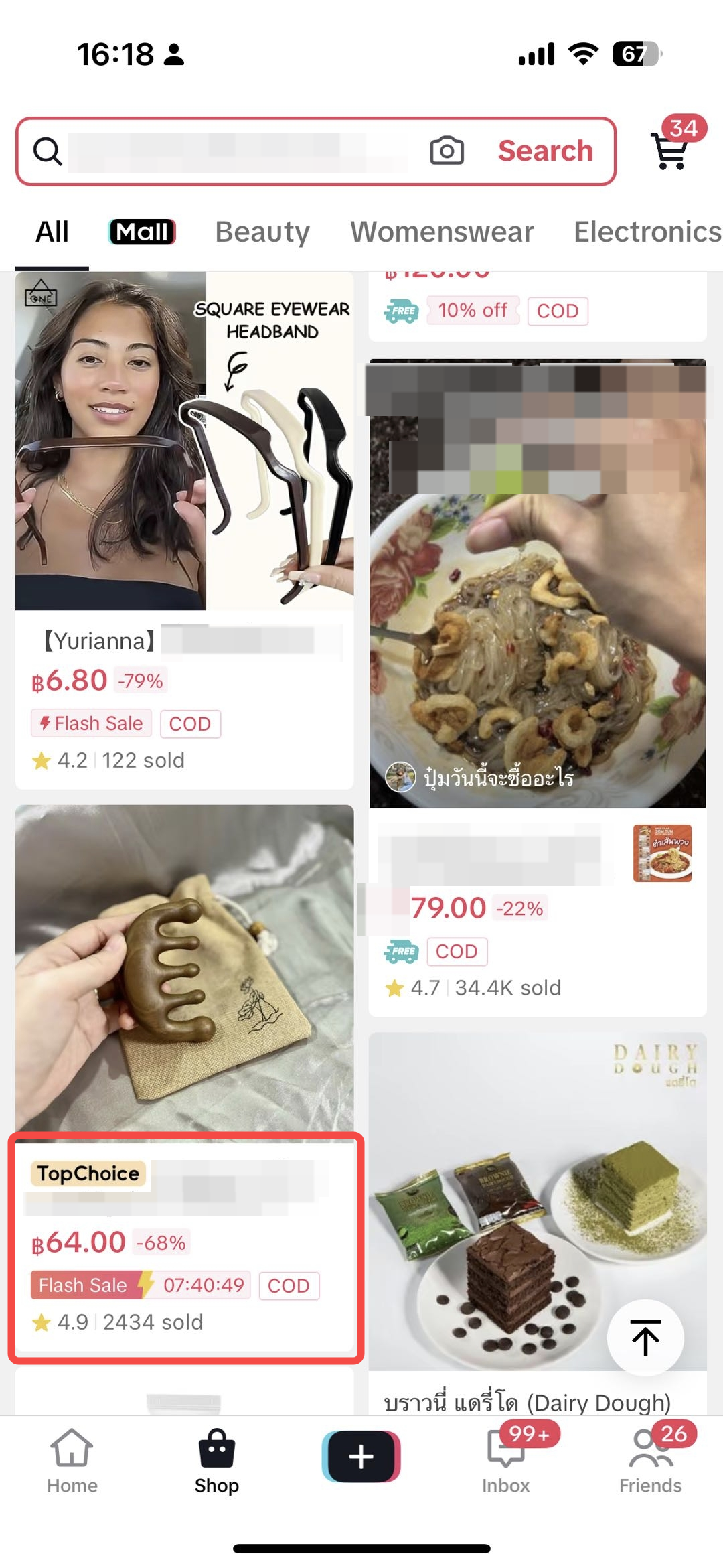 | 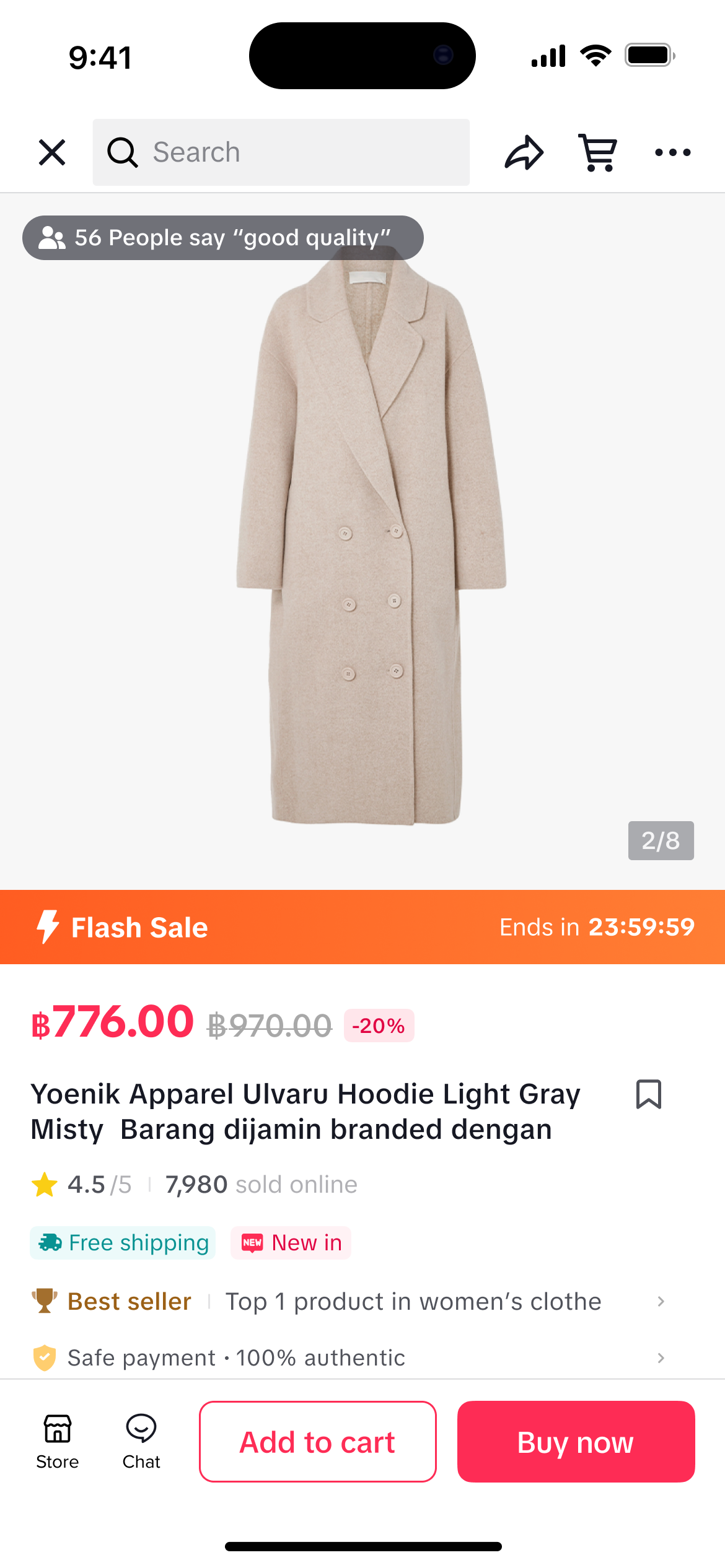 | 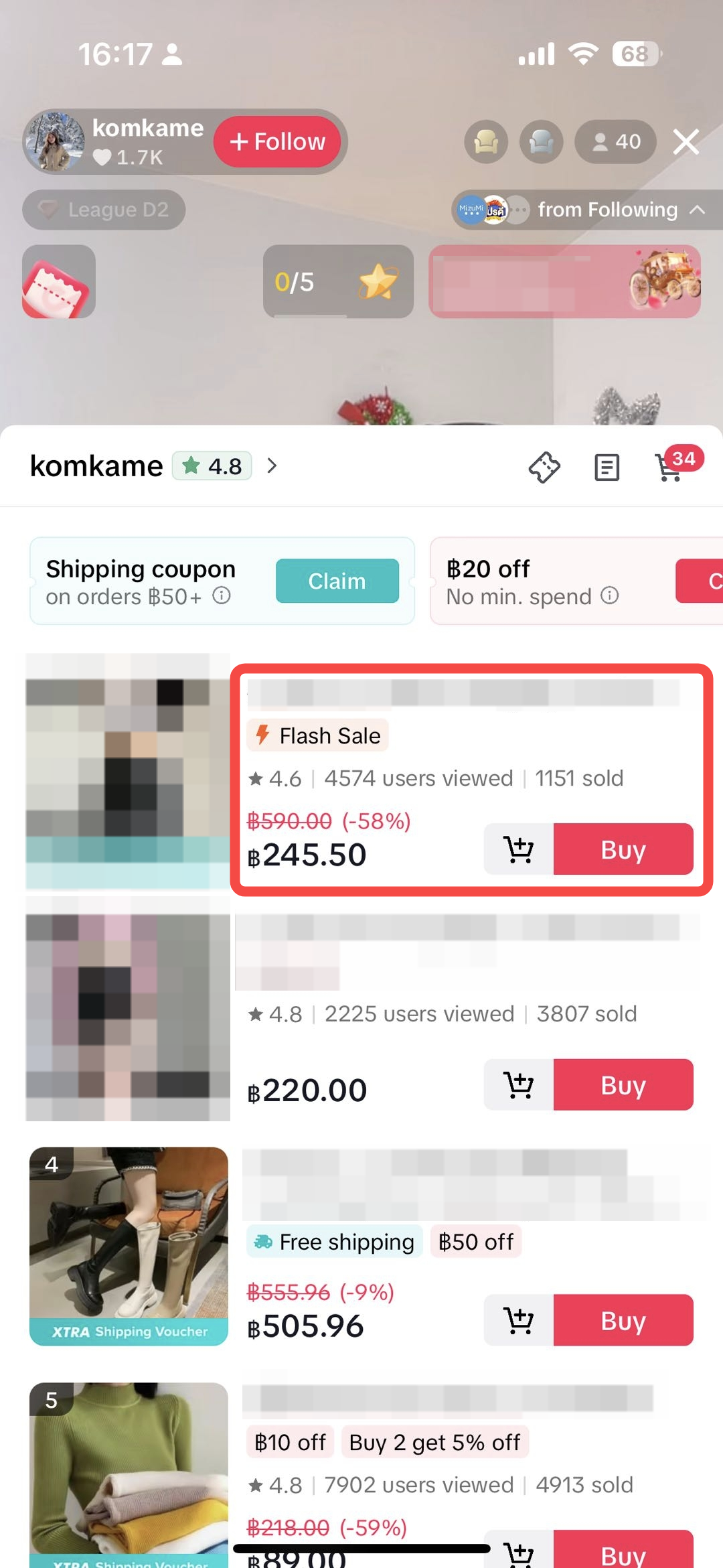 | 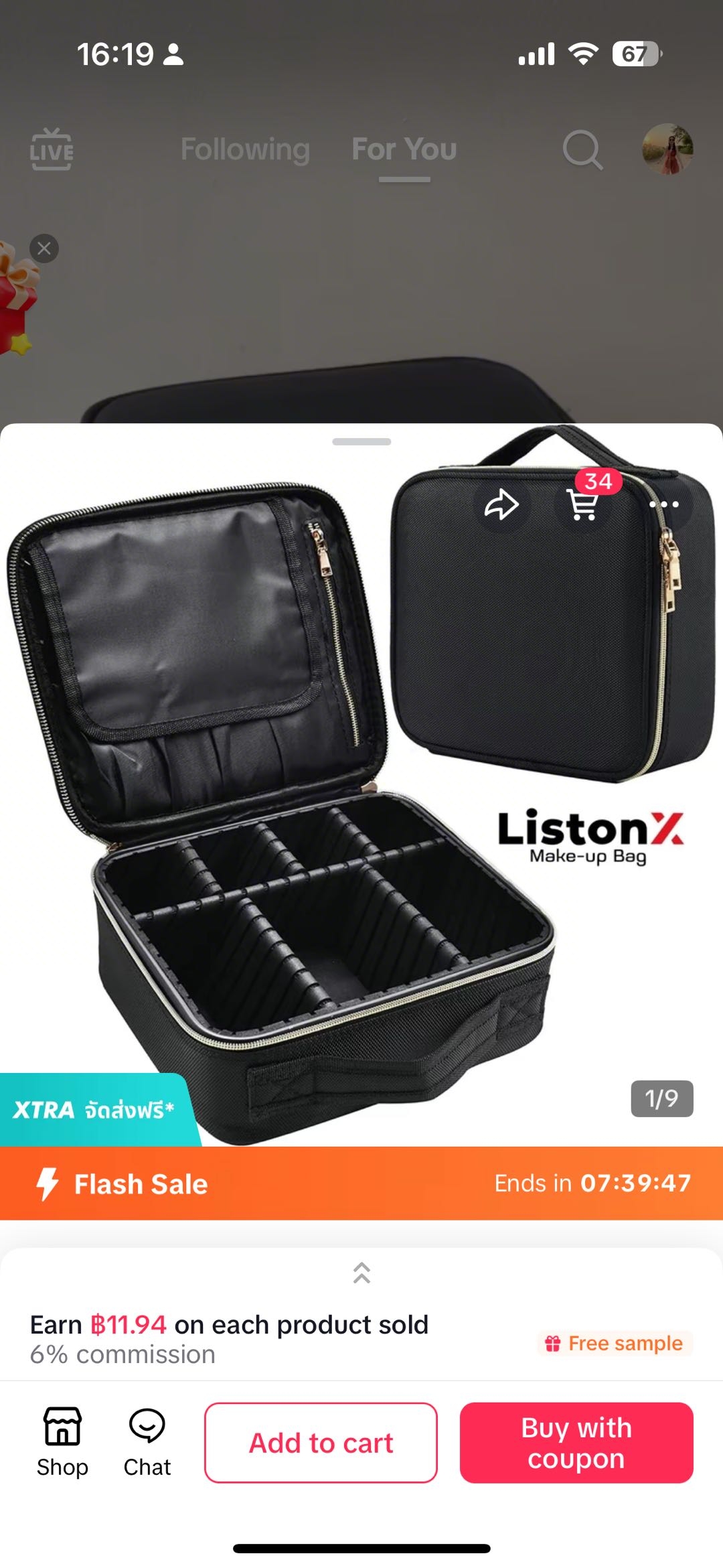 |  |  |
| Seller Flash Sale | LIVE Flash Sale | Creator LIVE Flash Sale | |
| Usage scenarios |
|
|
|
| Configure | Seller Center PC, Seller Center App, TikTok App
| Seller Center PC, Seller Center App, TikTok App, LIVE Manager PC
| Seller Center PC
|
| Display Channel |
|
|
|
| Pre-launch feature |
|
|
|
| Minimum and Maximum Duration |
|
|
|
| Promotion Price Requirement |
|
| |

Create Seller Flash Sale promotion
On Seller Center PC
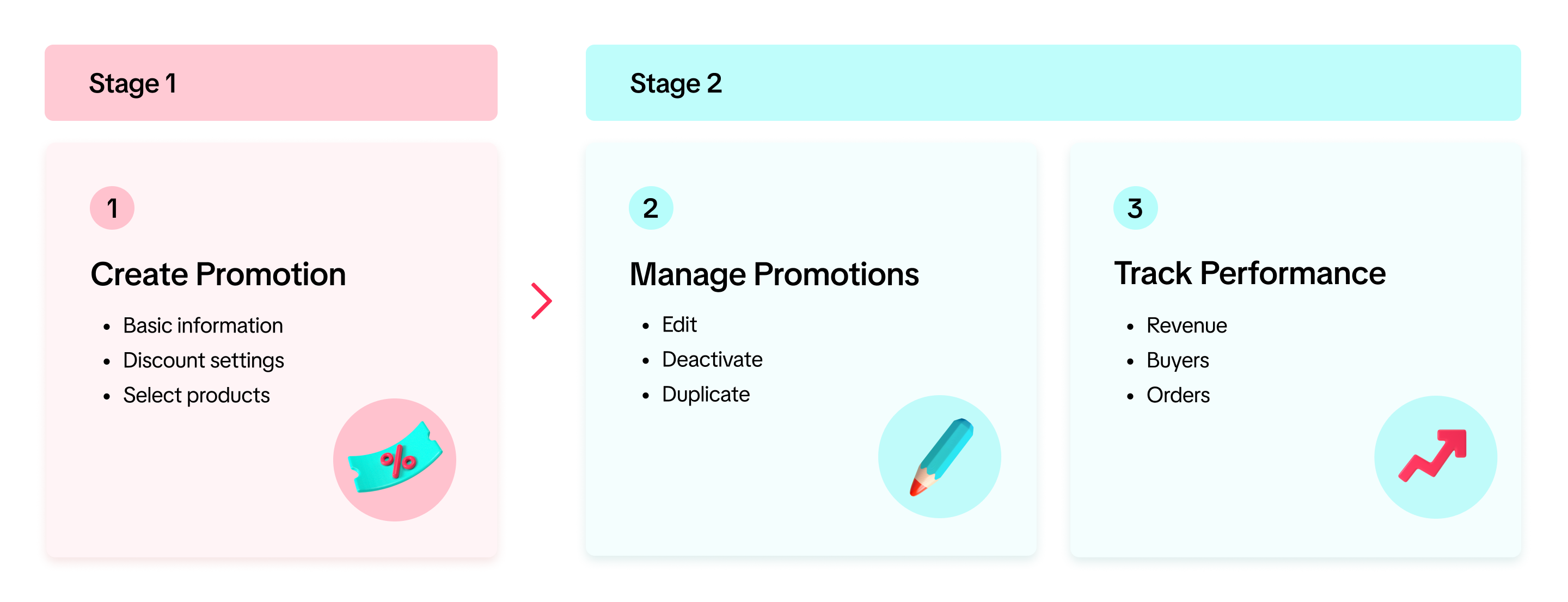
To create a Seller Flash Sale promotion on the Seller Center PC, visit the Promotional tab.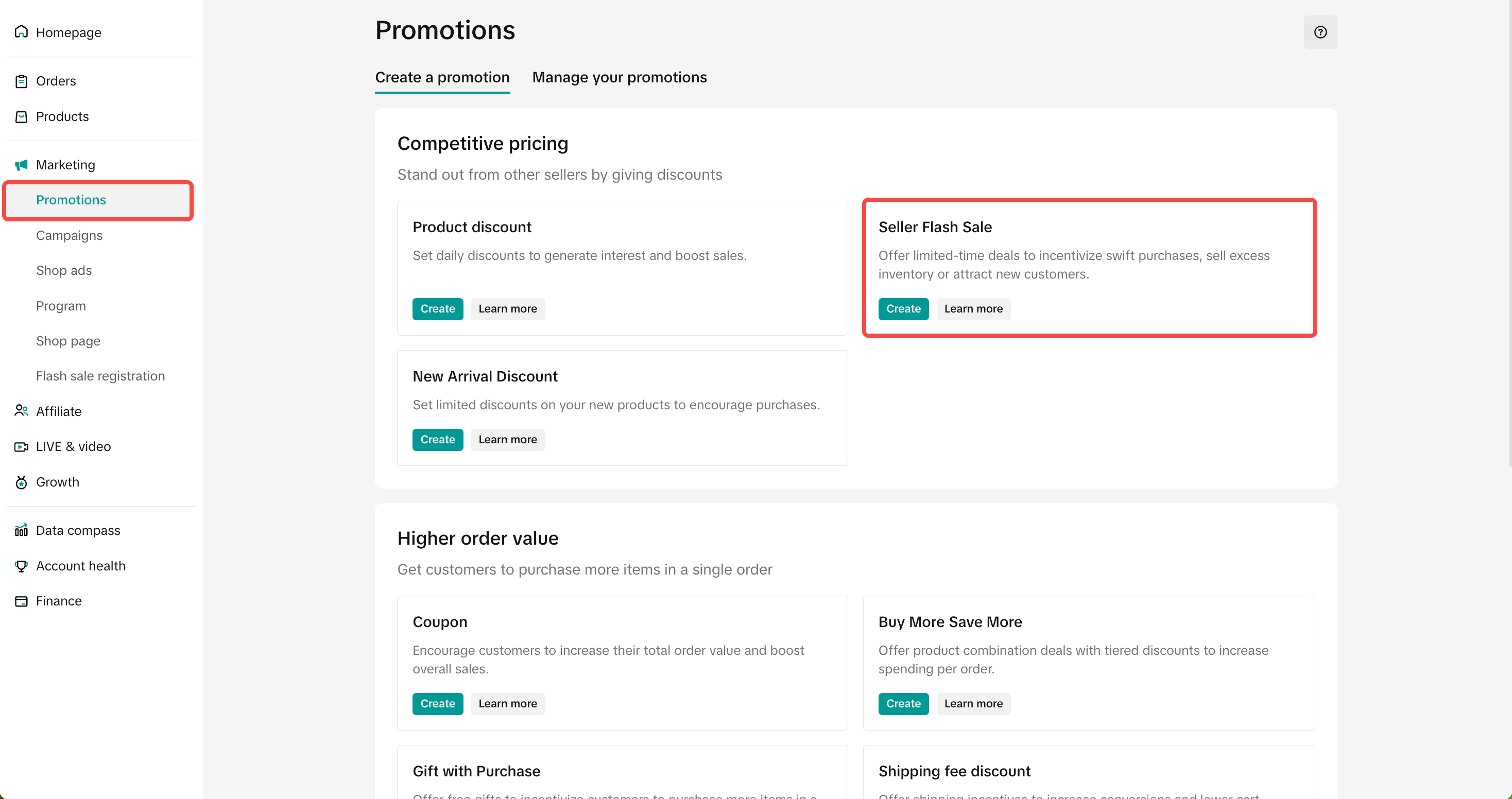
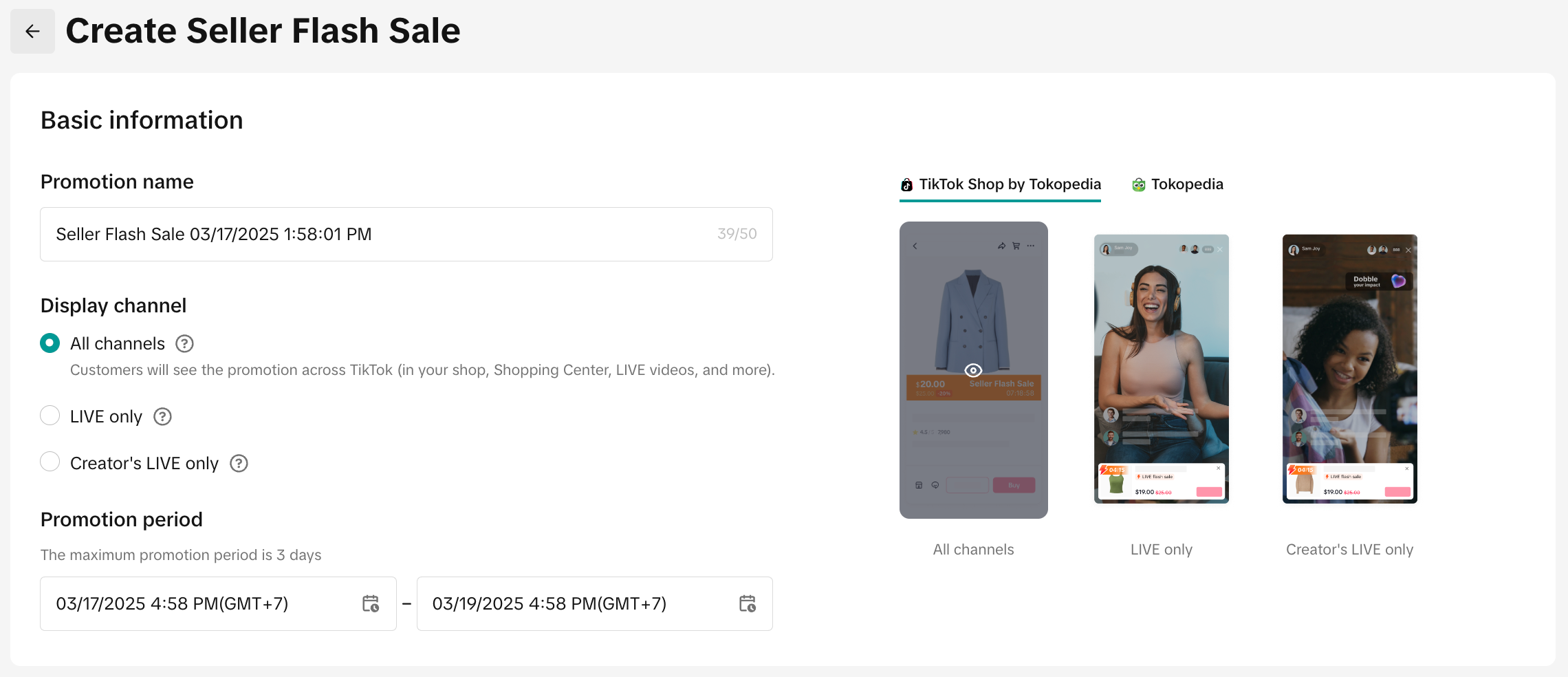
- Set a promotion name
- Choose the display channel for your Flash Sale
- All Channels: Seller Flash Sales will be displayed on all channels across TikTok including your store page, Shopping Center, LIVE, short videos, and more.
- LIVE only: LIVE Flash Sale will be displayed on livestream channel of official account and marketing accounts (LIVE Flash Sale is not available on Tokopedia platform).
- Set a promotion period: Schedule the start and end date for your Seller Flash Sale or LIVE Flash Sale.
- For LIVE Flash Sale you can choose to have your LIVE Flash Sale
- Effective immediately: LIVE Flash Sale will take effect within 1 minute after submission, and the pre-launch time will be automatically adjusted to less than 1 minute.
- At a specified time: LIVE Flash Sale will be valid within the specified time, and the pre-launch time will be set at 5 minutes by default.
- For LIVE Flash Sale you can choose to have your LIVE Flash Sale
 | 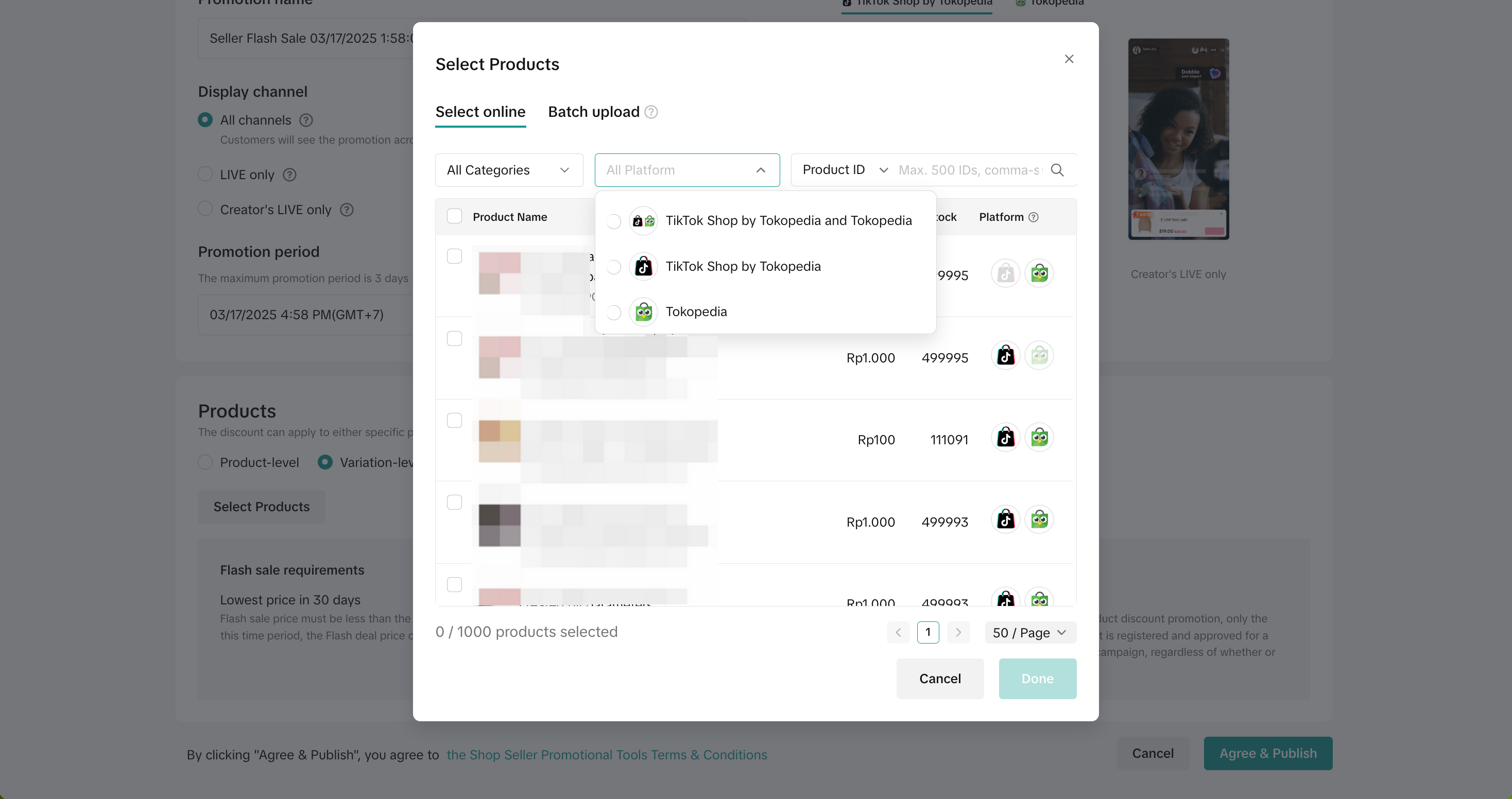 |
For batch upload, please refer to the bottom portion of this feature guide.
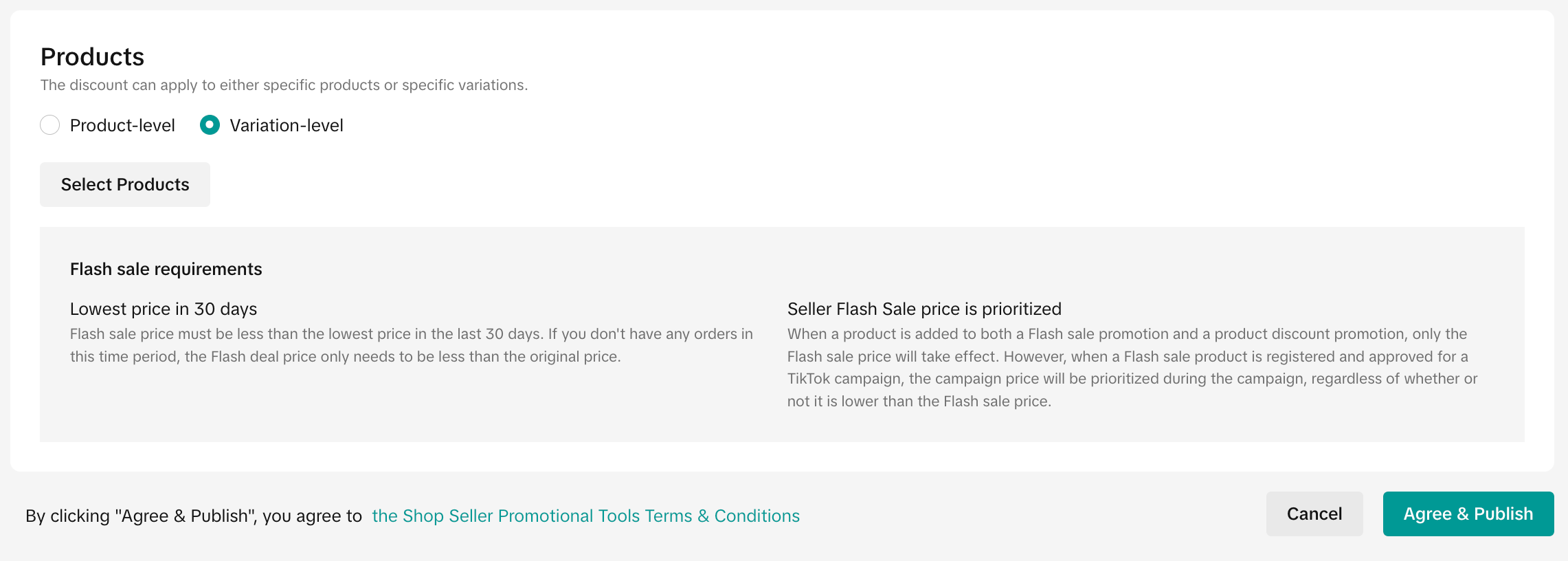
If you select Product-level, you will set the deal price on a product dimension, which means all variations under the product will be adjusted to the same price. If there are mutitple variations under the same product and percentage off is applied at product level configuration, the percentage discount will be applied based on the variation with the lowest price.
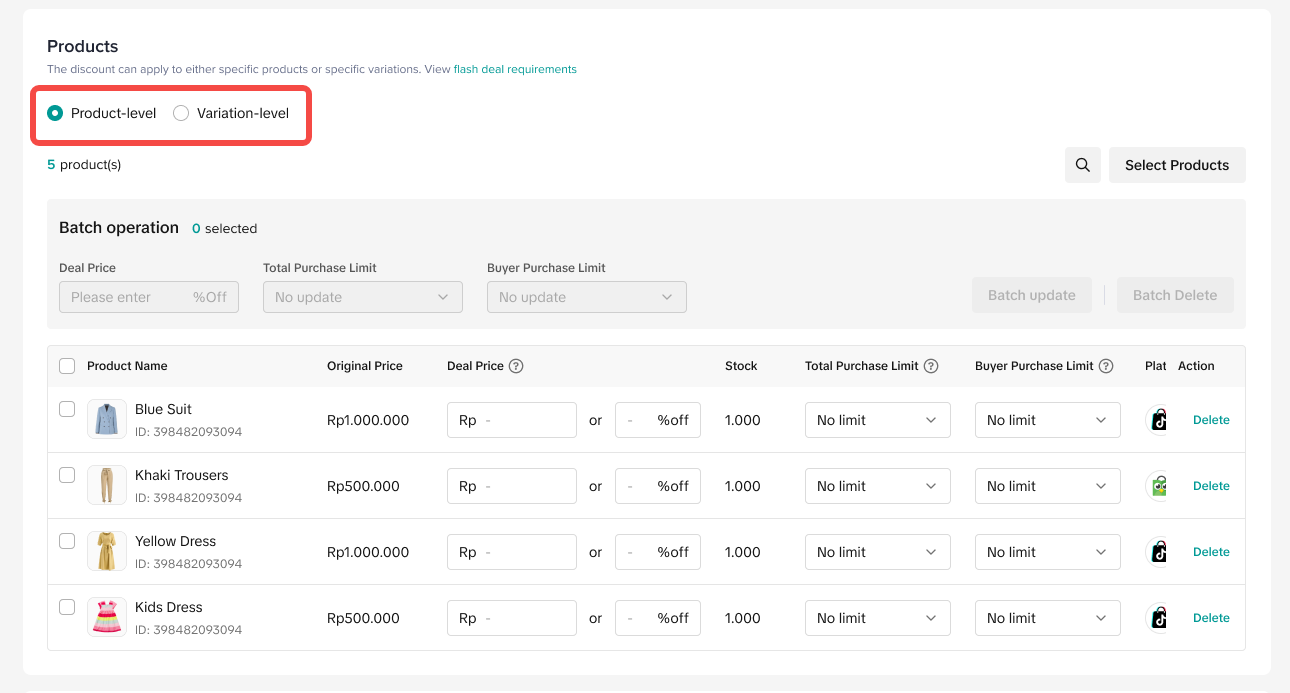
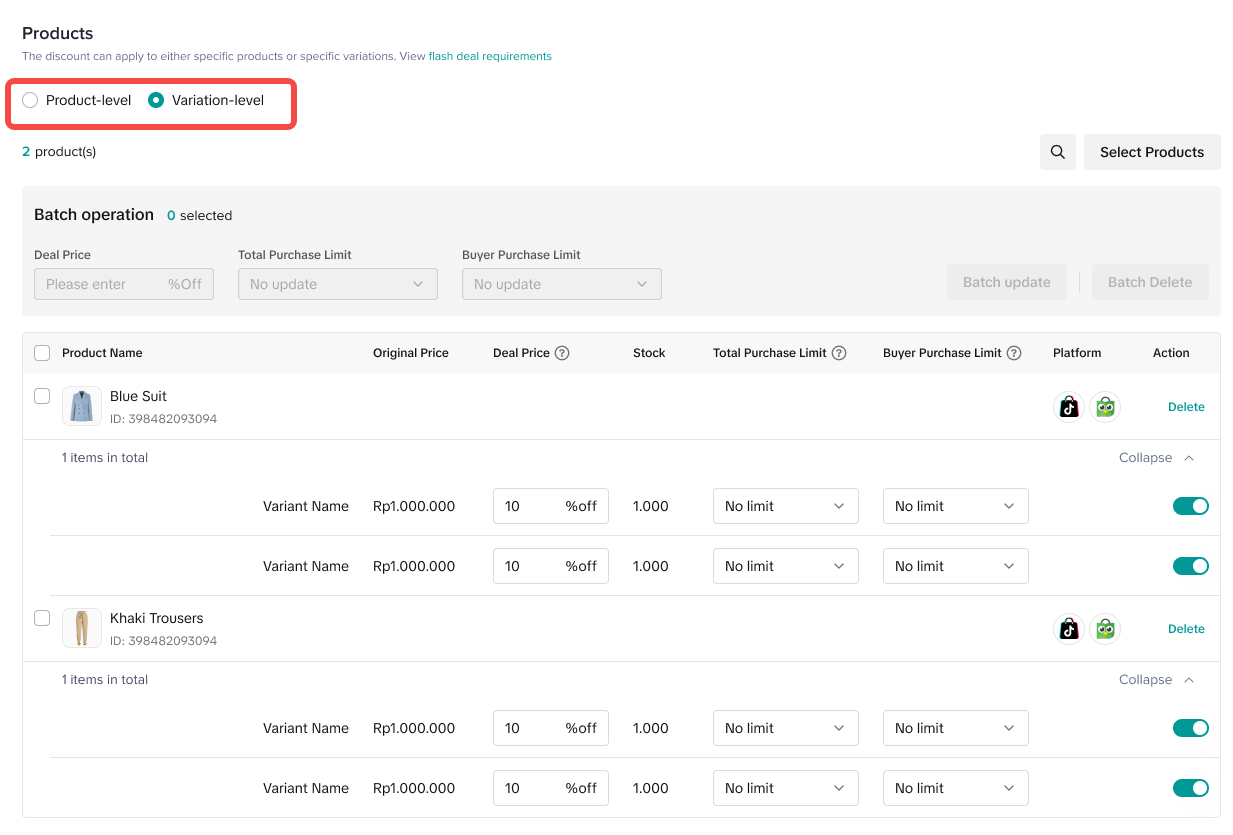
- Fixed price: Reduce the price by setting a fixed amount
- Percentage: Reduce the price by setting a percentage
- Total purchase limit: The total limit for this Seller Flash Sale promotion
- Buyer purchase limit: The maximum quantity that each customer can purchase
| Configure Seller Flash Sale Individually | Configure Seller Flash Sale in Bulk |
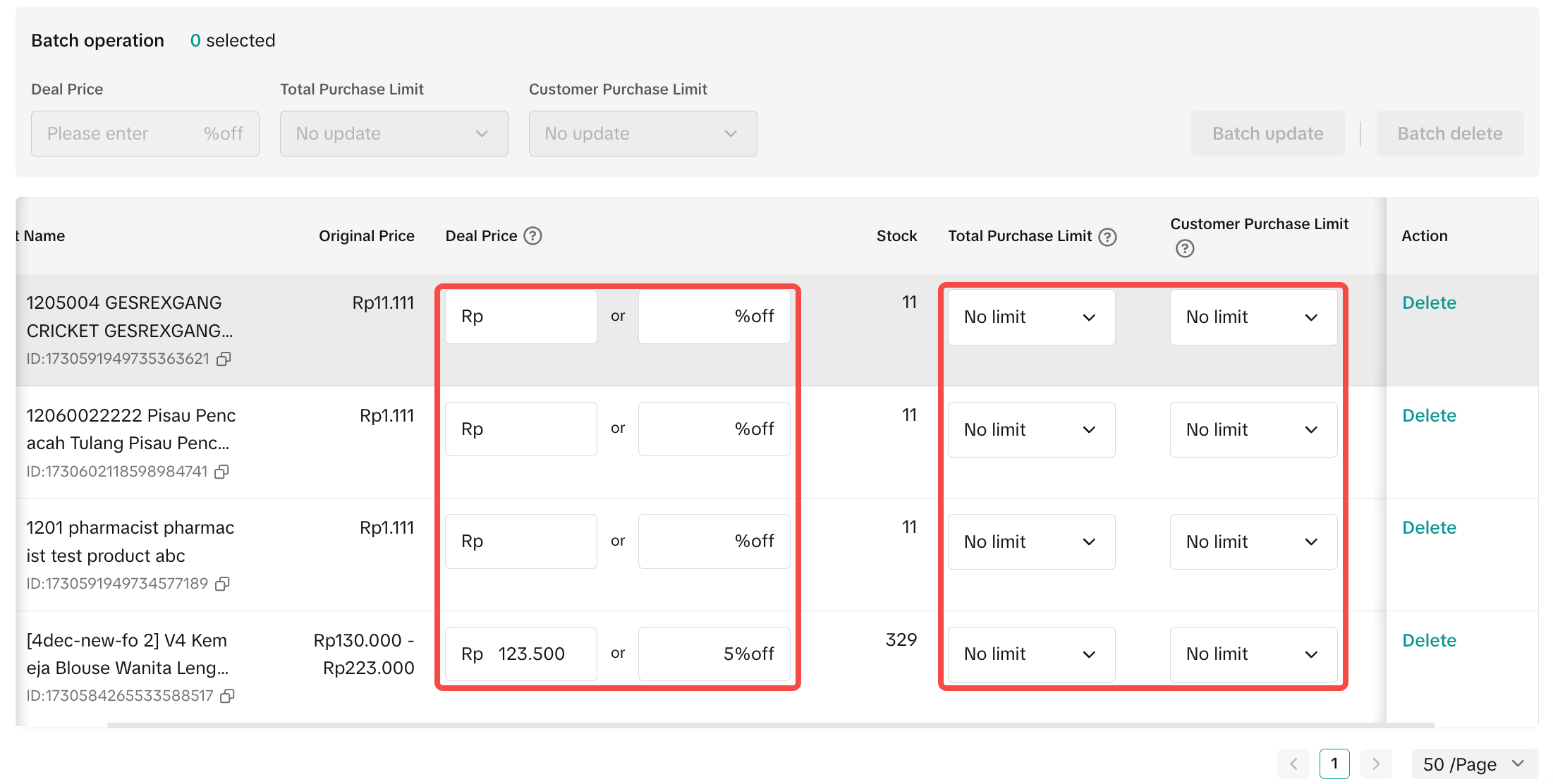 | 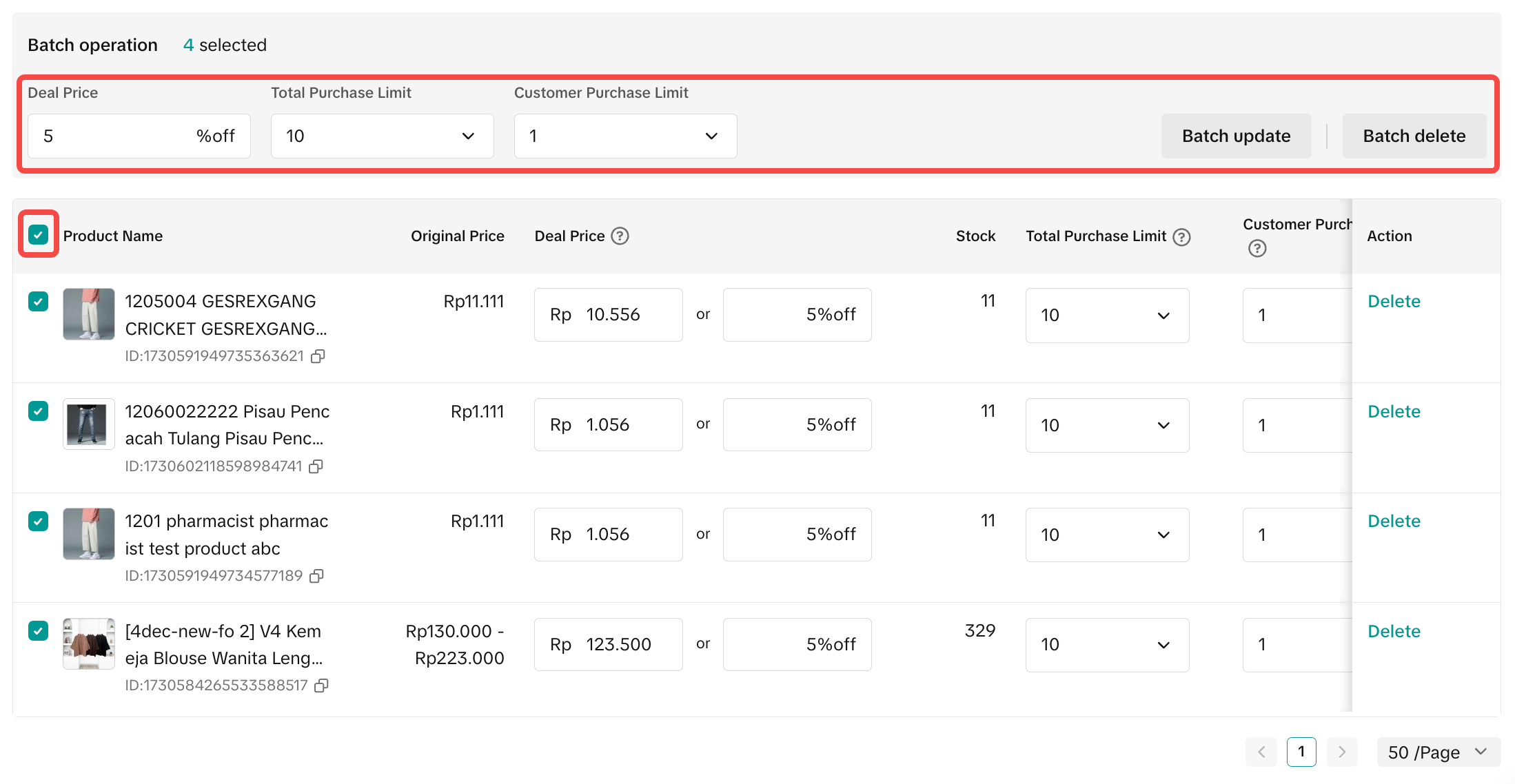 |
- Seller Flash Sale price requirement: Lower than the lowest product price in the last 14 days, including seller product discount. If there is no order history in the last 14 days, the Seller Flash Sale price is required to be lower than the original price.
- LIVE Flash Sale price requirement: Lower than or equal to the lowest product price in the last 14 days, including campaign price, co-funded product incentive, seller product discount. But excluding Brand Crazy Deals, TikTok Shopping Flash Sale, Seller Flash Sale, and LIVE Flash Sale. If there is no order history in the last 14 days, LIVE Flash Sale price is required to be lower than the original price.
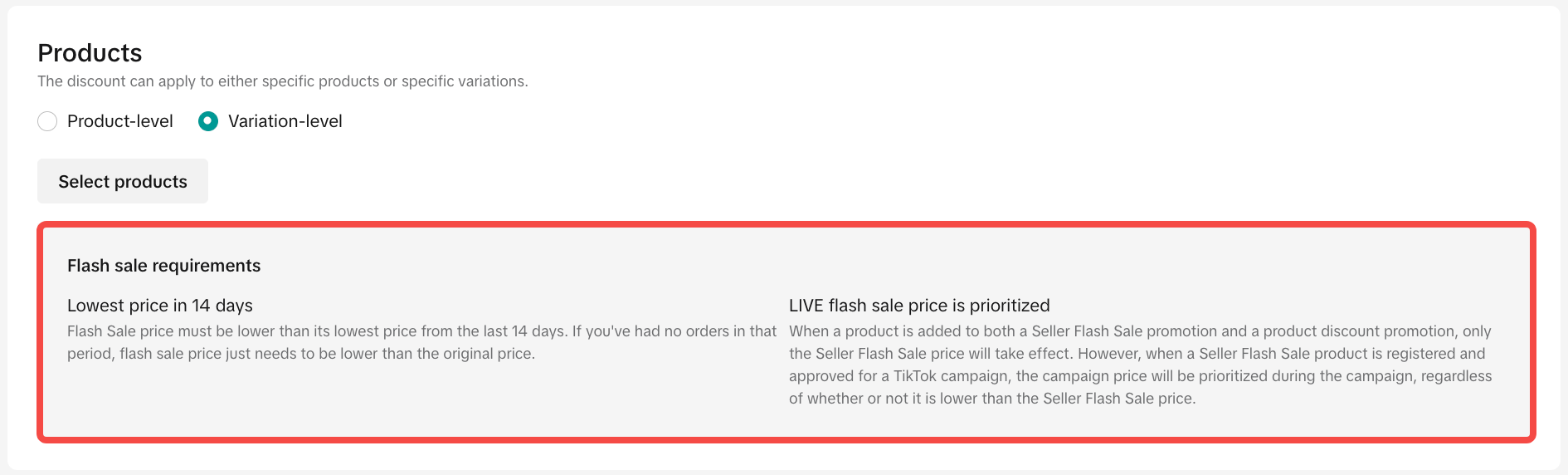
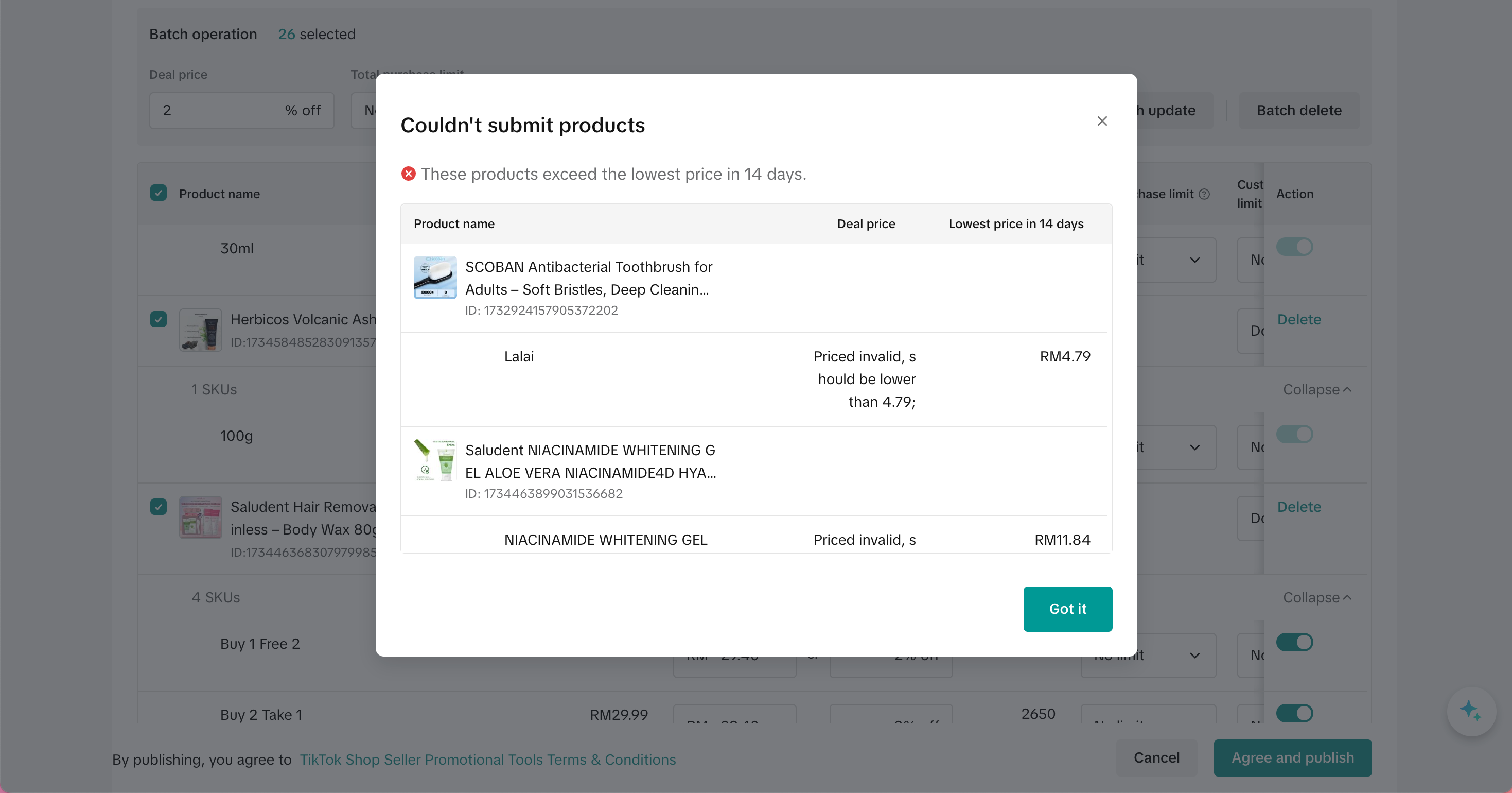
- Choose the right product for Flash Sales
- Select best selling, trending or most viewed products to maximize sales, or utlize Flash Sale to introduce new products or stock clearance.
- Ensure to offer the best discounts with limited time and limited stock to create a sense of urgency and encourage immediate purchase
On Seller Center App
To create a Seller Flash Sale on the Seller Center App, visit the Promotions tab and select Seller Flash Sale- Set a promotion name and promotion period
- Choose the display channel for your Seller Flash Sale
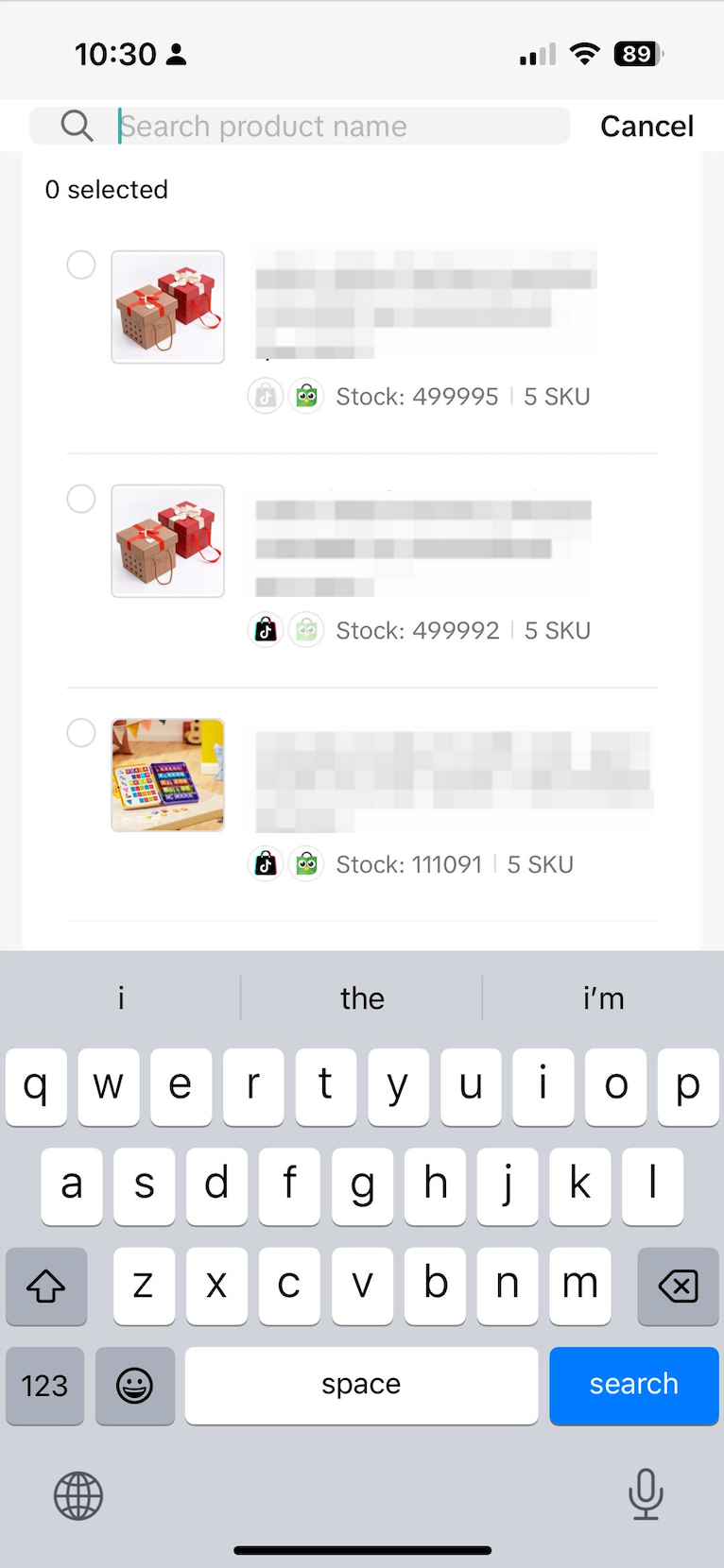
- Select products:
- Select up to 2,000 products for your promotions.
- Easily find the products you want to include by searching for product names.
- Input the deal prices for Seller Flash Sale, which can be configured either as a Percentage Off or Fixed Price.
- For both Percentage Off and Fixed Price the discounted price will apply to all variations (SKUs) for each product. If you would like to set different prices for each variation, go to Seller Center PC.
- Once you have reviewed the promotion details, click Publish
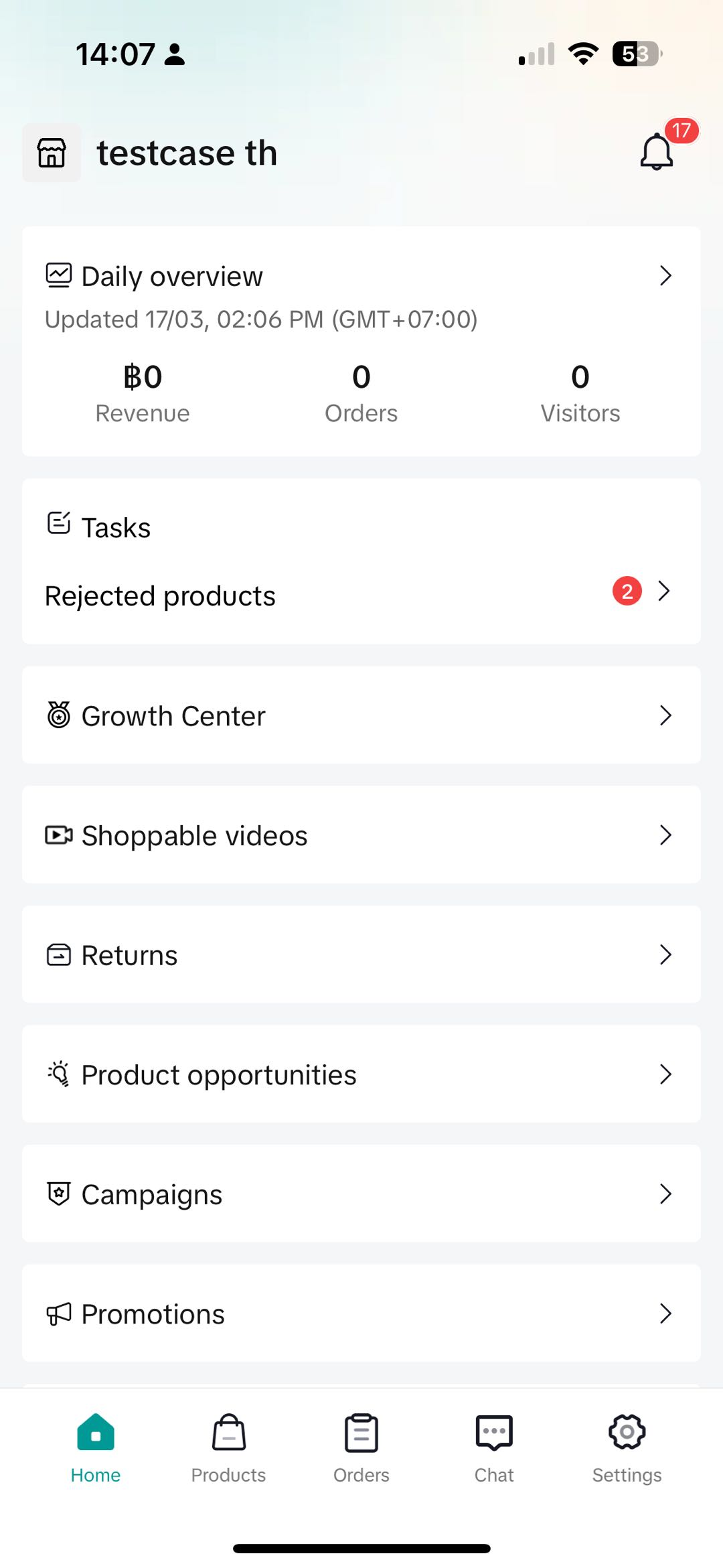 | 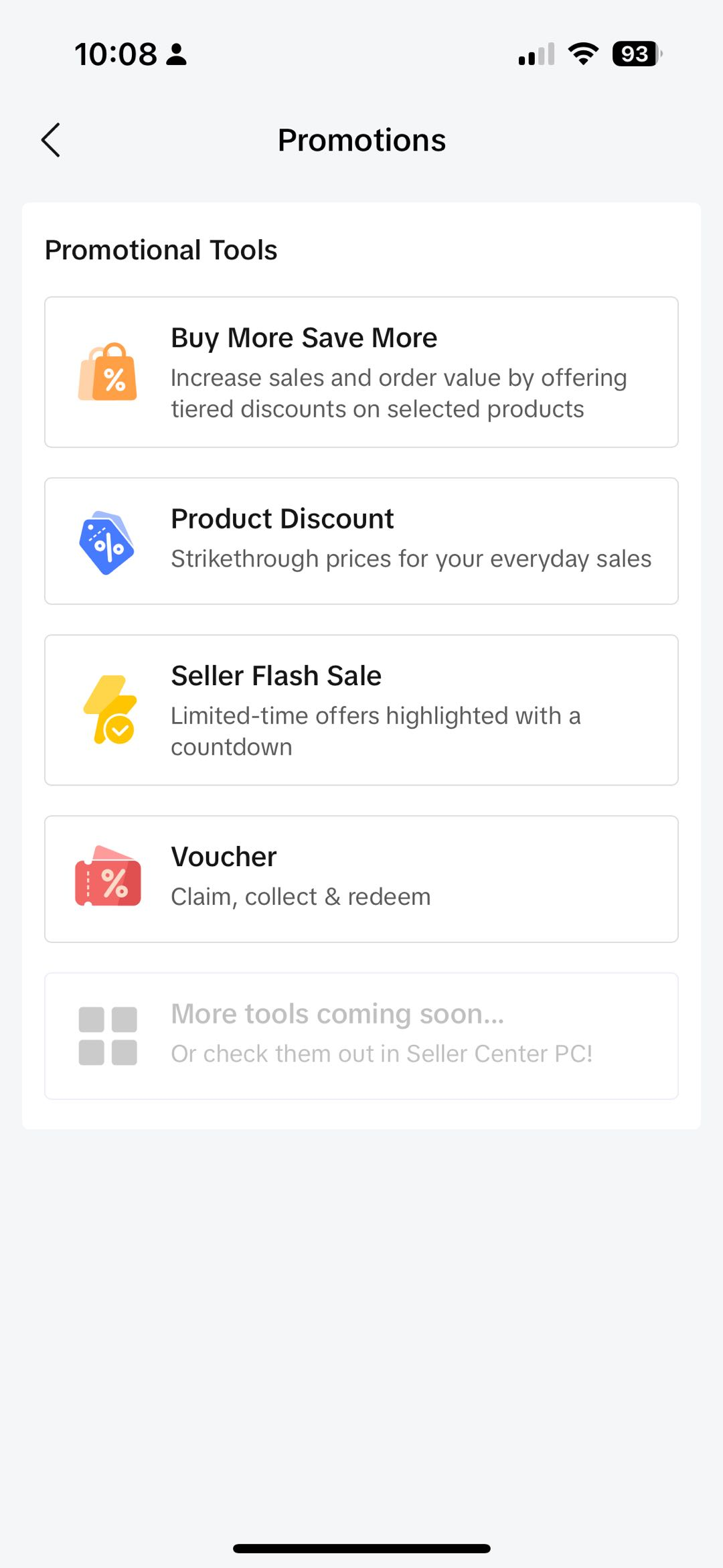 | 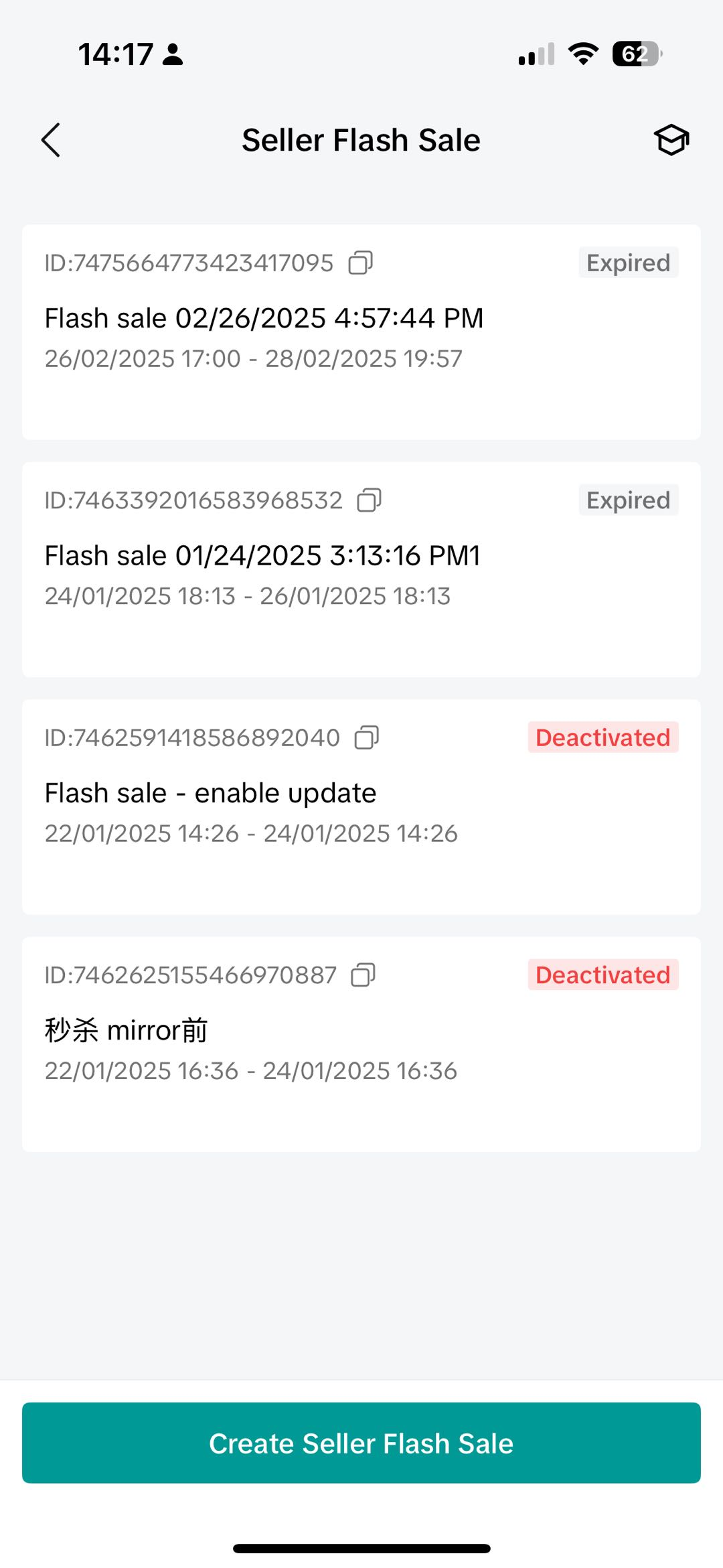 | 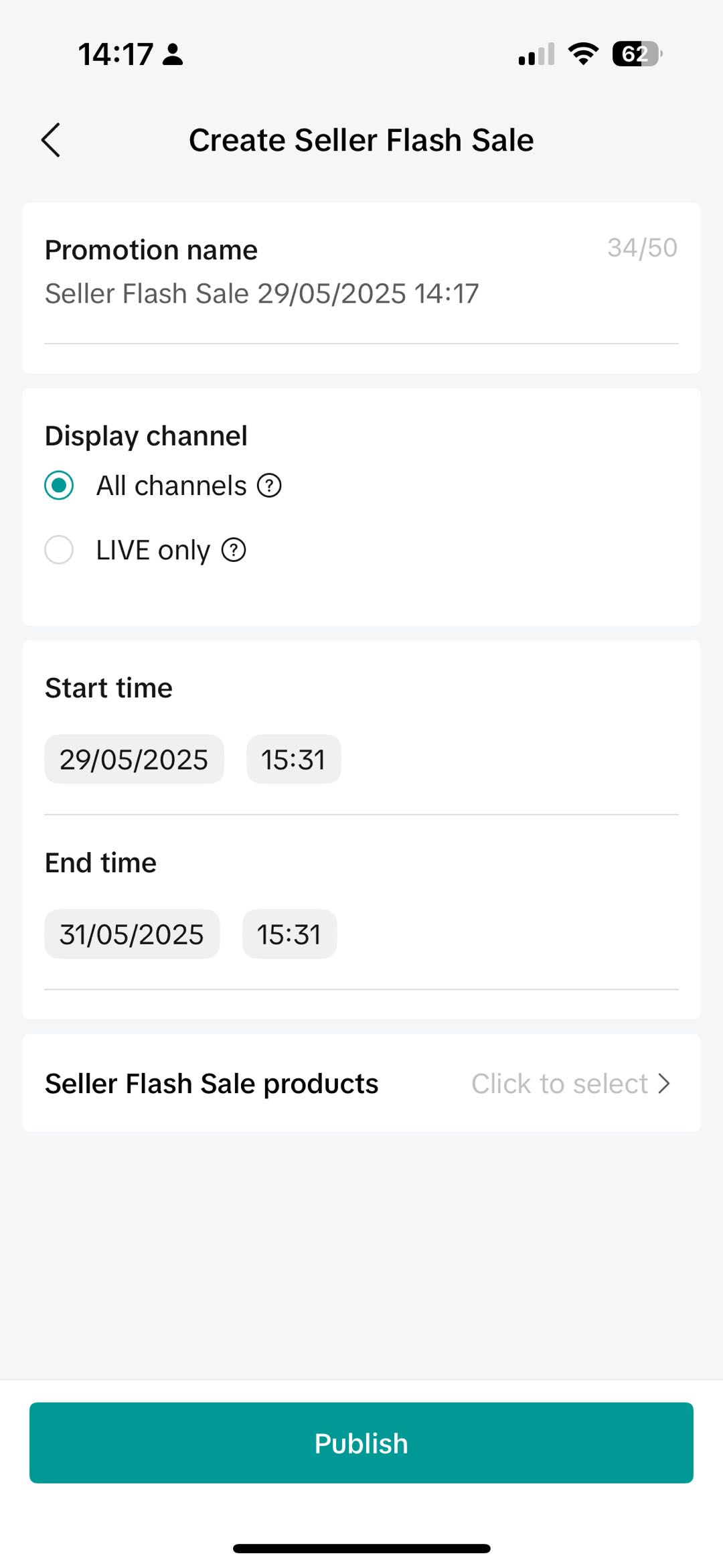 |  |
Promotion Previews for Tokopedia & TikTok Shop customer-end displays
After Integration (Read More), sellers will be able to create and manage Product Discount promotions for products that are on both Tokopedia & TikTok Shop.This will be covered under "Promotion Platform" when the promotion covers products that are across both platforms as follows:
| When products are available on both platforms with the same promotional mechanism | 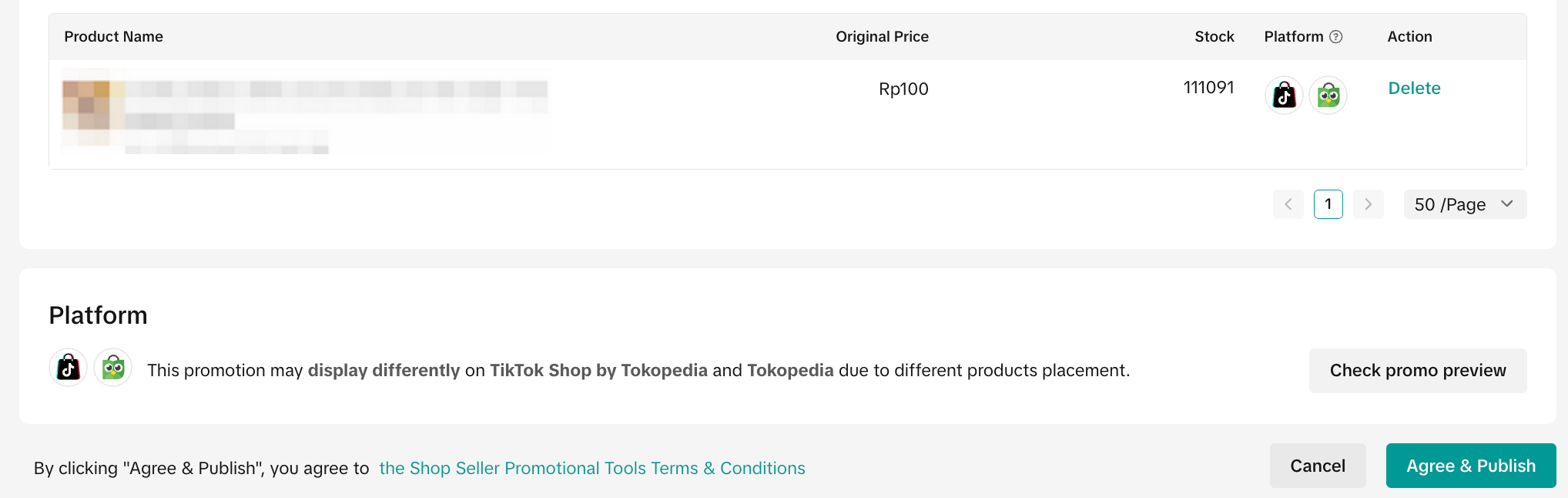 | |
| When products are available on either platform with different promotion mechanisms | 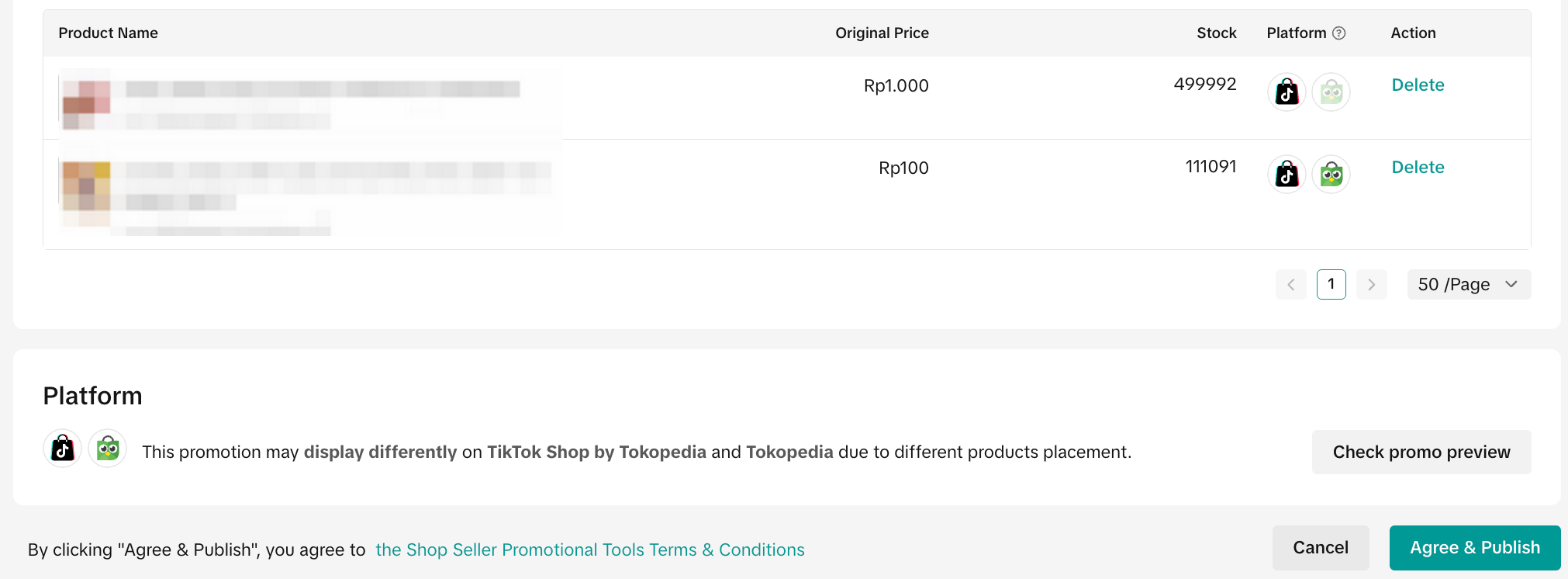 | |
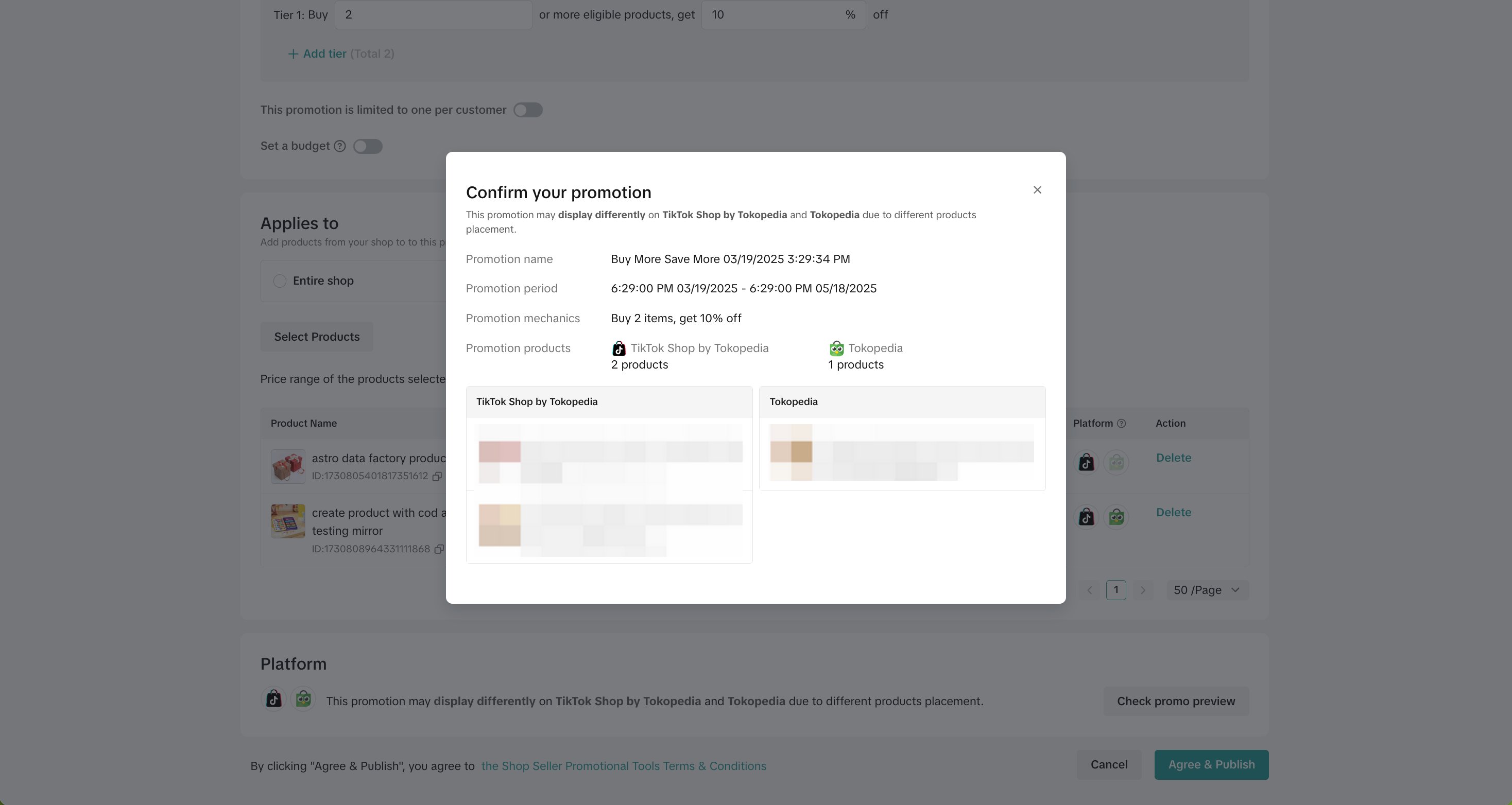 Check Promo Preview on PC | 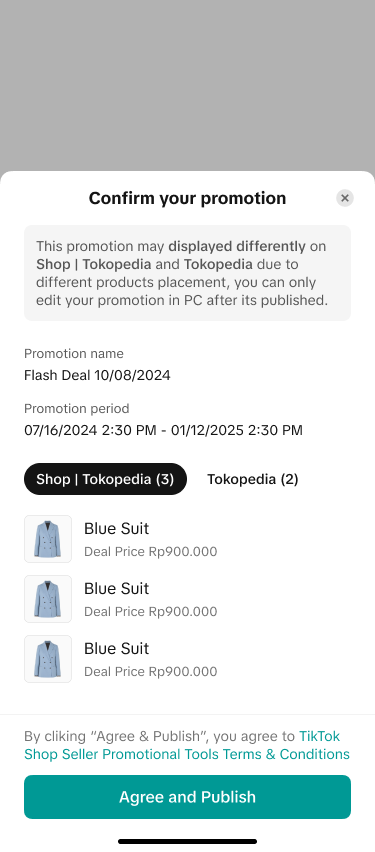 Check Promo Preview on App | |
| When products are only shown on 1 platform | 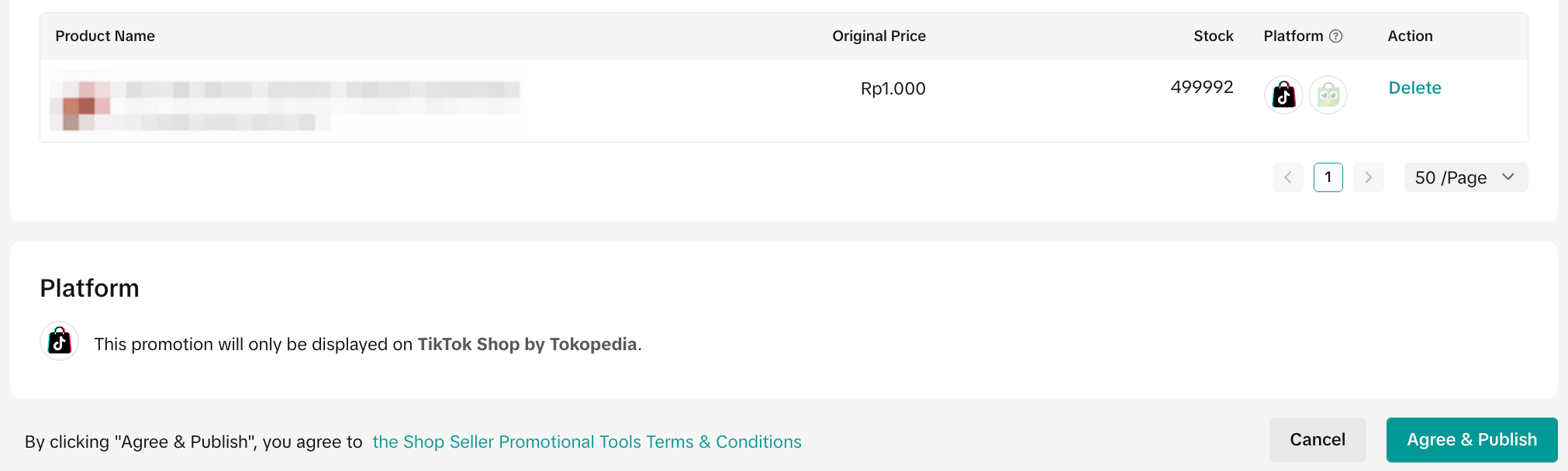 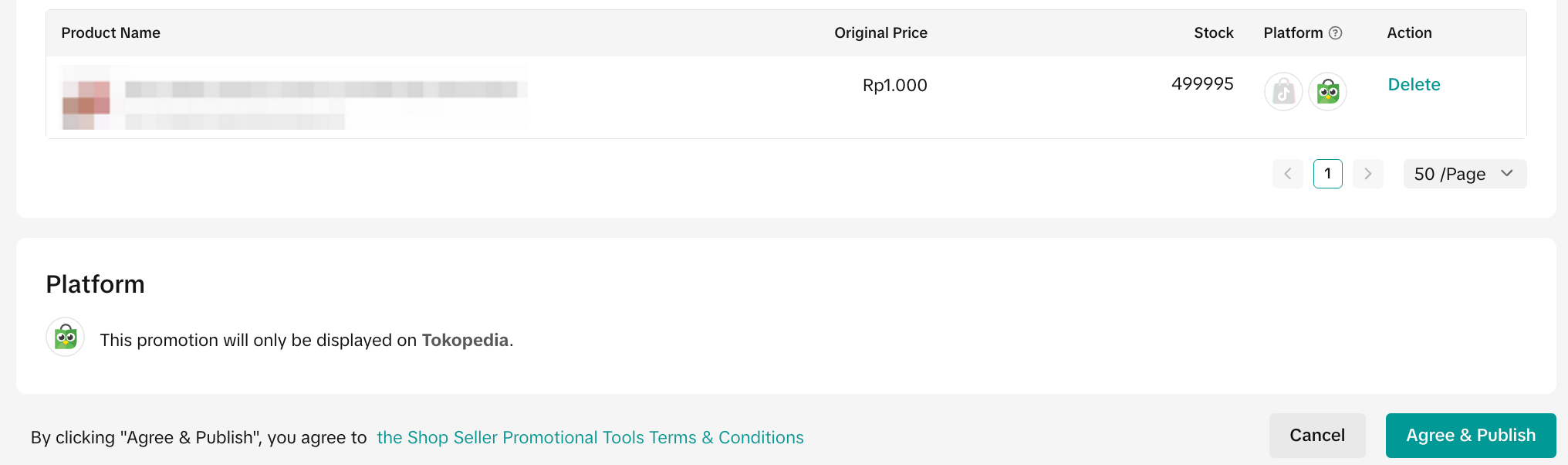 | |

Manage Seller Flash Sale Promotion
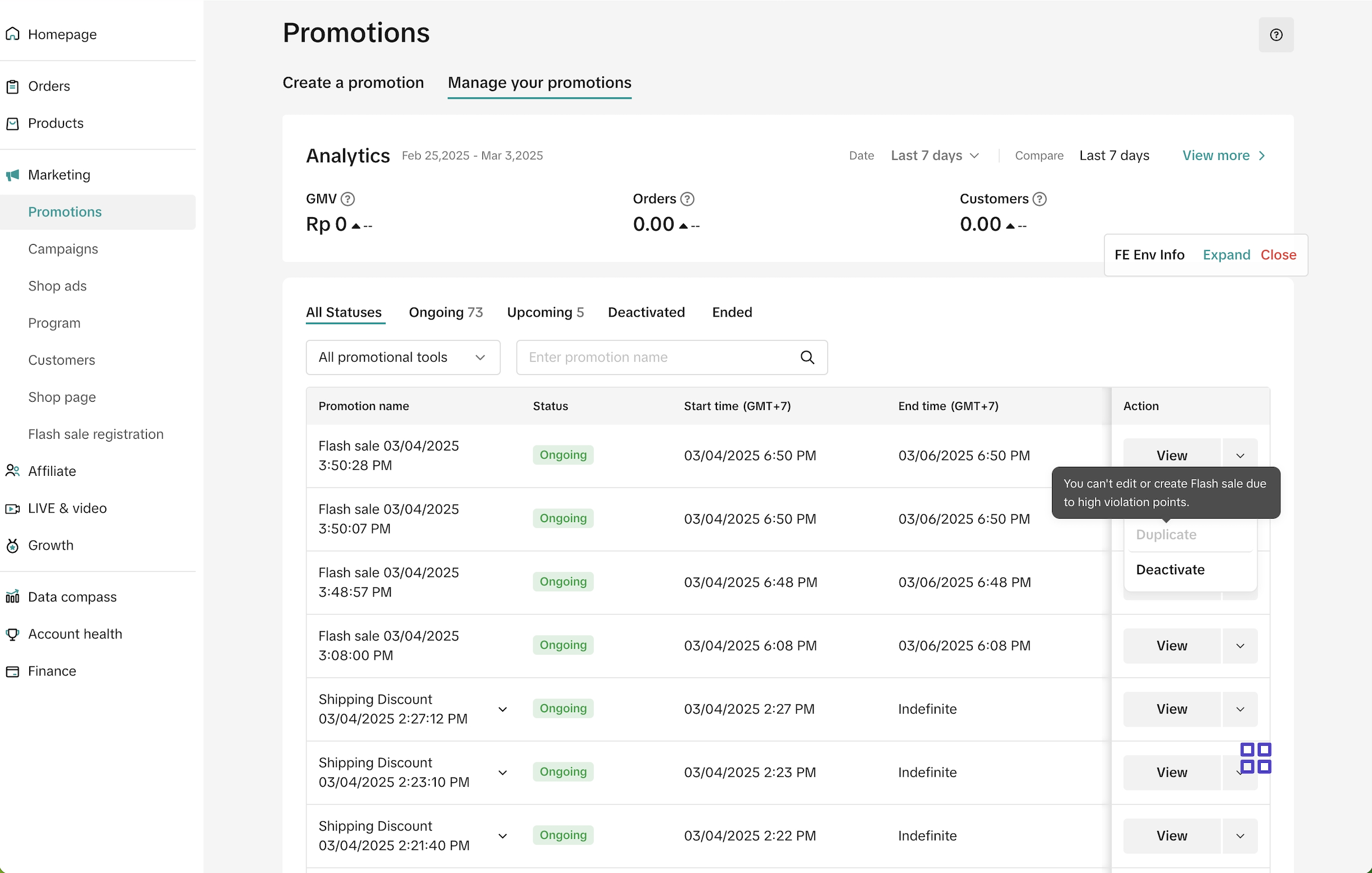
To manage a Seller Flash Sale promotion on the Seller Center on PC, visit the Promotional Tools tab.- Enter Manage your promotions to view the details of ongoing, upcoming and deactivated promotions.
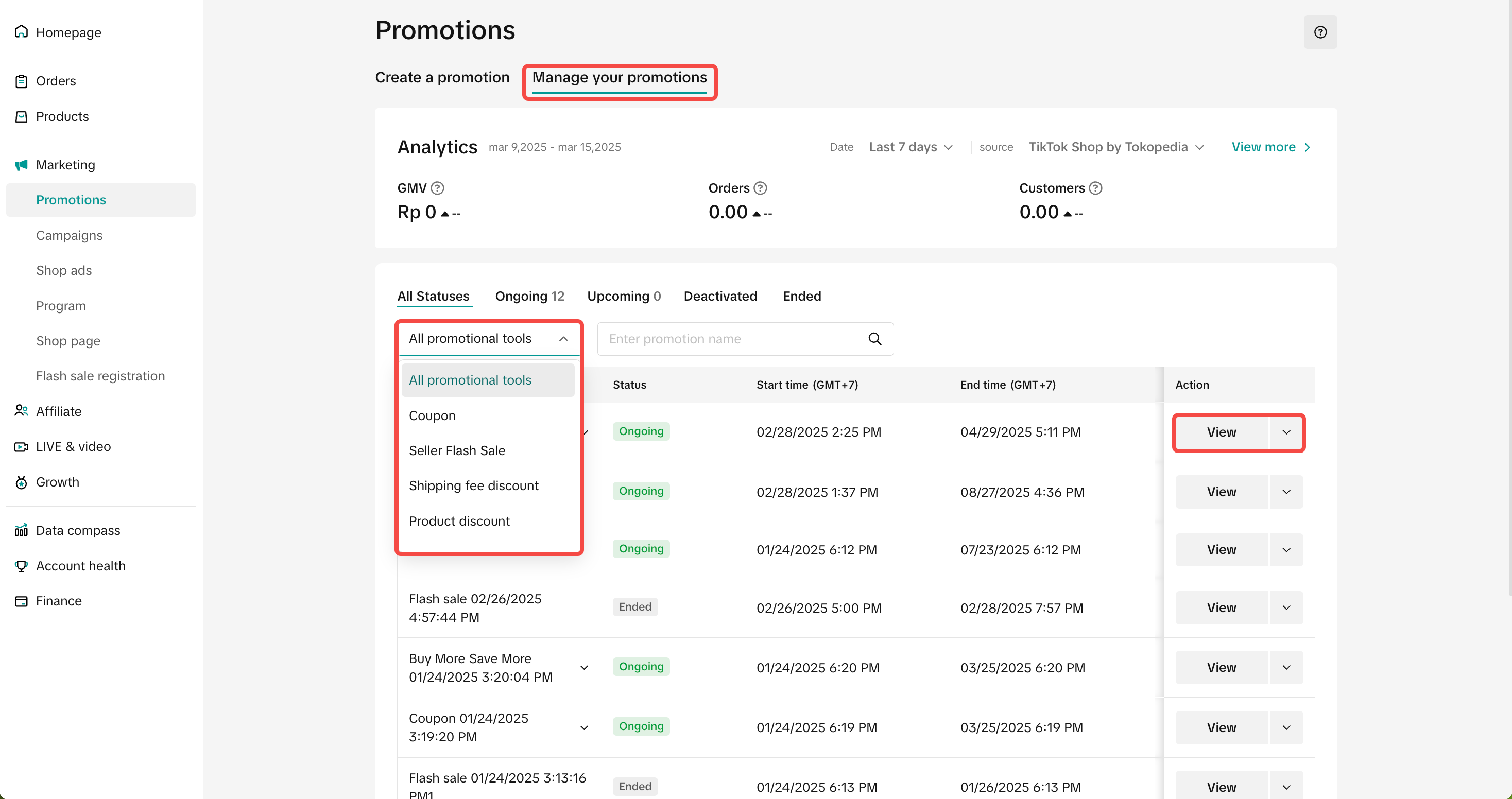 | 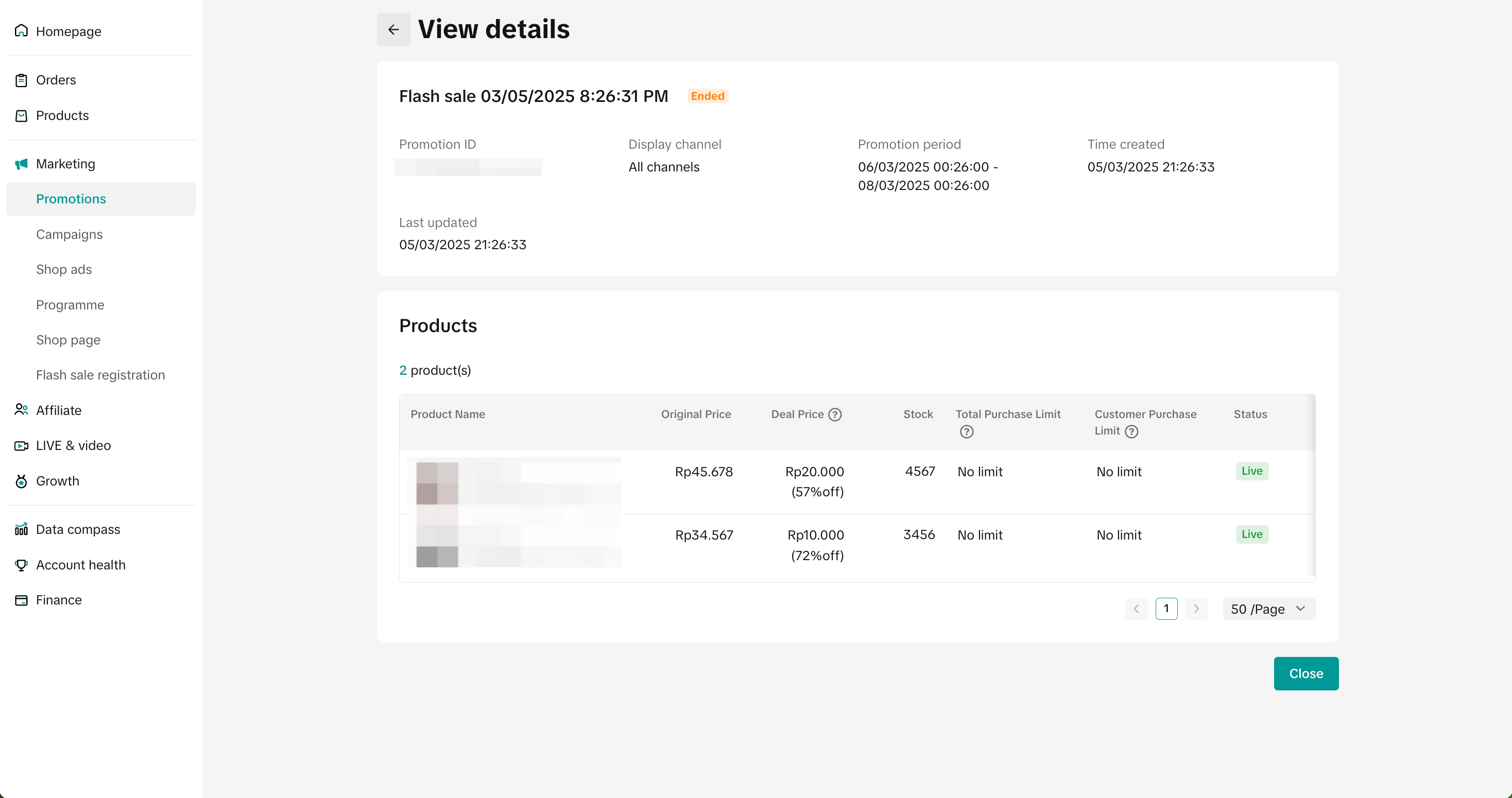 |
- You can then choose to "Edit", "Deactive" or "Duplicate" a Seller Flash Sale.
- Click Edit:
- For Upcoming Seller Flash Sale, you can change the promotion period, change the promotion price, switch the type of total purchase limit and buyer purchase limit and can increase or decrease the value of purchase limit.
- For Ongoing Seller Flash Sale, you can only edit the end time of the promotion, select additional products or remove existing products.
- Click Deactivate: To end an upcoming or ongoing promotion
- Click Duplicate: To copy and paste the promotion setting to help you quickly set up another one.
- Click Edit:
- Note: For ongoing LIVE Flash Sale, you will only be able to duplicate or deactivate the LIVE Flash Sale promotion after it is set-up.

Batch Upload Seller Flash Sale
To batch upload and edit your products on the Seller Center on PC visit the Promotions tab and create a promotion.- When selecting products, click Batch upload
- Click download product IDs and download template
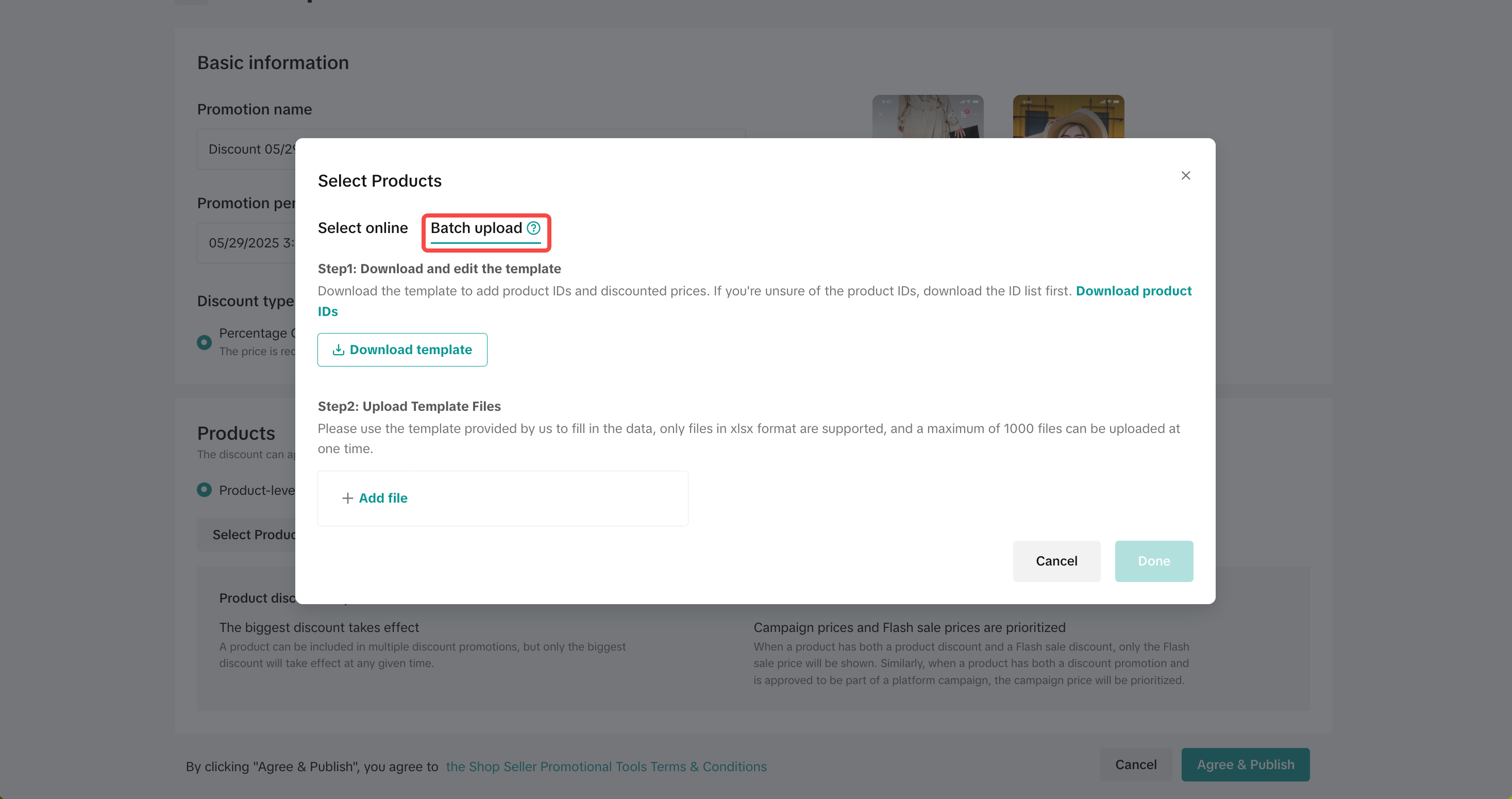
- Fill in the information as follows:
| Information | Product Level | Variation Level |
| Product ID | Required | Required |
| Variation ID | Required | |
| Deal Price | Required | Required |
| Discount | ||
| Total Purchase Limit | Optional | Optional |
| Buyer Purchase Limit | Optional | Optional |
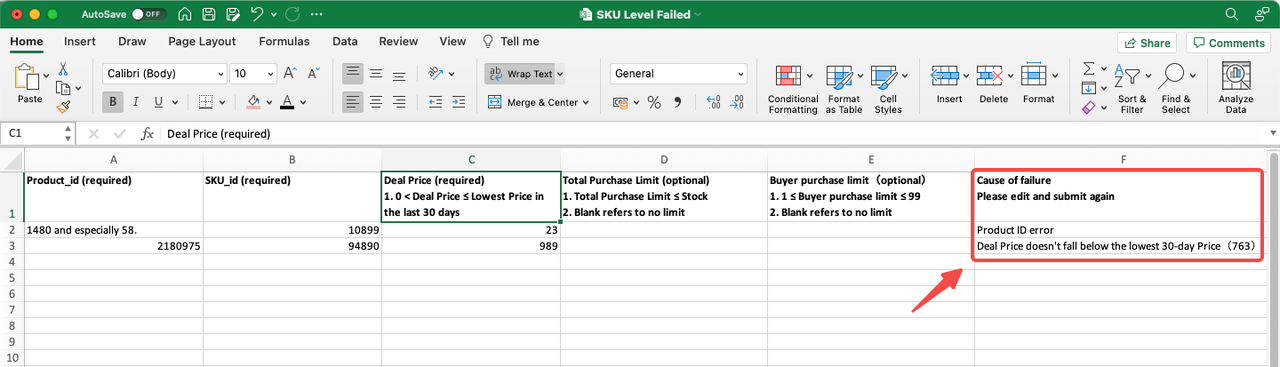

Track Seller Flash Sale promotion
To monitor your Flash Sale performance, visit the Promotion Analytics page.- You can select a Promotional Tool to display its core data and trends. Core Data includes metrics such as Revenue, Orders, and Buyers. You can also check the status and conversion performance of each promotion through the Promotion List.
- You can use the list to analyze which promotion generates the most revenue or ROI and optimize your promotional events in terms of product, event time, and event channel.
- Learn how to analyze the performance of your seller promotional tools through this guide.

FAQs
- Where can I check my Store Rating and Violation Point?
- Store Rating: Seller Center > Account Health > Store Rating
- Violation Point: Seller Center > Account Health > Shop Health
- How often is the seller's Store Rating updated?
- What will happen if my Store Rating or Violation Point drops below the eligibility criteria after creating a Seller Flash Sale promotion?
- When there are multiple variations for a product with different prices, what happens when I fill in the "percentage off" value?
- How come my Seller Flash Sale is not displayed to customers?
- If the LIVE Flash Sale and Campaign Price are applied for the same product during the same period, the LIVE Flash Sale price will take priority.
- If the Product Discount and Seller Flash Sale are applied for the same product during the same period, then the Seller Flash Sale will take priority.
- Can my Seller Flash Sale and my LIVE Flash Sale products be used together with all seller and platform promotions?
You may also be interested in
- 1 lesson
Tokopedia PLUS
Tokopedia PLUS, now with More and Better benefits!
- 1 lesson
Promotion
Leverage promotions to attract more customers and boost sales!
- 7 lessons
Promotional Tools
Utilize vouchers, discounts, and bundling features to encourage purchases and attract buyers.

Bundle Deal
This article teaches you how to use Seller Bundle Deal to increase the Average Order Value in your s…
Bundle Deal Terms and Conditions
As a special limited time promotion, we, sellers of certain products on TikTok Shop, are offering yo…
Promotional Tools - Shipping Fee Discount Eligibility
What are shipping fee discounts? You may choose to offer a shipping discount on orders by bearing al…
Gift with Purchase
This article teaches you how to use Gift with Purchase to increase your average order value and conv…

Seller LIVE Interactive Voucher
This article teaches you how to use LIVE Interactive Vouchers to increase your average order value a…

First order discount
If it is the customers first order, the discount coupon is only available for new user/customer who…

Seller Regular Voucher
This article teaches you how to use Seller Regular Vouchers to increase your average order value and…