

Basic Information About Lark
02/23/2024
How to download and install Lark?
How do I download Lark?
3. iOS, please search and download from the Apple App Store
What are the Requirements for Downloading Lark on Desktop and Mobile?
2. Windows: Windows 7 or above
3. iOS: iOS 11 or above
4. Android: Android 5.1 or above
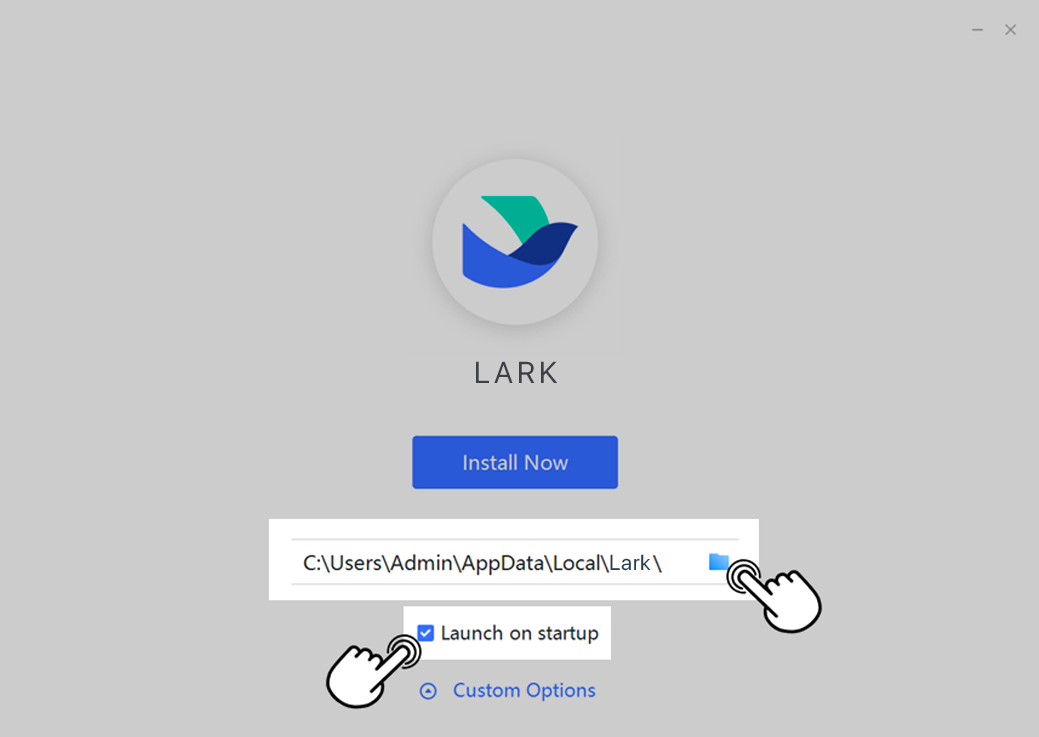
How can I customize Lark's installation as a Windows user?

Sign up for a Lark account
Mobile App
- Intro
If you don't need to create an organization for the time being, you can create an Individual Space or join another organization.
Create an organization
- If you are opening the Lark app for the first time, click Get Started, enter your email address or phone number, and tap Next.
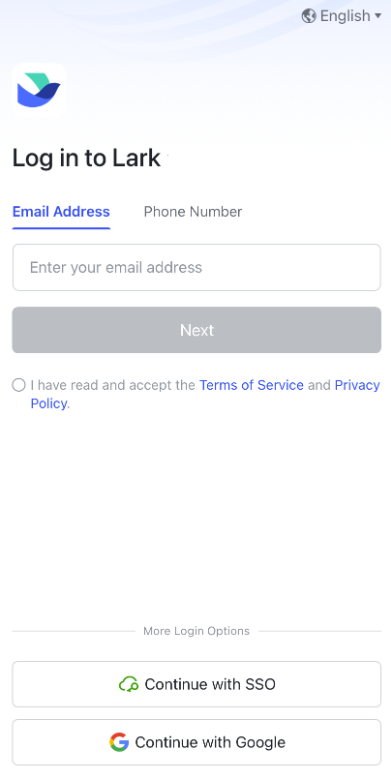 If you are not opening the Lark app for the first time, enter your email or phone number. Then, tap Next.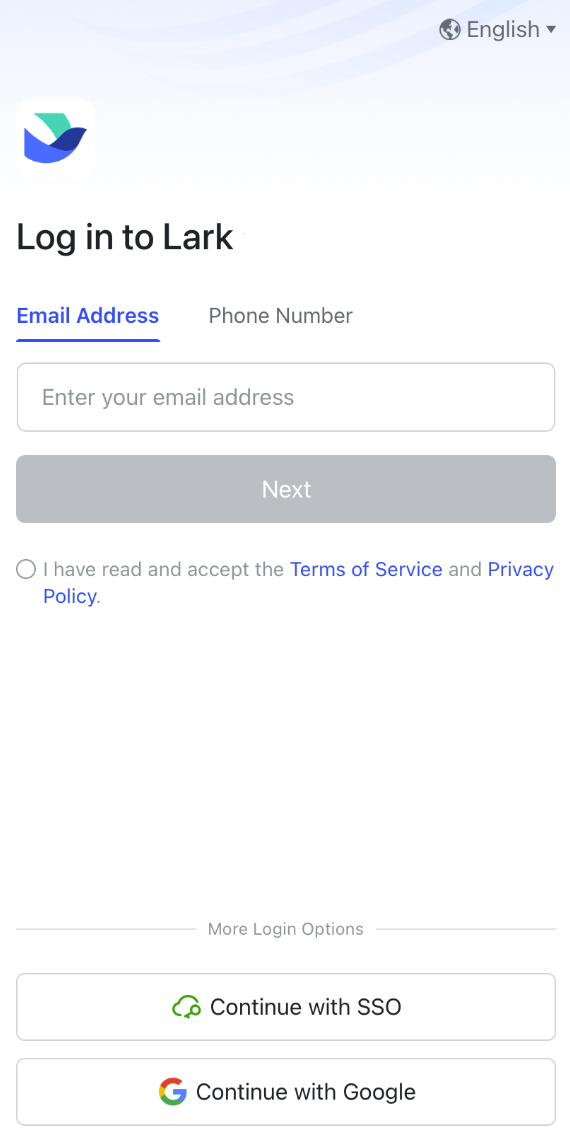
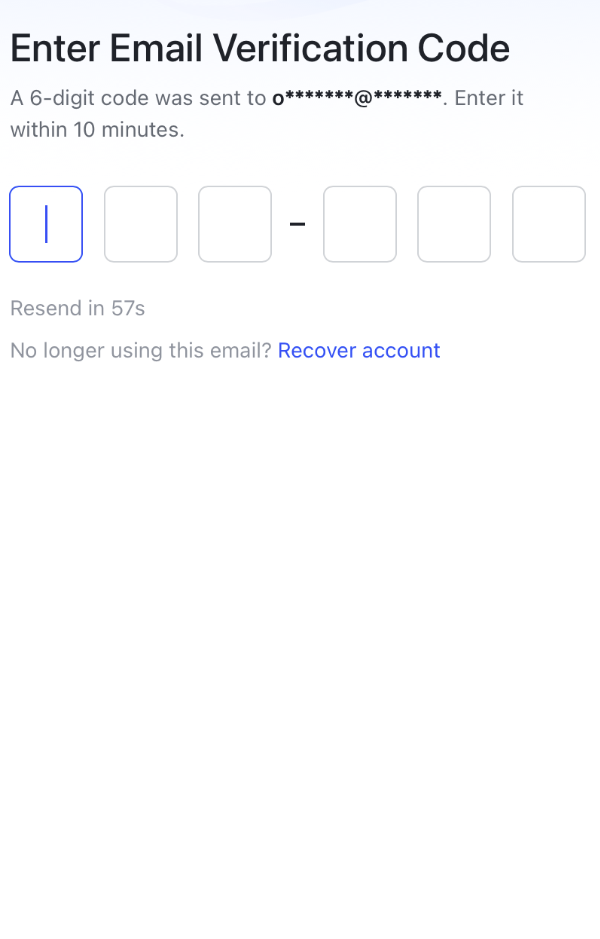
Enter the verification code.
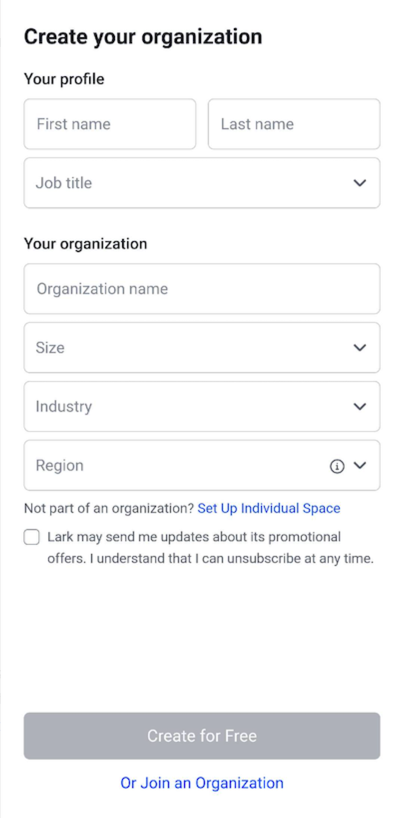
Enter your profile and organization information. Then, tap Create for Free.
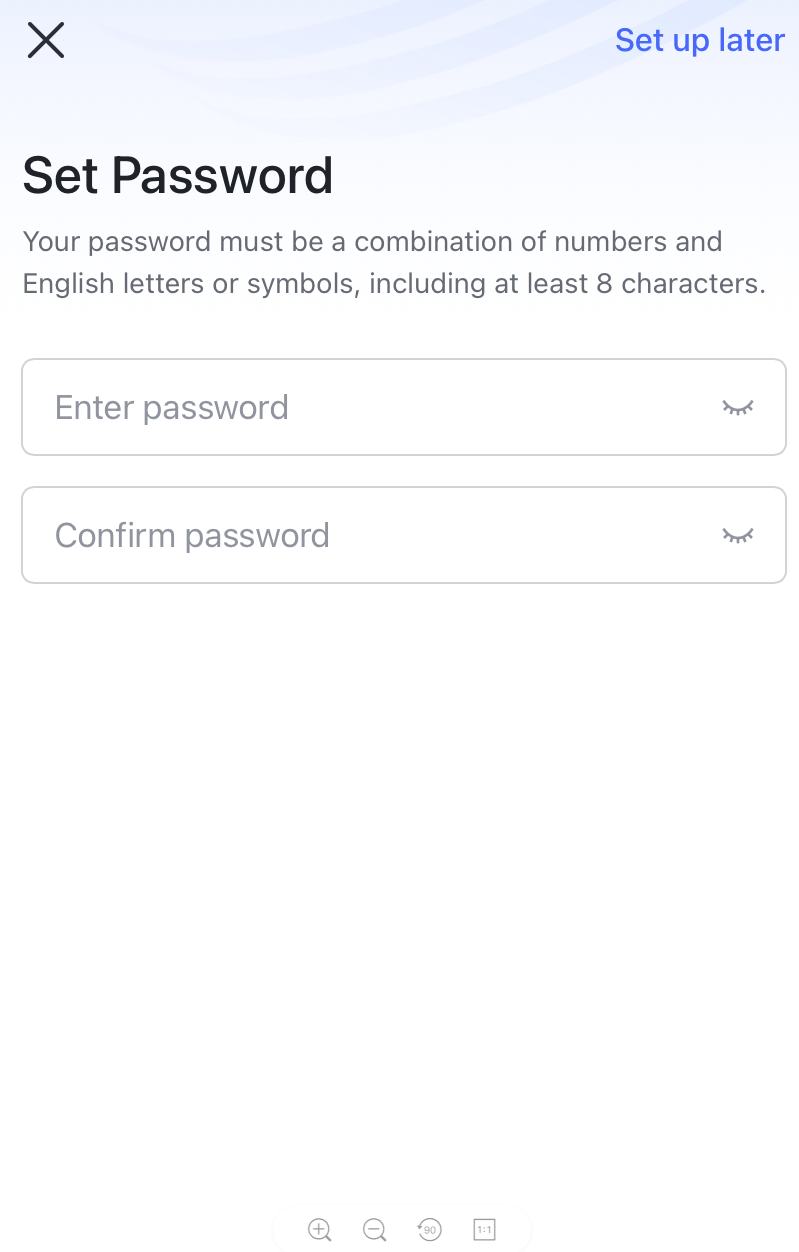
Set your account password and tap Next. You can also tap Set up later, which won't affect your ability to log in to your account. To set the password once you've logged in to your account, see Set or change your password for more details.
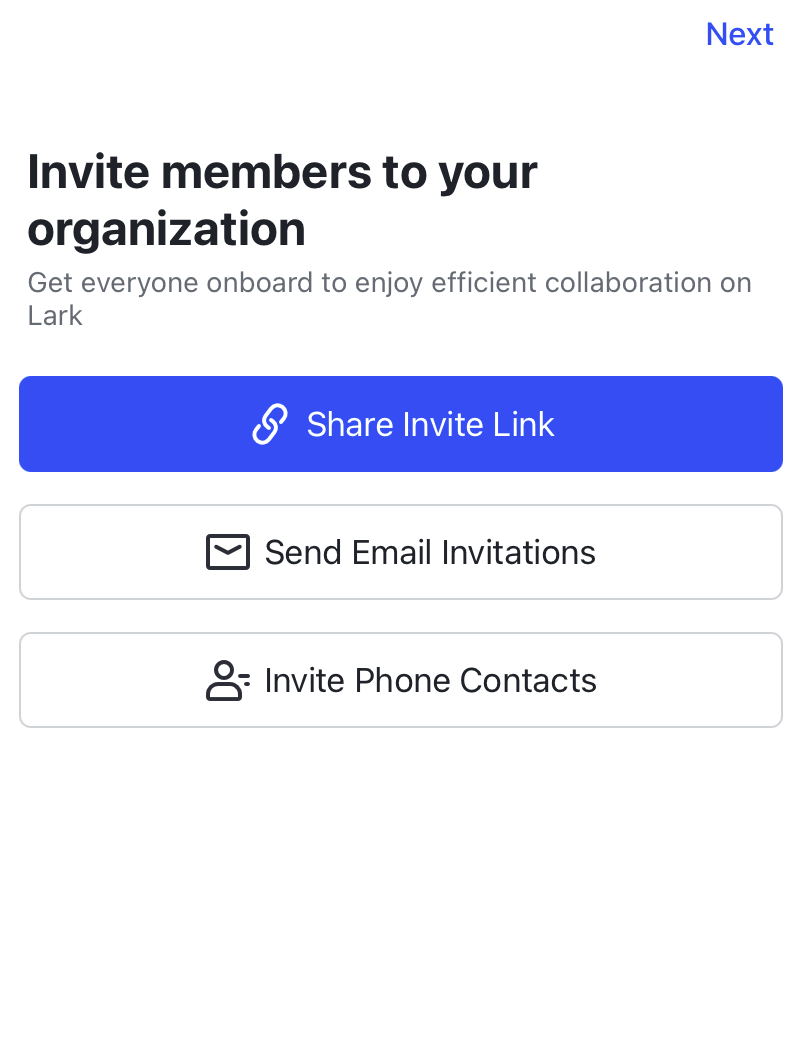
Once the organization has been created, you can finish signing up for your Lark account. You can tap Share Invite Link, Send Email Invitations, or Invite Phone Contacts to invite others to join your organization and work together in Lark. If this isn't necessary for the time being, you can tap Next in the upper-right corner to skip this step. If you want to invite others to join your organization after opening Lark, see Admin | Create departments and add members for more details.

FAQs
- Can I sign up for multiple Lark accounts?
- I can't sign up for a Lark account. What should I do?
- Verification code issue: If you can't receive a verification code, see What should I do if I don't receive a verification code when signing up and logging in? for troubleshooting measures.
- Security issue: If you get a notification that your email address or phone number can't be used to sign up, this means that it may pose a security risk. Please try signing up with a different email address or phone number.
- Are there any differences among the Lark accounts I obtained through the above three methods?
- If you choose to create an organization or Individual Space, as an administrator you will be able to invite others to join at any time. You will also be able to collaborate with other members in Lark, and open the Admin Console to manage the organization.
- If you choose to join another organization, you will be a non-administrator member of the organization by default, and you won't be able to open the Admin Console or access administrator features. You’ll only be able to access the relevant administrator features once you're added as an administrator by another organization administrator.
- How do I sign up for a Lark personal account?
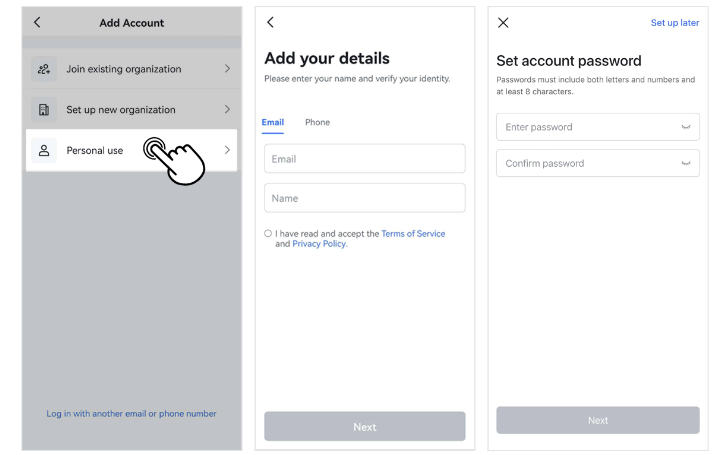
If you don't need to collaborate with an organization, after signing up for an account using any method and logging in to Lark, you will be able to tap your profile photo and go to Add Account > Personal use to sign up for a personal account (see Add an account for details). Once you've signed up for a personal account, you can use Lark Messenger to chat with external contacts, use Lark Calendar to manage your personal time, and use Lark Docs to build a personal Wiki. However, you will not be able to invite other members to collaborate with you, or use the Admin Console to manage the organization. If you have a lot of team members, need to collaborate often, or have high information security requirements, you should sign up for an organization account and benefit from the increased features and services.
- What's the difference between a personal account and an Individual Space?
You may also be interested in
Registering to be a Seller
Your seller journey with TikTok Shop by Tokopedia begins with account registration. You can register…

Can I link my TikTok account with another social media accou…
Click on the Profile page, and click Edit Profile. Select either of the options under Social to link…

Why was my brand authorisation application rejected?
All submitted trademark information will be verified against the World Intellectual Property Organis…

What will happen to my existing orders while on "Holiday Mod…
"Holiday Mode" does not apply to existing orders. All existing orders, made prior to Holiday Mode be…

Which types of brand authorisation are accepted within the T…
There are 6 accepted types of brand authorisation: Trademark ownership National exclusive 1st level…

Why am I unable to sell the products of a particular brand?
The platform is committed to protecting the intellectual property rights of both organisations and i…

How to Create your Commission Account
After your successful Creator Account creation, you will need to set up your Commission Account to d…

How to register?
To become a platform seller, you need to create a Shop | Tokopedia account. Please follow the steps…
New Shop Adjustment Period
All new shops on TikTok Shop by Tokopedia start in the Shop Adjustment Period. During this period, y…
Setting Up Your Shop Profile and Name
Setting Up Your Shop/Seller Profile Setting up your TikTok Shop by Tokopedia profile is an important…