LIVE Giveaway via Seller Center PC
07/18/2025
This article teaches sellers how to set up LIVE Giveaway to encourage immediate purchases in LIVE and creator channels. Sellers will learn how to manage LIVE Giveaway via Seller Center (PC) and LIVE Manager (PC).
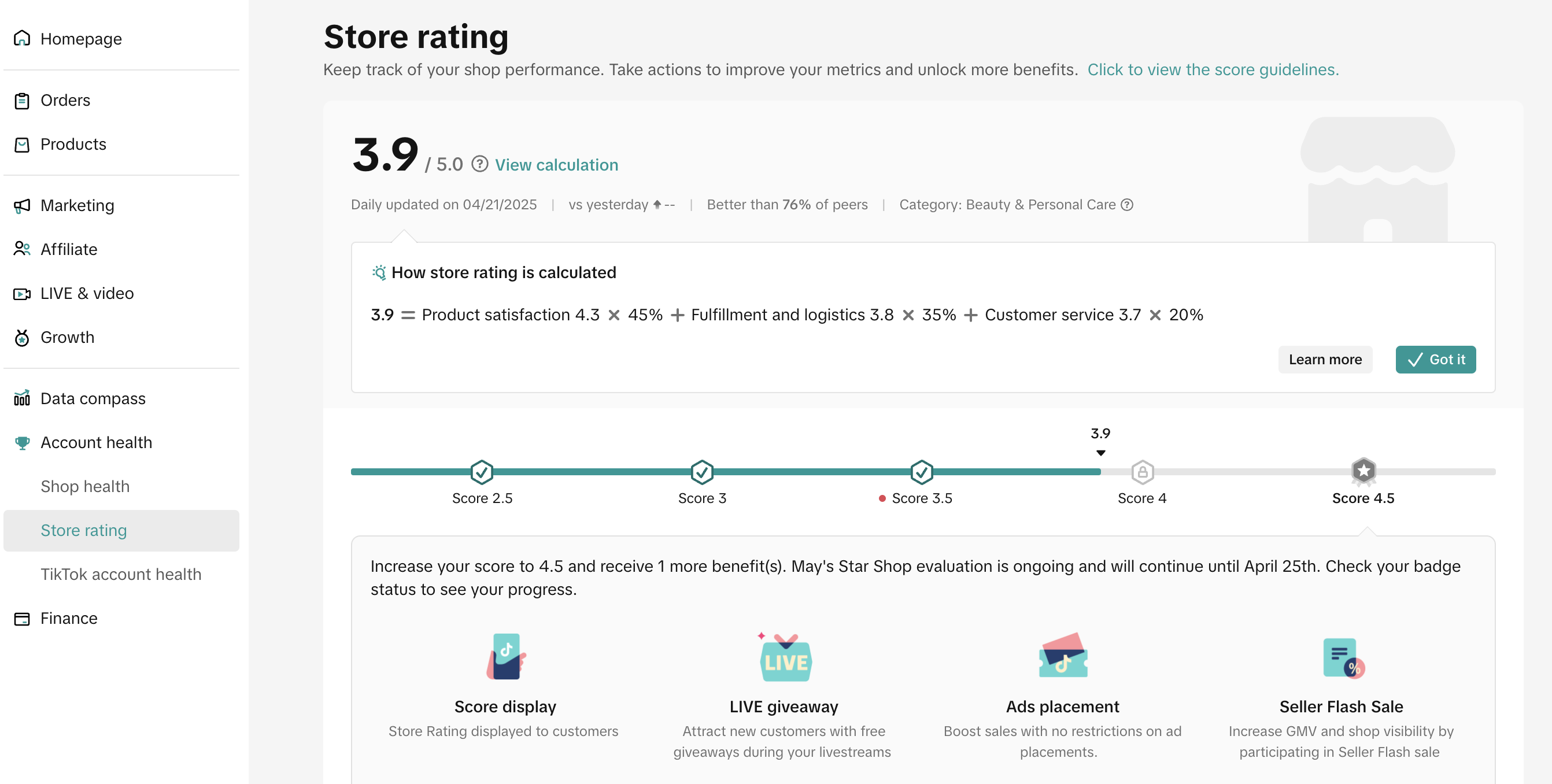
New updates as of June 2025The criteria for sellers to use LIVE Giveaway has been updated as below.
Note: This feature is also available for sellers who have no Store Rating (-). No Store Rating means that your store has not yet met the order criteria required to display a Store Rating. No Store Rating is not the same as a Store Rating of 0. To learn more about Store Rating, click here.
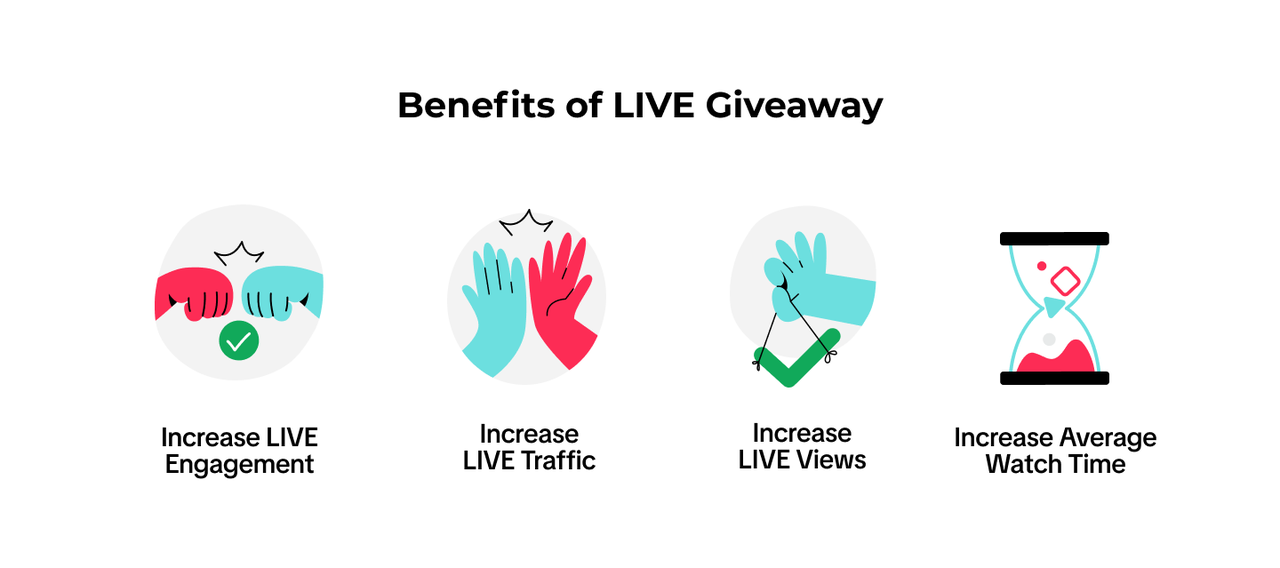 Viewers can access LIVE Giveaway from the LIVE Feed by clicking the pink bag icon, as shown below:
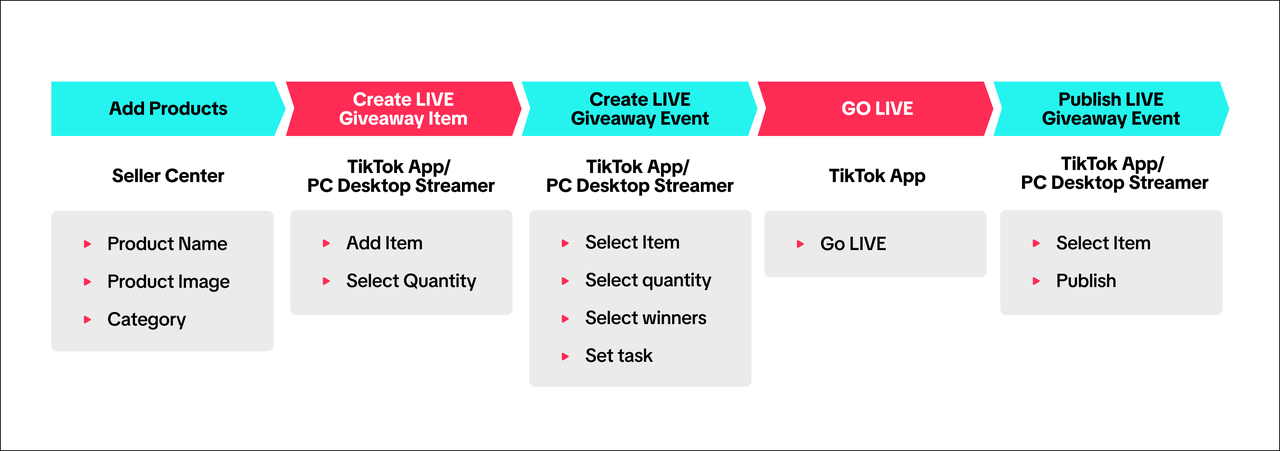
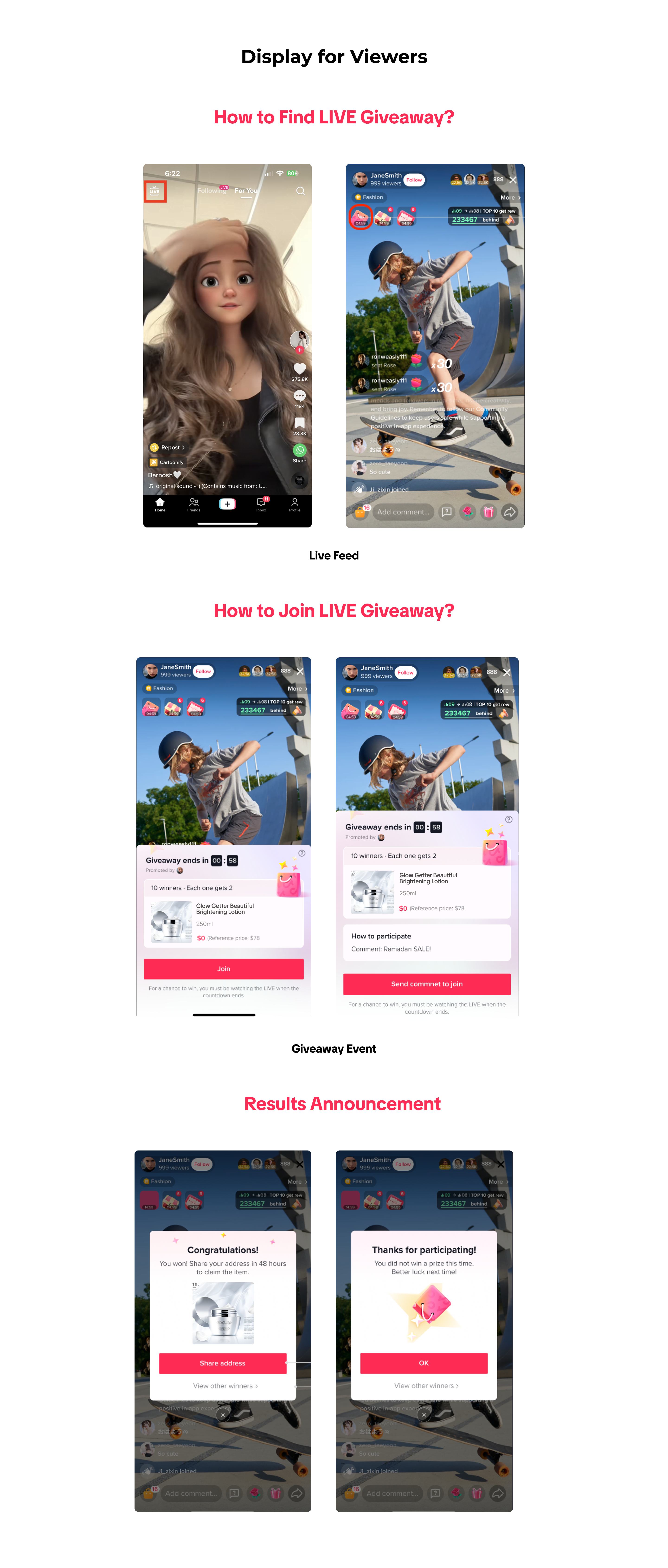 You can use LIVE Giveaway to improve your LIVE performance at various stages:
To be eligible for LIVE Giveaway, you must:


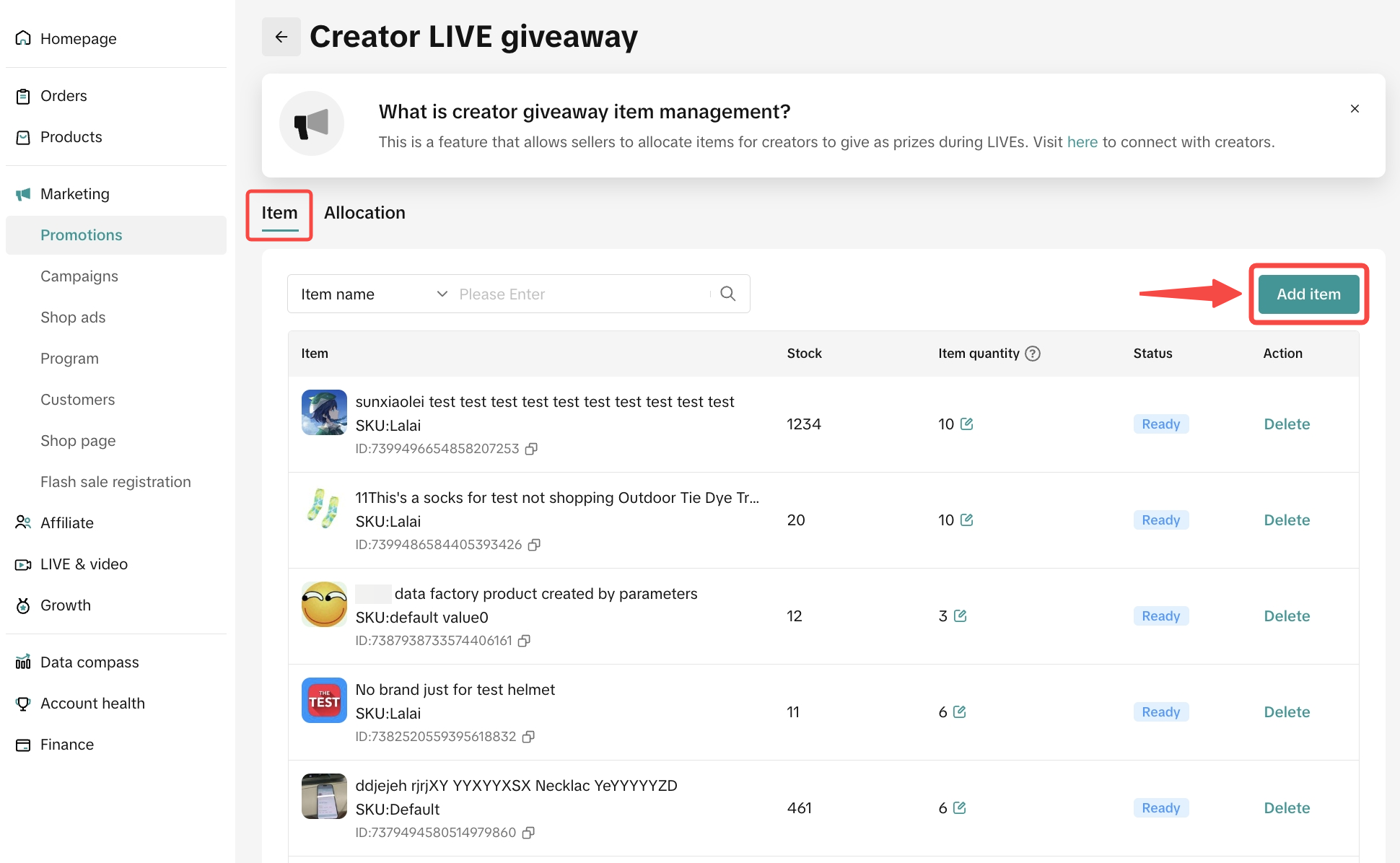
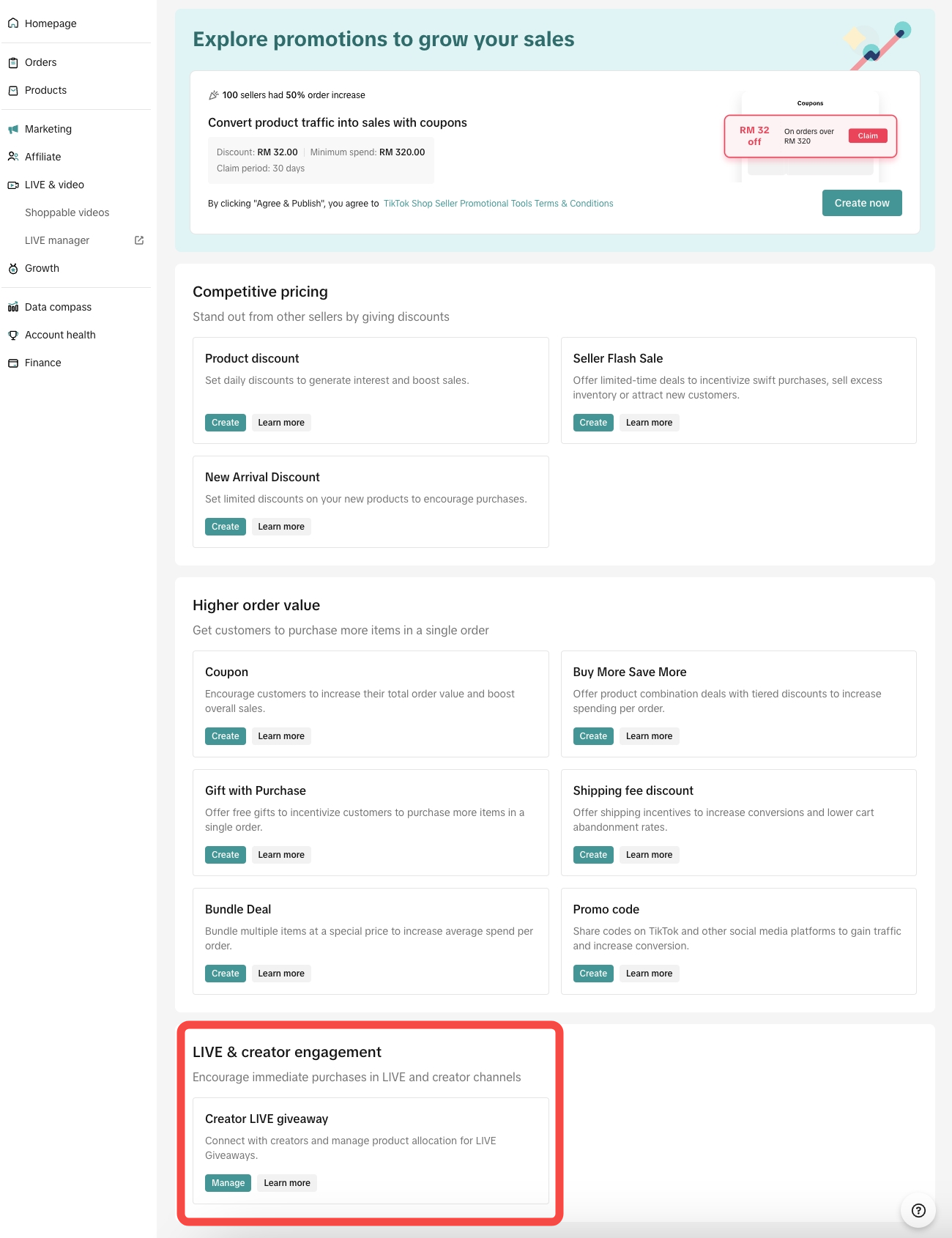 Step 2: On the Item tab, click Add Item to add products you would like to allocate as prizes for LIVE Giveaway. Once the product is set up, the status should show up as "Ready".
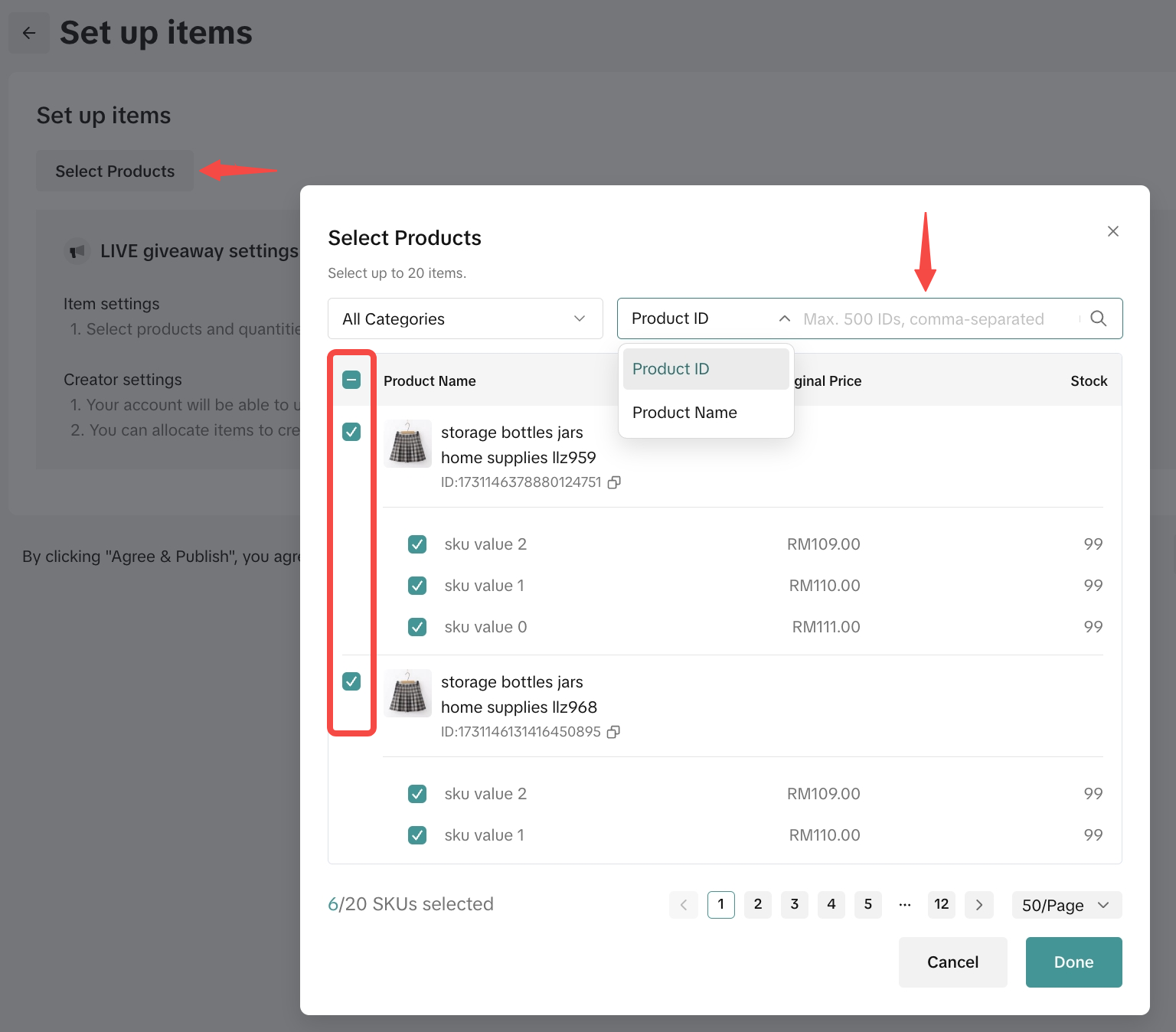
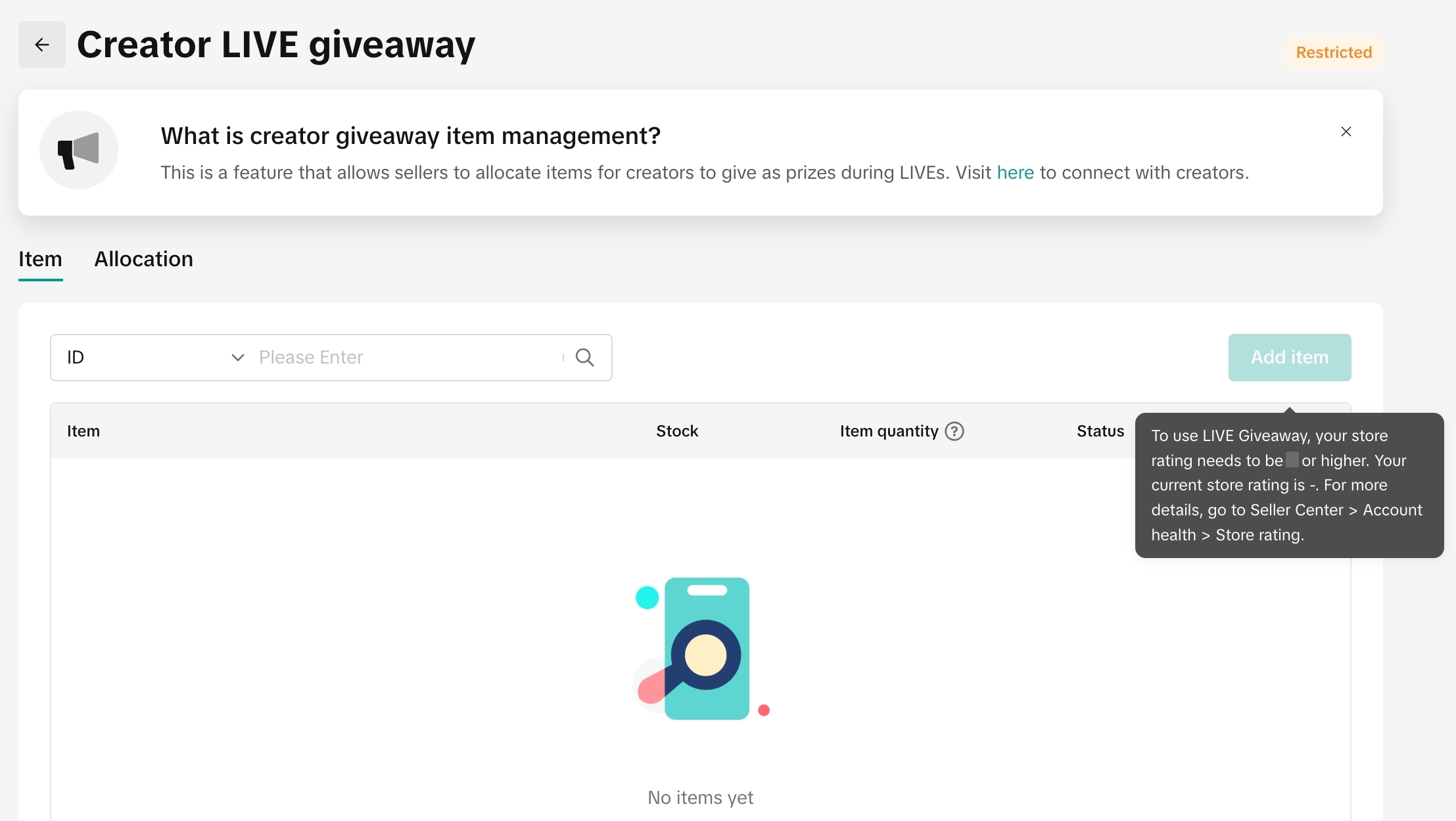 Step 3: Click Select Product, then there will be a pop-up to show list of products under your store
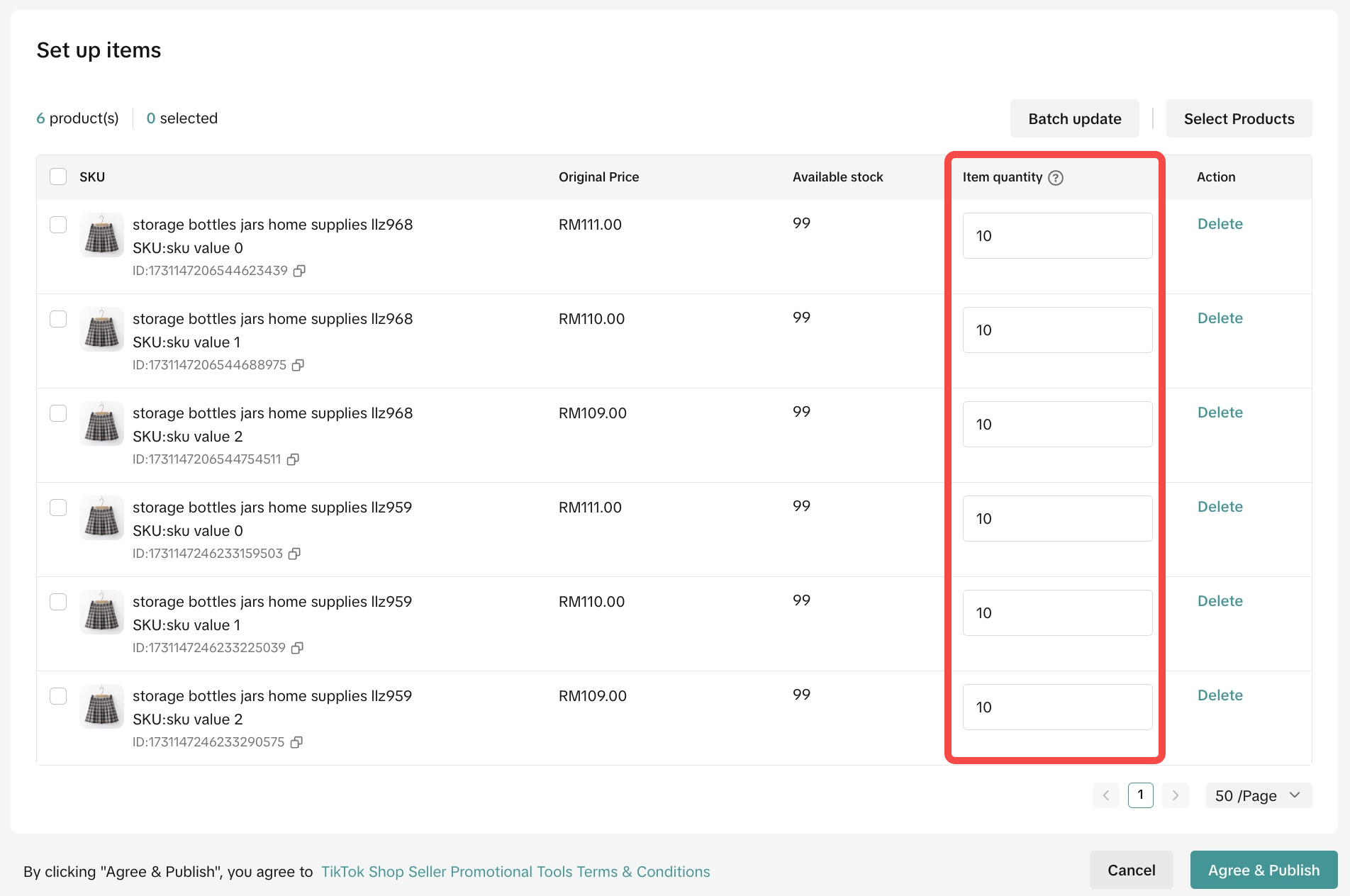
Step 4: Assign item quantity to each product for LIVE Giveaway, then click Agree & Publish.
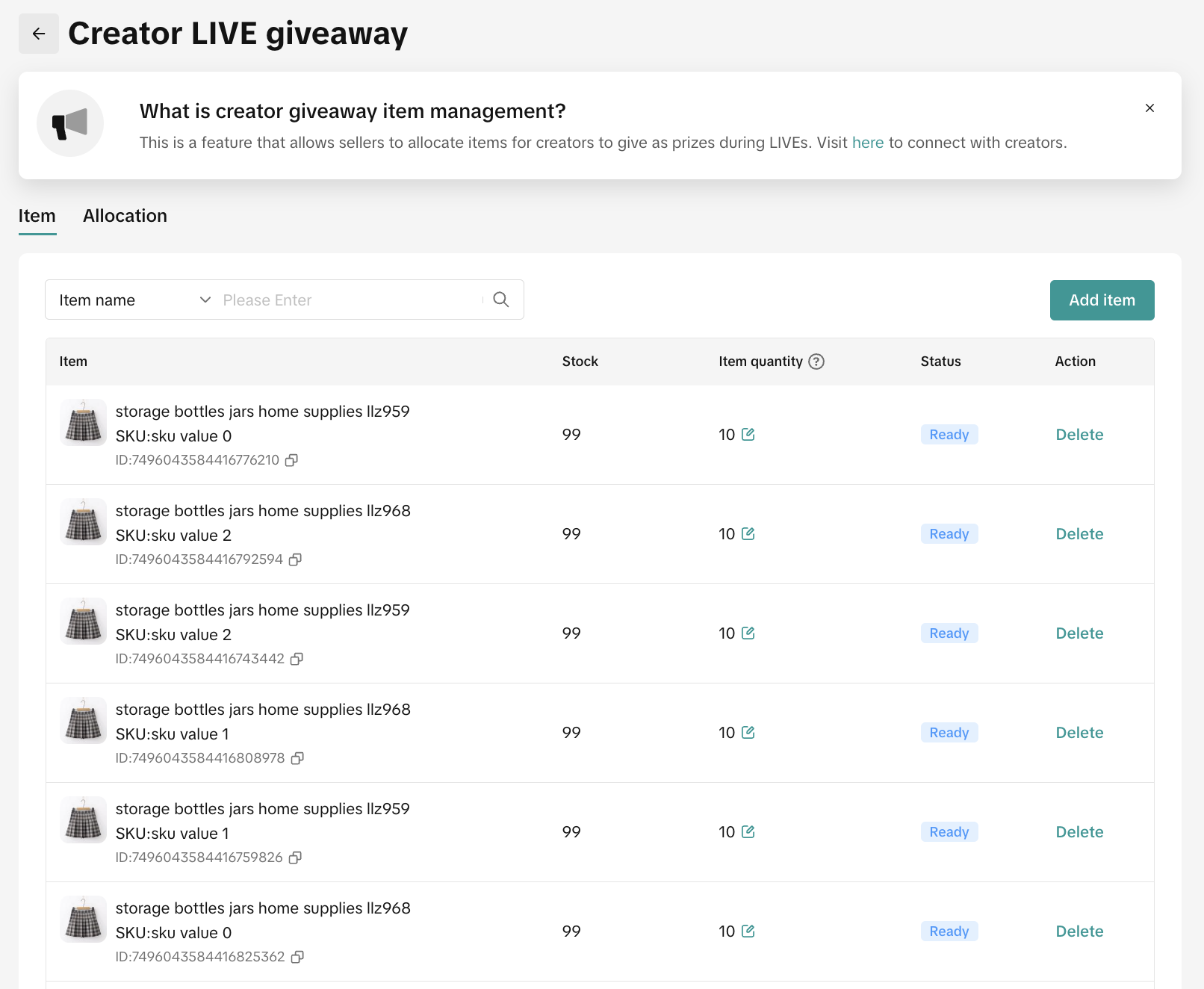

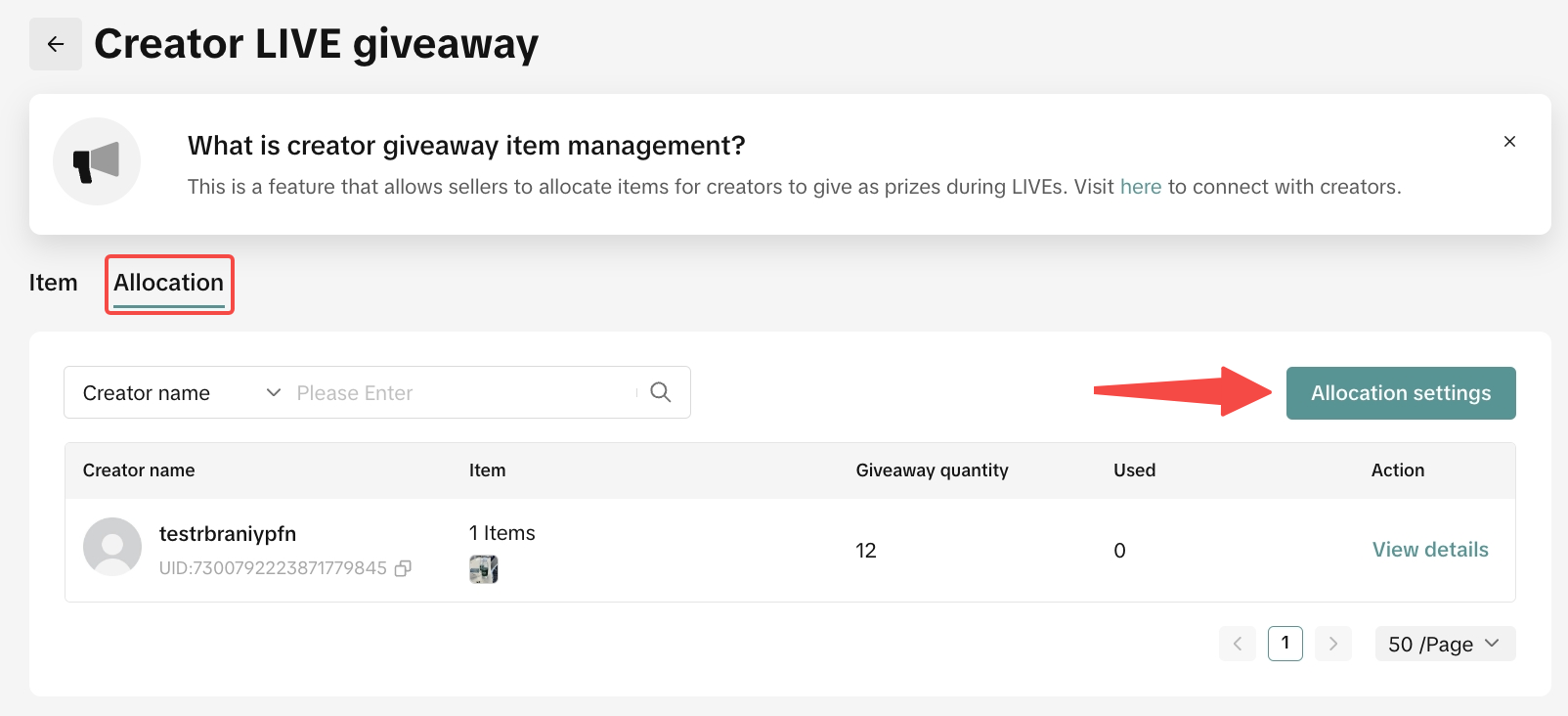
Step 1: While on the LIVE Giveaway page, go to the Allocation tab and click on Allocation settings to create a new allocation.
 Step 2: To add Creators, search their account handle or ID in the search bar. The system will display related creators according to your input.
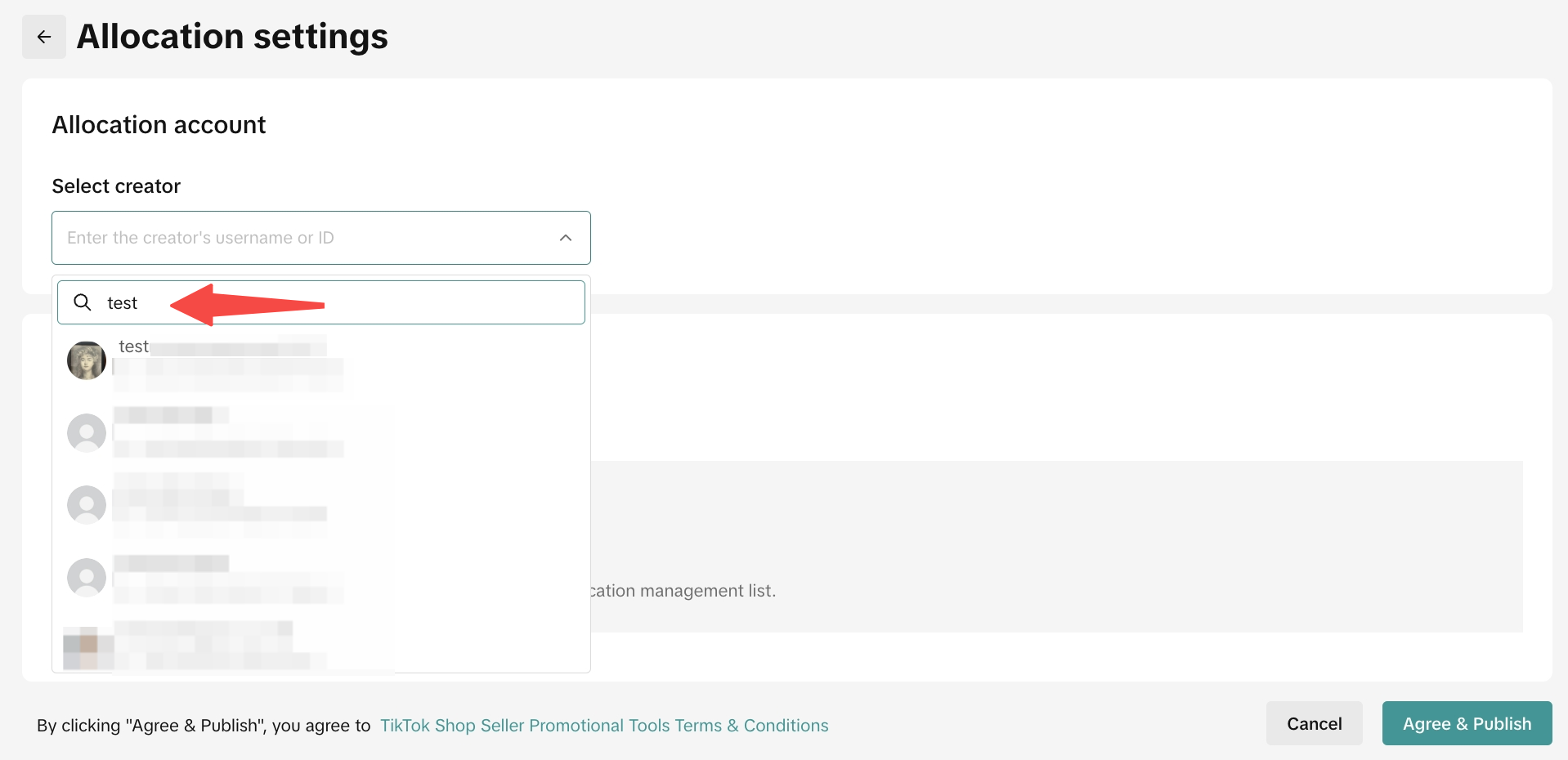 ❗️ Please take note, you won't be able to click on "Allocation Setting" if you haven't completed the prize setup
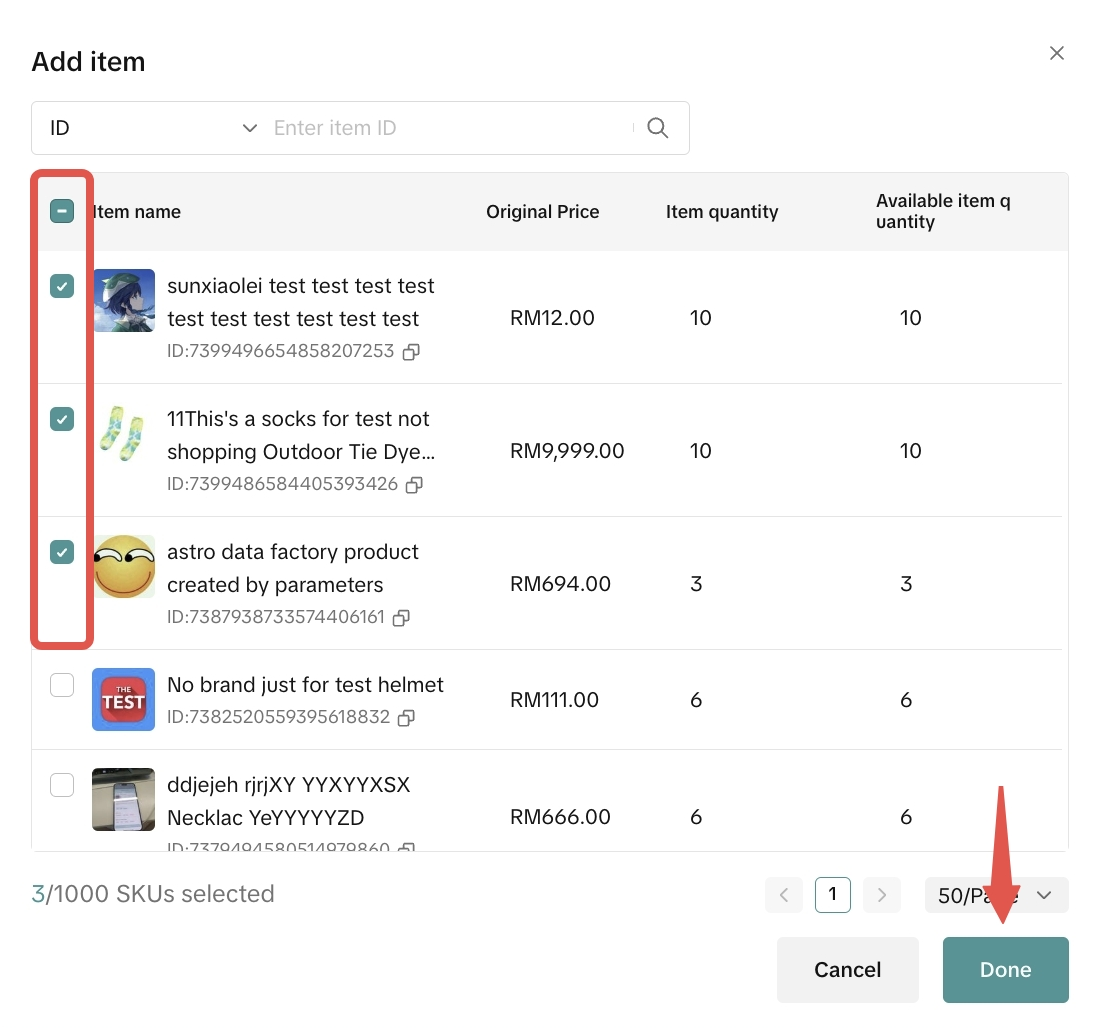
Step 3: Click "Select Product" to select the product that you would like to allocate to creator. Tick the box at the left-hand side to select the product and click "Done" once you finish the product selection process.
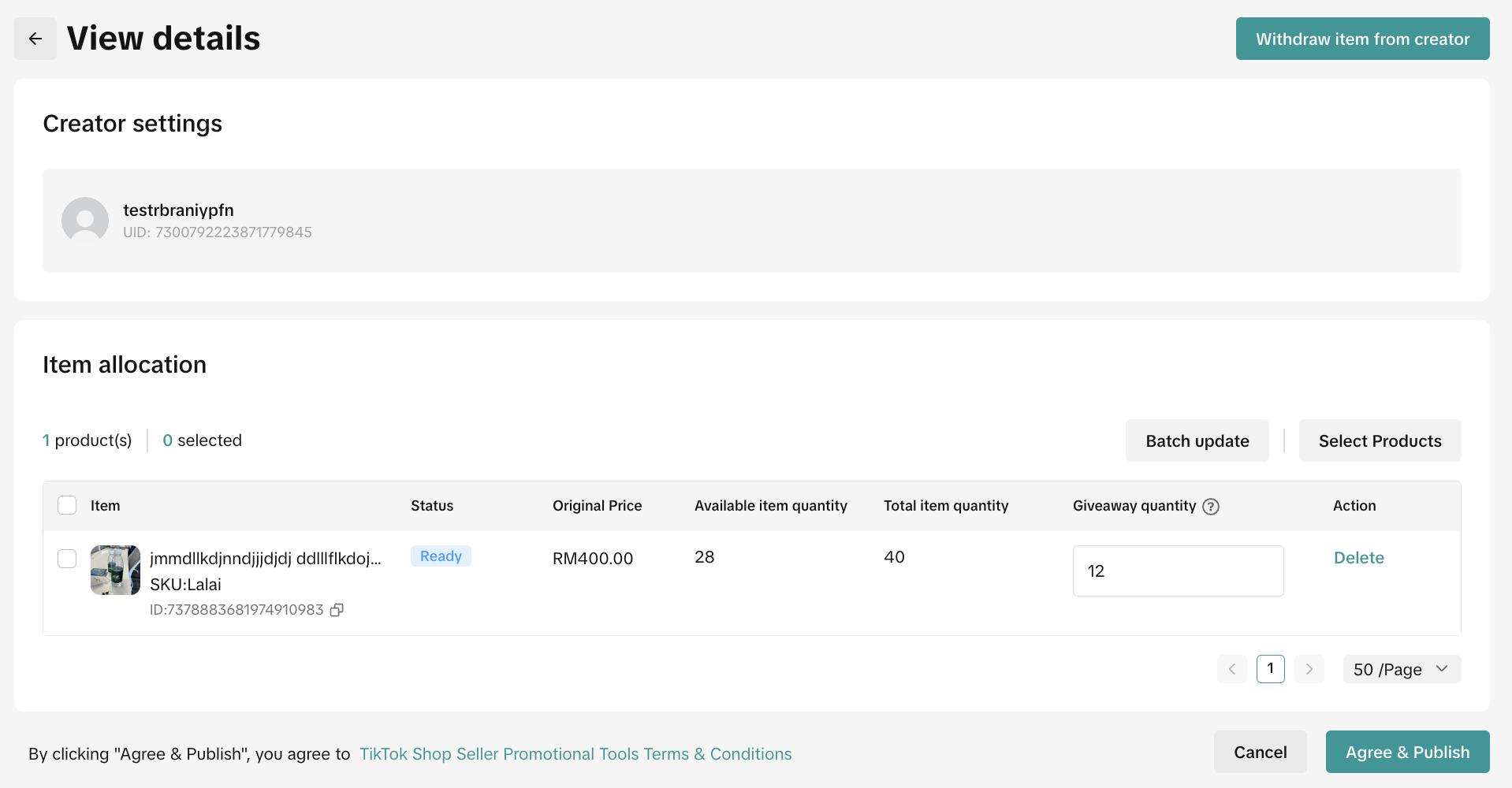
Step 4: The selected products will appear in the list of Item allocation. Input the Giveaway quantity, then click Agree & Publish.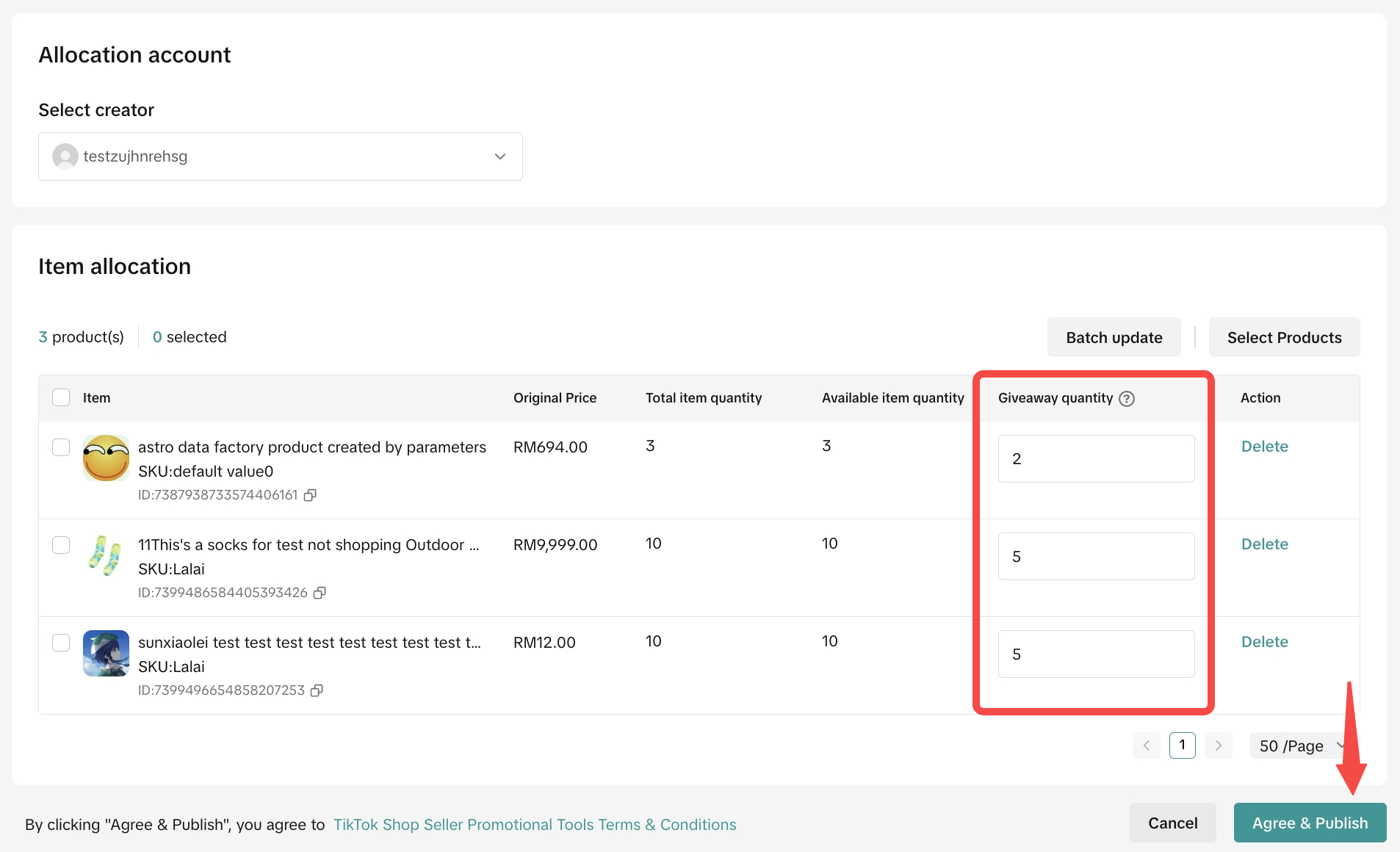 Step 5: Once the allocation is ready, you will see the list of Creators you are currently partnering with together with the list of eligible products for Creator LIVE Giveaway.
 You can click view details to manage the giveaway settings, such as updating the giveaway quantity, deleting the item, or withdrawing the item from the creator.

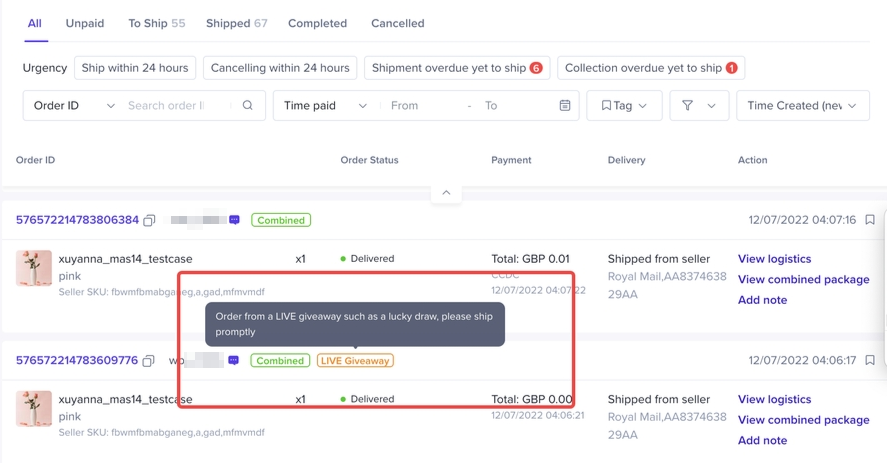
Once the winner has redeemed the prize, the order information will be displayed in Seller Center with a Live Giveaway tag. The seller should proceed to fulfill the LIVE Giveaway prize.

New updates as of June 2025The criteria for sellers to use LIVE Giveaway has been updated as below.
| Before | After |
| Store Rating >=3.0, and Violation points <36 |
What is LIVE Giveaway?
LIVE Giveaway is a seller-funded interactive tool that allows sellers to run giveaway events and give out free prizes to viewers during a TikTok Shop by Tokopedia LIVE session. Sellers can configure which products and how many units they would like to give away to viewers. Viewers can participate by joining the competition directly or completing a certain set of tasks, determined by the seller.To be eligible for LIVE Giveaway, you must:
- Be a registered seller on TikTok Shop by Tokopedia
- Store Rating >=3.0, and Violation points <36
- Have an official or marketing account
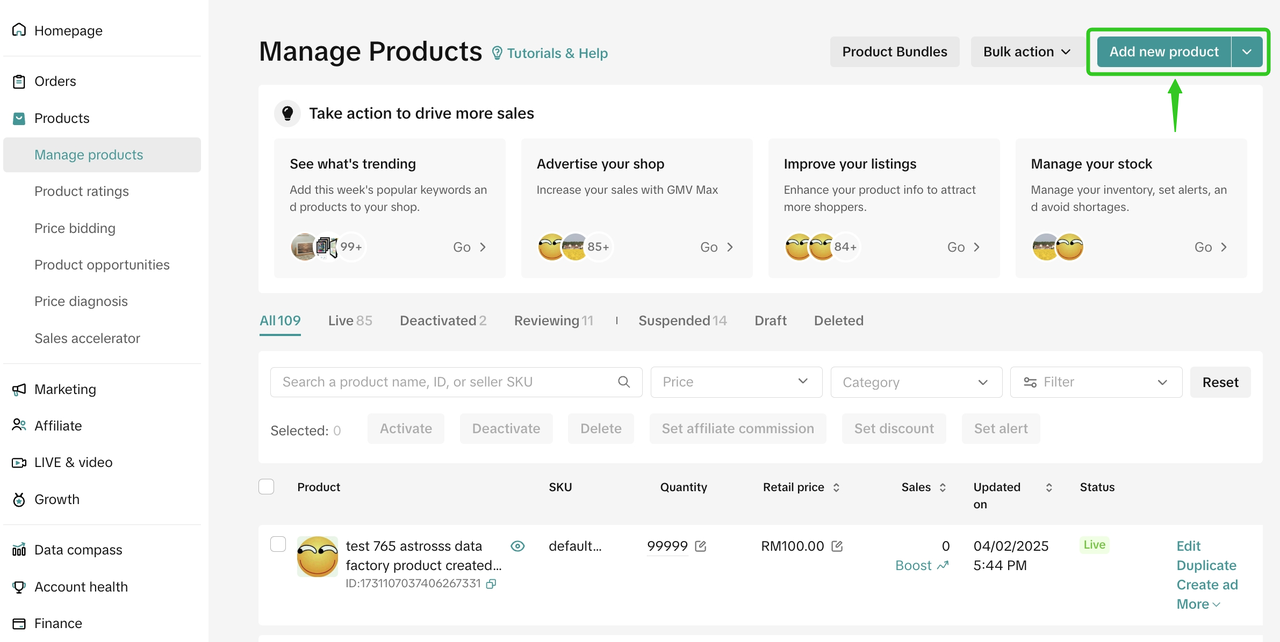
Add a New Product for LIVE Giveaway
If you would like to use a specific product as a prize for LIVE Giveaway, first upload a new product by visiting the Manage Products page on Seller Center.- Click on Add new product, then fill in the basic information and product details needed, to list the product.
LIVE Giveaway Setup for Sellers
Step 1: On your PC, navigate to Seller Center > Marketing > Promotions > Create a Promotion > Creator LIVE Giveaway- ❗️ Please take note, you always have to add items first before you can allocate the item to the Creator
- Only products that passed listing criteria will be displayed
- Only products with stock available will be displayed
Step 4: Assign item quantity to each product for LIVE Giveaway, then click Agree & Publish.
- Available stock in LIVE Giveaway vs seller's store is managed separately. Stock changes to the original product listed will not affect the stock of the giveaway item.
Allocate Prizes to Creators
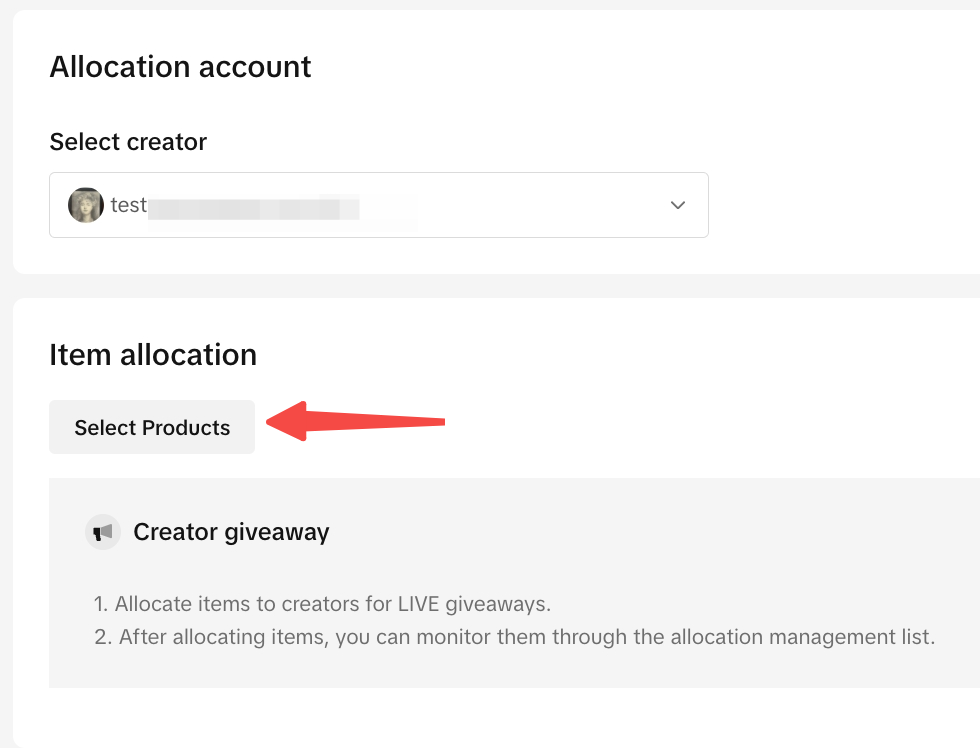
After you have completed the product set up, you will need to assign Creators to your LIVE Giveaway prize.Step 1: While on the LIVE Giveaway page, go to the Allocation tab and click on Allocation settings to create a new allocation.
Step 3: Click "Select Product" to select the product that you would like to allocate to creator. Tick the box at the left-hand side to select the product and click "Done" once you finish the product selection process.
 |  |
- Sellers are allowed to edit the prize at anytime


LIVE Giveaway Setup for Creators
Once Sellers have completed setting up Creator LIVE Giveaway, Creators will need to set up the LIVE Giveaway event at their end. Read more here.Fulfill a LIVE Giveaway Prize
Results will be announced by the end of the LIVE Giveaway countdown. Winners will be notified in the LIVE room and via an app push message. Viewers will have 48 hours after the LIVE Giveaway ends to redeem their prize.Once the winner has redeemed the prize, the order information will be displayed in Seller Center with a Live Giveaway tag. The seller should proceed to fulfill the LIVE Giveaway prize.
FAQ
- Can a seller set up multiple LIVE Giveaways events at the same time?Yes. Sellers can create as many LIVE Giveaway items and as many LIVE Giveaway events as they wish. However, do note that only 1 product can be selected in a LIVE Giveaway event, at a time.
- Can a seller pick a winner for the LIVE Giveaway event?
- Is the quantity of the giveaway item the same number as the quantity of the same item in store?
- Is there any price limit on the gift?