

LIVE Highlights
01/21/2026
This tool is available for sellers (with official or marketing accounts) and affiliate creators, and it can be freely used without any store rating limitations.
Sellers or Creators can access this feature via both App and PC:
- On App: This feature is known as LIVE Highlights and is available to sellers and affiliate creators.
- On Seller Center PC: This feature is known as LIVE Teaser and is available to sellers with official accounts. Learn more about LIVE Teaser here.
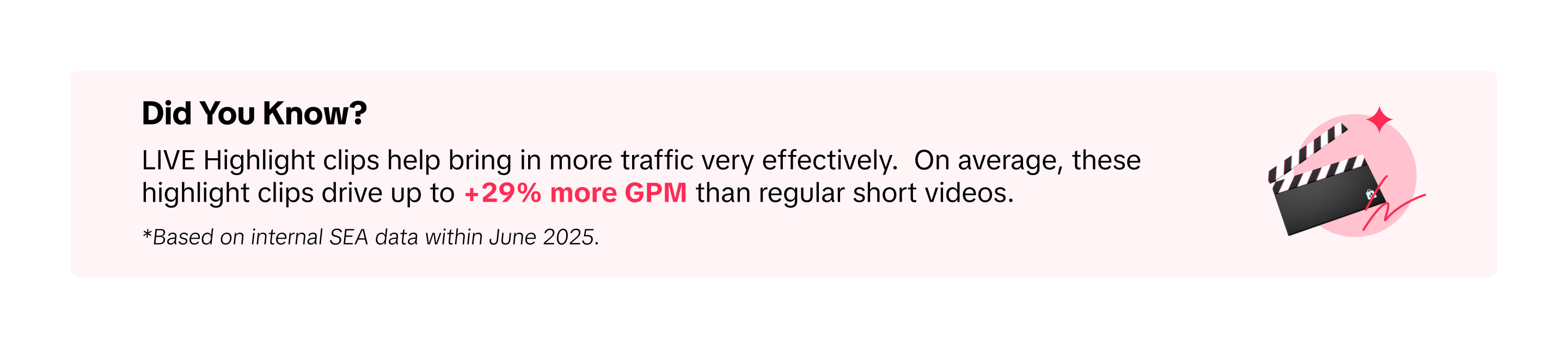

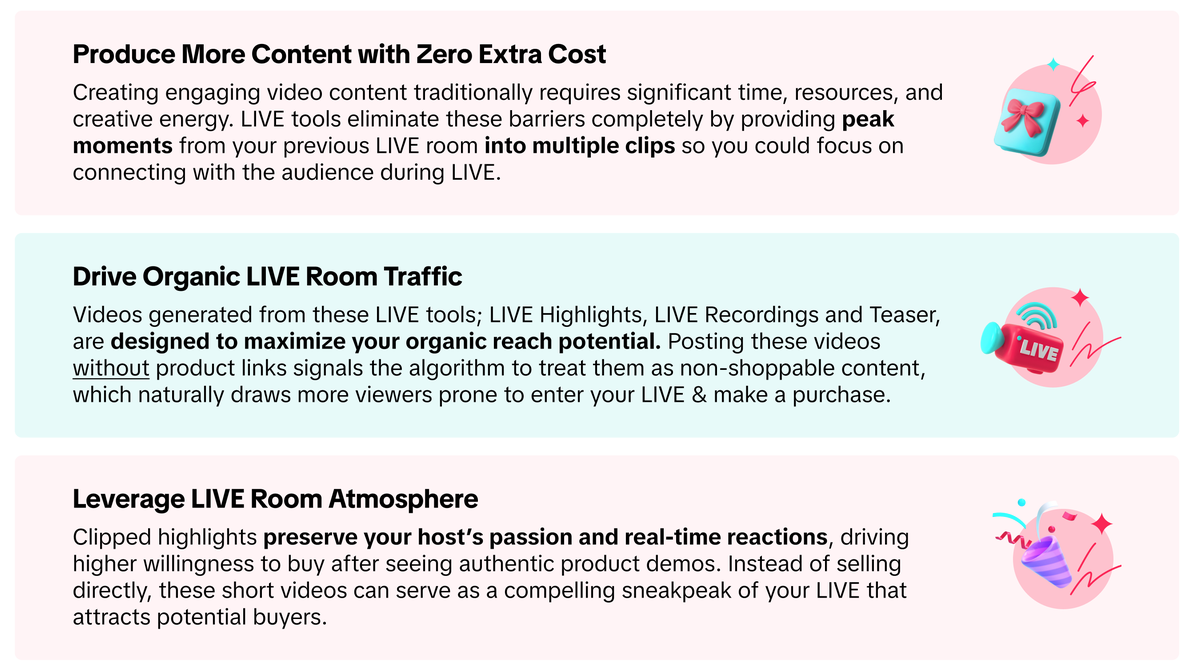
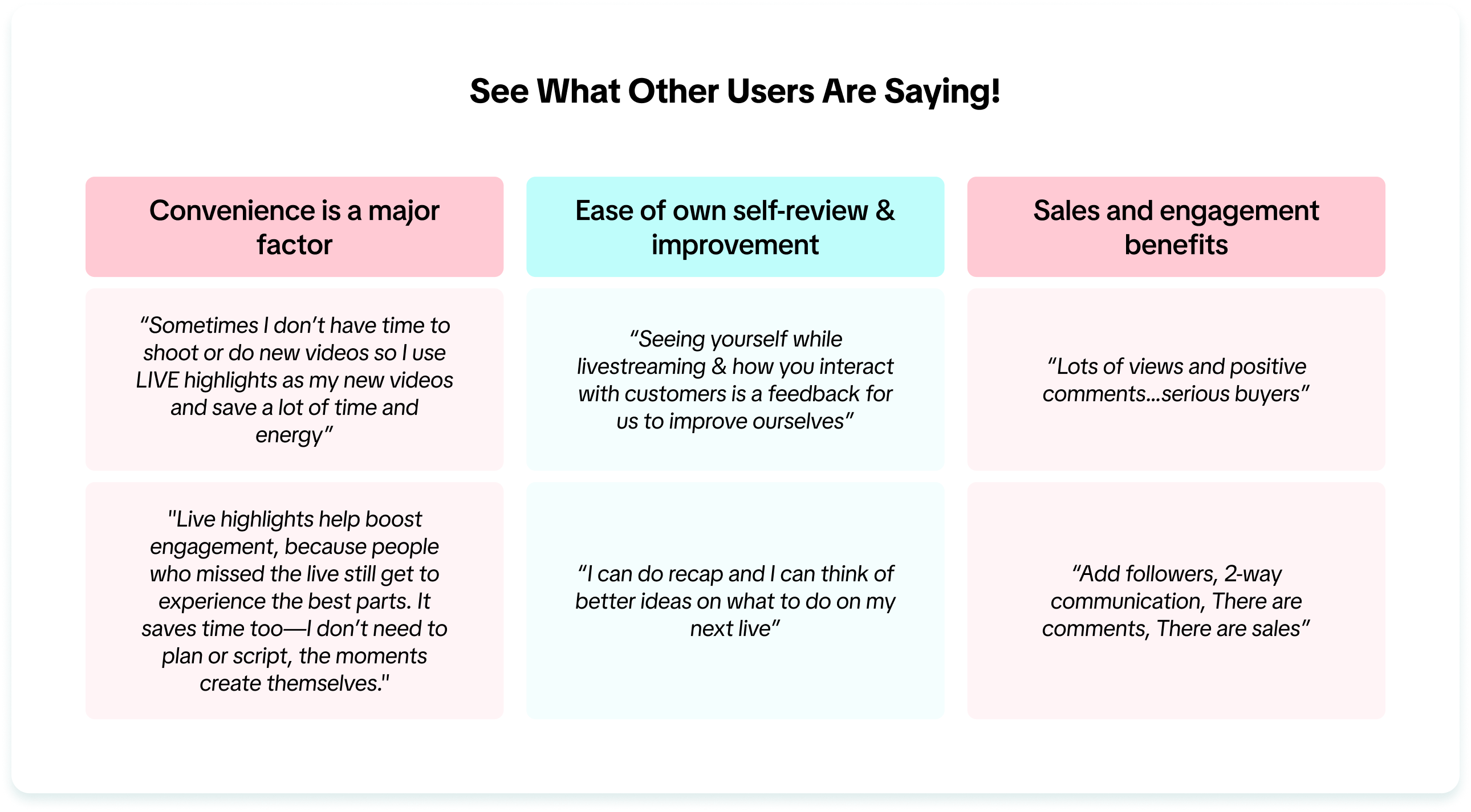
Benefits of using LIVE Highlights

How to use LIVE Highlights
Before going LIVE
Ensure to toggle on Auto-Post LIVE Highlights before starting your LIVE, in order for the platform to automatically post LIVE Highlight clips for you whilst your LIVE is ongoing! Once your LIVE has ended, you can review the posted clips via your Profile page, edit it or delete it if necessary. You can toggle on Auto-Post LIVE Highlights in 2 ways:- Via App - LIVE Shopping Bag
- Via LIVE Manager PC - LIVE Highlights
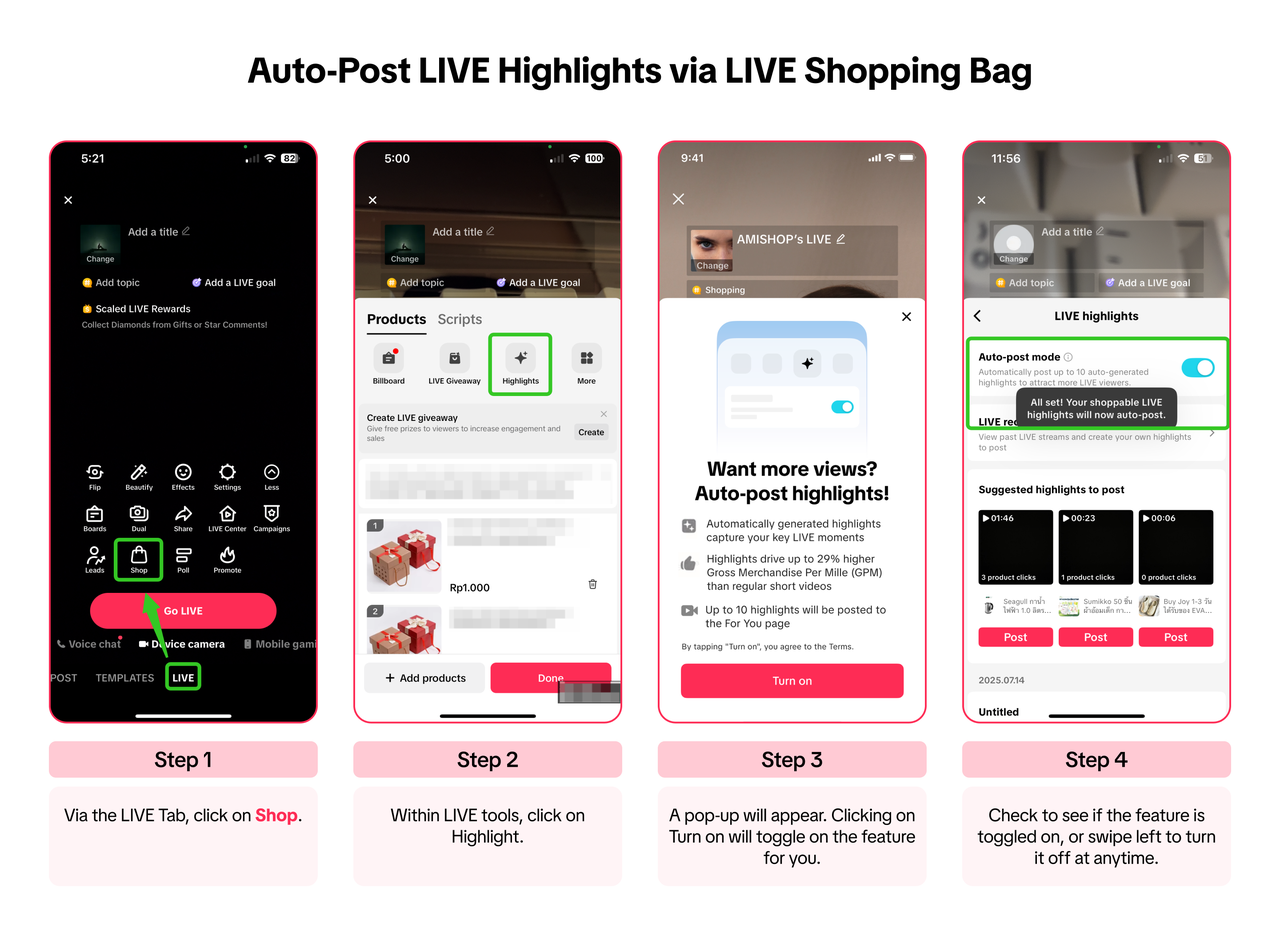
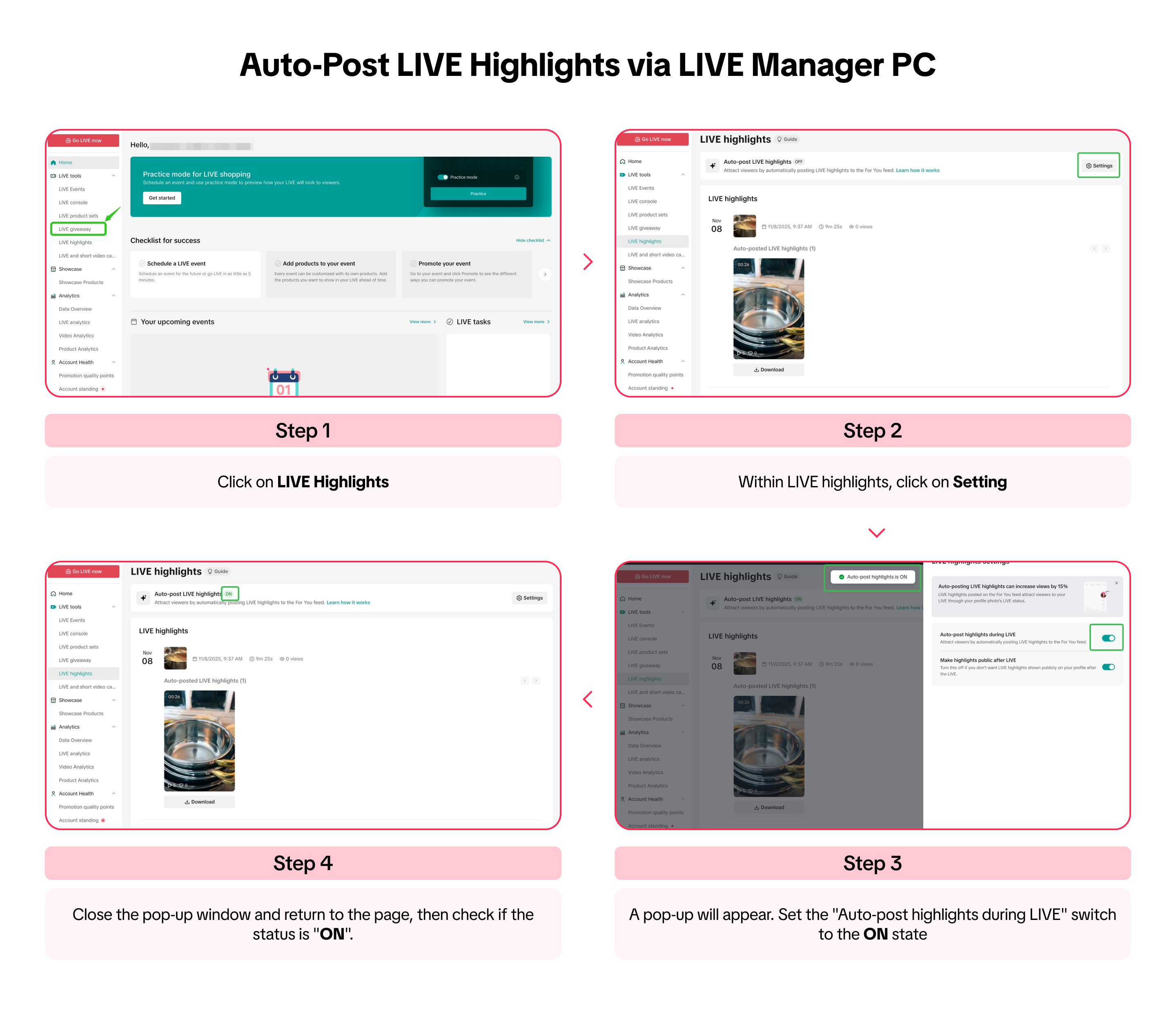
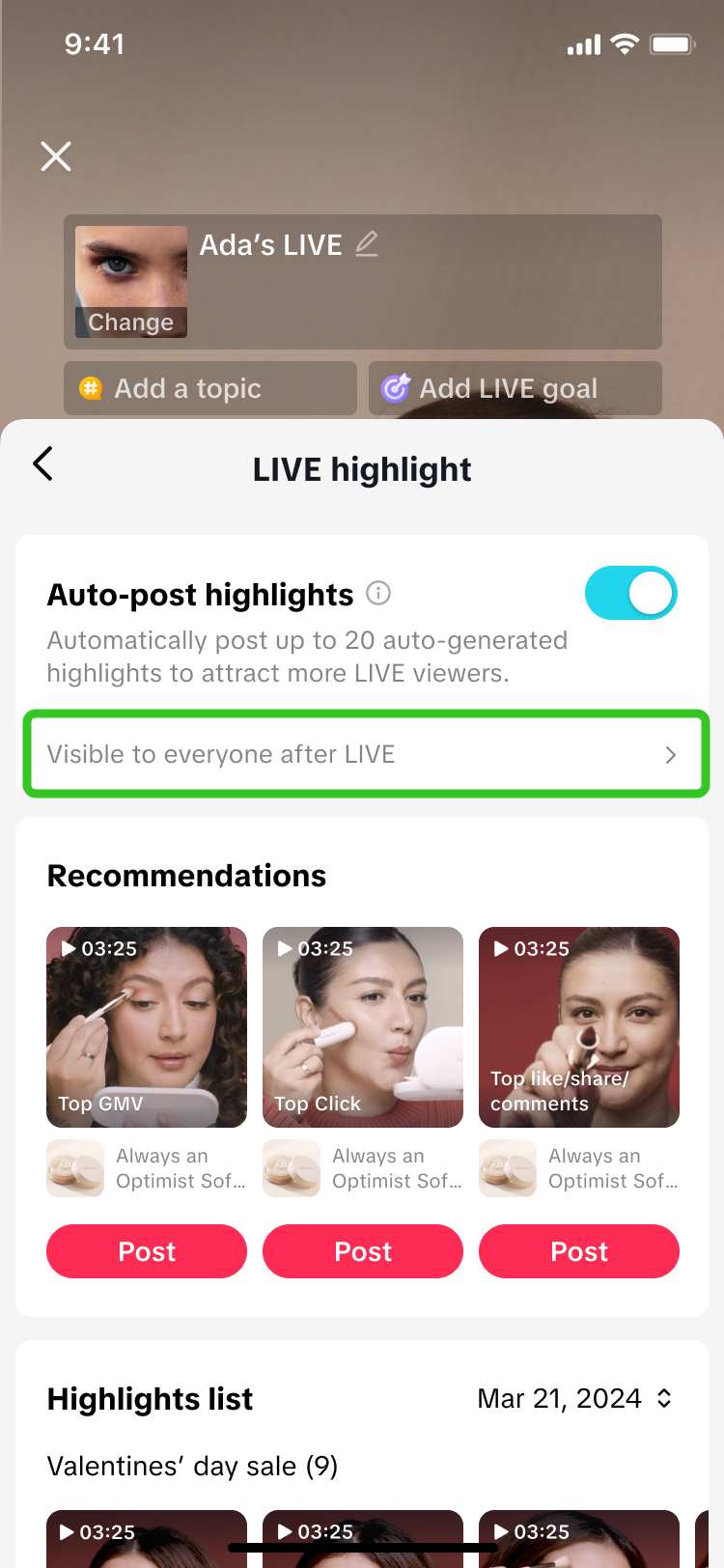 | 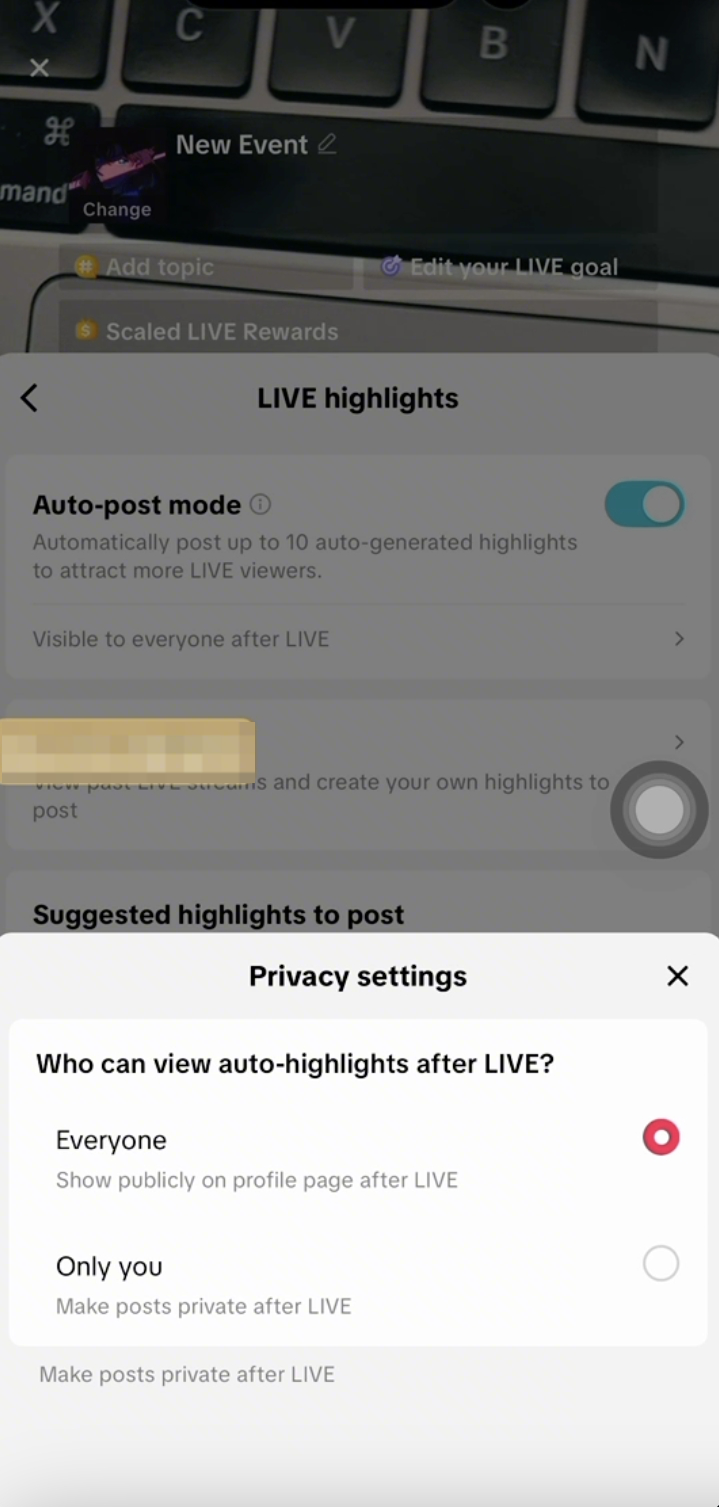 | Toggling on Auto-Post LIVE Highlights will enable the system to automatically post up to 10 short videos generated from your LIVE. Don’t worry—you can customise the posted video’s visibility. Videos that have been automatically posted can either be kept as publicly visible on your profile, or set as private after your LIVE ends. Take advantage of this to drive more traffic during your LIVE, while keeping your profile clean and organized once it ends. |

After going LIVE
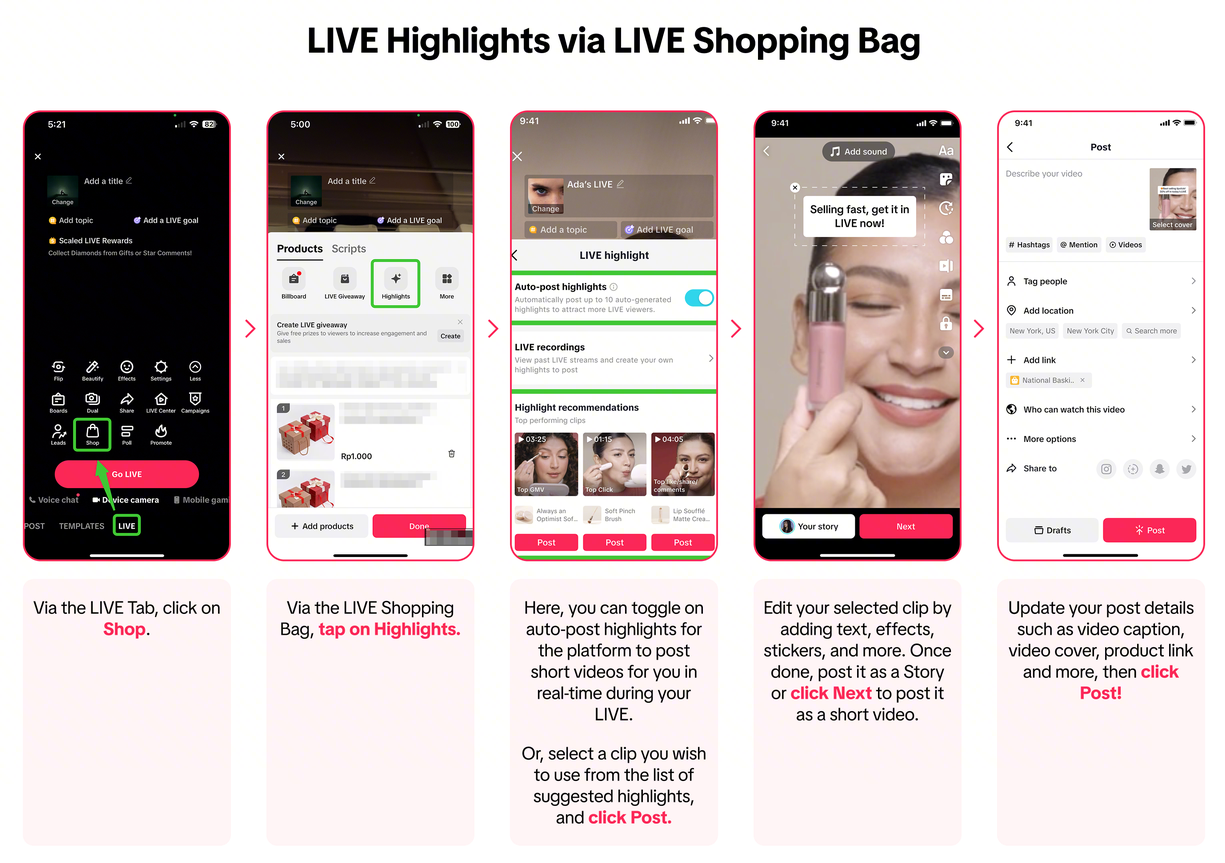
Once your LIVE has ended, you can review the LIVE Highlight clips provided to you in 4 ways:- Via App - LIVE Shopping Bag
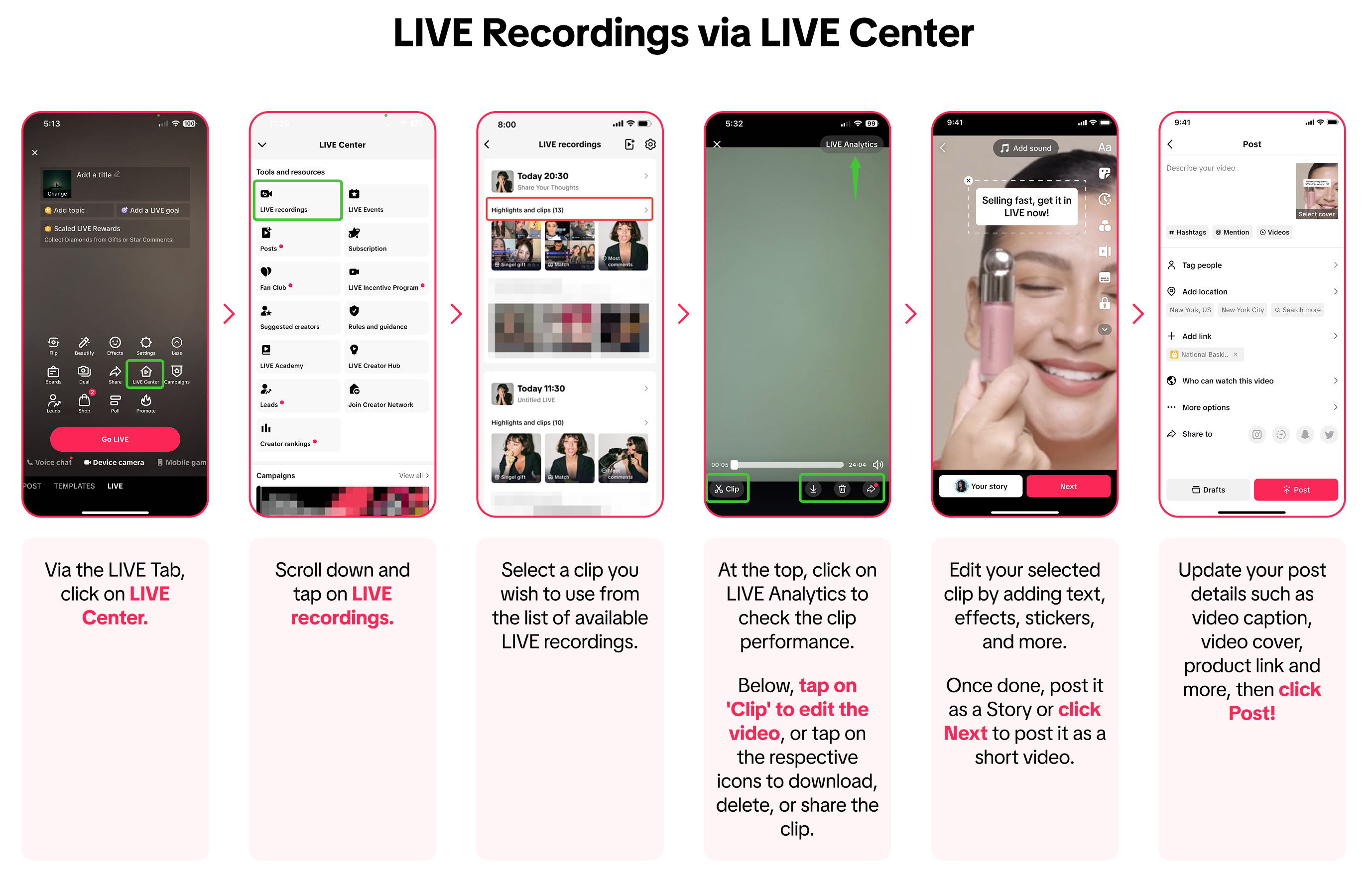
- Via App - LIVE Center
- Via Seller Center PC - LIVE Selling > Manage Teaser
- Via LIVE Manager PC - LIVE Highlights
Entrance via LIVE Shopping Bag

Entrance via LIVE Center
LIVE Highlights via TikTok Studio | |
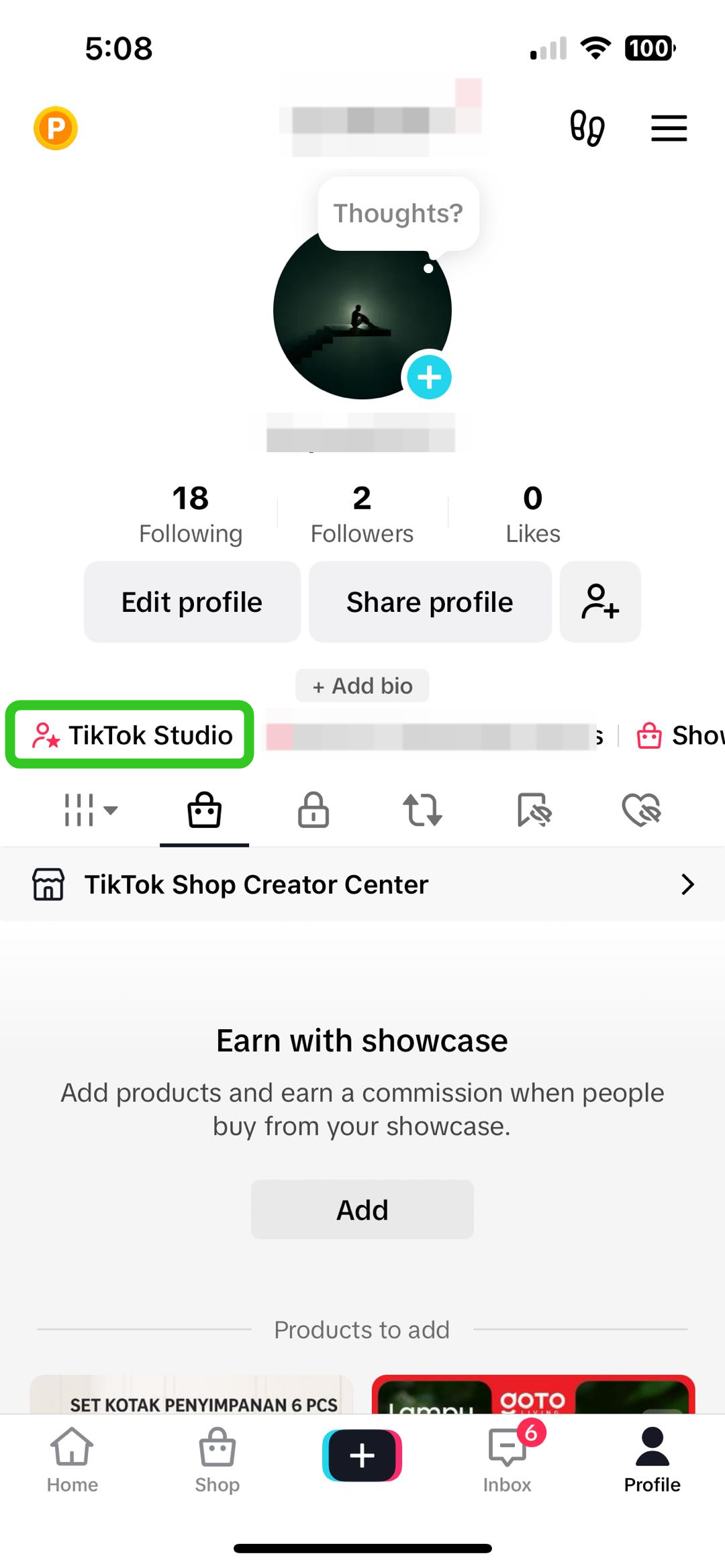 | 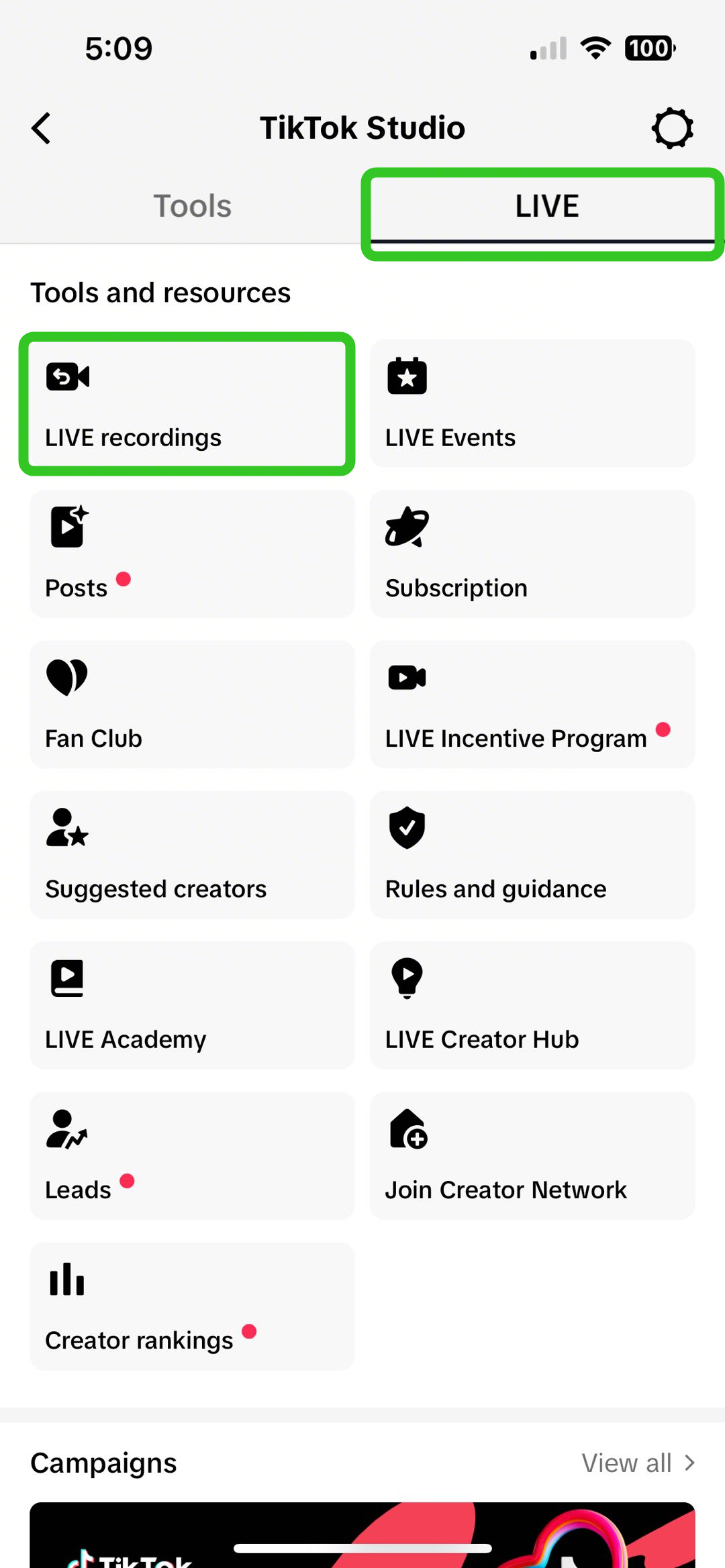 |
| Via your profile, tap on TikTok Studio. | At the top, use the LIVE tab and scroll down to find LIVE recordings. |

Entrance via Seller Center PC
LIVE Teaser via Seller Center PC is available to sellers with official accounts. Learn more about LIVE Teaser here.LIVE Teaser via Seller Center PC | ||
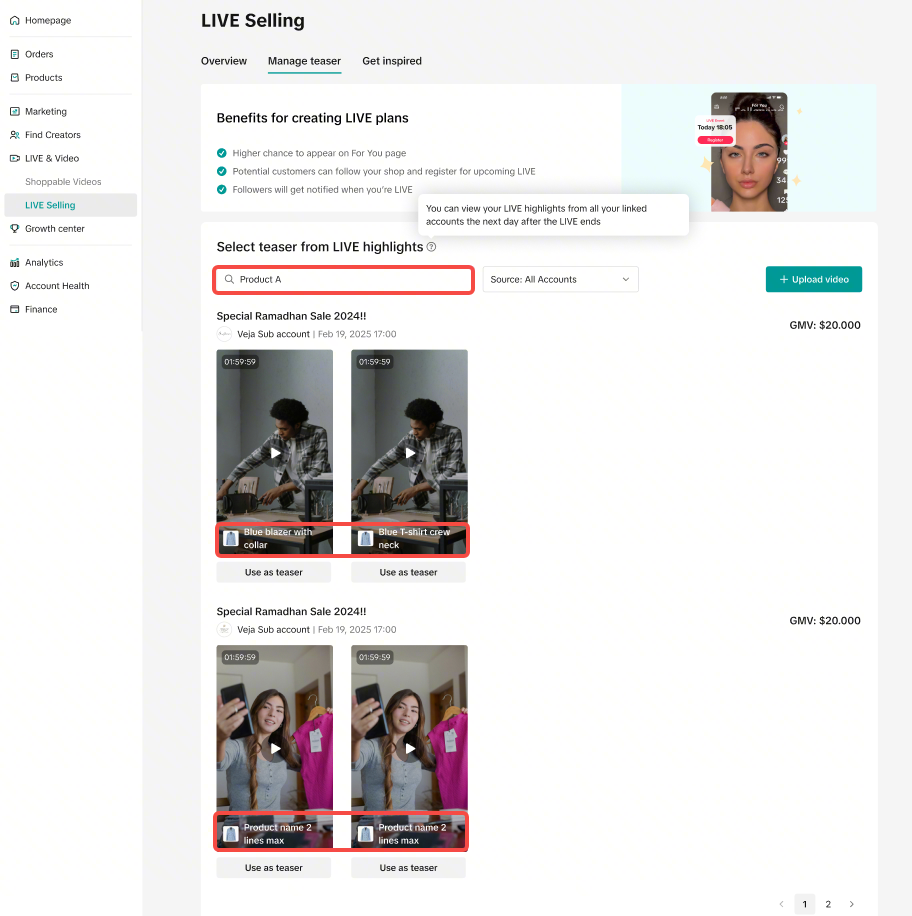 | 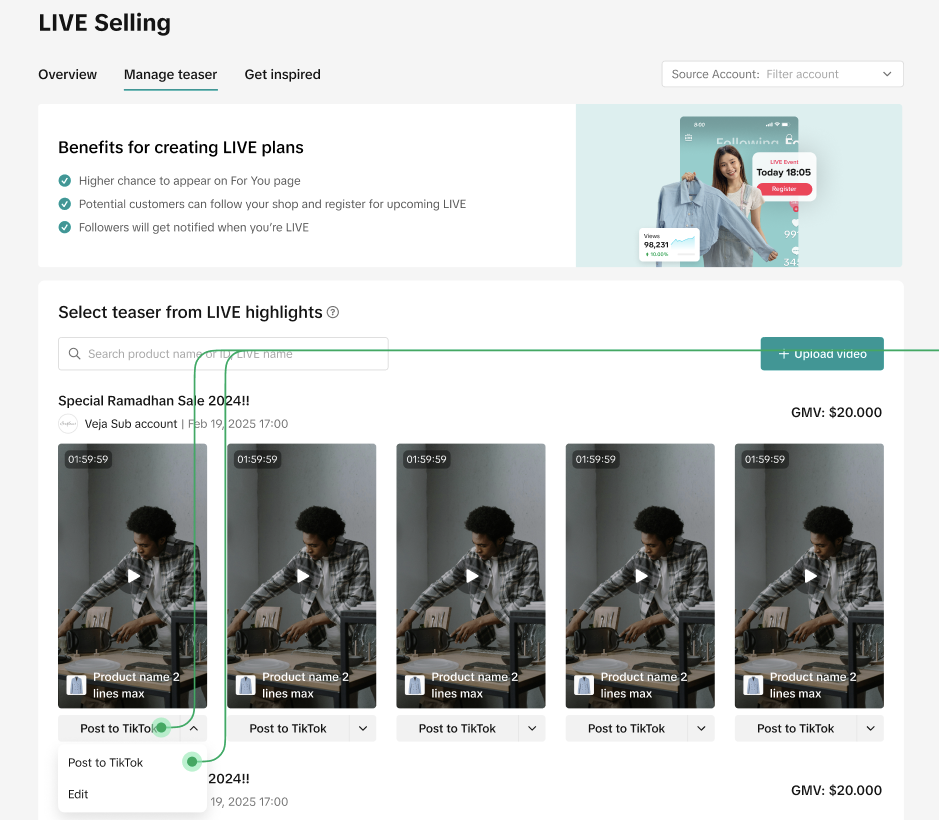 | 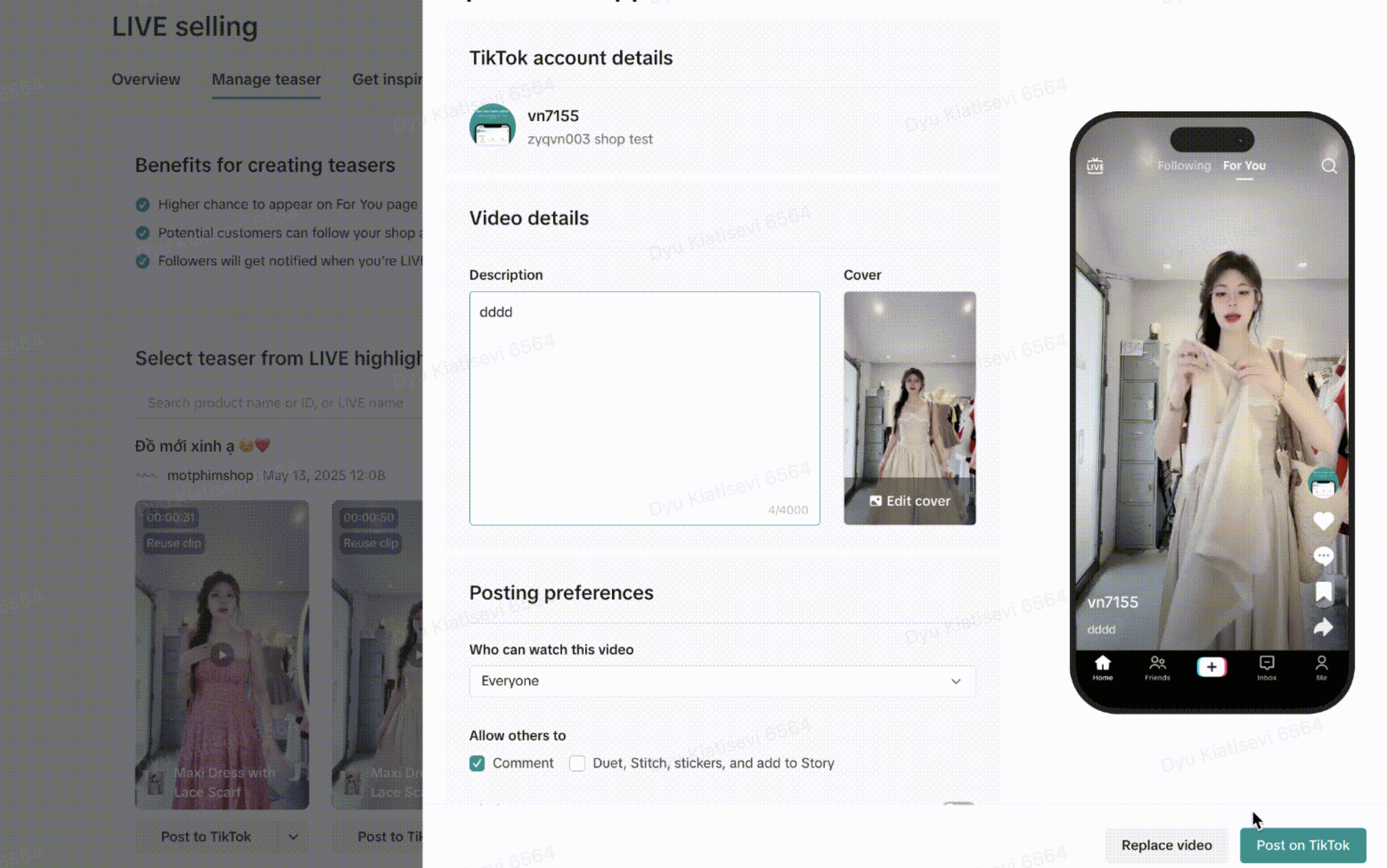 |
| Visit Seller Center > LIVE&Video > LIVE Selling > Go to Manage Teaser tab | Select a clip you wish to use from the list of available LIVE Teasers. You can choose to:
| |

Entrance via LIVE Manager PC
You can review and download your auto-posted LIVE highlights via LIVE Manager > LIVE Highlights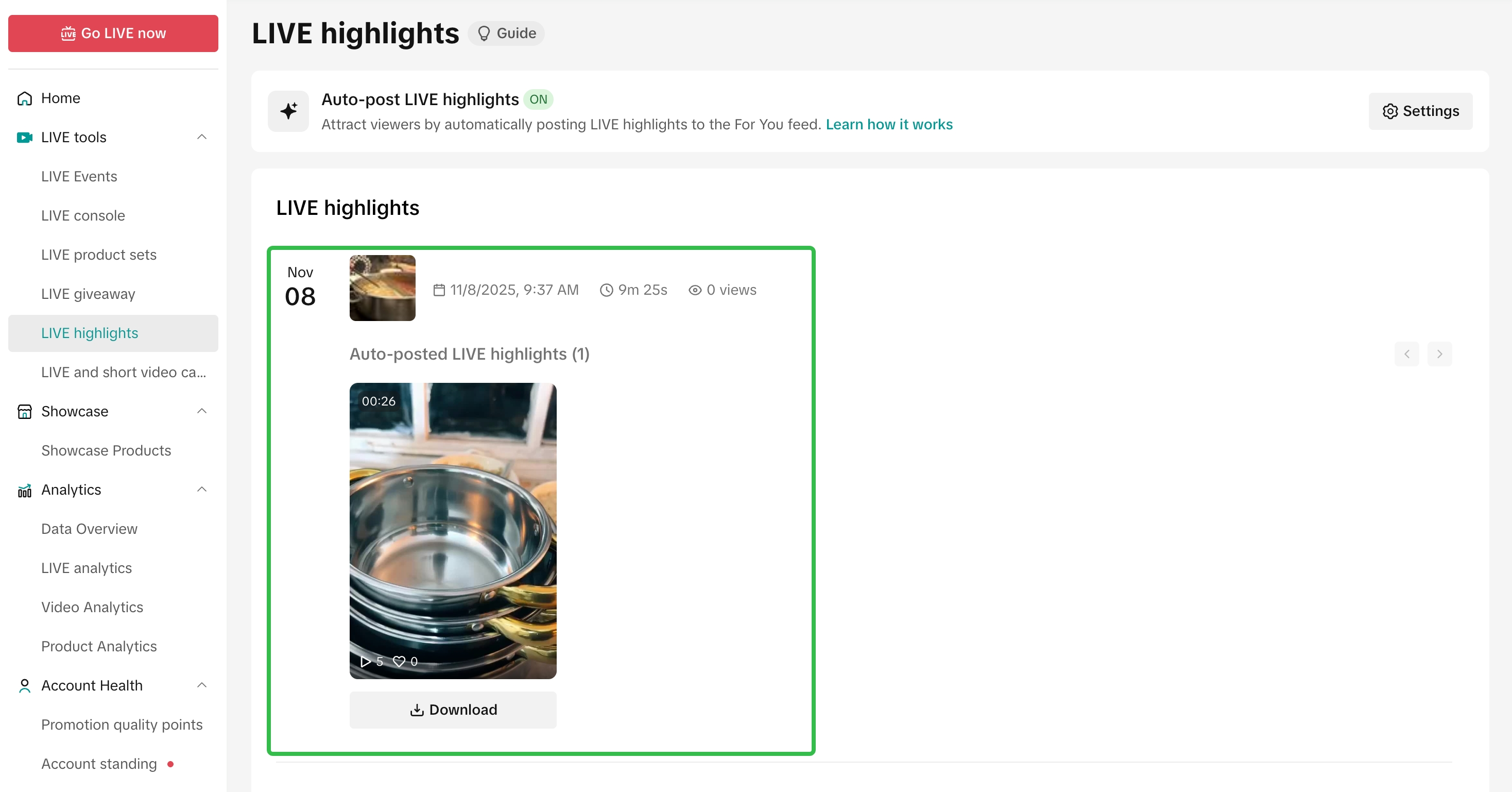

Analyse LIVE Highlight Clip Performance
It is recommended for you to review the LIVE Highlight clips performance after it has been published. This enables you to:- Identify the videos that effectively drive conversions (such as GMV and items sold) and engagement (CTR, views, likes), and optimize your next LIVE Highlight clip by editing it in a similar style to those proven to perform well.
- Avoid wasting resources on ineffective videos and instead, boost ads for performing videos to drive more traffic or sales.
- Remove underperforming video clips from your profile to reduce content clutter and focus your audience’s attention on the high-performing content that drives engagement.
Video Analytics via Creator Center | ||||
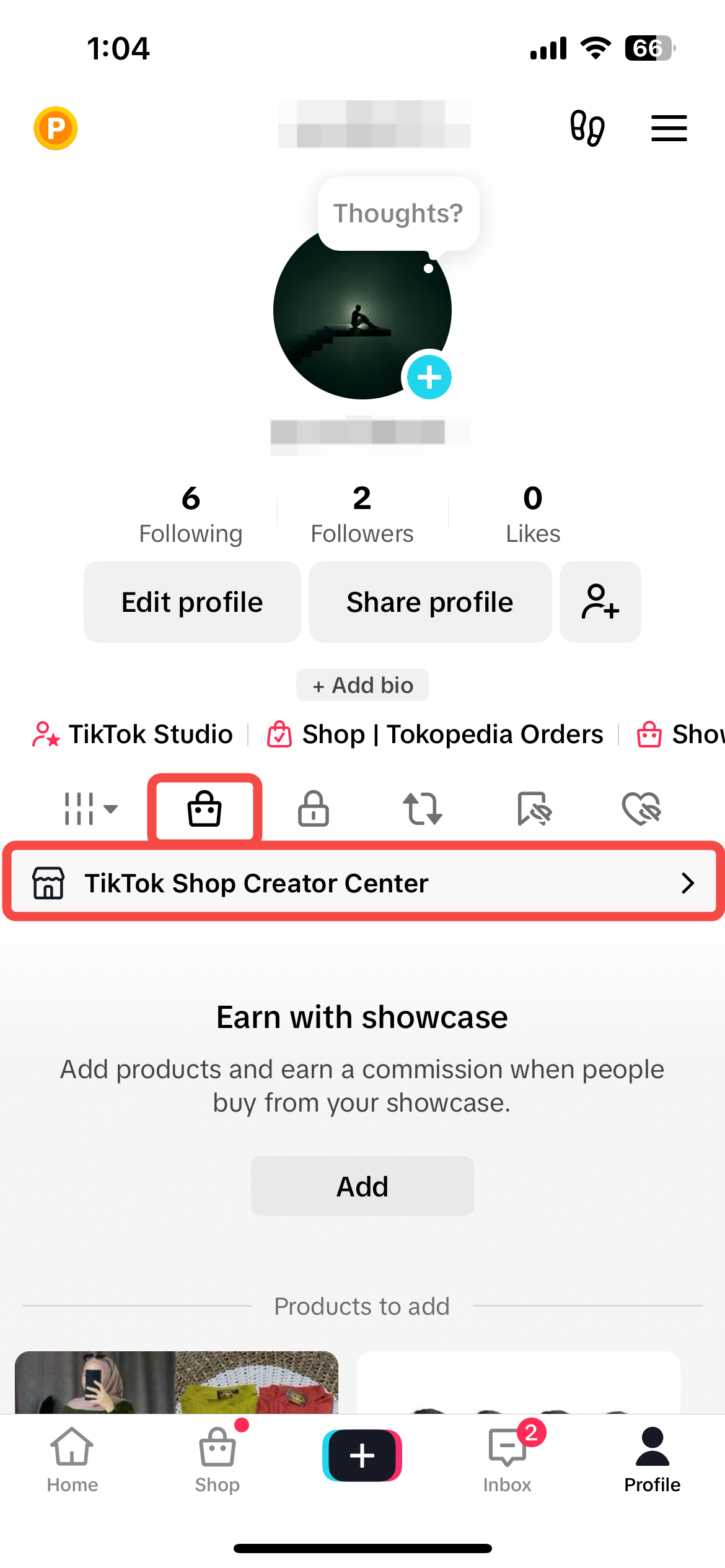 | 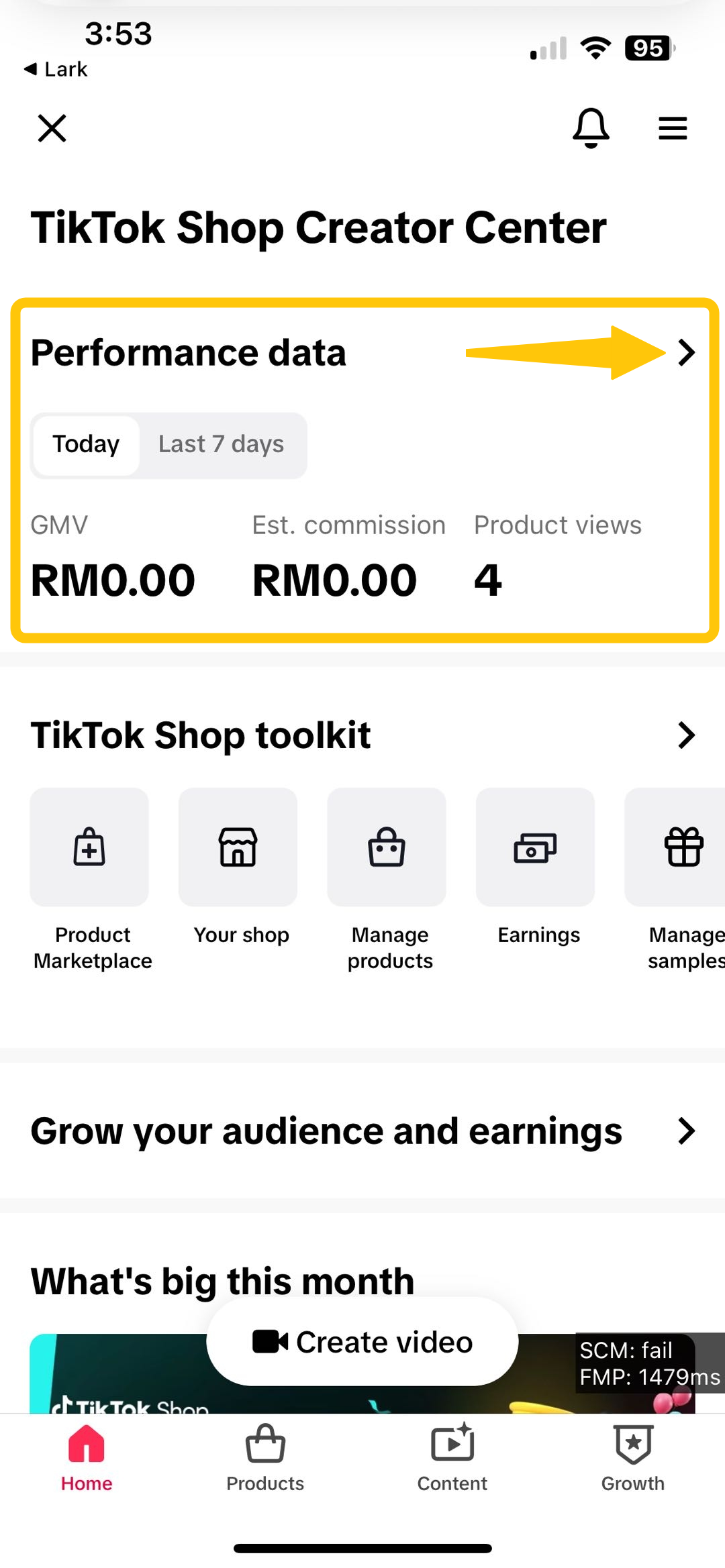 | 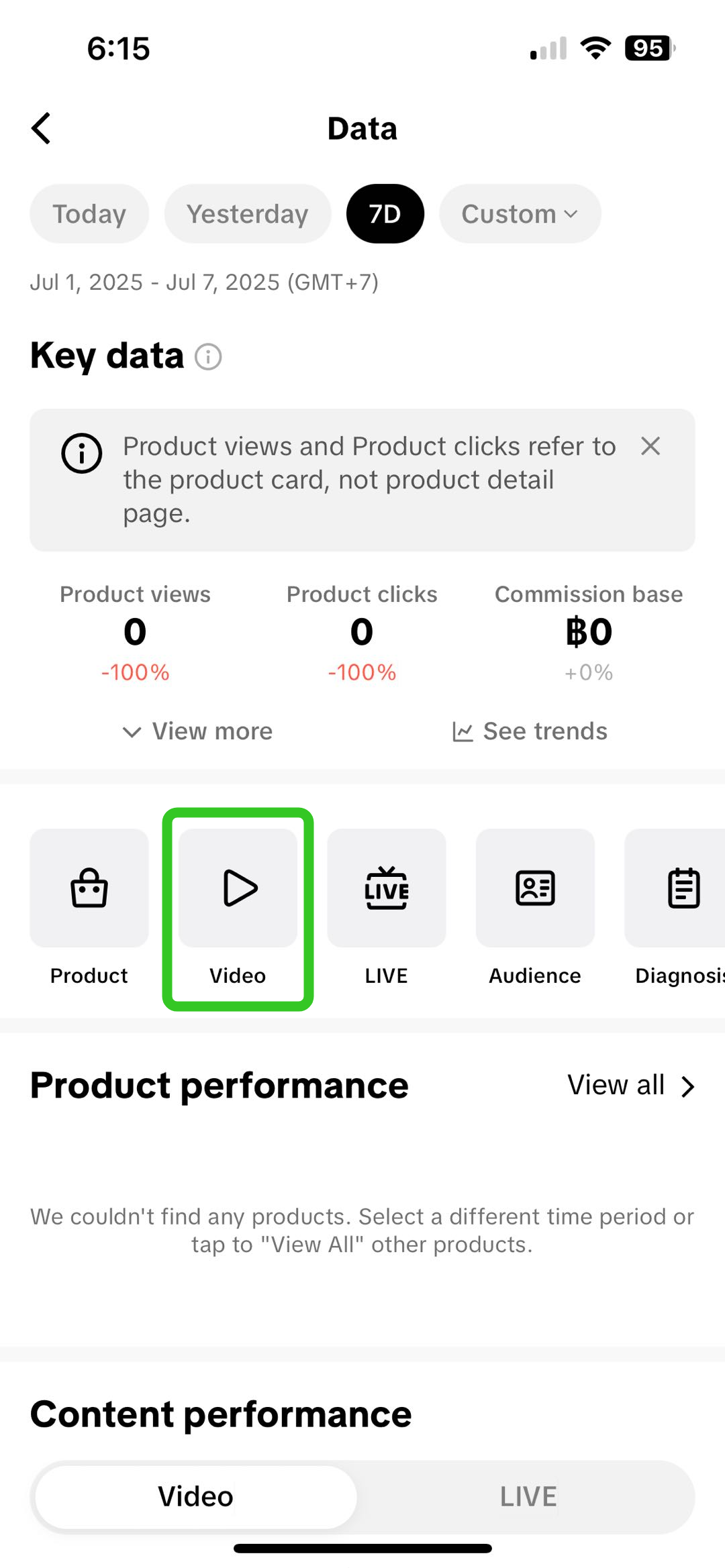 | 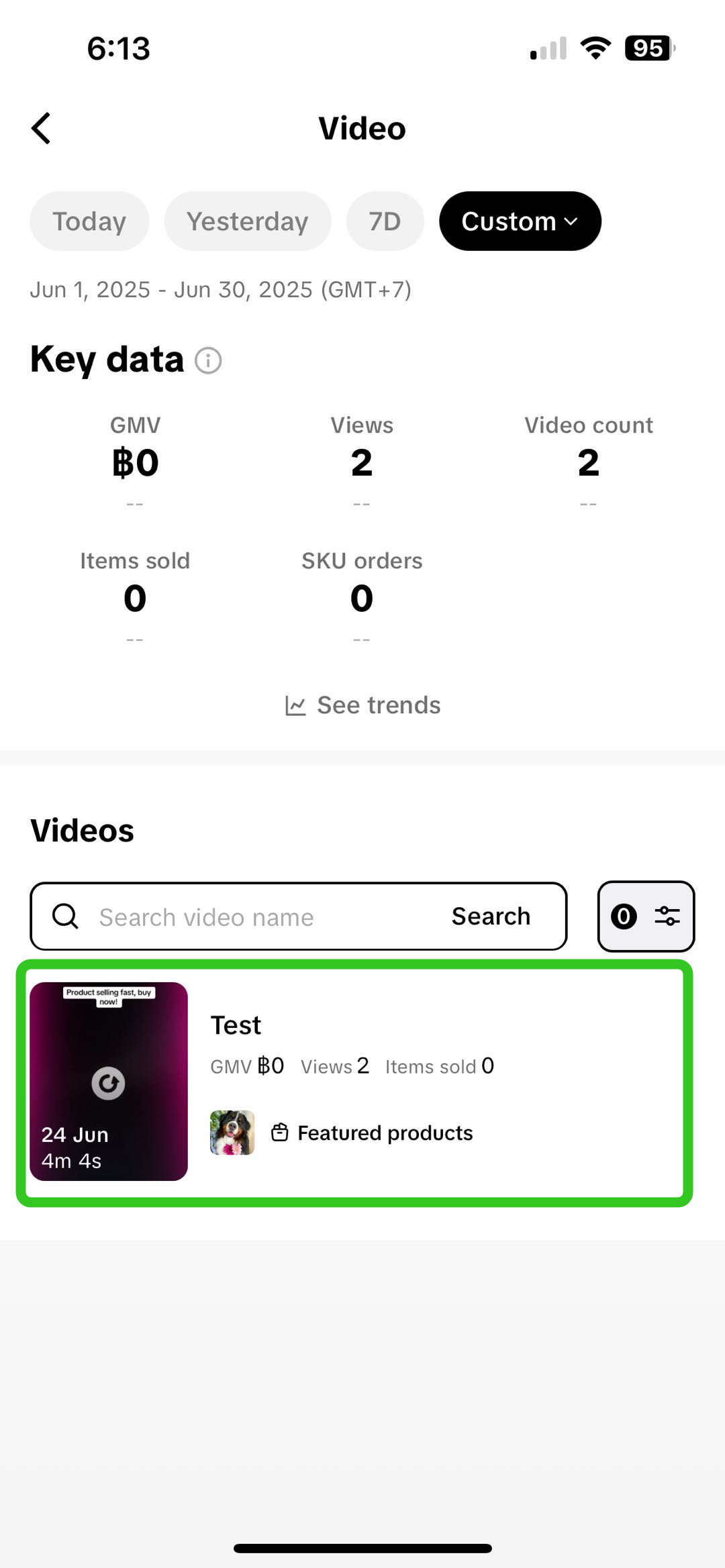 | 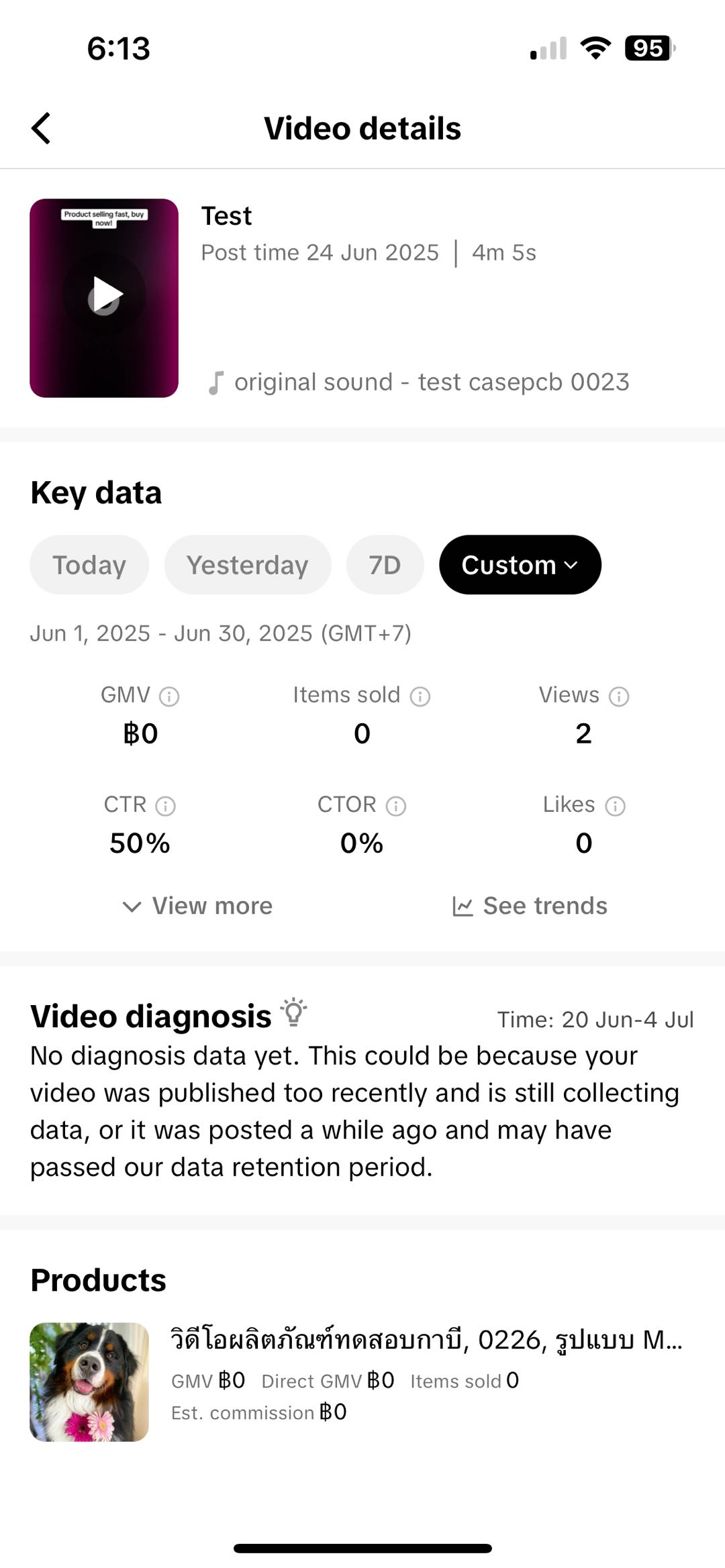 |
| At your profile, click on the shopping bag icon and tap on Creator Center. | Click into the performance data module. | At the Data page, click on Video. | Customise the time period to review the list of videos published in that period. Click on the video to analyse the performance metrics. | Here, you can review how this video contributed to your GMV, items sold, views and more! |

Pro Tips
- Share and pin a minimum of 3 different products during your LIVE
- By featuring a variety of products, the LIVE highlights will offer diverse content, leading to enhanced exposure to your products and TikTok Shop.
- Go LIVE for about 1-2 hours
- This timeframe ensures enough content for both the platform and yourself as the seller to trim the TikTok moments that are highlighted, providing a more engaging experience for your viewers.
- When repurposing your LIVE Highlights, follow Short Video best practices
- Maximize your reach by using trending sounds and hashtags, adding captions to your videos, and using engaging stickers to attract potential customers. These practices will ensure your highlights lead to more conversions.

- Maximize your reach by using trending sounds and hashtags, adding captions to your videos, and using engaging stickers to attract potential customers. These practices will ensure your highlights lead to more conversions.
FAQ
- Why can't I see the Highlights entry button in my LIVE Shopping Bag?
- You may not initially have access to the Highlights button. This button becomes accessible after you have gained experience with going LIVE, product pinning and creating LIVE highlights.
- What is the required LIVE duration to start receiving LIVE Highlights from the platform?
- There is no minimum LIVE duration or time limit for the system to start providing LIVE Highlights. However, the number of Highlights provided may differ:
- For LIVE Highlights: The system will provide up to 6 LIVE Highlight clips per LIVE, taking into account factors such as LIVE traffic, GMV, engagement, and more.
- For Auto-Post LIVE Highlights : The system enables you to publish up to 10 LIVE Highlight clips per LIVE. The clips provided by the system take into account factors such as LIVE traffic, GMV, engagement, and more.*
- There is no minimum LIVE duration or time limit for the system to start providing LIVE Highlights. However, the number of Highlights provided may differ:
- If the product is incorrectly linked by the system, can I change the linked product?
- Yes, you can change the linked product when reposting your LIVE Highlight as a TikTok short video.
- How long is a LIVE Highlight clip available for?
- It is available for 30 days after the LIVE has ended.
- If I accidentally deleted my LIVE Highlight clip, could it be undone?
- No, this action cannot be undone.
- How can I be notified of new LIVE Highlight clips available?
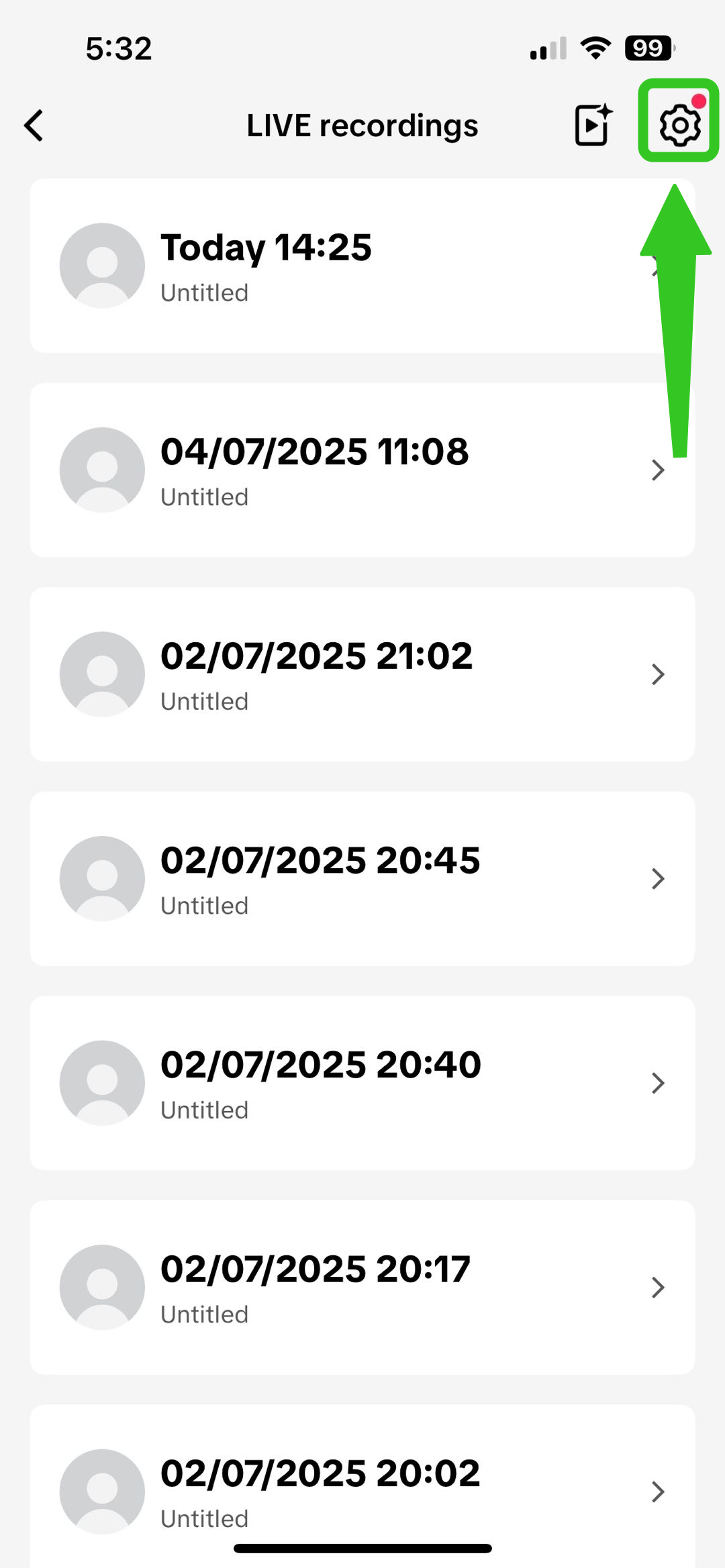 | 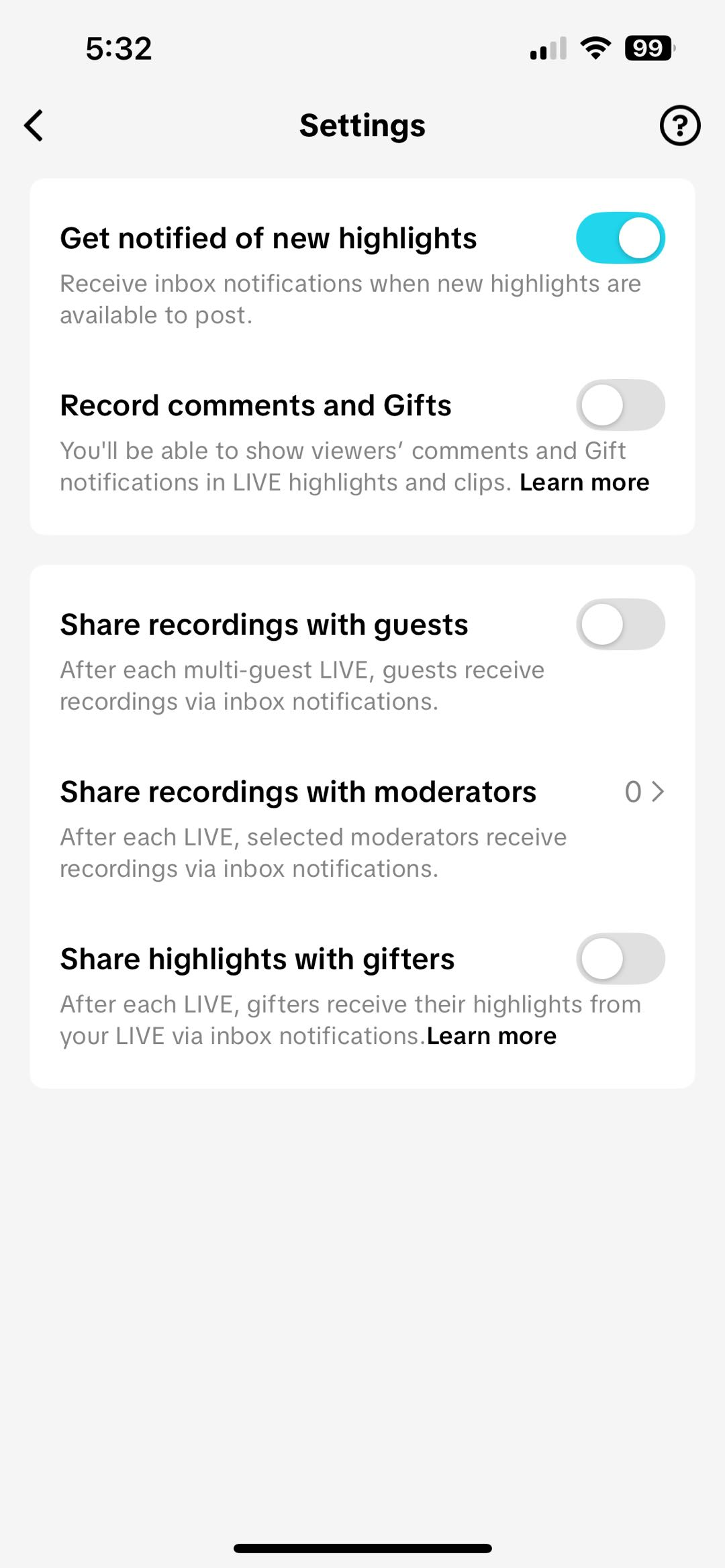 |
| Via LIVE recordings, click on the Settings icon. | Toggle on the feature 'Get notified of new highlights' to receive inbox notifications when new highlights are available to post. |
- Can I download a LIVE Highlight clip?
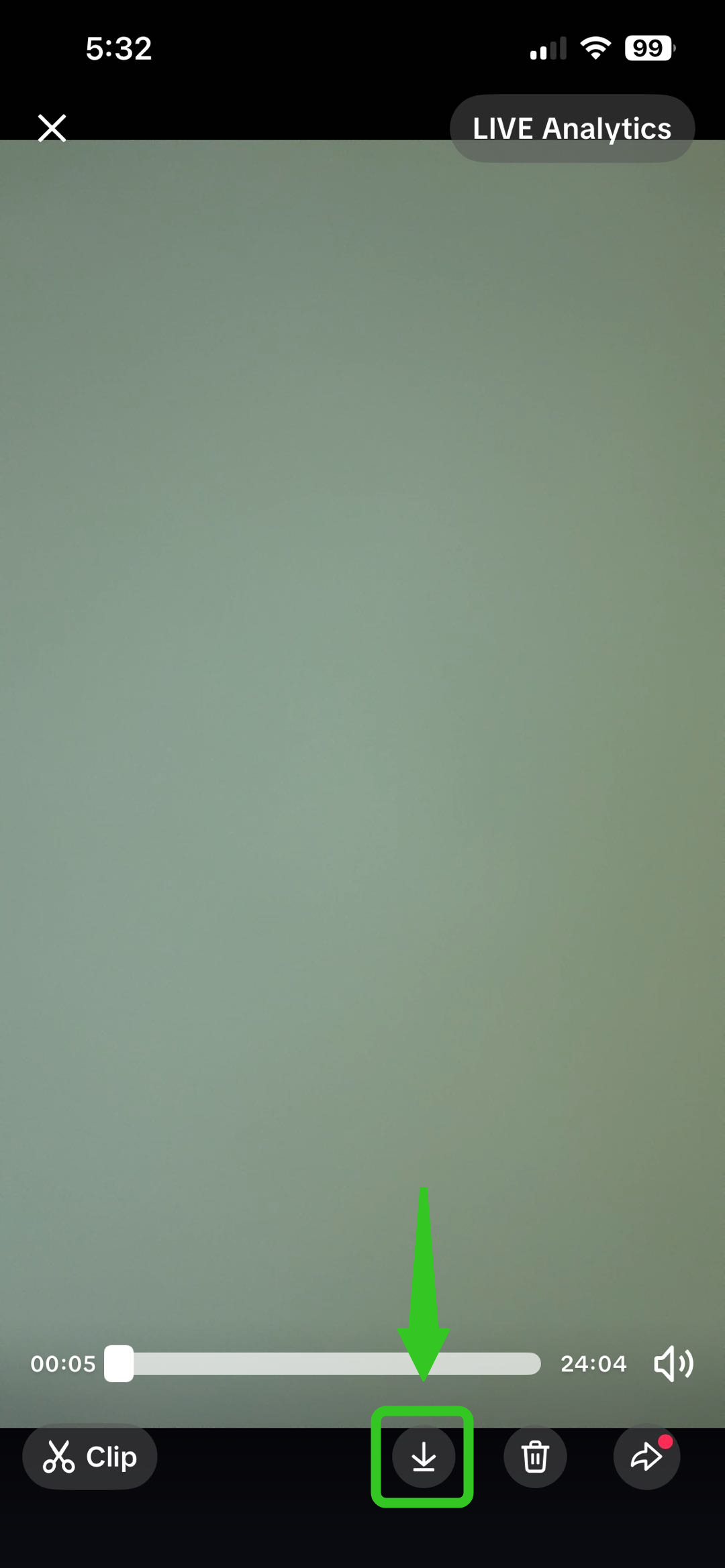 | Yes, to download a LIVE Highlight, go to LIVE Center > LIVE recordings and click the download button at the bottom. |
You may also be interested in
LIVE Giveaway
LIVE Giveaway is a tool that allows sellers or creators to run giveaway events during LIVE, by givin…

Teknik Hosting Saat Live Streaming
Nggak akan kehabisan kata-kata dan kebingungan mau ngomong apa saat live stream, kalau aja kamu tahu…

Teknik Opening & Closing Saat Live Streaming
Test: https://activity.tiktok.com/t/ZS6v1X4Be/ Menit-menit awal dan menit-menit menjelang akhir pa…
What are Auctions?
Auction-based activities are not allowed on the platform. Such activities include but are not limite…
Livestream Green Screen and Stickers
This article introduces the Greenscreen and Stickers features. From this article, you will learn how…
Using OBS Software for Livestream
Introduction This guide will help you familizarize yourself with how to use the OBS Studio software…
LIVE Moderator
Who can use this feature? The LIVE moderator feature is available to all e-commerce livestreaming ho…
3 Cara Menemukan Produk Trending Saat Ramadan
Test: Kerjakan Test ini untuk bisa bergabung di group START! Setidaknya ada 3 ciri produk yang pal…

4 Langkah Memaksimalkan Penjualan di Bulan Ramadan
Test: Kerjakan Test ini untuk bisa bergabung di group START! Nggak bakal ketinggalan cuan di bulan…
LIVE Shopping Ranking
This article teaches you what LIVE Shopping Ranking is, how livestreaming hosts and viewers can see…