

Data Compass User Manual (PC)
03/17/2025
Summary
This article outlines all the different types of analytic pages accessible via Data Compass on Seller PC, where to navigate to these pages, how to utilise the analytics provided and the types of data sources available for each respective page.Data Compass is the main hub for sellers to check all shop-relevant performance data namely 7 main data categories: Home, Growth & Insights, LIVE & Video, Product Card, Product, Marketing and Post Purchase. View the chart below to understand the breakdown of main category, sub category and analytics pages.
This content is only supported in a Feishu Docs
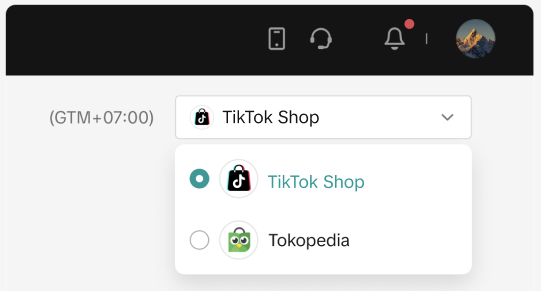
!! For sellers who are operating on both ShopTokopedia and Tokopedia, please note:
| Description | Reference |
|  |
| |
| |
| |
To check the data source available for each analytics page on Data Compass, please continue reading the guide below. | |

Home (Data Compass Overview)
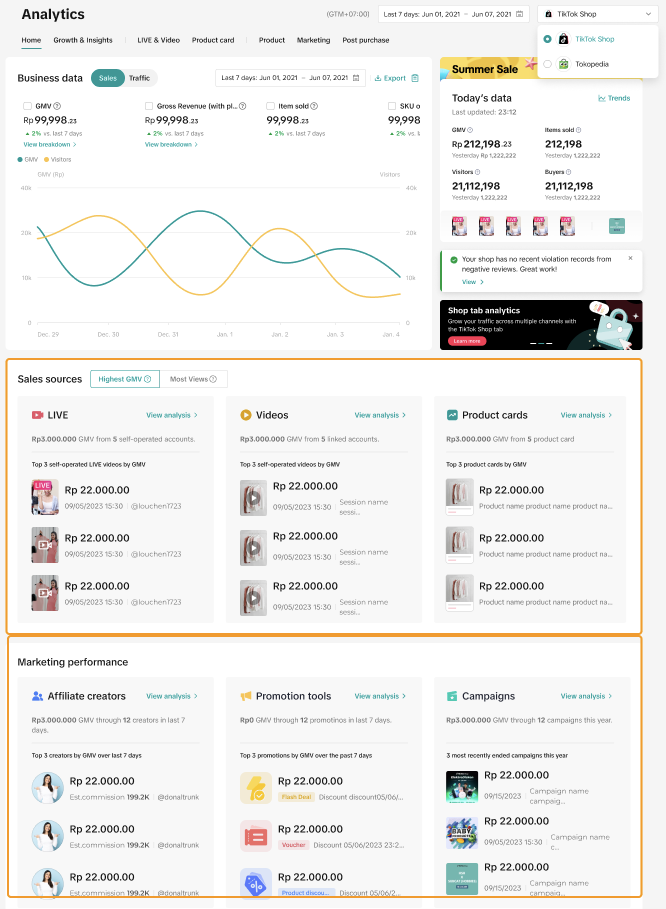
- Entrance: Seller Center > Data Compass
| Filter Available | Data Available | Seller Use Case | Analytics Page Benefit | Feature Guide |
| Yes |
| I wish to quickly understand my overall shop performance. | The Business Data section enables sellers to view important metrics such as GMV, orders, item sold and so on. Sellers can use the time filter to select a specific data period for analysis. | Click here to learn more. |
| I wish to know what sales channels drive revenue for my store to continue optimising accordingly. | The Sales Sources section enables sellers to quickly view the top 3 Videos, LIVEs or Product Cards by highest GMV or highest Views and click on View Analysis to jump to the full lists. | ||
| I wish to know how different marketing efforts contribute to my store performance. | The Marketing Performance section enables sellers to quickly view the top 3 affiliate creators, promotion tools or campaigns that drive highest GMV to their store.Note: Tokopedia data is currently available for the Top 3 Affiliate Creators list only. | ||
Please check the Feature Guide to get more in-depth information on the specific data sources available for the various sections on this Home page. | ||||
Growth & Insights
2.1 Business Accelerator
Entrance: Data Compass > Growth & Insights > Business Accelerator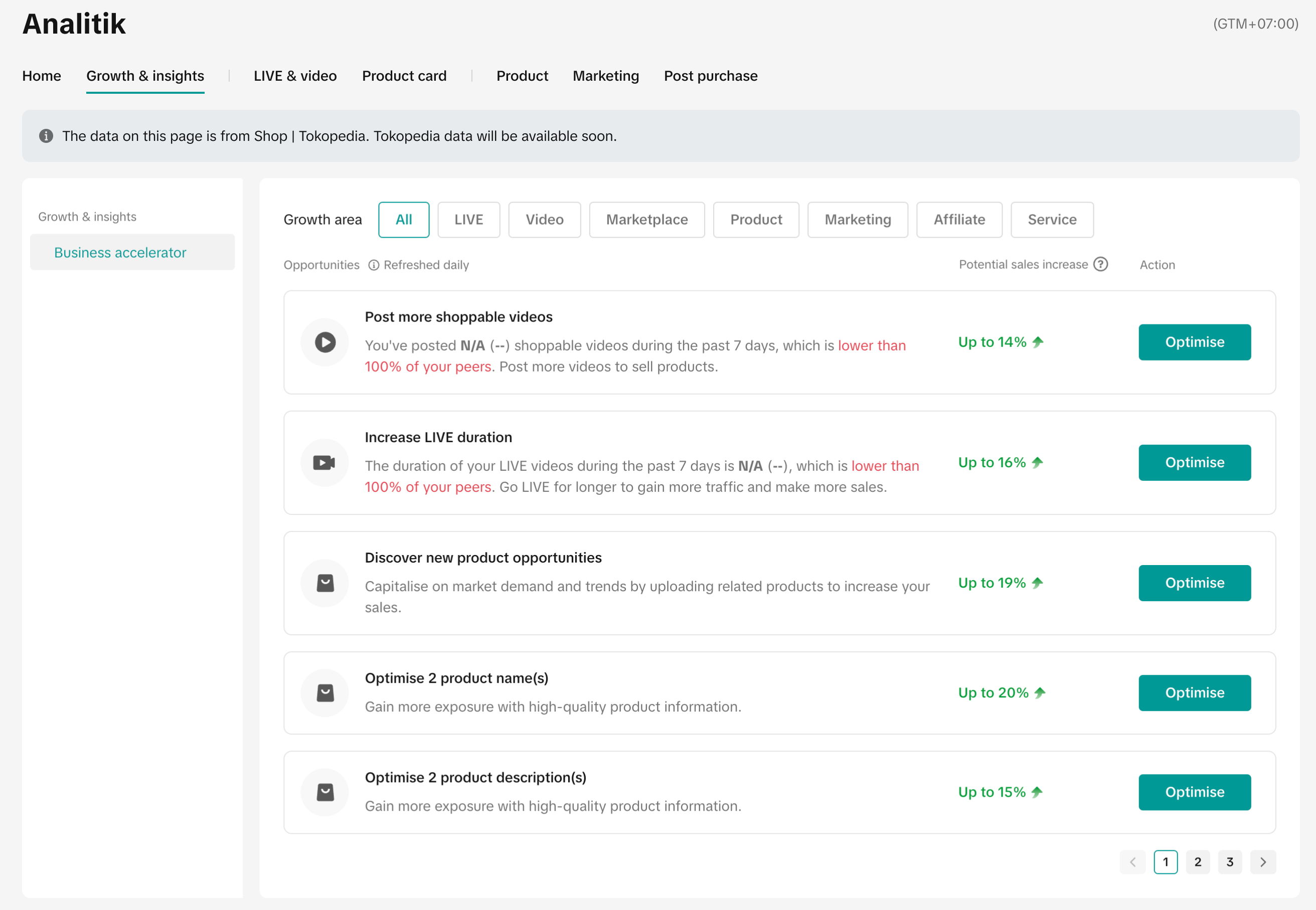
| Filter Available | Data Available | Seller Use Case | Analytics Page Benefit | Feature Guide |
| No | ShopTokopedia data only | I wish to learn what are the other ways available that can help grow my store performance. | The Business Accelerator page enables sellers to view various growth areas and get daily suggested actions that can help with potential sales increase. | Click here to learn more. |
LIVE & Video
LIVE
3.1 LIVE Performance
Entrance: Data Compass > LIVE & Video > LIVE Performance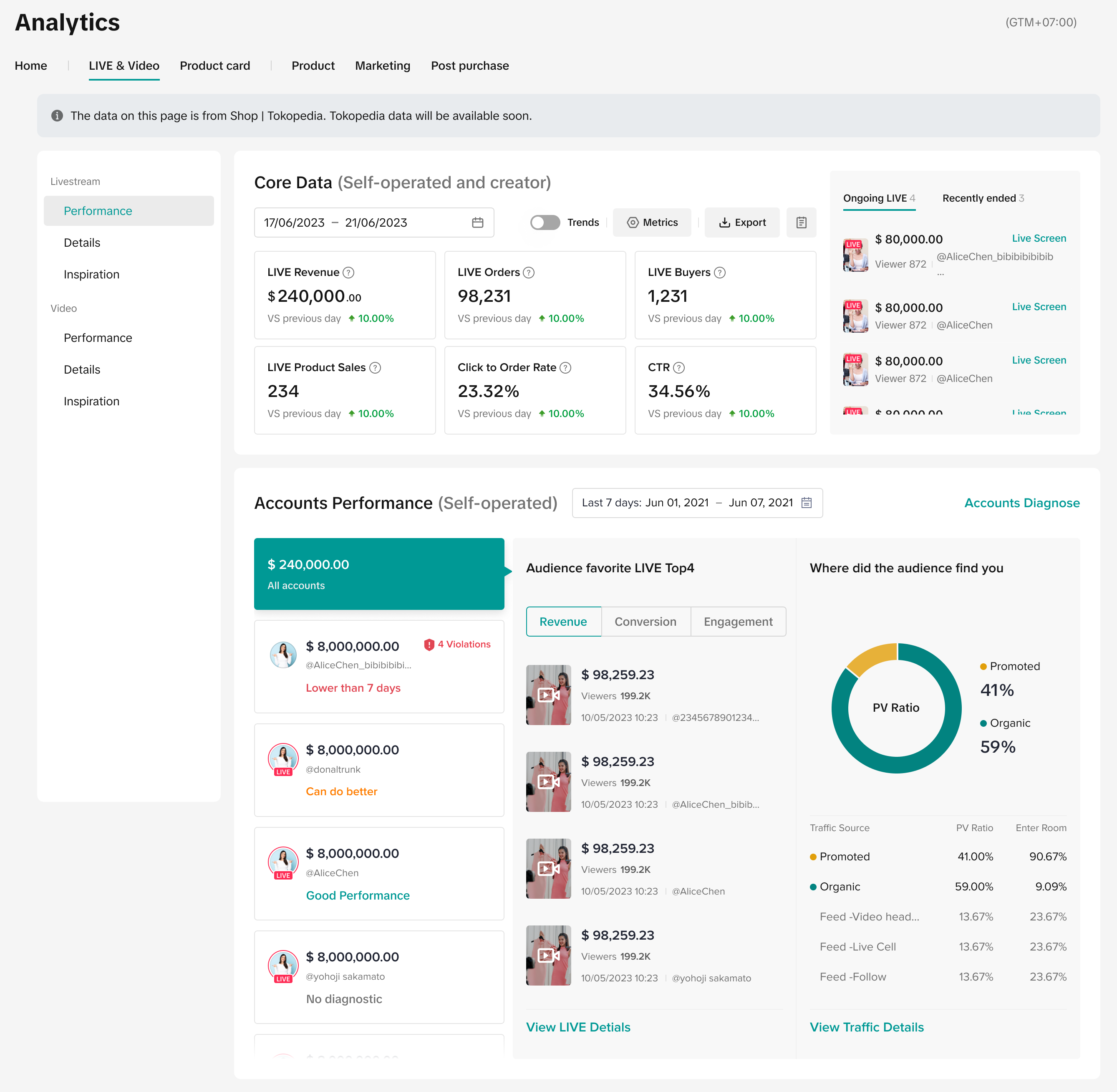
| Filter Available | Data Available | Seller Use Case | Analytics Page Benefit | Feature Guide |
| No | ShopTokopedia data only | I wish to learn how livestreams contribute to my overall store performance. | The LIVE performance page enables sellers to view LIVE key metrics such as GMV, Orders and more to understand how LIVE contributes to overall store performance. | Click here to learn more. |
| I wish to know which of my own livestreams in particular are engaging better with my audience and driving GMV, Orders or Views. | At Accounts Performance, sellers can toggle between Revenue, Conversion or Engagement and view their top 4 livestreams in these categories. |
3.2 LIVE Details
Entrance: Data Compass > LIVE & Video > LIVE Details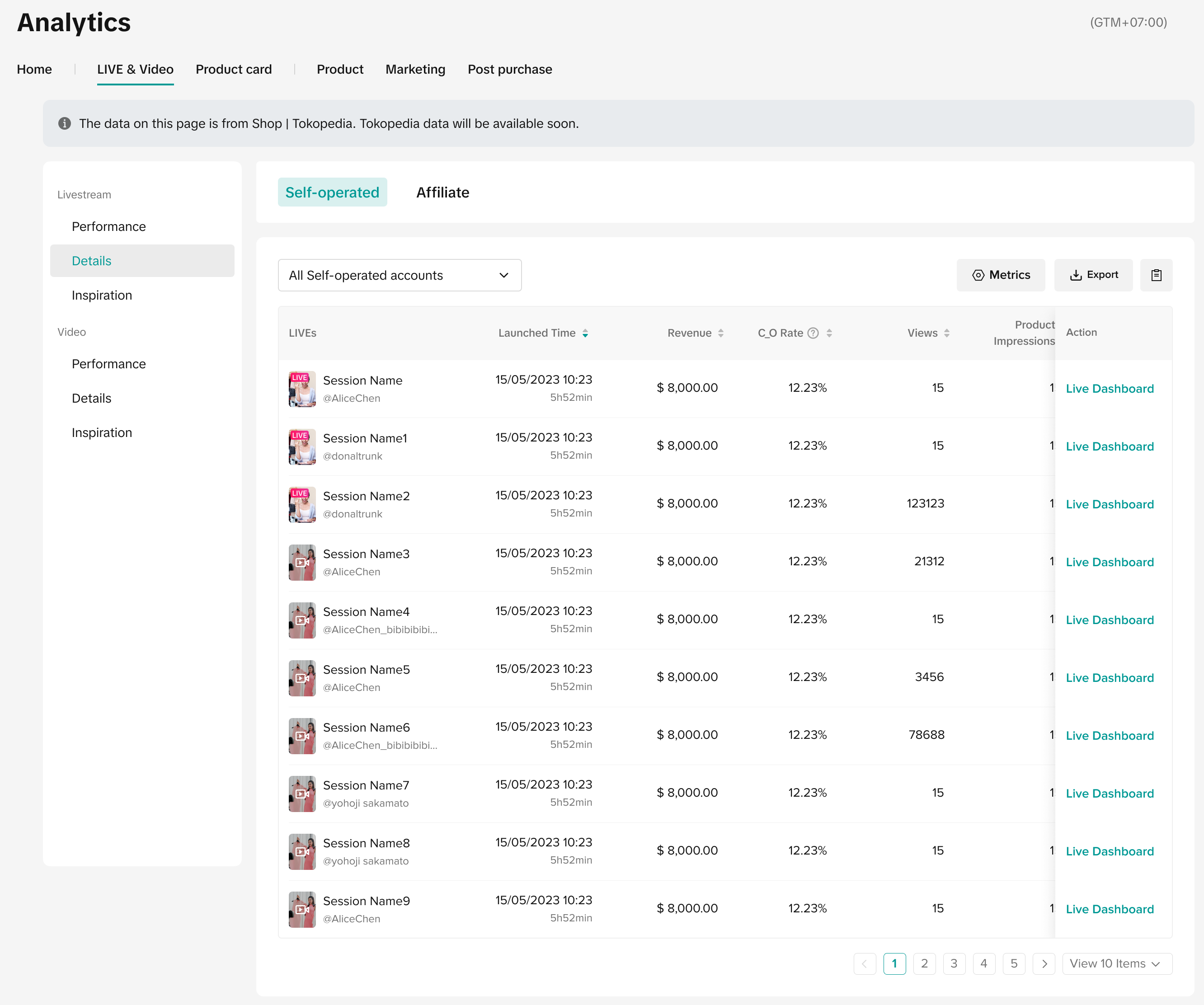
| Filter Available | Data Available | Seller Use Case | Analytics Page Benefit |
| No | ShopTokopedia data only | I wish to analyse all LIVEs, either my own or from affiliates and get more insights on individual LIVE performances. |
|
3.3 LIVE Inspiration
Entrance: Data Compass > LIVE & Video > LIVE Inspiration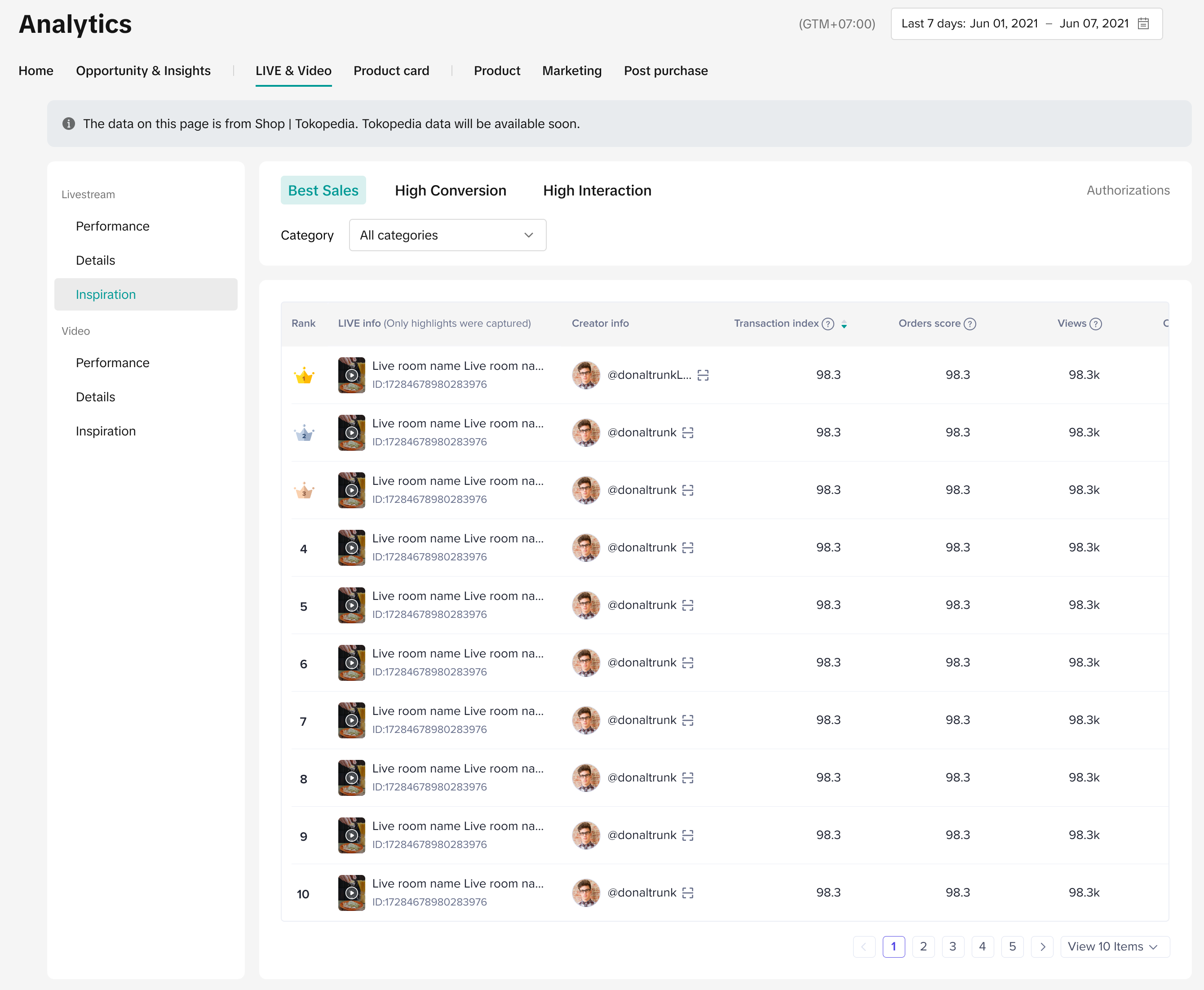
| Filter Available | Data Available | Seller Use Case | Analytics Page Benefit |
| No | ShopTokopedia data only | I wish to learn how other seller/affiliate livestreams are performing to get more ideas in improving my own livestreams. | The LIVE inspiration page enables sellers to view livestreams from other categories and also toggle between Sales, Conversion or Interaction. This helps sellers to be more innovative with upcoming livestreams and stay ahead of current livestream practices. |
Video
3.4 Video Performance
Entrance: Data Compass > LIVE & Video > Video Performance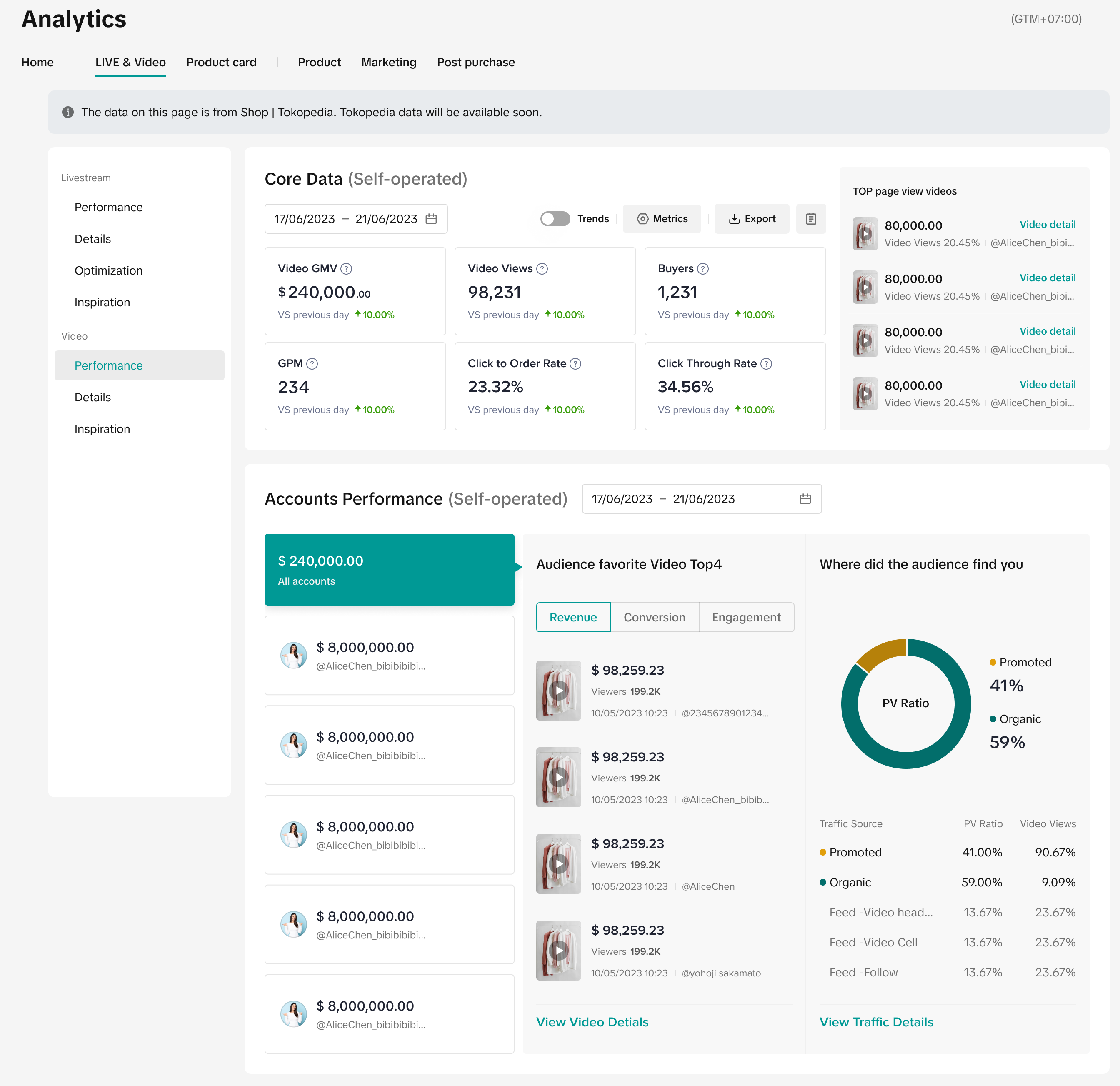
| Filter Available | Data Available | Seller Use Case | Analytics Page Benefit | Feature Guide |
| No | ShopTokopedia data only | I wish to learn how videos contribute to my overall store performance. | The Video Performance page enables sellers to view Video key metrics such as GMV, Orders and more to understand how Video contributes to overall store performance. | Click here to learn more. |
| I wish to know which of my own videos in particular are engaging better with my audience and driving GMV, Orders or Views. | At Accounts Performance, sellers can toggle between Revenue, Conversion or Engagement and view their top 4 videos in these categories. |
3.5 Video Details
Entrance: Data Compass > LIVE & Video > Video Details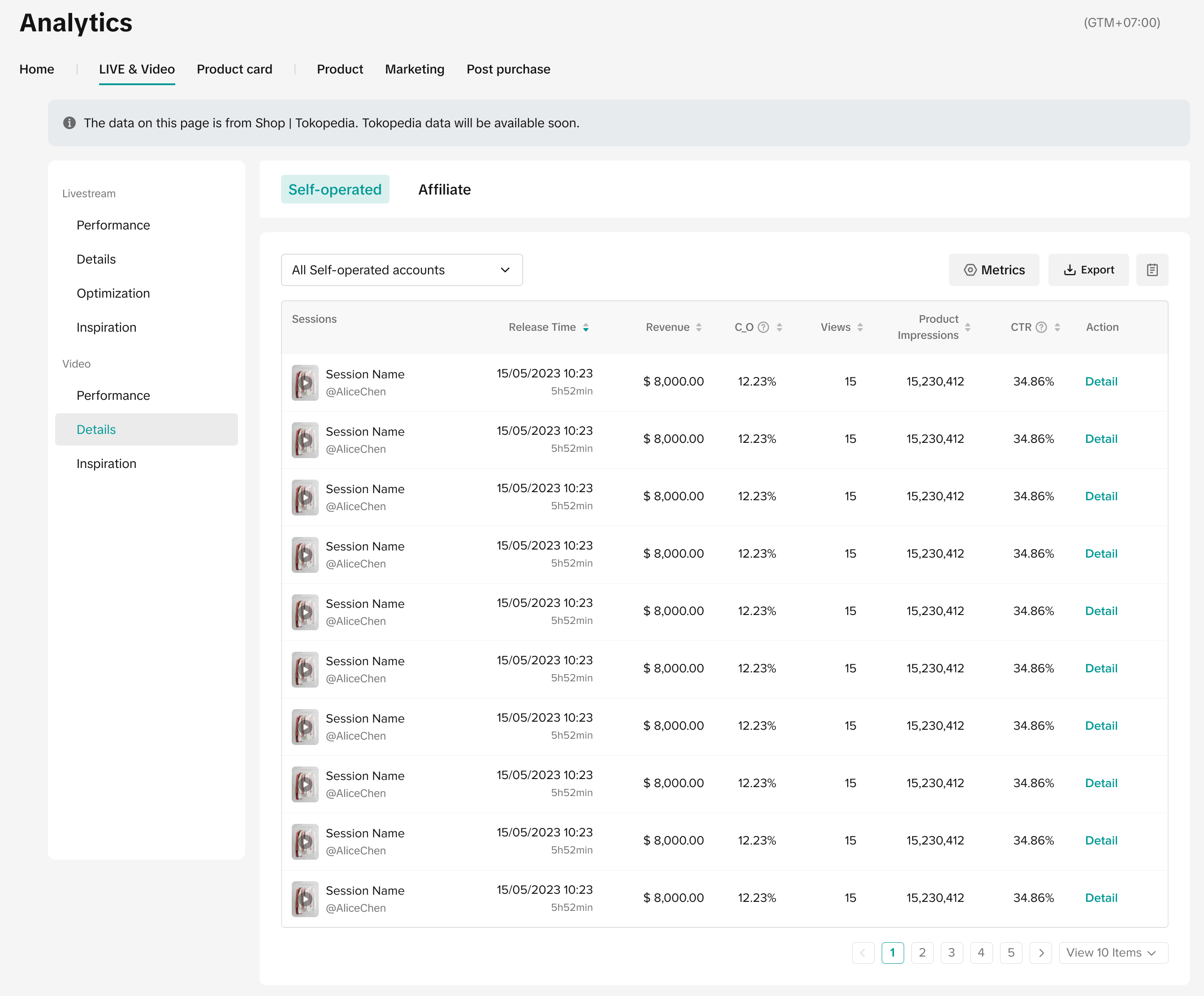
| Filter Available | Data Available | Seller Use Case | Analytics Page Benefit |
| No | ShopTokopedia data only | I wish to analyse all Videos, either my own or from affiliates and get more insights on individual Video performances. |
|
3.6 Video Inspiration
Entrance: Data Compass > LIVE & Video > Video Inspiration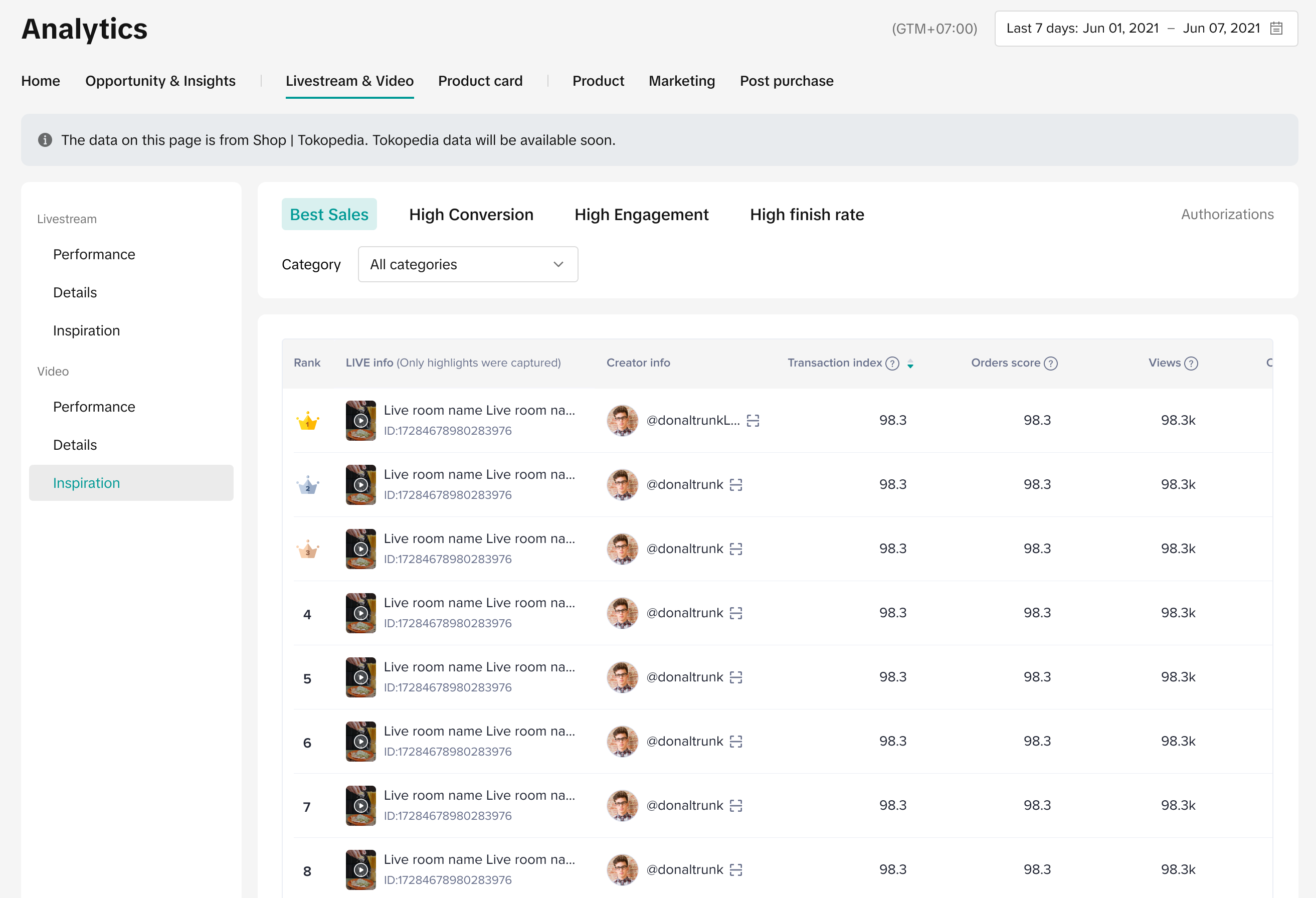
| Filter Available | Data Available | Seller Use Case | Analytics Page Benefit | Feature Guide |
| No | ShopTokopedia data only | I wish to learn how other videos are performing to get more ideas in improving my own videos. | The Video inspiration page enables sellers to view videos from other categories and also toggle between Sales, Conversion, Engagement or Finish Rate. This helps sellers to be more innovative with upcoming videos and stay ahead of current video practices. | Click here to learn more. |
Product Card
Product Card
4.1 Product Card Performance
Entrance: Data Compass > Product Card > Performance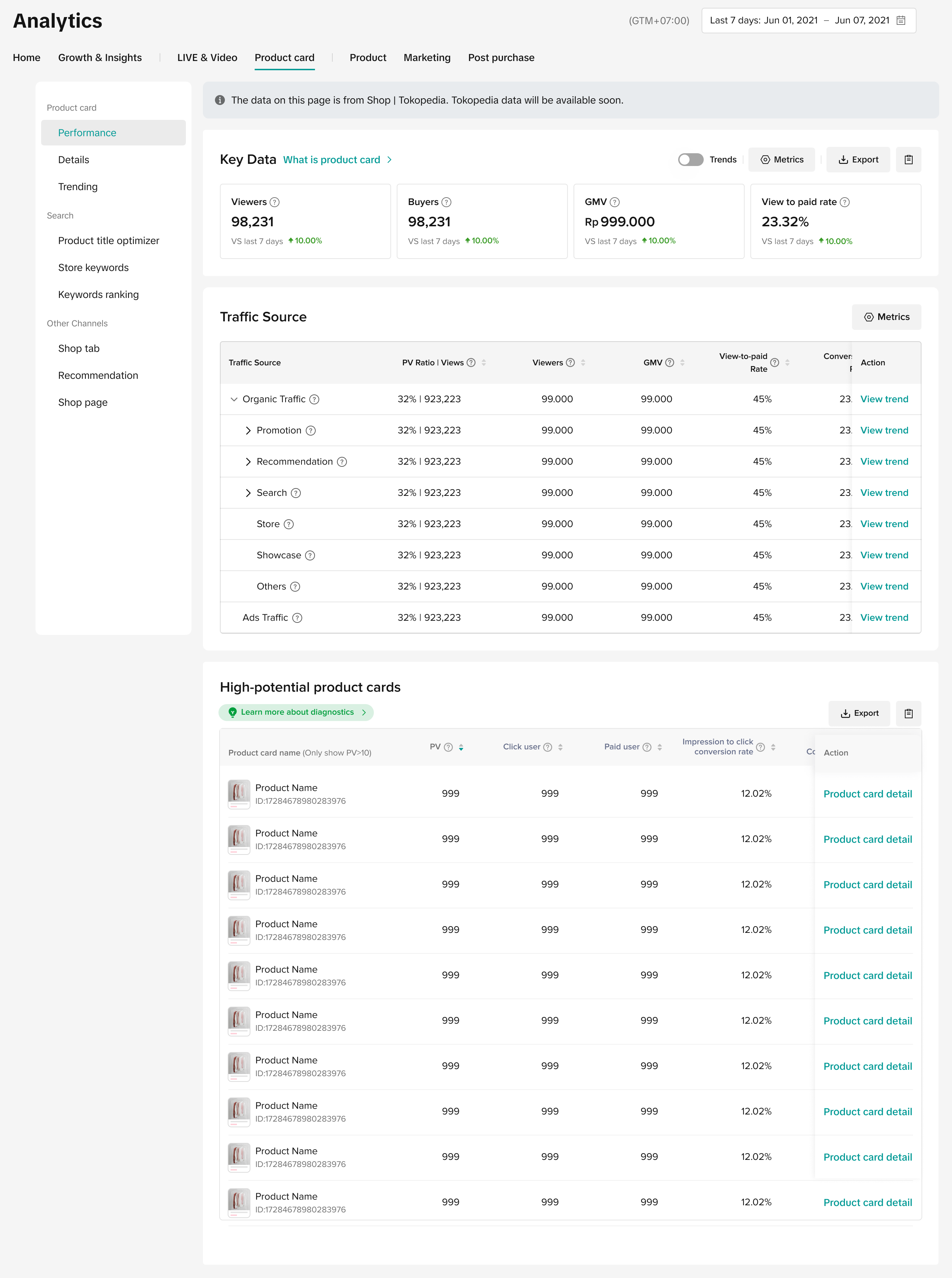
| Filter Available | Data Available | Seller Use Case | Analytics Page Benefit | Feature Guide |
| No | ShopTokopedia data only | I wish to learn how product cards contribute to my overall store performance. | The Product Card Performance page enables sellers to view key metrics such as GMV, Views and more to understand how Product Card contributes to overall store performance. | Click here to learn more. |
| I wish to know how my buyers found my product card. | The traffic source section allows sellers to identify whether buyers have come across their product card via organic traffic or ads traffic. Sellers can compare how these 2 traffic sources drive Views or GMV and optimise their strategy accordingly. | |||
| I wish to know which product cards in particular are performing well. | The high potential product cards section eases sellers in quickly identifying which product cards drive high views, clicks and conversion. These product cards have potential for higher conversion or exposure, sellers can prioritise the optimisation of these product cards for improved performance. |
4.2 Product Card Details
Entrance: Data Compass > Product Card > Details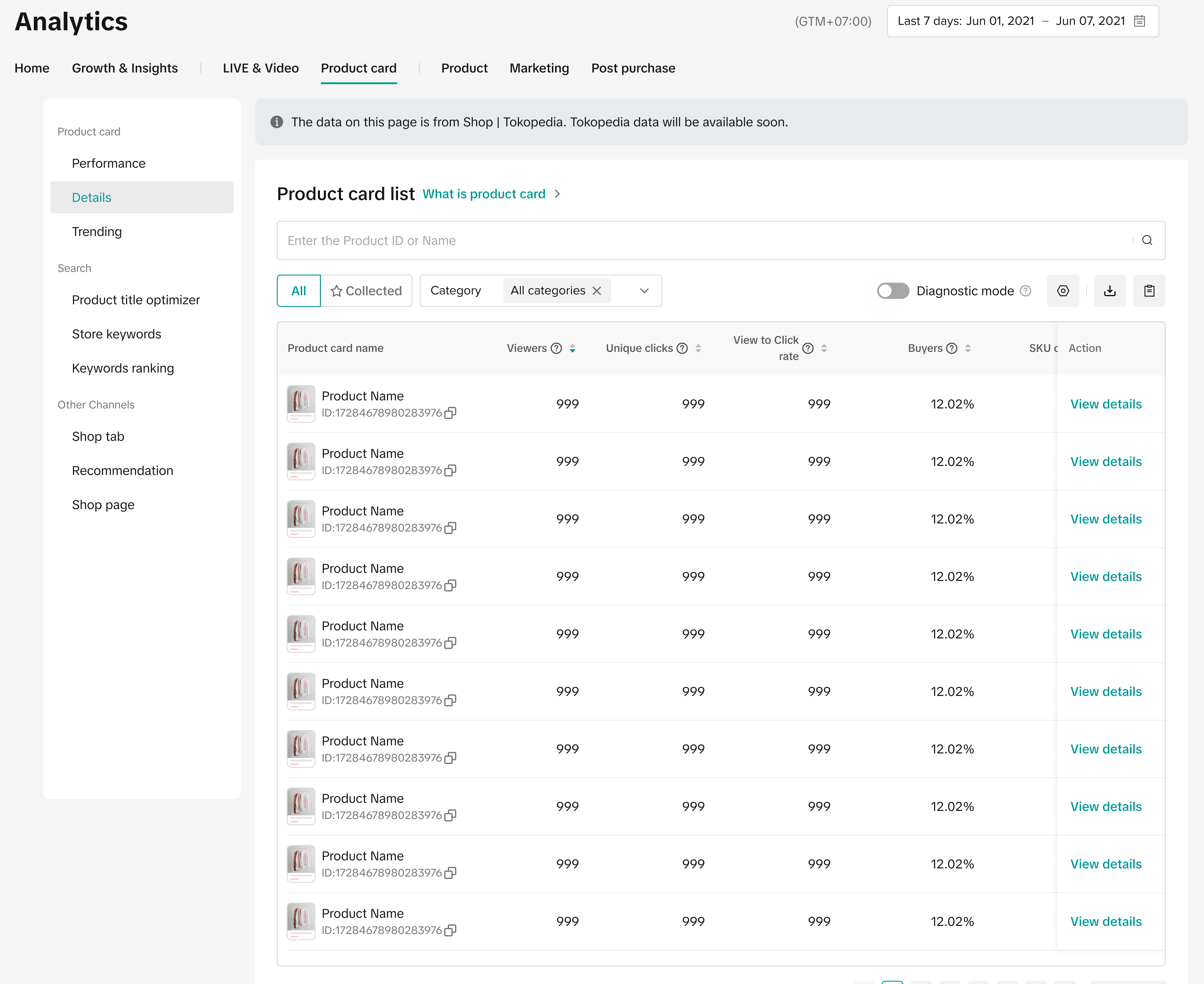
| Filter Available | Data Available | Seller Use Case | Analytics Page Benefit | Feature Guide |
| No | ShopTokopedia data only | I wish to further deep dive into each of my individual product card performance. | The Product Details page enables sellers to view the full list of product cards and also export the list for offline analysis. | Click here to learn more. |
4.3 Product Card Trending
Entrance: Data Compass > Product Card > Trending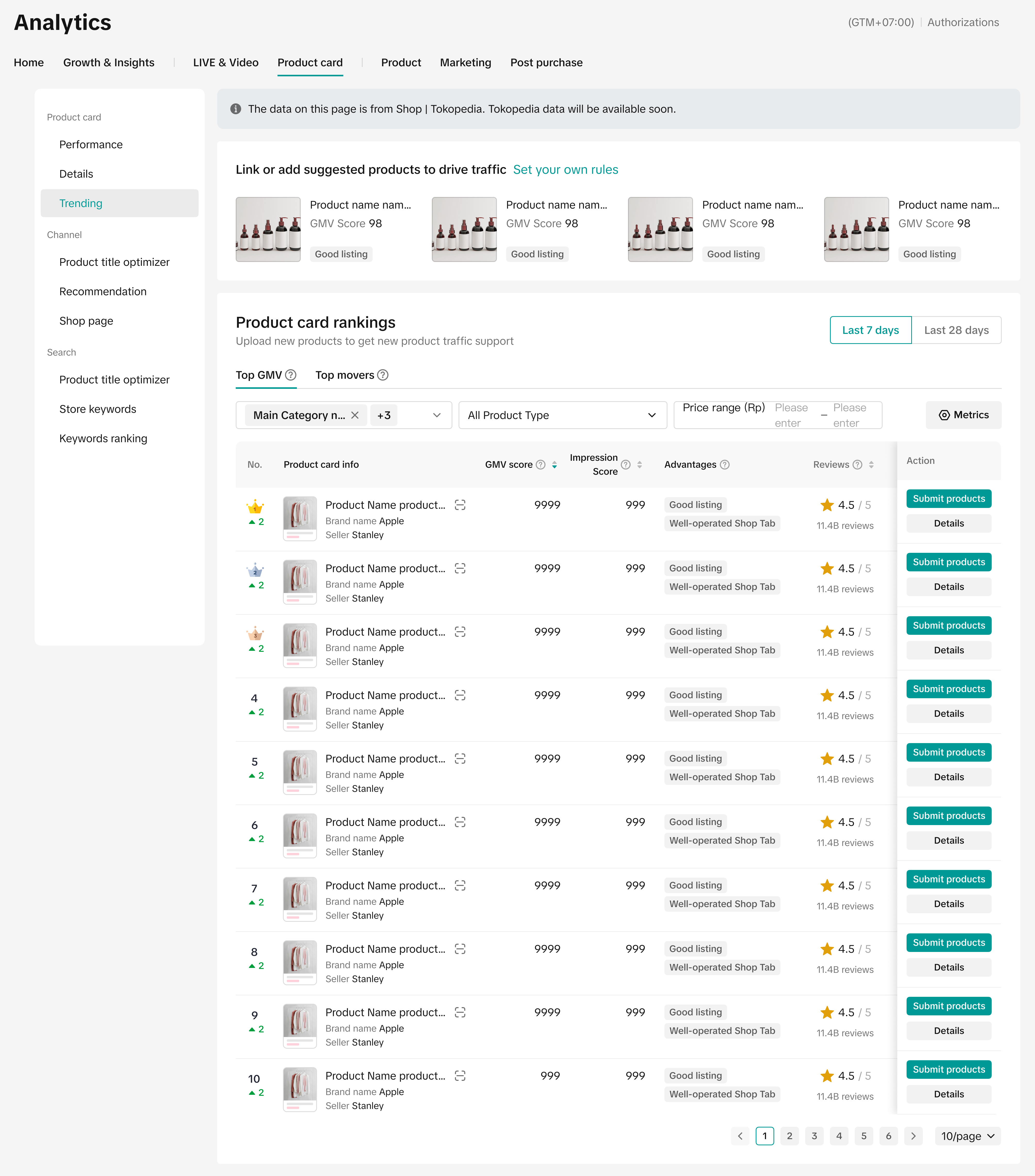
| Filter Available | Data Available | Seller Use Case | Analytics Page Benefit |
| No | ShopTokopedia data only | I wish to get insights on how other sellers' product cards are performing to compare against my own product card performance. | The product card rankings page enables sellers to select a certain category and view the list of product cards ranked by Top GMV or Top Movers to get an overview of competitors' product card performances. Sellers can reference the top performing product cards as benchmarks to optimise their own lesser performing product cards. |
Search
4.4 Product Title Optimiser
Entrance: Data Compass > Product Card > Search > Product Title Optimiser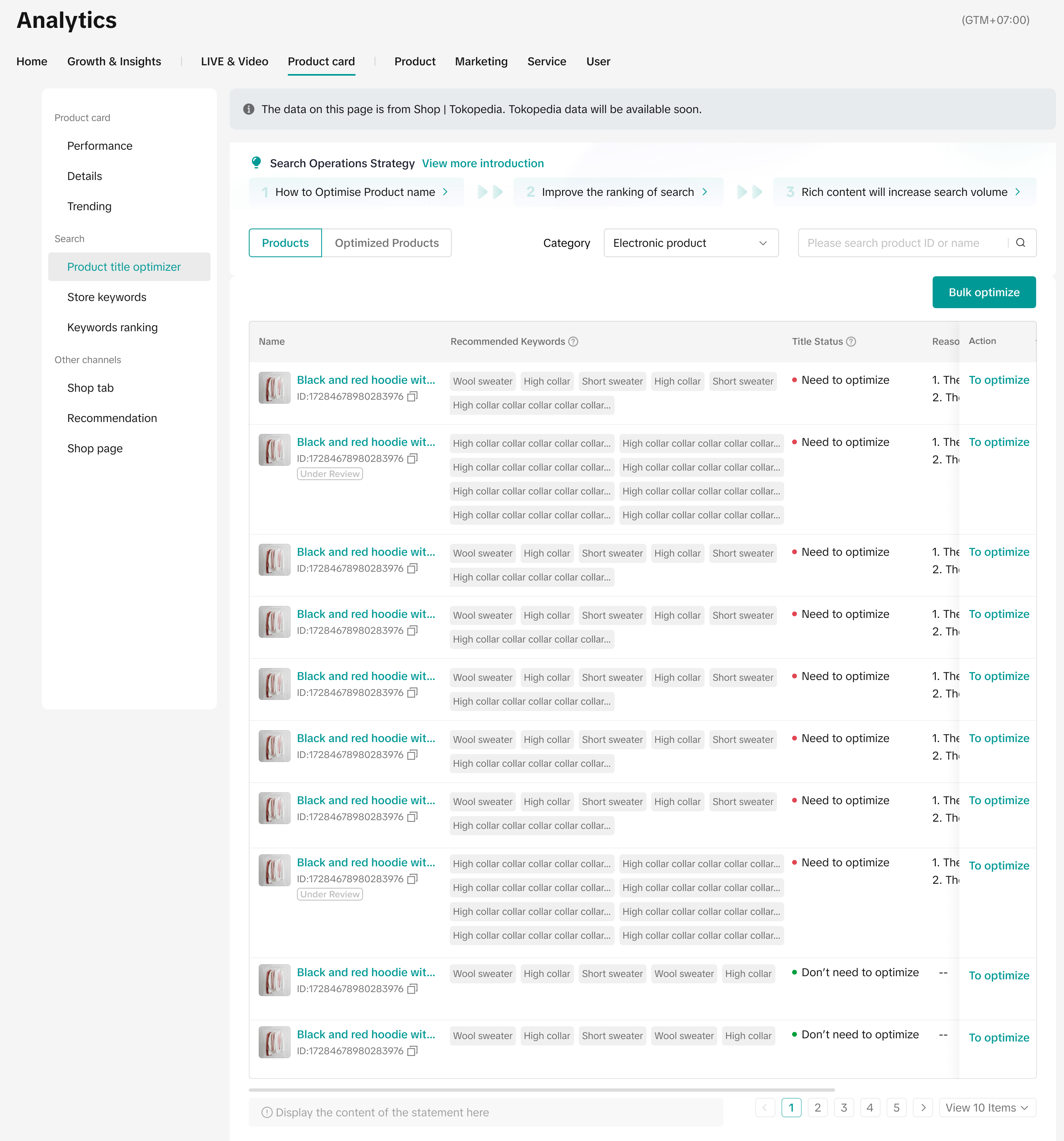
| Filter Available | Data Available | Seller Use Case | Analytics Page Benefit | Feature Guide |
| No | ShopTokopedia data only | I wish to learn if there are ways to improve my product descriptions to attract more customers. | The Product Title Optimiser page assists sellers to identify products whose product name, descriptions and images can be further optimised to attract customers at first glance. | Click here to learn more. |
4.5 Store Keywords
Entrance: Data Compass > Product Card > Search > Store keywords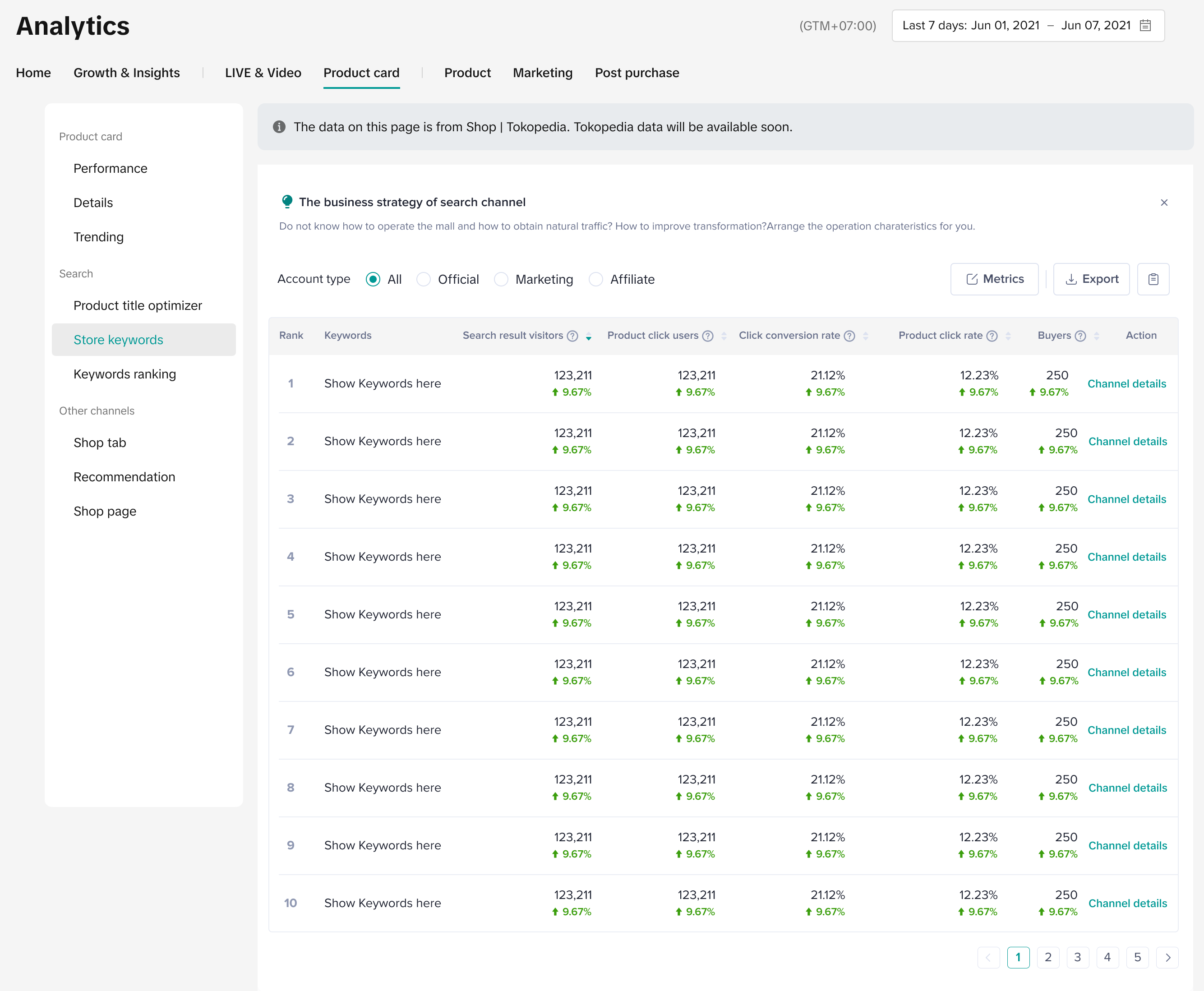
| Filter Available | Data Available | Seller Use Case | Analytics Page Benefit |
| No | ShopTokopedia data only | I wish to know what keywords are being searched that drive traffic to my store. | The Store Keywords page displays a list of search keywords related to the shop's content and products. Sellers can focus on keywords with high PV and low conversion to optimise these products for more store traffic. |
4.6 Keyword Rankings
Entrance: Data Compass > Product Card > Search > Keyword rankings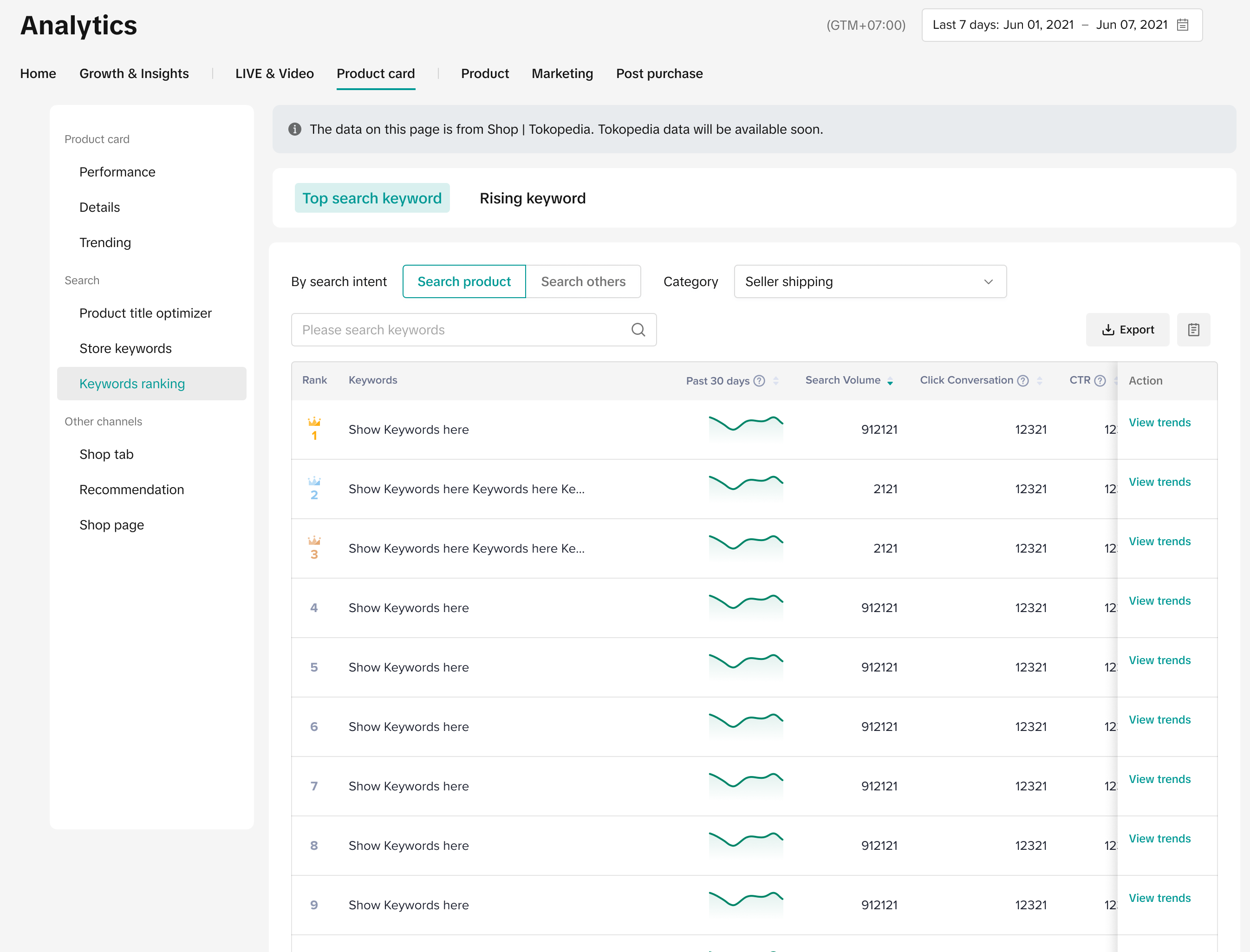
| Filter Available | Data Available | Seller Use Case | Analytics Page Benefit | Feature Guide |
| No | ShopTokopedia data only | I wish to know what keywords are being searched across the platform to know what's trending and being searched by customers. | The Keyword rankings page allows sellers to stay up-to-date with what customers are currently looking for across various categories. Sellers can use this information to optimise their product keywords or consider expanding their assortment in line with what customers are searching for. | Click here to learn more. |
Channels
4.7 Shop tab
Entrance: Data Compass > Product Card > Channels > Shop tab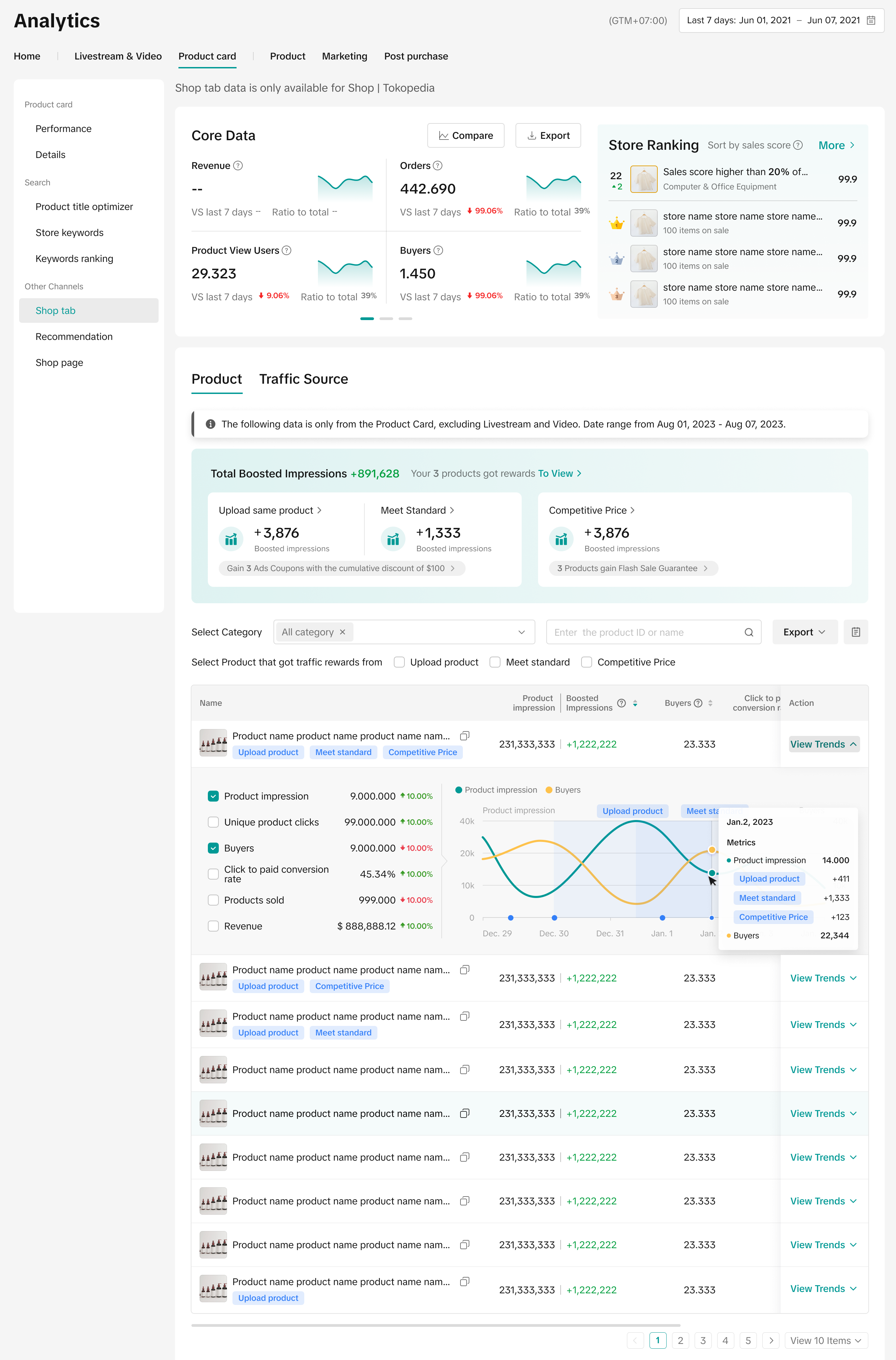
| Filter Available | Data Available | Seller Use Case | Analytics Page Benefit | Feature Guide |
| No | ShopTokopedia data only | I wish to learn how shop tab contributes to my overall store performance. | The Shop Tab page enables sellers to view Shop Tab key metrics such as GMV, Orders and more to understand how Shop Tab contributes to overall store performance. | Click here to learn more. |
| I wish to learn about the traffic behaviour of customers to see where I can improve in my sales funnel. | The Traffic Source tab provides detailed information about user retention and loss rates at each layer of the funnel, from users viewing the product, to clicking on the product and eventually purchasing the product. These insights enable sellers to identify the areas that need improvement in their sales funnel and take steps to optimise the user experience to drive more sales. |
4.8 Recommendations
Entrance: Data Compass > Product Card > Channels > Recommendations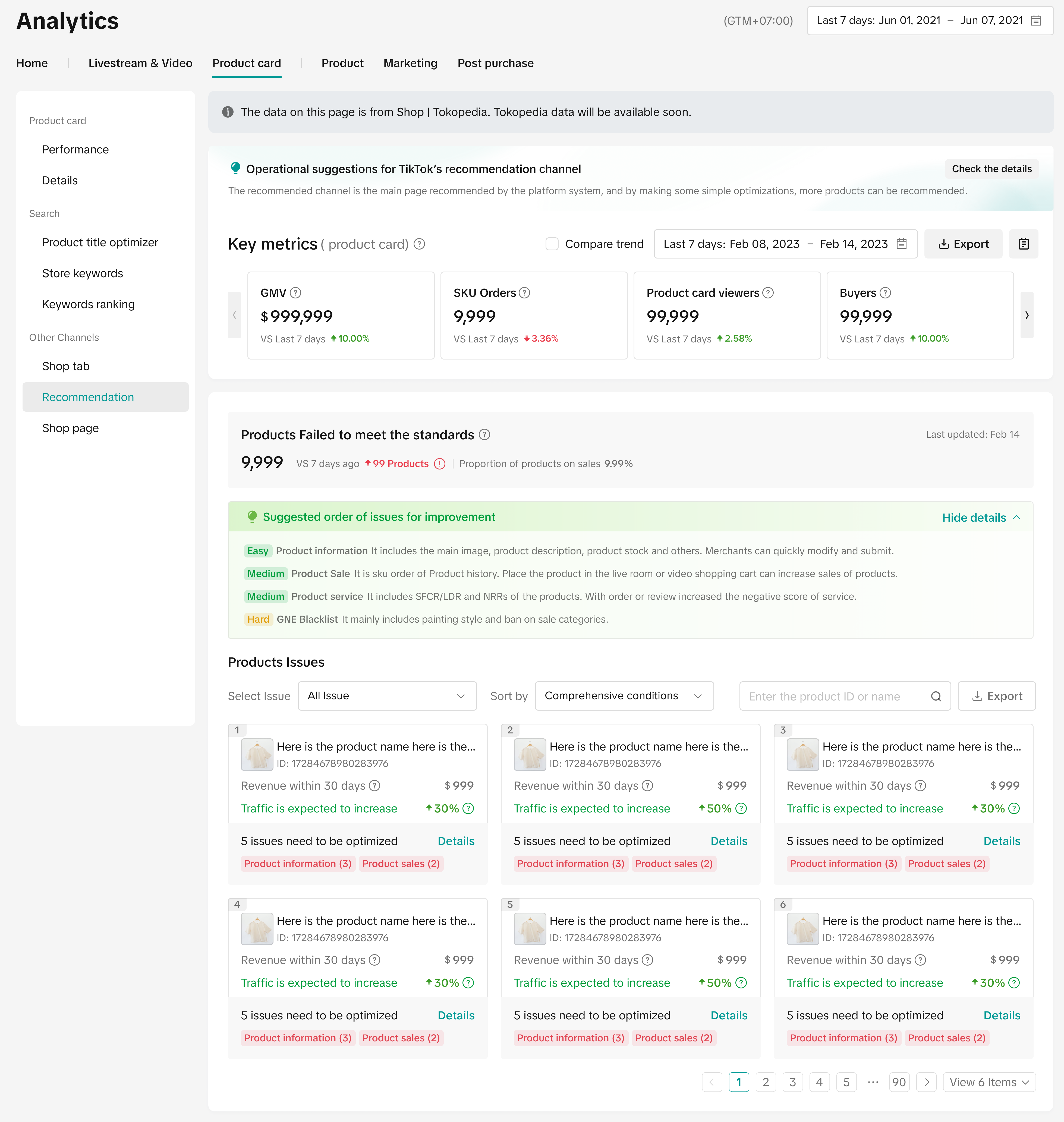
| Filter Available | Data Available | Seller Use Case | Analytics Page Benefit | Feature Guide |
| No | ShopTokopedia data only | I wish to learn which products are not showcased to buyers when they are browsing through the Recommendations page. | The Recommendations page allows sellers to view a list of their products which are not qualified to be recommended to customers, and take actions to optimise the product according to the existing issues outlined. | Click here to learn more. |
4.9 Shop page
Entrance: Data Compass > Product Card > Channels > Shop page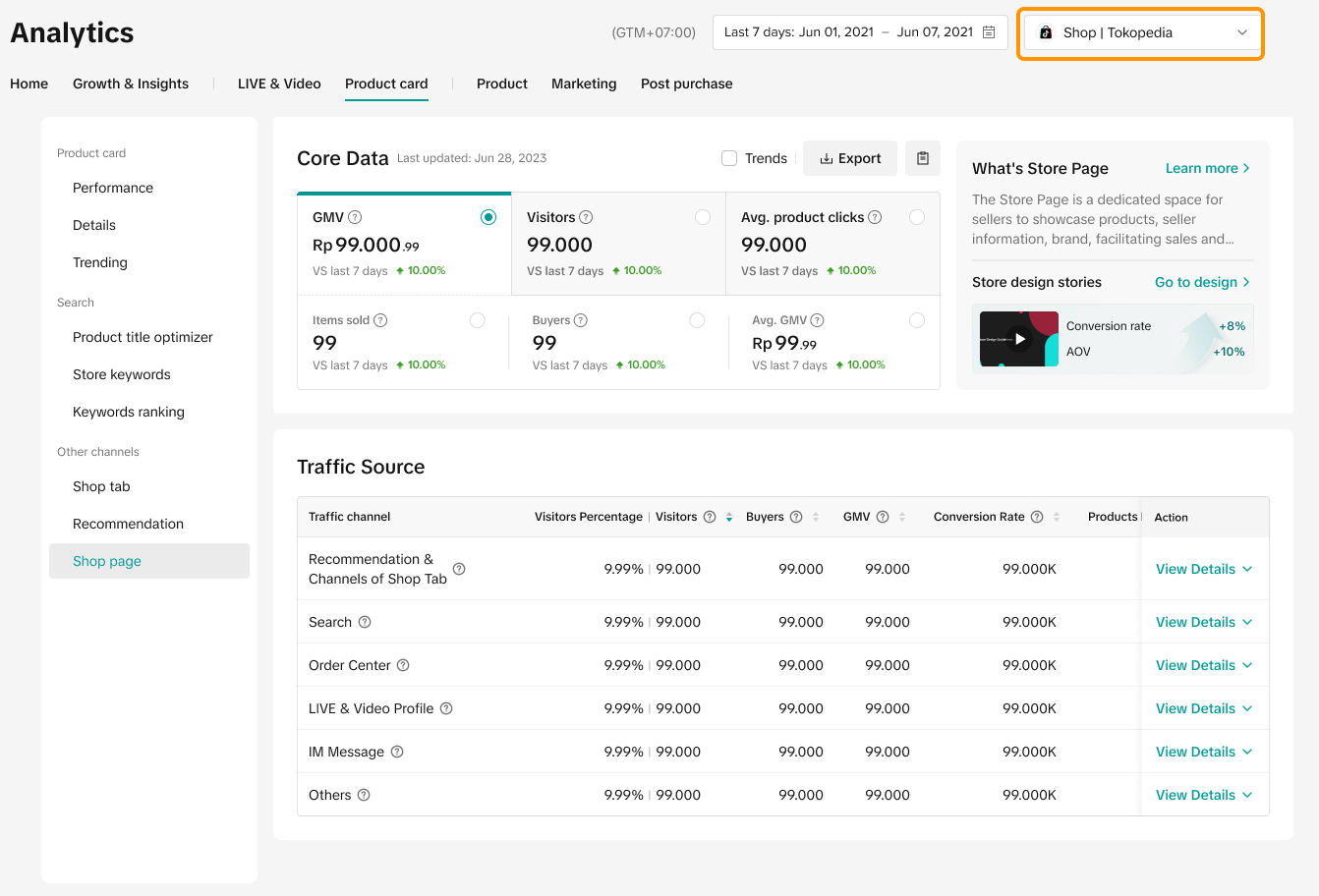
| Filter Available | Data Available | Seller Use Case | Analytics Page Benefit | Feature Guide |
| Yes |
| I wish to understand how customers find my shop page and optimise the channels that can bring more traffic to my store. | Shop Page analytics allows sellers to analyse the traffic sources that direct customers to their shop, such as via Search, Order Center, LIVE & Video Profile and more. By understanding the traffic source of each channel, sellers can identify the ones that require improvement and strategise accordingly. | Click here to learn more. |
Product
5.1 Product Detail
Entrance: Data Compass > Product > Product Detail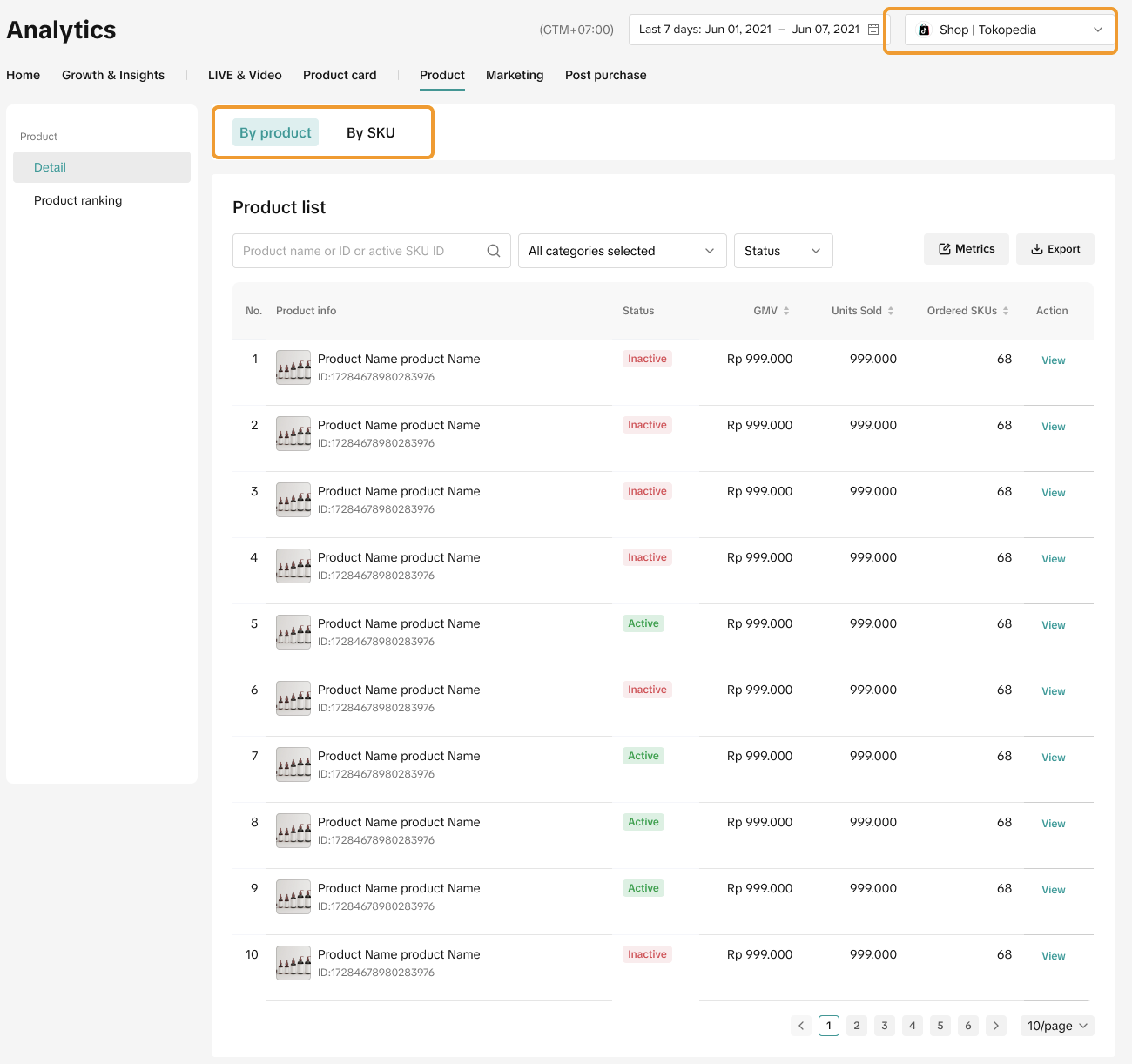
| Filter Available | Data Available | Seller Use Case | Analytics Page Benefit | Feature Guide |
| Yes |
| I wish to learn how each of my products contributes to my overall store performance. | The Product Detail page enables sellers to analyse individual product performances and also customise the product performance metrics by channel (Shop Tab, LIVE, Video or Product Card). Sellers can also toggle to SKU level to do a further deep dive into their assortment variety. | Click here to learn more. |
5.2 Ranking
Entrance: Data Compass > Product > Product Ranking
| Filter Available | Data Available | Seller Use Case | Analytics Page Benefit |
| No | ShopTokopedia data only | I wish to learn what are the top ranking products and shops across the platform. | The product ranking page allows sellers to access a list of products and shops across based on a selected category and identify the top products or shops by highest sales ranking or growth ranking. This allows sellers to stay up to date on the top selling products and ensure their store has a competitive assortment to cater for market needs. |
Marketing
Promotion
6.1 Promotion Tools
Entrance: Data Compass > Marketing > Promotion > Promotion Tools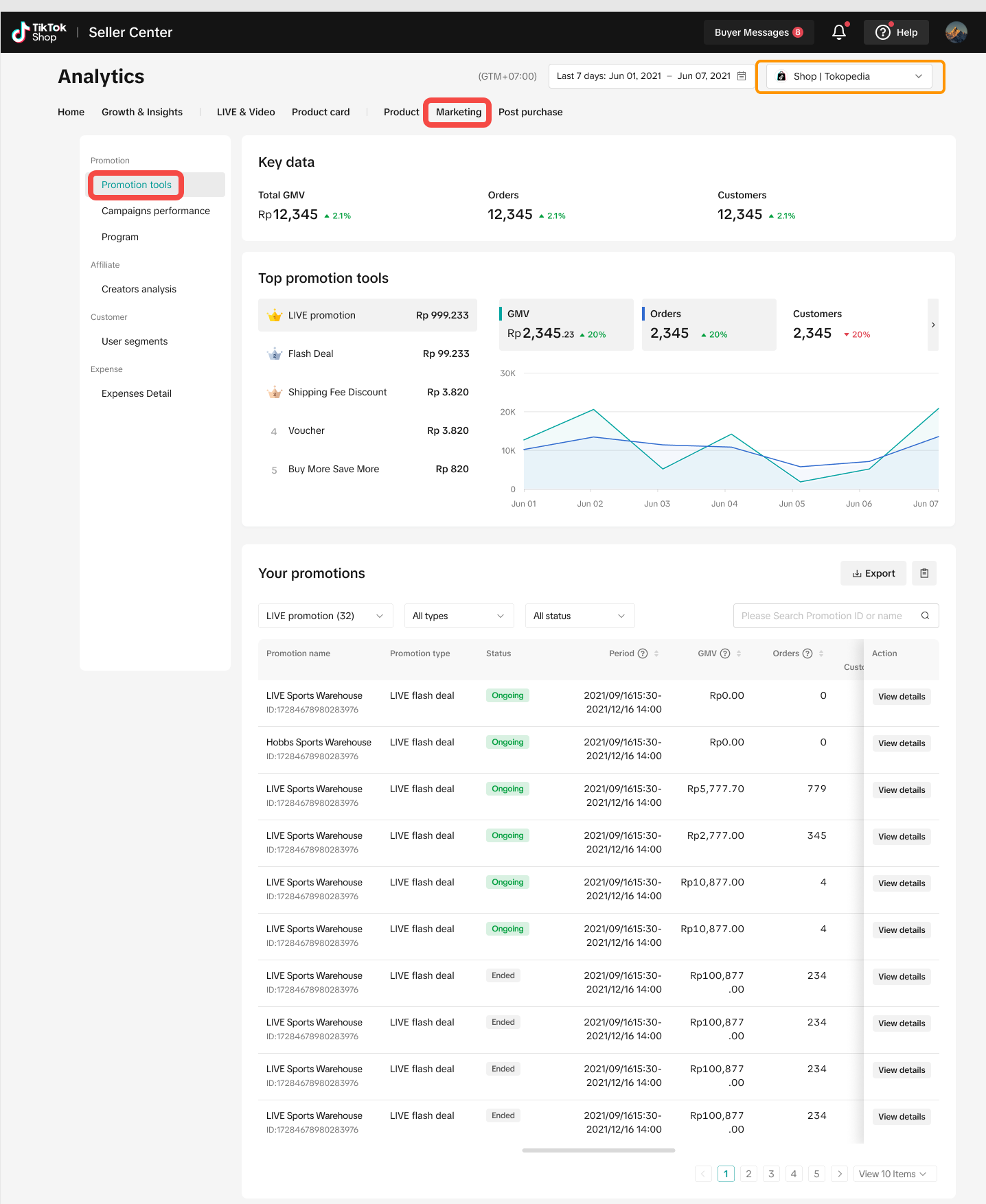
| Filter Available | Data Available | Seller Use Case | Analytics Page Benefit | Feature Guide |
| Yes |
| I wish to analyse which promotion tool works best for my store and understand the performance of my promotional tools. | The Promotional Tools page gives sellers a quick overview of how promotional tools contribute to their overall store performance and which are the top promotional tools driving store GMV. The promotions list allows sellers to deep dive into each promotion performance, such as conversion rate, GMV, Orders and more, enabling sellers to strategise usage of different promotion tools for different goals.Clicking into View details enables sellers to analyse a specific promotion performance over the course of the promotion duration. | Click here to learn more. |
6.2 Campaign
Entrance: Data Compass > Marketing > Promotion > Campaign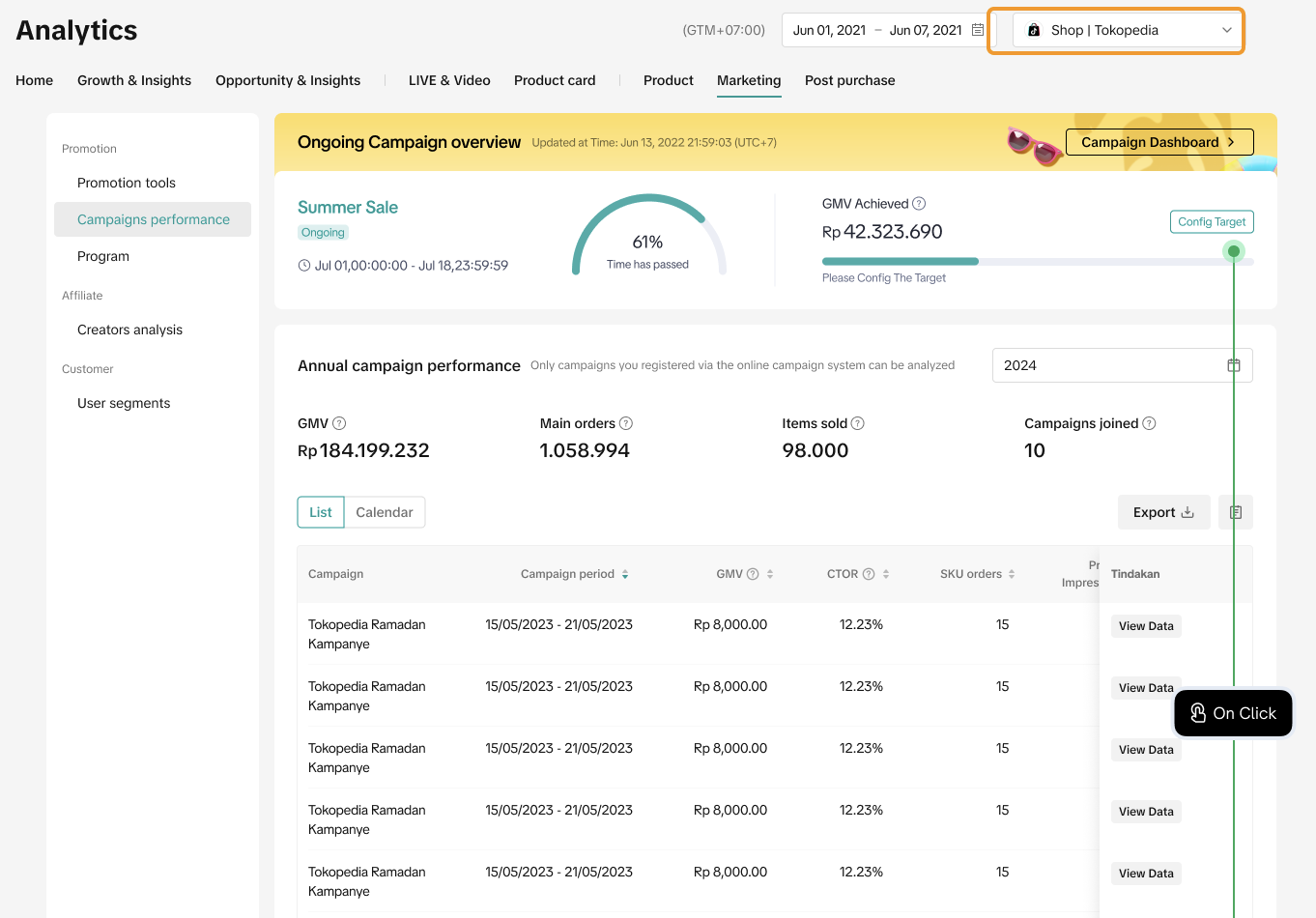
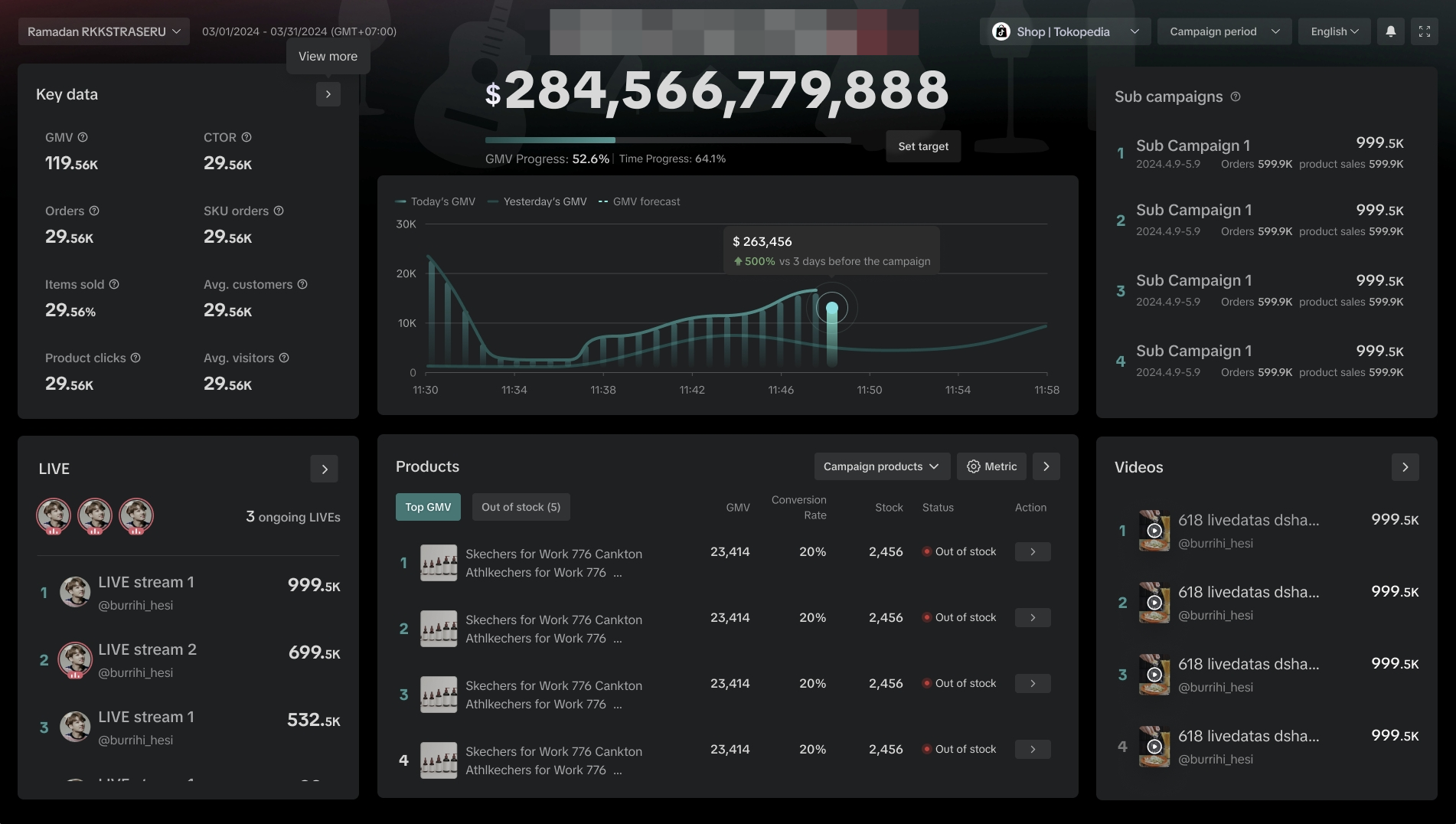
| Filter Available | Data Available | Seller Use Case | Analytics Page Benefit | Feature Guide |
| Yes |
| I wish to analyse campaign performances to understand how campaigns contribute to my overall store performance. | The Campaigns performance page enables sellers to access a list of all joined campaigns and directly access the campaign dashboard to view a specific campaign's performance. | Click here to learn more. |
| I wish to check my campaign performance in real-time. | Via the ongoing campaign banner, sellers can click on Campaign Dashboard to directly view their campaign performance in real-time, monitor buying behaviour and make optimisations to boost their sales. | Click here to learn more. | ||
| - | LIVE and Video performance are not available |
6.3 Program
Entrance: Data Compass > Marketing > Promotion > Program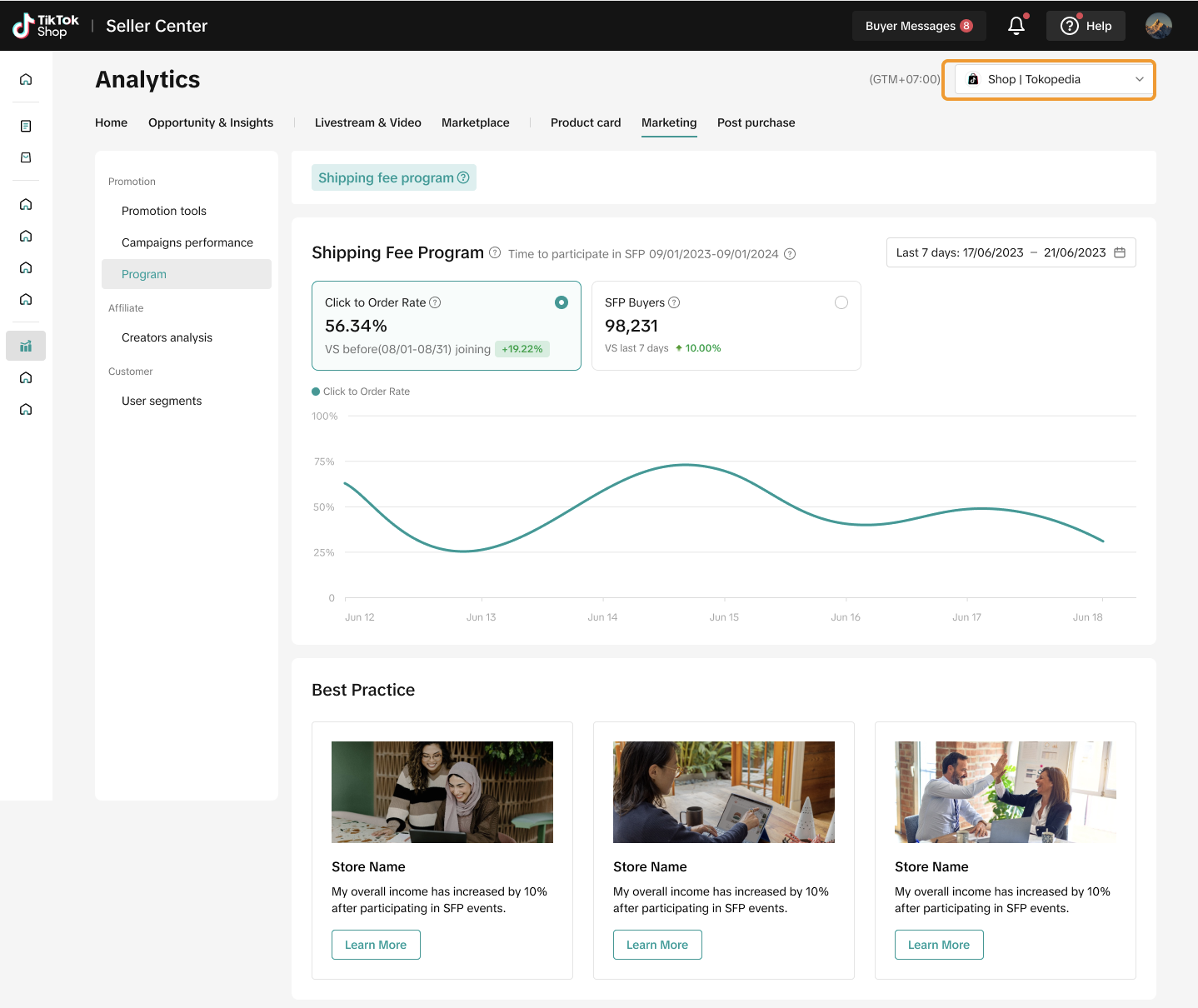
| Filter Available | Data Available | Seller Use Case | Analytics Page Benefit | Feature Guide |
| Yes |
| I wish to analyse how Shipping Fee Program contributes to my overall store performance. | At Program performance, sellers can analyse Shipping Fee Program performance metrics such as Click to Order Rate and number of SFP Buyers. | Click here to learn more. |
Affiliate
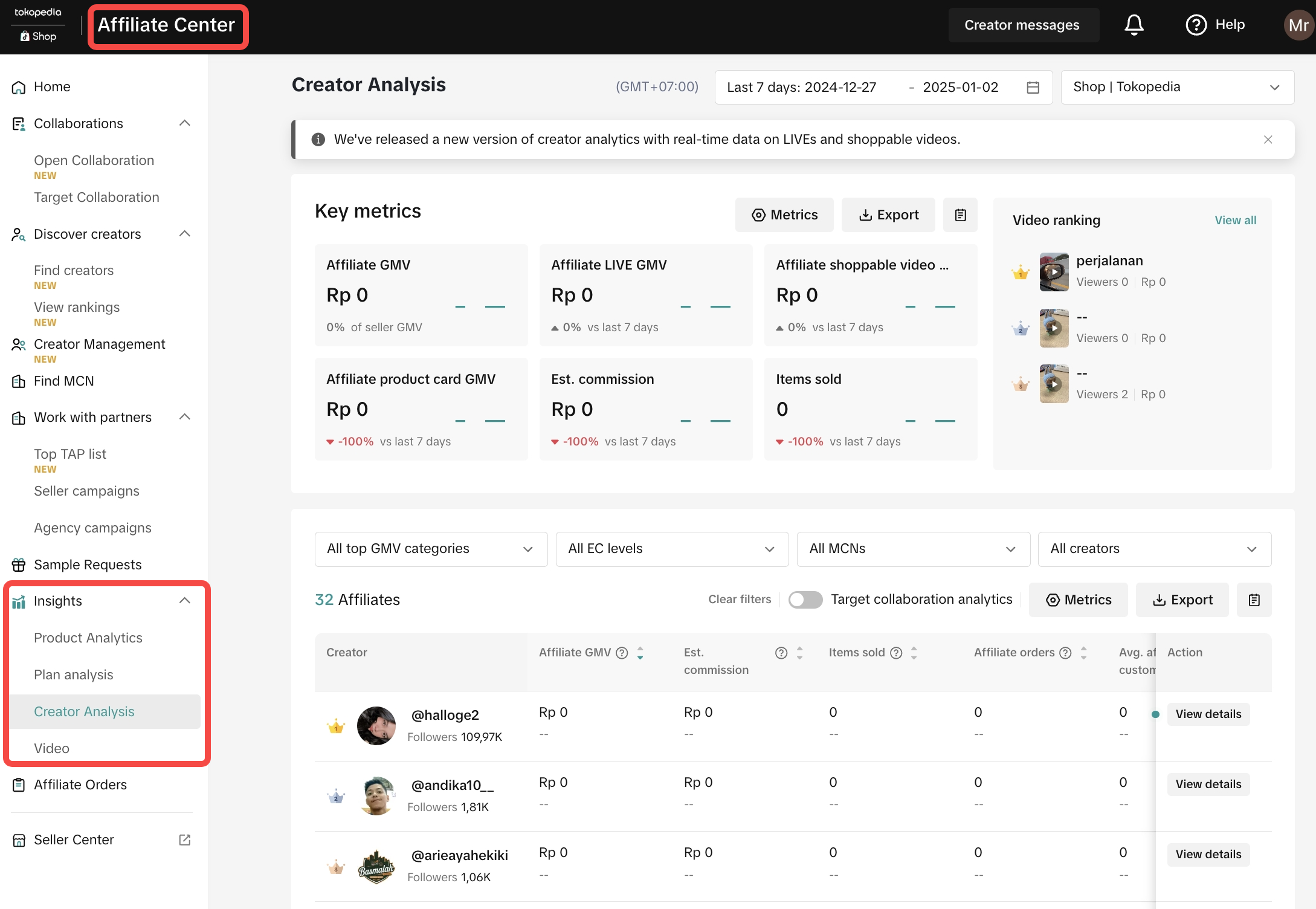
Sellers can find Affiliate performance insights on the Affiliate Center page. Learn more about Affiliate Performance Insights.Entrance: Affiliate Center > Insights
Customer
6.7 Customer Analysis
Entrance: Data Compass > Marketing > Customer > Customer Analysis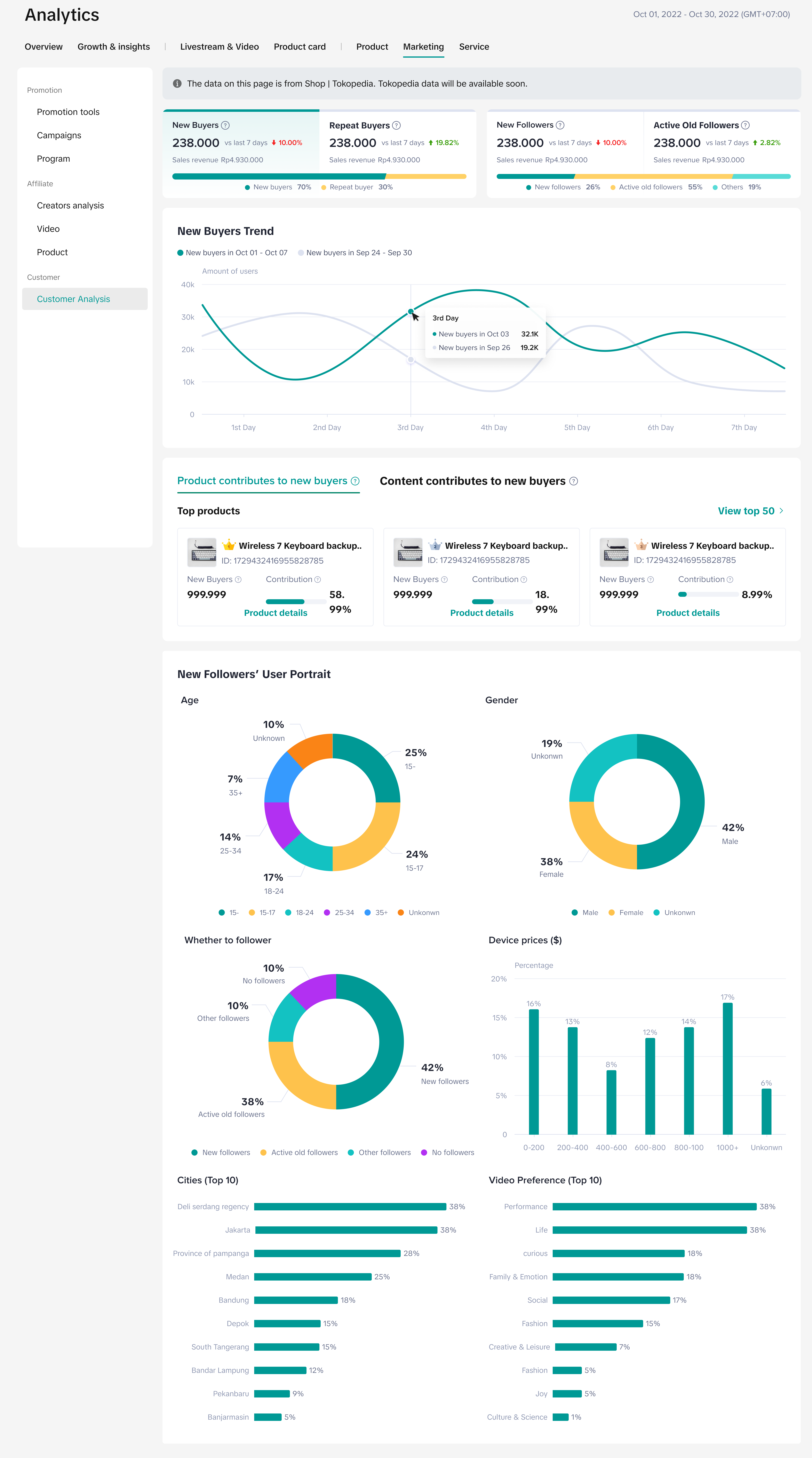
| Filter Available | Data Available | Seller Use Case | Analytics Page Benefit | Feature Guide |
| No | ShopTokopedia data only | I wish to learn my buyers and followers demographic to better cater to their needs and wants. |
| Click here to learn more. |
Post Purchase
7.1 IM Performance
Entrance: Data Compass > Post Purchase > IM performance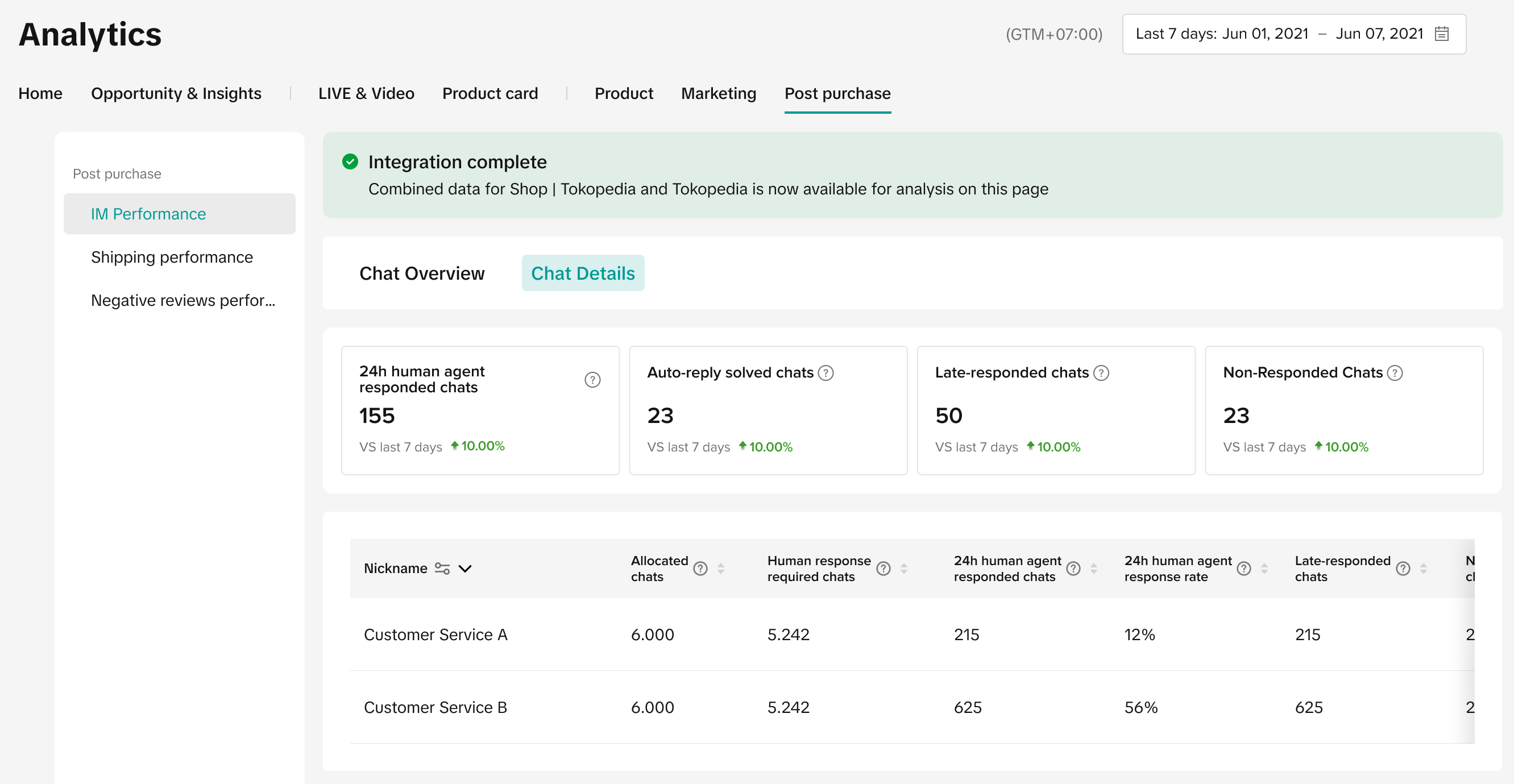
| Filter Available | Data Available | Seller Use Case | Analytics Page Benefit |
| No | ShopTokopedia data & Tokopedia data combined | I wish to check how many customers have chat enquiries and monitor overall response rates. | The IM Performance page allows sellers to view chat historical trends such as enquiries, response rate, satisfaction rate and average first response time. Monitoring overall IM performance is a good way for sellers to keep customer satisfaction healthy. |
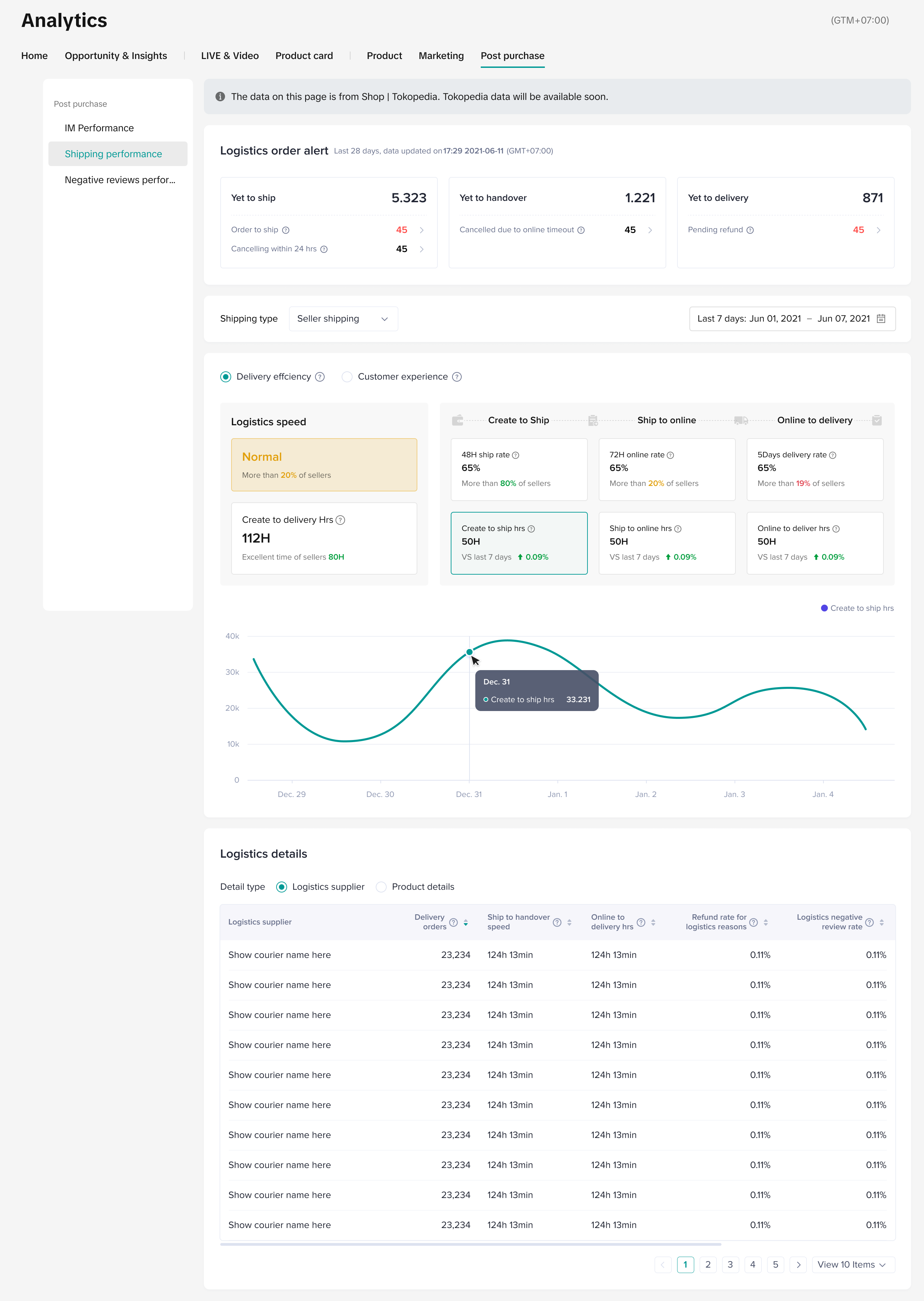
7.2 Shipping Performance
Entrance: Data Compass > Post Purchase > Shipping performance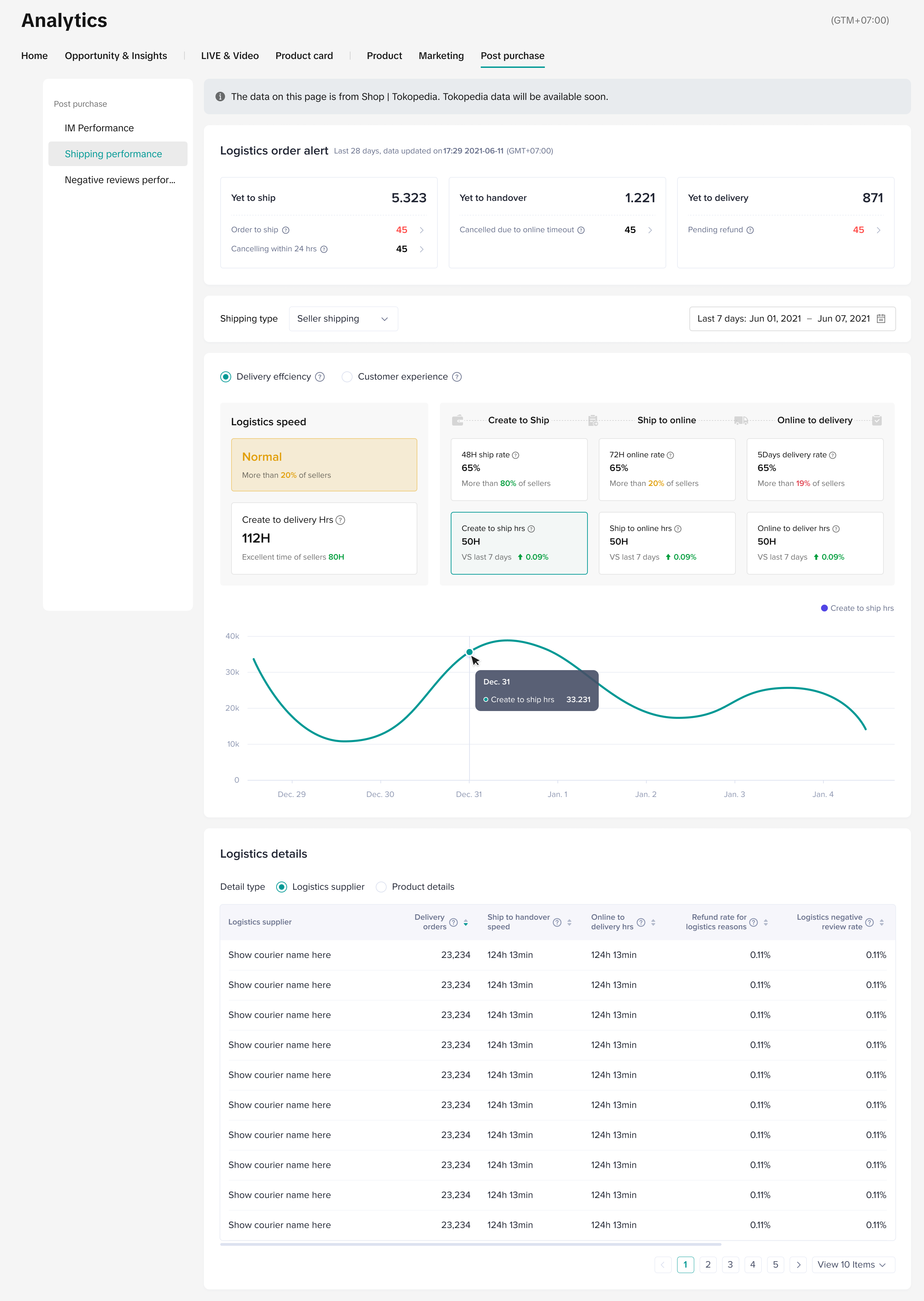
| Filter Available | Data Available | Seller Use Case | Analytics Page Benefit | Feature Guide |
| No | ShopTokopedia data only | I wish to analyse my shop's overall logistics performance to understand logistics supplier speed and identify areas of improvement. | The Shipping Performance page enables sellers to:
| Click here to learn more. |
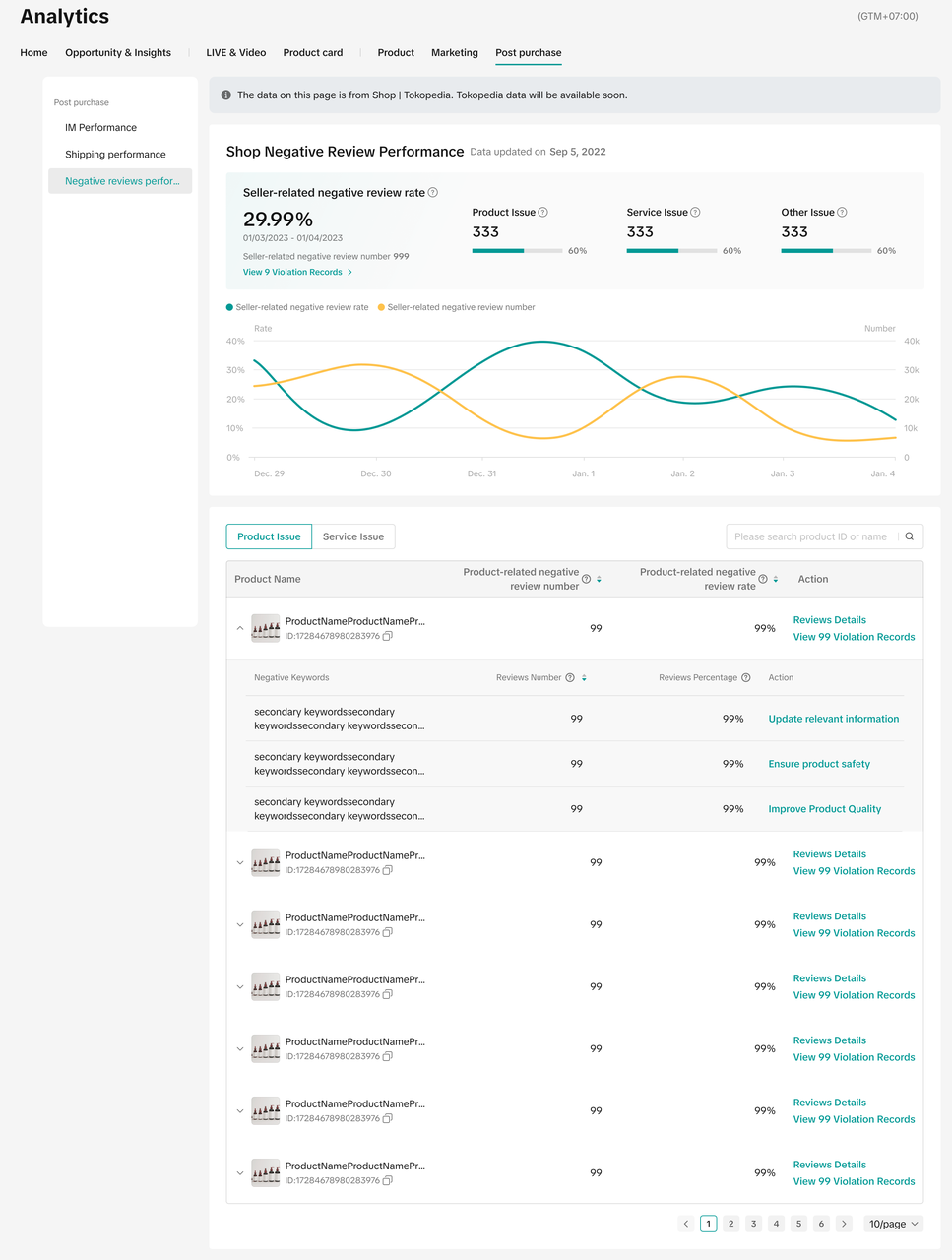
7.3 Negative Review Performance
Entrance: Data Compass > Post Purchase > Negative review performance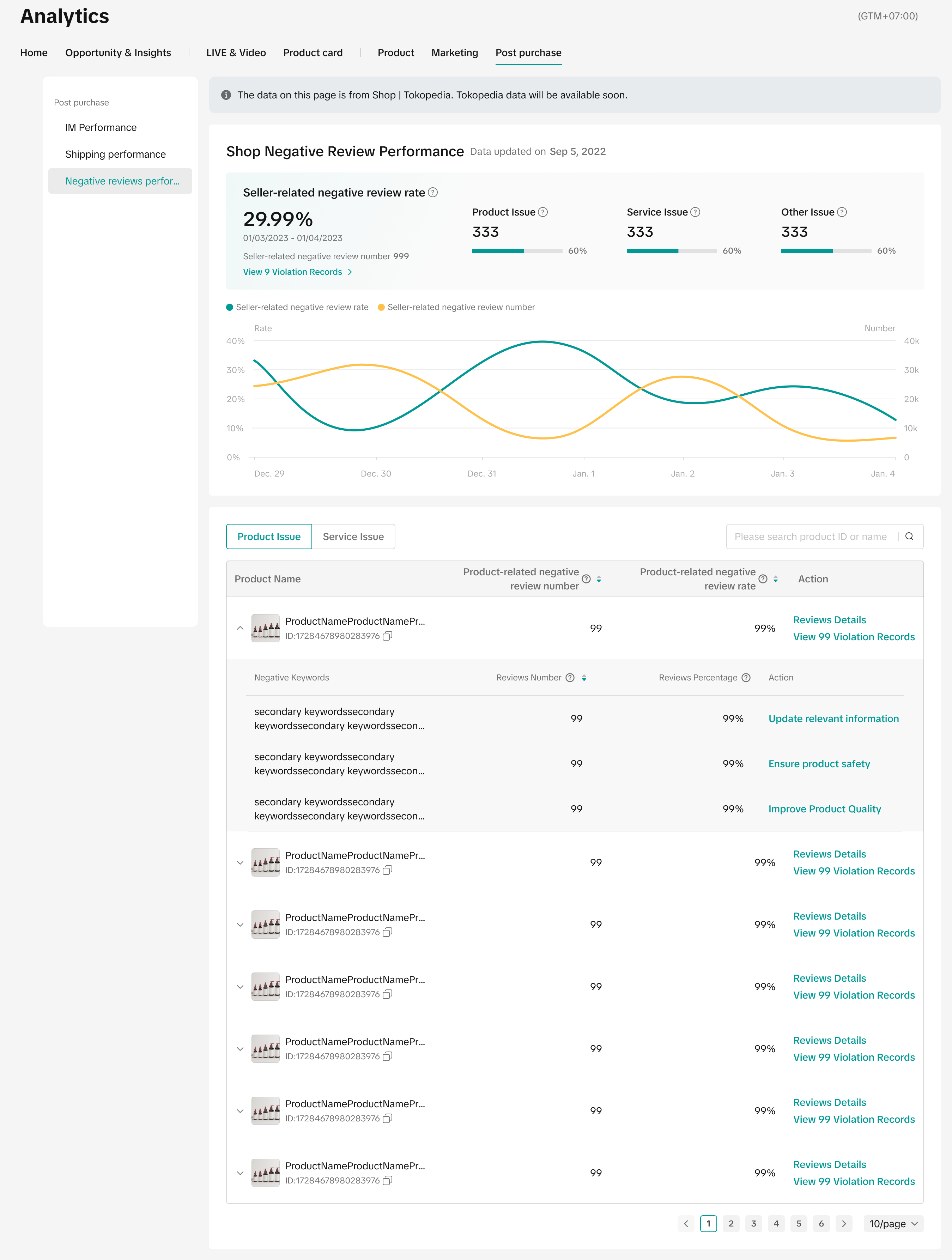
| Filter Available | Data Available | Seller Use Case | Analytics Page Benefit | Feature Guide |
| No | ShopTokopedia data only | I wish to know which products have received negative reviews and how I can resolve these issues to provide better customer experience. | The Negative Review Performance page enables sellers to:
| Click here to learn more. |

FAQs
[FAQs: Viewing data via Tokopedia platform]
- I have completed the account binding and account integration process. Can I still view my performance on Tokopedia after integration?
| Seller Criteria | Tokopedia Seller Analytics |
Seller with the below criteria:
|
|
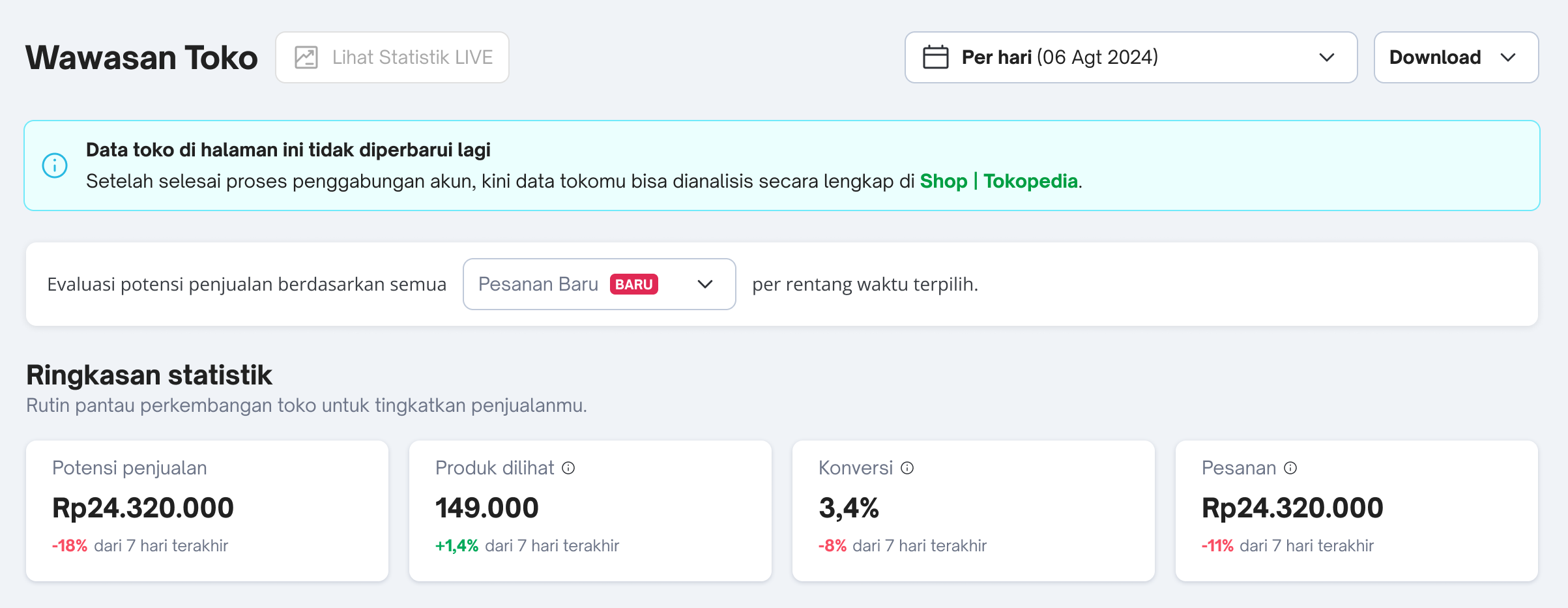
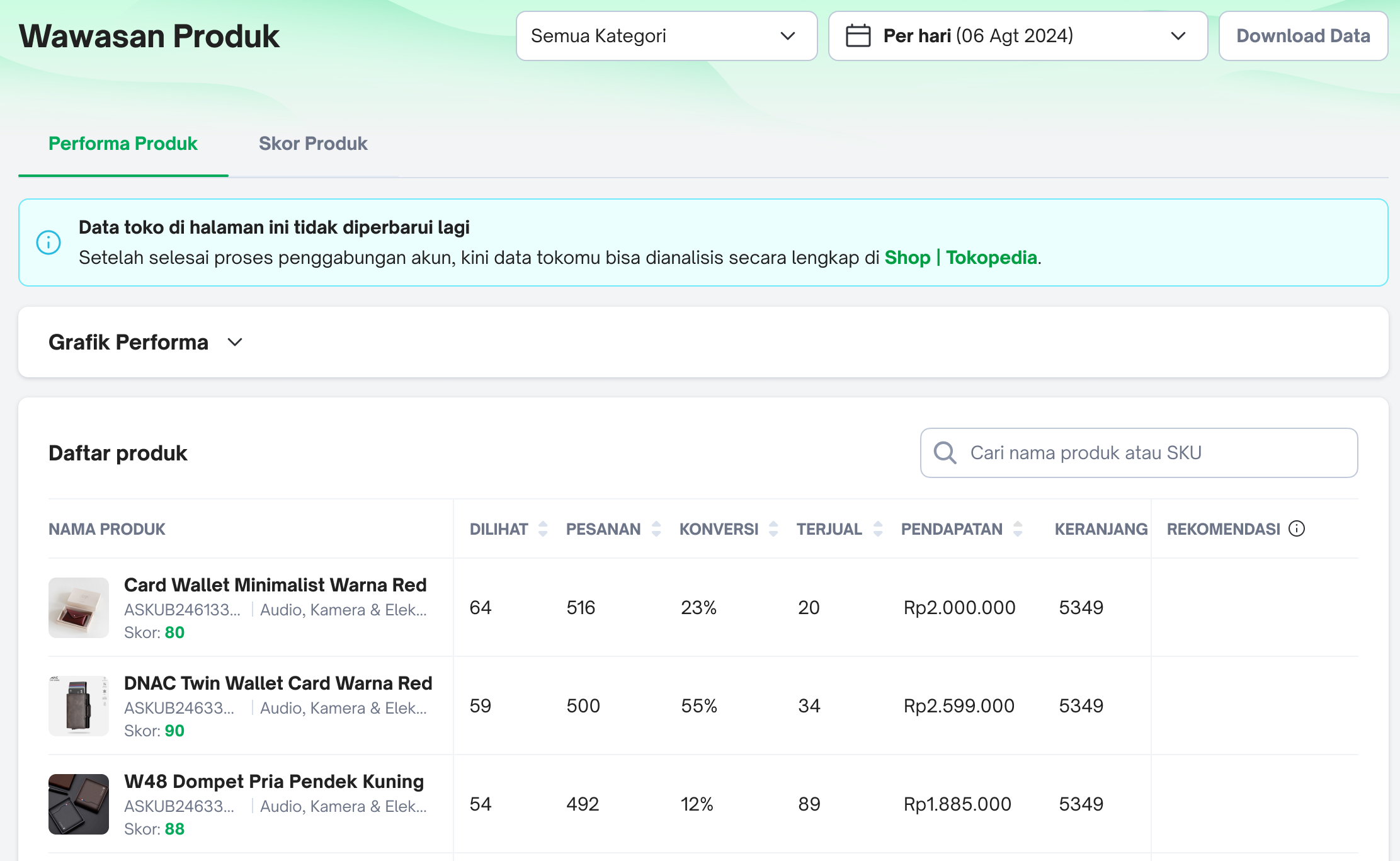
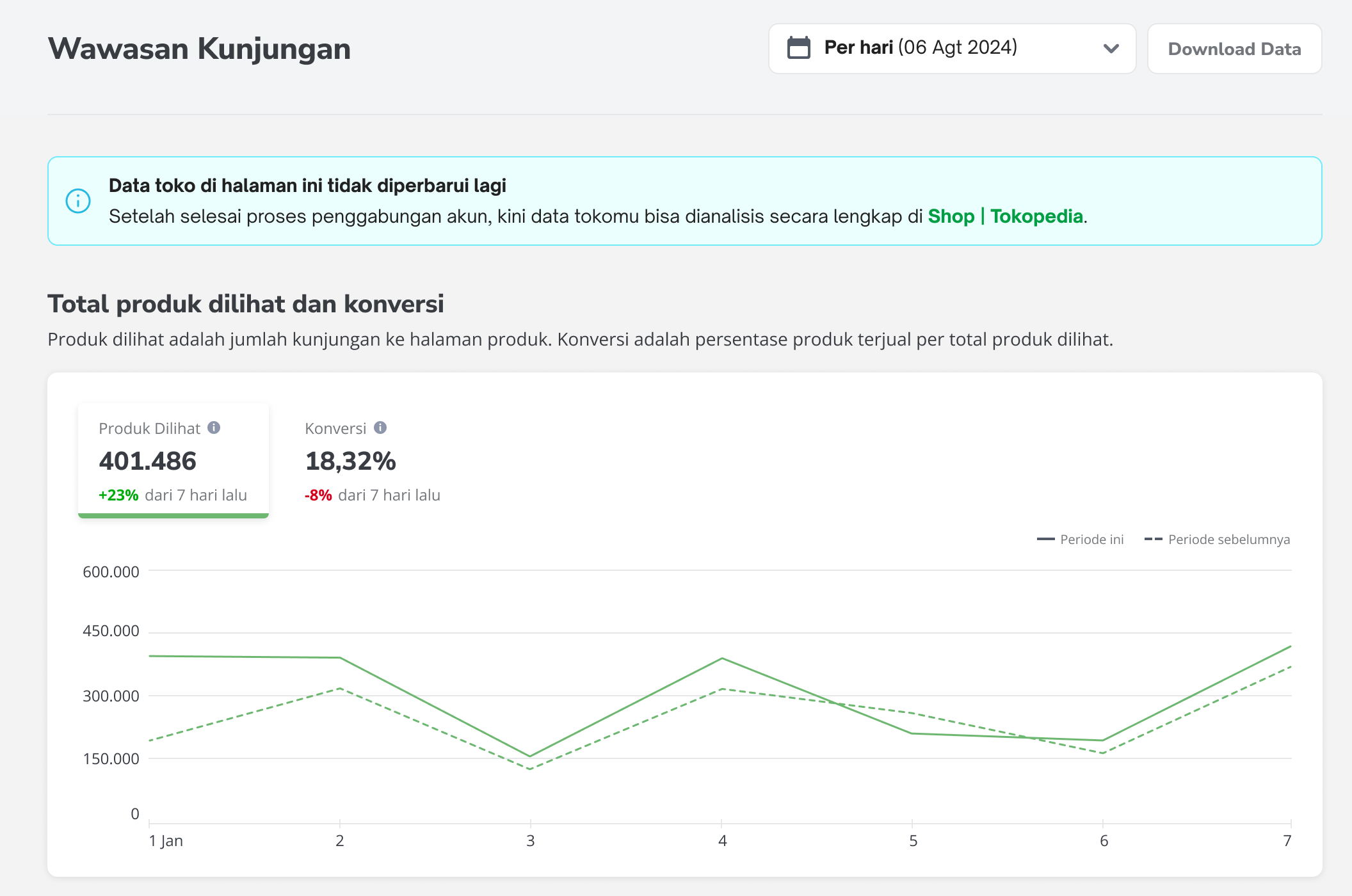
- What are the Wawasan pages on Tokopedia that will no longer be updated once sellers have completed the full integration process?
| Wawasan Page | Reference |
|  |
|  |
|  |
|  |
| 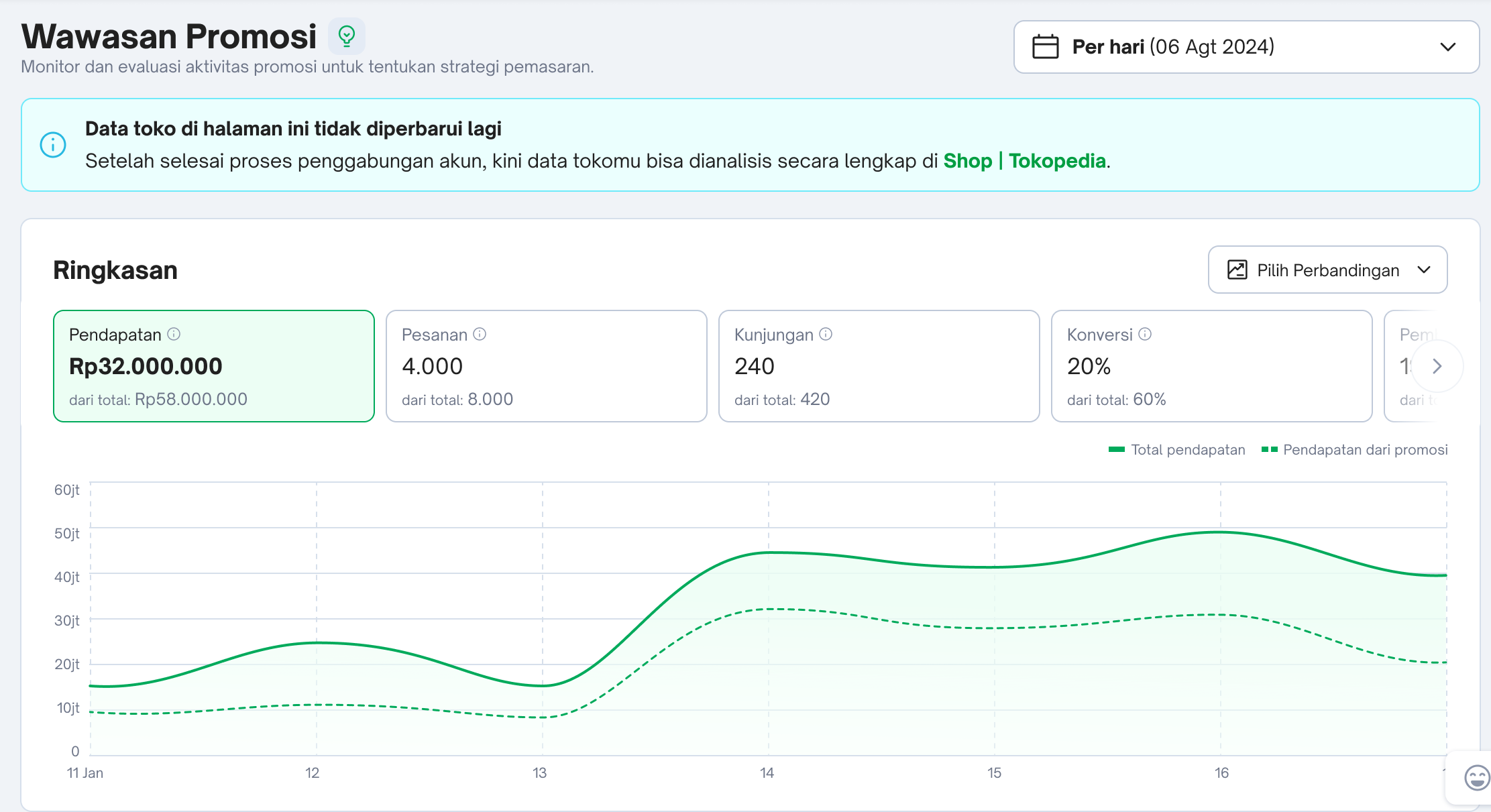 |
| 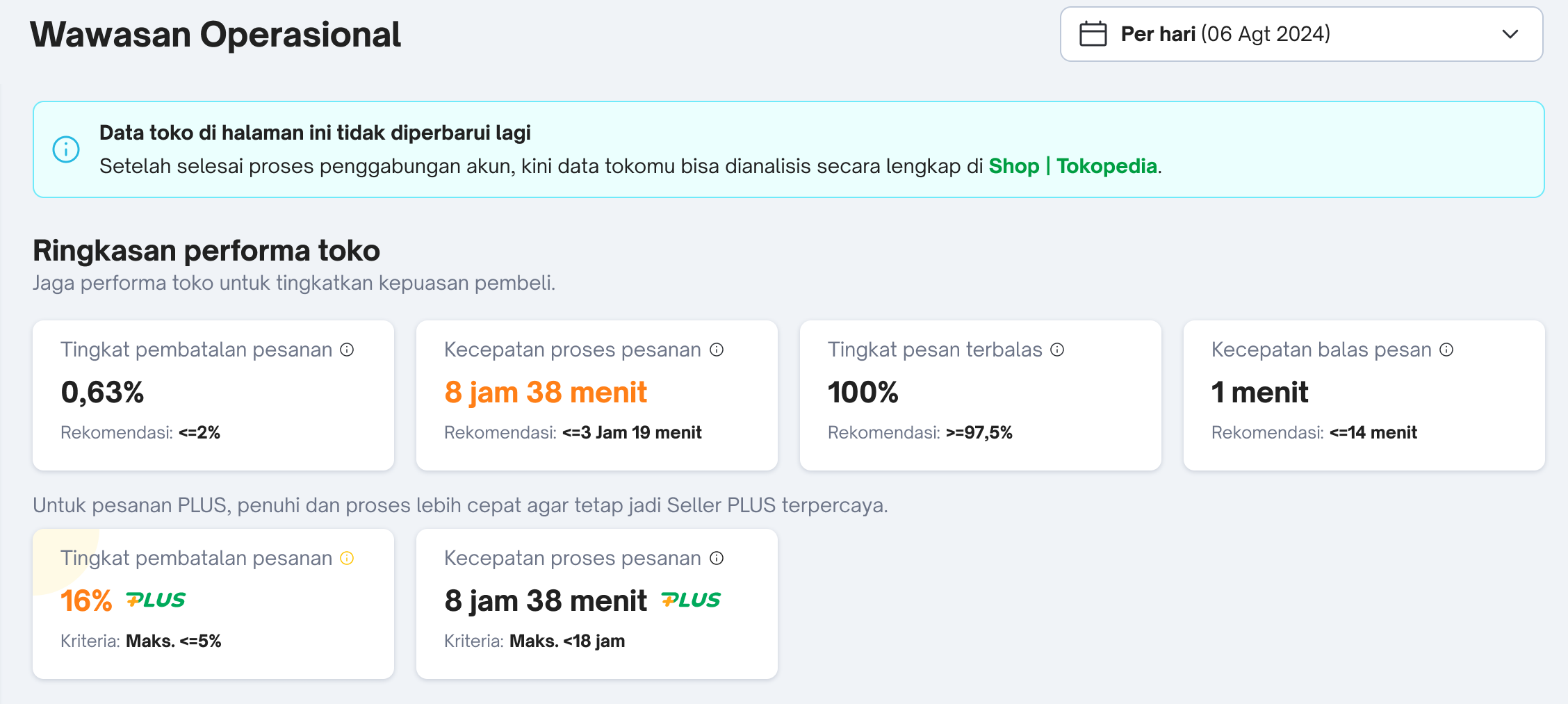 |
|  |
[FAQs: Viewing data via Data Compass]
- I have completed the account binding and account integration process. However, I'm unable to view any data from Tokopedia order transactions on Data Compass. Why is that?
- What are the selected analytics pages where the data source filter is currently applicable for selection of Tokopedia or ShopTokopedia data?
- Will the data source filter be made available for other Data Compass pages?
- I do not want to integrate the data from both platforms and wish to continue viewing Tokopedia data on Tokopedia. Can I choose not to bind my account and continue viewing both shop performance data separately?
Should sellers choose not to integrate their account, they will be able to continue accessing Tokopedia seller analytics until these pages until further notice.
- What are the data pages on Data Compass that are similar to Tokopedia's Wawasan pages?
| No. | Tokopedia Wawasan Pages | Data Compass Pages |
| 1 | Wawasan Toko 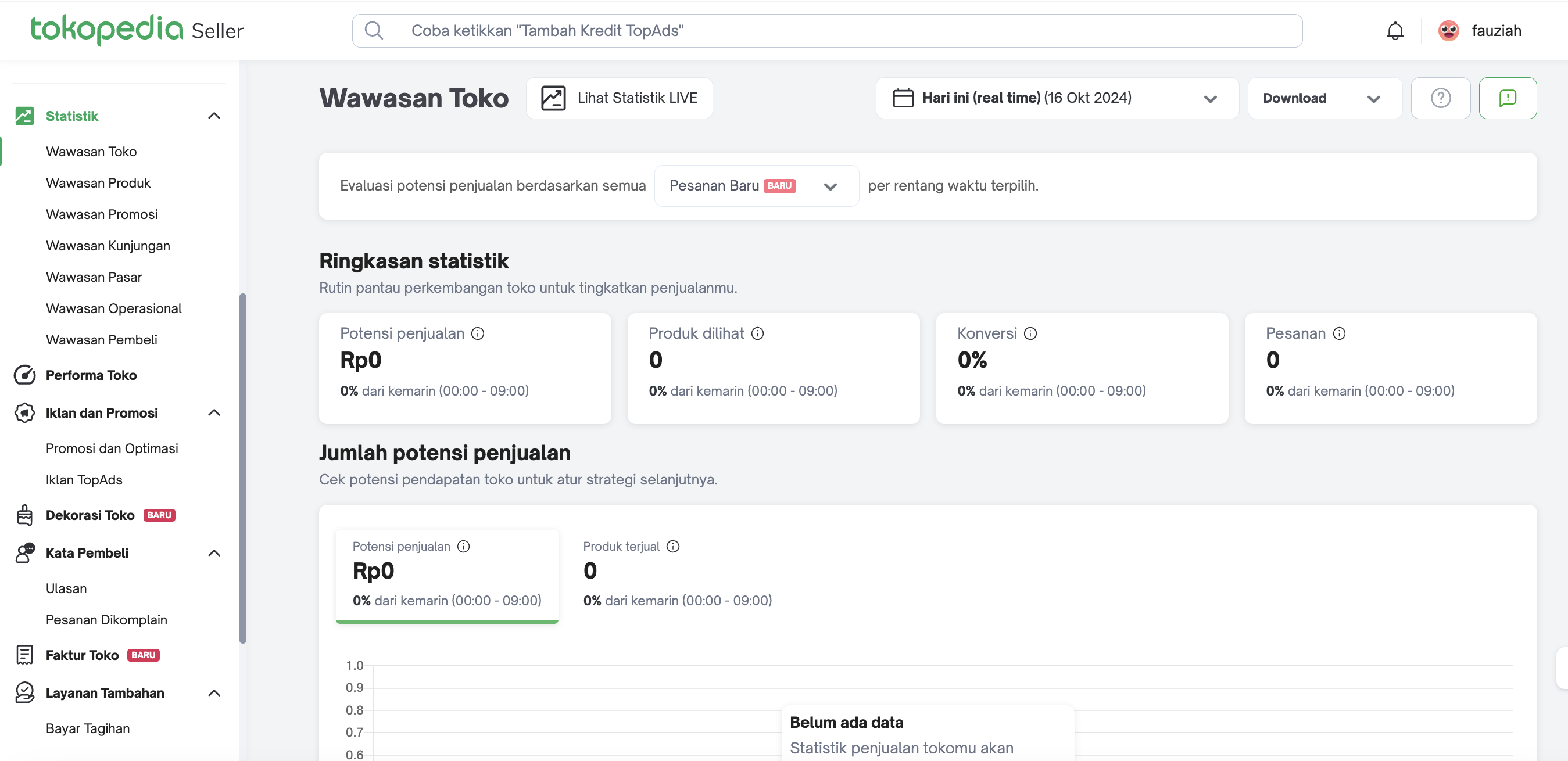
| Data Compass Homepage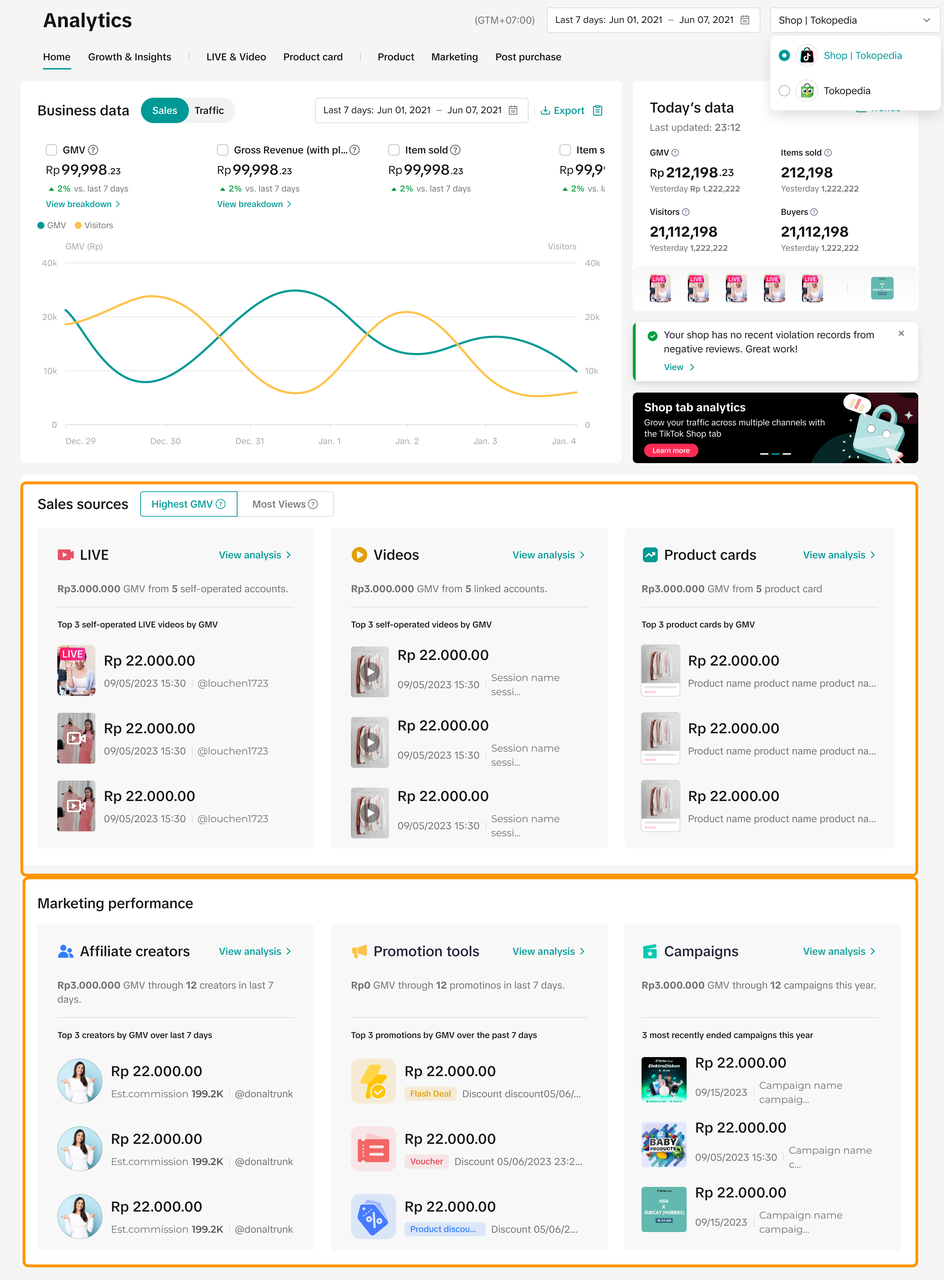 |
| 2 | Wawasan Produk 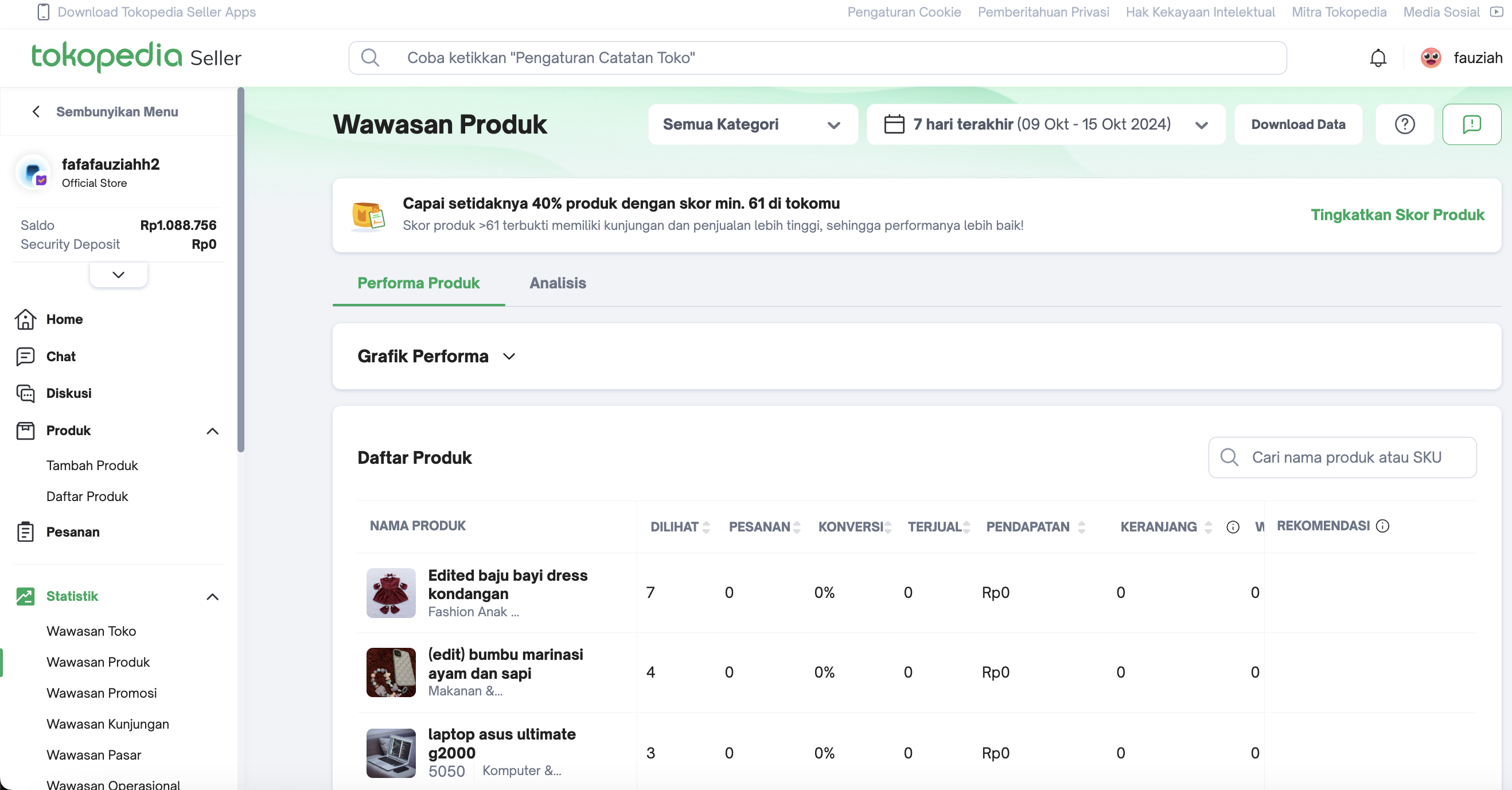 | Product Details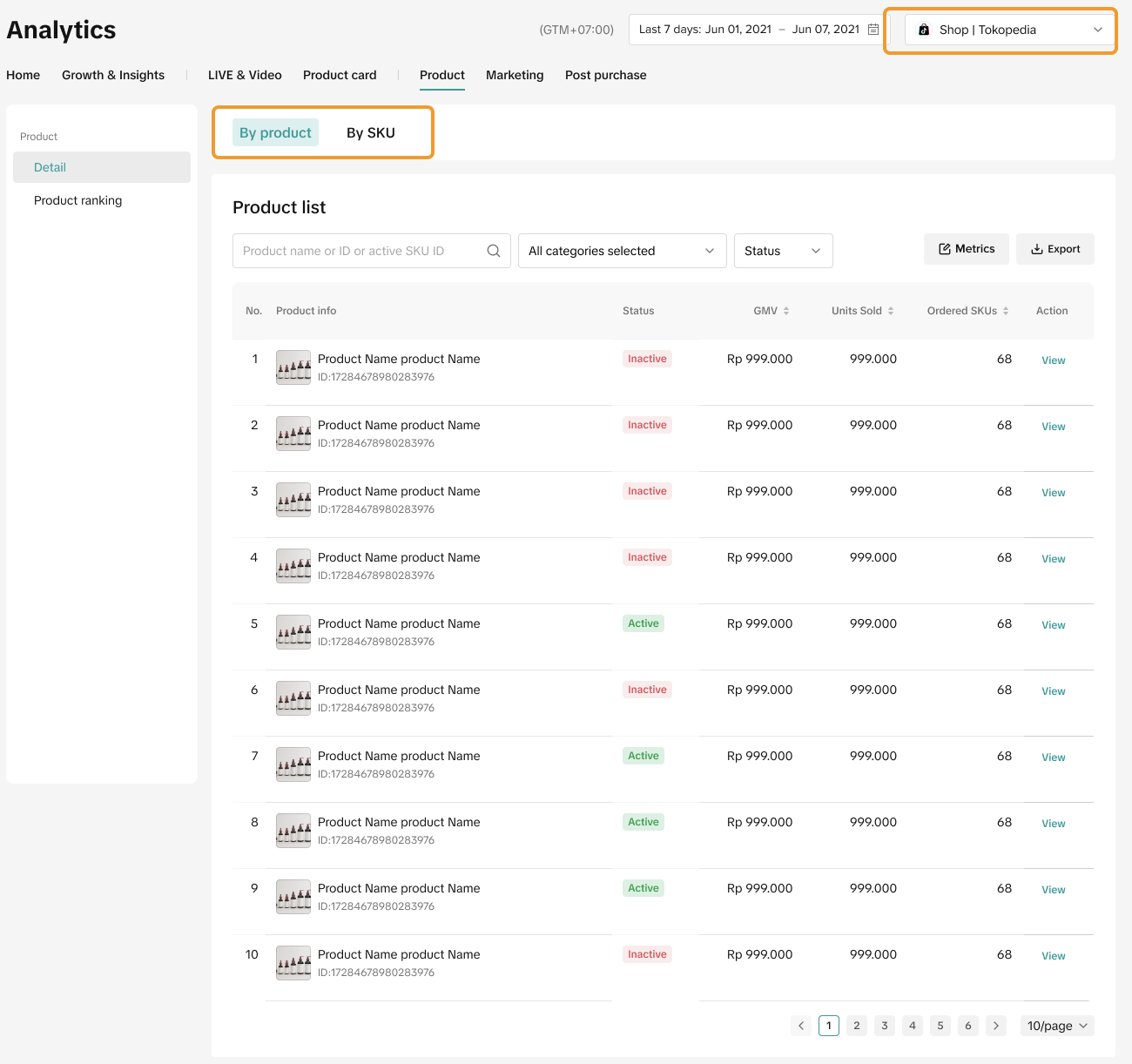 |
| 3 | Wawasan Promosi 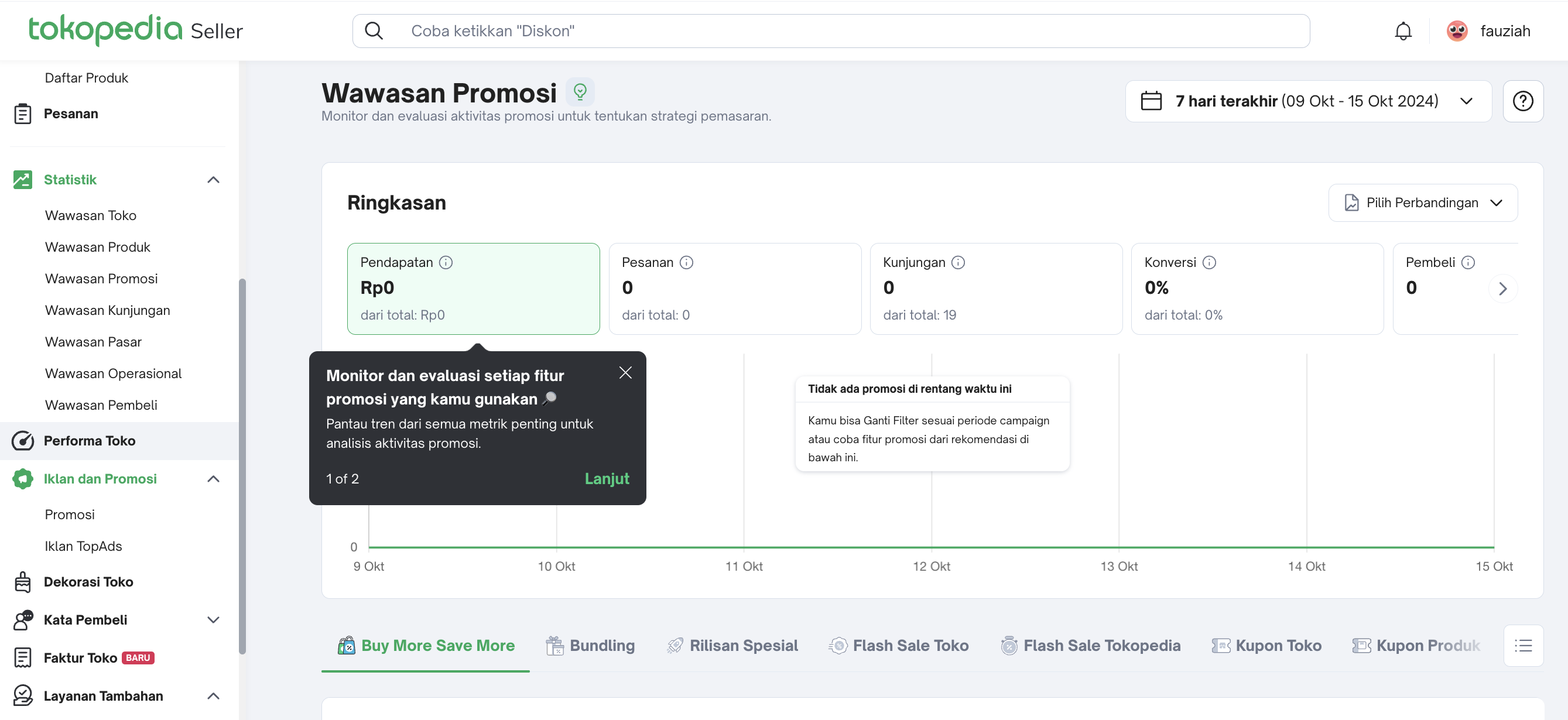 | Promotion Tool Analytics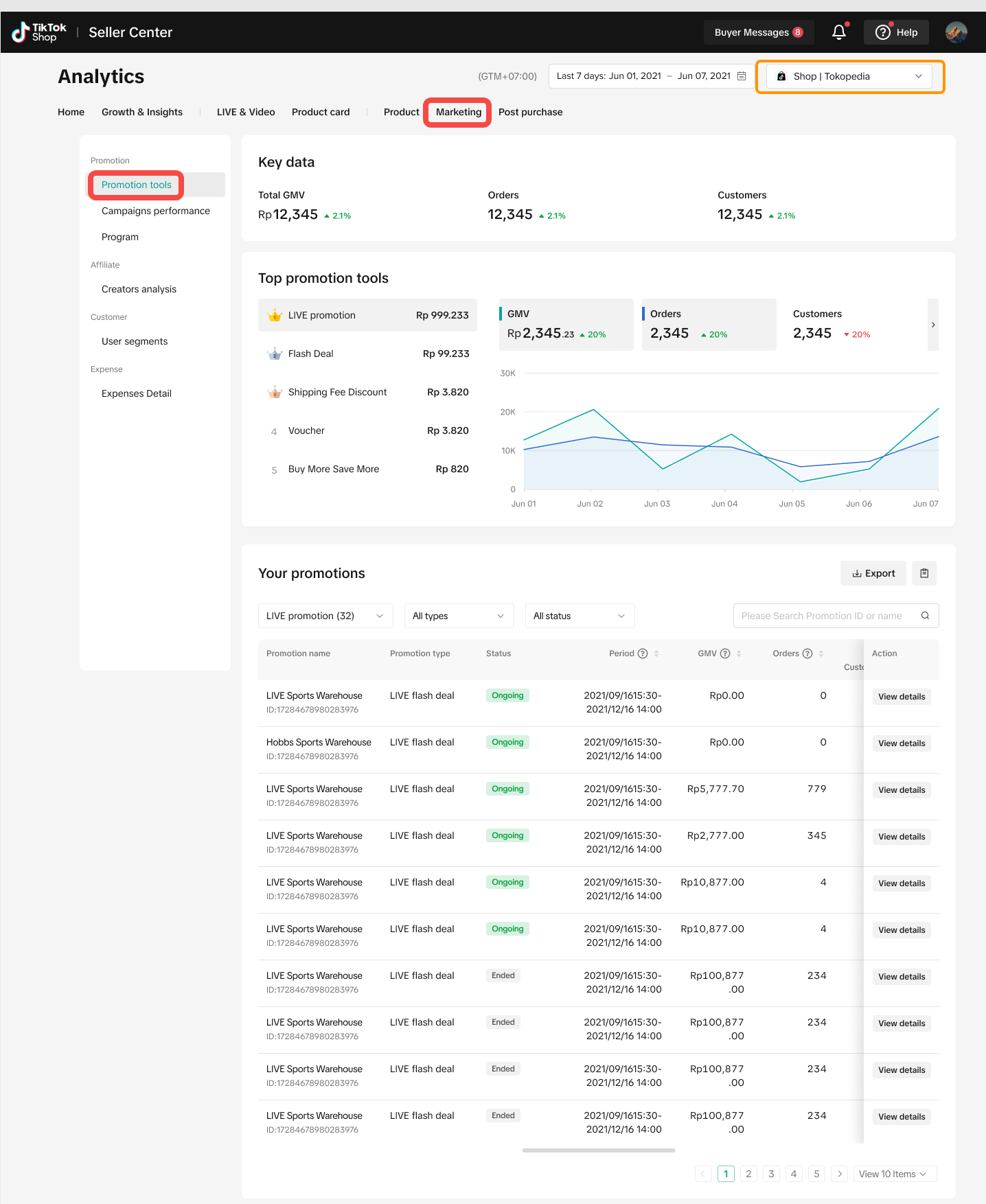 |
| 4 | Wawasan Kunjungan 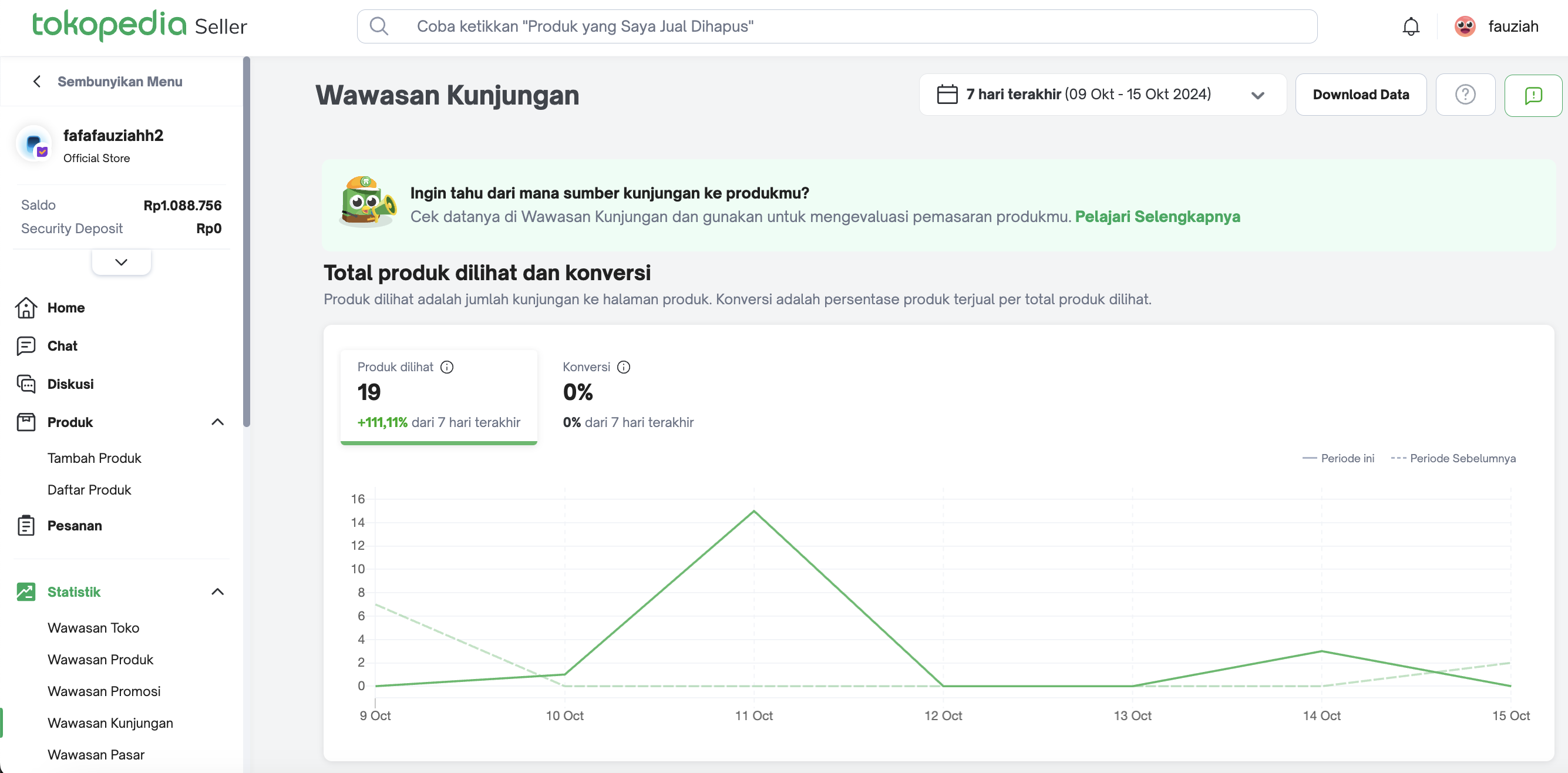 | Product Card Performance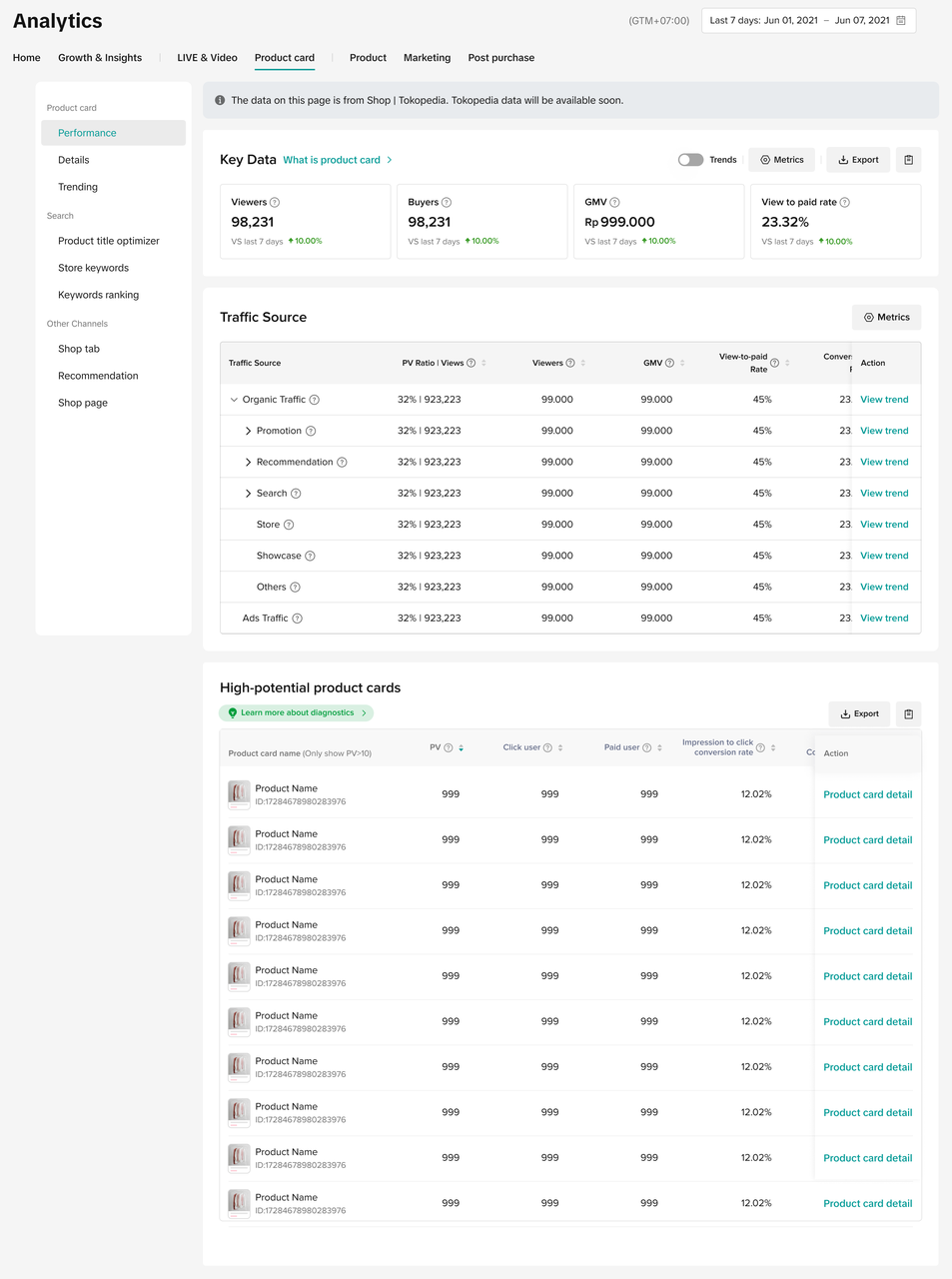 |
| 5 | Wawasan Pasar 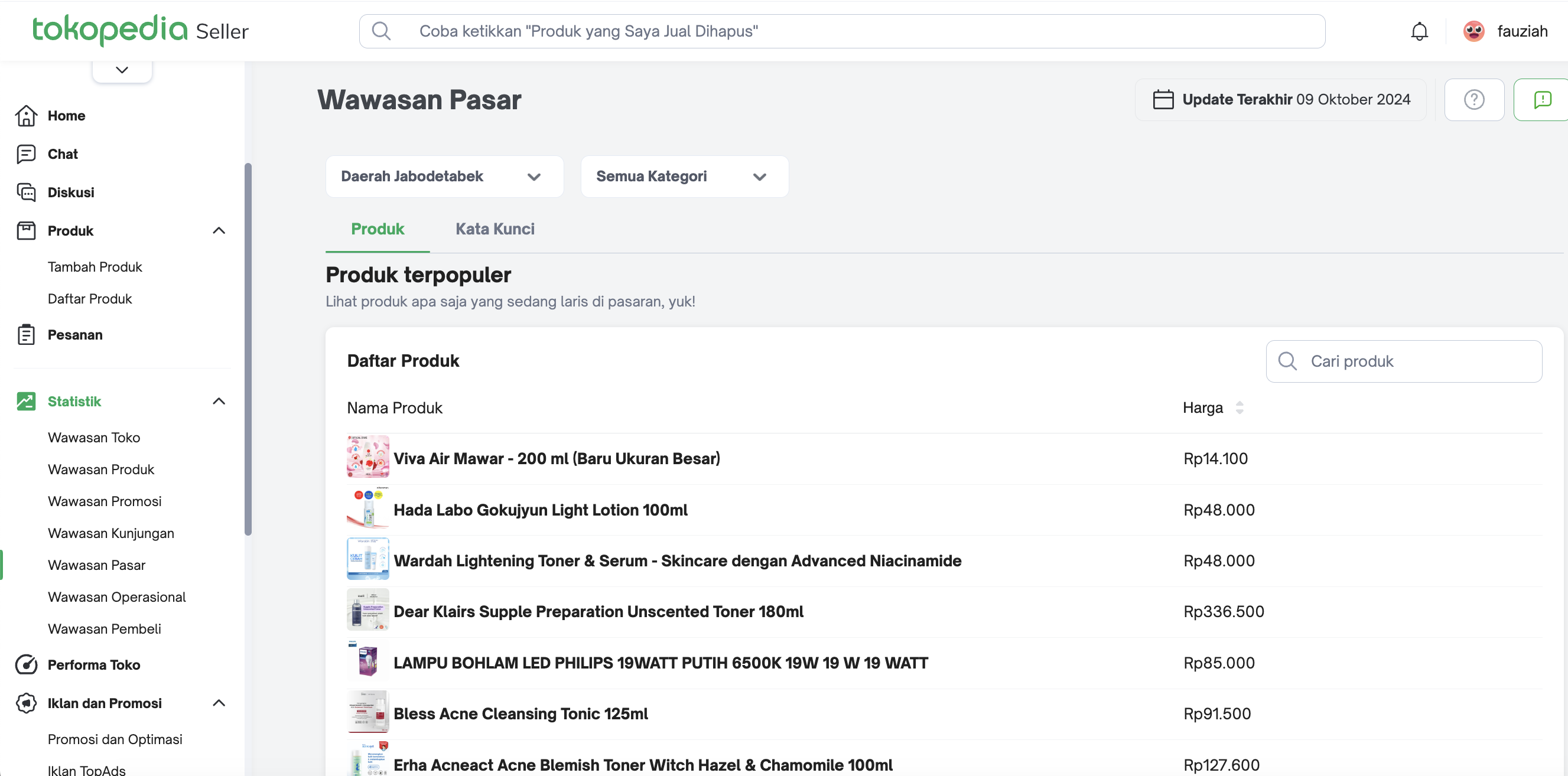 | Keyword Ranking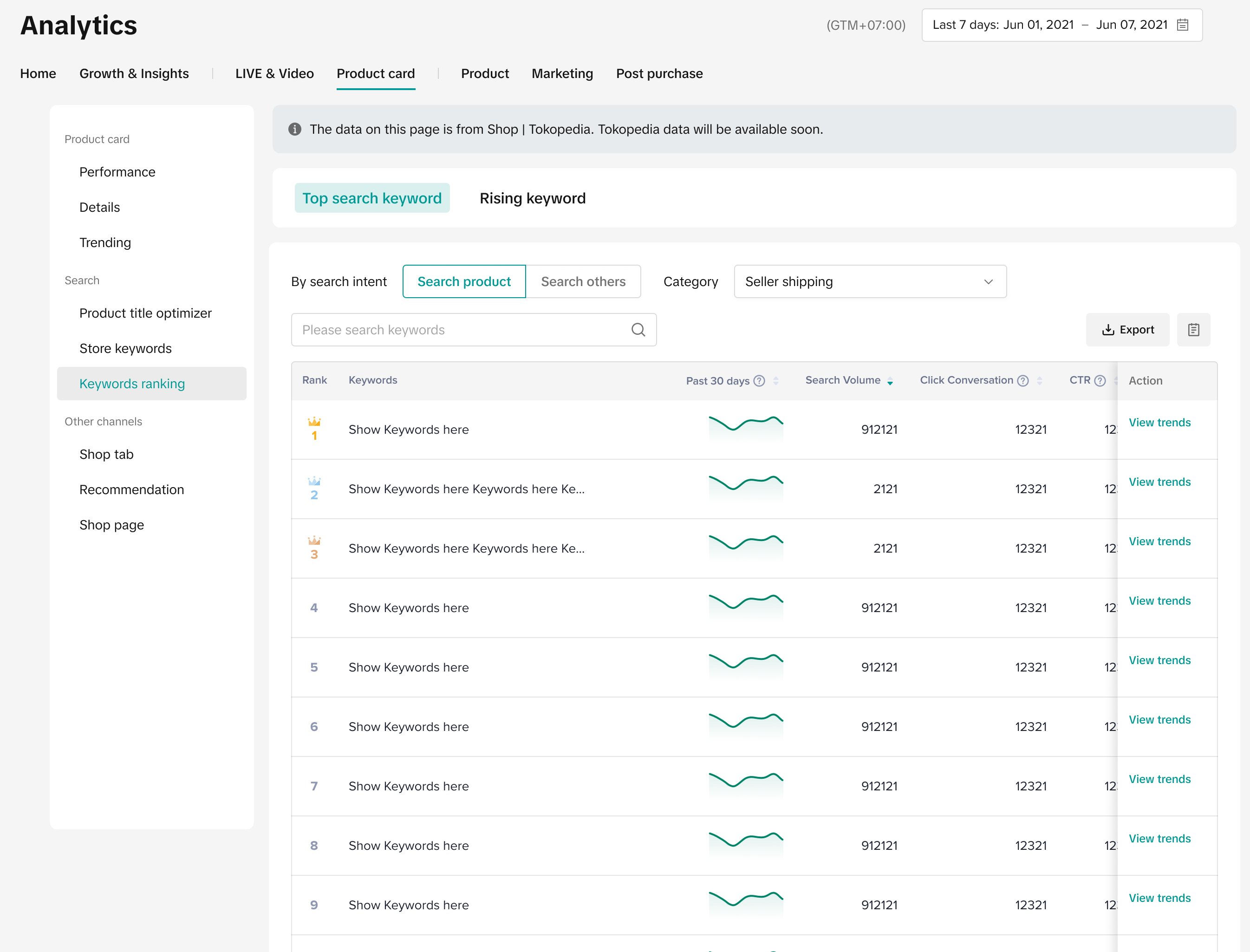 |
| 6 | Wawasan Operasional 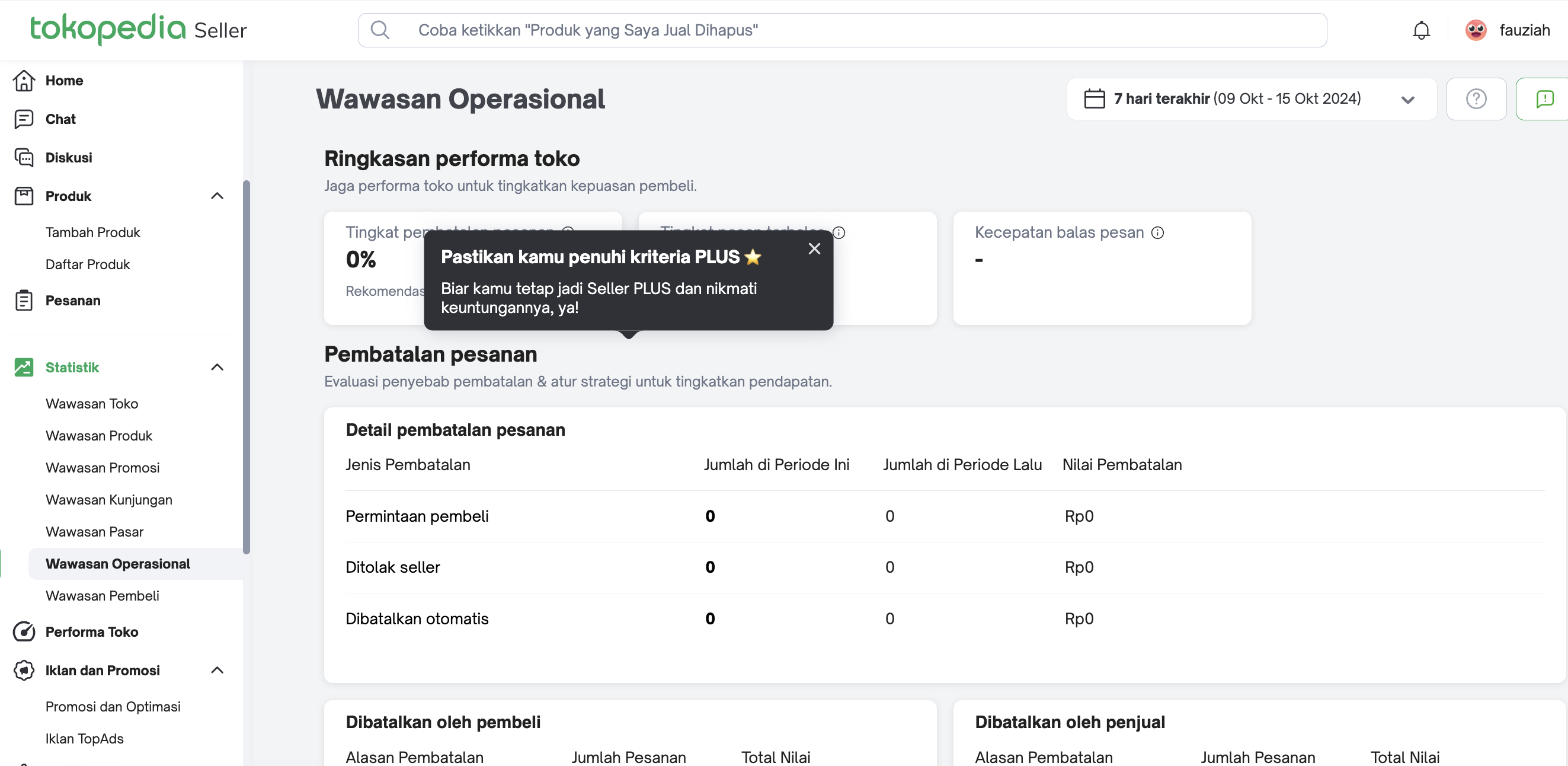 | Post Purchase Analytics
|
| 7 | Wawasan Pembeli 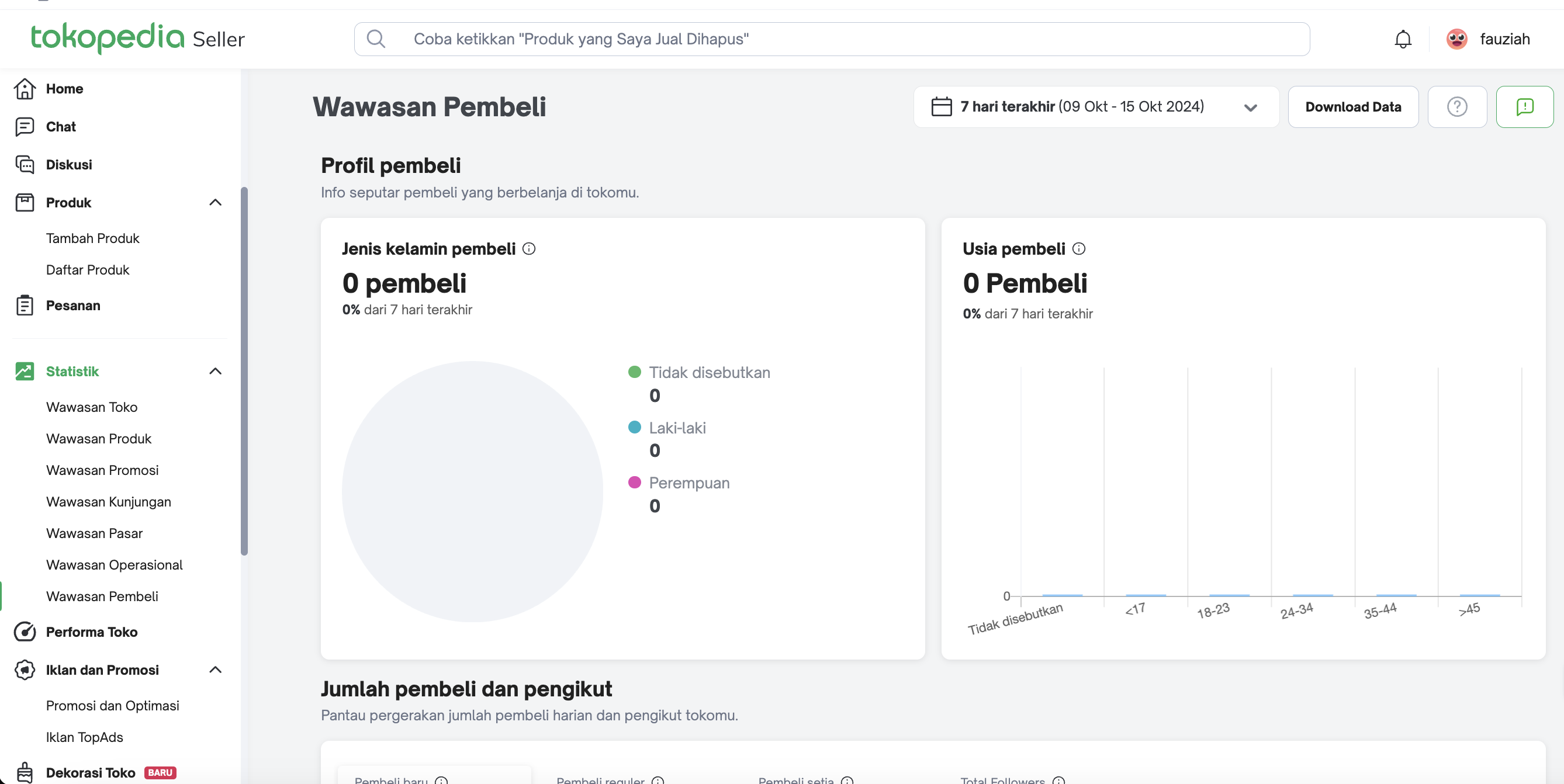 | Customer Analysis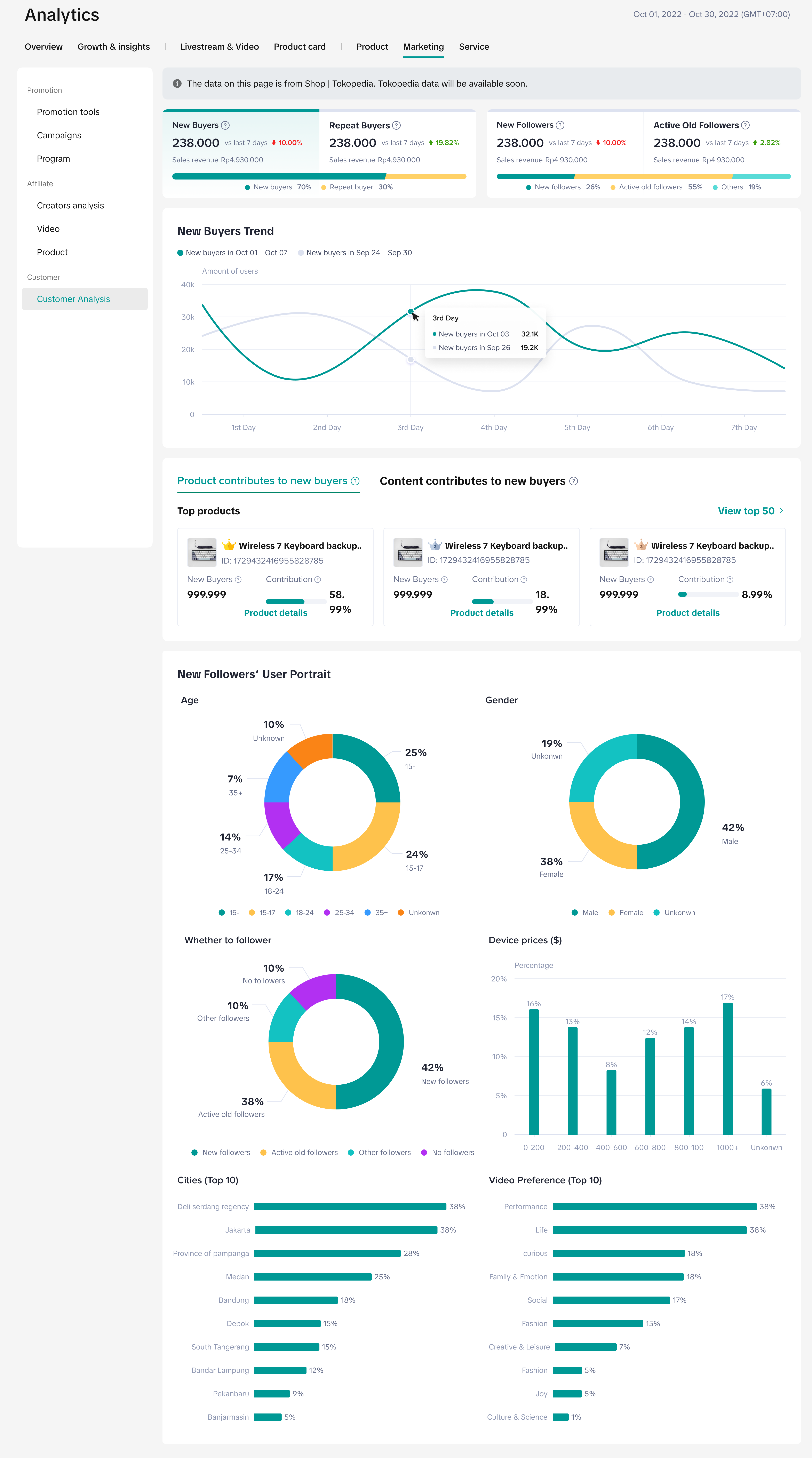 |
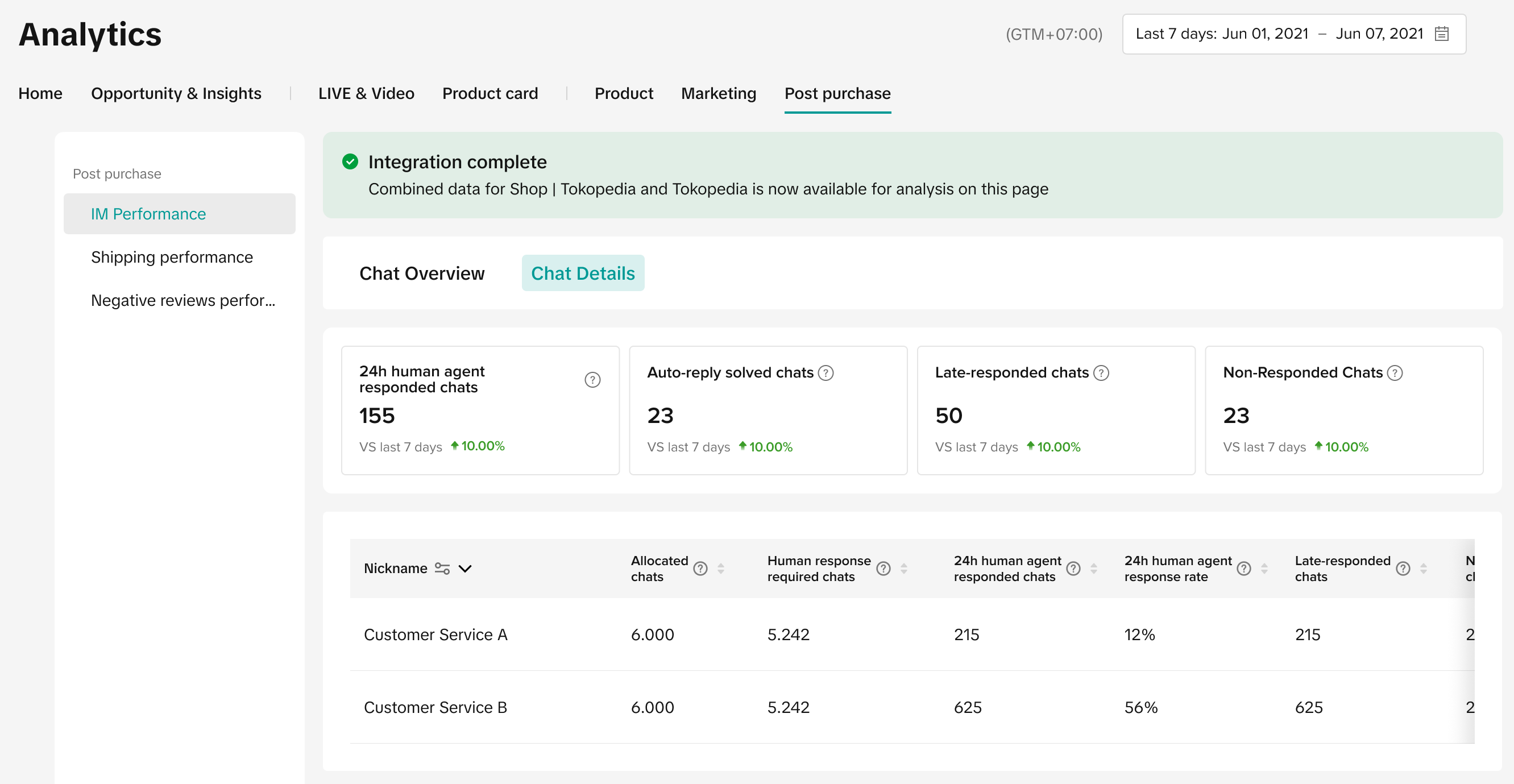
- Which are the equivalent Wawasan Analytics pages on Data Compass where I can utilise the new data source filter and check the data from Tokopedia and ShopTokopedia?
| Data source filter available on Data Compass | Data source filter NOT available on Data Compass |
|
|
- Is there a Data Compass on Tokopedia & Shop Seller Center (App) and will the data source filter be available there too?
PreviousAnalyze your Sales Result & Collaboration Efficiency with CreatorsNext GMV Refinement for Clearer Customer Transactions
You may also be interested in
- 1 lesson
Data Analytics
Utilize data analytics to track performance and make strategic decisions!
- 14 lessons
Product Tools & Partner
Discover essential tools and official TikTok Shop by Tokoepdia partners that help you streamline ope…
- 5 lessons
Data Compass
Introduction to data-driven decision-making tools for sellers to optimize their operations.

Data Analysis via Seller Center App
Summary This article teaches you what Data Analysis (via Seller Center App) is and what are the diff…
Financial Terms: Differences Between GMV & Settlement

Data Compass Overview
Summary This article teaches you about Data Compass Overview and the different modules available to…

GMV Refinement for Clearer Customer Transactions

Shop Tab Analytics: Understand Your Data for Better Performa…
Shop Tab Analytics is an essential tool for gaining insight into your store’s performance and improv…