Data Compass Access for Partner

Accessing Data Compass

The Data Compass is an all-in-one center providing important data insights relevant to seller performance. And it's now extended to TSPs so they can optimise strategies based on actionable insights.
TSPs can request access and sellers can grant access to Seller Analytics from their respective ends.

How can this new feature help me?

  • TSP will be able to view seller's data compass directly from Partner Center.
  • Easier management of data between seller and TSP.
  • To increase efficiency when managing multiple sellers

For sellers: How can I give permission to my TSP to view my Data Compass?

New service subscriptions with TSP:

Description
Product Display (Test Account, Virtual data)
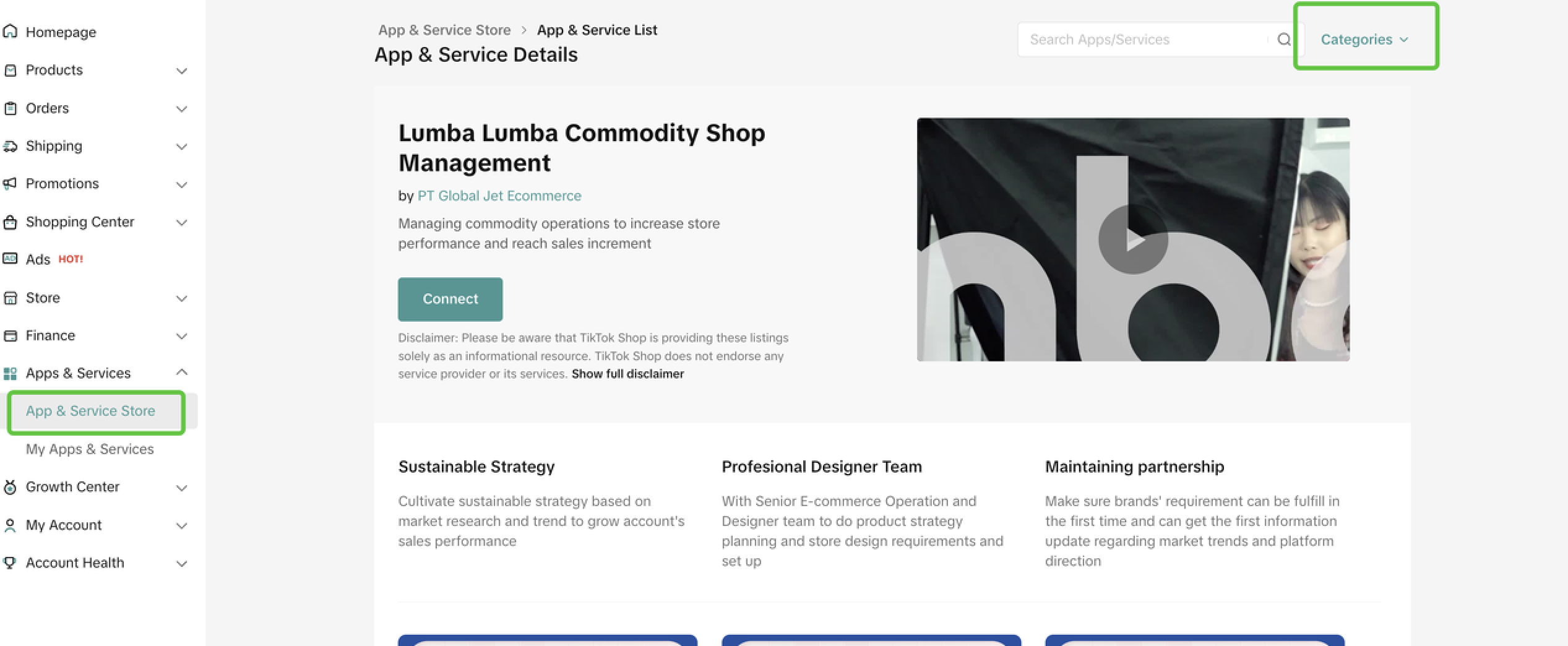
  1. Enter from Seller Center -> Apps & Services -> Apps & Service Store
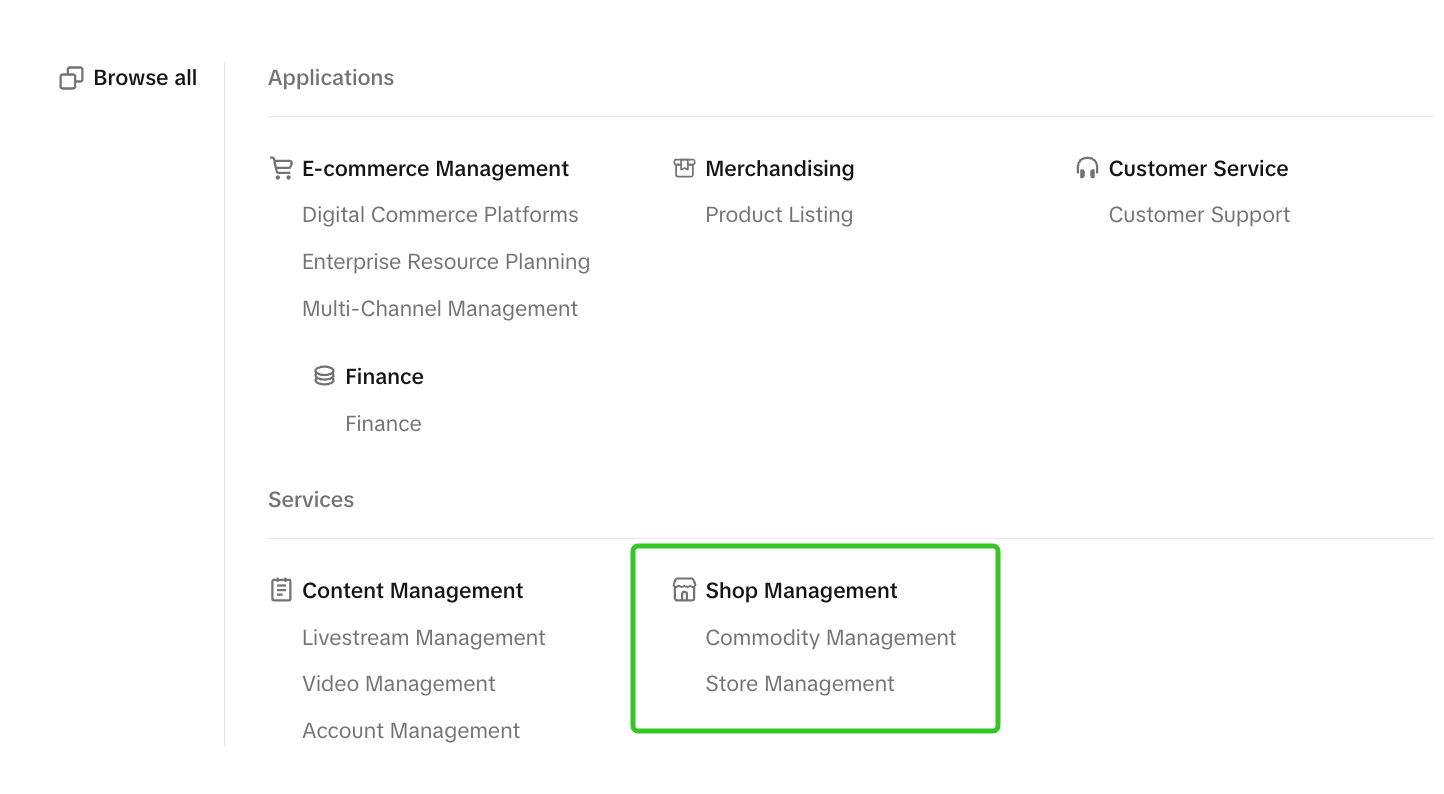
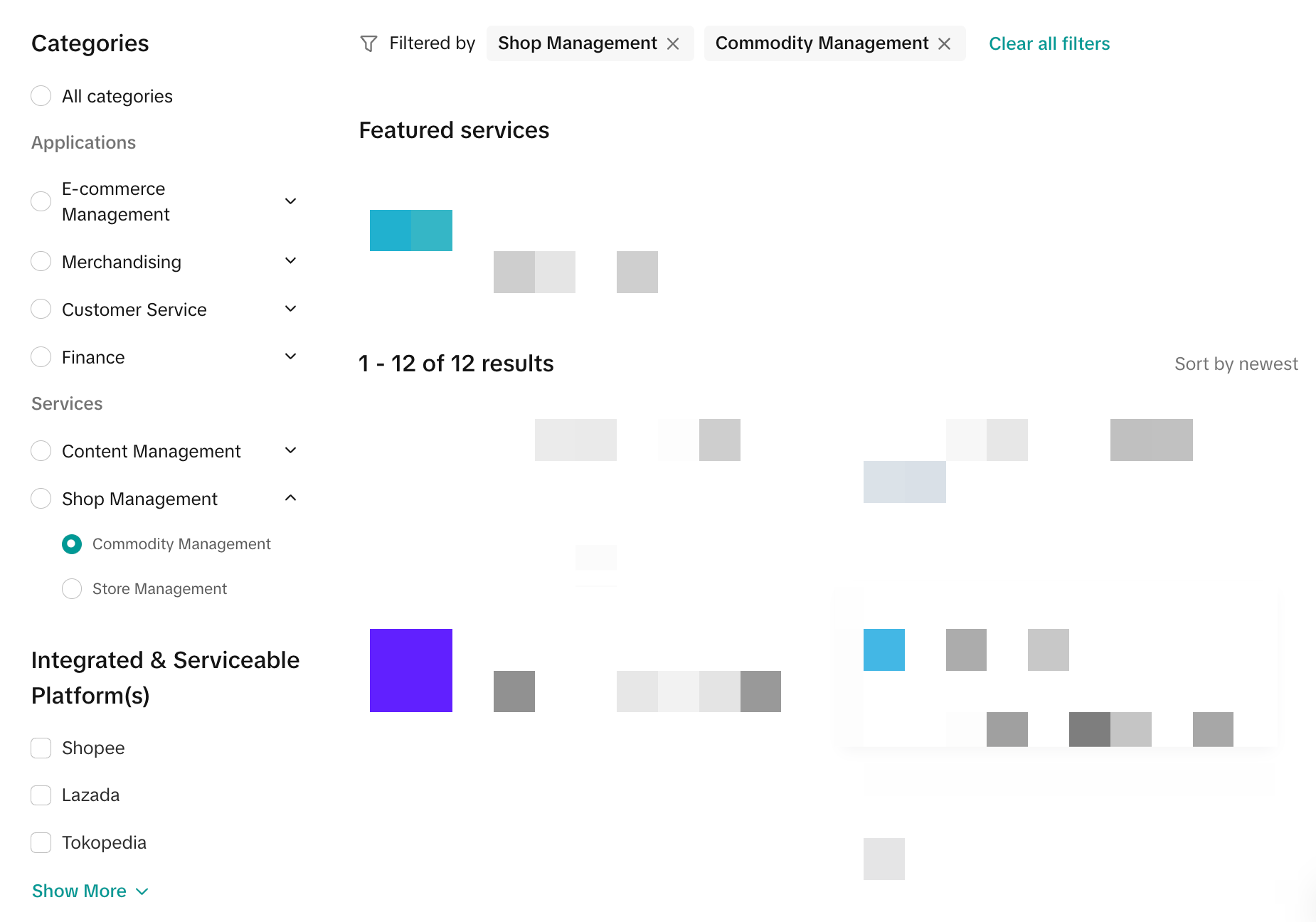
  2. Click on Categories in the top right corner and select any category under Shop Management
    • The services under Shop Management are dependent on your market.
    • This feature is only available for services under Shop Management.
imageimage
Specific service categories may differ for different markets. Any service category that binds via the shop dimension will be able to access this feature. This includes but is not limited to shop management, store management, commodity management, operation tutoring, and enterprise services.
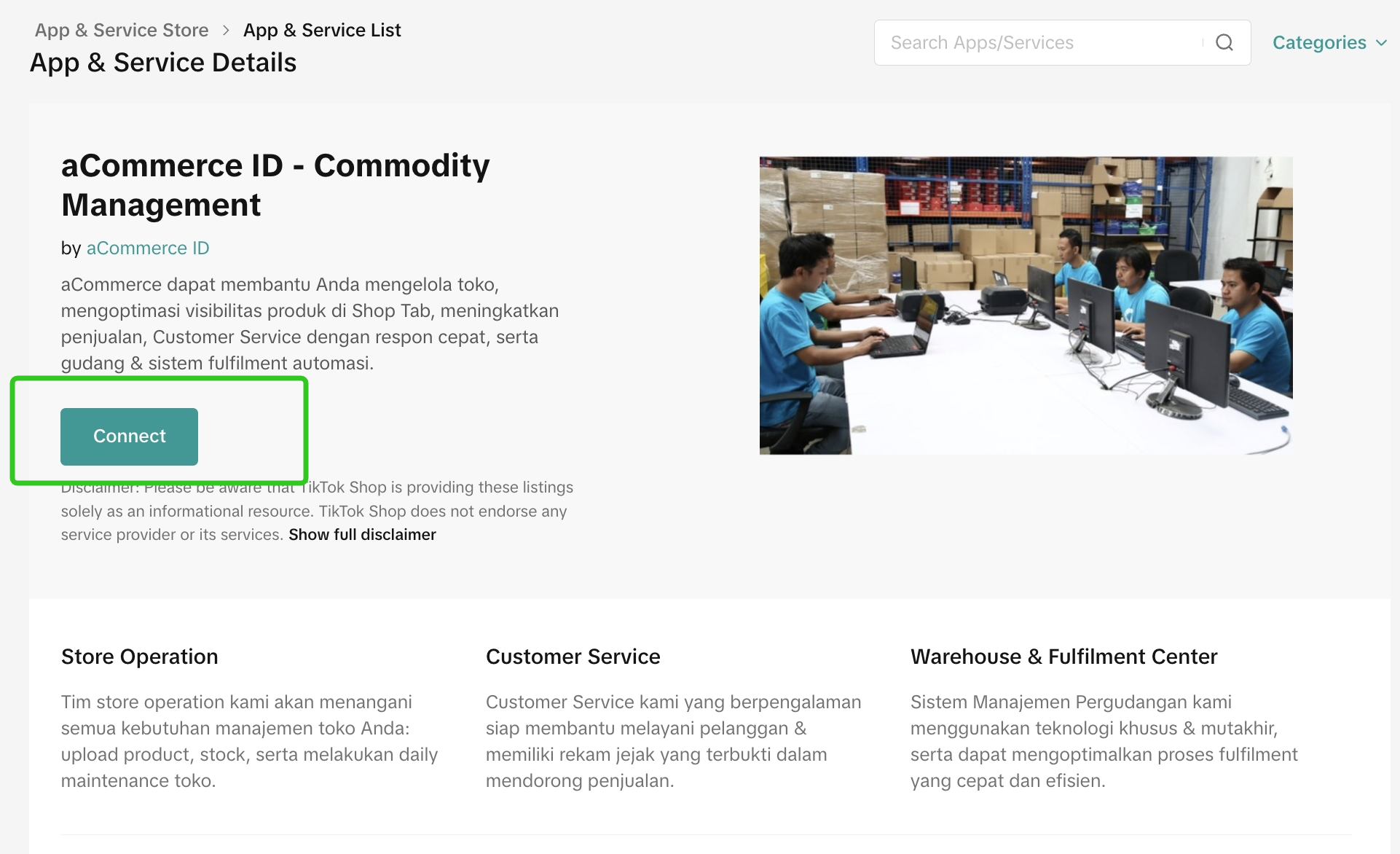
  1. Choose from a list of existing TSPs and click Connect to be redirected to the authorization page.
imageimage
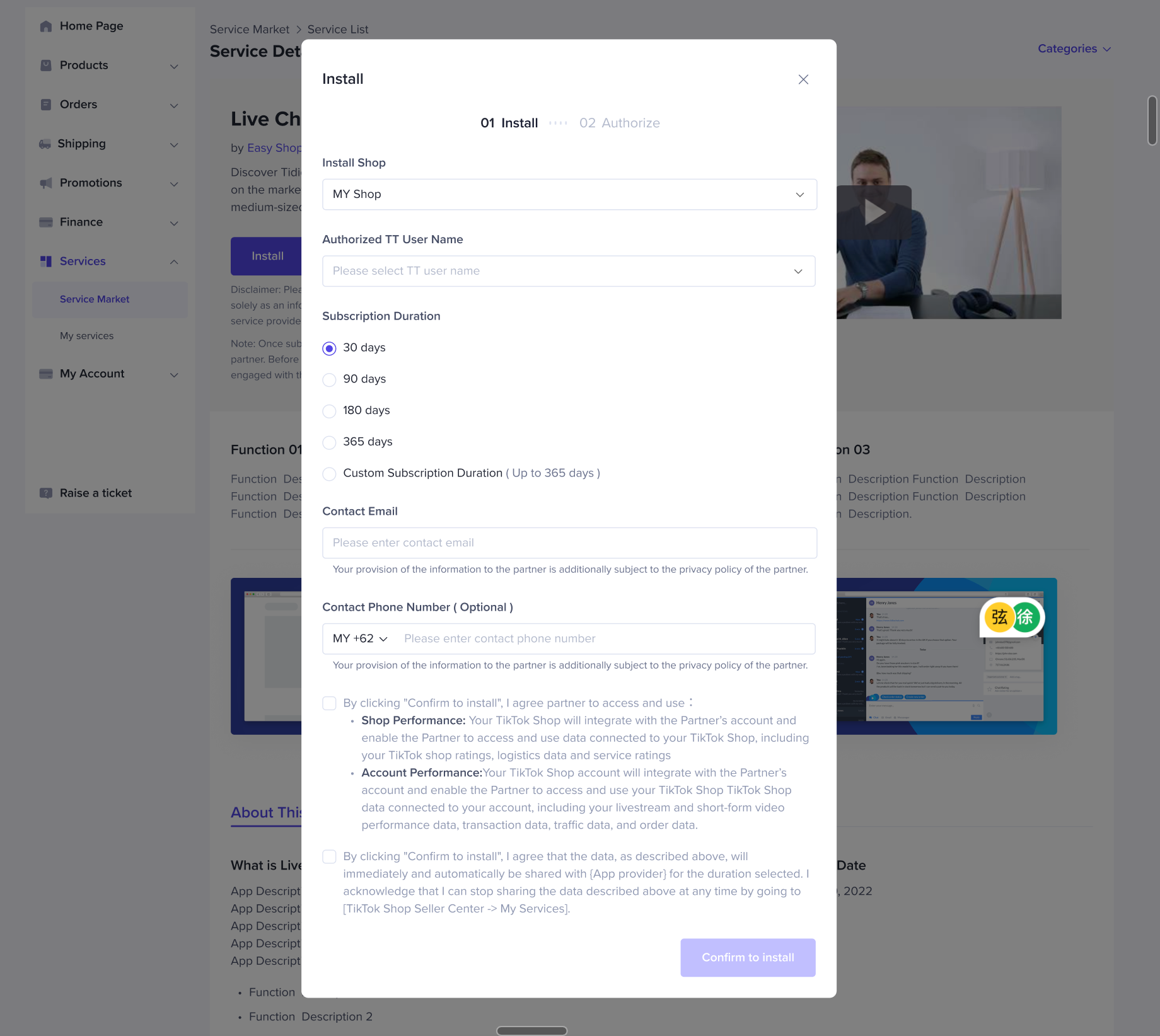
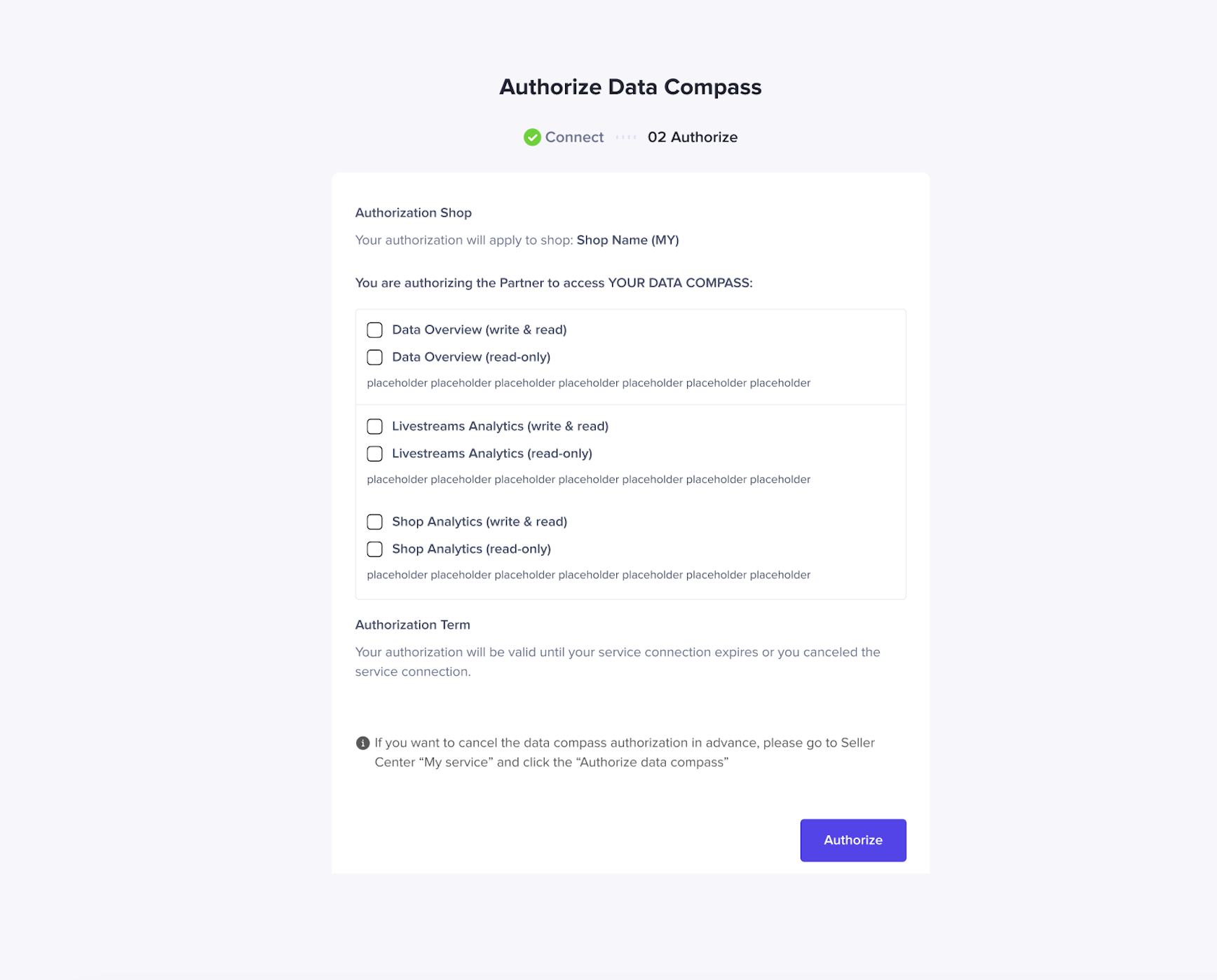
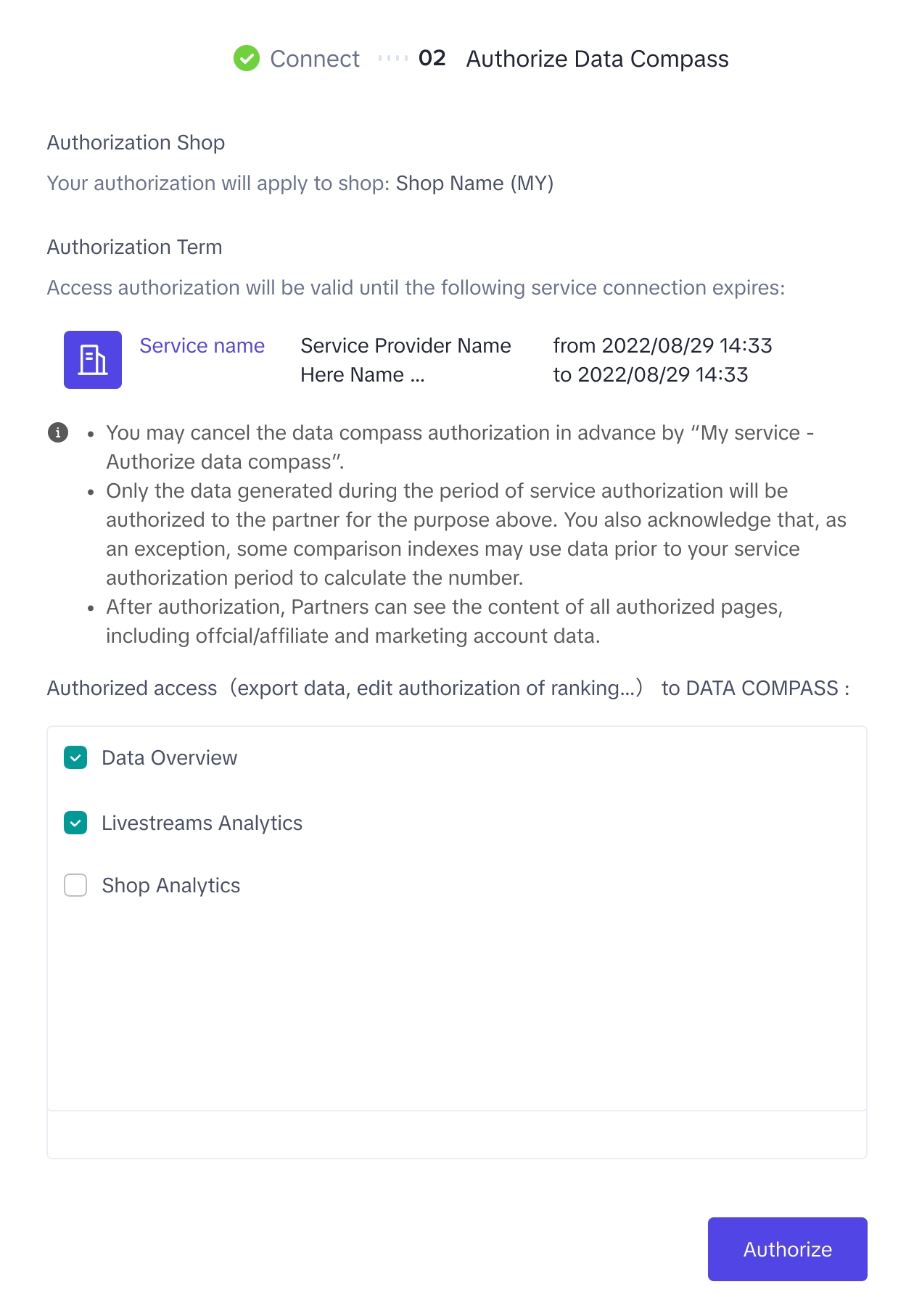
  1. After clicking Connect, sellers are redirected to the authorization page:
    • Sellers have to choose or indicate their subscription period and other information.
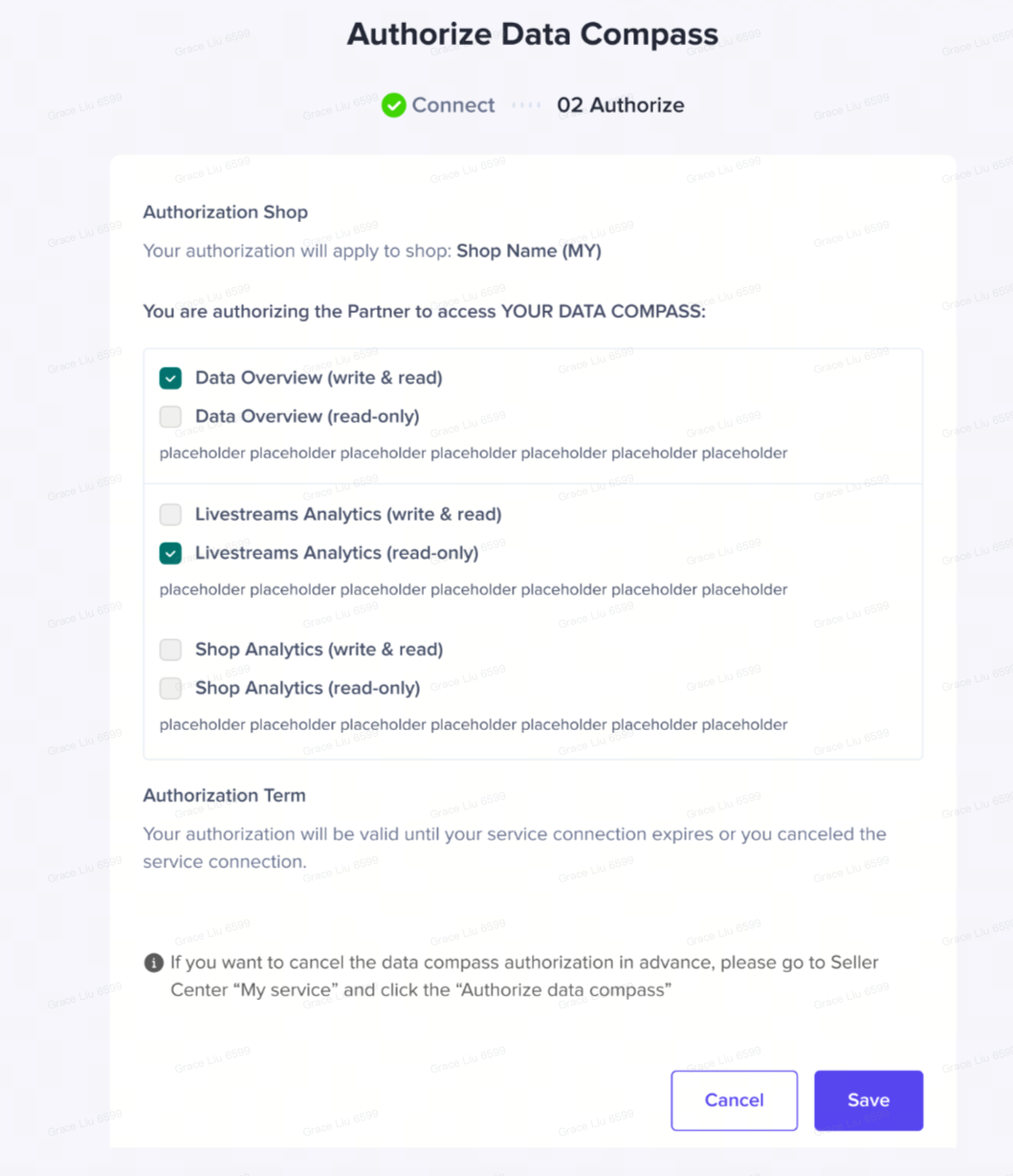
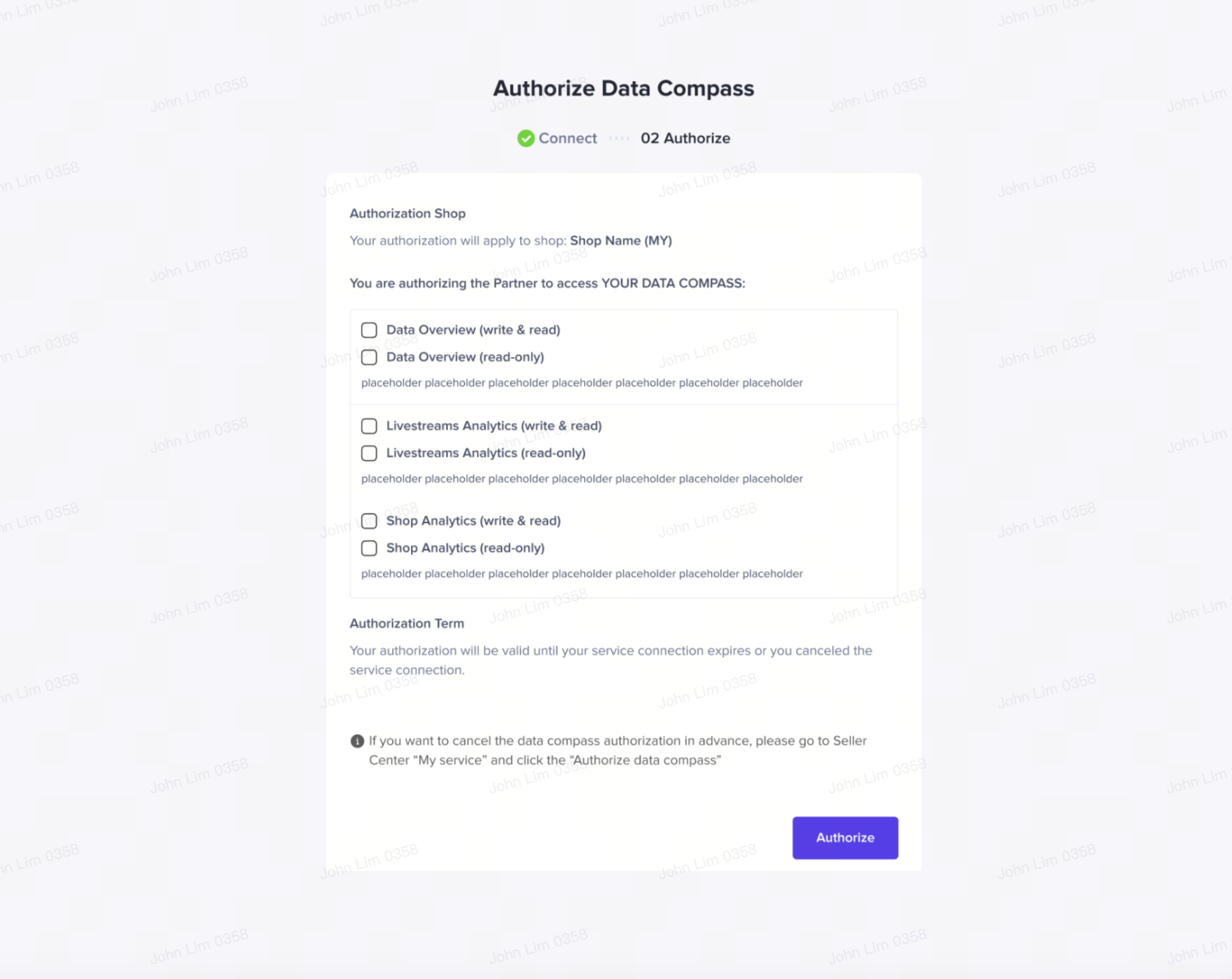
    • Sellers have to select which data compass pages they will authorize the TSP to access. Sellers can choose between any of the data compass pages that are applicable. Pages include Data Overview, Livestream Analytics, and/or Creative Analytics.
    • Choose your preferred access/ restrictions and click Authorize when done.
imageimage

For existing service subscription with TSP:

Description
Product Display (Test Account, Virtual data)
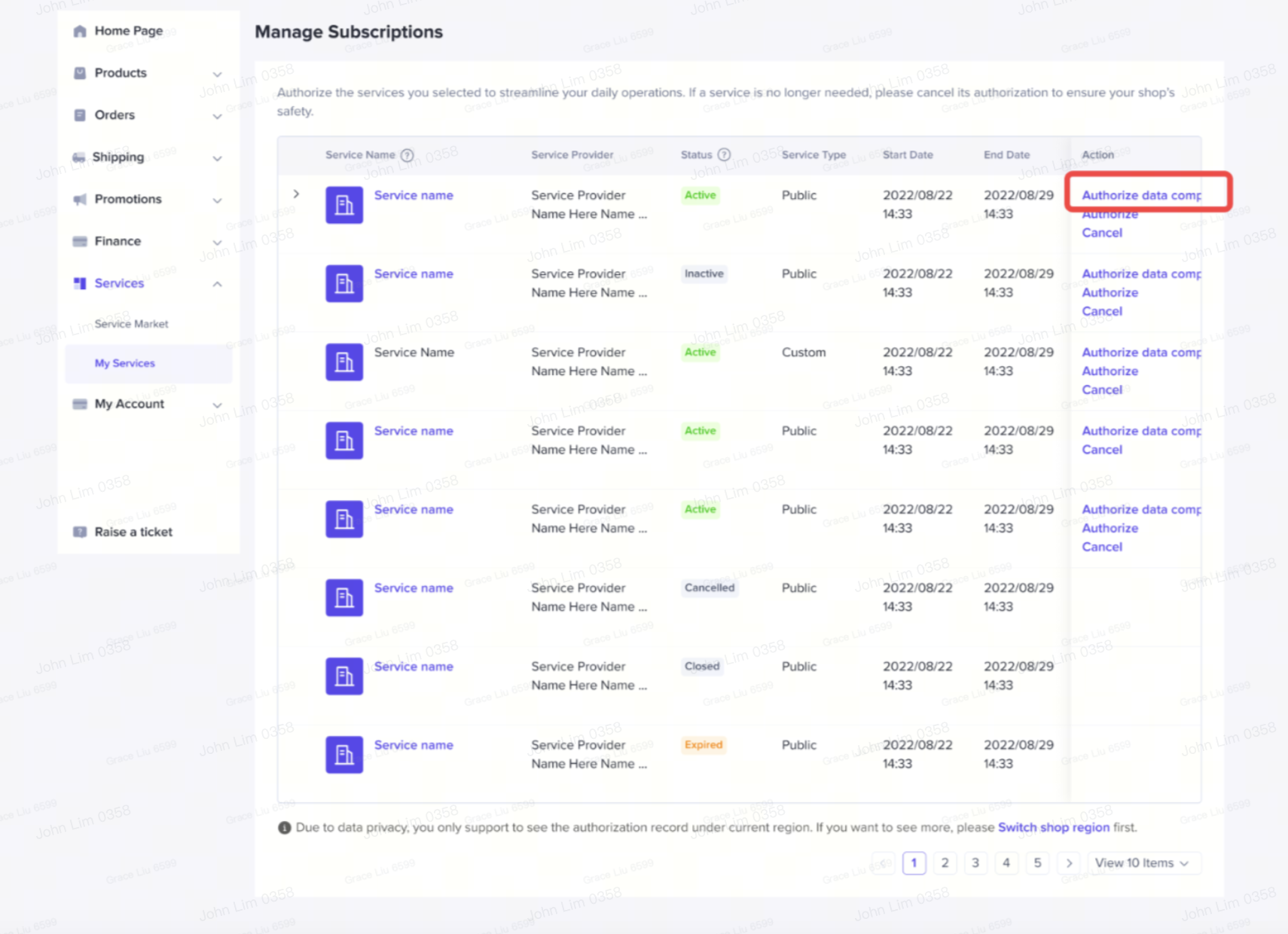
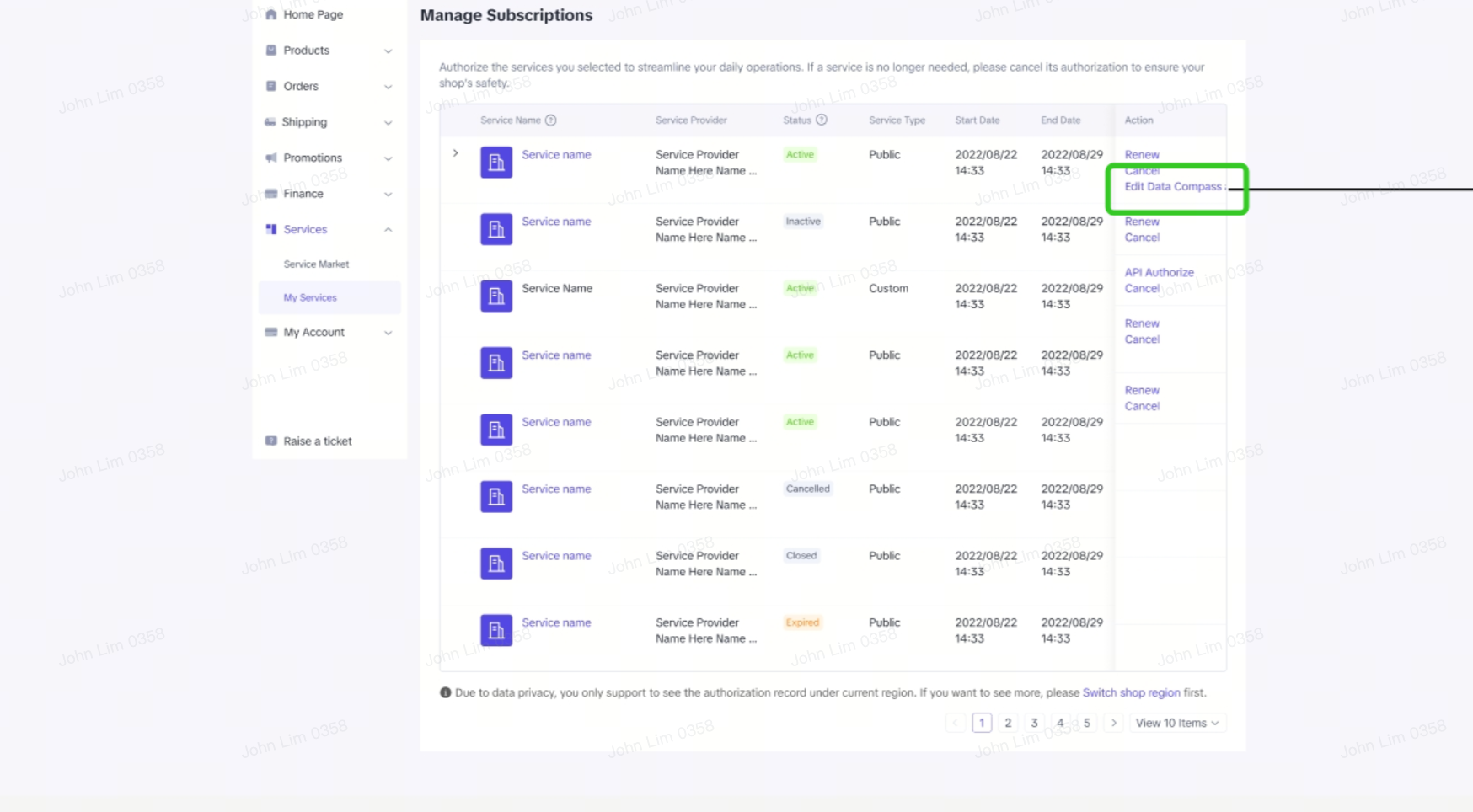
  1. Enter from Seller Center -> Apps & Services -> My Apps & Services. The whole list of subscriptions by the seller will be shown.
  2. Locate the service name and service provider. Under "Actions" in the last column, click on "Authorize data compass".
Note for sellers: The authorization of the data compass will exist for only one of the services that you are subscribed to. If you and TSP have multiple different service subscriptions, you can choose which subscription you would want to authorize your data compass access with. The valid time period of the data compass access will follow the valid subscription time period of the service subscription.
image
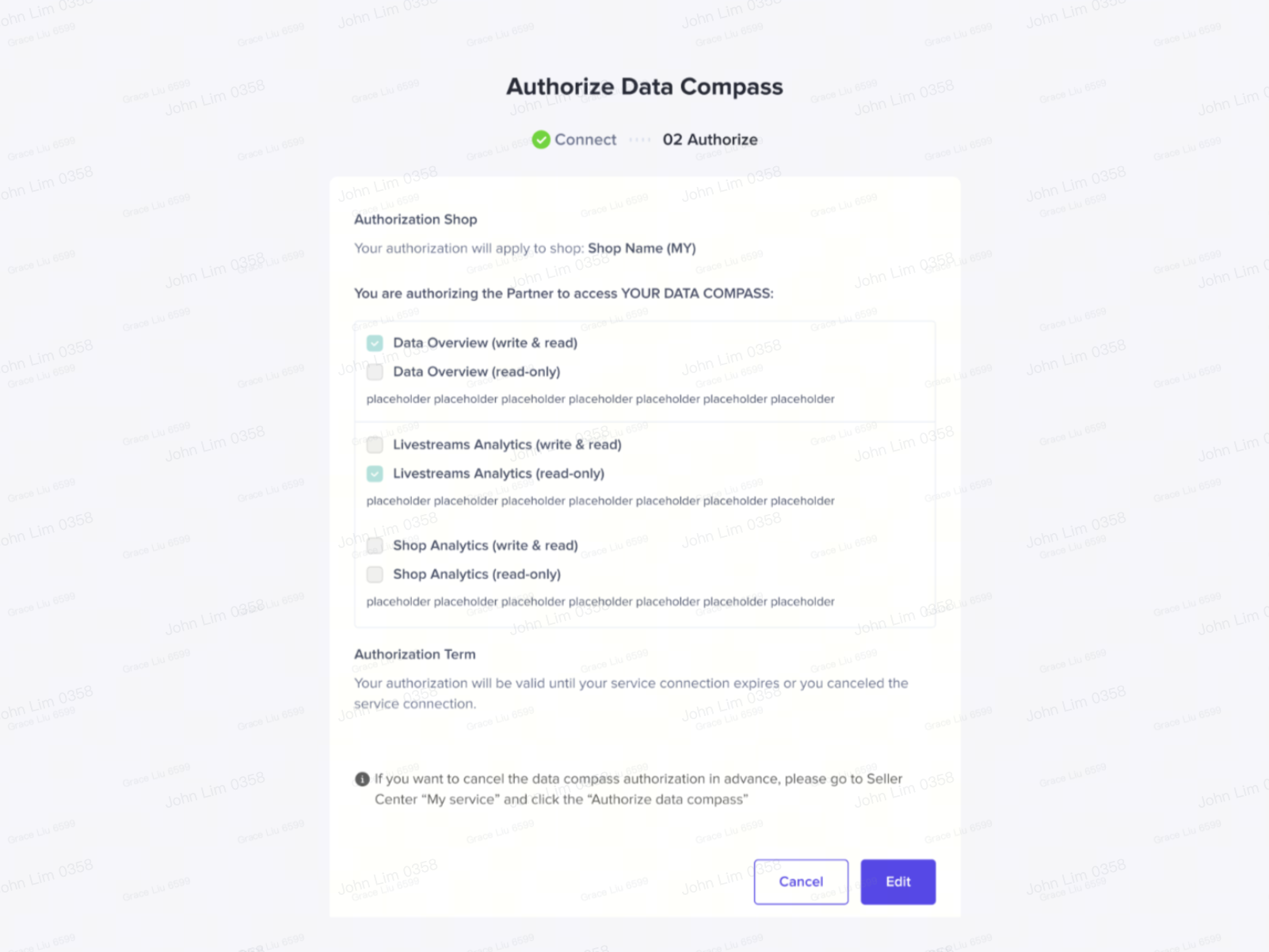
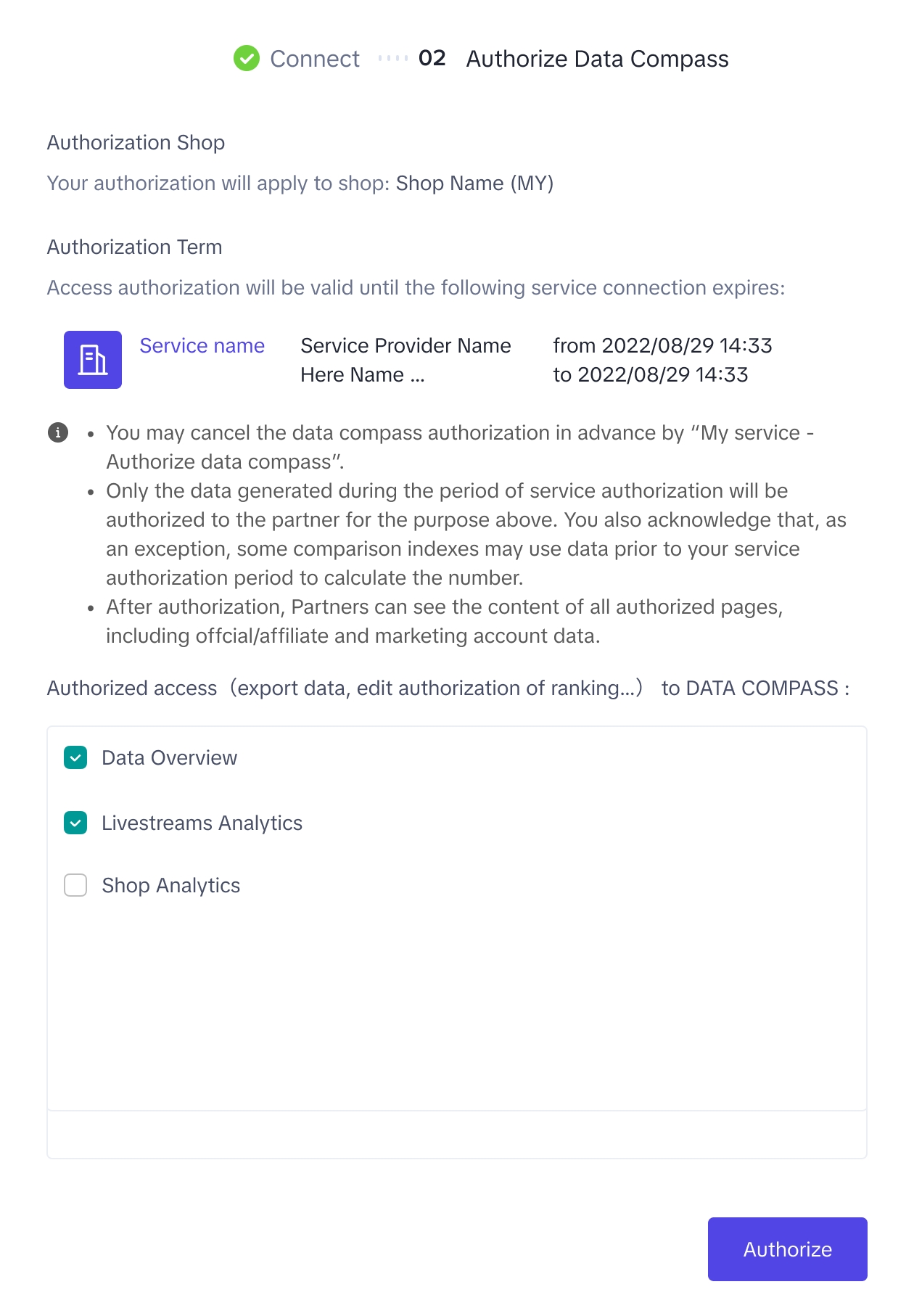
  1. An authorization page showing the list of pages of the seller center that a TSP can view will appear. Choose between all pages, including Data Overview, Livestream Analytics, and/or Creative Analytics. *Navigation is region specific.
imageimage
The data compass pages shown here may differ for different markets. It will follow your market's Seller Center's Data Compass.
  1. Click on Authorize when done.
image

Managing Data compass authorization requests from TSPs

Description
Product Display (Test account, Virtual data)
  1. TSP will send an authorization link to the seller
  2. When the seller opens the link, they will be redirected to the specified service data compass authorization page.
    • If there are multiple services between the seller and TSP, the latest service will be updated.
  3. The seller can view and select the different pages that their TSP can access.
    • Unchecking all pages will be regarded as canceling the Data Compass authorization.
More information on how TSP can send the authorization link will be covered below
image

Managing your data compass authorizations

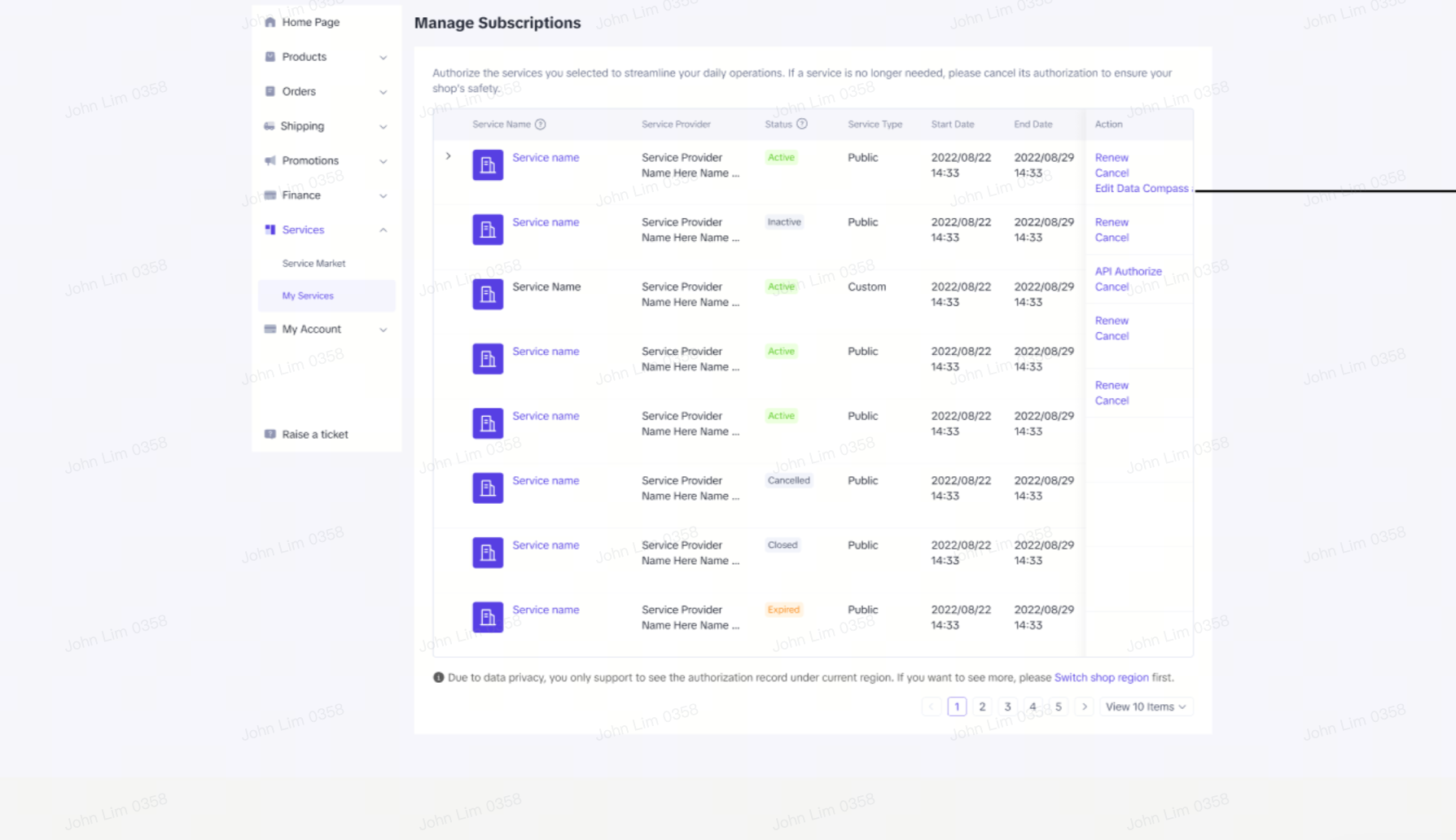
After authorization, you have the option to edit the access restrictions or remove access entirely. Return to Seller Center -> Apps & Services -> My Apps & Services and choose Edit Data Compass.
imageimage
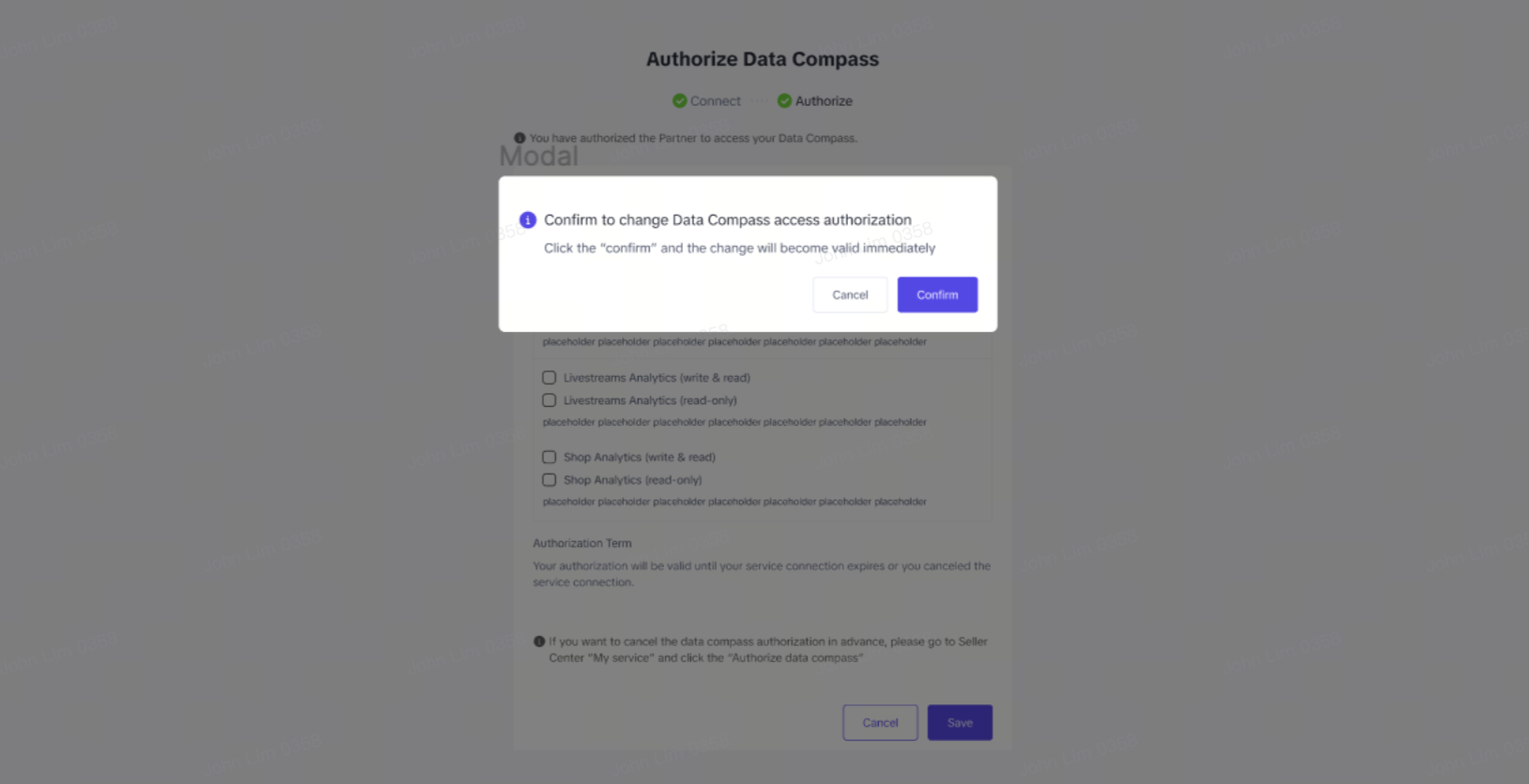
  • Sellers can "Edit Data Compass authorization"
  • Sellers can add and/or remove the seller data compass pages.
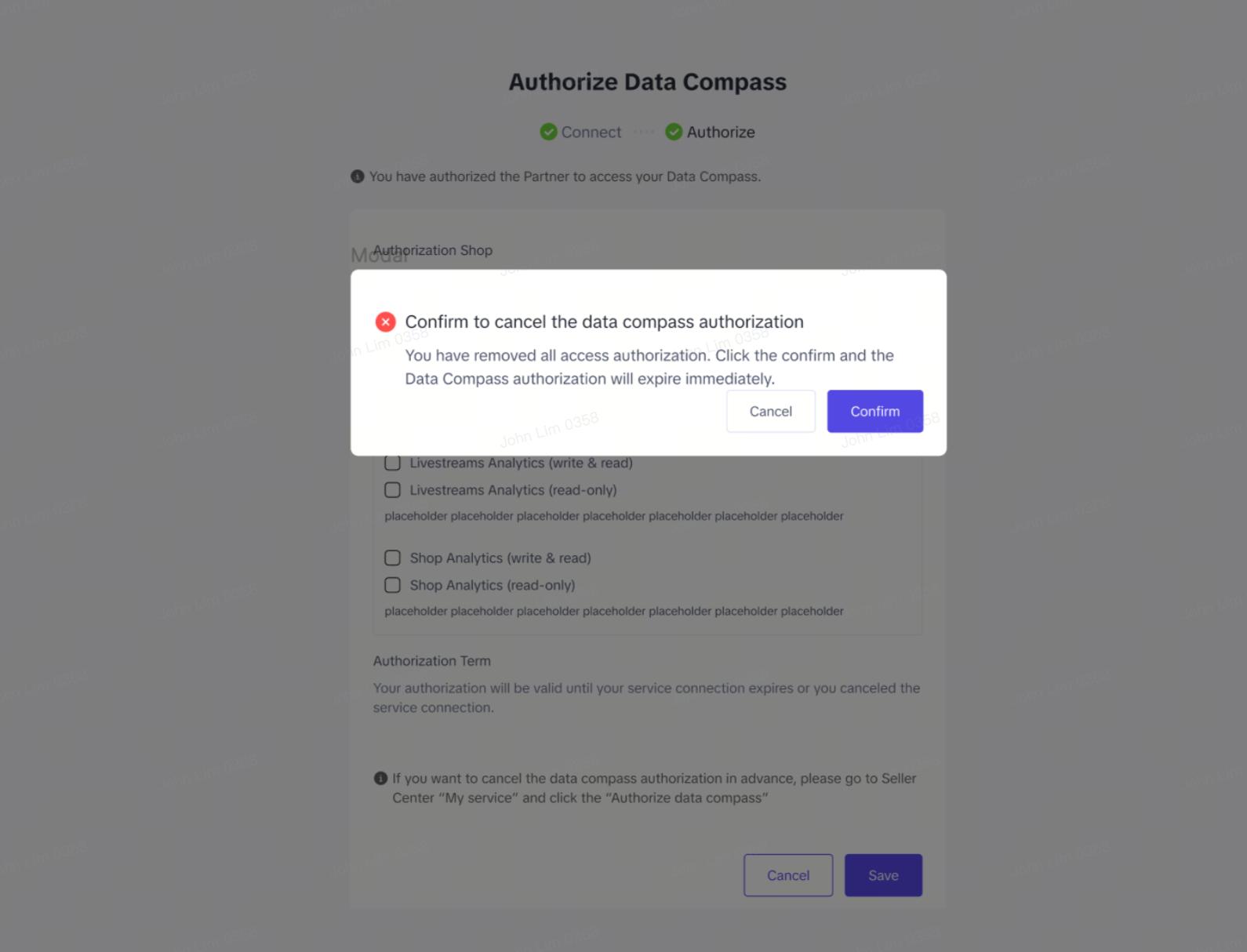
  • If all pages are deselected, a popup will prompt if the seller wishes to cancel data authorization.

For TSPs: How to get authorization to view my seller's data compass?

Obtain data authorization from NEW sellers

  • TSPs do not have the ability to set the data compass authorization. The permission needs to be given during the authorization process when seller first connects with the TSP.

Obtain data authorization from EXISTING seller

Description
Product Display (Test Account, Virtual data)
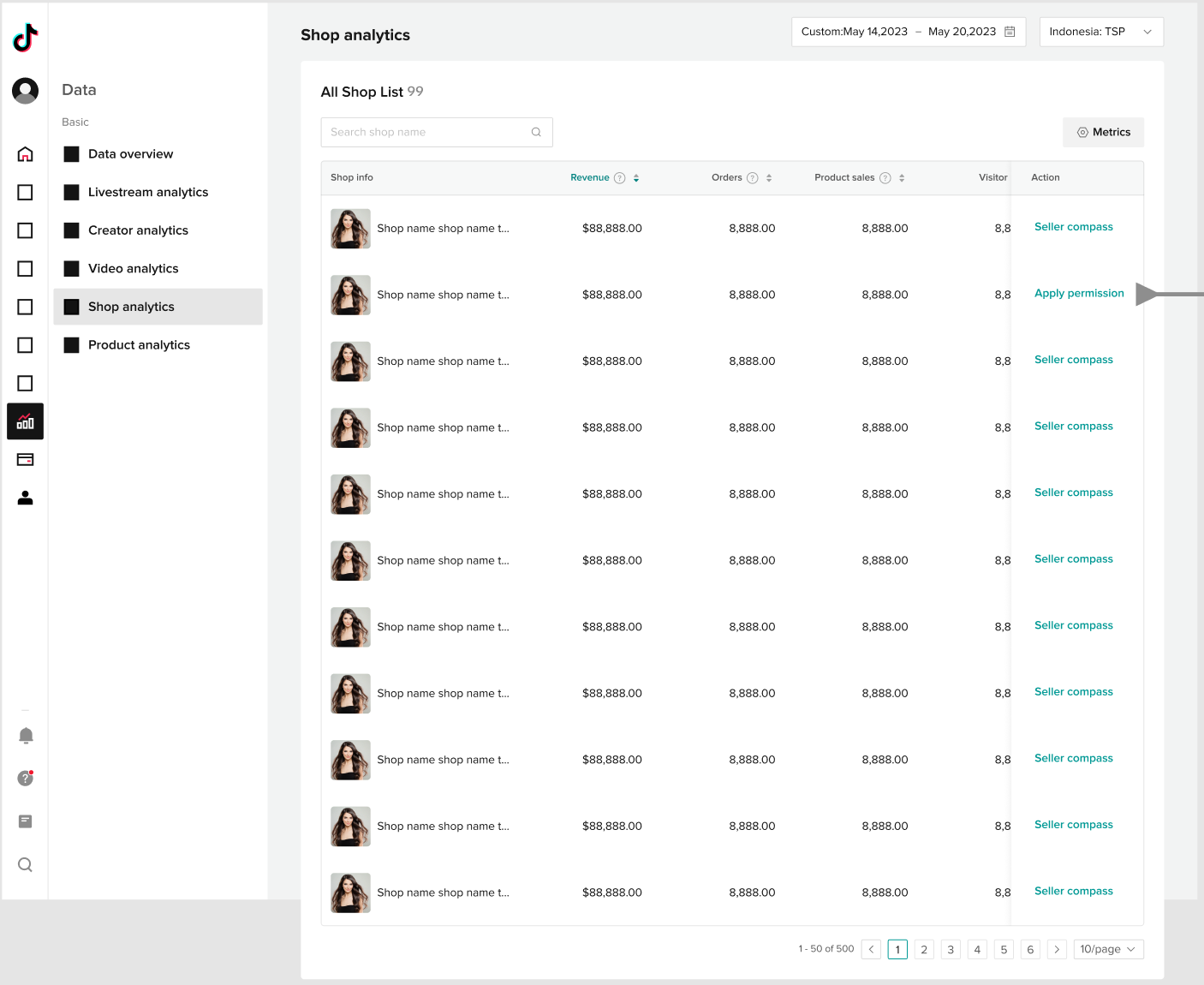
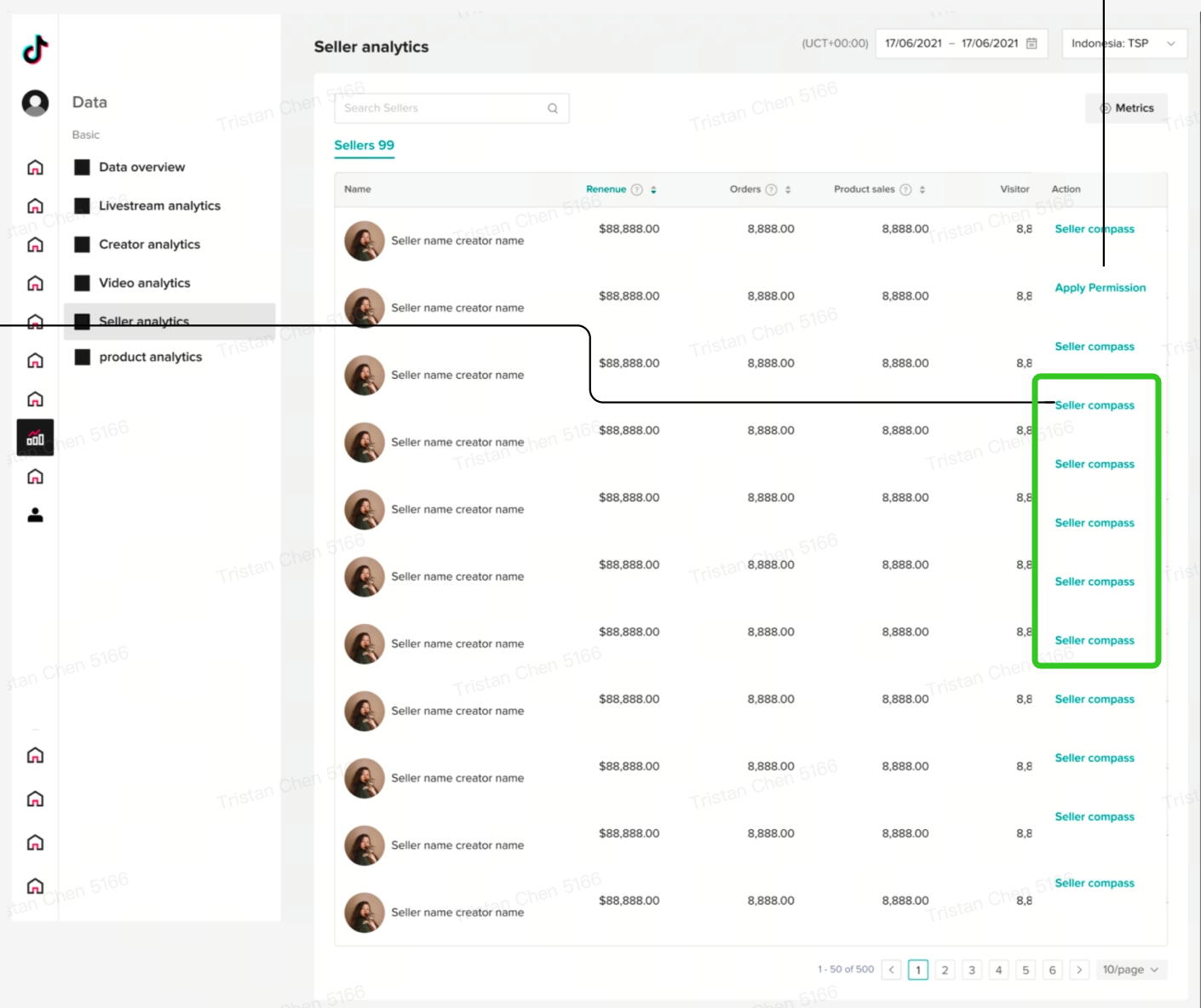
  1. Enter from Partner Center -> Analytics -> Shop Analytics (New)
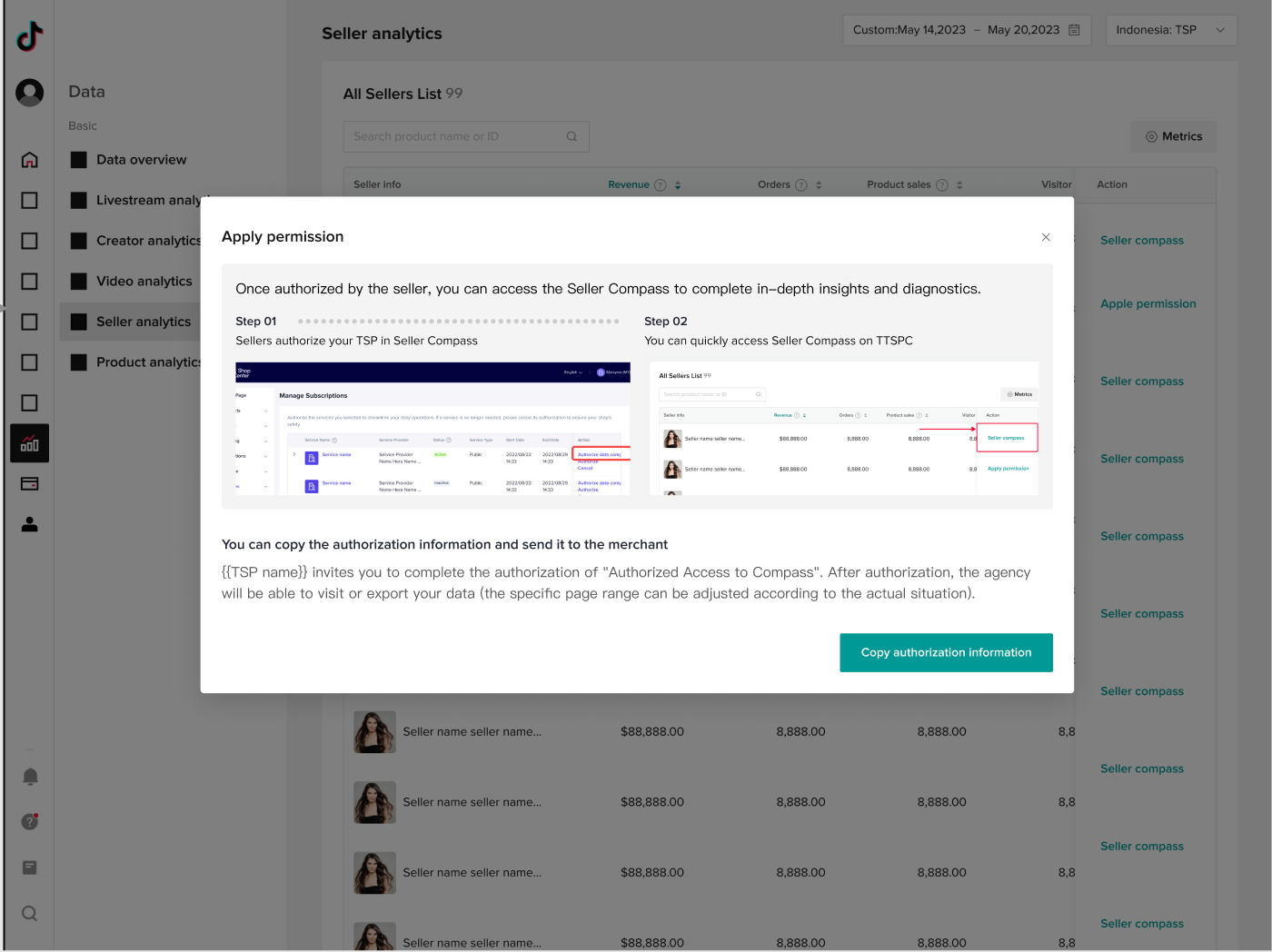
Click on Apply Permission on the far right column.
image
  1. A pop-up showing the application process will appear. You can copy the link and share it with the respective seller to expediate the process. The invitation link lasts for as long as the service subscription is valid.
image

[TSP] How to enter and manage my seller's Data Compass

Description
Product Display (Test Account, Virtual data)
  1. Enter from Partner Center -> Analytics -> Shop Analytics (New)
  2. For sellers that the TSP has obtained permission to access seller center data compass, there will be a button "Seller Compass" on the far right column. After clicking, there will be a request to open a new tab to enter the Data Compass page.
  3. Partners will have to log in with partner login details.
Partner login is required every 7 days and on new devices.
Please log out of all seller center accounts before accessing data compass through Partner Center.
image
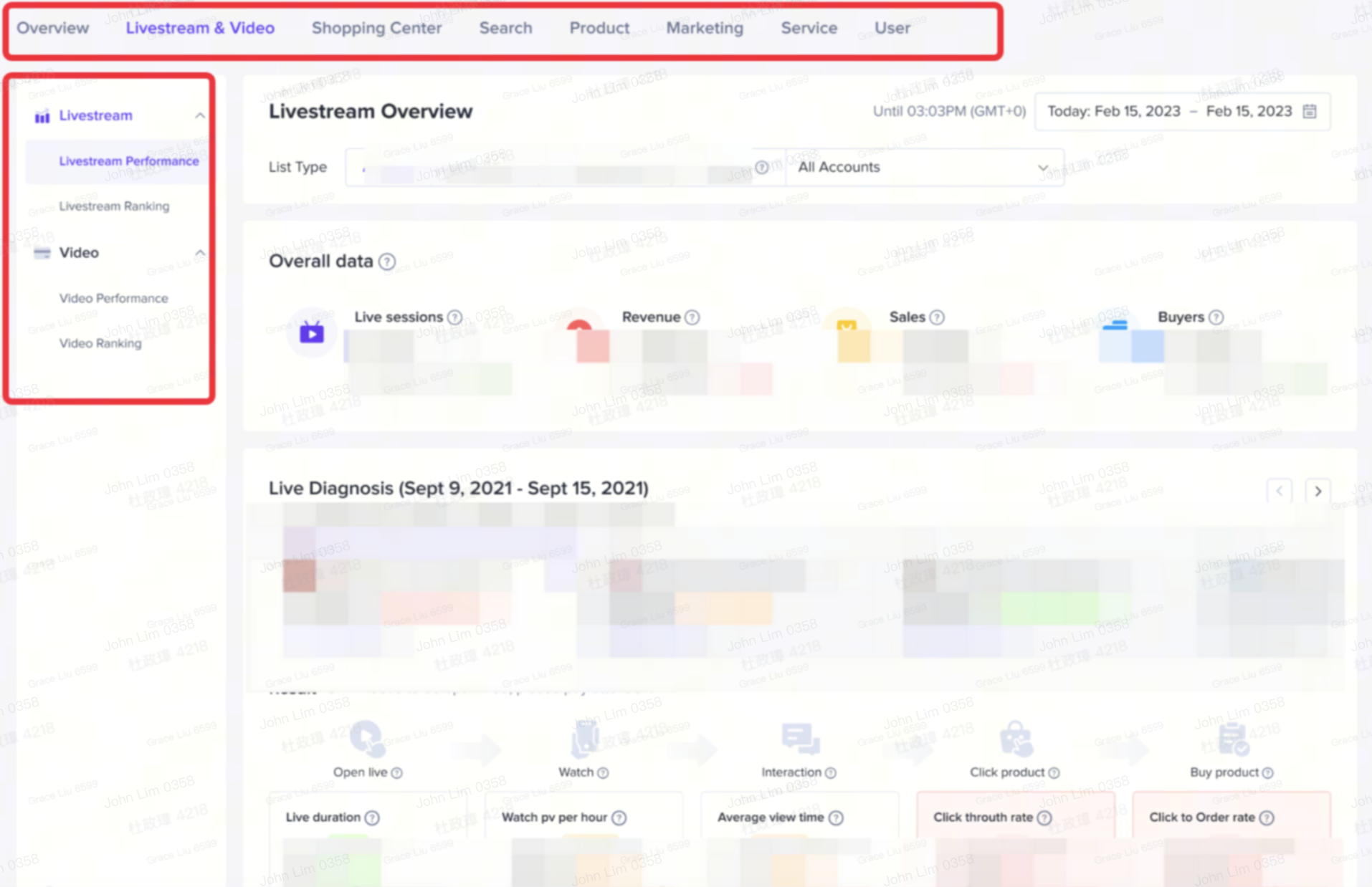
  1. The Data Compass pages displayed will be according to which pages the seller has given authorization for.
Data Compass Pages that TSP do not have access will be hidden.
image
The image shown here may differ for different markets. It will follow your market's Seller Center's Data Compass.
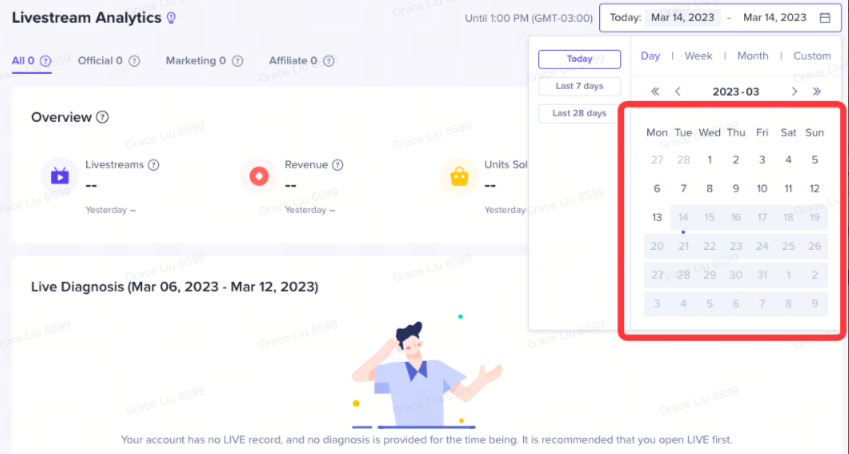
  1. The valid time period in the data compass will be dependent on the valid data authorization window between the TSP and seller.
    • For example, if the data authorization time period is 01/01/23 - 05/05/23, the TSP can only filter data within that date range for viewing and analysis.
    • For 7days/28thdays/week/month data viewing; if the date range selected is outside the authorization window, the option will be unavailable.
    • In special scenarios, data outside the authorized time range may be seen. (Only for period over period calculations)
image
image

How to edit or cancel data compass authorization between seller and TSP?

  1. Only sellers can edit or cancel the data compass authorization. Sellers can edit or cancel the authorization via these seller data compass authorization pages:
    1. the subscription list entry (Seller Center -> Apps & Services -> My Apps & Services)
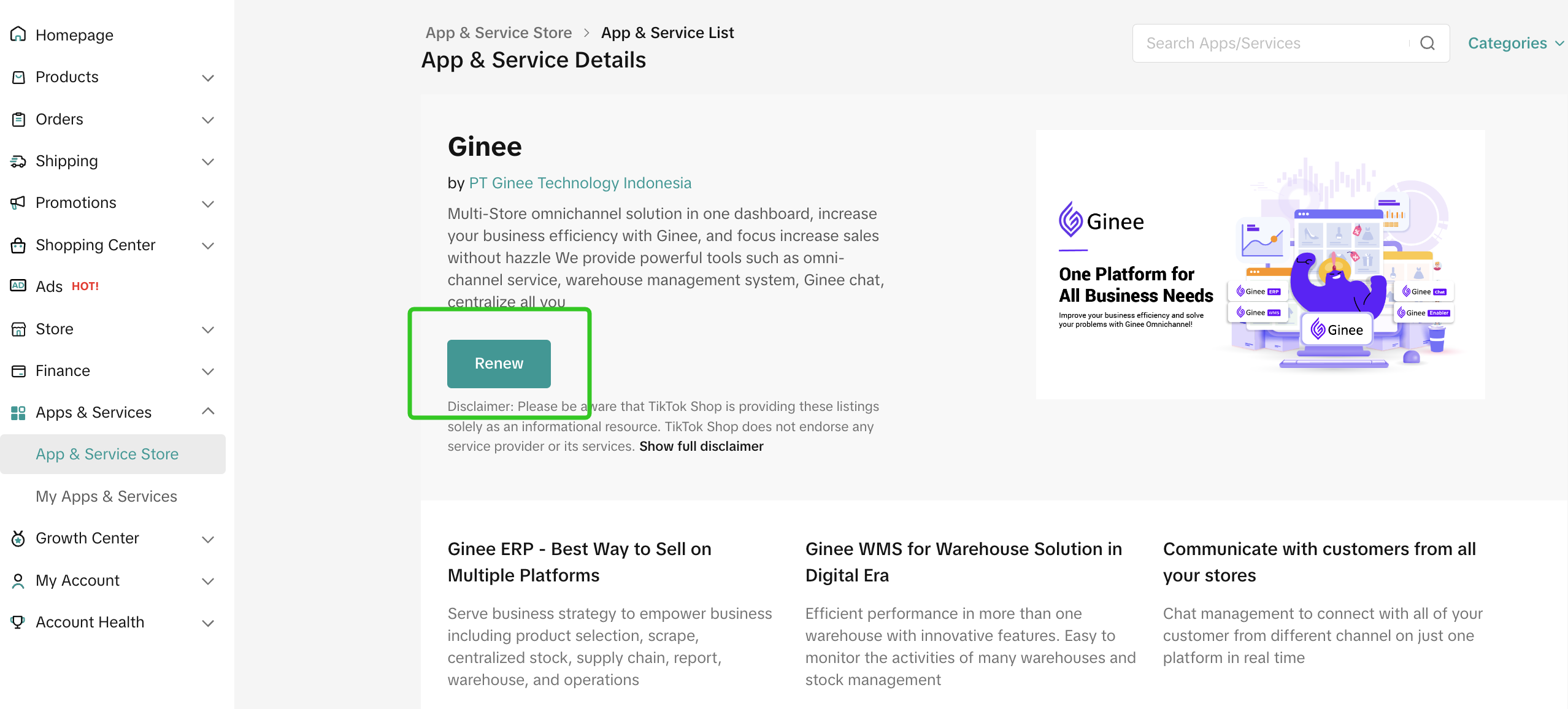
    2. the renew button of the original public service page (Seller Center -> Apps & Services -> Apps & Service Store -> TSP Public service page)
imageimage
A. Subscription list
  1. If the seller de-selects all authorization, the seller data compass authorization will be considered as cancelled.
imageimageimage

FAQs

  1. What is the data viewing time period for a TSP after access is granted?
The valid time period in the data compass will be dependent on the valid authorization window between the TSP and seller.
For example, if the service subscription/ data authorization time period is 01/01/23 - 05/05/23, the TSP can only filter data within that date range for viewing and analysis. For 7days/28thdays/week/month data viewing; if the date range selected is outside the authorization window, the option will be unavailable.
  1. Will the service subscription be affected if seller cancels the data compass authorization?
No. The seller can cancel the seller data compass authorization separately without affecting the subscription.
  1. What happens to the other tabs on Data Compass if a seller does not grant access to the TSP?
These tabs will be greyed out. Only tabs authorized by the seller can be viewed by the TSP.
  1. Why only one of my services has the option to share seller data compass authorization?
The seller data compass authorization is linked to the shop, and not on the service level. When there are multiple subscriptions for different services between the TSP and the store, there can only be one seller data compass authorization.
If the same seller links with the same TSP under separate shop management service, the data compass authorization will only be valid for 1 of the service (the first shop management service that has been linked).
If the first shop management service expires, the seller has to authorize again for the second shop management service separately.
Under "My service and apps", actionable steps for data compass authorization will only be available for 1 shop management service (If the TSP and seller have more than 1 shop management service)
If the seller wishes to subscribe to a different service with the same TSP and the data compass authorization record already exists between the seller and the TSP under another service subscription, the data compass authorization page will be shown, but can not be edited.
  1. Why are some of the pages pre-selected during the data compass authorization process?
During the data compass authorization step, some pages might be pre-selected to give sellers a gauge on which pages are recommended to share with their TSP. However, sellers are still advised to check through which data compass pages they wish to give authorization, and select or deselect accordingly.
  1. Why is there a log in page when I click "Enter Seller Compass"?
After obtaining the seller's data compass authorization, a login page is shown when entering seller data compass. Please enter your own partner account password to log in, and you do not need to log in again within 7 days
  1. Which service category is this product tool applicable for?
Shop dimension authorization service categories are different in different regions. Please authorize the operation according to the situation of different regions (only the categories authorized by the shop dimension can access the seller's data compass).
  1. What happens when I renew my service subscription with my TSP/Seller?
The seller center data access authorization will be automatically renewed and updated together with the service subscription.