

Automatic Opt-In for Open Collaboration
01/08/2026
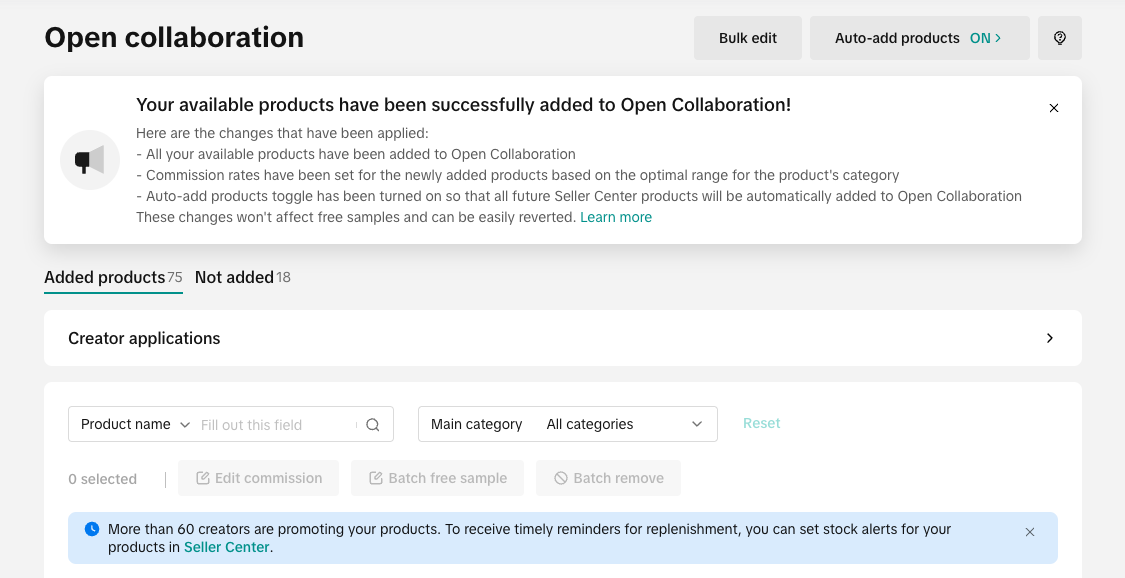
We will also turn on the Auto-add products toggle in Open Collaboration, so that future products sellers upload in the Seller Center will automatically be added to Open Collaboration. This toggle can also easily be turned off again with one click.
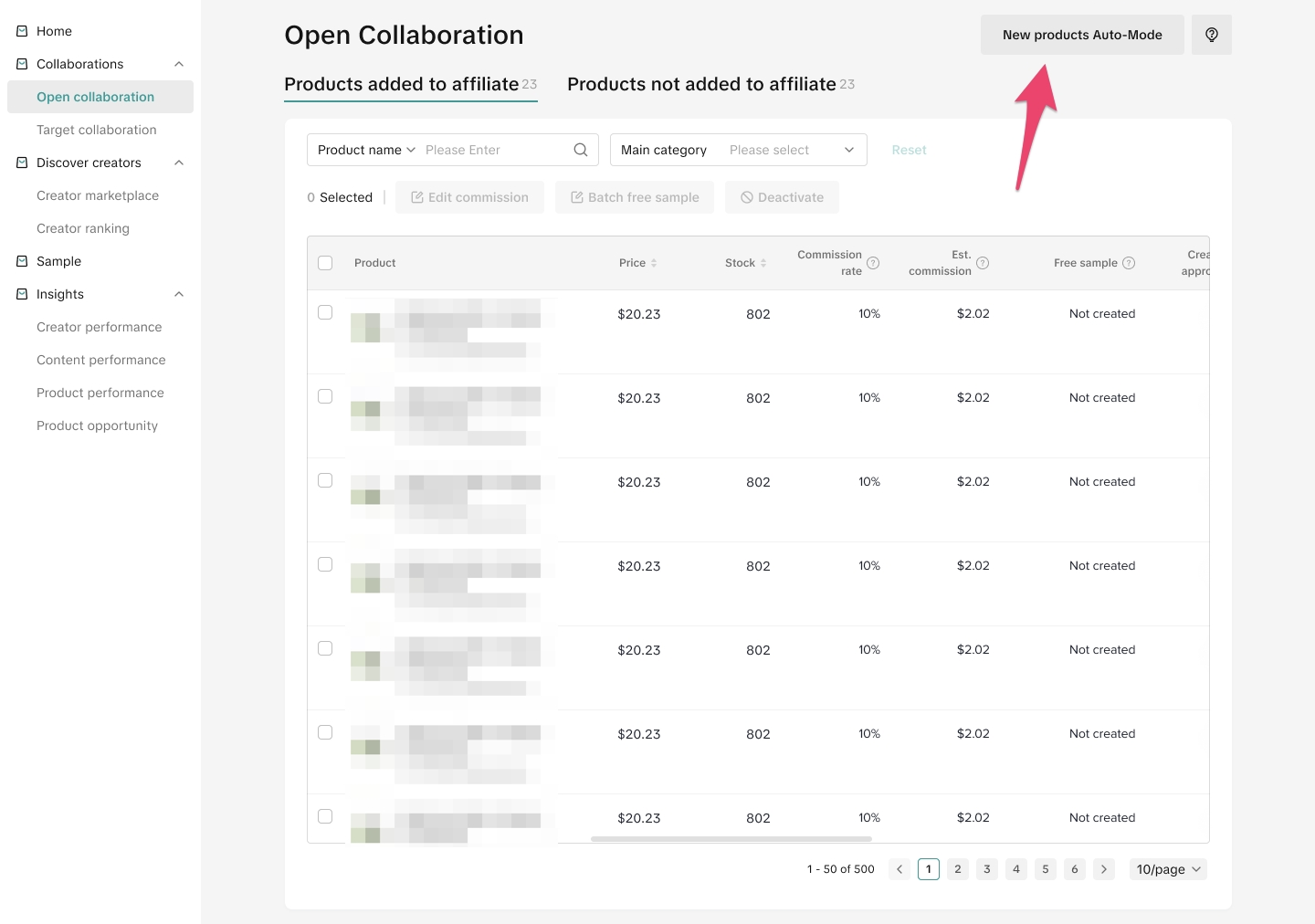 Important detail to remember: Future products added to Open Collaboration through the Auto-add products toggle, will not have the approve creator toggle turned on automatically. Sellers will need to turn on this toggle themselves manually or through a batch update of the products list.
 How the Opt-In Commission Works
By using the one-click solution to automatically enroll your product in the affiliate program, your products will be registered with both the standard commission rate and the Shop Ads commission rate.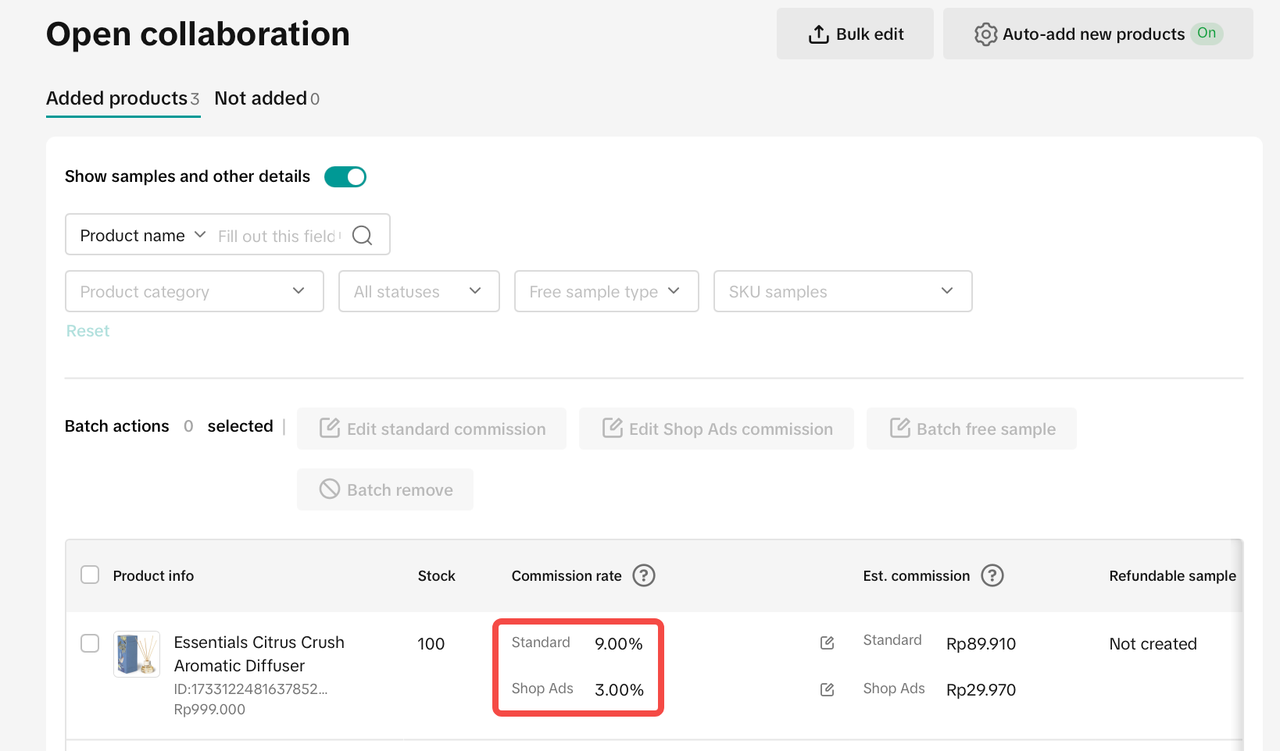
- Standard Commission Rate
The suggested commission range is a feature in Open Collaboration that reflects the commission rates of the top 30% performing products in each category, helping sellers set an optimal commission rate to increase the likelihood of their products being selected and promoted by creators
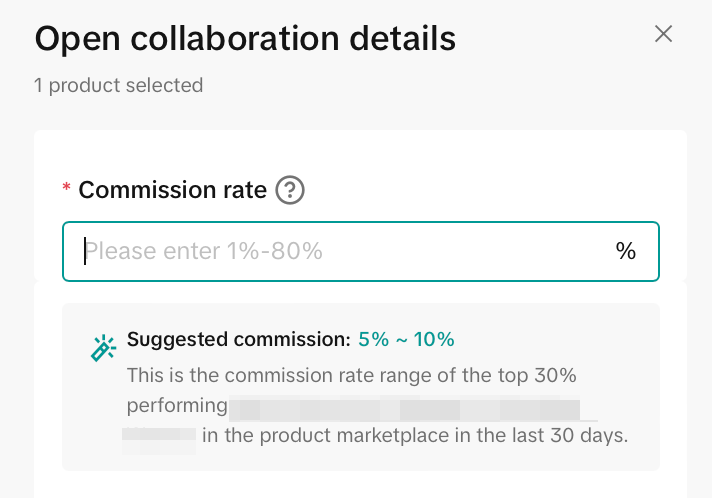 If your shop has products in different categories, they may have different commission rates based on their respective product category:
| Category Name | Suggested Commission Range |
| Womenswear & Underwear | 6-13% |
| Sports & Outdoor | 1-14% |
| Shoes | 7-15% |
| Muslim Fashion | 6-14% |
| Menswear & Underwear | 6-15% |
| Luggage & Bags | 6-13% |
| Jewelry Accessories & Derivatives | 1-20% |
| Fashion Accessories | 1-17% |
| Baby & Maternity | 5-12% |
| Beauty & Personal Care | 6-14% |
| Food & Beverages | 6-14% |
| Health | 6-14% |
| Kids' Fashion | 7-13% |
| Books, Magazines & Audio | 9-16% |
| Collectibles | 1-3% |
| Furniture | 6-15% |
| Home Improvement | 6-14% |
| Home Supplies | 6-16% |
| Household Appliances | 1% |
| Kitchenware | 6-14% |
| Pet Supplies | 6-15% |
| Textiles & Soft Furnishings | 6-14% |
| Tools & Hardware | 1-14% |
| Toys & Hobbies | 6-14% |
| Automotive & Motorcycle | 1-12% |
| Computers & Office Equipment | 1-14% |
| Phones & Electronics | 1-14% |
- Shop Ads Commission Rate
Boosting your videos with Shopping Ads can drive more sales, and the creator earns a commission on sales generated from ad traffic. Using the one-click solution registers your product with the recommended Shop Ads commission rate, based on the top 100 performing products that use Video Shopping Ads.
If you haven’t set up Video Shopping Ads yet, we recommend doing so after the one-click setup. Learn more about leveraging your creator’s affiliate content for ads here.
How to Opt Out of Open Collaboration
If you wish to opt out of using Open Collaboration, we will provide you with two ways to successfully remove your current and future products from the Open Collaboration.Removing Products in Open Collaboration
To remove your products in Affiliate Open Collaboration, you will need to select one or multiple products and click on Batch Remove. Click on the checkbox beside any of the products which you wish to remove.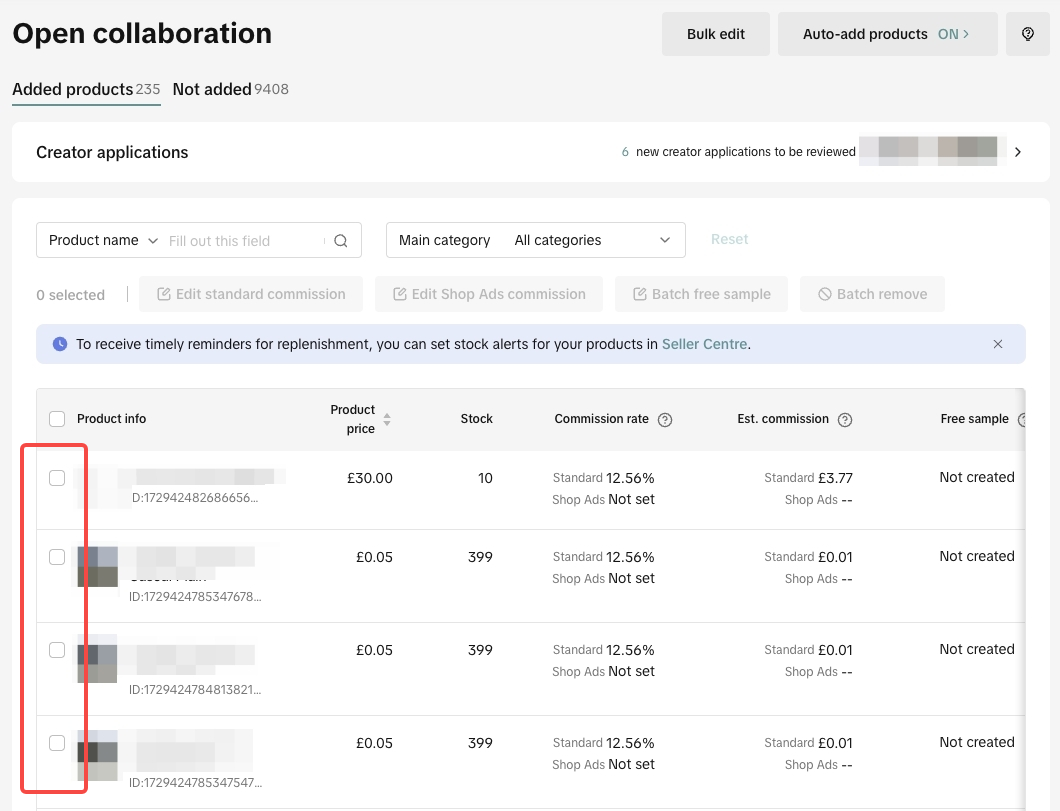 Once you've selected all the products you wish to remove, click on Batch remove.
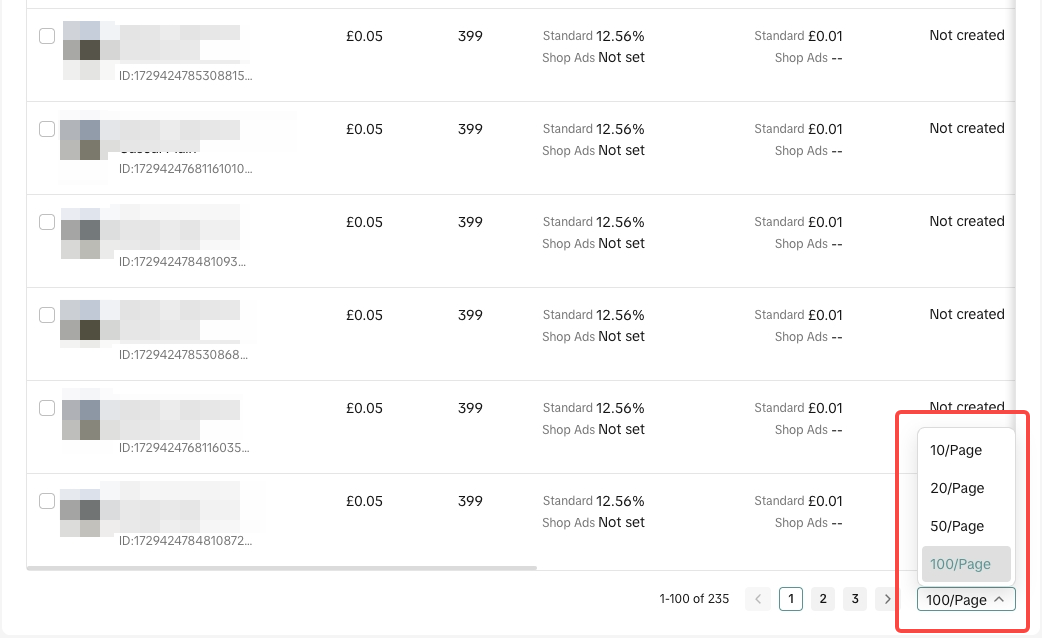
 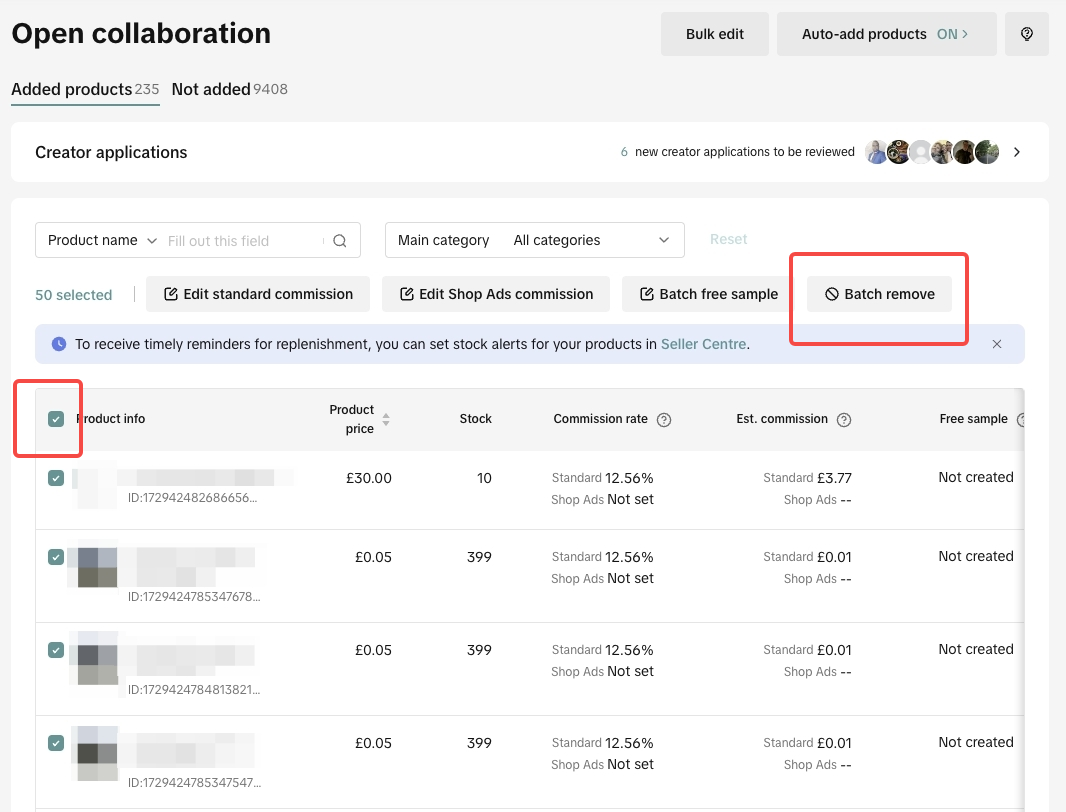 Additional Tip: The batch checklist only applies to the current page you're on. If you wish to select more products to remove, you can increase the page's length at the bottom to a max of 100 products per page.
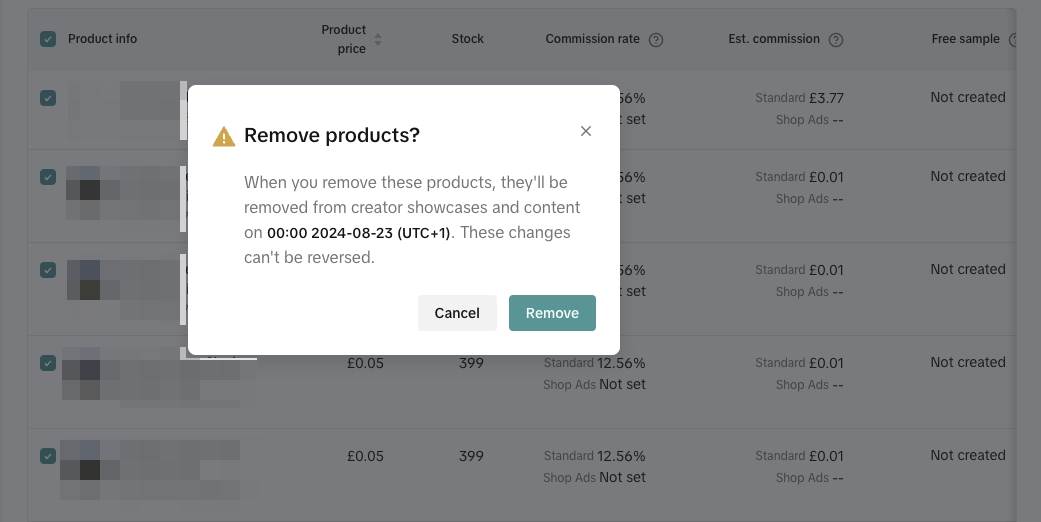
  Upon clicking on Batch remove, you will receive a confirmation pop-up that shows when the products will be removed from Creators' showcases. Click on Remove to confirm your deletion.
 Another way to remove products from Open Collaboration is by doing Bulk Edit. Learn more about how to use the Bulk Edit feature through our step by step guide.Quick tip: Removing your products on Open Collaboration does not mean they will be removed from your Seller Center inventory. You can add your removed products back to the Open Collaboration category if you wish to do so.
Turning off Auto-Add Products
Turning off the Auto-Add Product function will not allow any of your newly uploaded products in Seller Center to be added in Open Collaboration instantly. To stop this function, you can click on the Auto-add products button at the top of your screen.Quick tip: Turning off the auto-add product toggle will not remove your current products in the Open Collaboration, the toggle will just block new products from being added to Open Collaboration automatically. If you wish to remove your current products in Open Collaboration, please follow the section "Removing Products in Open Collaboration" right above this article.
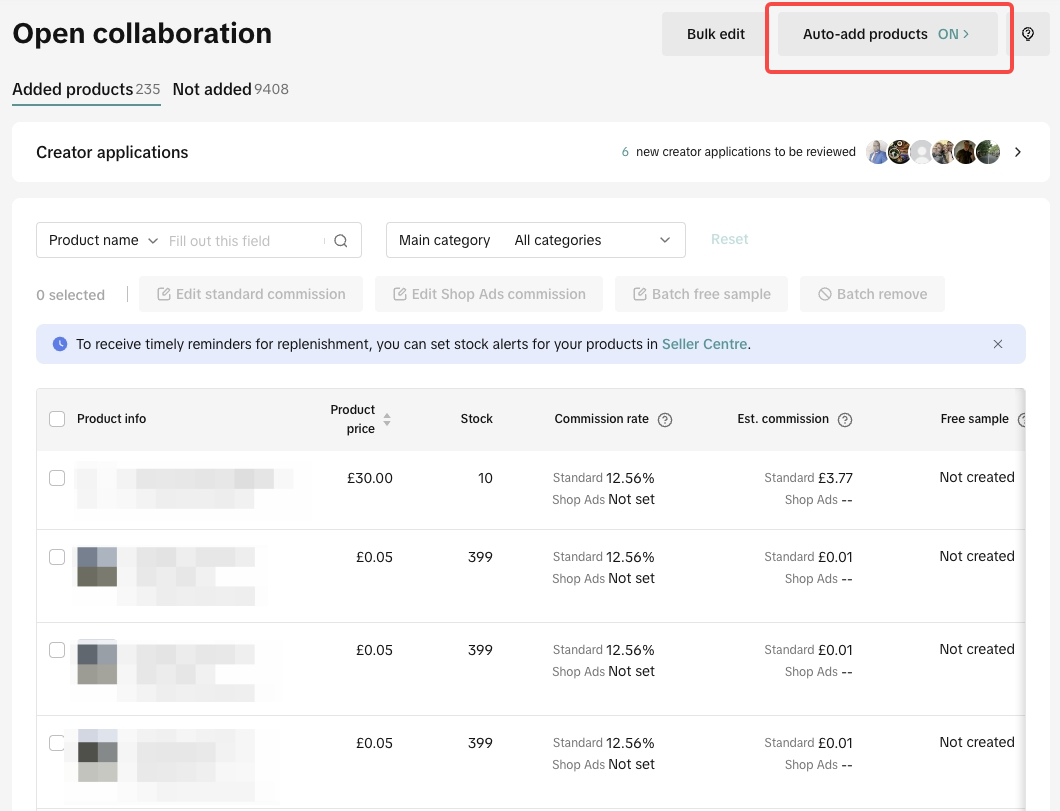 A window will show up at the right-side of your screen, click the toggle highlighted below to turn off the Auto-add product feature.
 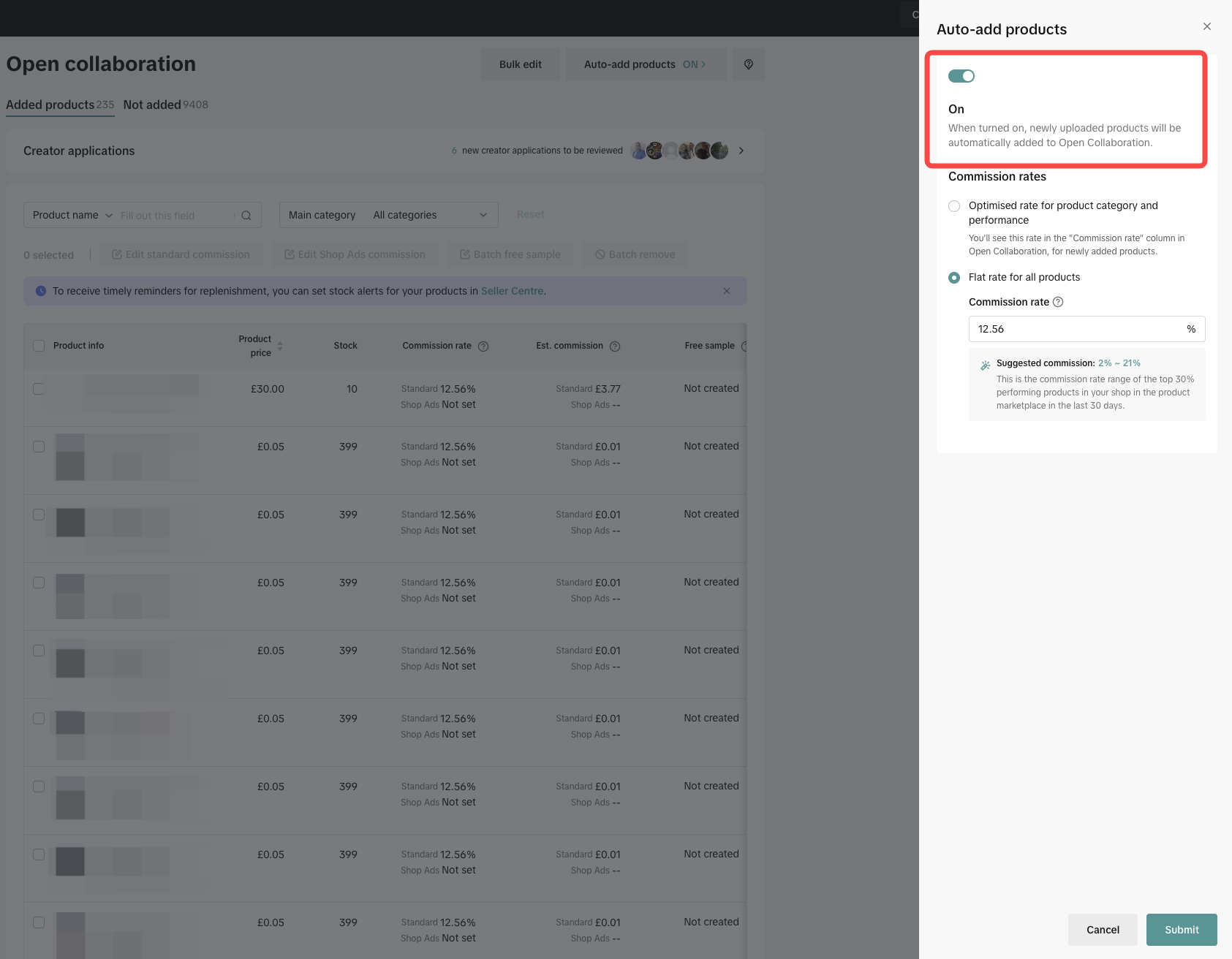 Once it's turned off, it should look like this on the window...
 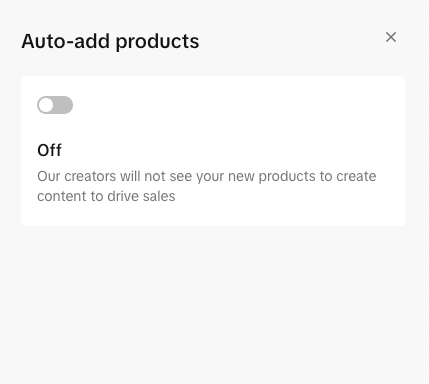 ...and like this on the Open Collaboration page.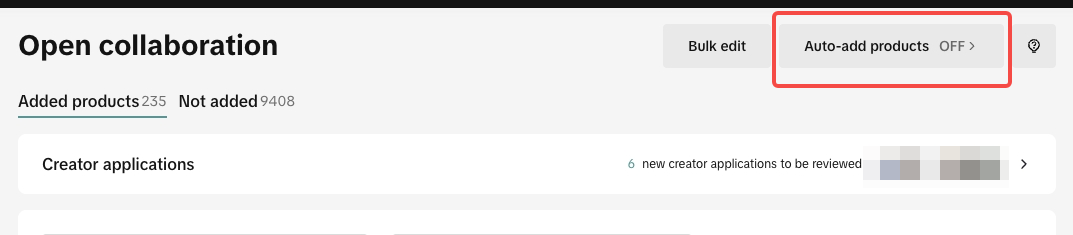
You may also be interested in
- 11 lessons
Affiliate
Explore how to collaborate with creators and affiliates to boost product reach through organic promo…
- 2 lessons
Affiliate Collaboration Plan
Learn how to create an effective plan for collaborating with affiliates to expand your reach.
- 1 lesson
Affiliate Center Guide
A detailed guide on using the Affiliate Center to manage partnerships and campaigns.
- 1 lesson
MCN
Learn how to collaborate with Multi-Channel Networks (MCNs) to scale your affiliate marketing campai…

Affiliate Creatives for Ads (ACA), for Sellers
This guide will focus on affiliate operations, which entail setting up your Shop Ads Commission Rate…
Free Sample Guide for Sellers
This article will teach you everything you need to know about Free Samples from a Seller's standpoin…

External Traffic Program (ETP) Guide for Sellers
In this article, we will teach you how External Traffic Program (ETP) works and how it can help your…

Affiliate Integration Guidelines for Tokopedia Sellers
Through this guide, you will find information about changes in the Affiliate program on Tokopedia af…

Affiliate Commission Settings for Seller
This article will tackle features in the Affiliate program that enables the user to edit the commiss…

Affiliate Collaboration with Tiered Commissions
In addition to the same rate commission model for all orders, you can now offer Tiered Commission—a…