

Advertising on Tokopedia and TikTok Shop after Shop Integration Guidelines
05/02/2025
Starting December 2024, Tokopedia Product Shopping Ads (formerly TopAds Product Ads or "Iklan Produk") will be gradually available on TikTok Ads Manager, enabling seamless ad management across both platforms from a single dashboard.

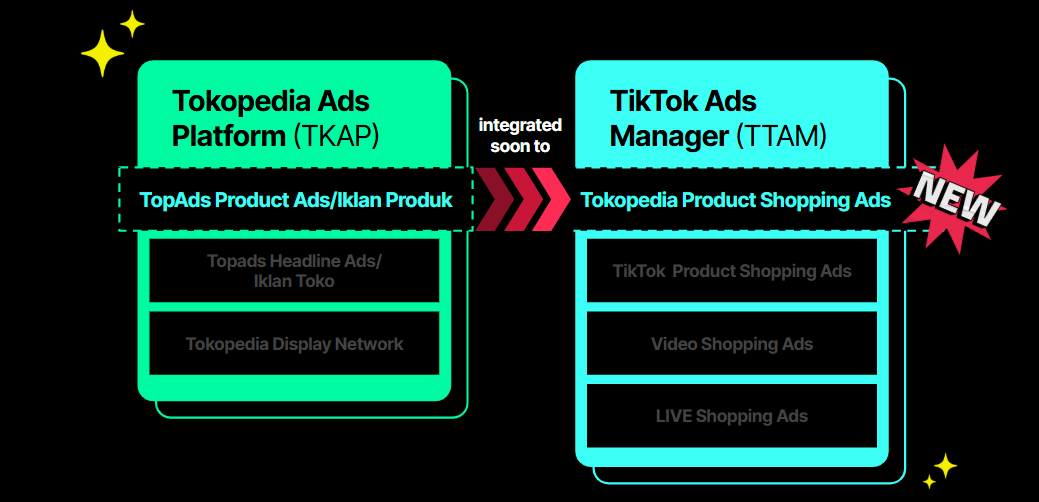 TopAds Product Ads will be integrated into Product Shopping Ads on TikTok Ads Manager. There will be an upgraded Product Ads experience with fewer steps to setup campaigns, and a more robust system optimisation using the TikTok ads algorithm that will optimise ads based on chosen goals by sellers.
Important Note: When sellers activate Tokopedia Product Shopping Ads on TikTok Ads Manager, all active TopAds Campaigns on Tokopedia Seller Center will be deactivated, and the related historical data can be downloaded from the Tokopedia Seller Center tab Ads and Promotion. Learn more here.
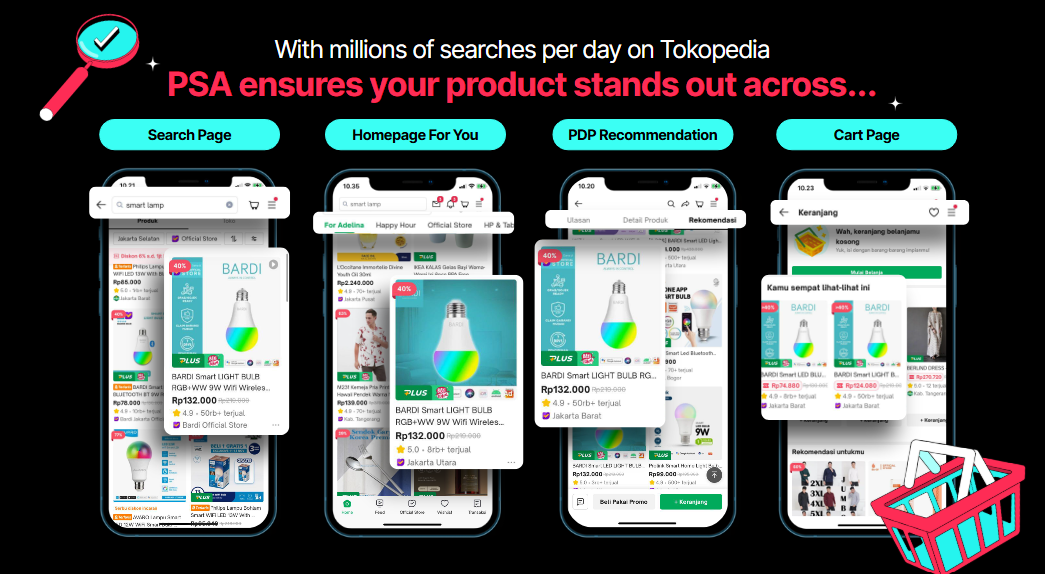 Tokopedia Product Shopping Ads allows sellers to showcase products from the Product Details Page directly to potential customers via various pages on Tokopedia. These ads display products to users who may be interested, helping sellers reach more new and existing customers.
Learn some best practices for Product Shopping Ads here.
Important Step: Before activating Tokopedia Product Shopping Ads, sellers need to complete the Ads Integration Setup Essentials below.
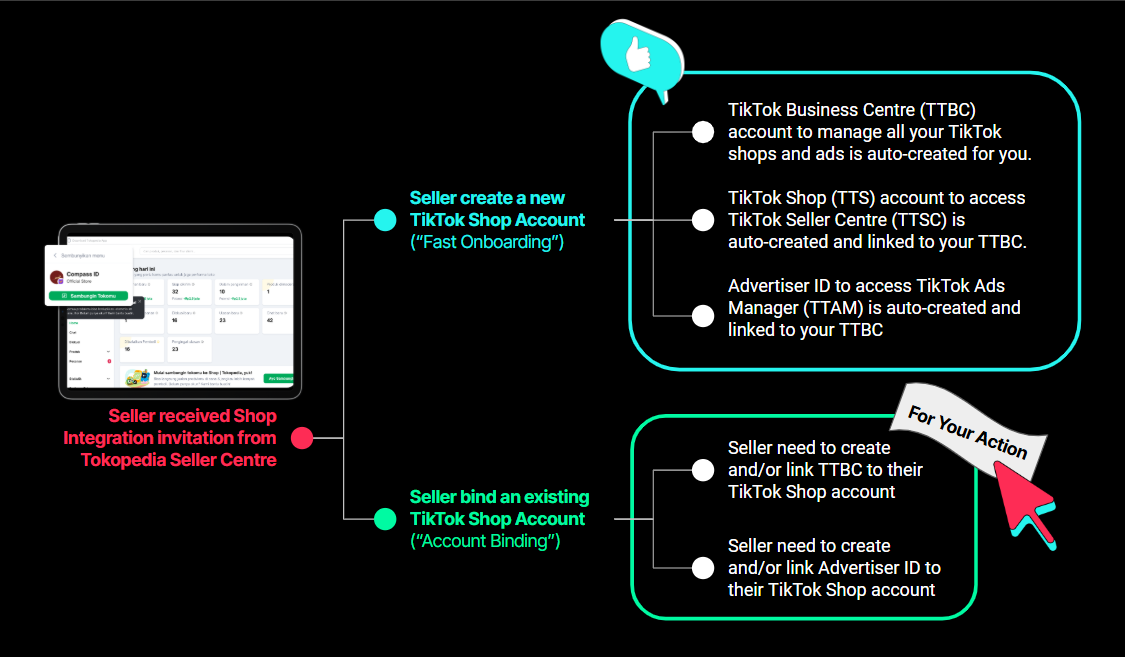 Ads integration steps depend on whether Tokopedia sellers already have a TikTok Shop account prior to the Shop Integration process.
Fast OnboardingFor Tokopedia sellers who have just created a new TikTok Shop Account during Shop Integration process, TikTok Business Center (TTBC) account and Advertiser ID are automatically created and linked. Therefore, sellers can start creating ads from TikTok Ads Manager. These accounts can be accessed using their TikTok Shop account credentials.
Account BindingFor Tokopedia sellers who have linked Tokopedia account to an existing TikTok Shop account, sellers need to check whether they have a TTBC account and Advertiser ID, and whether these accounts are linked to the TikTok Shop Account sellers have just bound.
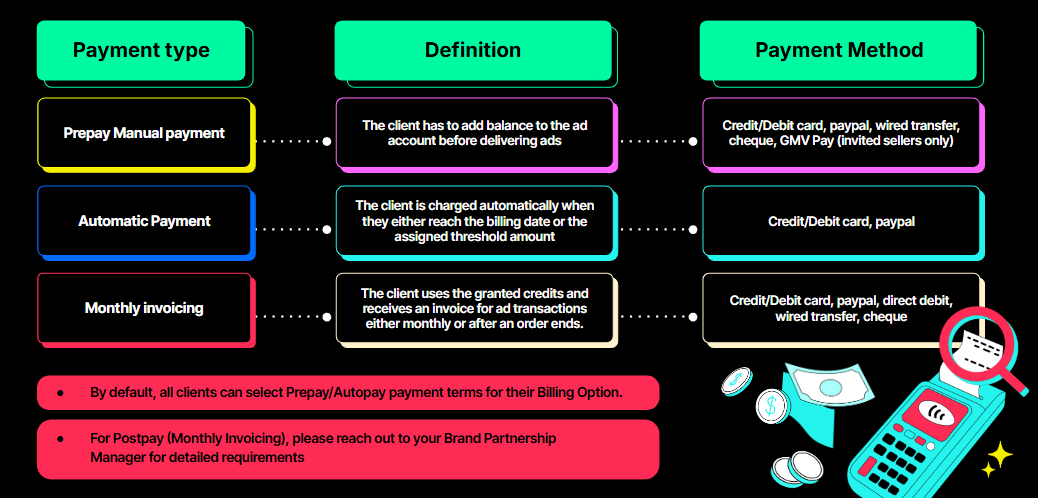 For the complete payment options and guidance to manage payment and billing, visit Supported Payment Methods
How this benefits sellers' business:
- More Seamless Control: Eliminate the hassle by managing Tokopedia and TikTok Shop Product Shopping Ads (PSA) campaigns from a single dashboard.
- More Commerce Optimization: Simplify optimization for diverse commerce goals, including revenue, purchases, or clicks, powered by TikTok’s advanced ads algorithm to enhance your campaign.
What's changing?
TopAds Product Ads will be integrated into Product Shopping Ads on TikTok Ads Manager. There will be an upgraded Product Ads experience with fewer steps to setup campaigns, and a more robust system optimisation using the TikTok ads algorithm that will optimise ads based on chosen goals by sellers.Important Note: When sellers activate Tokopedia Product Shopping Ads on TikTok Ads Manager, all active TopAds Campaigns on Tokopedia Seller Center will be deactivated, and the related historical data can be downloaded from the Tokopedia Seller Center tab Ads and Promotion. Learn more here.
Introducing Tokopedia Product Shopping Ads
Tokopedia Product Shopping Ads allows sellers to showcase products from the Product Details Page directly to potential customers via various pages on Tokopedia. These ads display products to users who may be interested, helping sellers reach more new and existing customers.Benefits of using Tokopedia Product Shopping Ads:
- Reach and maximize exposure to high-intent users
- Start campaign effortlessly
- Leverage goal-driven optimization setting
How to create Tokopedia Product Shopping Ads:
Learn how to create Tokopedia Product Shopping Ads:Learn some best practices for Product Shopping Ads here.
Important Step: Before activating Tokopedia Product Shopping Ads, sellers need to complete the Ads Integration Setup Essentials below.
Ads Integration Setup Essentials
Integrate Shop
Tokopedia Product Shopping Ads can only be accessible after Tokopedia sellers complete Shop Integration process. This process will be available gradually based on invitation from Tokopedia Seller Center. Complete guidance on Shop Integration can be found here.
Ads integration steps depend on whether Tokopedia sellers already have a TikTok Shop account prior to the Shop Integration process.Fast OnboardingFor Tokopedia sellers who have just created a new TikTok Shop Account during Shop Integration process, TikTok Business Center (TTBC) account and Advertiser ID are automatically created and linked. Therefore, sellers can start creating ads from TikTok Ads Manager. These accounts can be accessed using their TikTok Shop account credentials.
Account BindingFor Tokopedia sellers who have linked Tokopedia account to an existing TikTok Shop account, sellers need to check whether they have a TTBC account and Advertiser ID, and whether these accounts are linked to the TikTok Shop Account sellers have just bound.
Link Shop Account, Business Center and Advertiser ID
Via Seller Center
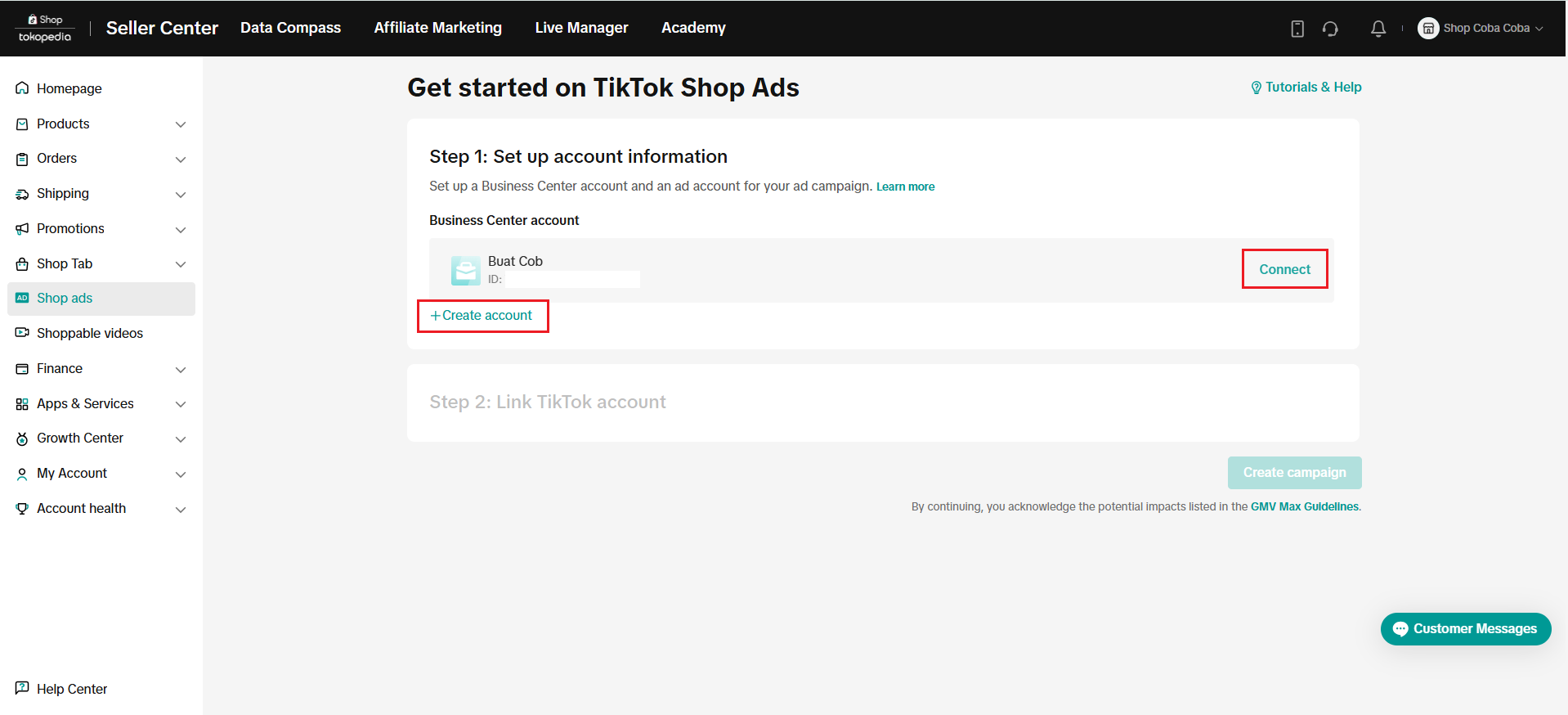
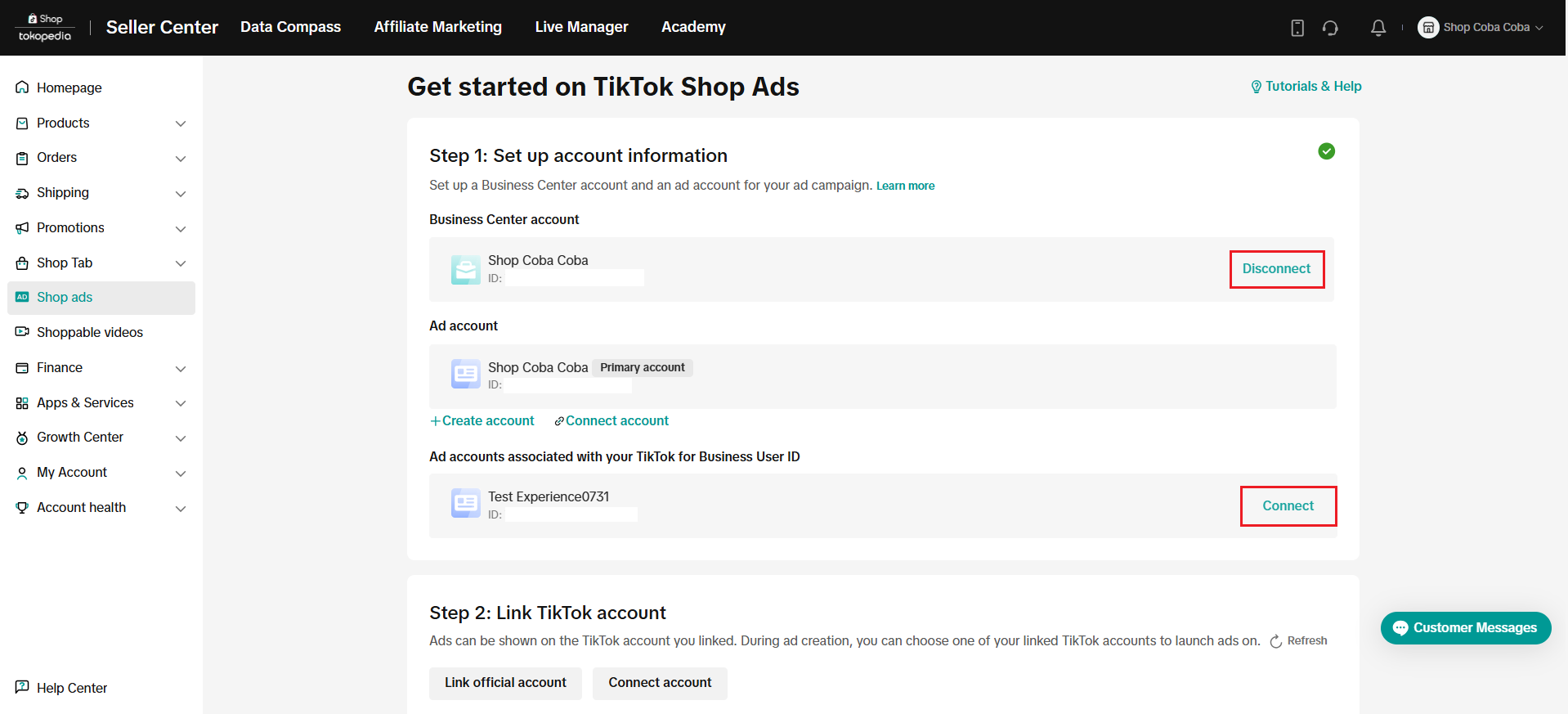
- Log in to the Seller Center. On the Shop Ads tab choose Get Started or Manage Account to connect sellers' preferred TikTok Business Center (TTBC) account.
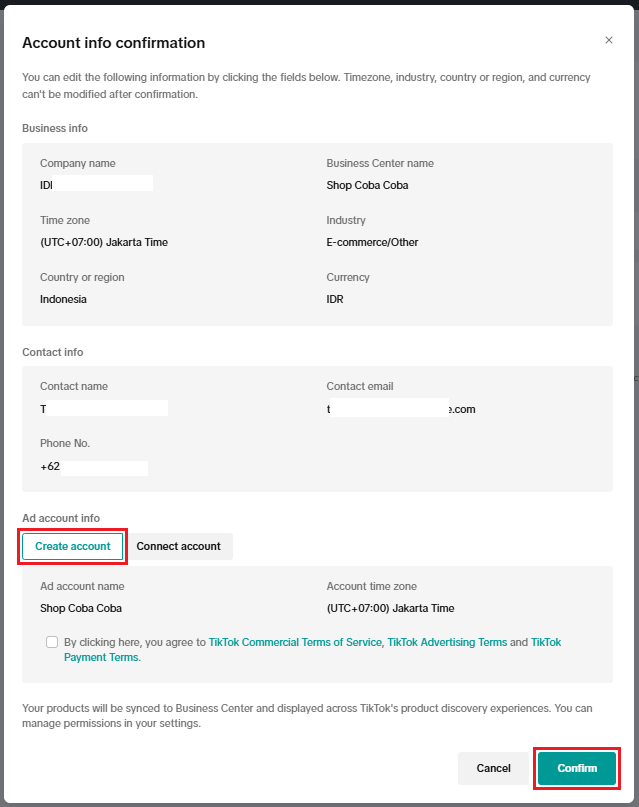
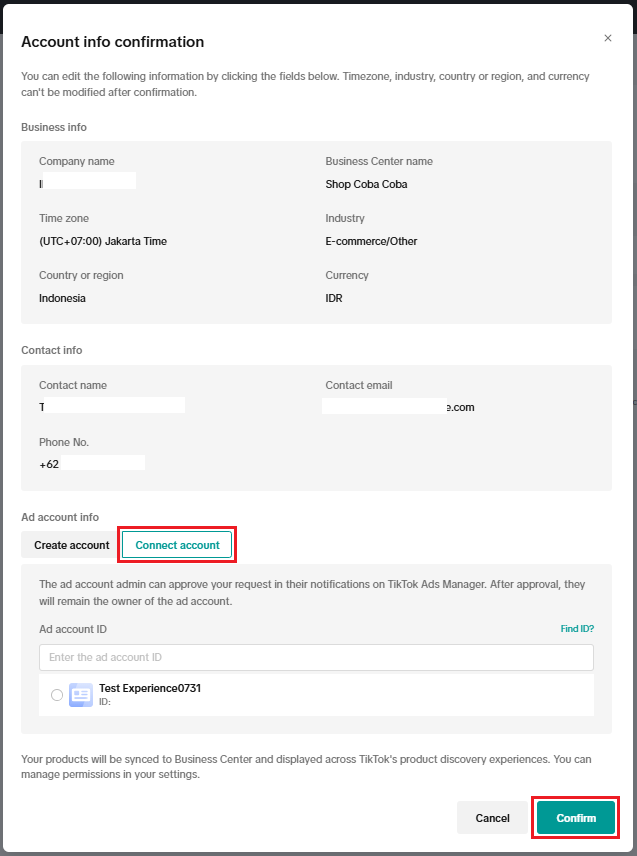
- On Ad Account info, click Create Account: A new TTBC account and Advertiser ID will be automatically created or click Connect Account: to connect to existing Advertiser ID. Click Confirm.
- If sellers choose to Create Account, TTBC account will be created and connected to their TikTok Shop. Sellers can connect their TikTok Shop to only one TTBC and more than one Advertiser ID at any given time.
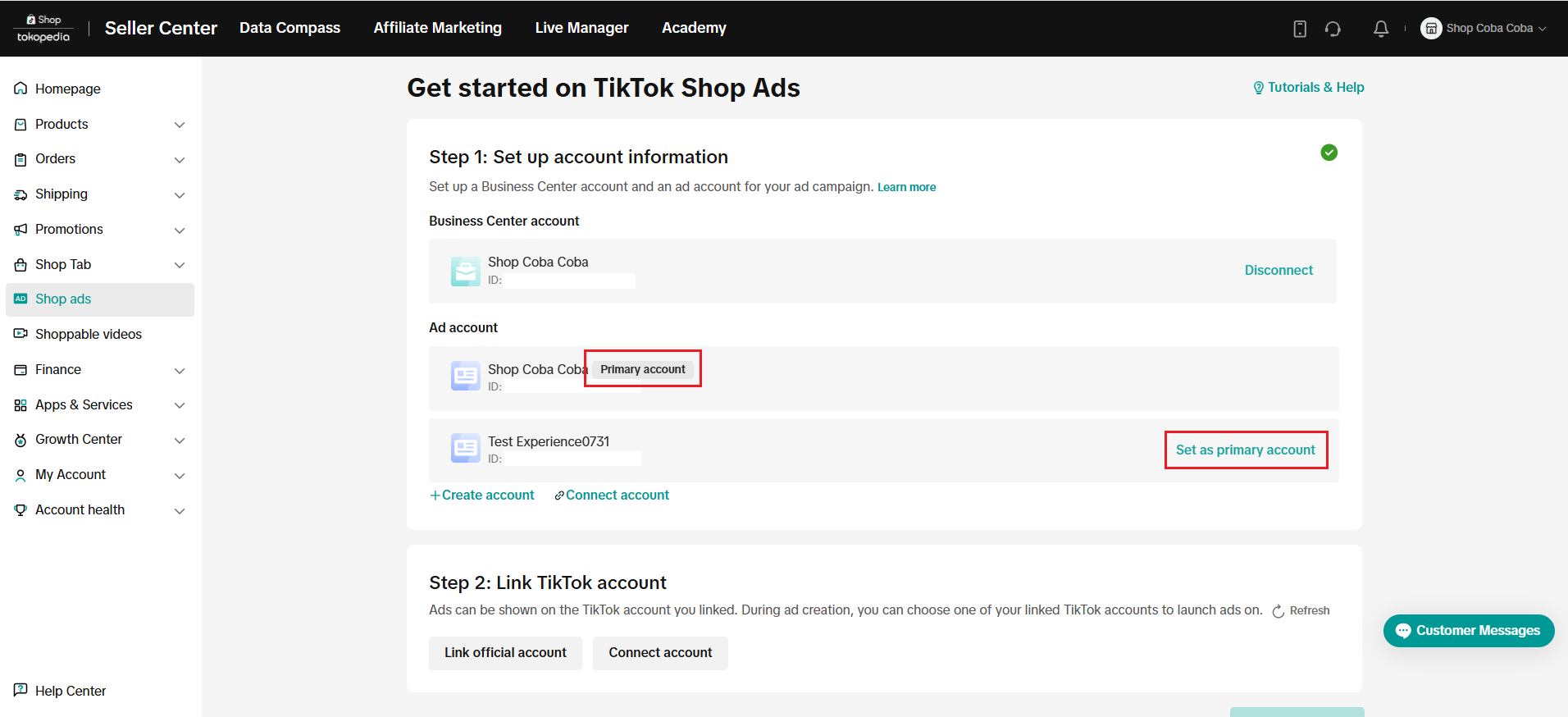
- If sellers choose to connect more than a single Advertiser ID to their Shop, set one as primary ad account. Primary Ad Account is an ad account whose reporting appears on the Ads Dashboard in your Shop Ads tab.
- Link your TikTok account as an ad delivery identity. For sellers who have linked the official account with the shop and authorized the ads permission, they might not see the Link TikTok Account module during the onboarding flow.
Via TikTok Business Center
(recommended if sellers have different teams managing multiple shops and ads)- Create TTBC: How to set up TikTok Business Center. TTBC is a one-stop business hub that ensures smooth collaboration between different teams or organizations by centralizing asset management and permission allocation.
- Link ShopTokopedia to TTBC: How to connect a ShopTokopedia to a Business Center
- Link Advertiser ID to TTBC: How to create ad accounts in Business Center
Set Ads Billing and Payment
For the complete payment options and guidance to manage payment and billing, visit Supported Payment MethodsFAQ
Invitations will be gradually sent to eligible sellers starting December 2024. Selected sellers will receive a notification on Tokopedia Seller Center and Tokopedia & Tiktok Shop Seller Center inviting them to join the early access program. In addition, the Account Manager will inform and guide eligible sellers through the process.
Sellers who do not receive the invitation can still be able to run Product Ads through Ads and Promotion tab on Tokopedia Seller Center as usual until the feature becomes generally available.
Yes, there will be some seller webinars. Details for these webinars will be shared as they become available. In the meantime, visit these articles to understand more about Tokopedia Product Shopping Ads or contact your Account Manager.
- Who can access Tokopedia Product Shopping Ads on TTAM?
- Existing sellers that already have shops on both platforms and have complete shop integration process
- Existing sellers that only have shops on Tokopedia need to create a new TikTok Shop account, complete the shop integration process and create a new TTAM account.
- When is this feature available for sellers?
- Is there any training available specifically for Tokopedia advertisers using TTAM?
- What will happen to my existing TopAds campaigns?
- What happens to sellers' ads credit in Tokopedia if they have activated Product Shopping Ads in TTAM?
- What should sellers do if they have a problem with Shop and Ads Integration?
- For Shop Integration related issues, please contact TikTok Shop Contact Us.
- For Ads Integration related issues, please contact the help center through one of these channels:
- Tokopedia Customer Care, please contact Tokopedia Help.
- Tokopedia & Shop Seller Center
- Tiktok Ads Manager
- TikTok Business Center
PreviousShop Ads OnboardingNext How to Setup Ads in Tokopedia & TikTok Shop Seller Center App (TTSC App)
You may also be interested in
- 1 lesson
Optimize Shopping Ads
Best practices for improving the performance of your shopping ads to increase click-through rates an…
- 6 lessons
Shopping Ads Type
A breakdown of the different types of shopping ads you can use to promote your products.
- 1 lesson
Product Shopping Ads Adoption
Introduction to setting up and managing Product Shopping Ads on Tokopedia.
- 3 lessons
Optimize Targeting in Shopping Ads
How to refine your targeting in shopping ads to reach the right audience and maximize returns.
- 2 lessons
Tokopedia Product Shopping Ads on TikTok Ads Manager
Tokopedia Product Shopping Ads on TikTok Ads Manager

How to Setup Ads in Tokopedia & TikTok Shop Seller Center Ap…
Before Getting Started Eligibility: Product Shopping Ads is available to invited TikTok and Tokopedi…