

How to Use Prompter in Short Videos
02/02/2026
What is Prompter
Prompter is a built-in plugin within the TikTok Shop video recording experience that displays AI generated selling points of the linked product directly on screen while recording a video. It addresses a common pain point - forgetting key talking points when recording videos, by eliminating the need for memorizing scripts or using external prompting tools. This feature streamlines the recording process, enhances content accuracy, and helps creators produce shoppable videos more efficiently and confidently.
Benefits of Prompter
- On-screen Prompts Without External Tools: The Prompter displays key selling points of the linked product directly on the filming screen, so you can stay focused and confident without needing to memorize scripts or use external prompting tools.
- Increase Filming Efficiency: A streamlined workflow with fewer pauses and retakes leads to a faster, smoother recording process, which enables you to manage multiple products, meet tight deadlines, and stay active to grow their audience and sales effectively.
- Boost Content Quality with Value-driven Product Insights: The AI generated selling points displayed in the prompter are based on the product details provided by sellers and high-performing product descriptions used by top-selling creators, which allow you to confidently highlight key features and benefits that resonate with potential customers.

How to Use Prompter
Step One: Access Prompter
Prompter appears directly when you start recording a video. It can also be found among other video tools on the Videos tab and in the TikTok Shop toolkit.| Entrance #1 | Creator Center > Create now > Short video -Camera | 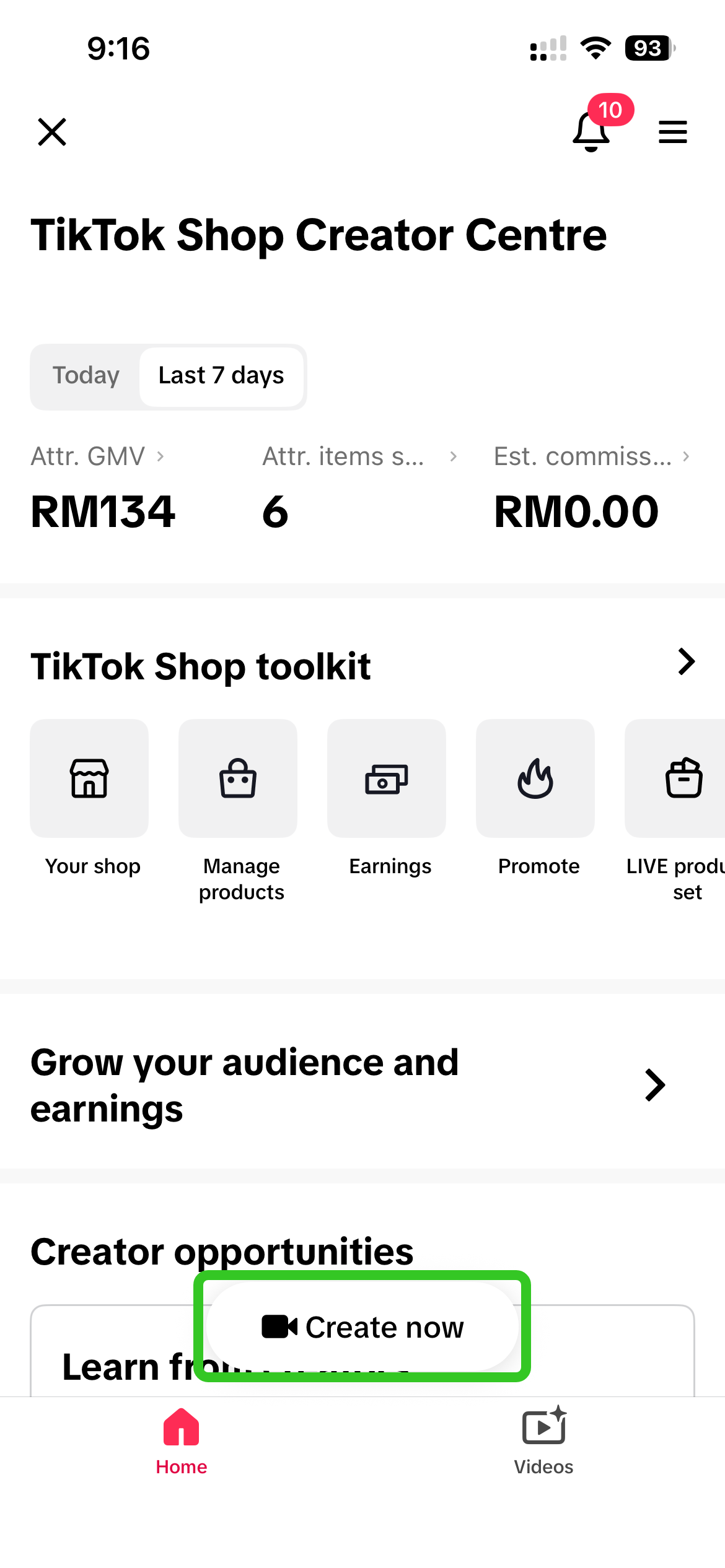 | 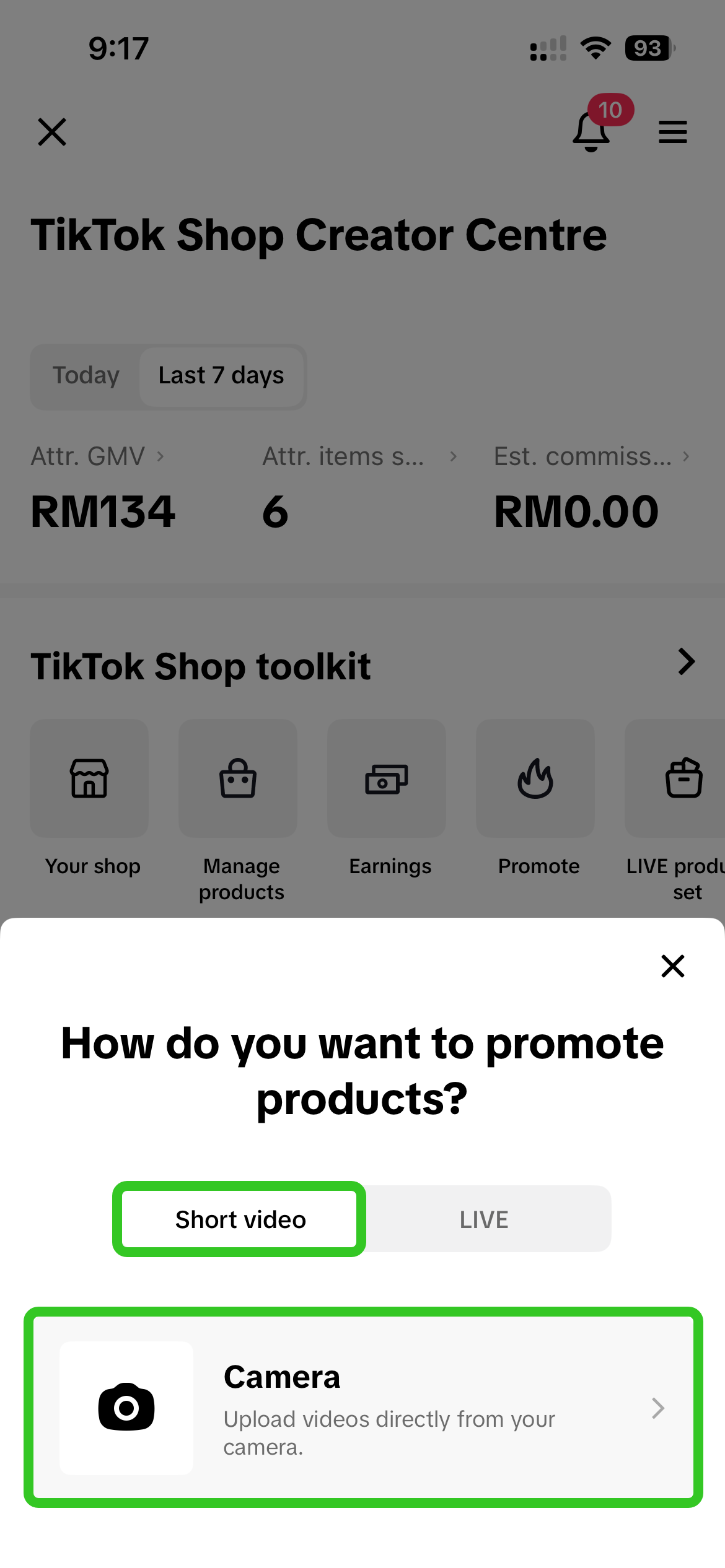 | 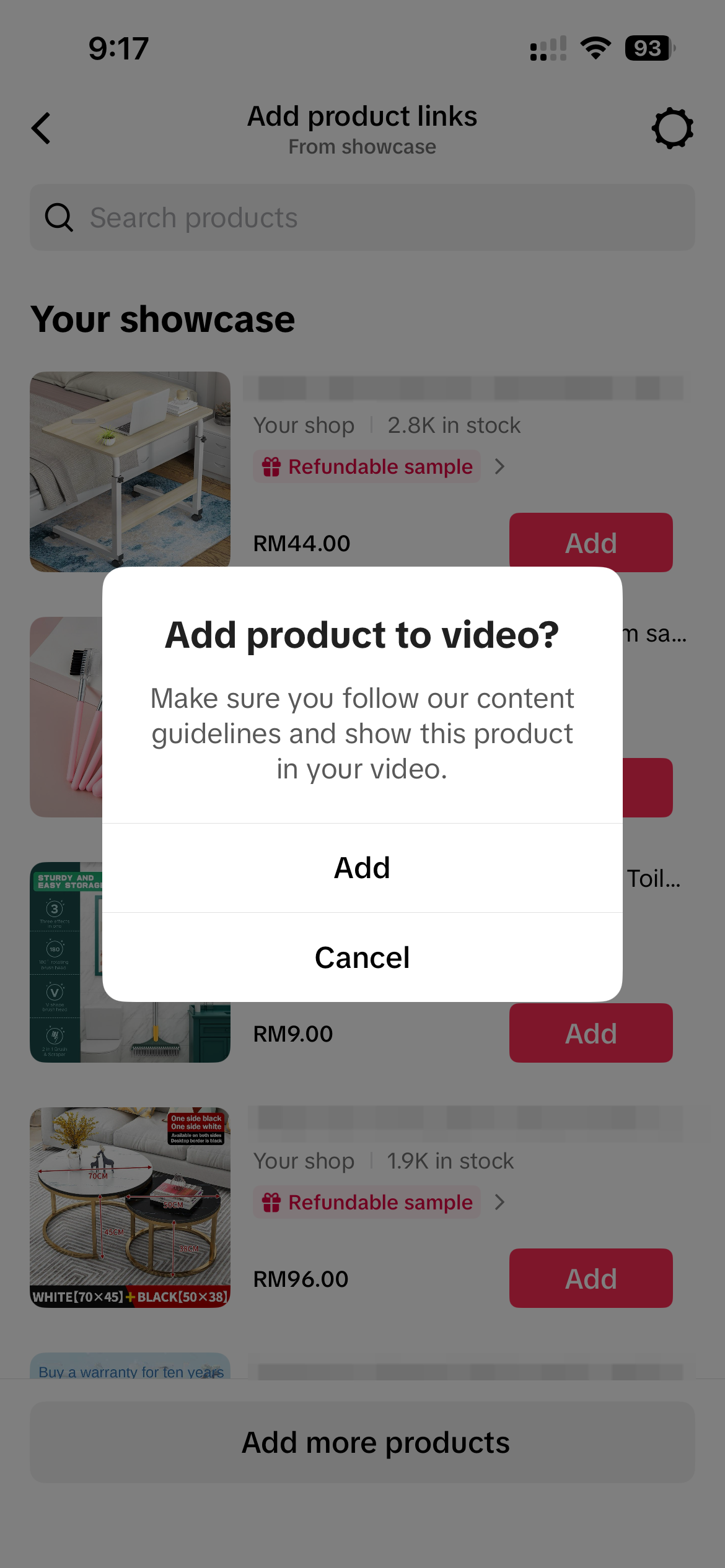 | 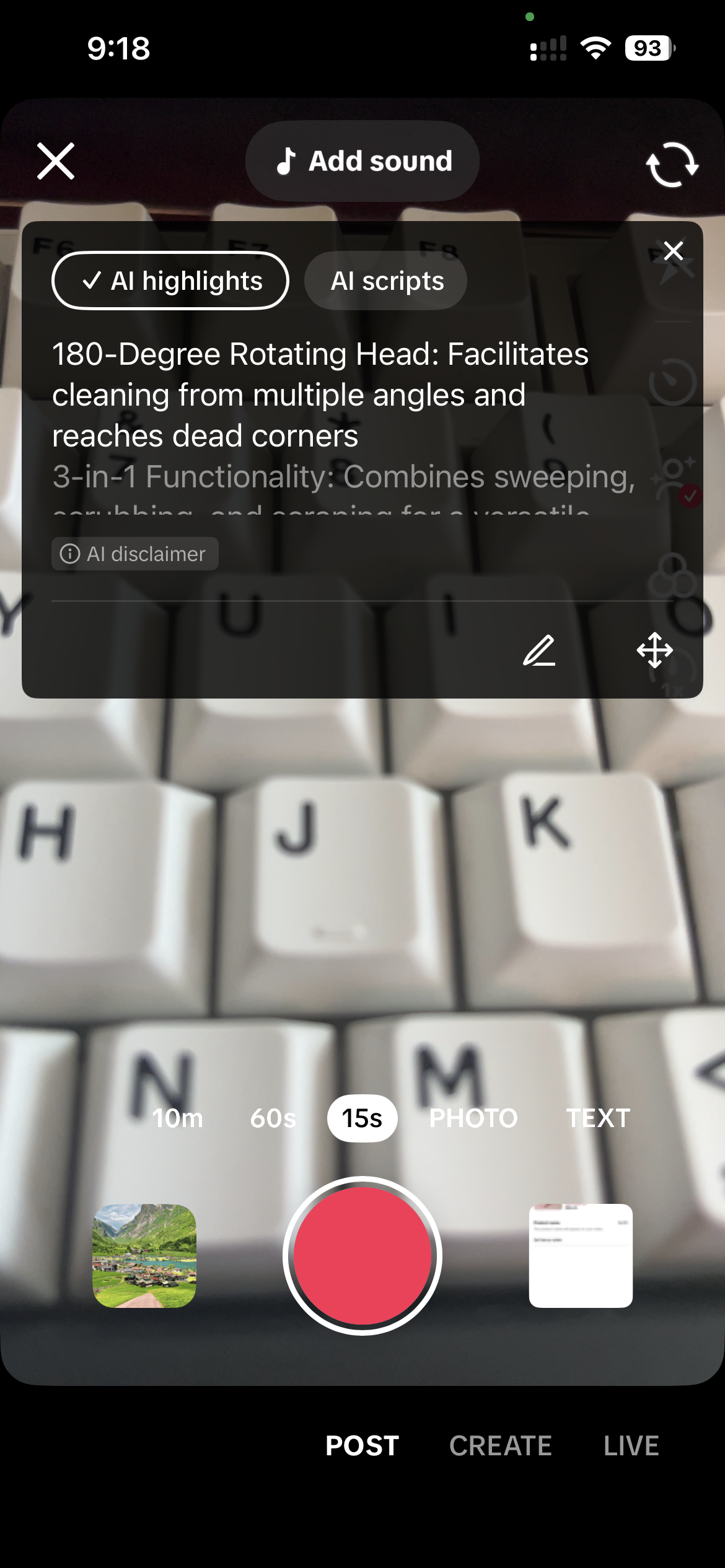 |
| Entrance #2 | Creator Center Videos tab > Prompter Creator Center Videos tab > Video ideas > Record icon | 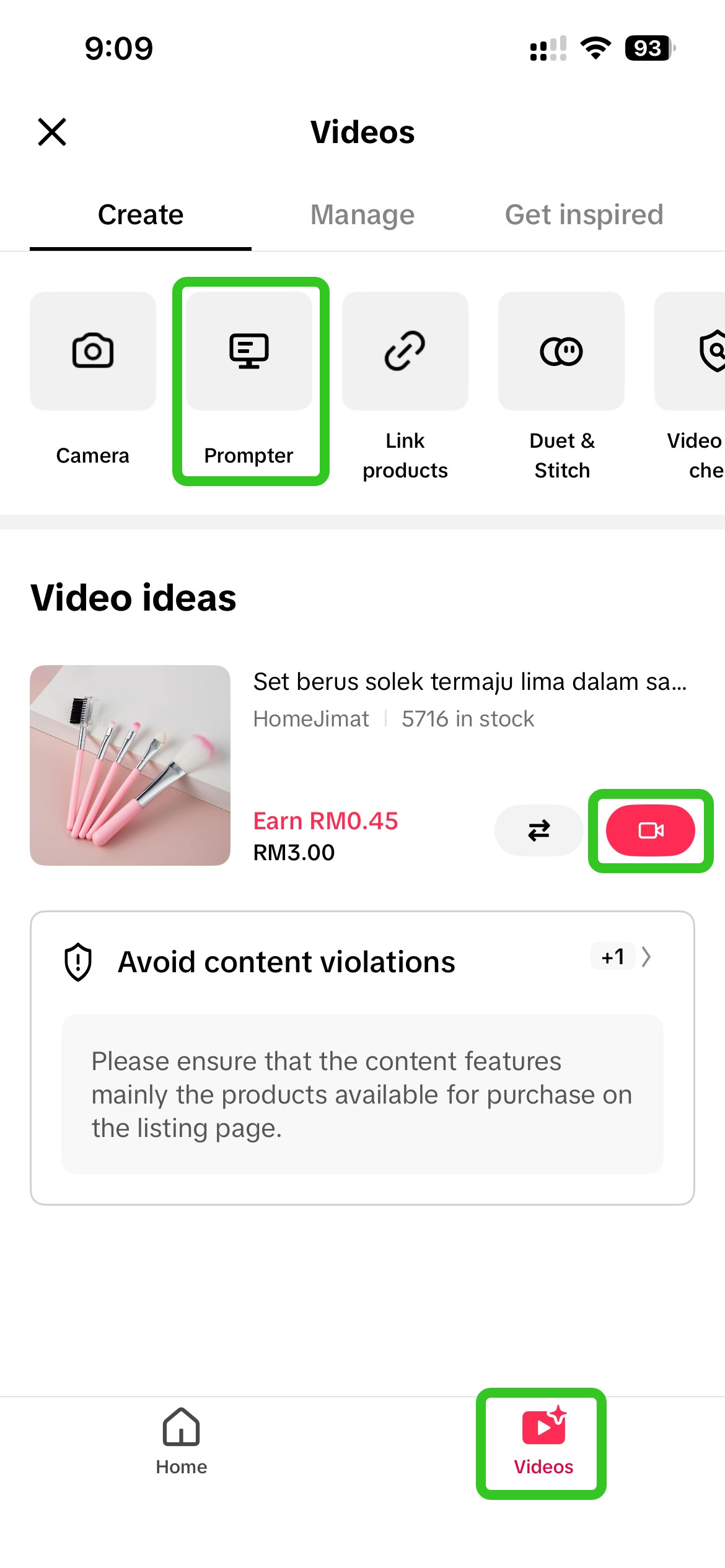 | 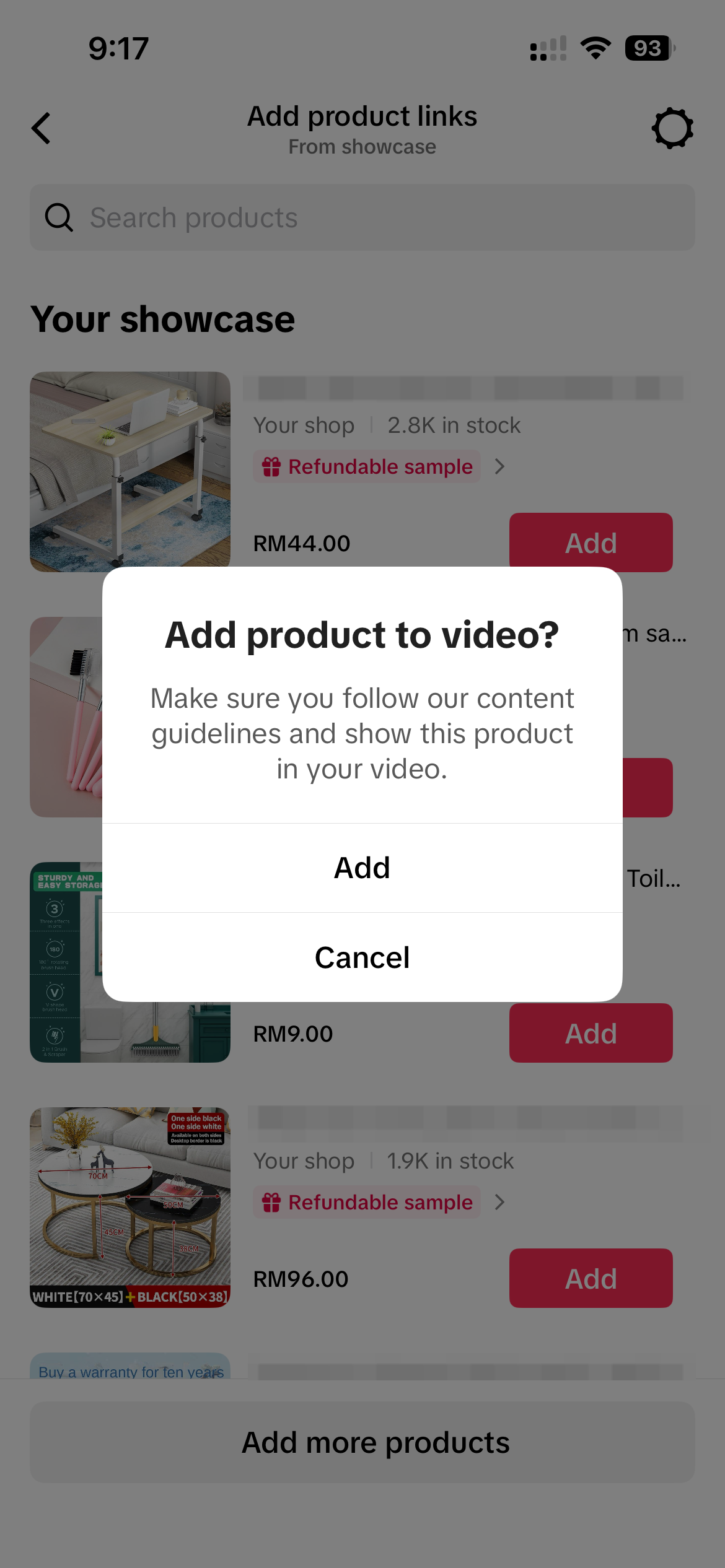 | 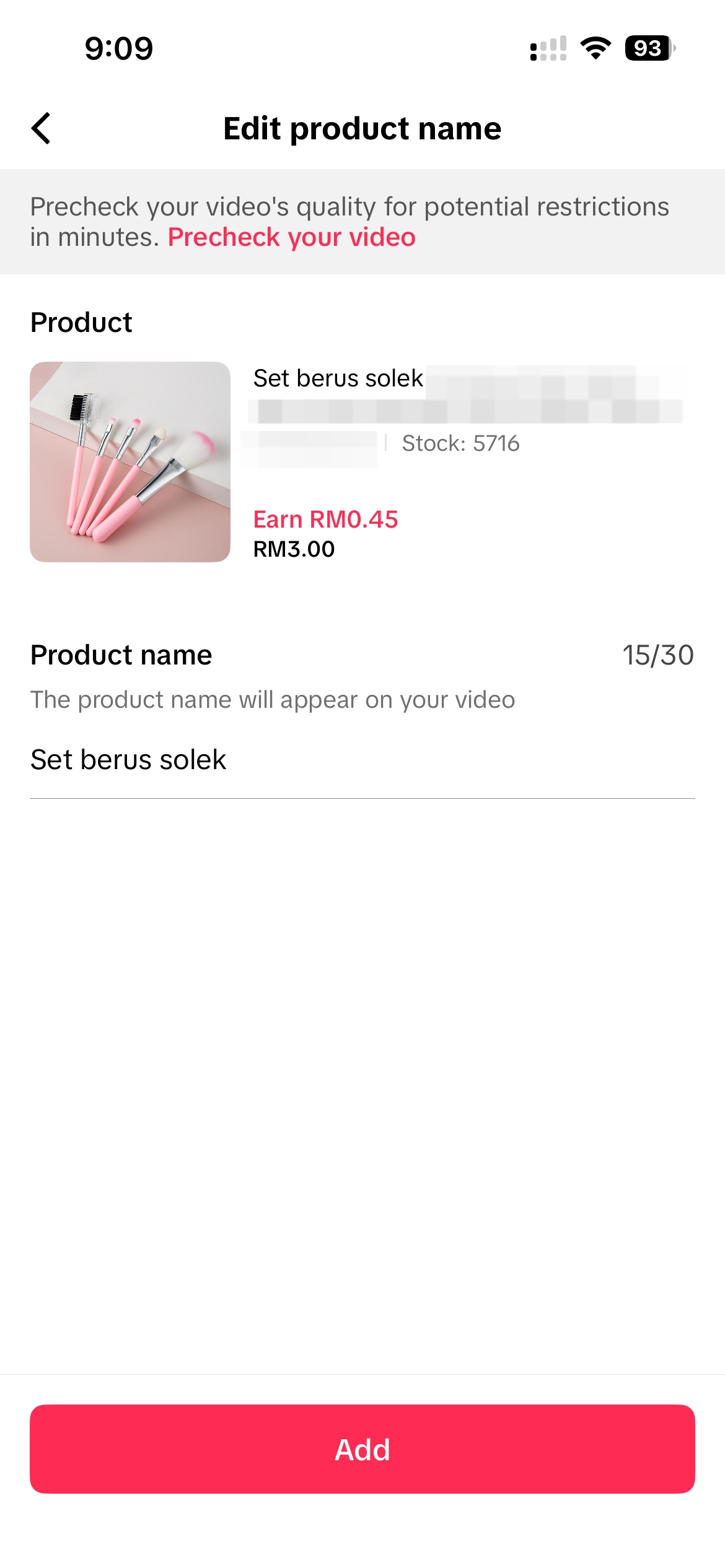 | 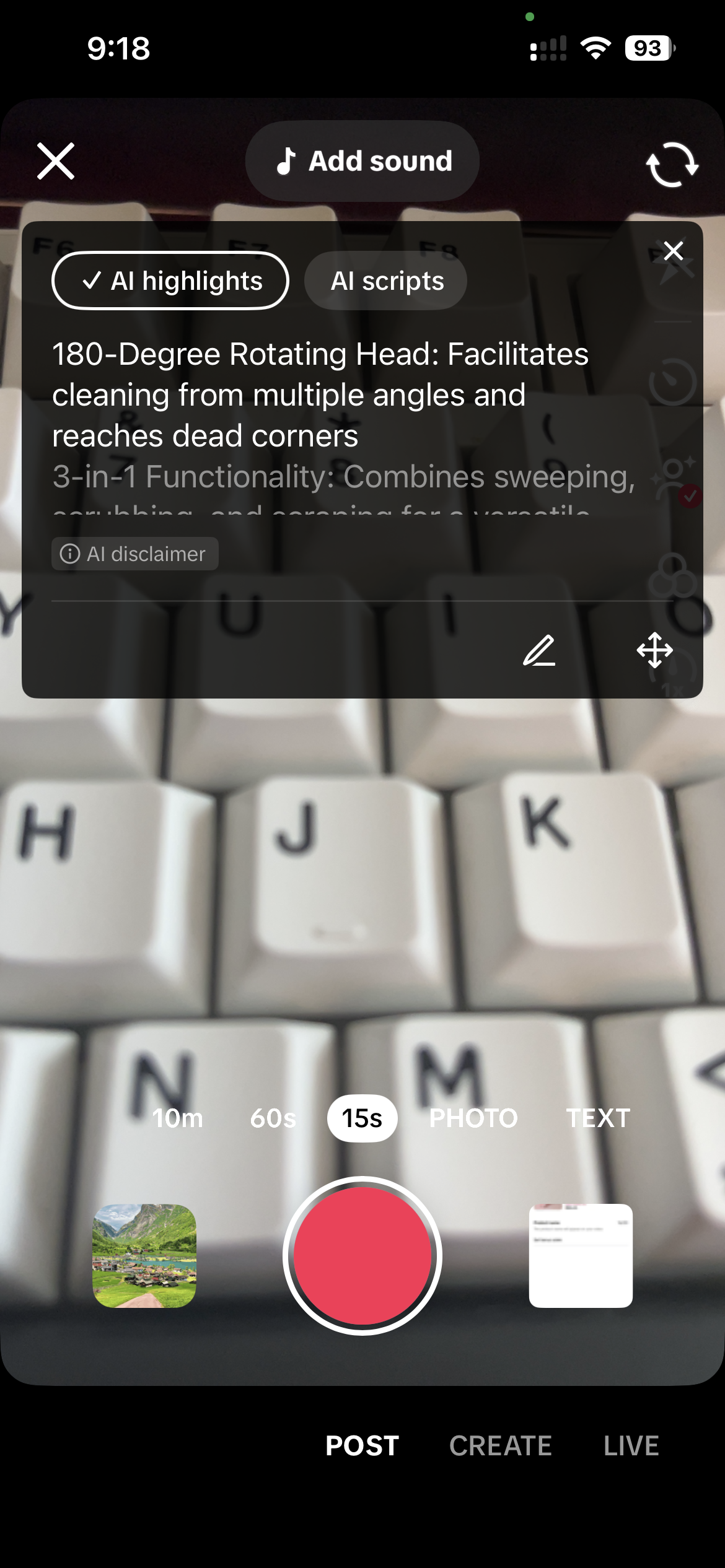 |
| Entrance #3 | Creator Center > Toolkit > Prompter | 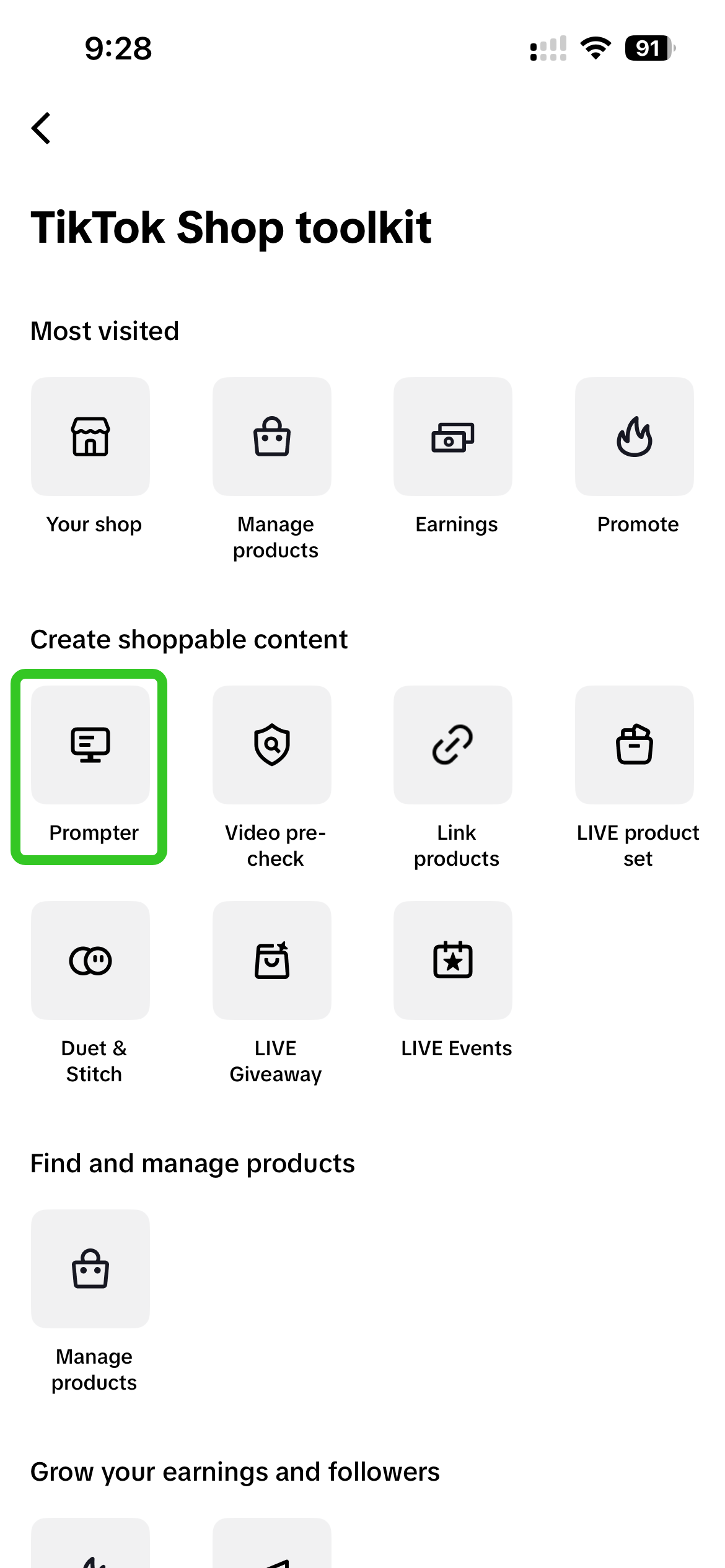 | 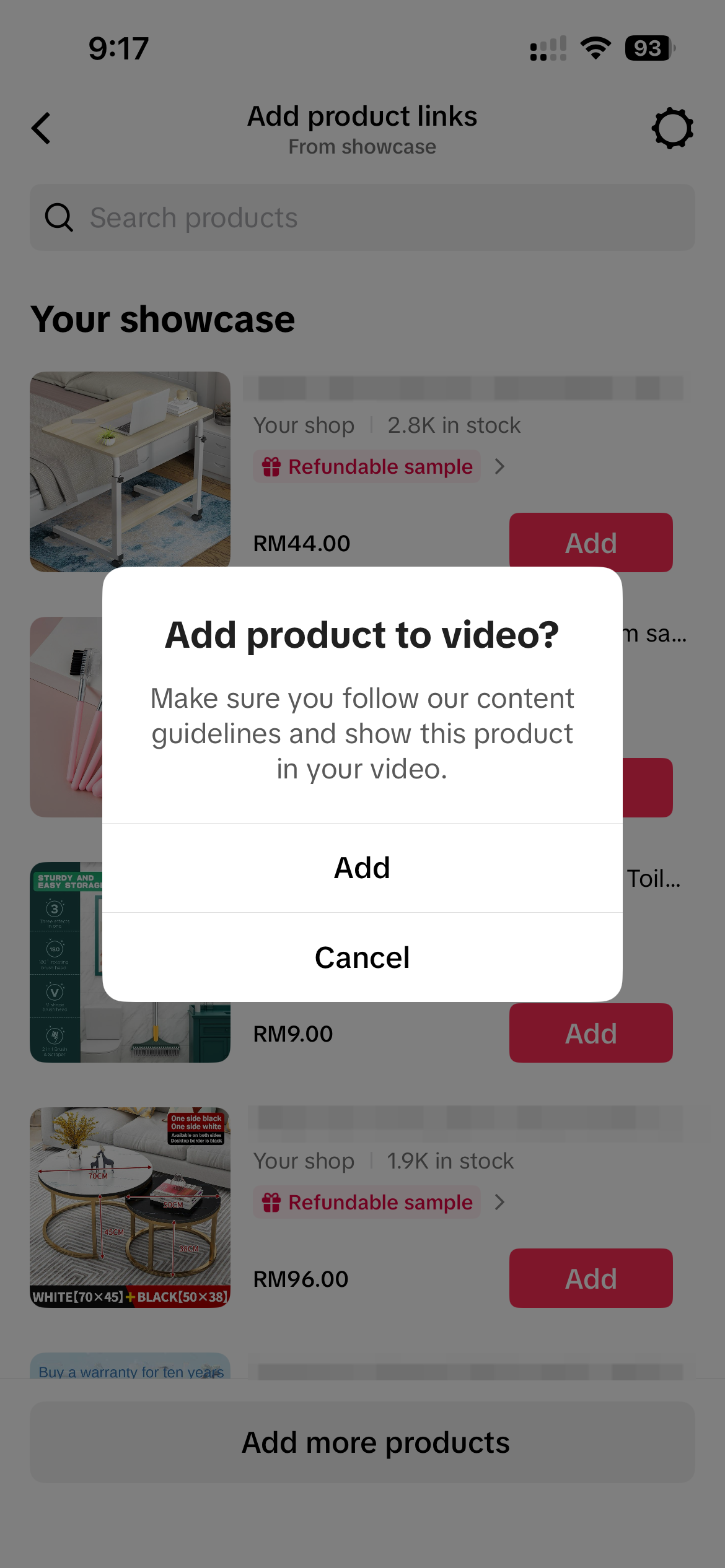 | 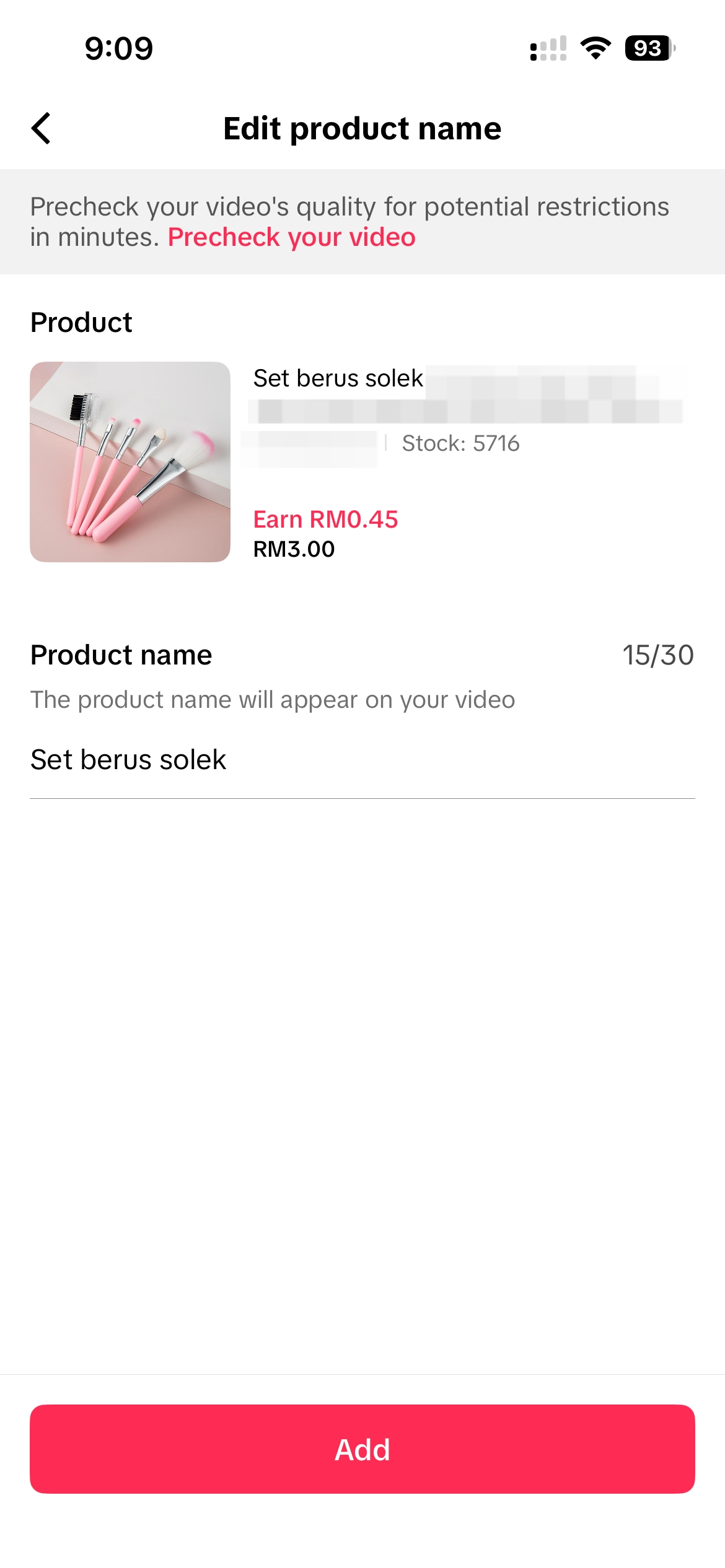 | 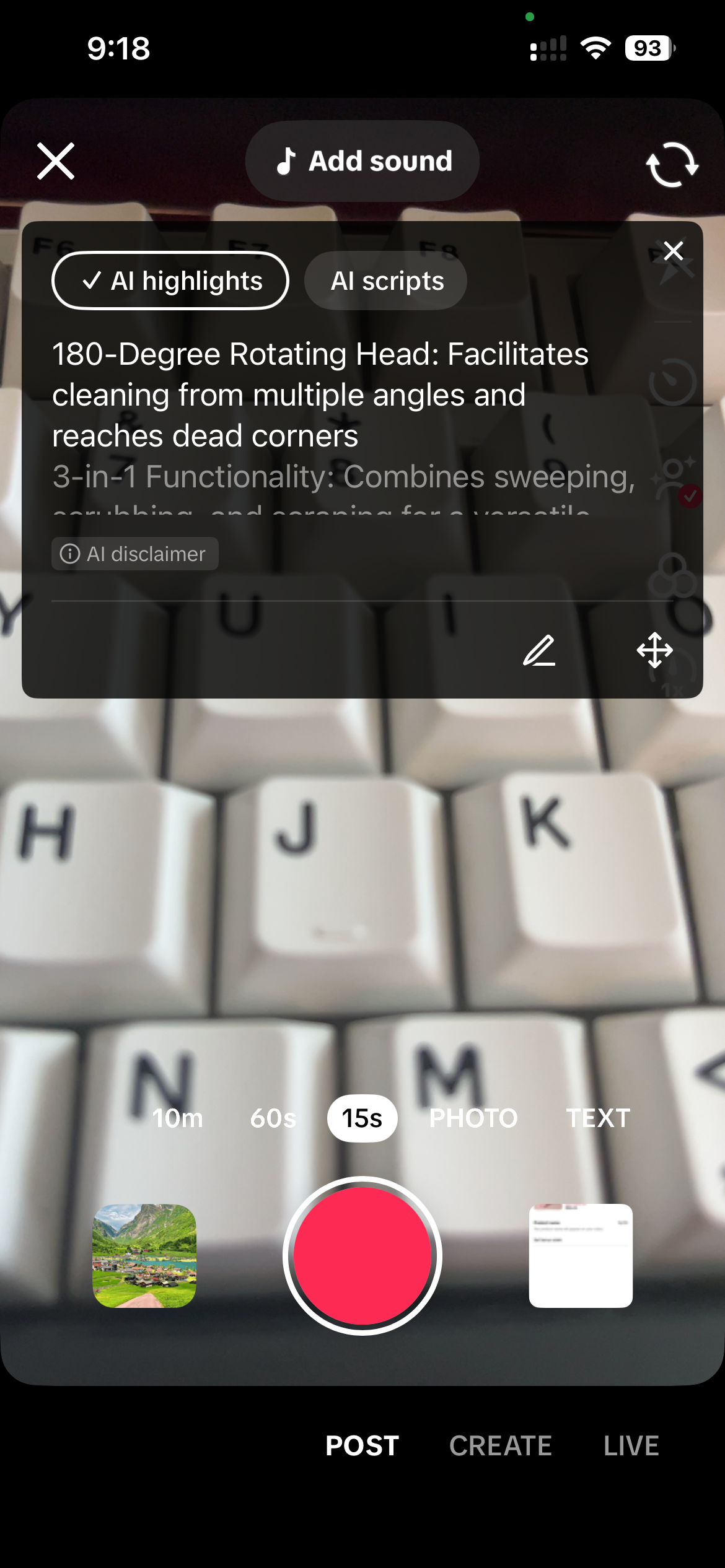 |
Step Two: Record videos using the Prompter
Prompter is automatically enabled when you start recording using the camera function in the TikTok Shop Creator Center after linking a product to the video. See below for an example user journey of using the Camera on Creator Center: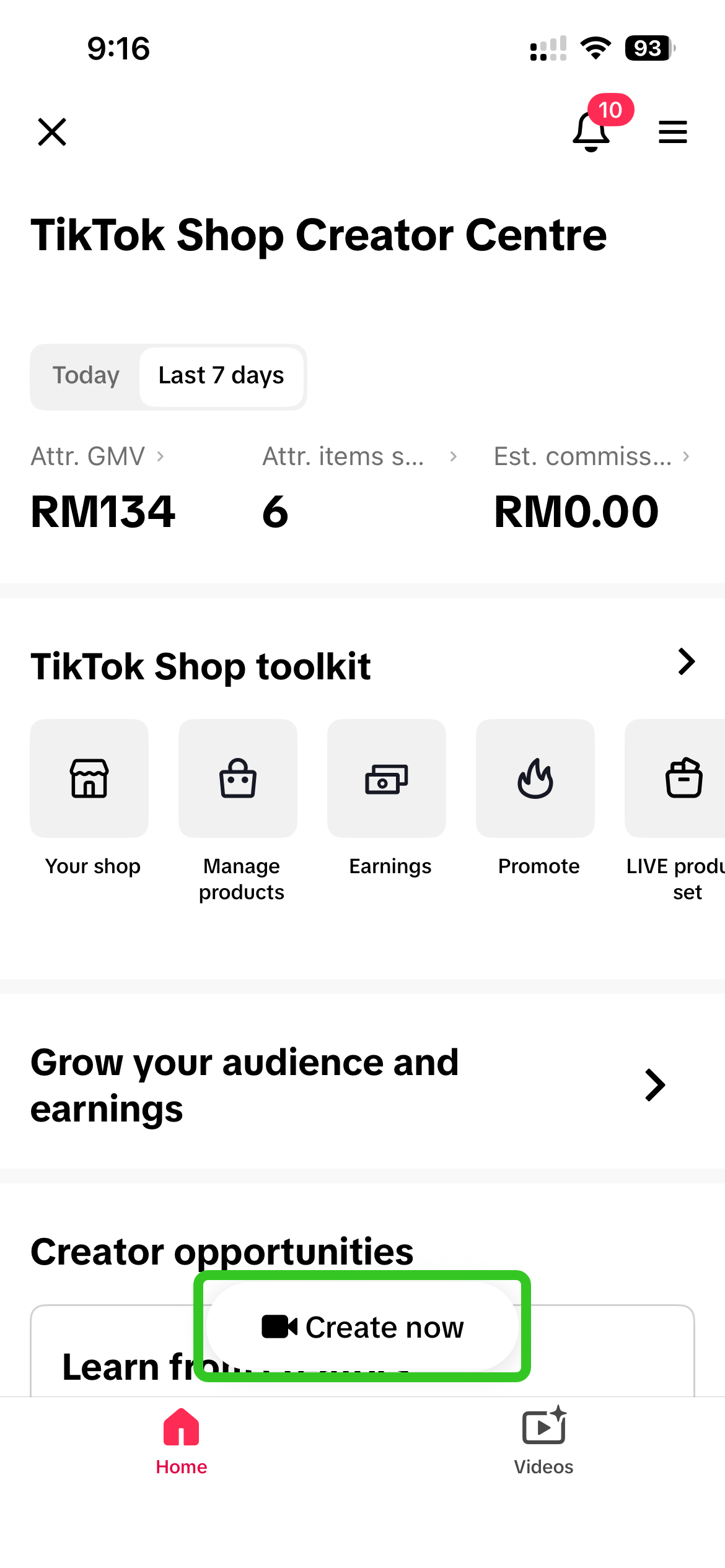 | 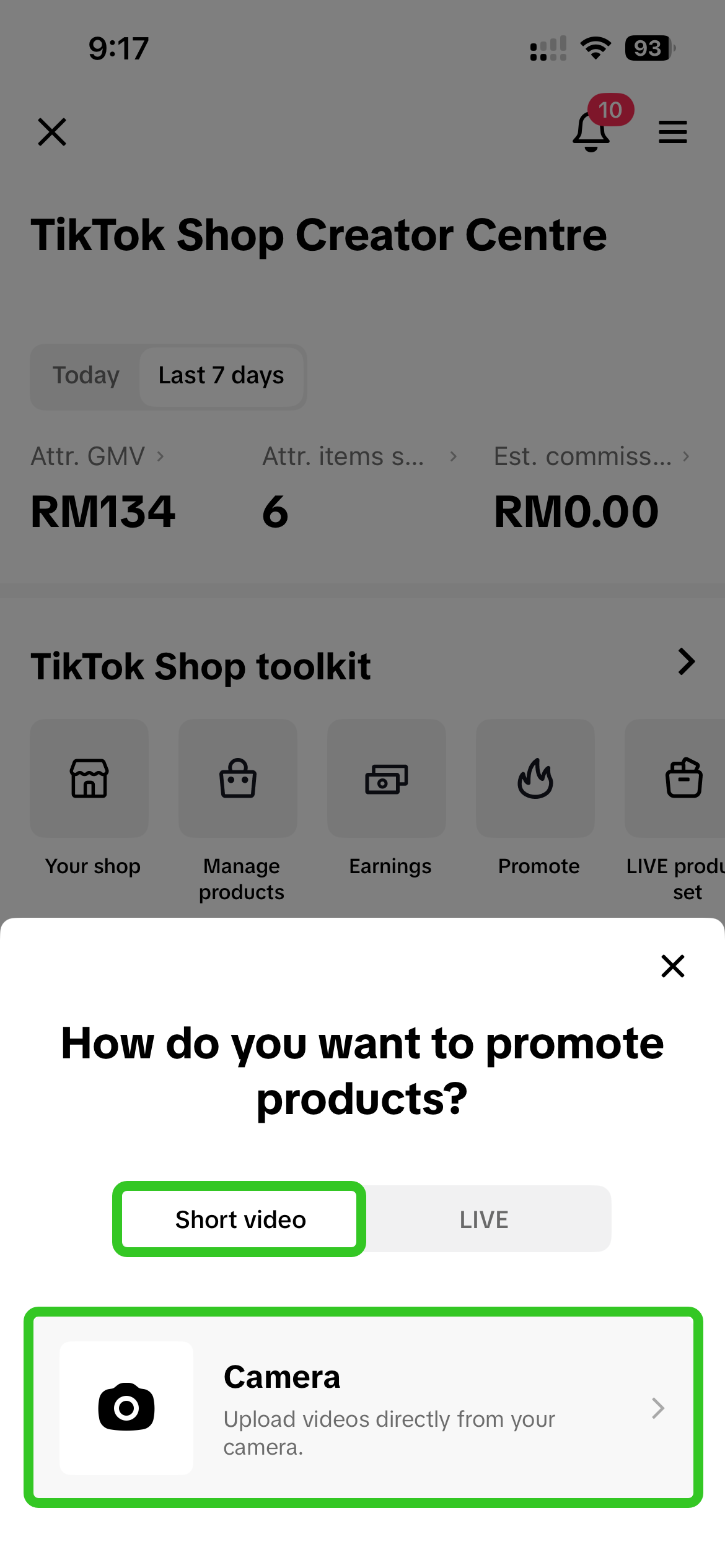 | 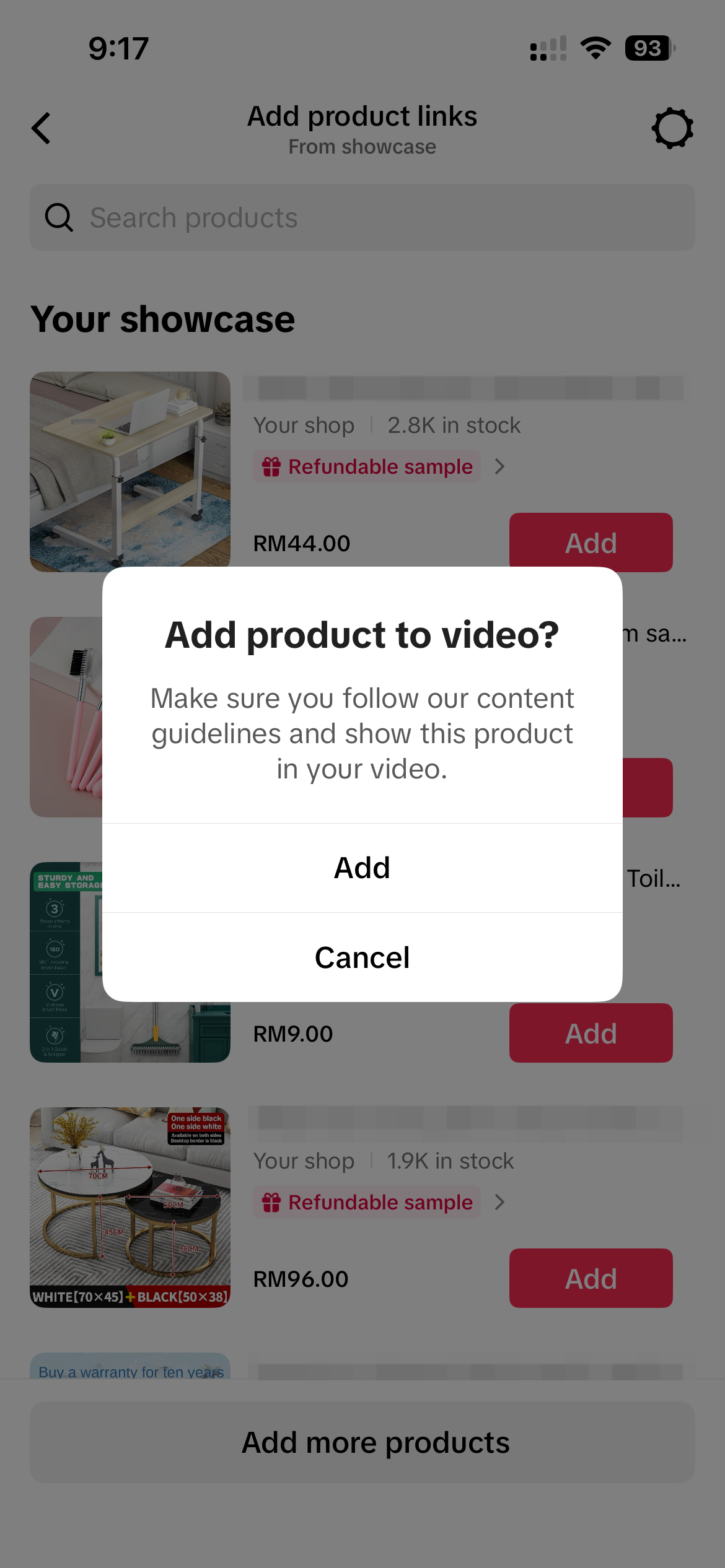 | 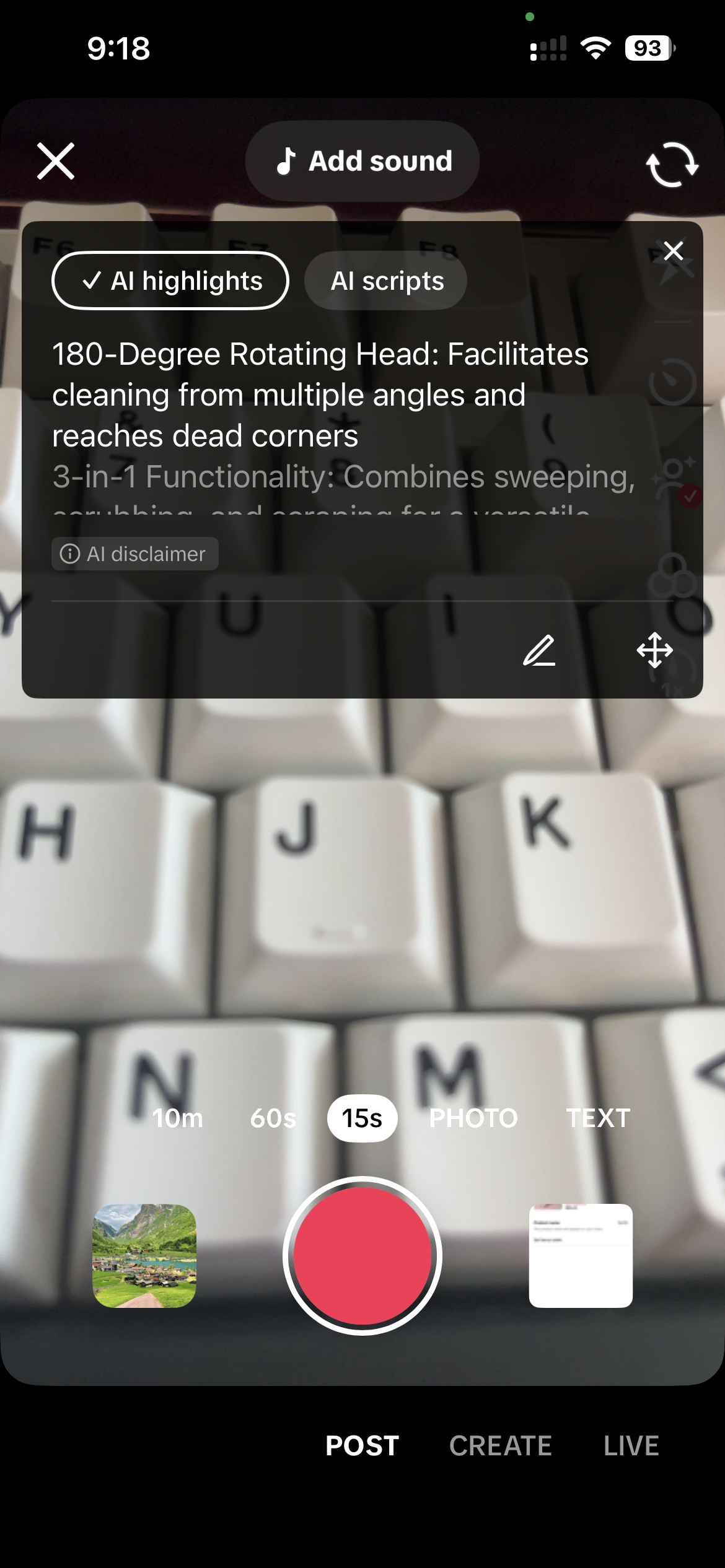 |
- Enter the Creator Center, tap "Create now", select "Camera", and link a product to the video.
- After selecting a product, tap "Add" to enter the recording process, and Prompter will automatically appear, displaying key selling points of the product generated by AI.
- Hold the "Record" button to start recording, and the selling points will automatically scroll upward on the screen. You can also manually scroll up or down to match the content flow with your speaking pace.

Tips on Using Prompter
| Display key selling points or a full script | 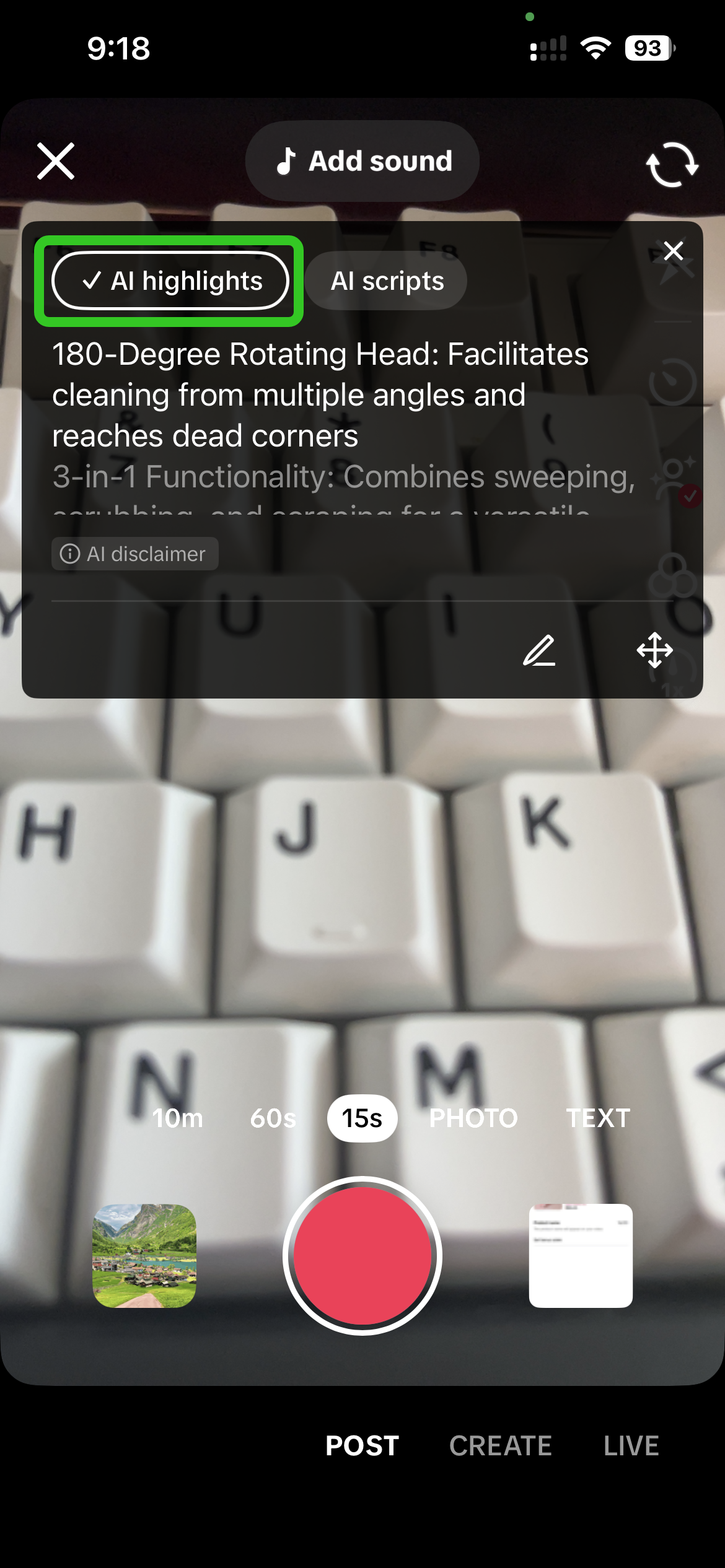 | 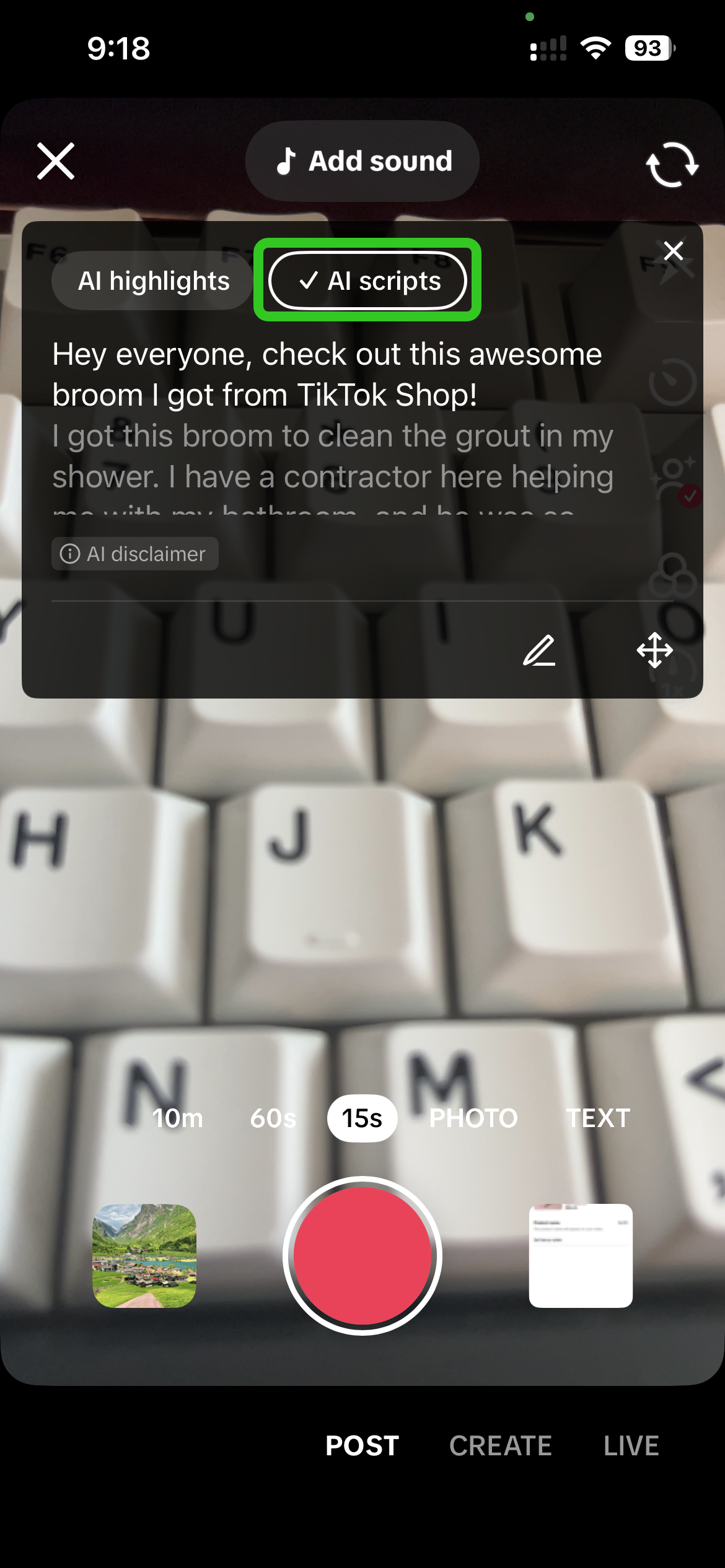 | Choose "AI highlights" to view product key selling points, or select "AI scripts" to get a full conversational script that you can read directly while recording. |
| Customise the script displayed on Prompter | 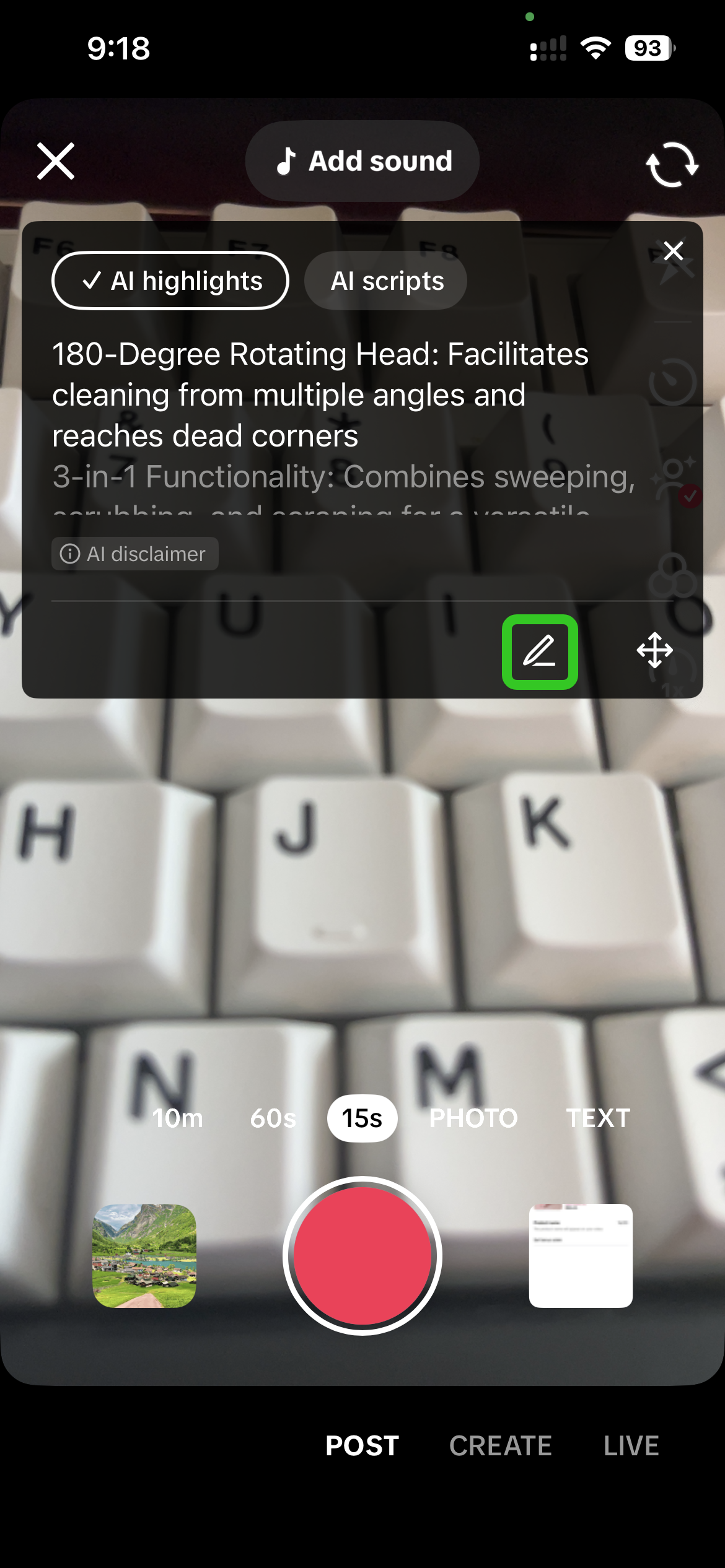 | 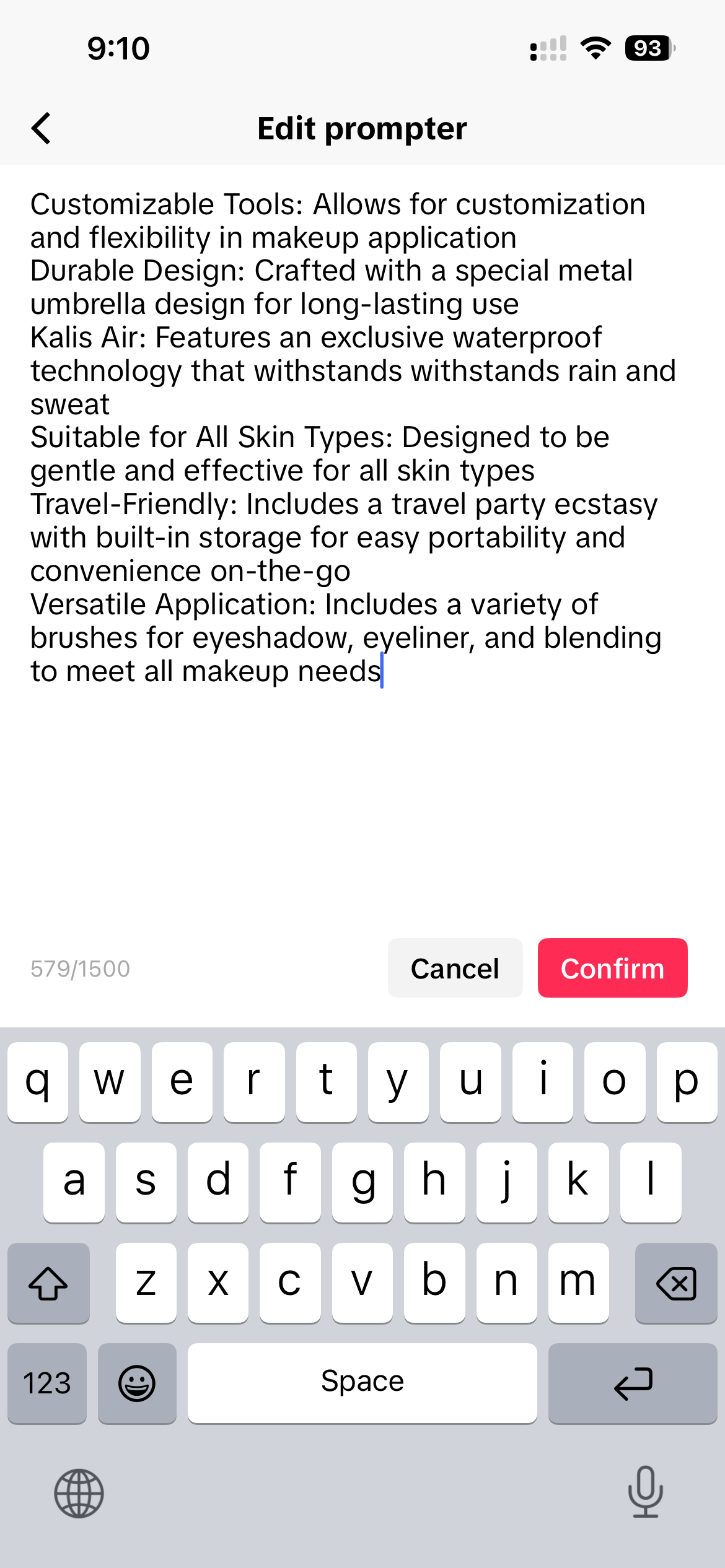 | Tap the pencil icon to enter editing mode. Make changes to the script as desired, then tap "Confirm" to display the updated content on the prompter. |
| Reposition the Prompter location | 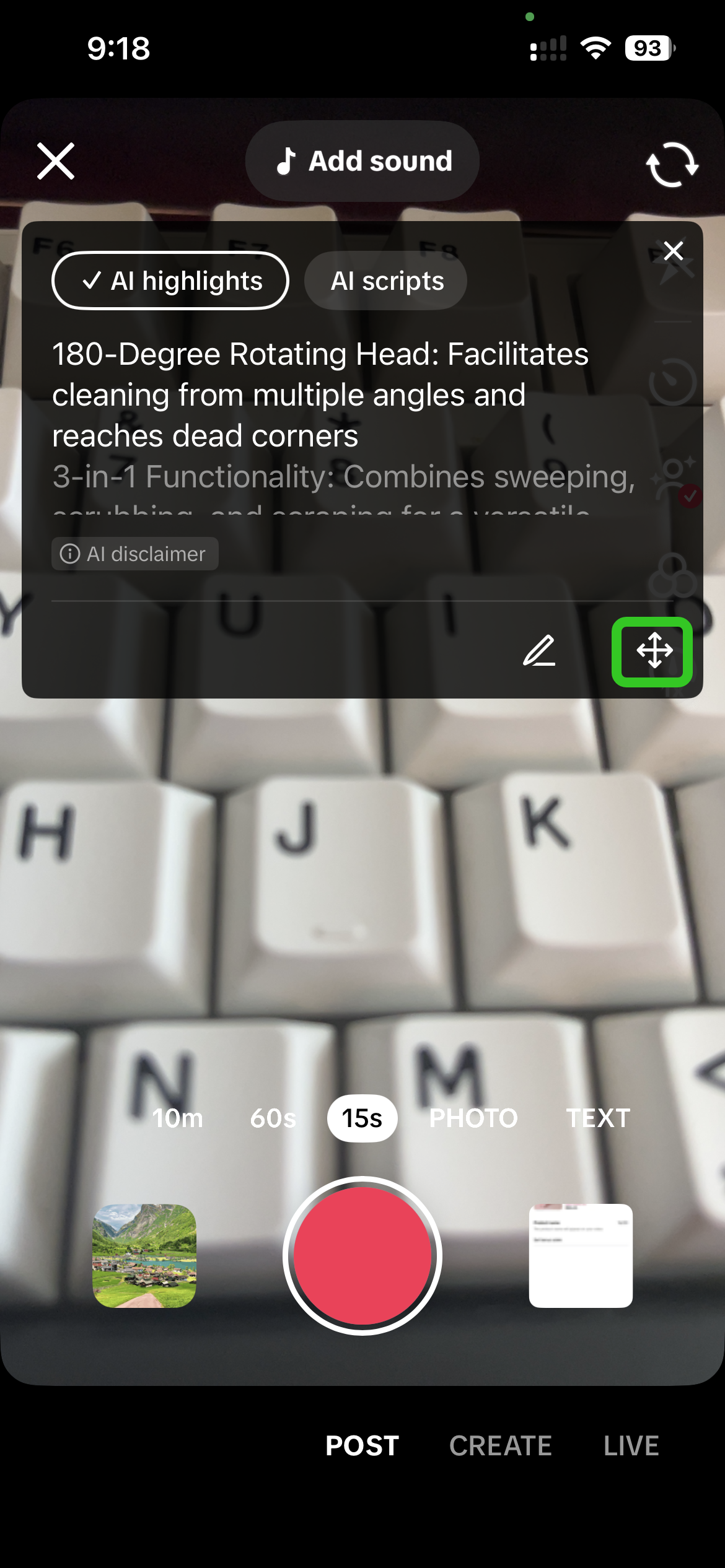 | 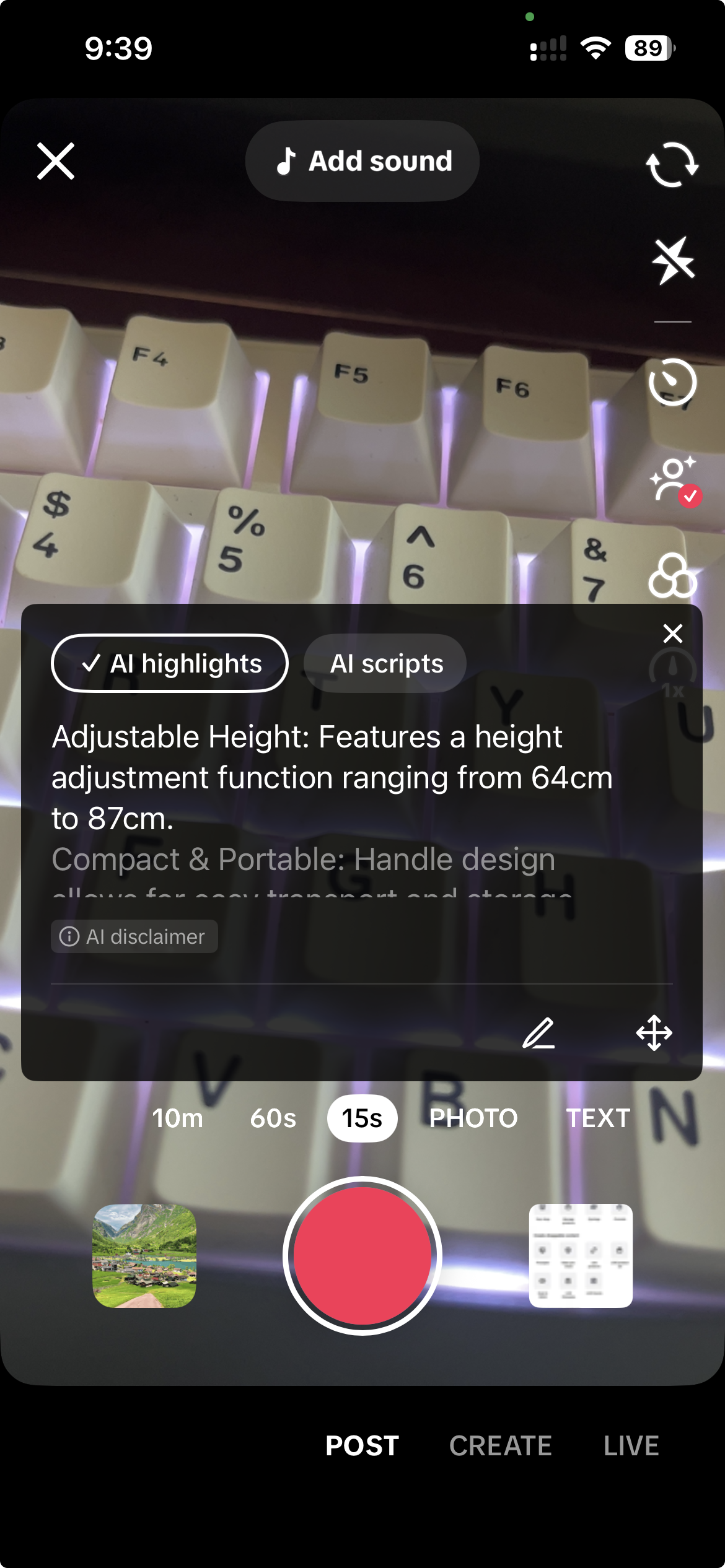 | Long press and drag the "Navigate" button on the bottom right of the Prompter screen to reposition it anywhere on the screen when needed. |

FAQs
- Why isn't the Prompter showing on my recording screen?
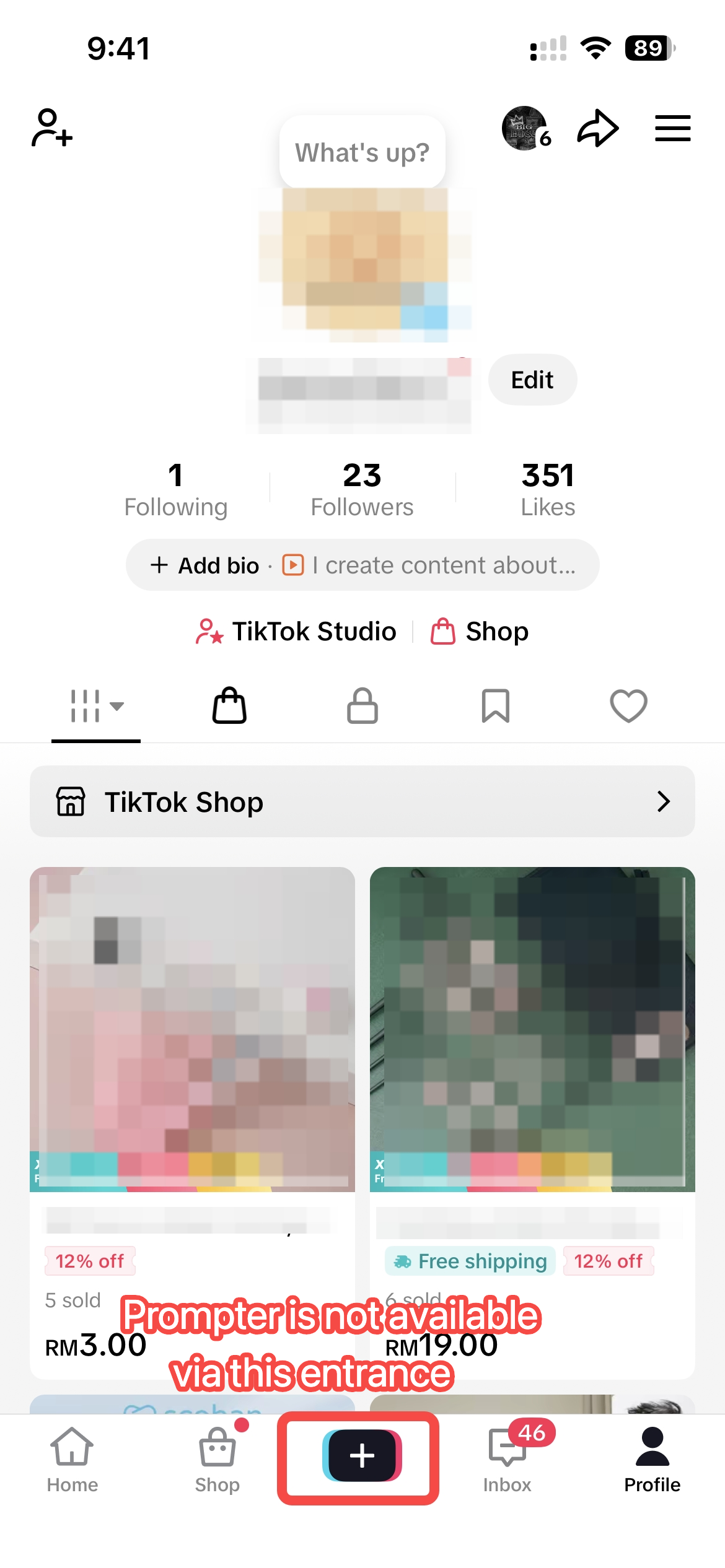 | Do note, Prompter is not available when recording through the main Camera function when clicking on "+". |
- Can I close the Prompter?
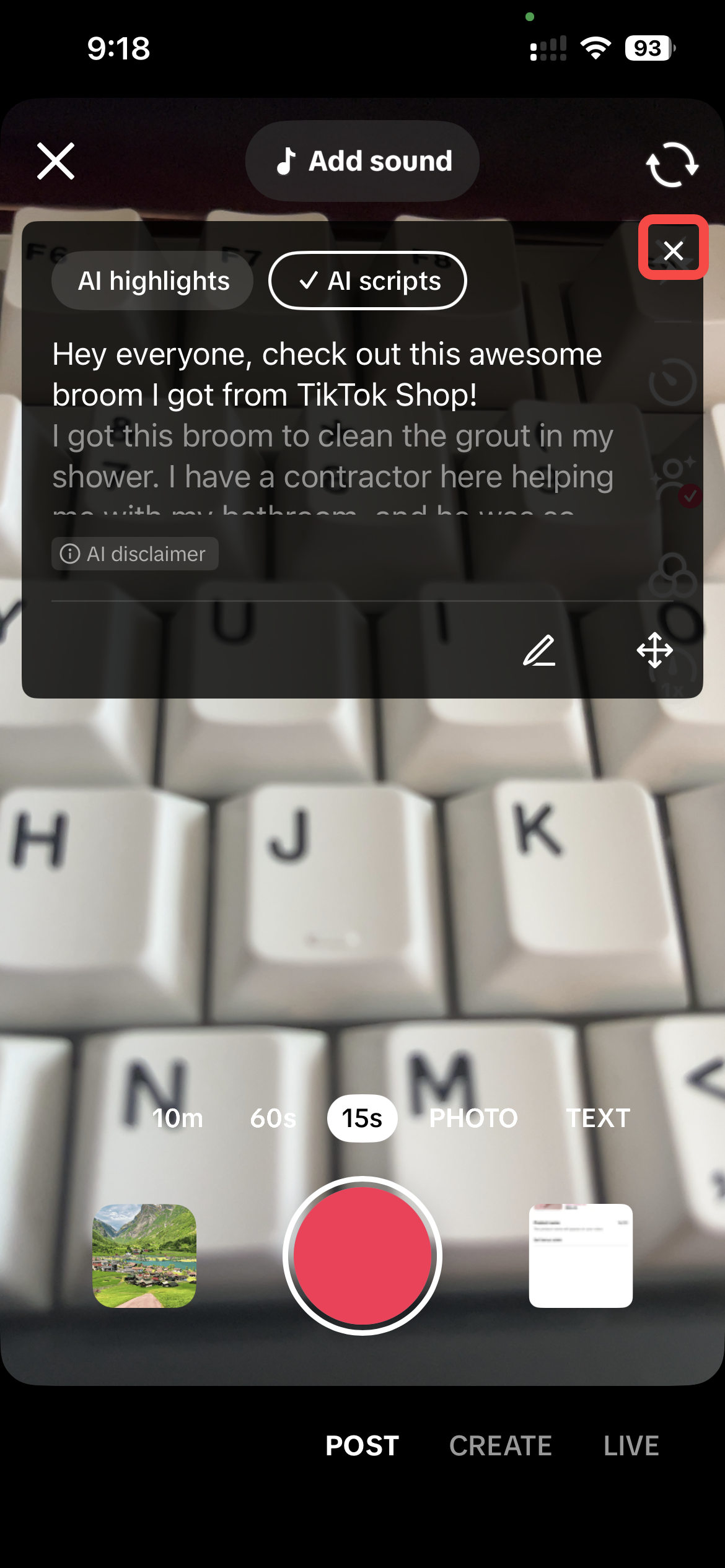 | 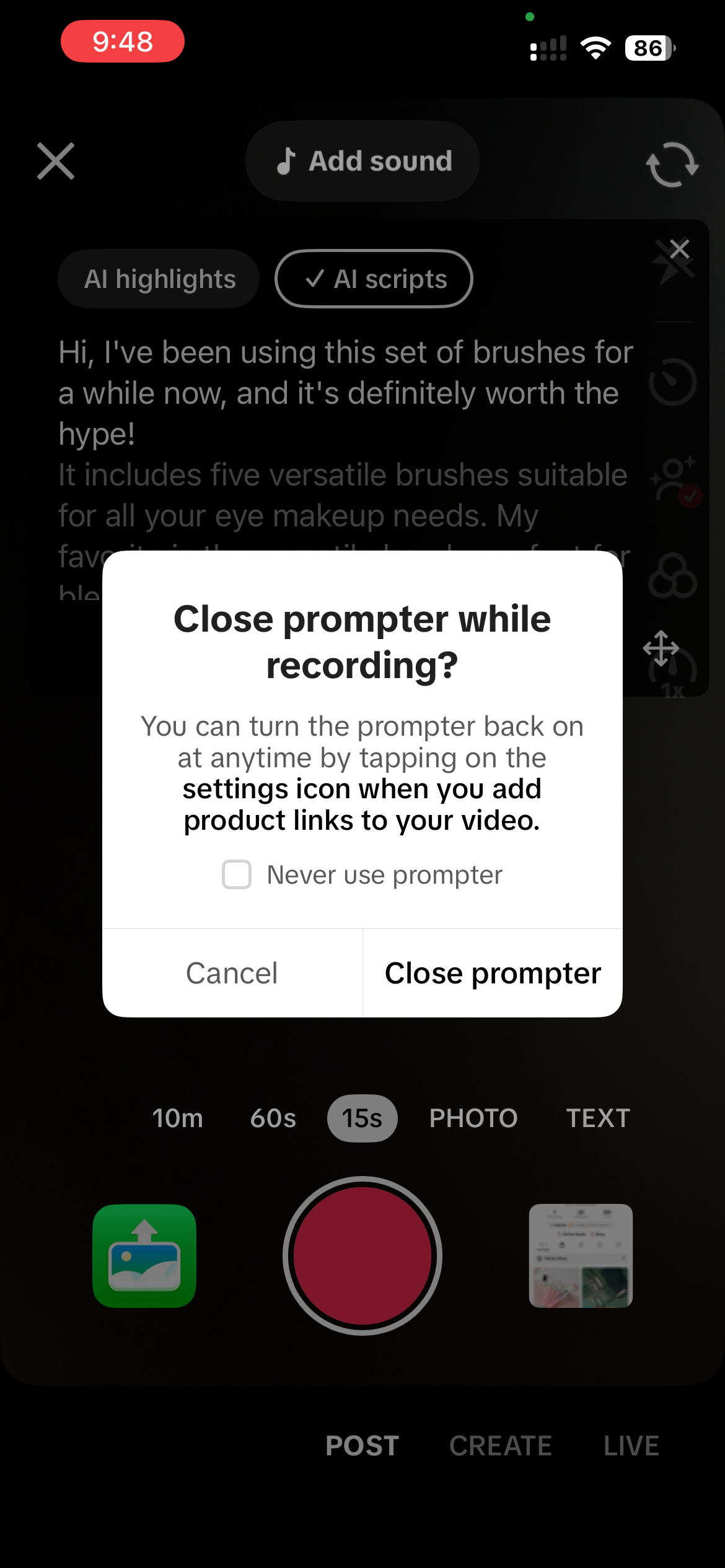 | Yes, you can click the X button, and then click "close prompter". |
- Upon closing the Prompter, I accidentally ticked "Never use the Prompter". How can I turn it on again?
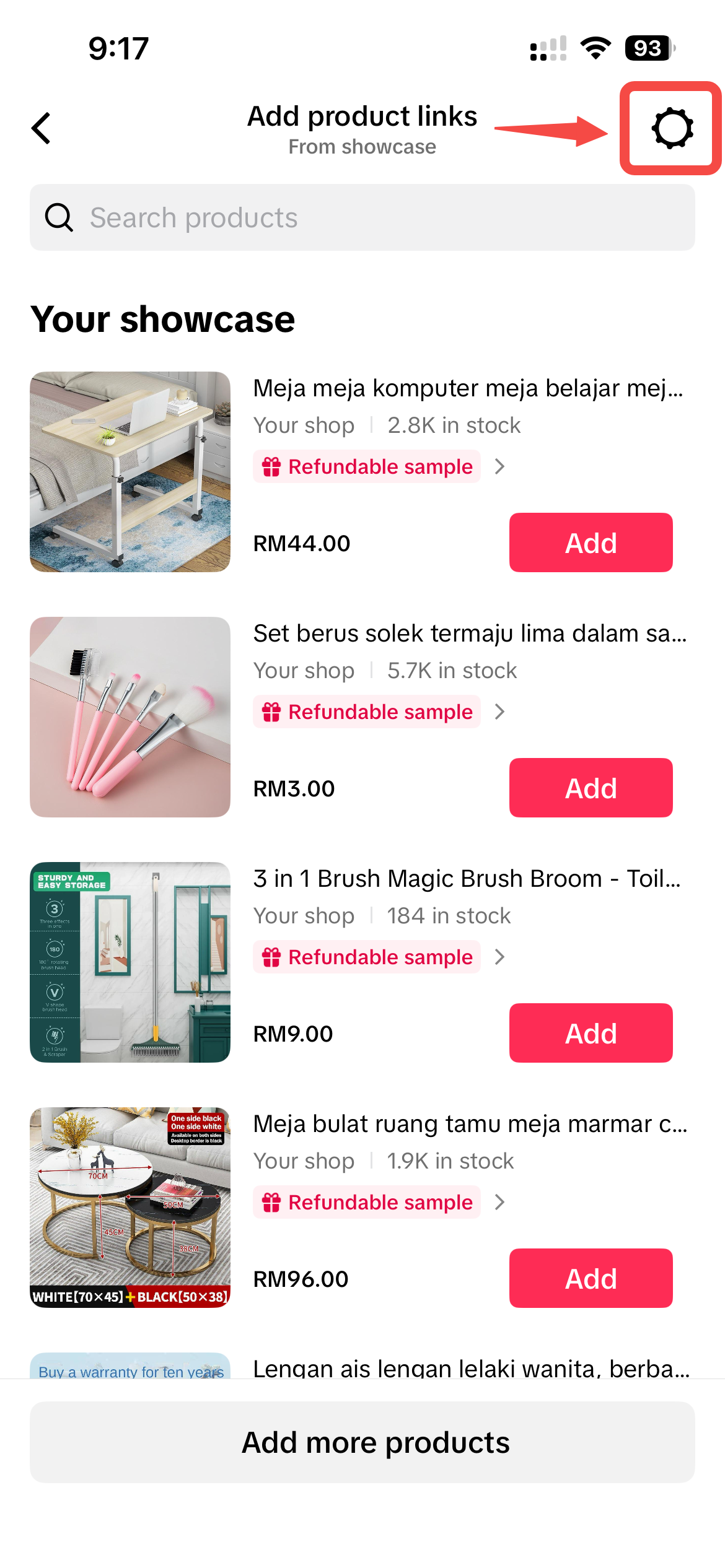 | 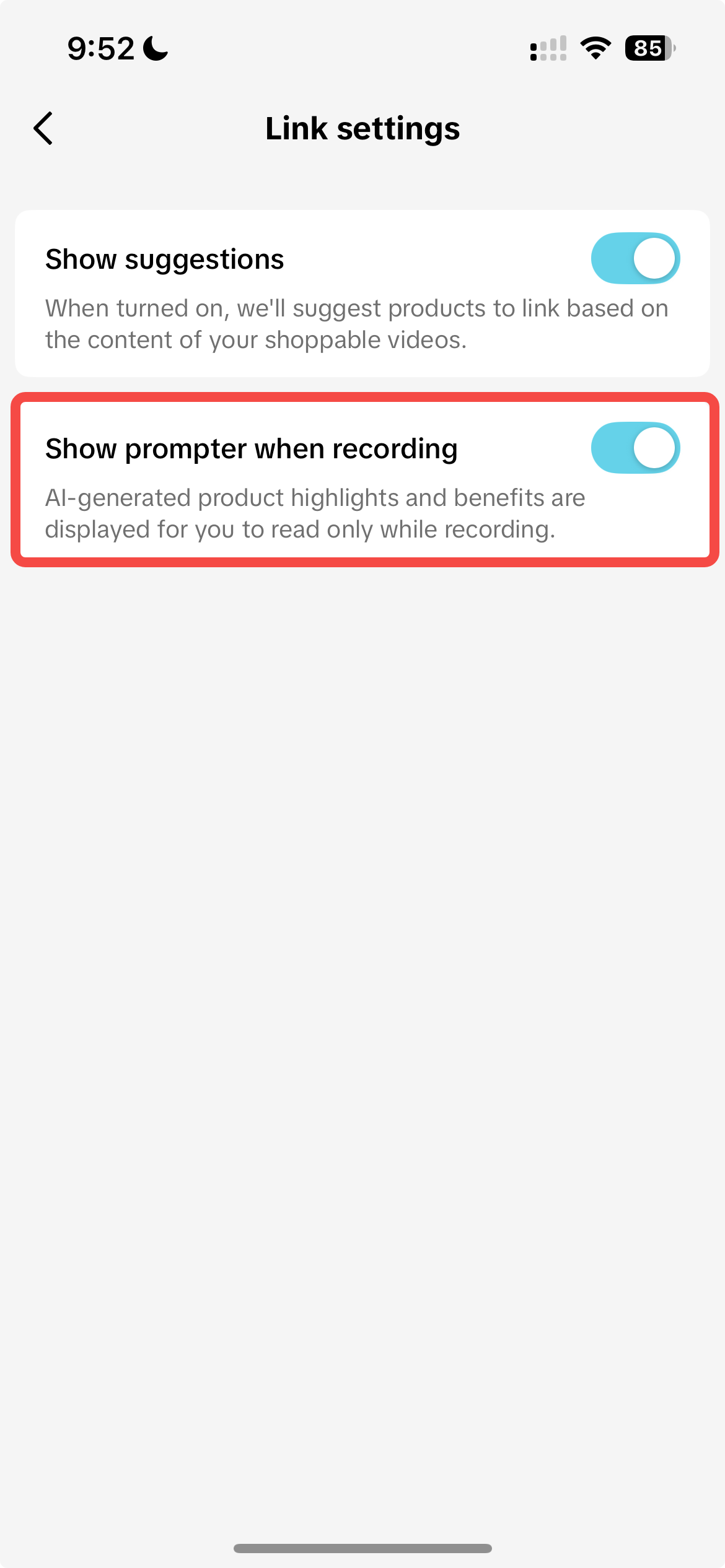 | To re-enable the Prompter:
|
You may also be interested in
- 11 lessons
Perkaya Ide Kontenmu, Inspirasi Video Ramadan Ekstra Seru 20…
Ramadan Ekstra Seru 2026 semakin dekat nih, guys! Bingung mau mulai buat konten apa? Yuk ikutin insp…
Start your first video
Start your first video
Popular Tokopedia Video Genres and Collection of Content
Hello everyone, today our topic of study is "Popular Tokopedia Video Genres and Collection of Conten…

Add Products to Short Videos (Yellow Basket)
In this article, we will guide you on how to add products to your videos. In order for an Affiliate…
Editing Short Videos
Editing is an important step in creating Short Video content. Follow these instructions to make the…
How to check video views
Over the past few years, Shop I Tokopedia has become increasingly popular and influential as an ente…

Strategi Meningkatkan Penjualan Pada Short Video
Test: https://activity.tiktok.com/t/ZS6pvGr63/ Video kamu stuck di 200 views? Atau sudah FYP tapi…
Short Video Advertising Guidelines Promotion Guide
Hello everyone! Today, we're diving into practical techniques for video editing.
Mastering the Techniques of Shooting Viral Short Videos in 5…
Hello everyone, today our topic is mastering the techniques of shooting viral short videos in 5 step…
Misleading Content
To protect customers and maintain trust, TikTok Shop prohibits any content that could mislead buyers…