

Product Campaigns
12/30/2025

What are Product Campaigns?
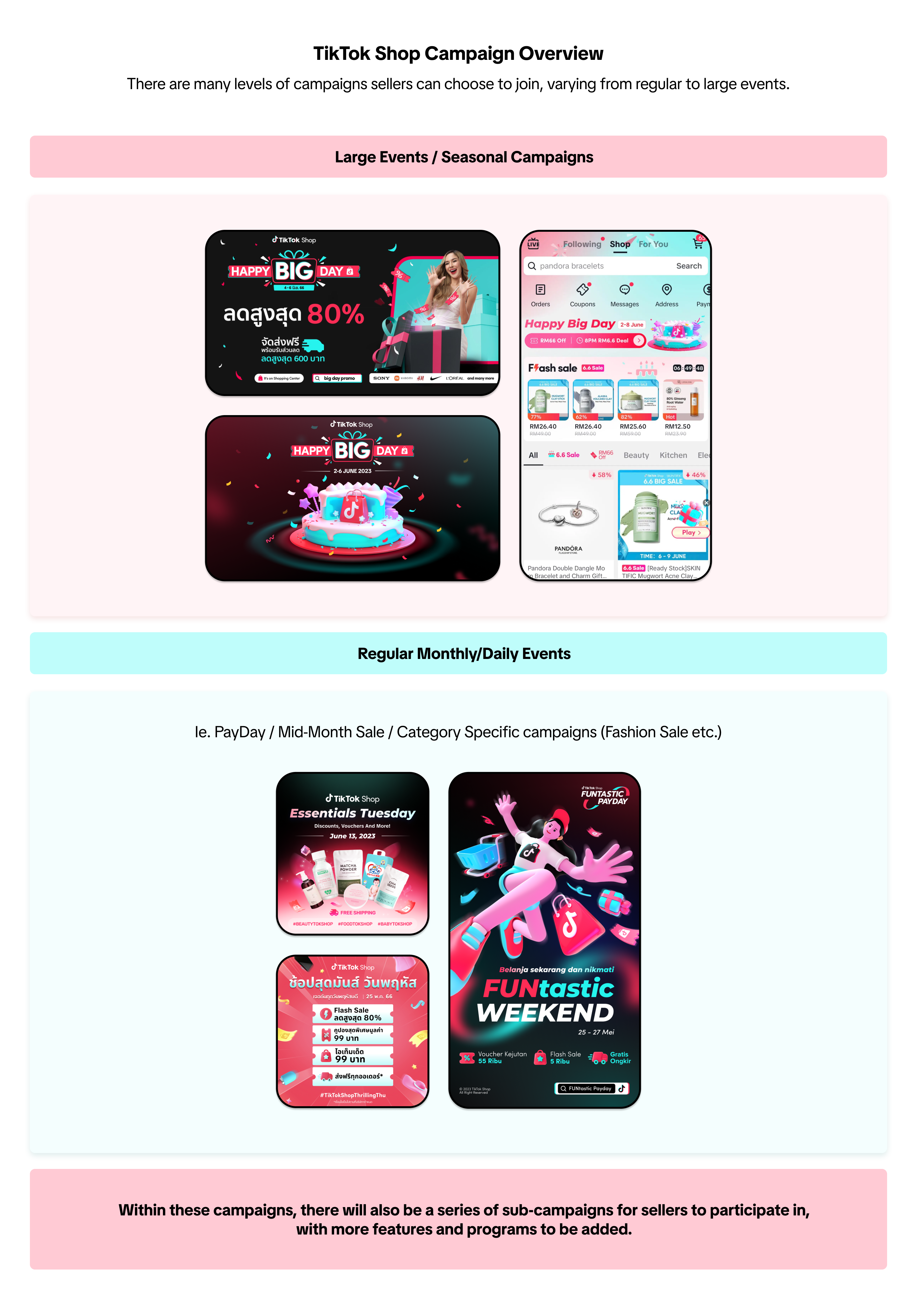
Campaigns are promotional events organized by TikTok Shop by Tokpedia to help sellers effectively promote products in their store.Product campaigns are campaigns where sellers register specific products to join the promotion, rather than registering at the livestream or shop level.
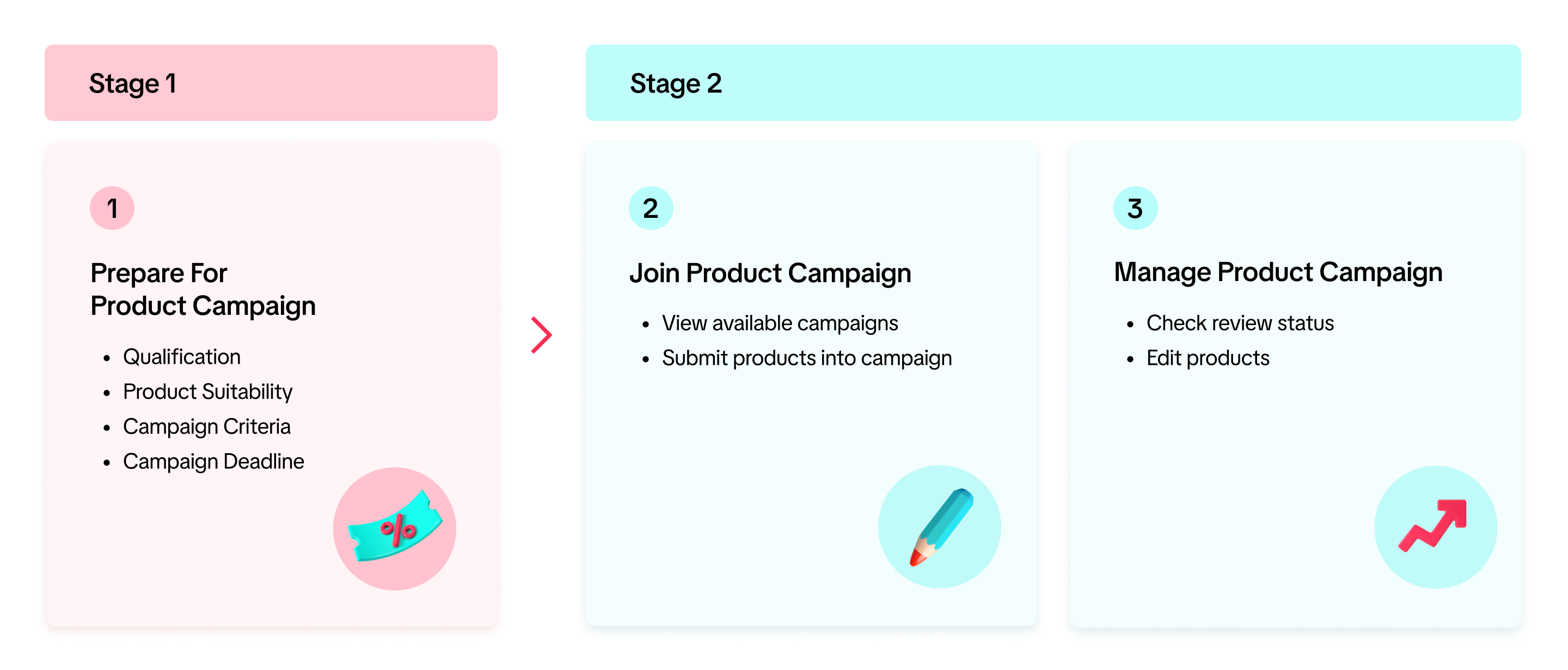

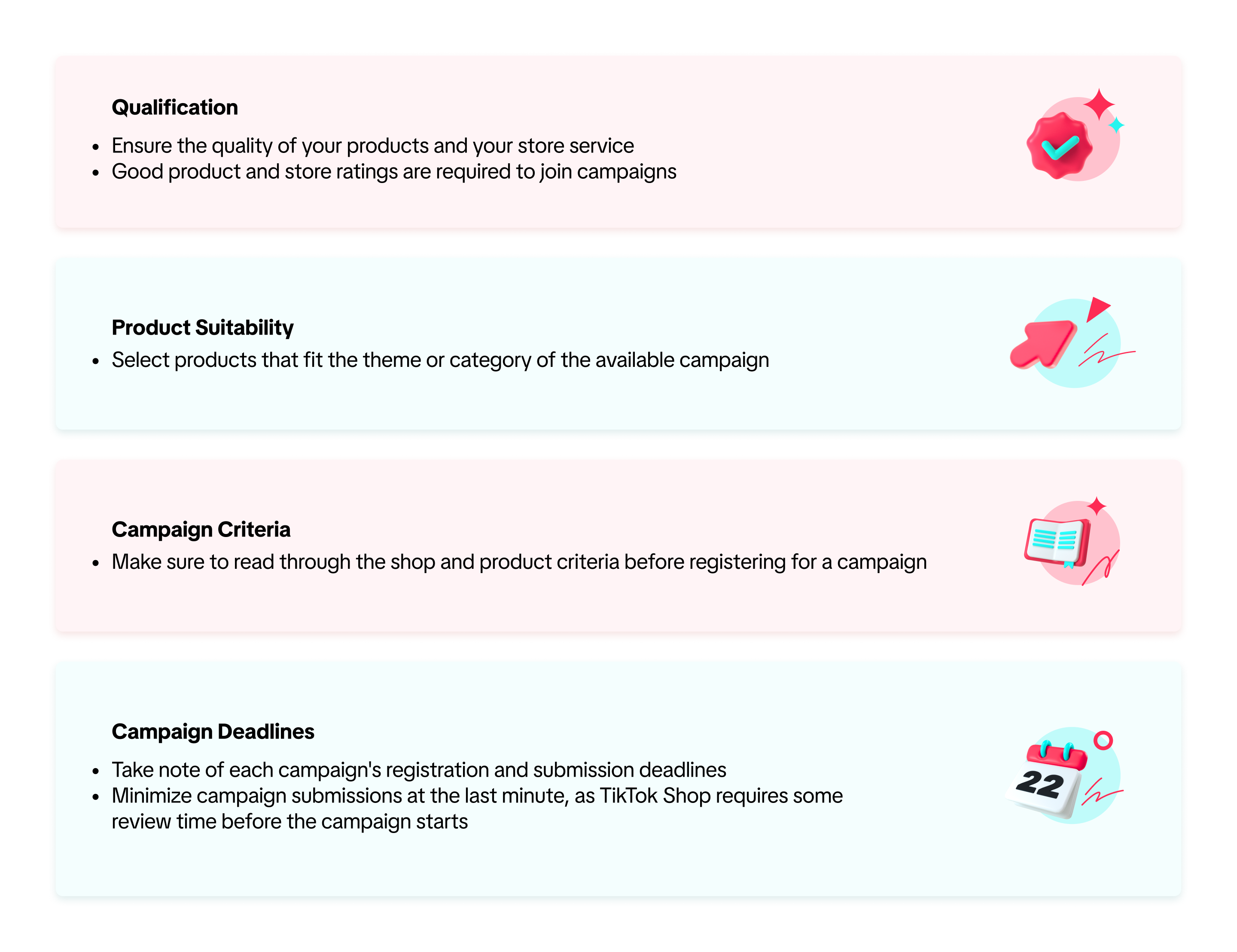
How to Prepare for Product Campaigns

How to Join Product Campaigns
- View Available Campaigns

- View Campaign Details
Campaigns will have tags to show the campaign type. Please check the campaign details for more information.
Note: All campaign applications are reviewed. You may be rejected from joining the campaign if you do not meet the criteria for the campaign as listed on the campaign details page.
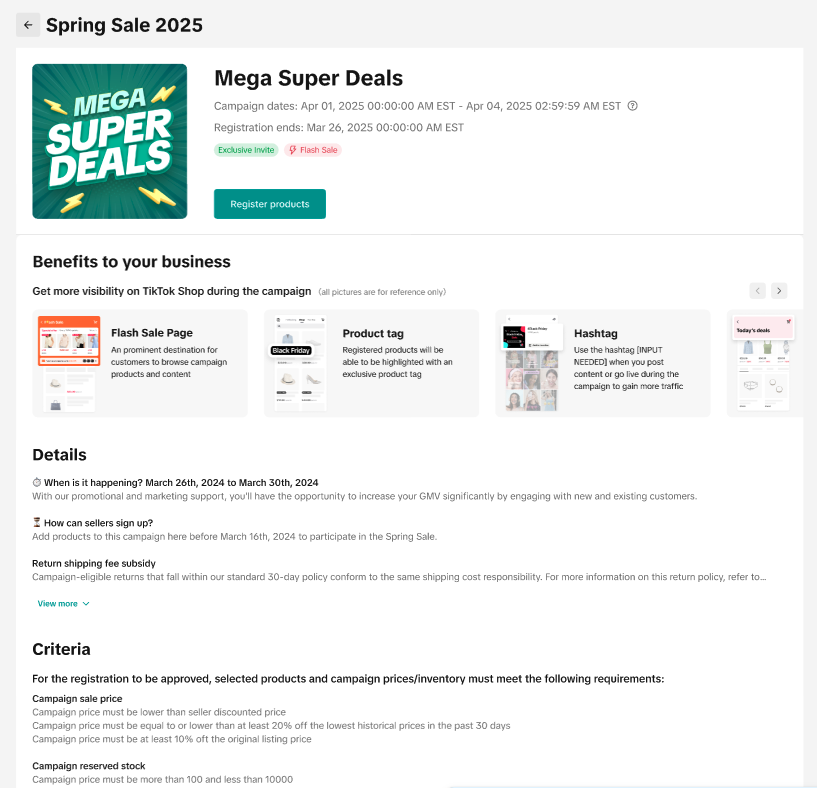
- Submit Products into the Campaign
Select the products and variations you want to submit into this campaign, either via selecting products in Seller Center or via importing from Excel. (Please refer to the "Bulk Import Your Products" section below).
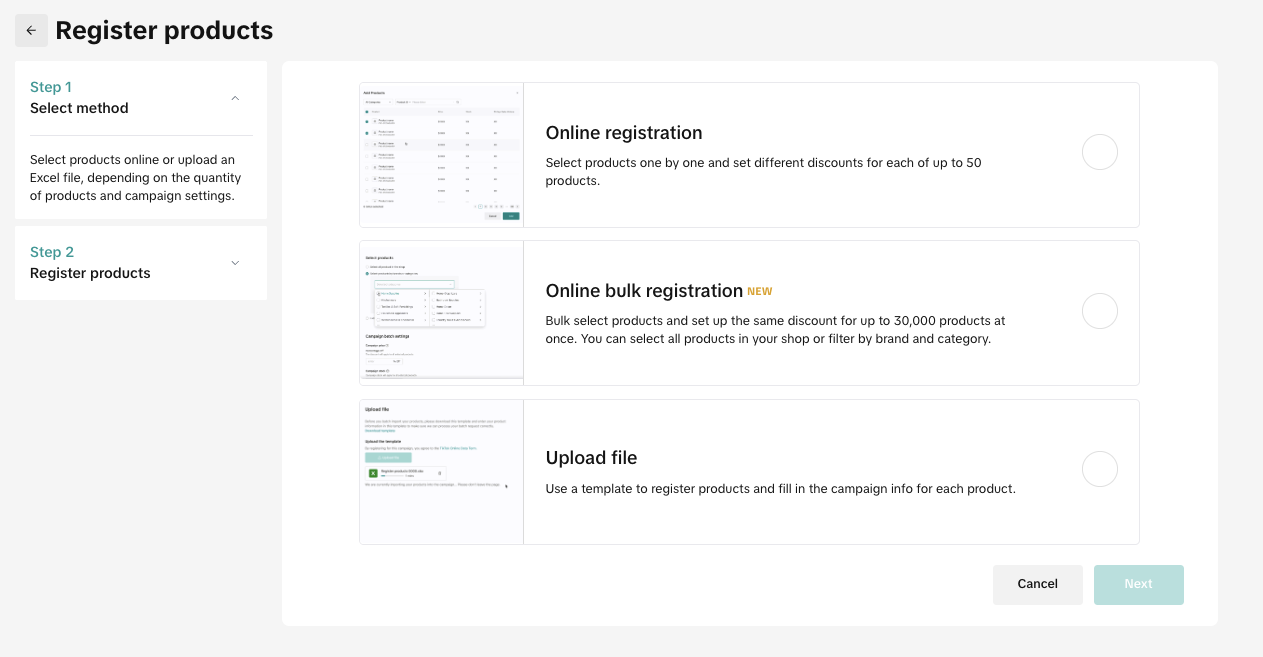
Online Registration
Depending on the campaign type, you will be required to fill out some information.- Recommended campaign prices are pre-filled during registration. Sellers can review the recommended prices and make any necessary adjustments.
- Recommended campaign stock quantity may also be pre-filled during registration. Sellers can review the recommended campaign stock quantity and make any necessary adjustments.
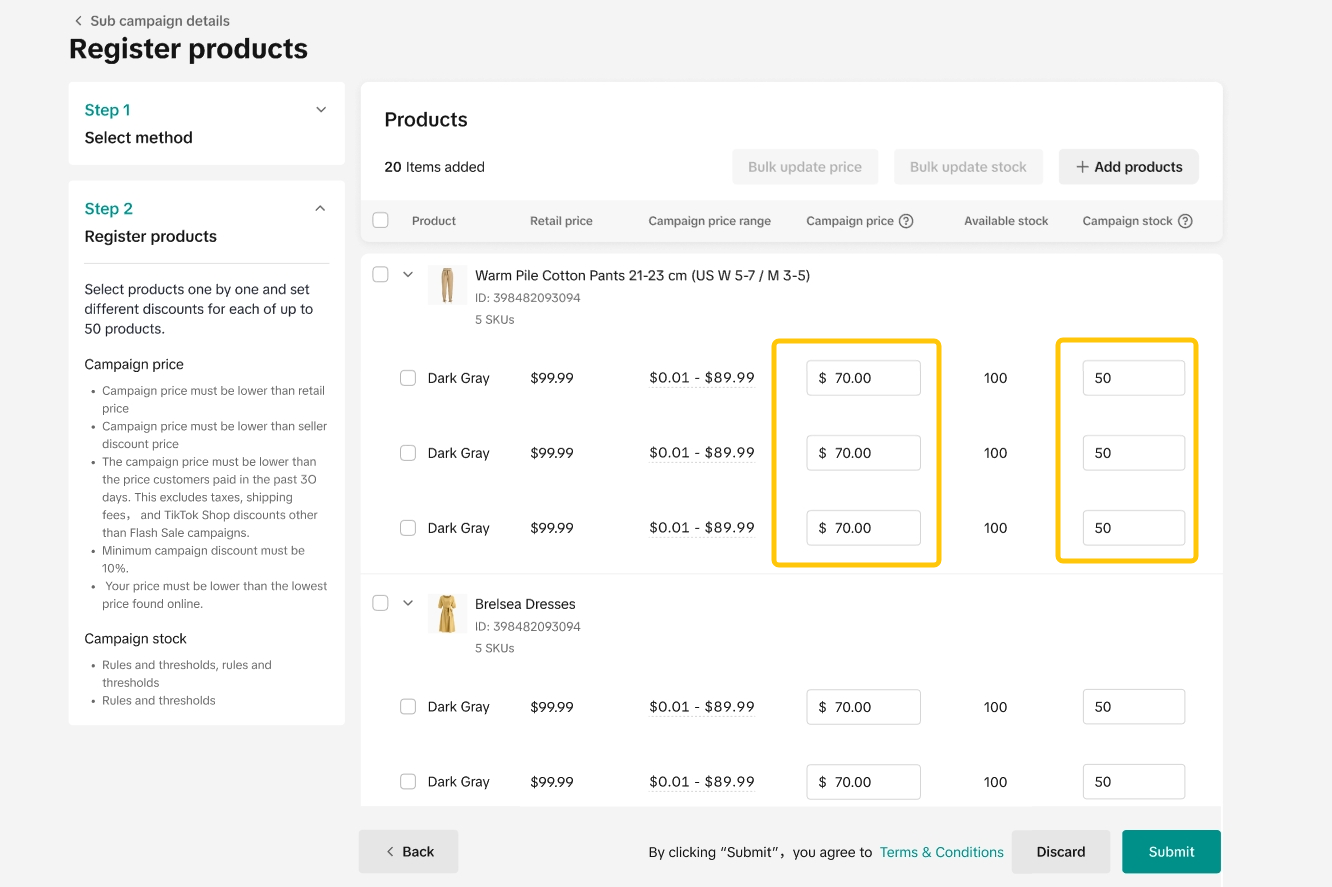
- Campaign Price:
- Depending on the conditions of each campaign, sellers may be required to lower or match their previous campaign prices in order to participate in campaigns.
- Campaign prices will be shown to buyers throughout the entire campaign period. If there are different prices configured in other promotions, such as Seller Flash Sale or Product Discount, these will not be shown.
- Campaign Quantity:
- The platform will lock sellers' campaign quantity immediately after your campaign submission has been reviewed and approved. You can still increase campaign quantity after the product is reviewed.
Bulk Registration
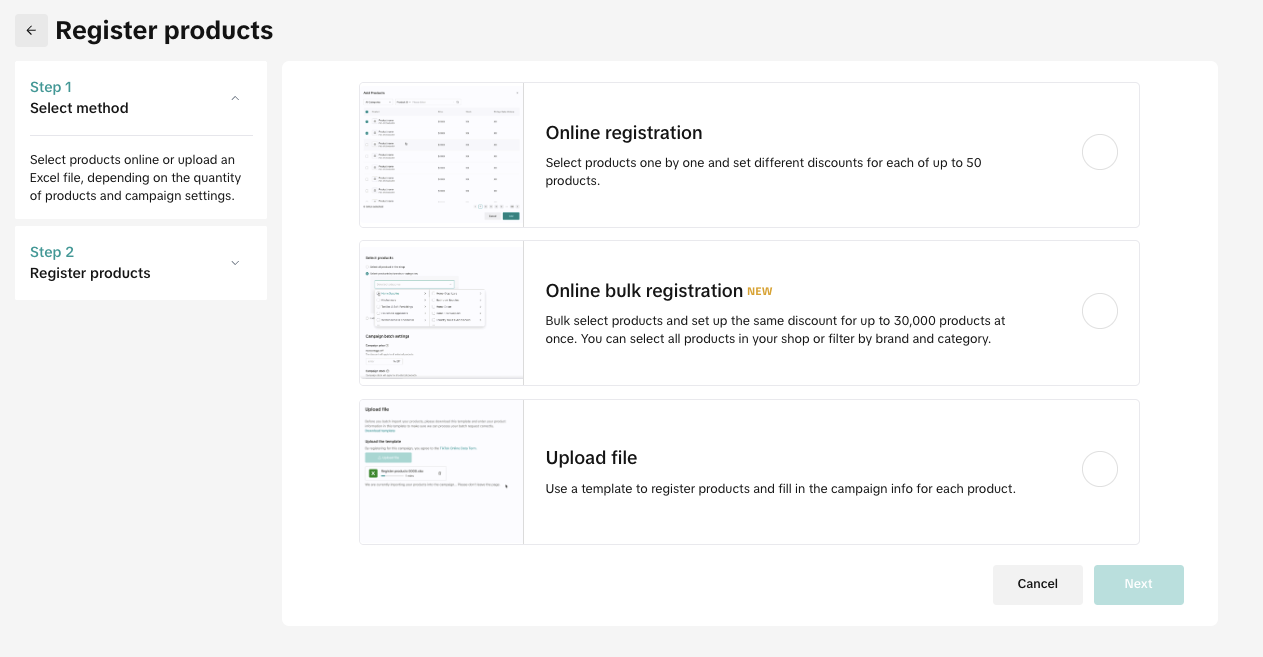
- On the campaign details page, click Register products and select Online bulk registration.

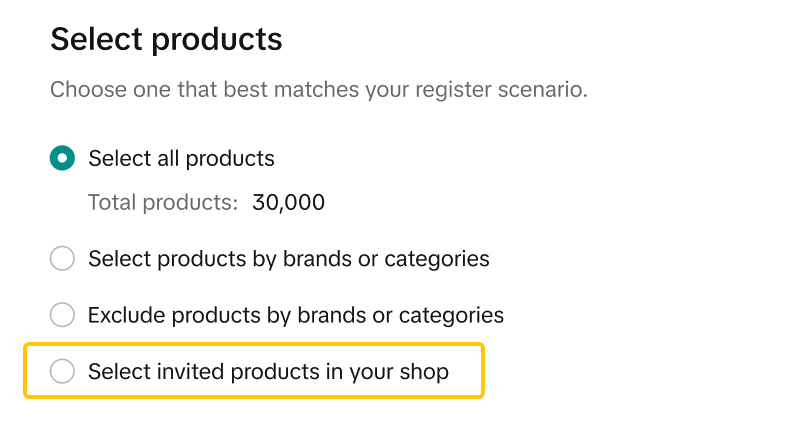
- You can choose to add all products in the shop or select specific products by categories or brands.
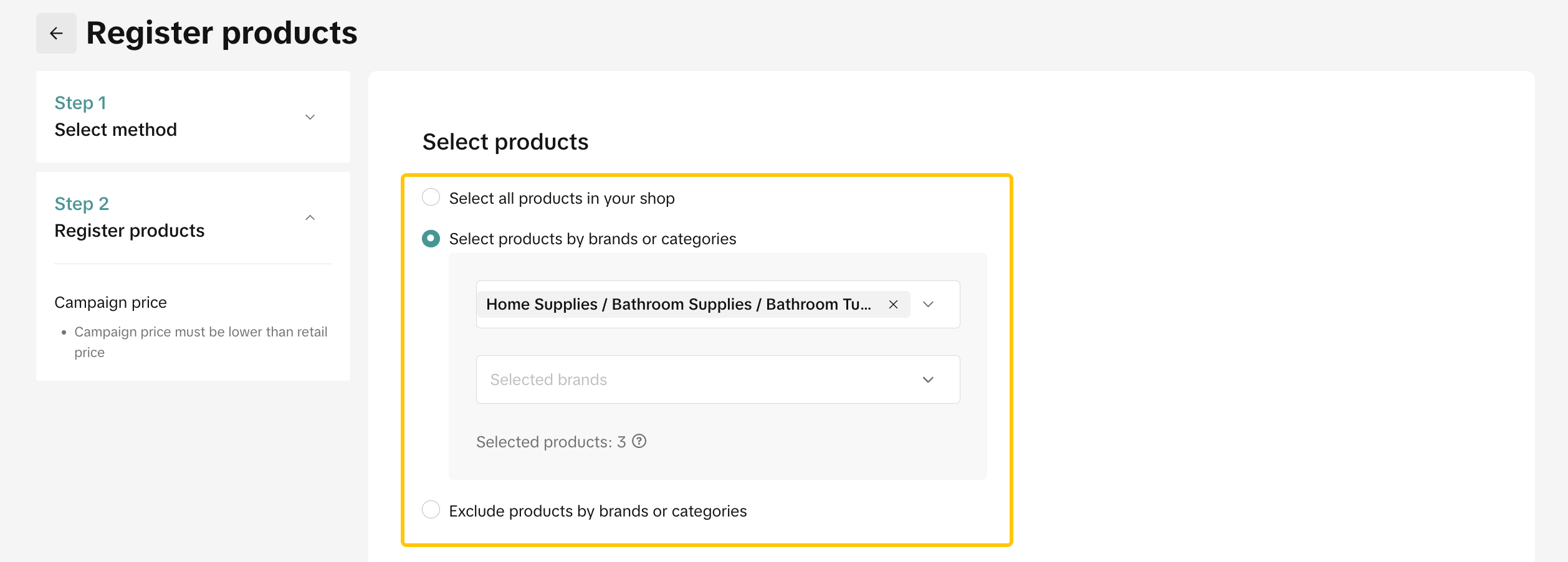
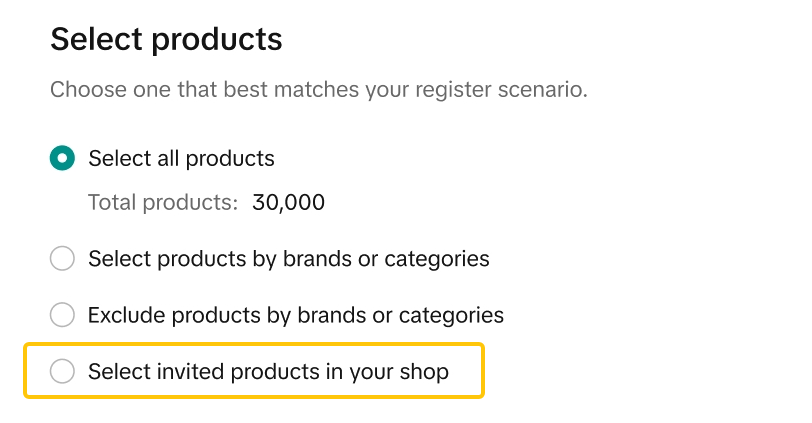
- Sellers can now easily select just the invited products in the online bulk registration method when registering for a sub-campaign.
- Once you have selected the products, select the campaign price strategy and input campaign stock quantity
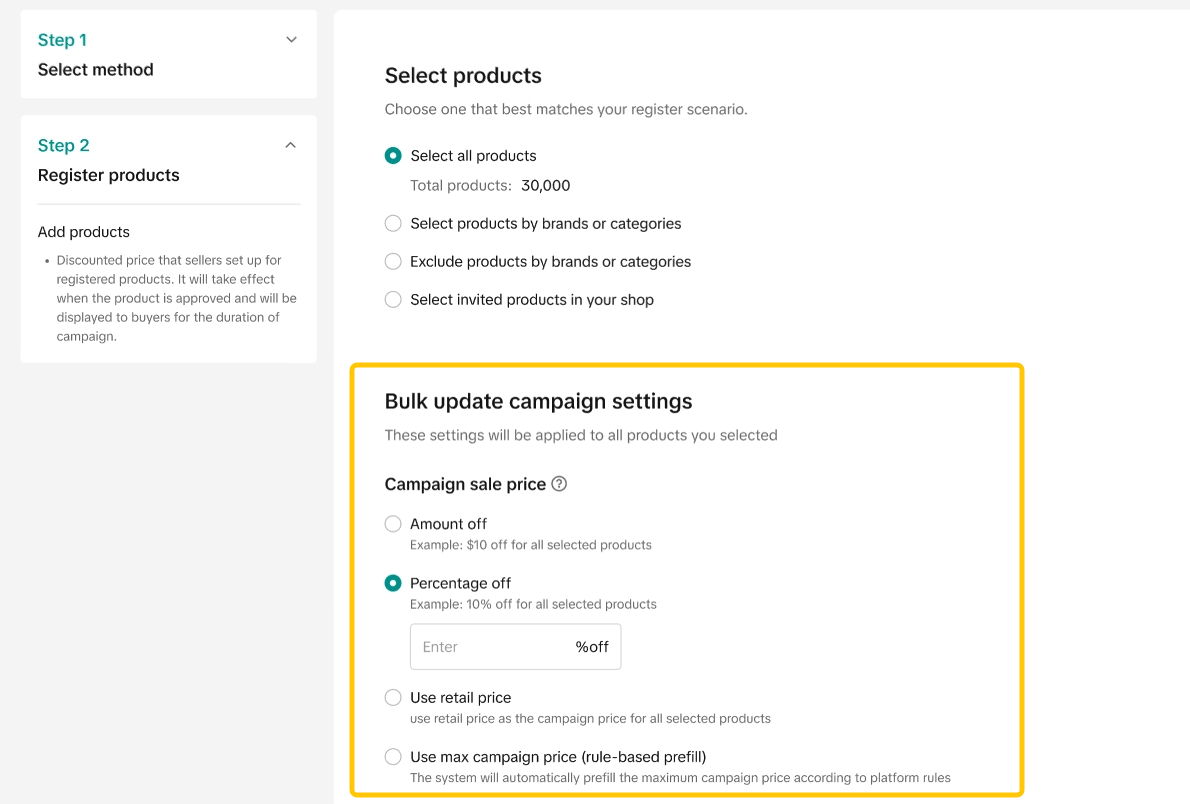
- Campaign price: Percentage (%) off / Amount off discount will apply to all selected products
- Campaign price: Use Retail Price will apply to all selected products.
- Campaign price: Use Max campaign price rule means that the system will register each product with the maximum campaign price threshold (Based on campaign criteria)
- Campaign stock: enter the amount of stock you would want the discount to be applied to
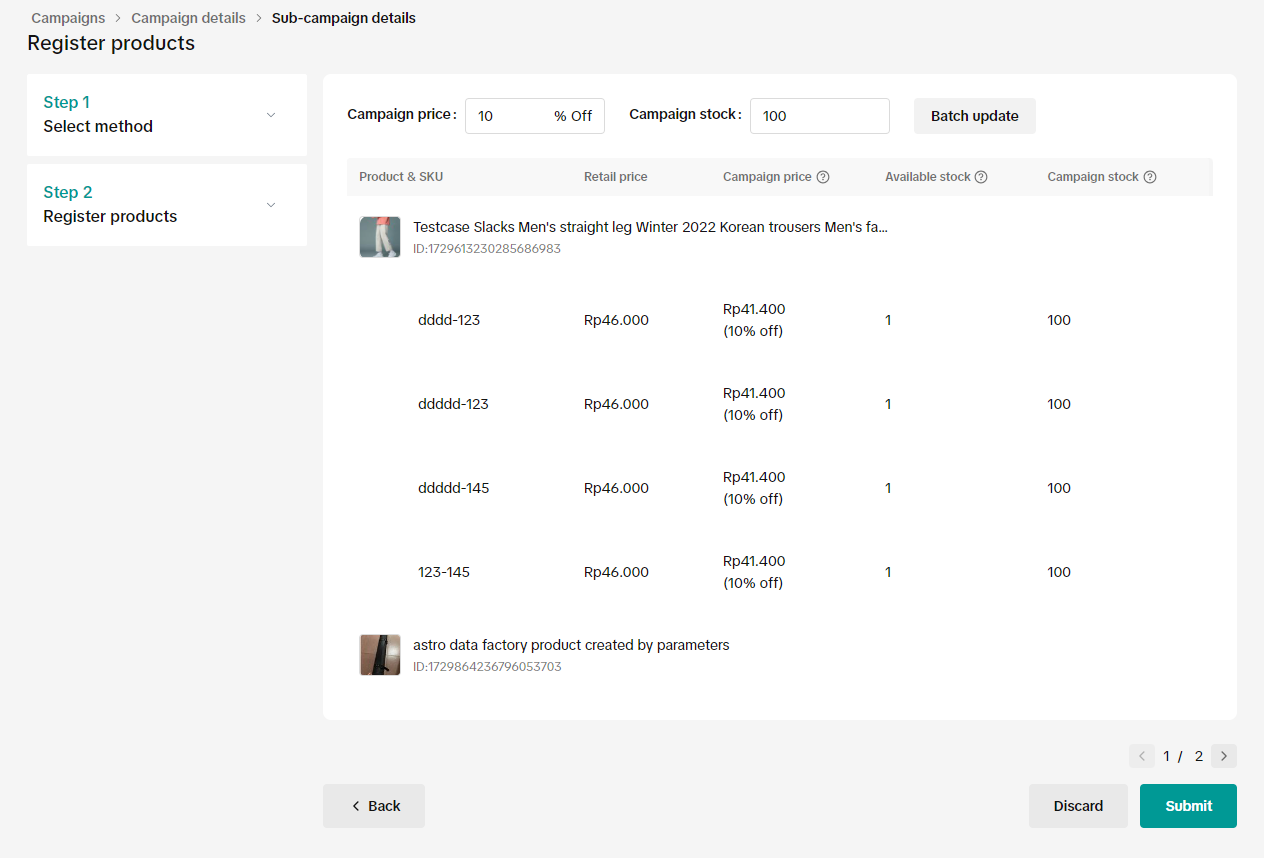
- Check all the information before clicking 'Submit'
Bulk Import by Excel
- On the campaign details page, click Register Products and select Import using Excel.
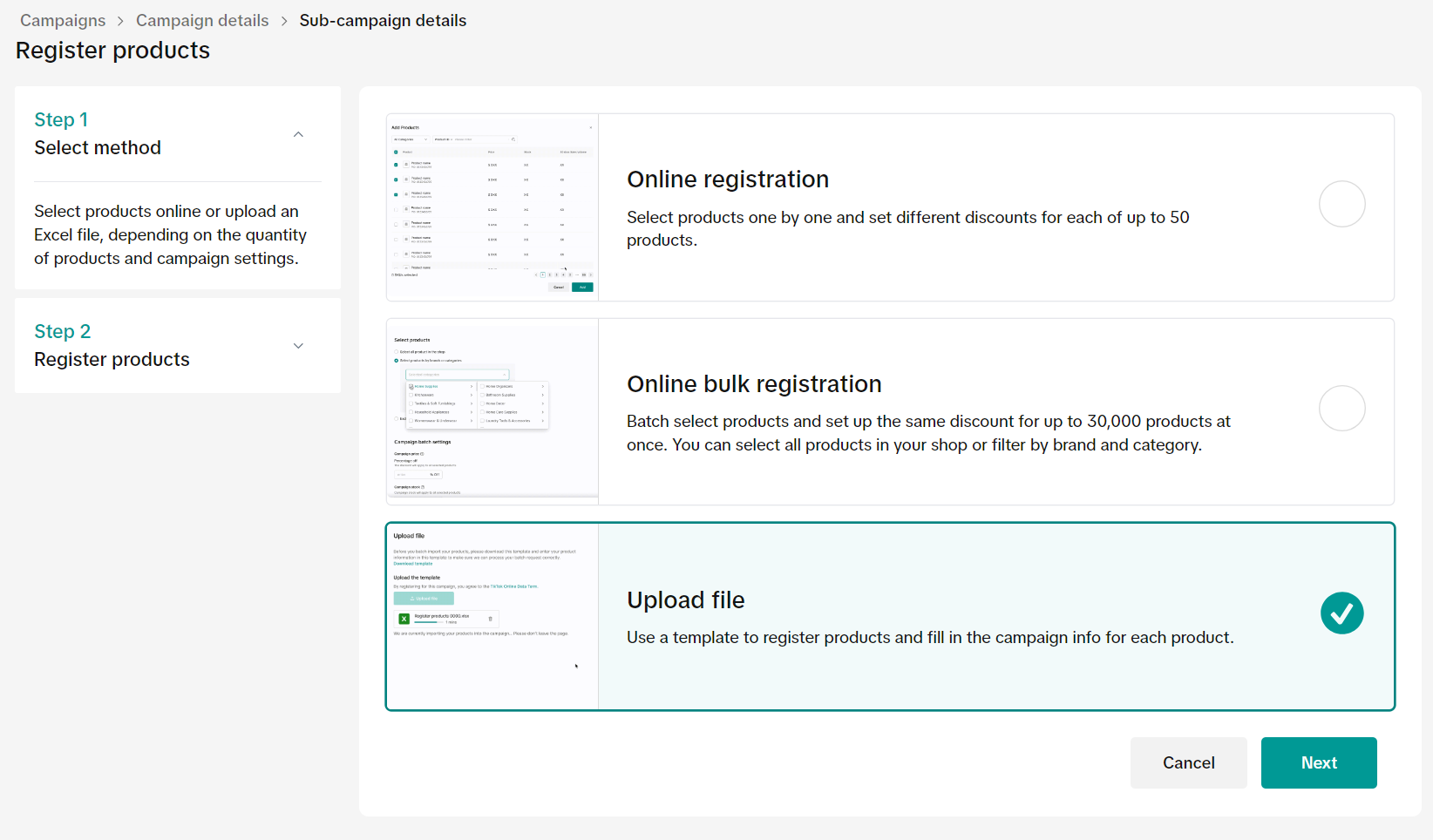
- Download the Excel template.
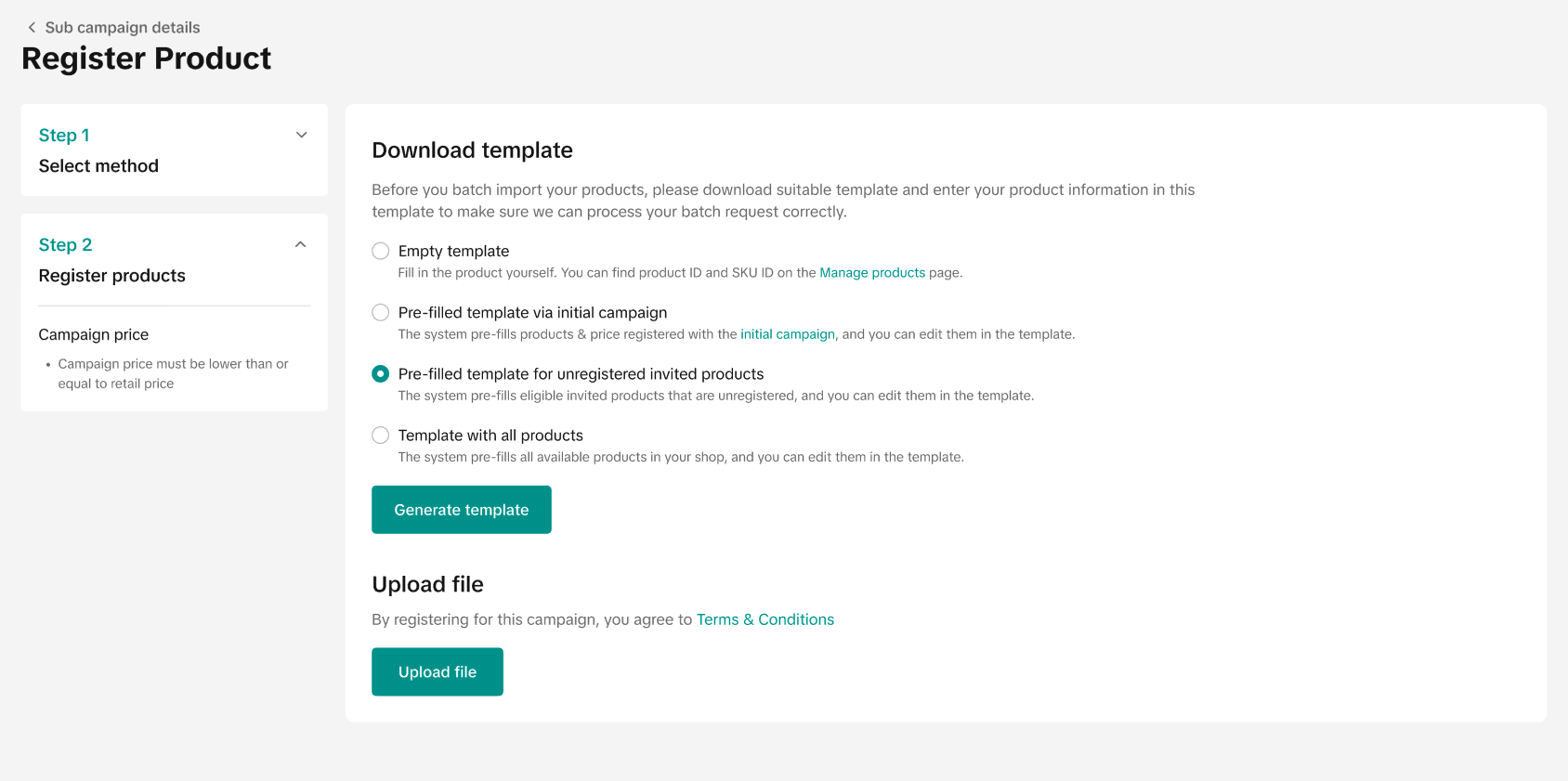
- When generating the template, sellers can generate an empty template that only consists of excel headers.
- Sellers can also choose a pre-filled template, where all eligible products for the campaigns are included in the generated template, together with the product details, recommended campaign price and campaign stocks. Sellers may adjust the details in the template before uploading.
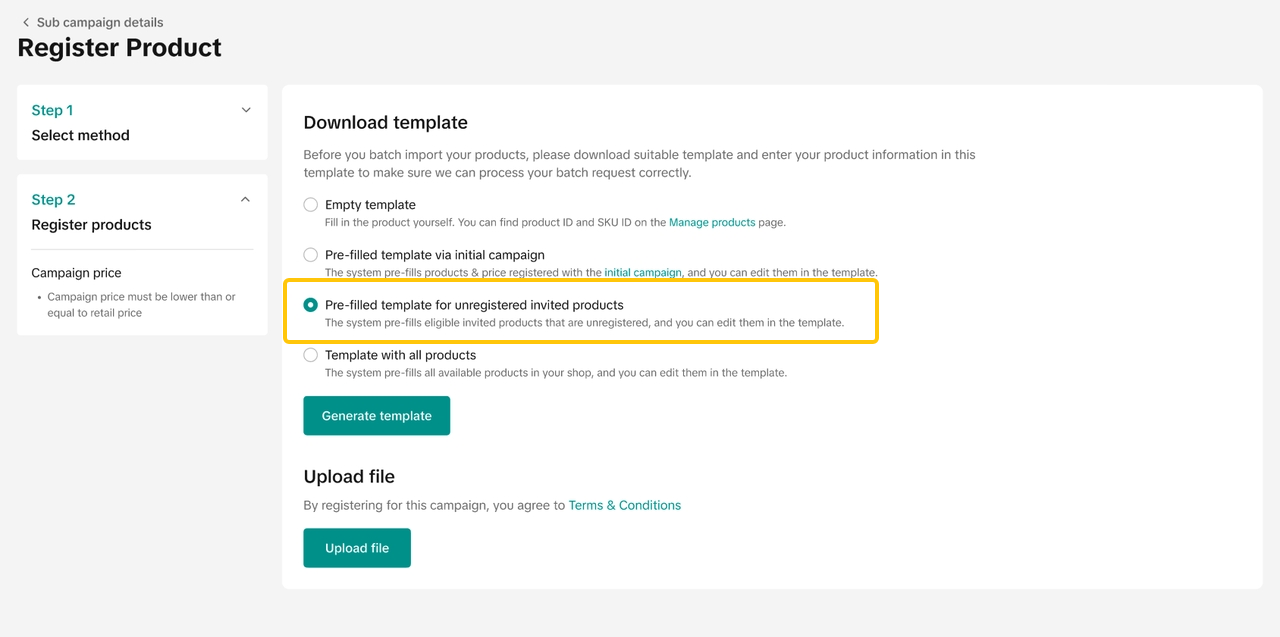
- Sellers can now easily register invited products through the 'Upload File' registration method when registering for a sub-campaign.
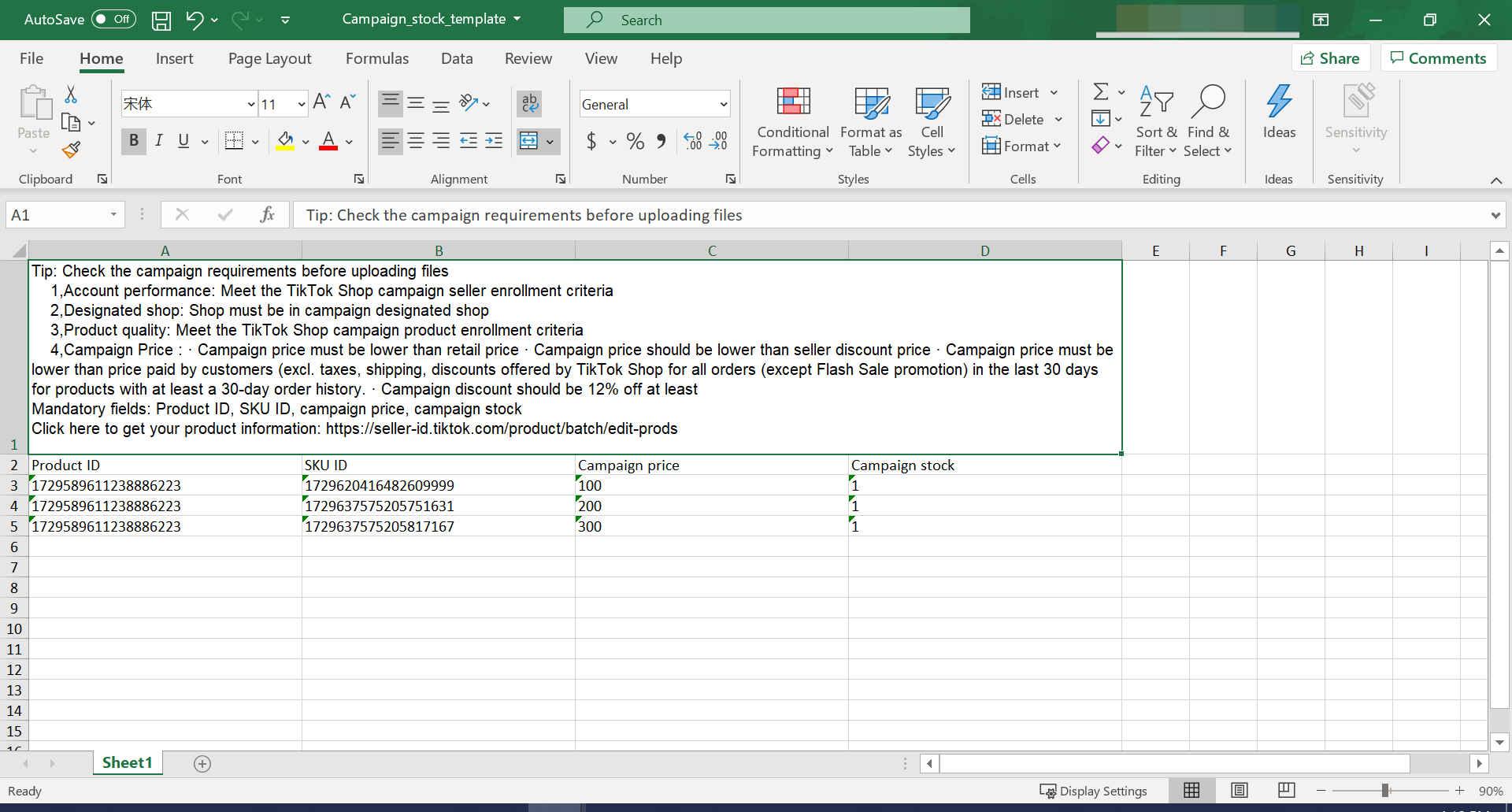
- Fill in or check the Product and SKU IDs, campaign price and campaign quantity. Make sure to adjust your fields to the "Text" format to ensure your Product and SKU IDs are correctly inputted.
- Upload your file until a finished status appears for each file.
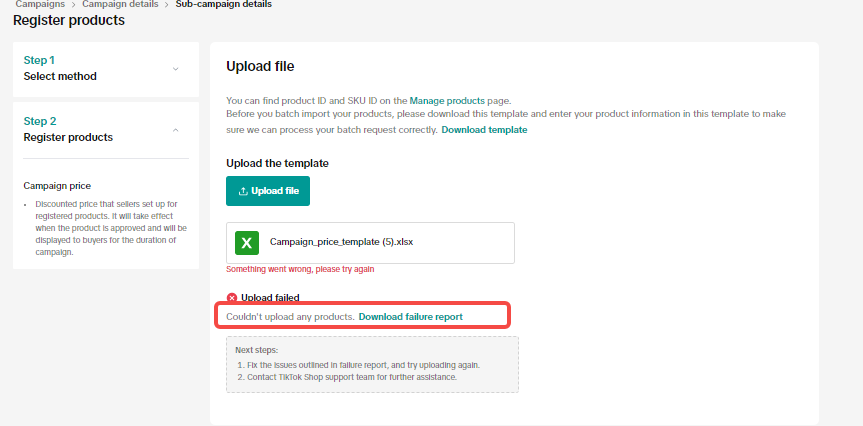
- If there are errors in the upload, a failure report will be generated for sellers to check the fail reasons.
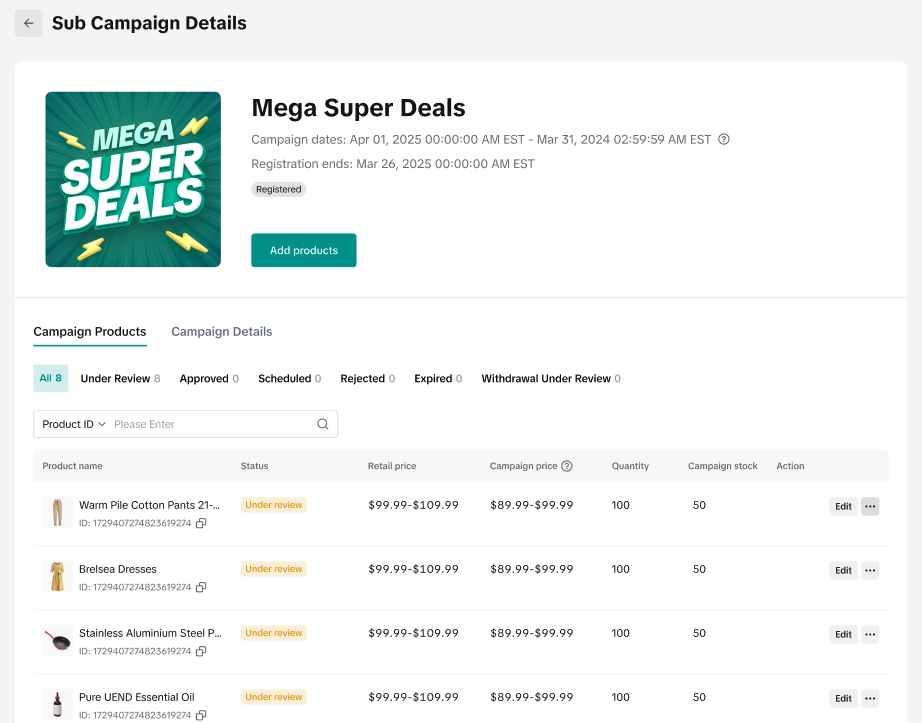
- You can recheck the final uploaded status by visiting the Manage Campaign tab and seeing your uploaded products on the campaign submission page.
One-Click Registration
Mega campaigns usually include several sub-campaigns, each with different structures and benefits.With One-Click Registration, you can instantly register all eligible products into eligible product sub-campaign under the parent campaign to reduce time, effort, and missed opportunities!
Click here to learn more about one-click registration!

How to View Products in Product Campaigns
- After submitting your products into a campaign, you can visit the Manage Campaigns page to keep track of your campaign application(s).
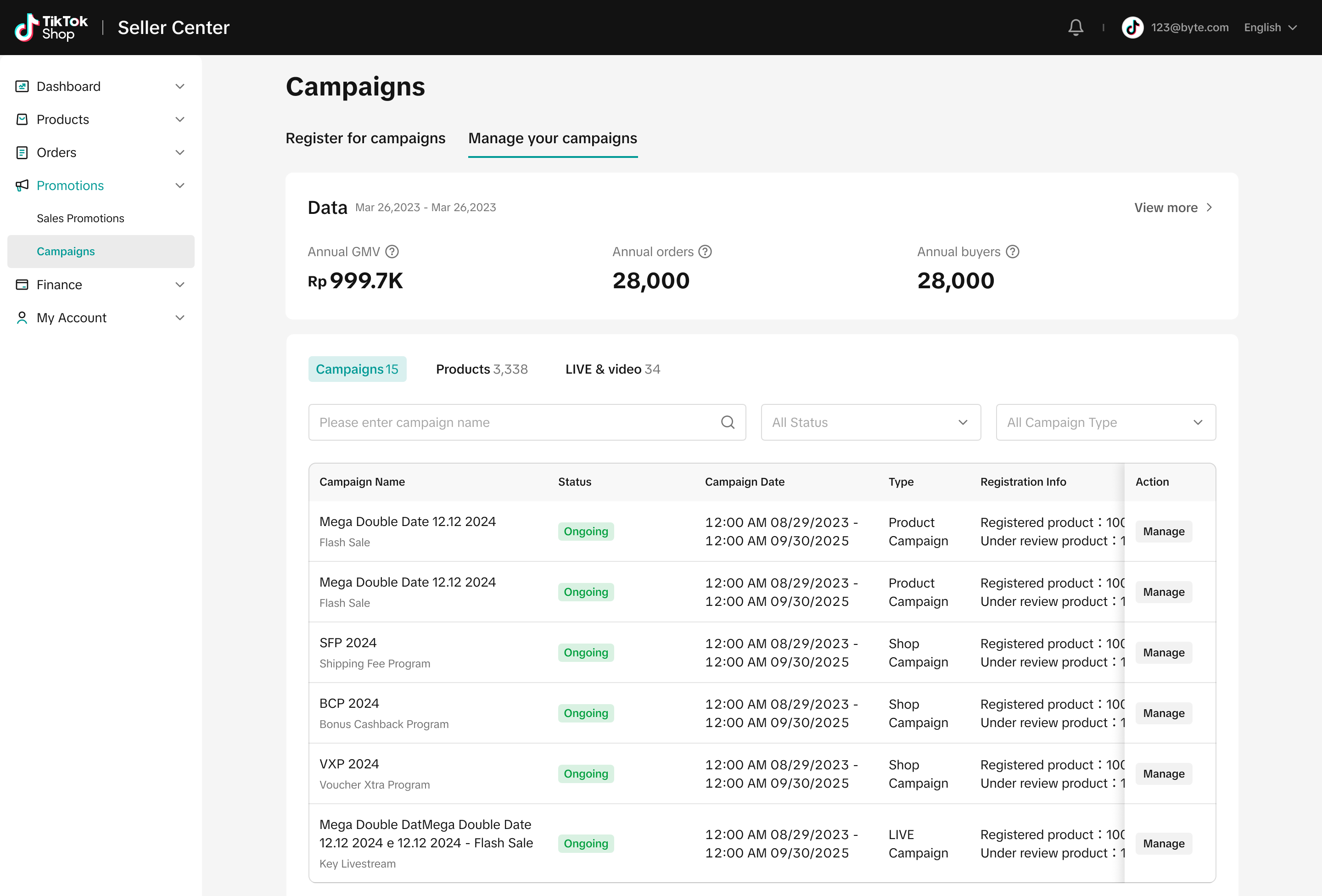
- In the Manage your Campaigns tab, click on Manage for the relevant campaign.

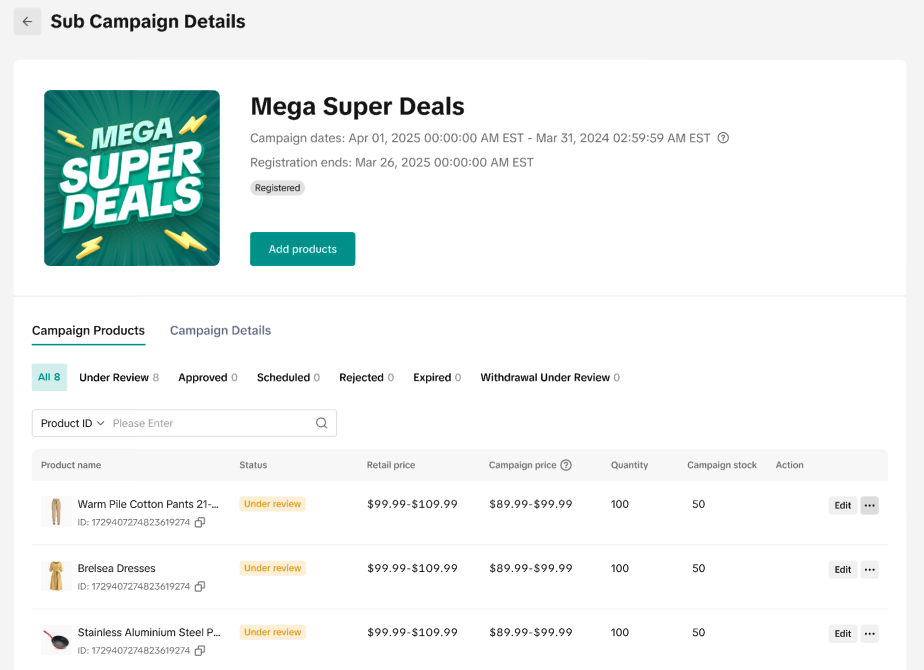
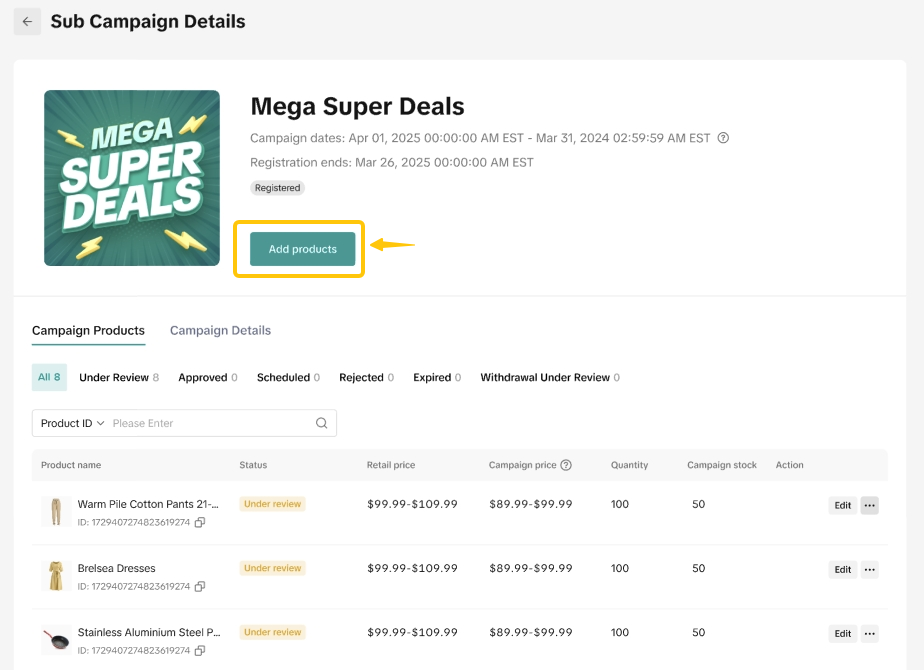
- You can also click Add products on the Campaign Details page if the campaign is still ongoing
- Select the Products tab to see your submitted products and the review status.
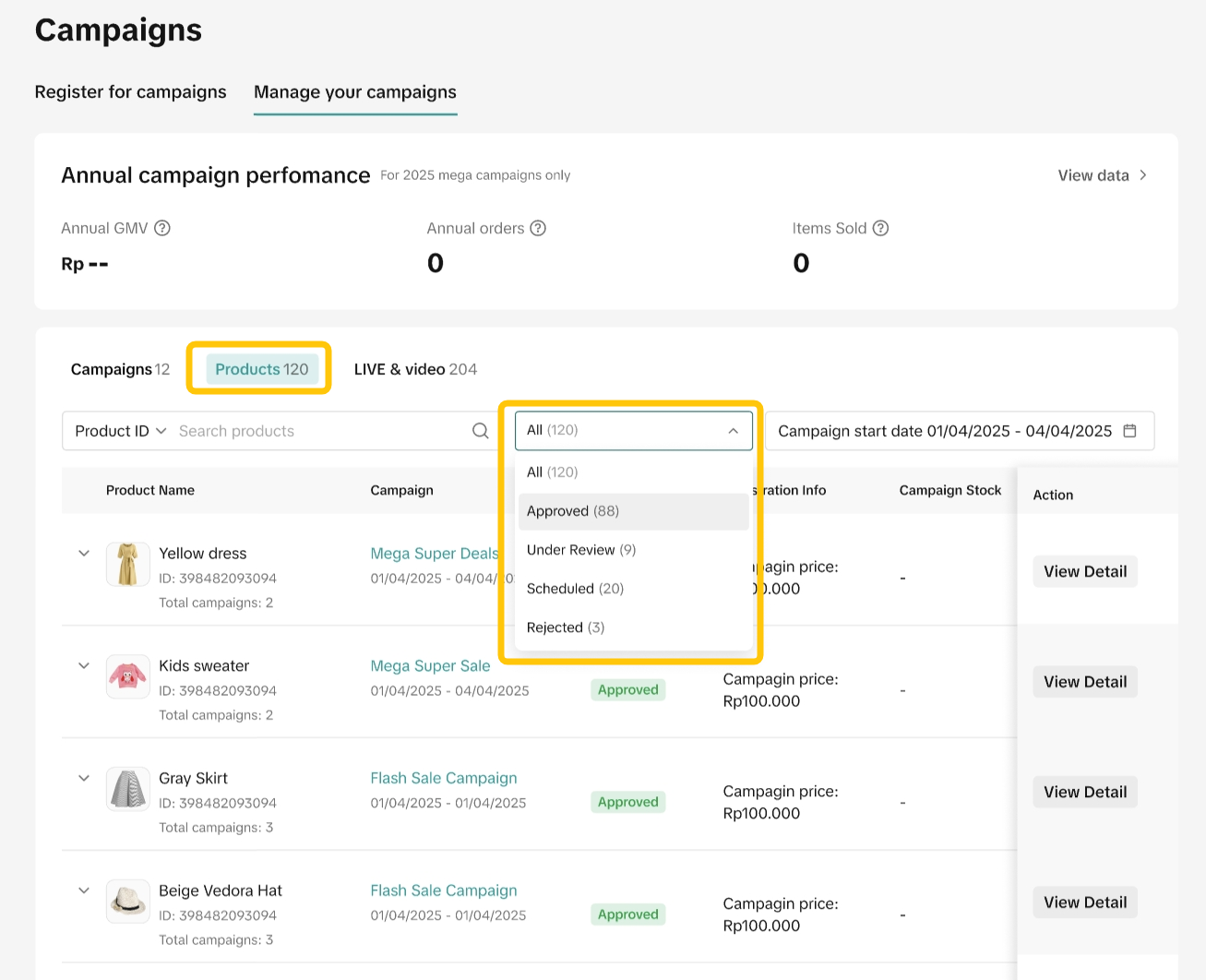
- You can filter for products submitted by the Product ID, Product Name, or Campaign dates.
- Based on different registered status, you can do different actions for the products
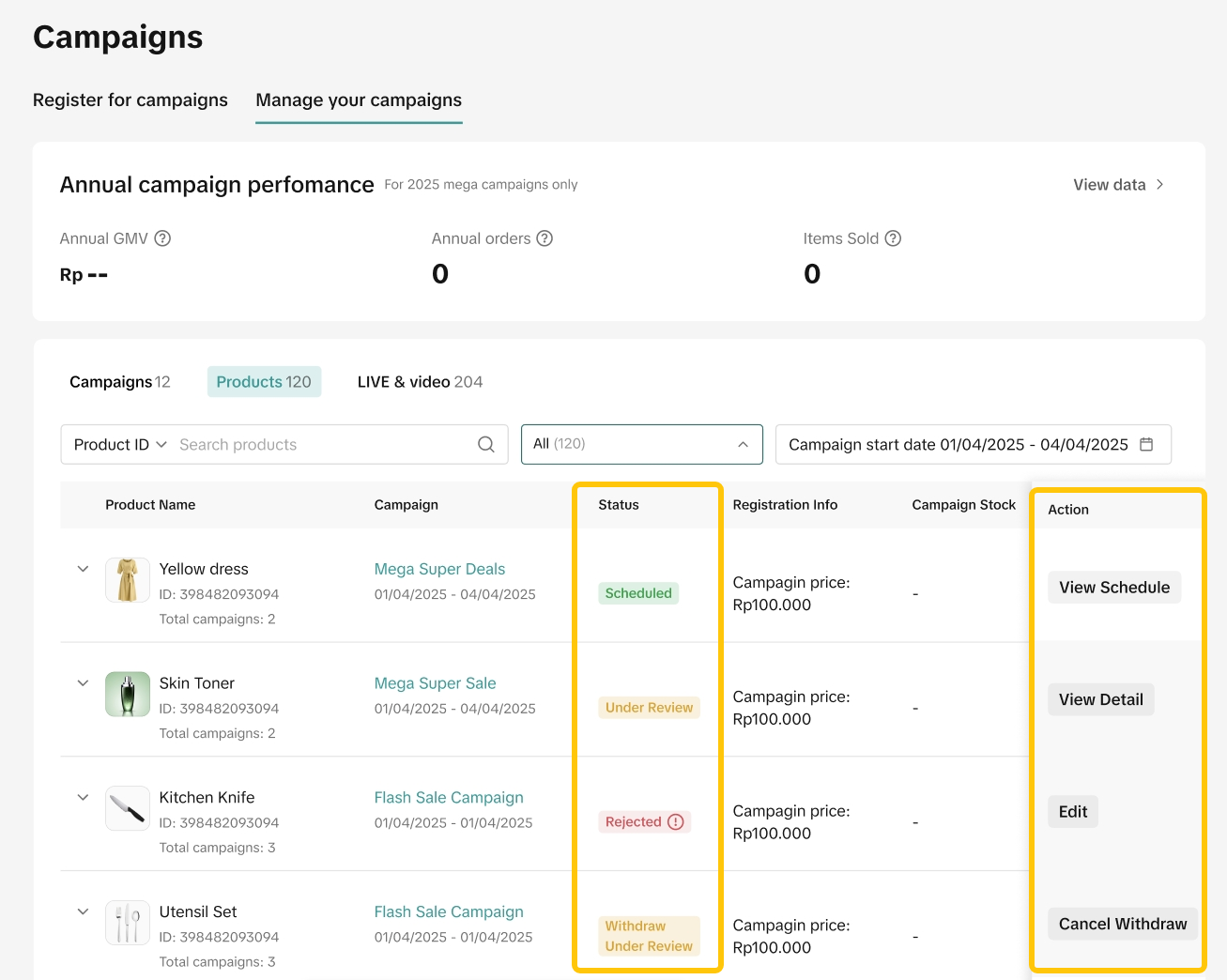

How to Edit Products in Product Campaigns
TikTok Shop by Tokopedia will only allow sellers to edit product information during a certain "status" after the campaign submission. The status and editing conditions are as follows: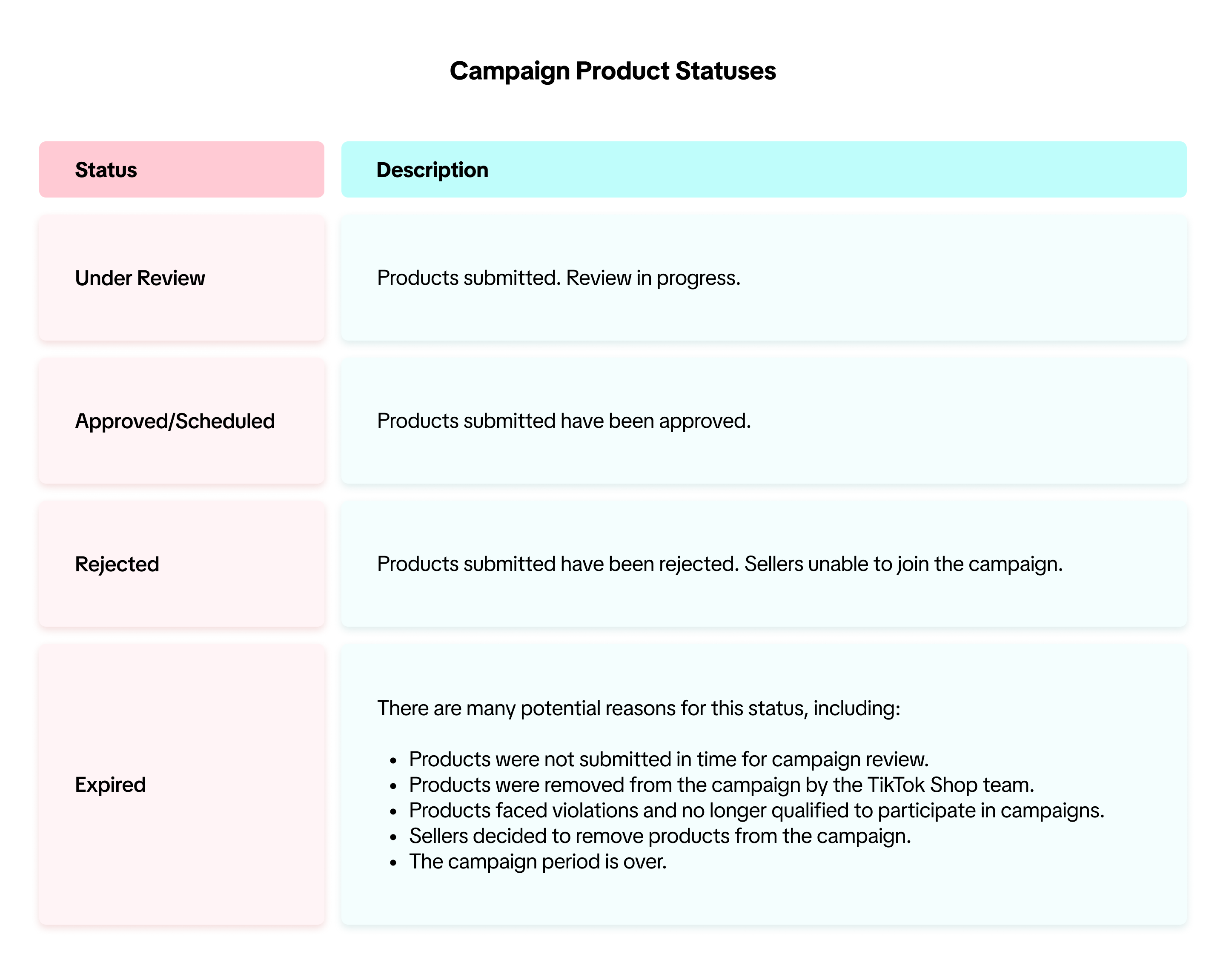
- You are allowed to increase campaign stock quantity or reduce campaign prices by clicking the "Edit" button. Changes are updated immediately and do not require platform approval.
- You are not allowed to decrease campaign stock or increase campaign price.
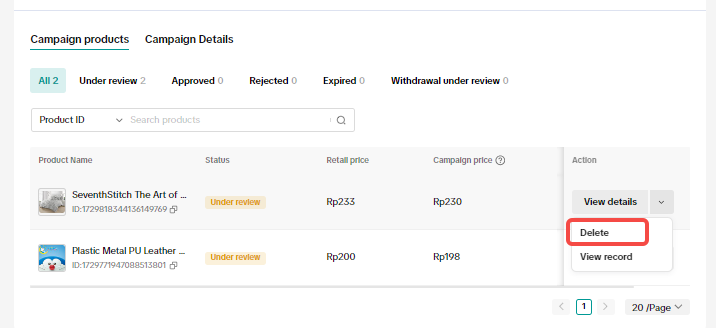
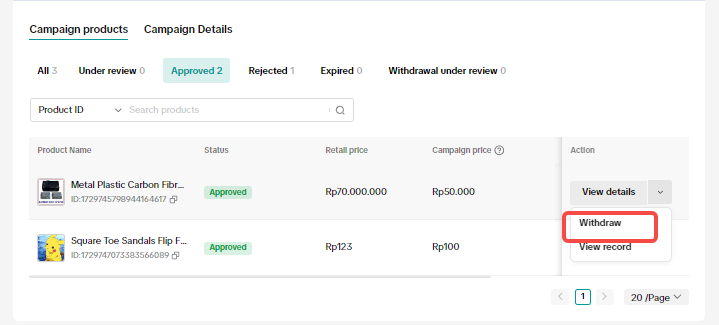
If the request to delete your product from a campaign is approved, the status will change to Expired. If the exit request is rejected, the status will return to Approved.

Register Recommended Products
Recommended Products are specially invited by the platform for the campaign. These products may be seller's well-performing products or platform hot-selling products, and these products may receive enhanced exposure based on the campaign strategy.Recommended & Invited products are highlighted during the campaign registration process to streamline the workflow for sellers.
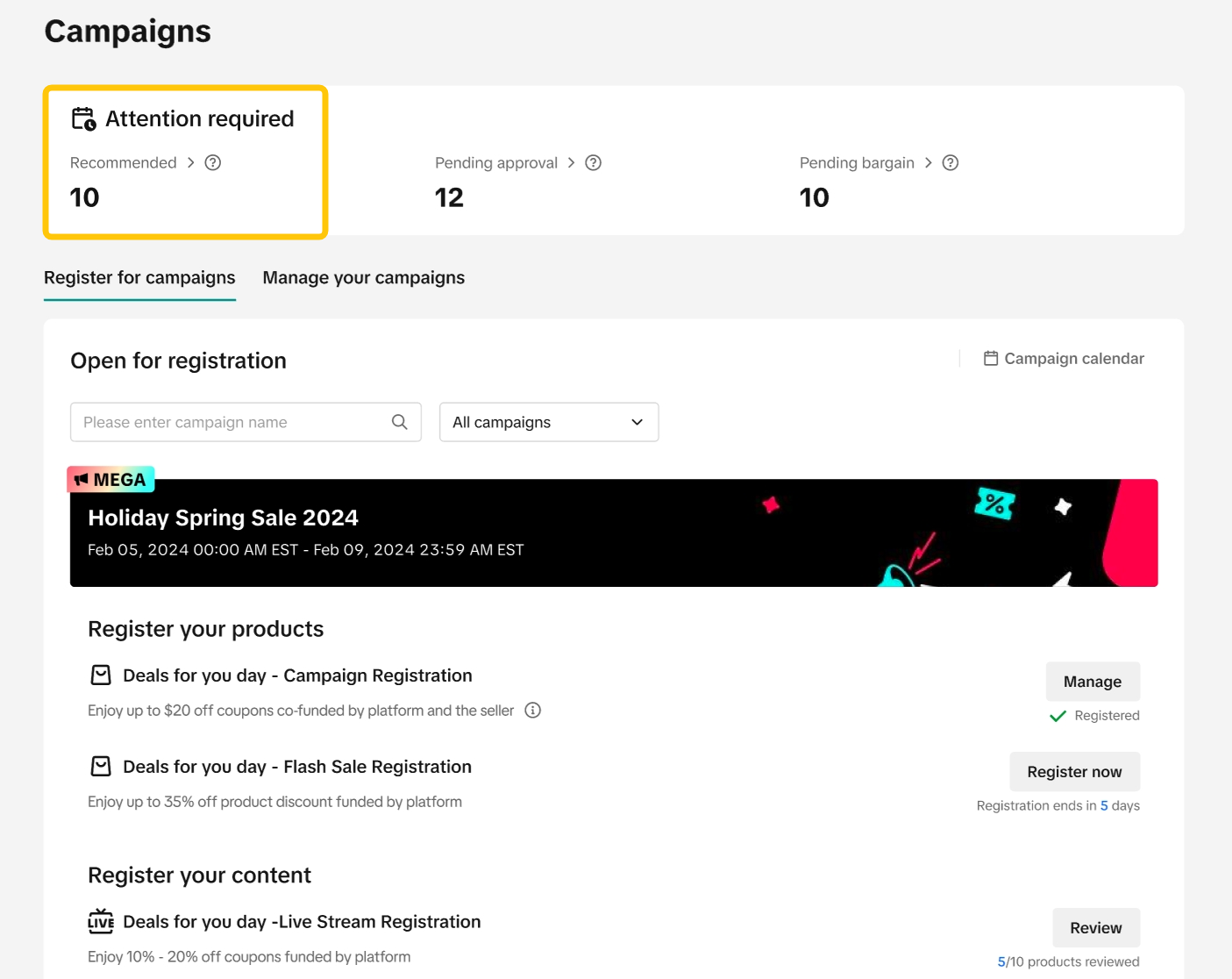
- To review and register recommended & invited products for a campaign on the Seller Center on PC, visit the Campaigns tab. Click on the Recommended tab at the top of the page.
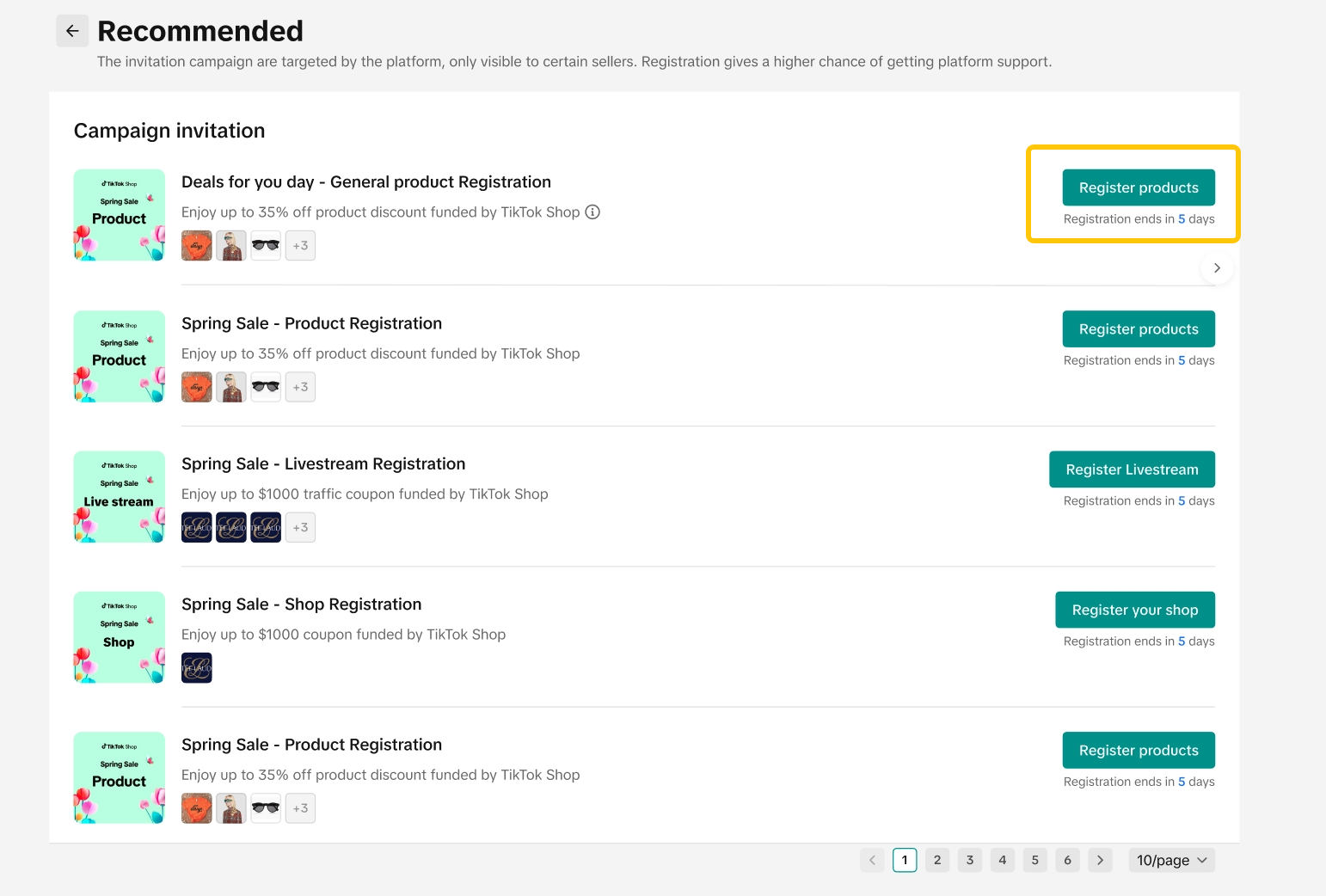
- The Recommended page will display all the campaigns with invited products.
- Click "Register Products" and choose the registration method
- Sellers can now easily select just the invited products in the online bulk registration method when registering for a sub-campaign.
- Sellers can now easily register invited products through the 'Upload File' registration method when registering for a sub-campaign.
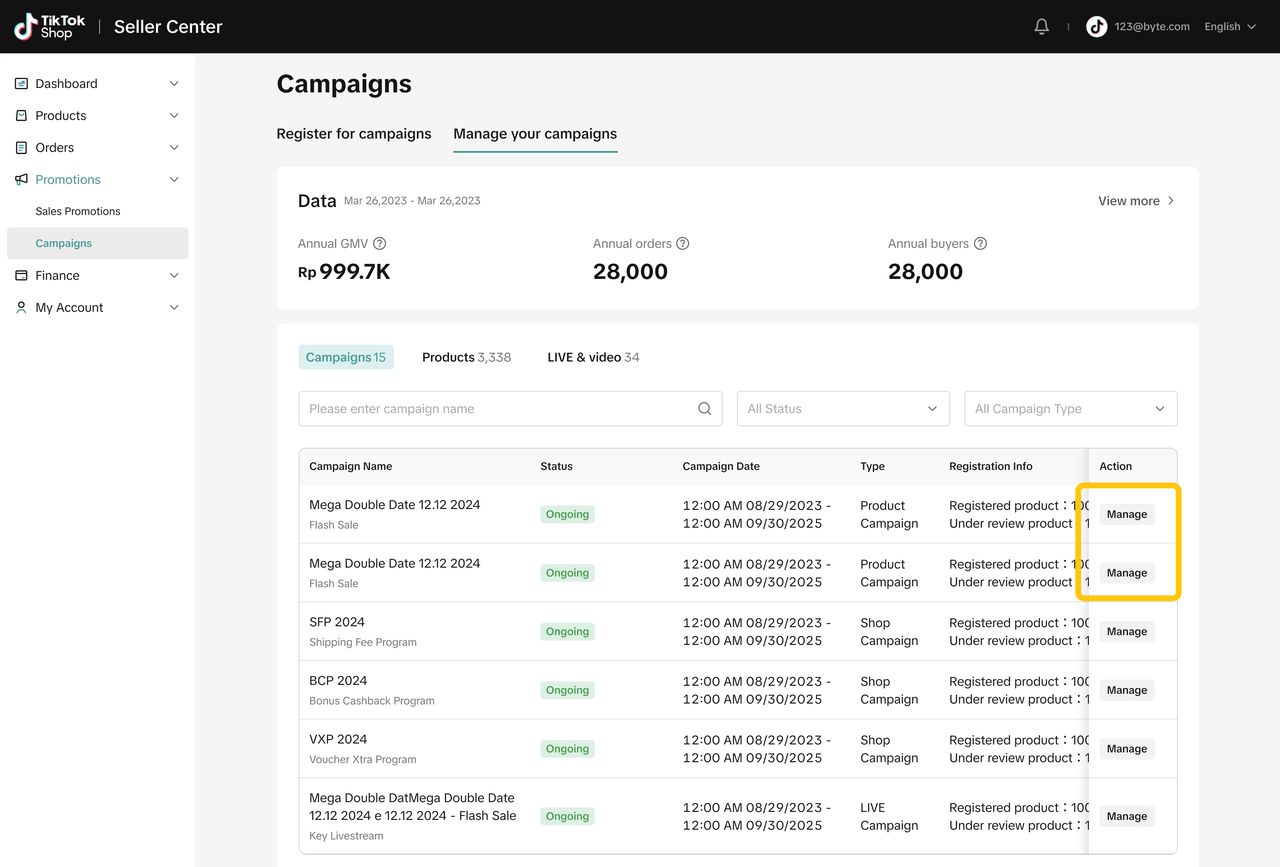
- Visit the Manage Campaigns page, and click on "Manage" for the specific campaign.
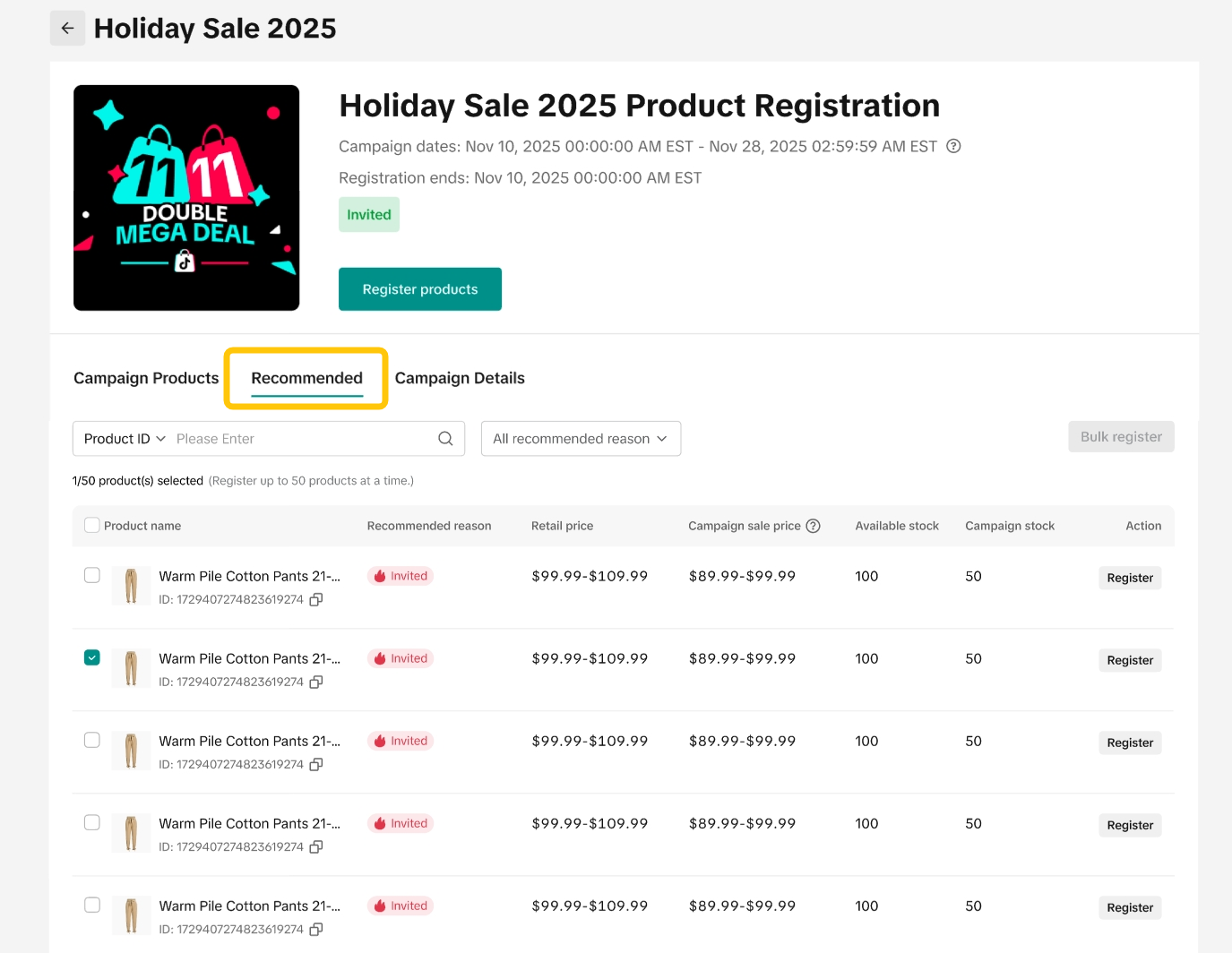
- On the campaign detail page, click on the "Recommended" tab to view unregistered products.
- Seller can click on the "Register " button to quickly register the product for the campaign, or register multiple products at once using the "Bulk register" option.

Review Platform Registered Products
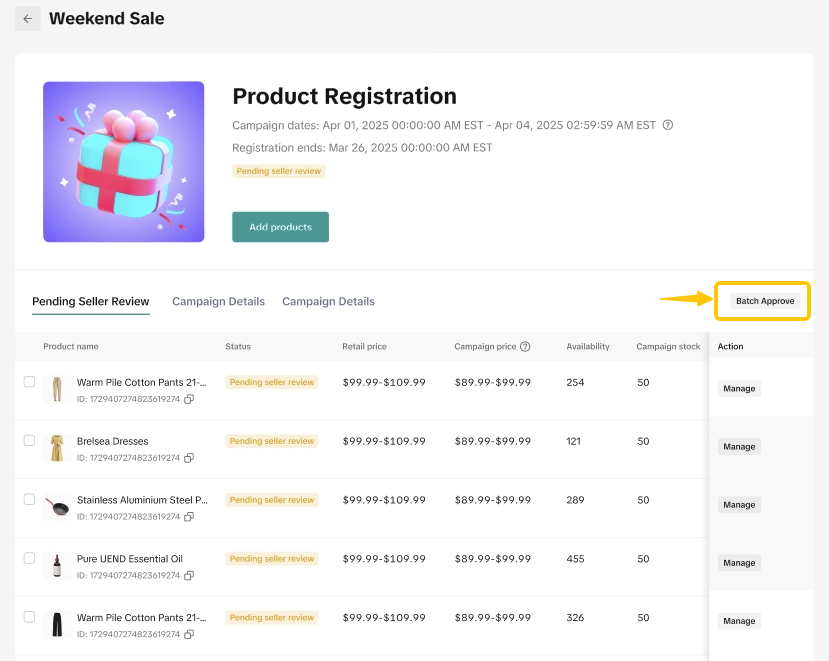
TikTok Shop by Tokopedia's operations team may also register products on your behalf for product campaigns. This means you can now participate in campaigns with ease and save time on the registration process. Some platform registrations are subject to your approval.To review and approve platform registered products for a campaign on the Seller Center on PC, visit the Campaigns tab.
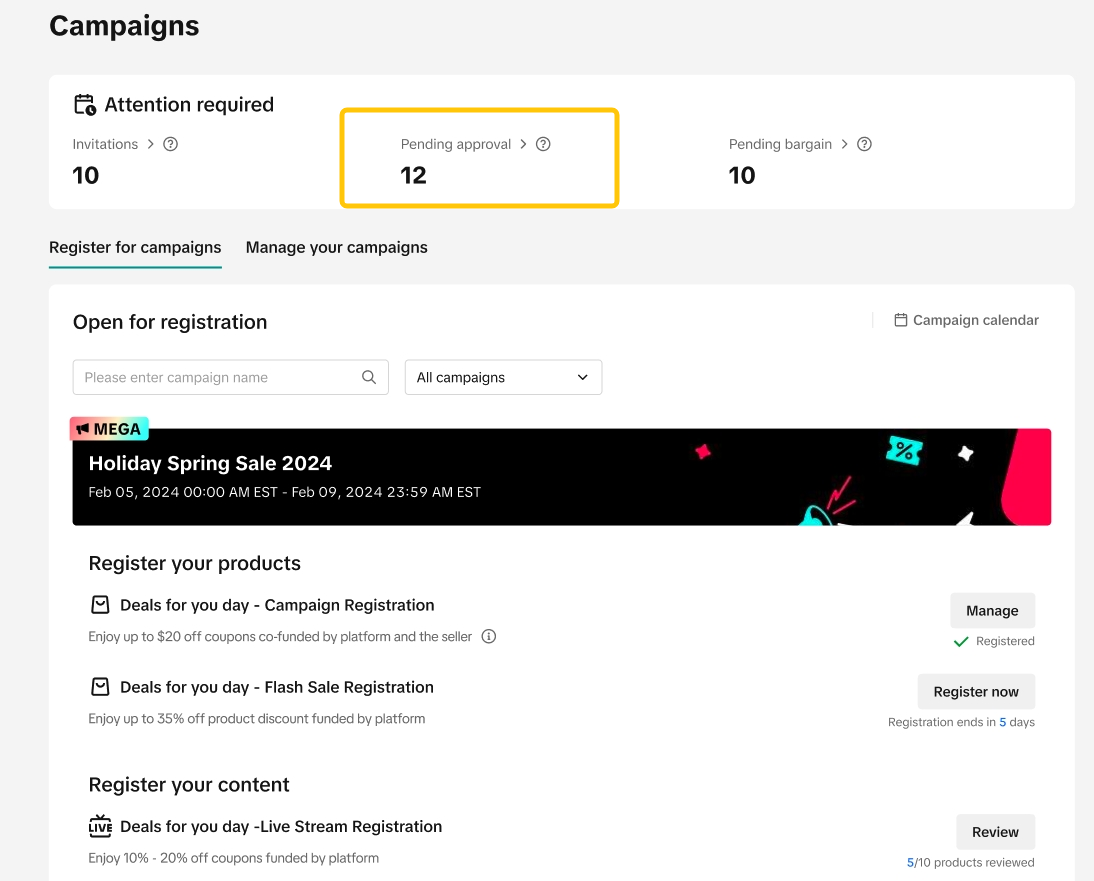
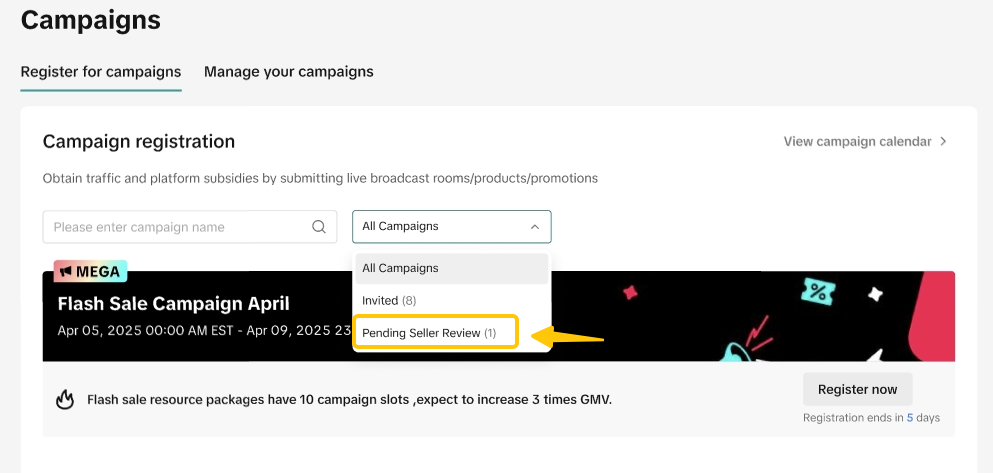
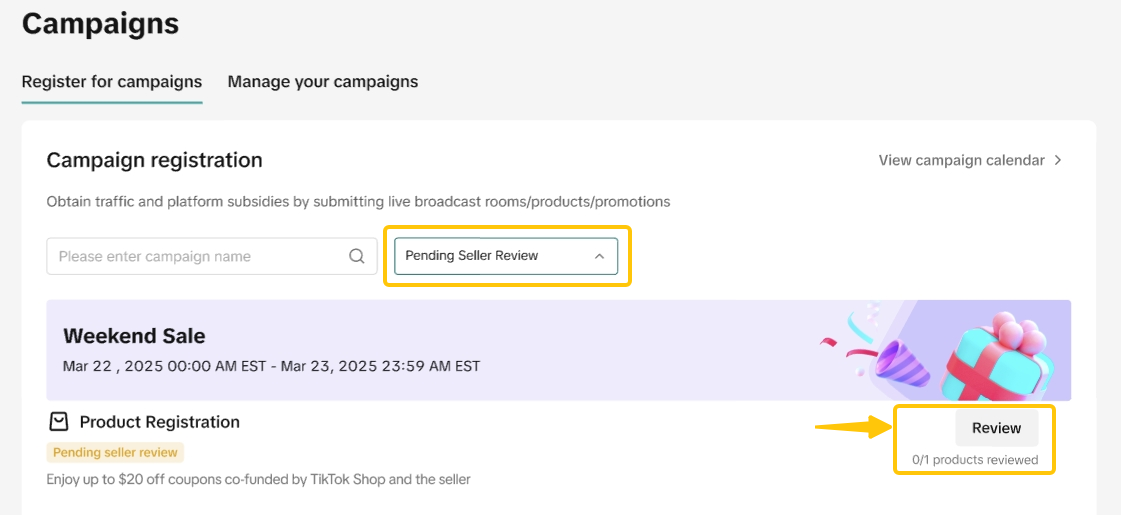
Please double-check the following information for each product:
- Product Name / Product ID
- Retail Price / Campaign Price
- Available Stock / Campaign Stock
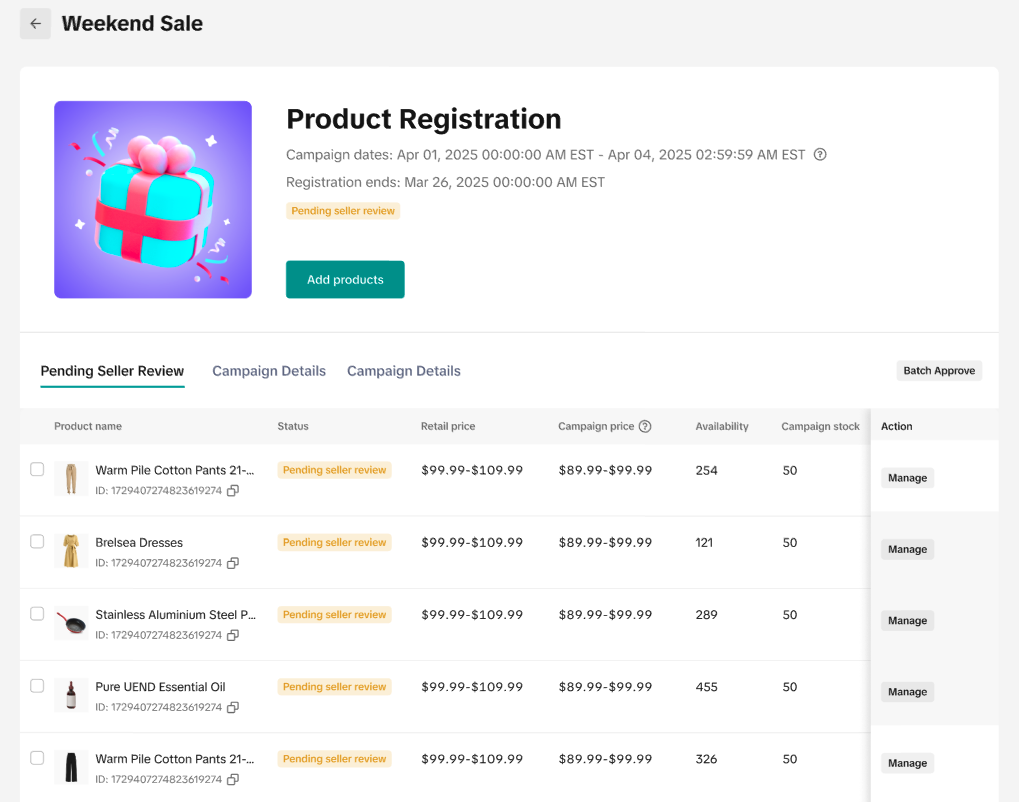
Option A: Agree to the request for an individual productClick Approve to agree with the product registration.
If needed, you can click View to check the detailed SKU information of the product.
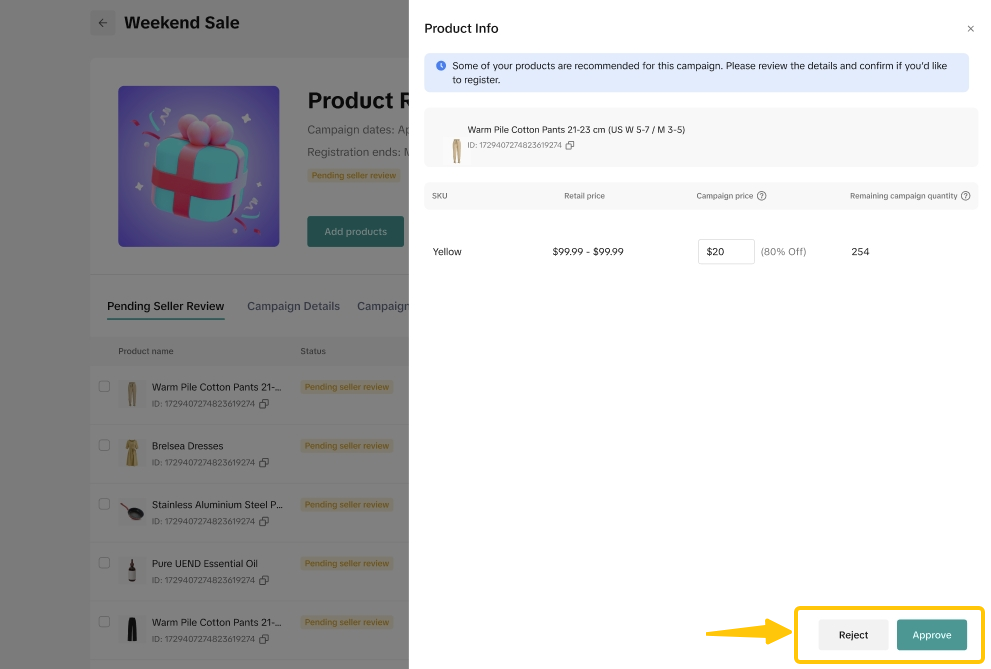
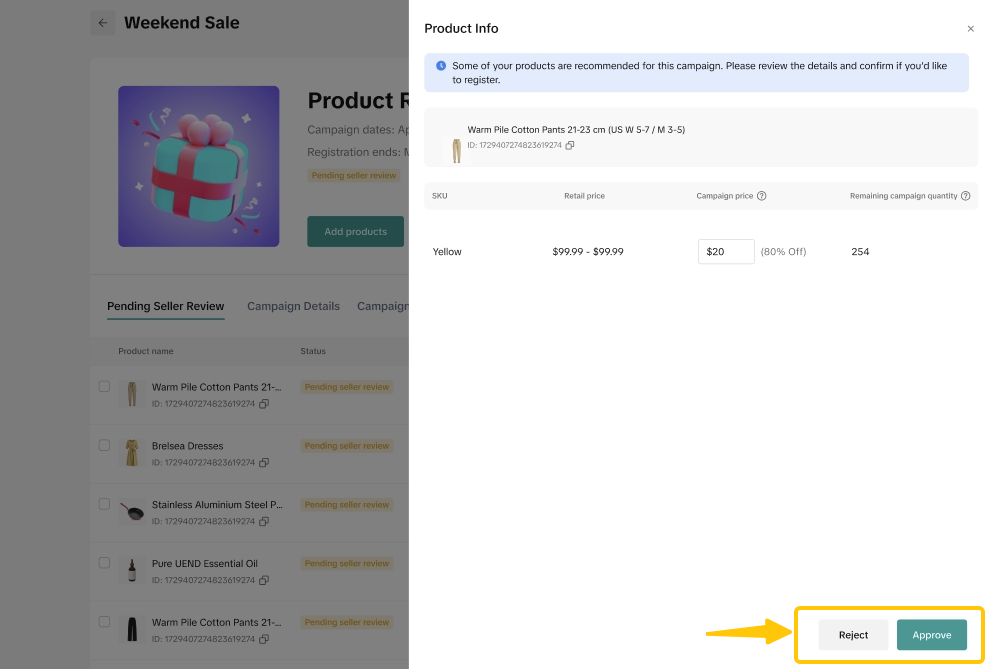
If the product does not meet your expectations, you can choose to reject:
Option A: Reject the request for a single productClick Reject to reject the request for the product.
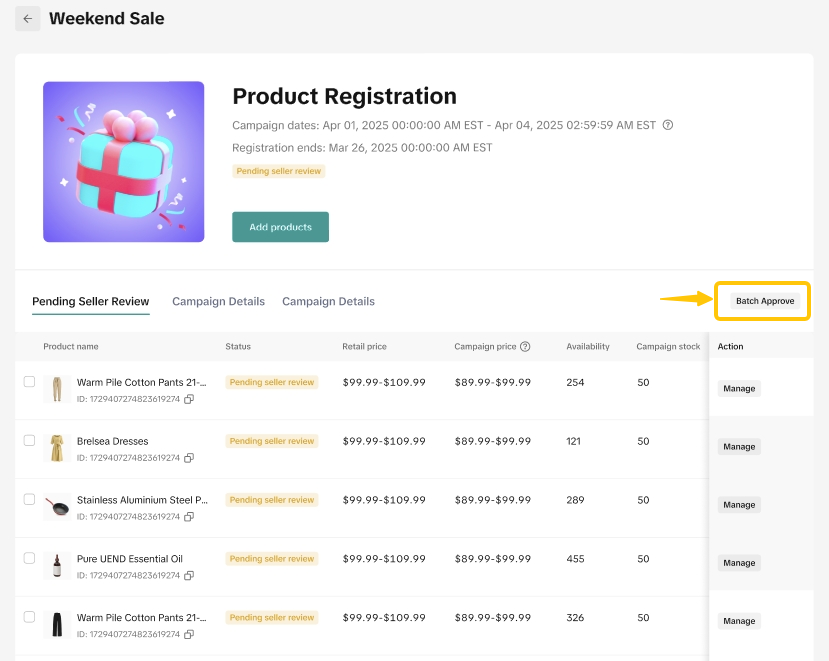
You will need to provide a reason for rejection.

Track Campaign Performance
You can view post campaign performance data in Data Compass. Click on the Marketing tab and select Campaign Performance under the Promotions section.All previously joined campaigns will be shown. Campaign details will be available by clicking on each specific campaign.
| YTD Perspective | Campaign Perspective |
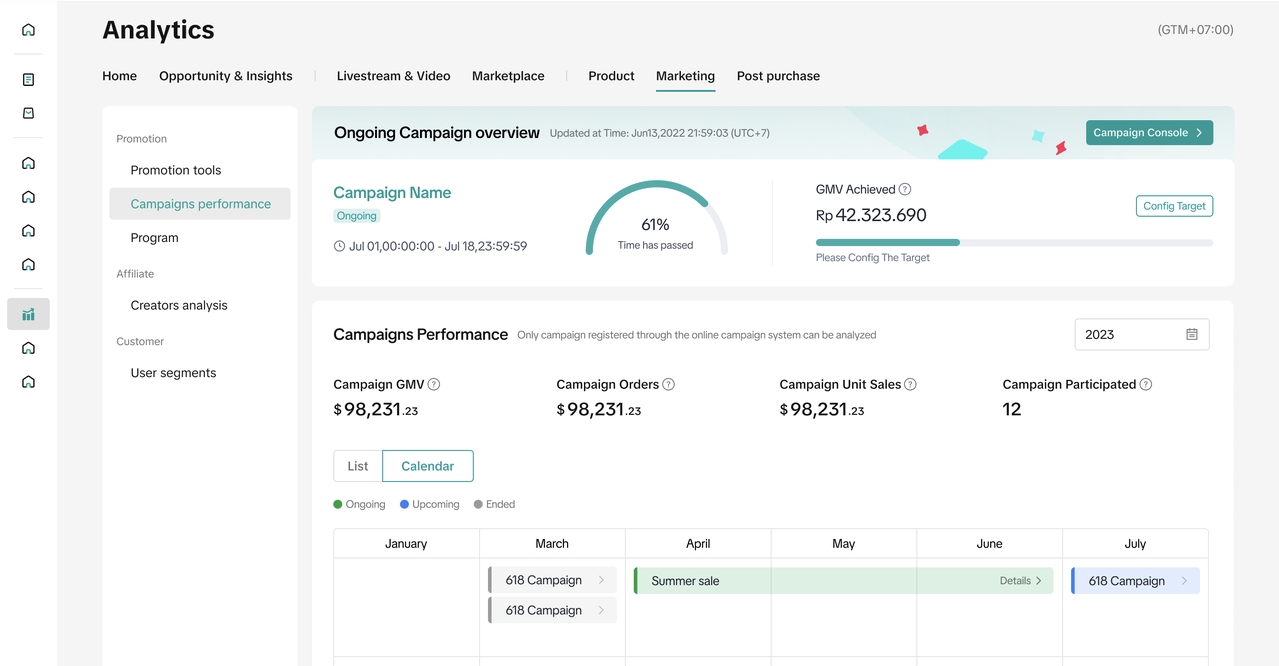 | 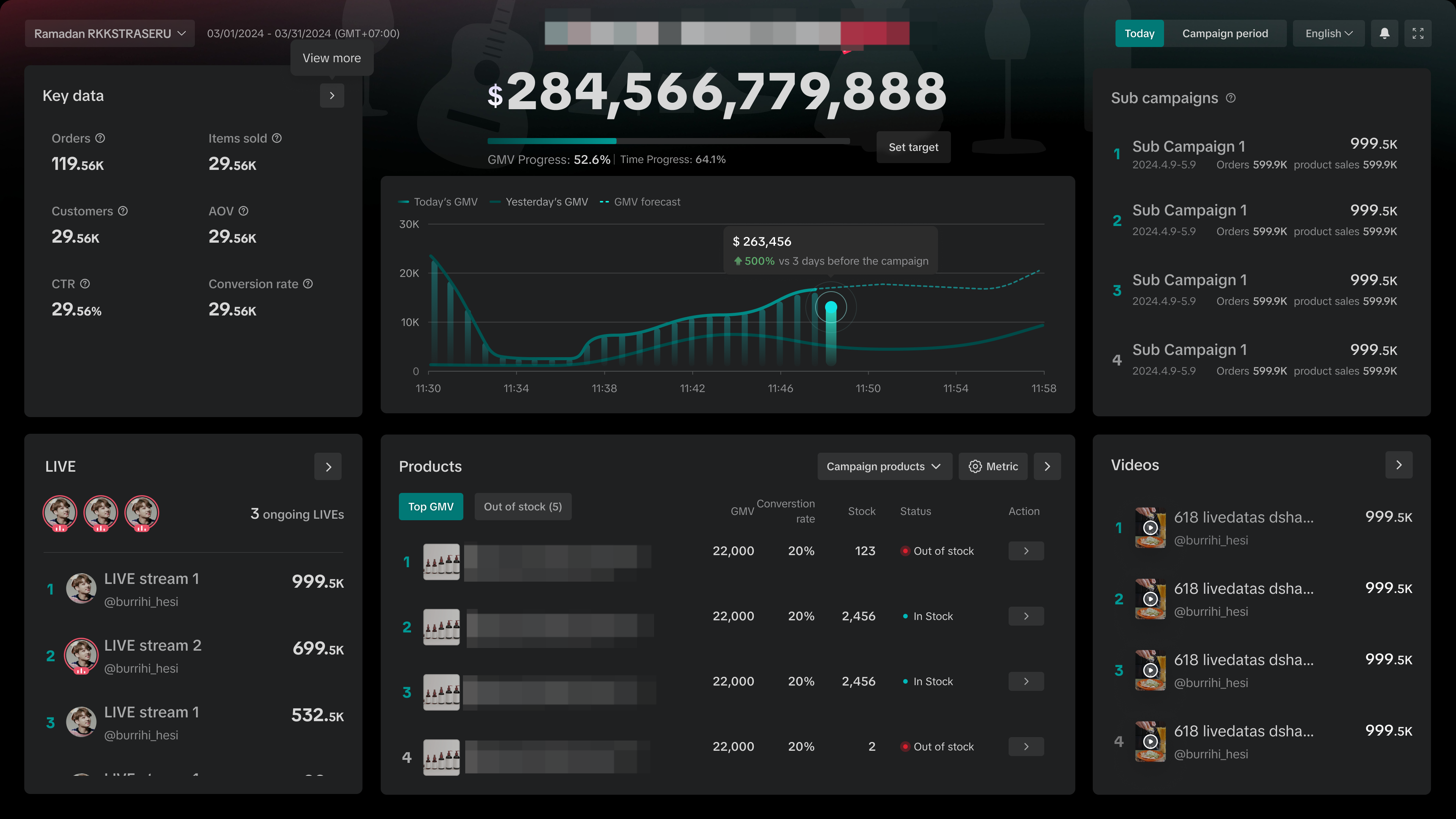 |
| Understand the cumulative annual sales performance through registered campaign | Real-time performance for greater control and flexibility over your campaign strategy optimization |

FAQ
- Am I allowed to join more than 1 campaign?
This rule may not apply in all cases. The final price shown to buyers will depend on the overall price stacking and platform promotion logic. Click here to learn more
Campaign A
| Campaign B
|
- Can I set up other seller promotion tools if I join the campaign?
The only exceptions are:
- Seller LIVE Flash Sale Price
- Successful Price Bidding
Campaign
| Seller Flash Sale
|
You may also be interested in
- 1 lesson
Campaign and Cofunded Program
Join campaigns and cofunded programs for greater product exposure!
- 8 lessons
Campaign
Learn how to participate in and maximize the impact of official TikTok Shop by Tokopedia campaigns.

How do campaign co-funded vouchers work?
Sellers will first need to register and add products to the respective campaign page. Once the prod…

What if the campaign period overlaps with other promotional…
After approval, the price will take effect in accordance with the campaign dates. Campaign prices ar…

Marketing Benefits Packages
This article teaches you what Marketing Benefits Packages are, how it works, as well as how you, as…
Periodic Payments
This guide explains how to use bank transfer payments for Marketing Benefit Resource Packages, speci…

Understanding Payments
This article introduces the different payment methods available for our Marketing Benefits Packages.…

Livestream Campaigns
This article teaches you how to use Livestream Campaigns to increase traffic and conversions in your…