

Co-Funded Campaigns
05/25/2024

What are Co-Funded Campaigns?
Co-Funded Campaigns is a type of discount event which sellers can join. Sellers and TikTok Shop will "co-fund" or share the costs of the discount offered to buyers.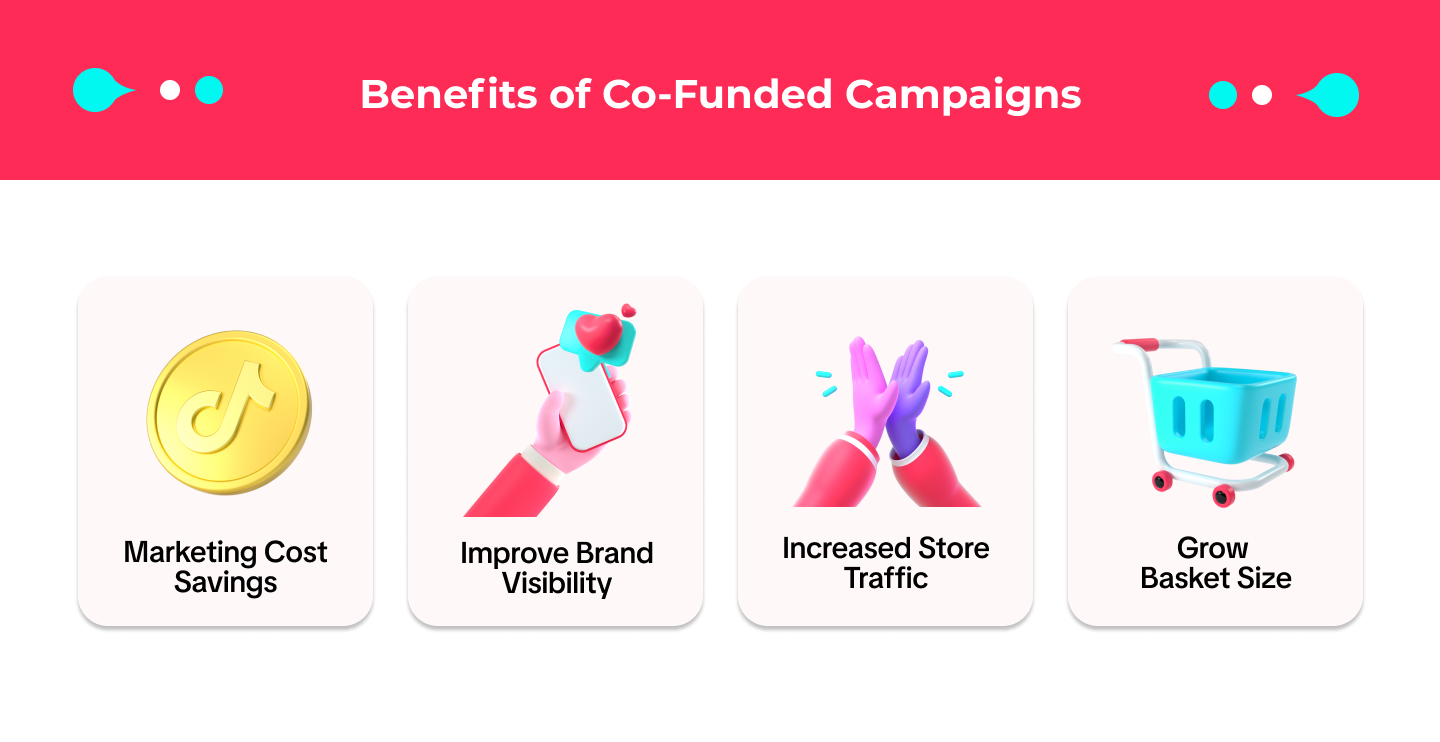
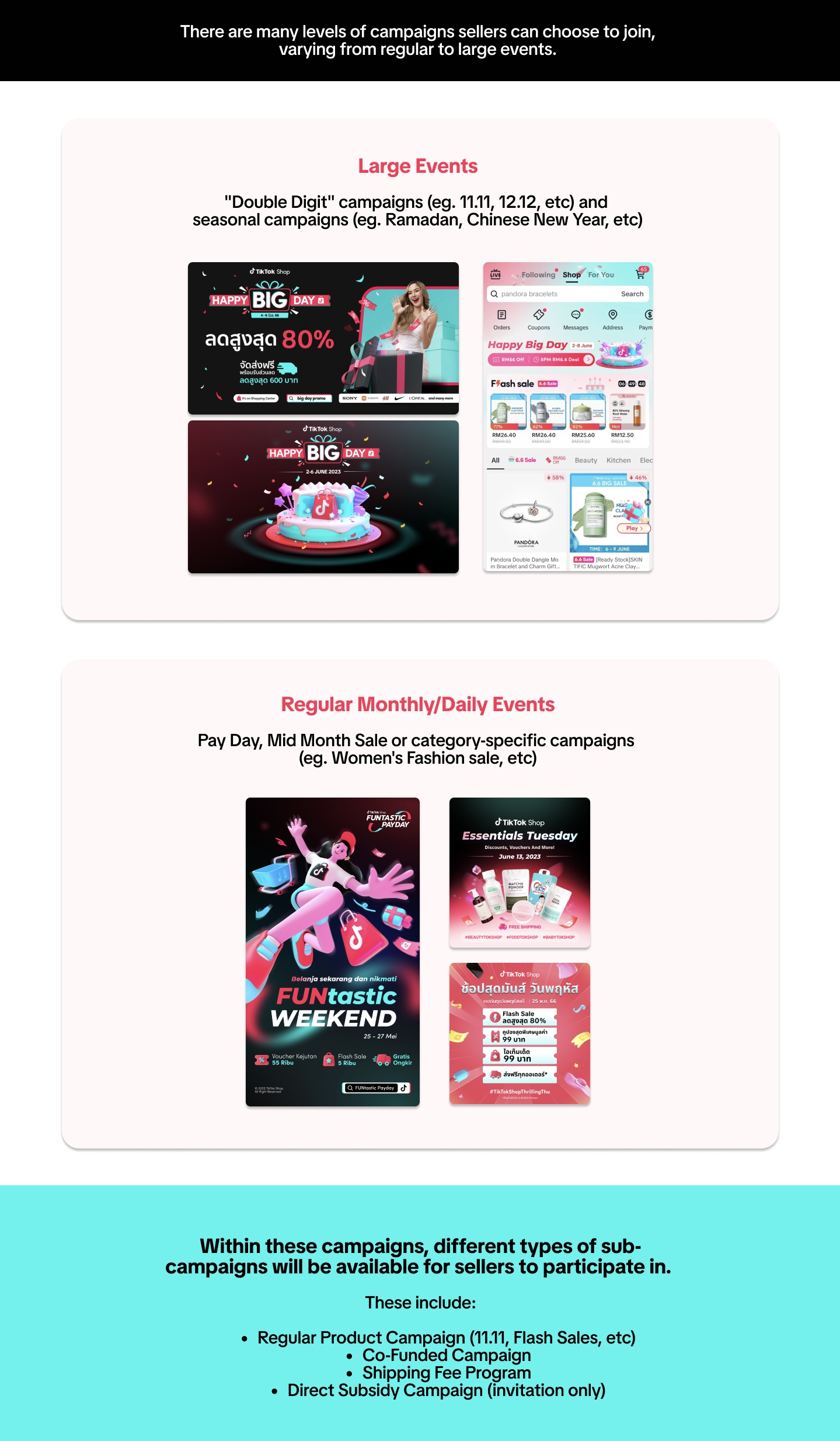 Products that participate in co-funded campaigns will receive a "Super Voucher" frame and tag. This will be promoted in PDP and in search results for improved shop/brand visibility: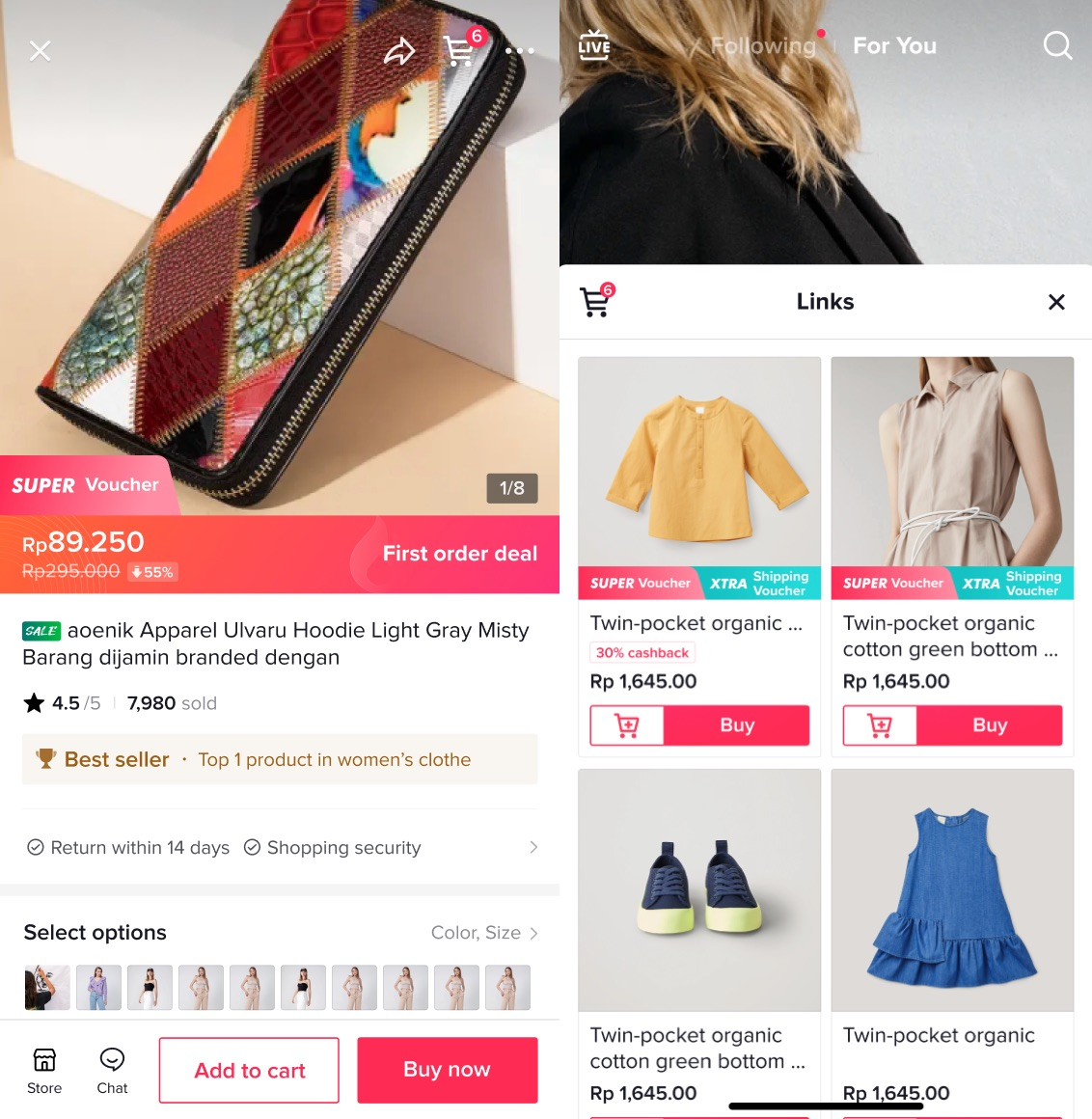
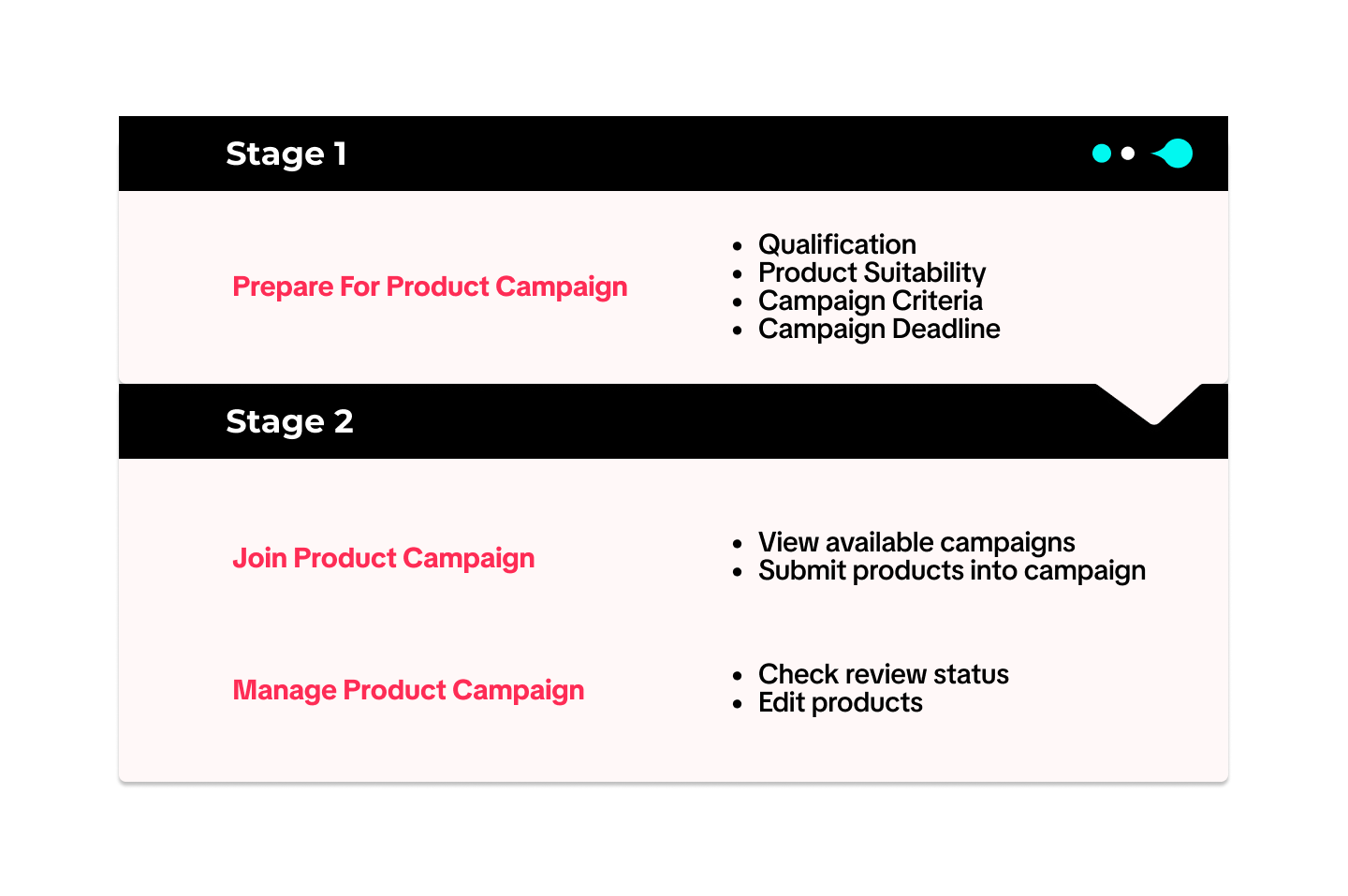

How to Prepare for Co-Funded Campaigns
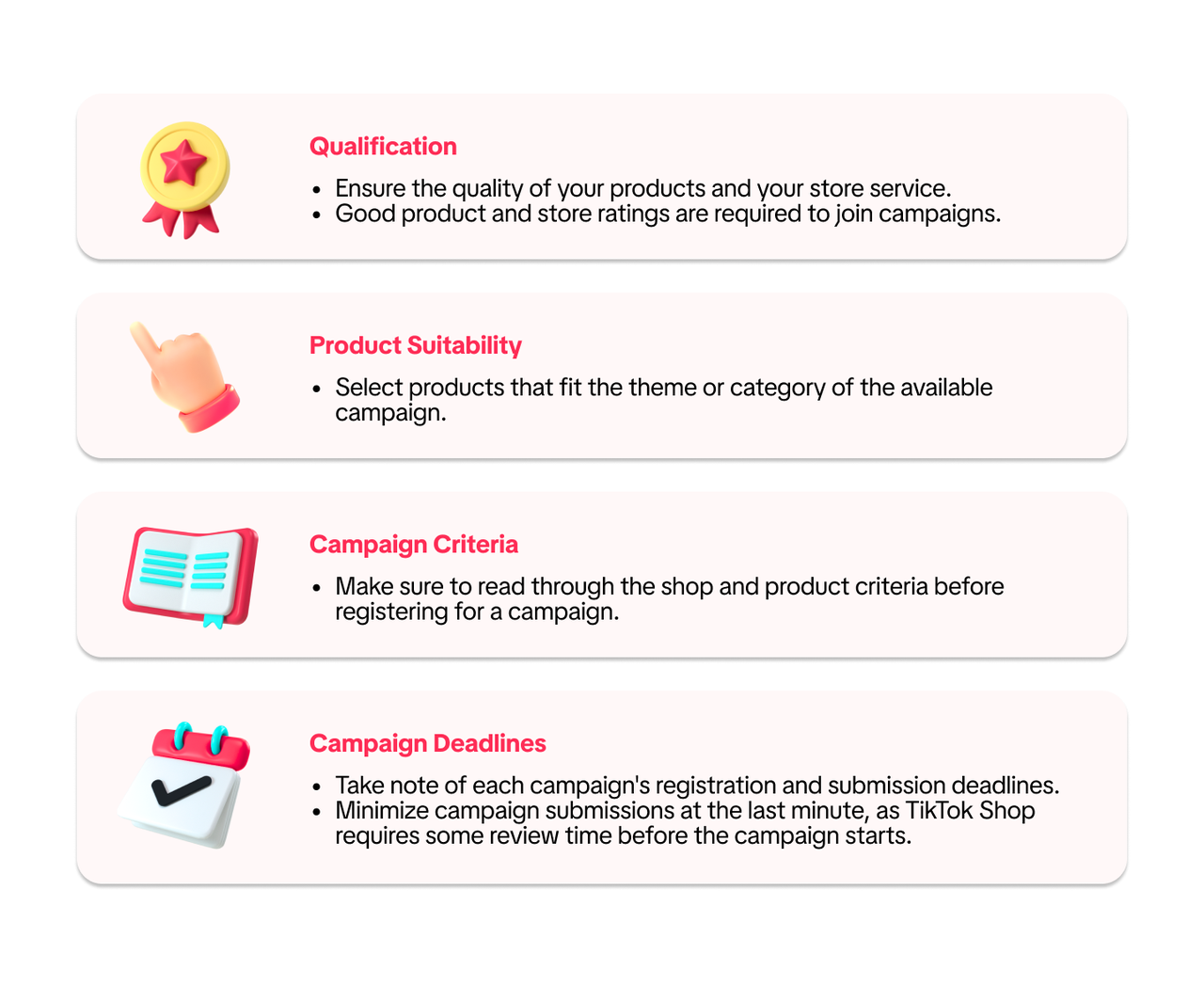

How to Join Co-Funded Campaigns
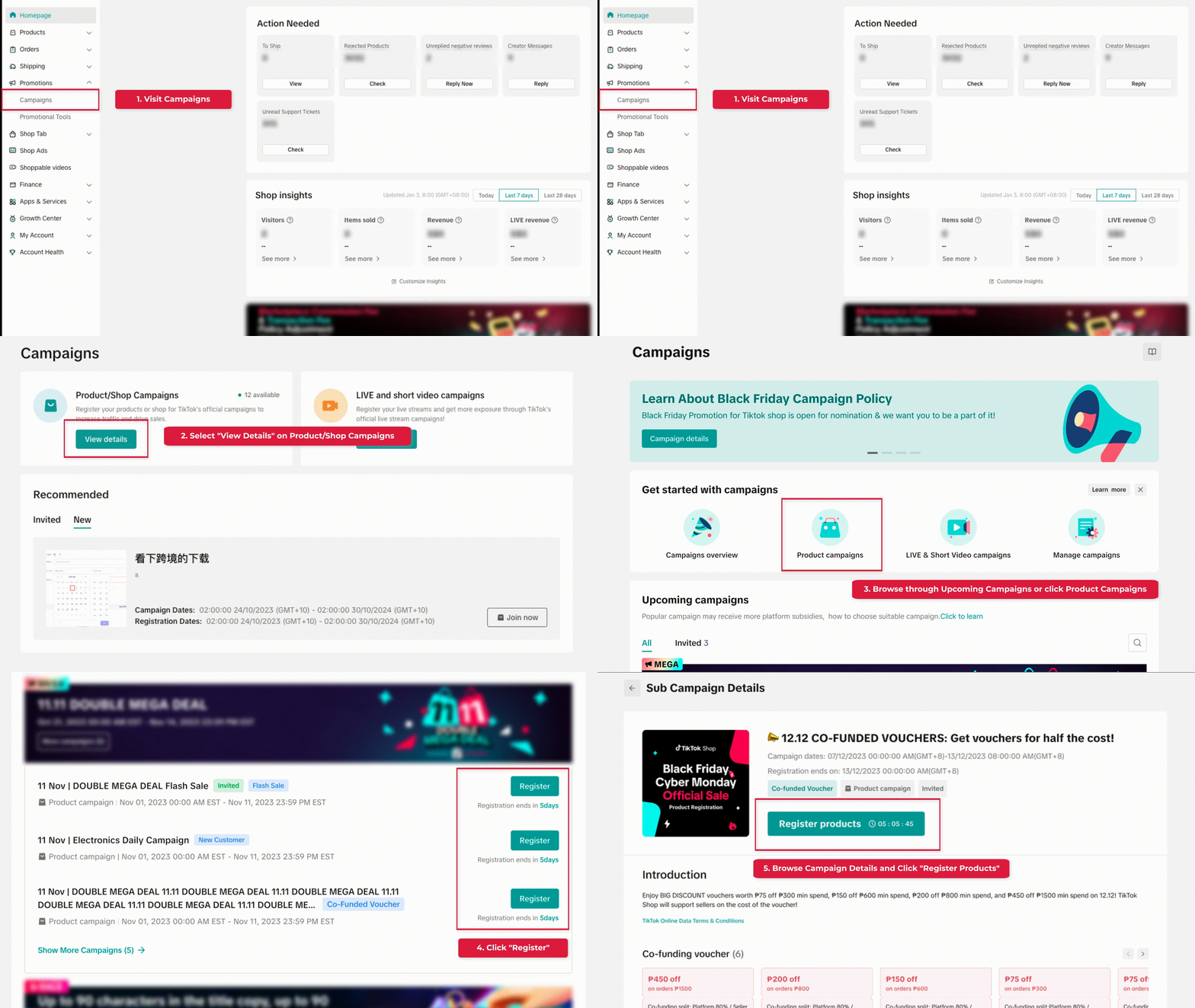
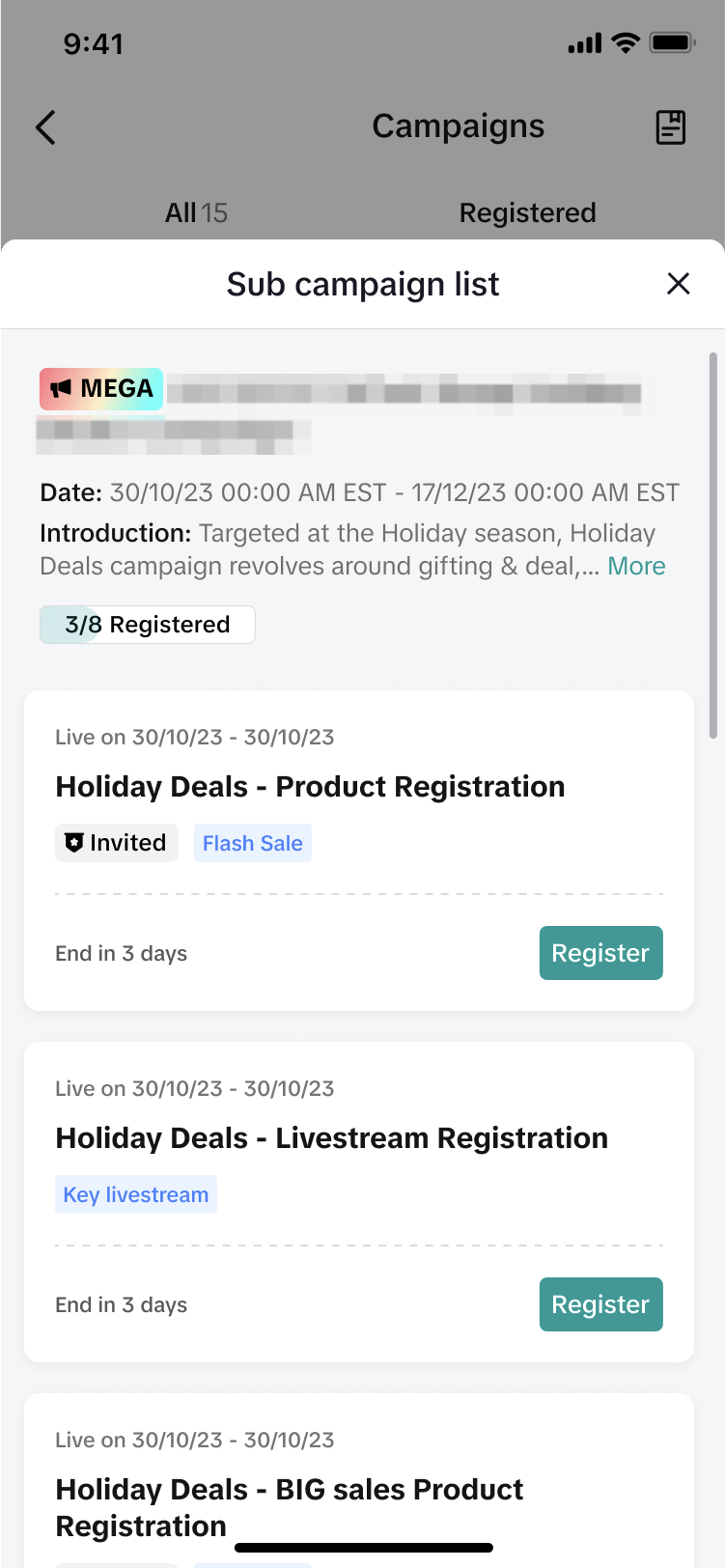
- View Available Campaigns
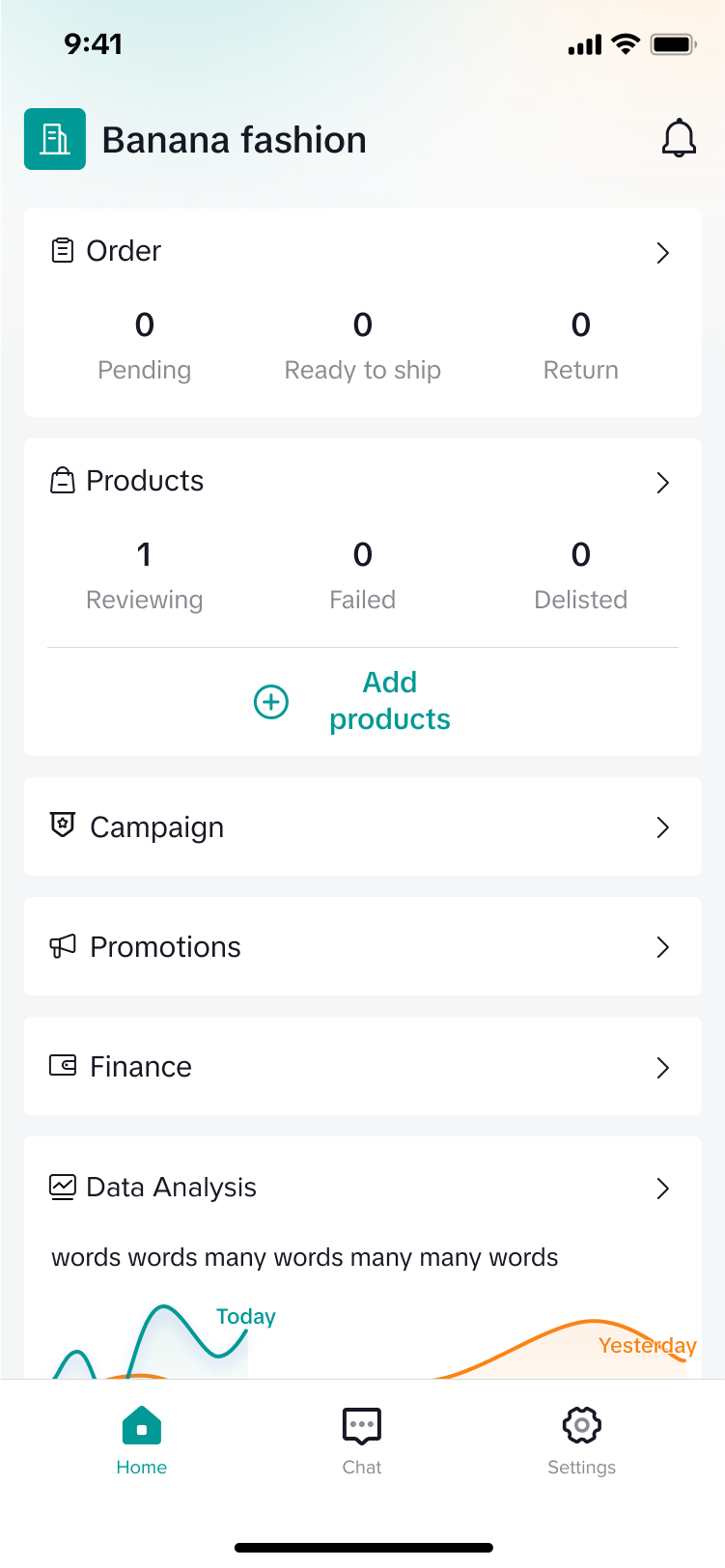 | 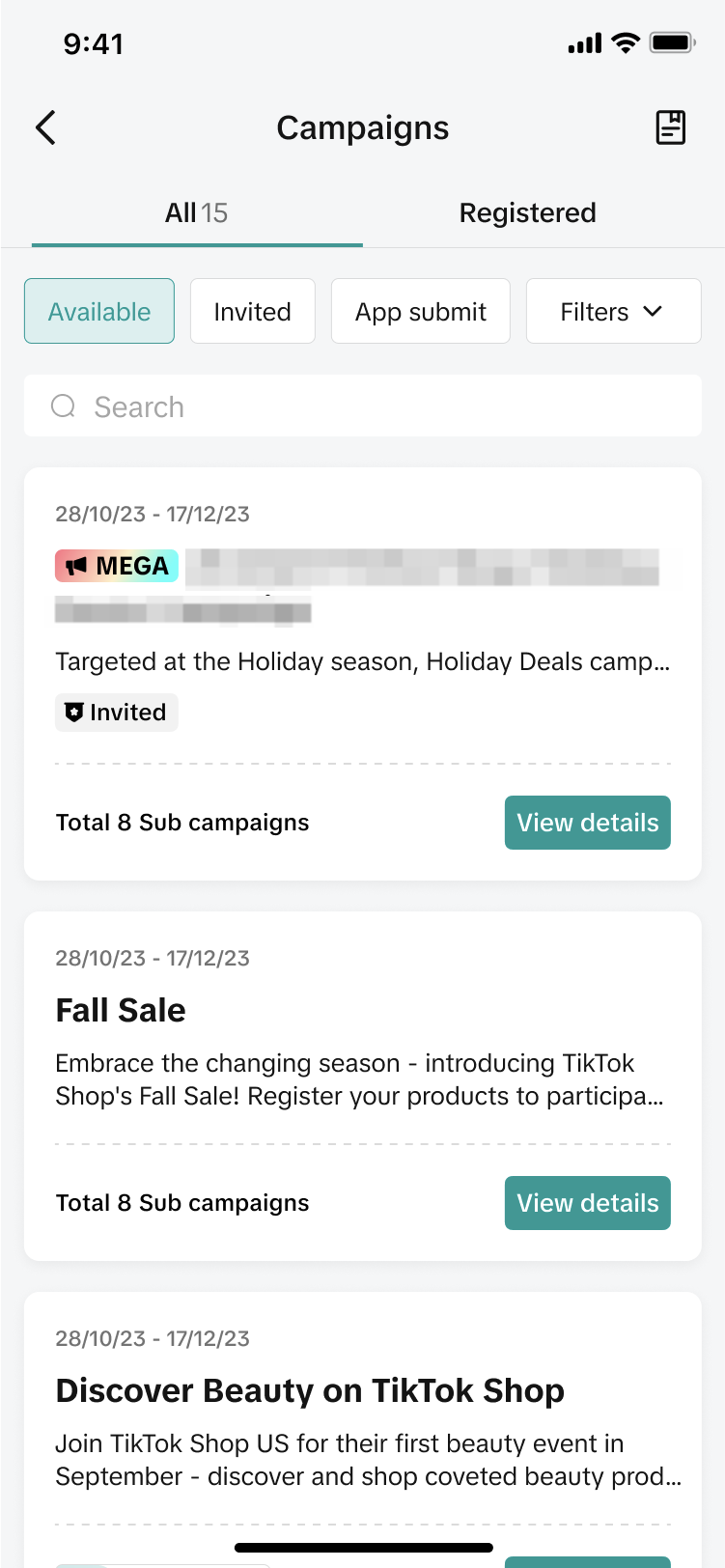 |
- View Campaign Details
Note: All campaign applications are reviewed. You may be rejected from joining the campaign if you do not meet the criteria for the campaign as listed in the campaign details page
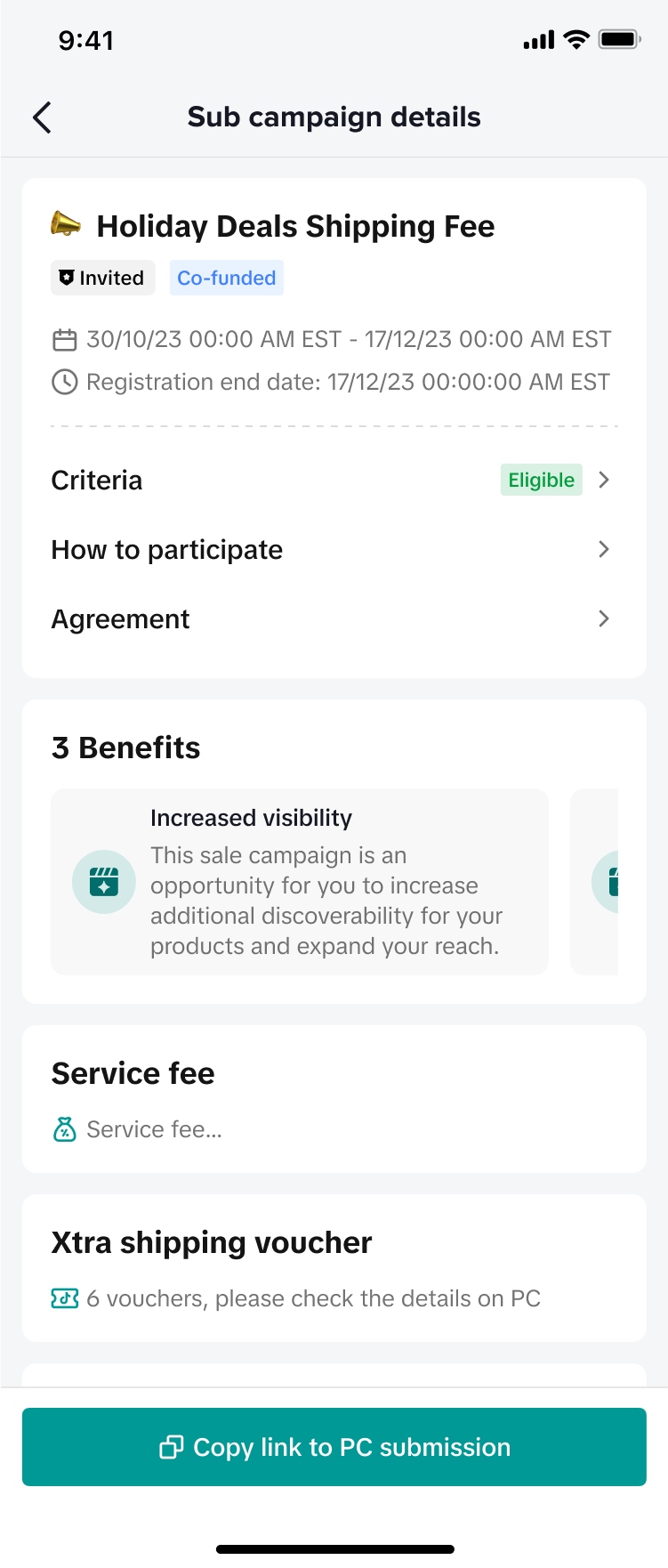
Co-Funded campaigns will be marked with a "Co-funded voucher" tag. Details of the co-funded scheme, such as the voucher amount and cost split, will also be available.
 |  | 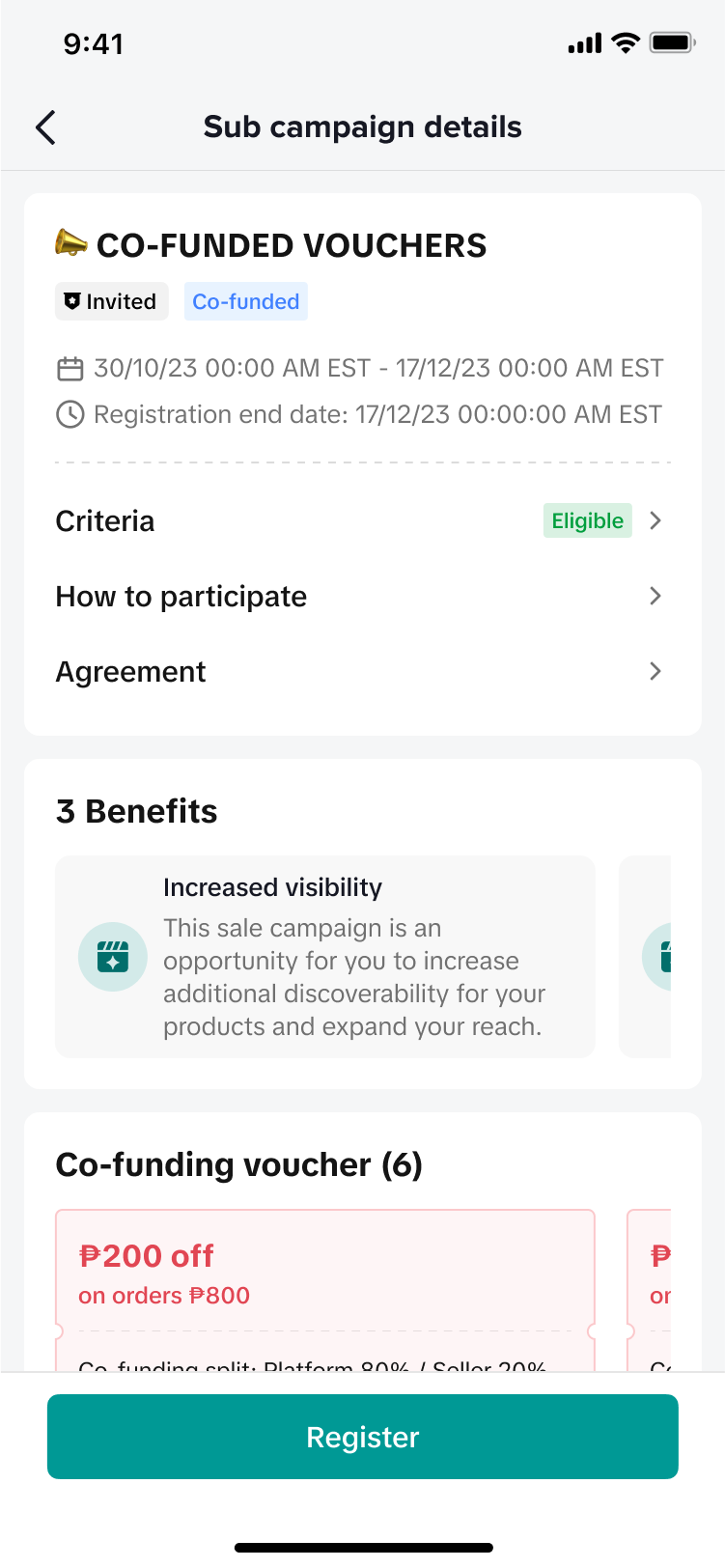 |
- Submit Products into the Campaign
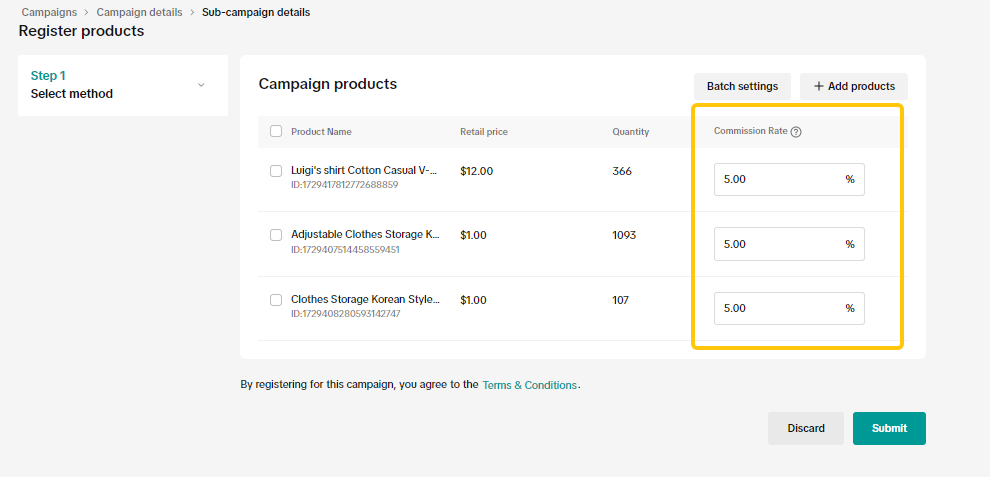
Select the products and variations you want to submit into this campaign, either via selecting products in Seller Center or via importing from Excel (please refer to the "Bulk Import Your Products" section below).
Depending on the campaign type, you will be required to fill some or all of the following fields:
- Campaign Price
- Campaign Quantity
- Campaign Commission Rate
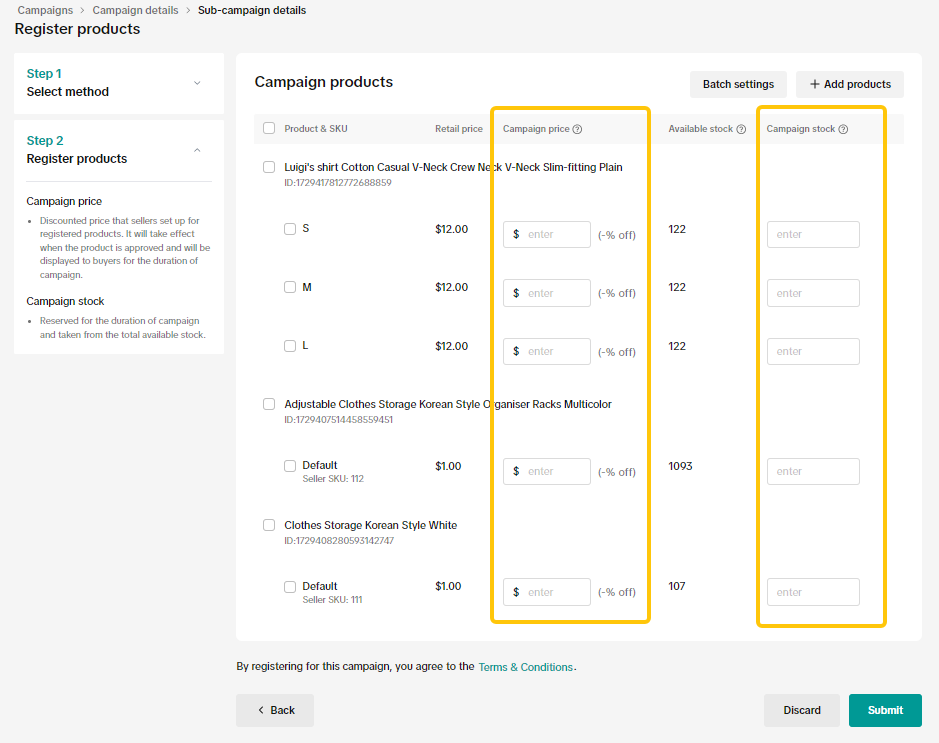 |  |
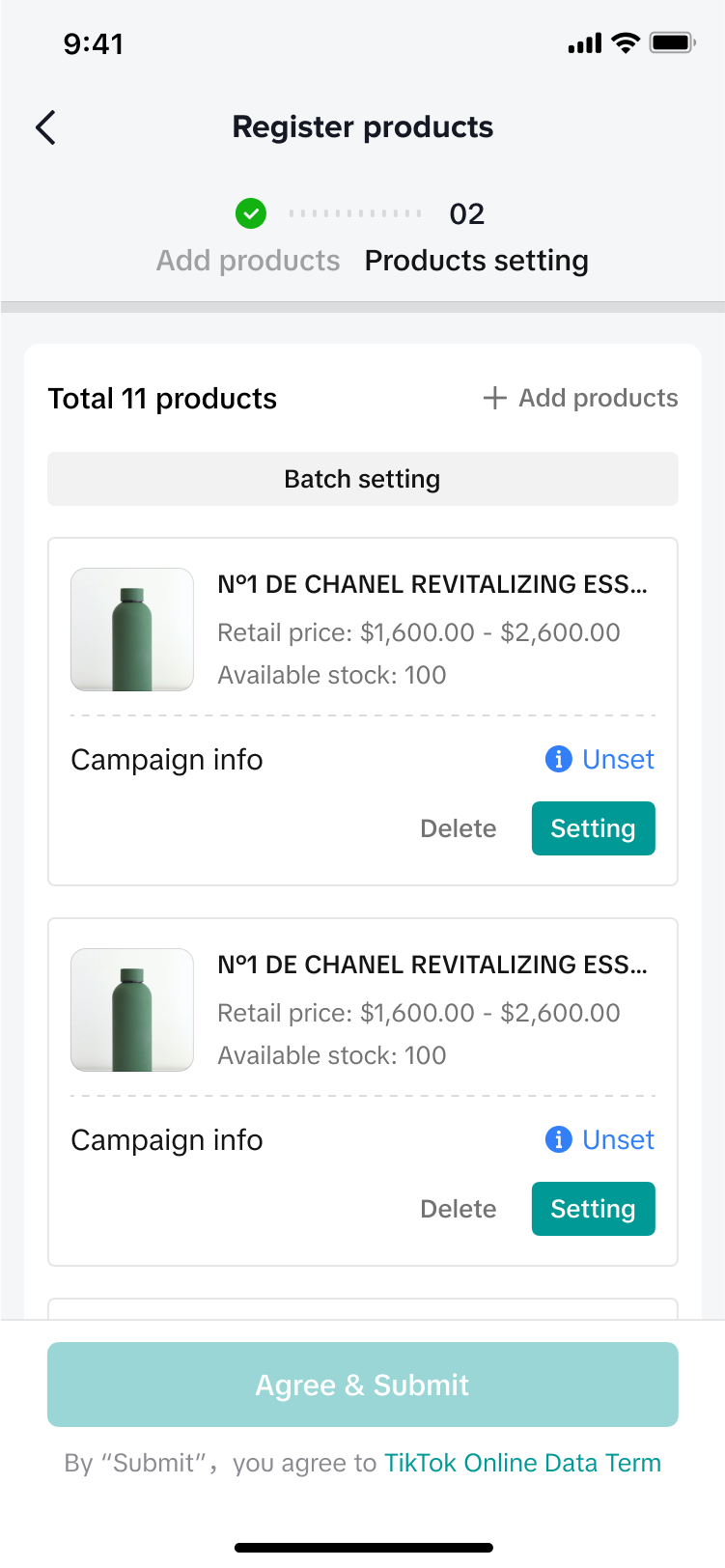
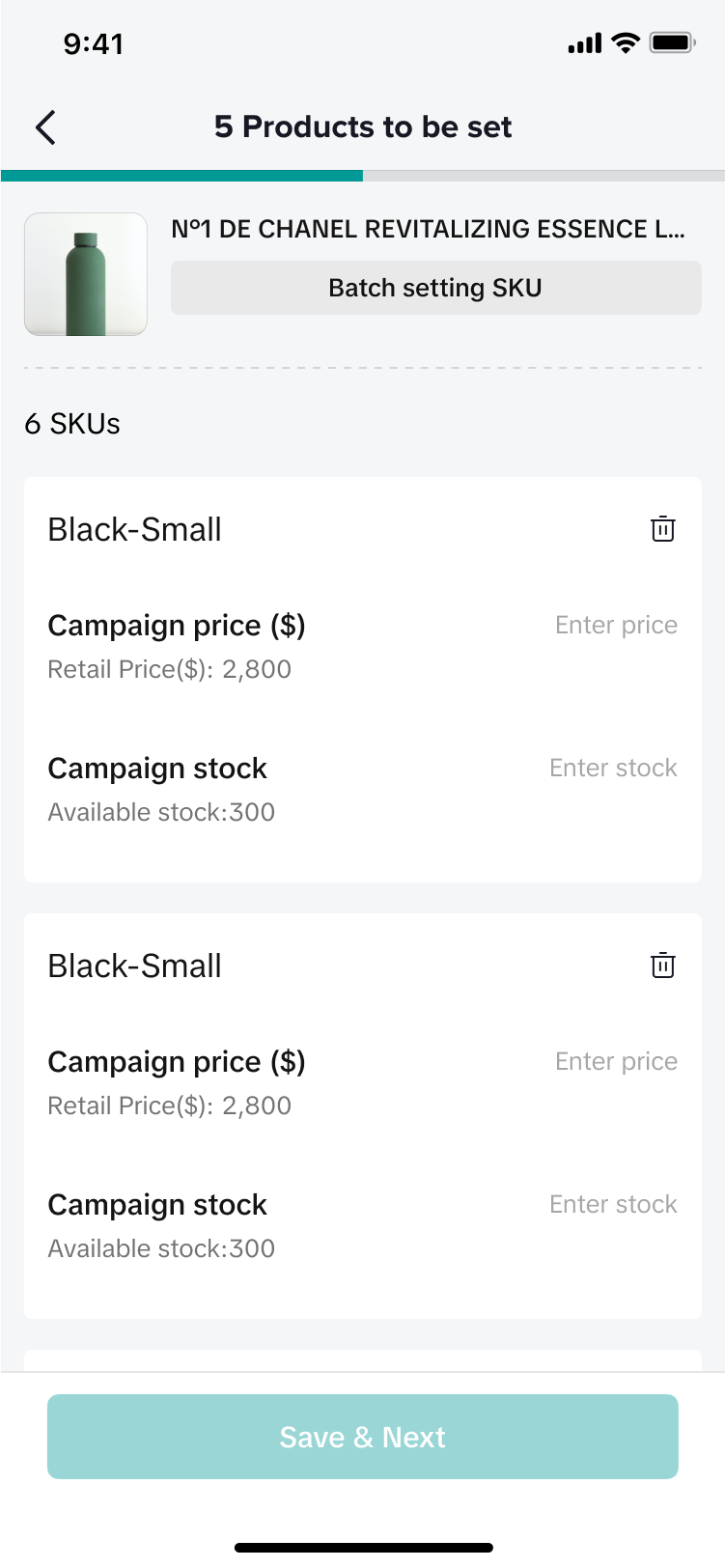
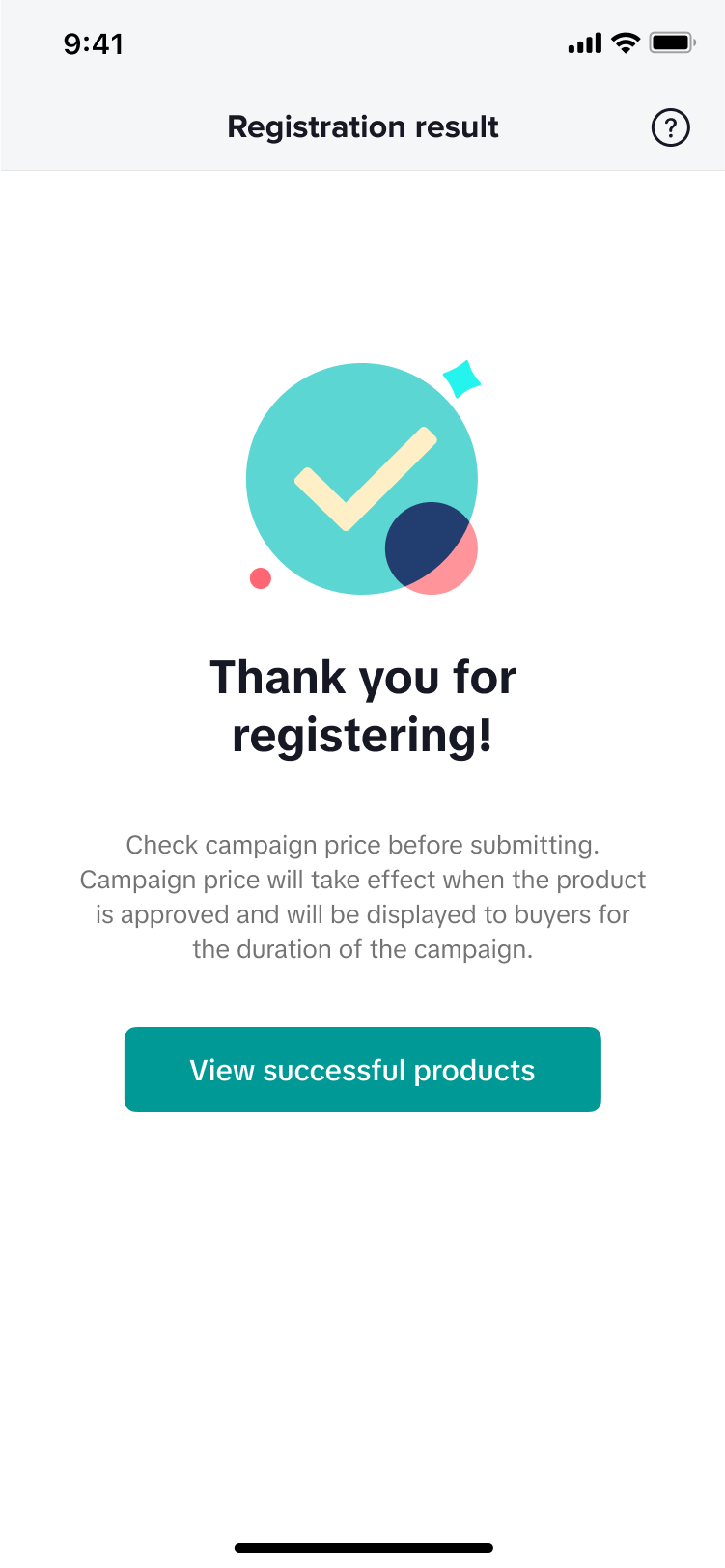
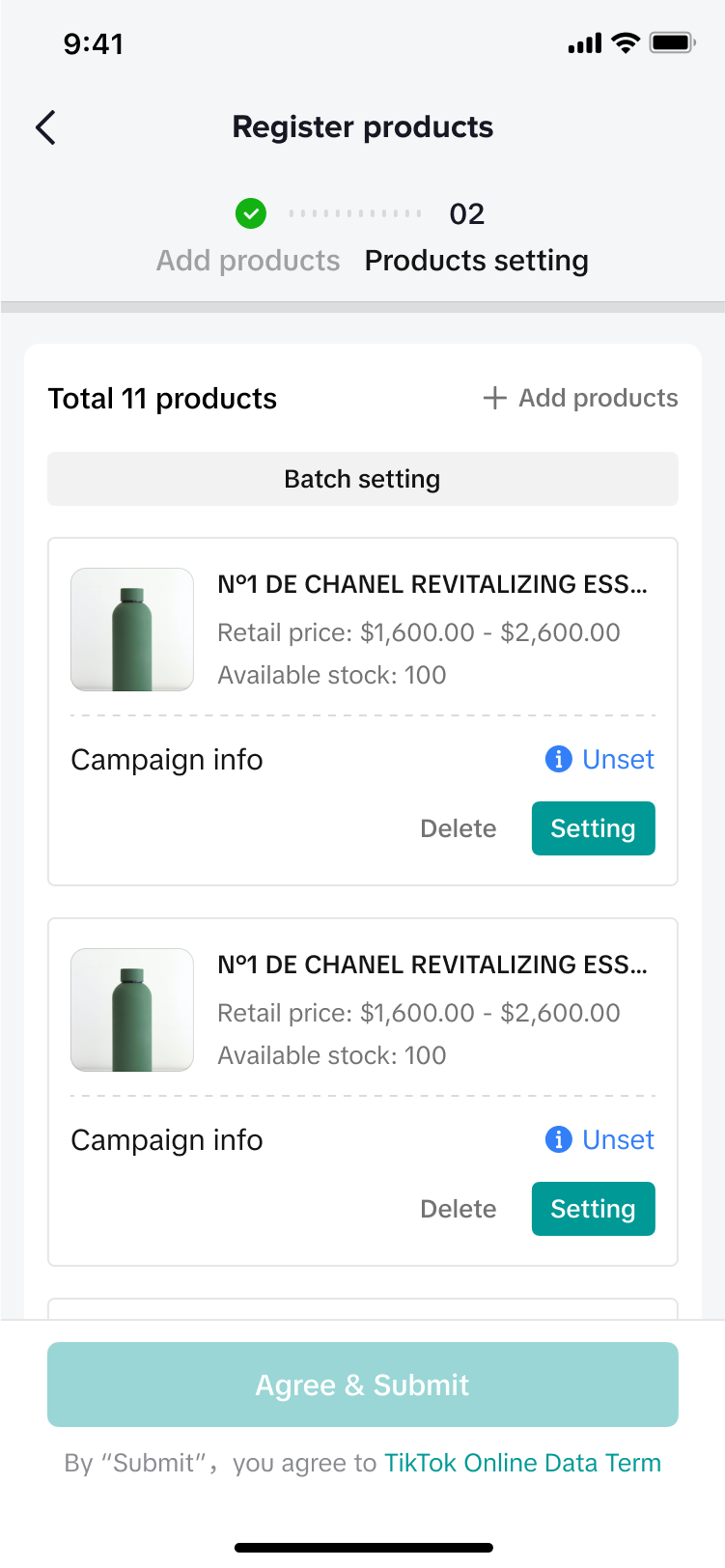
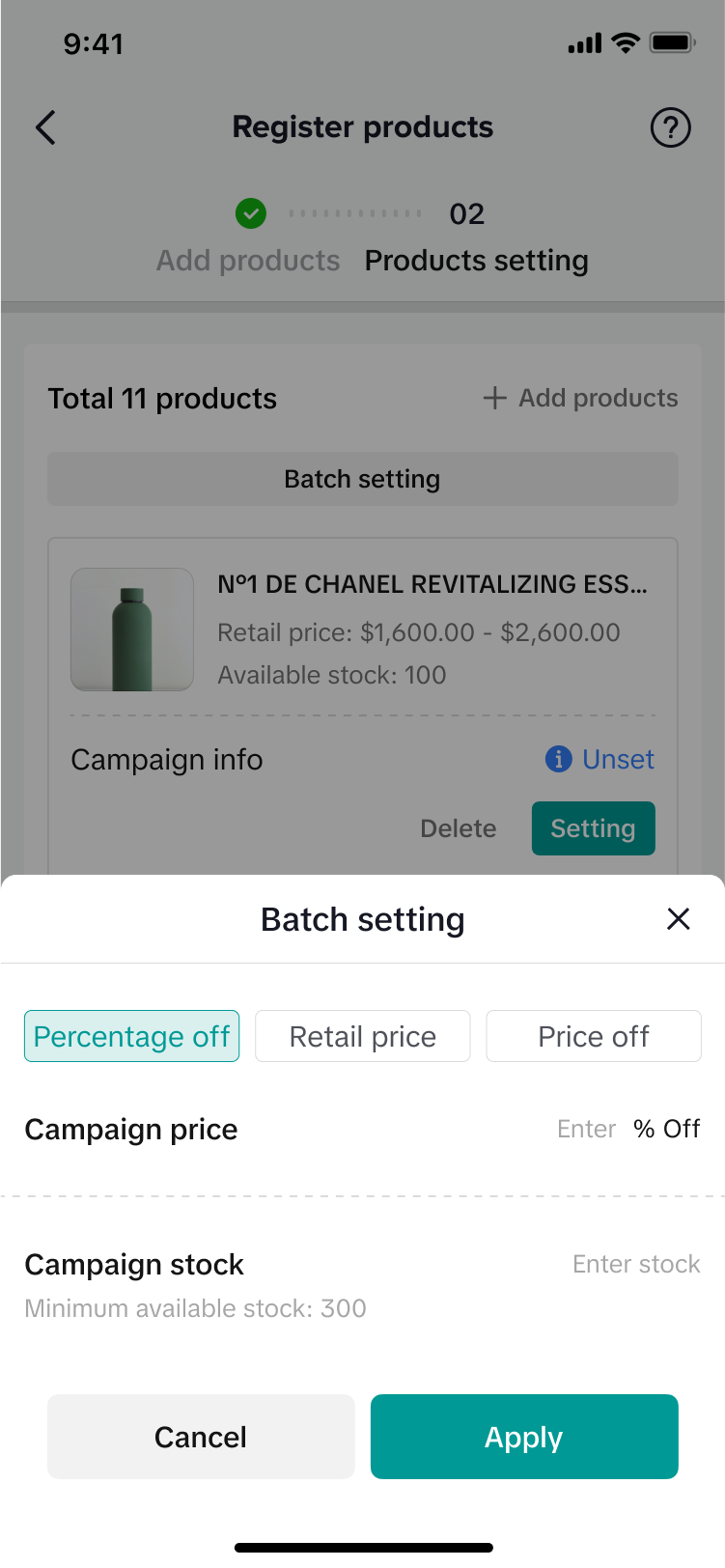
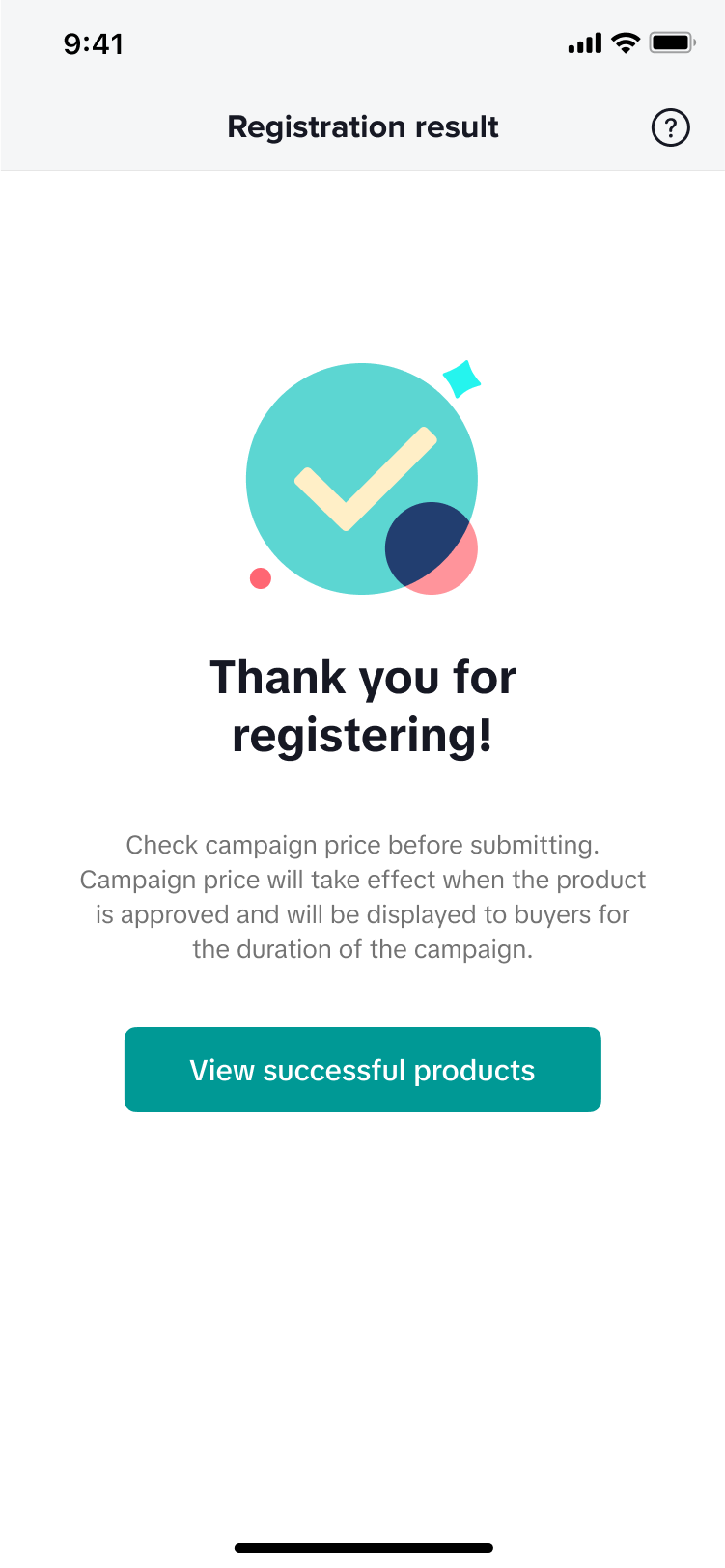
In this process on the Seller Center app,you can choose to do single product setting or batch product setting:
- Single product setting:Click Setting,and fill in the product info one by one.
 |  |  |
- batch product setting:Click Batch Setting,and fill in the product info in batch.
 |  |  |
- Campaign Price:
- TikTok Shop will record all sellers' submitted campaign prices. Depending on conditions of each campaign, sellers may be required to lower or match this campaign price in order to participate in future campaigns.
- Campaign prices will be shown to buyers throughout the entire campaign period. If there are different prices configured in other promotions, such as Flash Deal or Product Discount, these will not be shown.
- Campaign Quantity:
- TikTok Shop will lock sellers' campaign quantity immediately after your campaign submission has been reviewed and approved. After this review, you may not be able to adjust campaign quantity easily.

- TikTok Shop will lock sellers' campaign quantity immediately after your campaign submission has been reviewed and approved. After this review, you may not be able to adjust campaign quantity easily.
How to View Products in Co-Funded Campaigns in PC
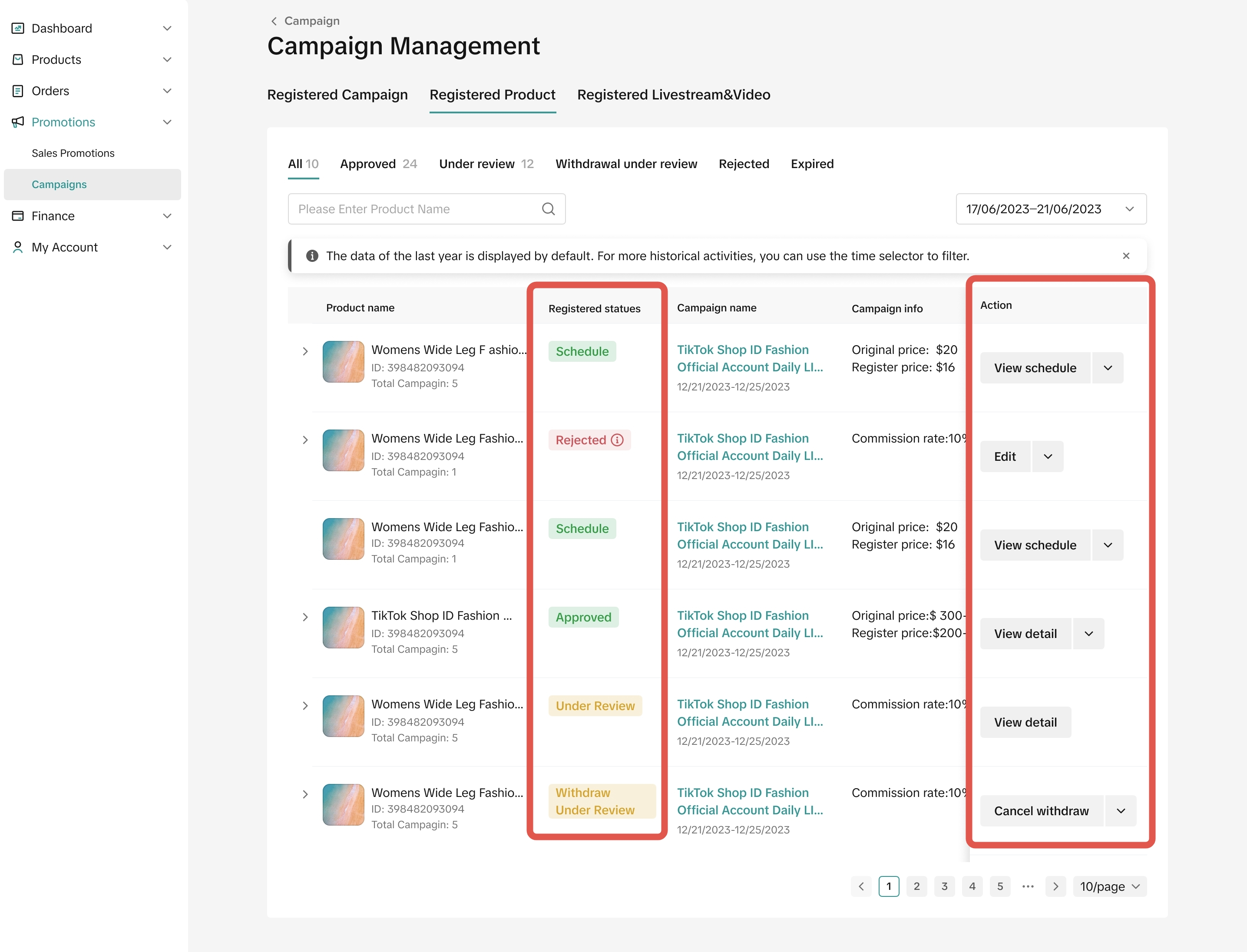
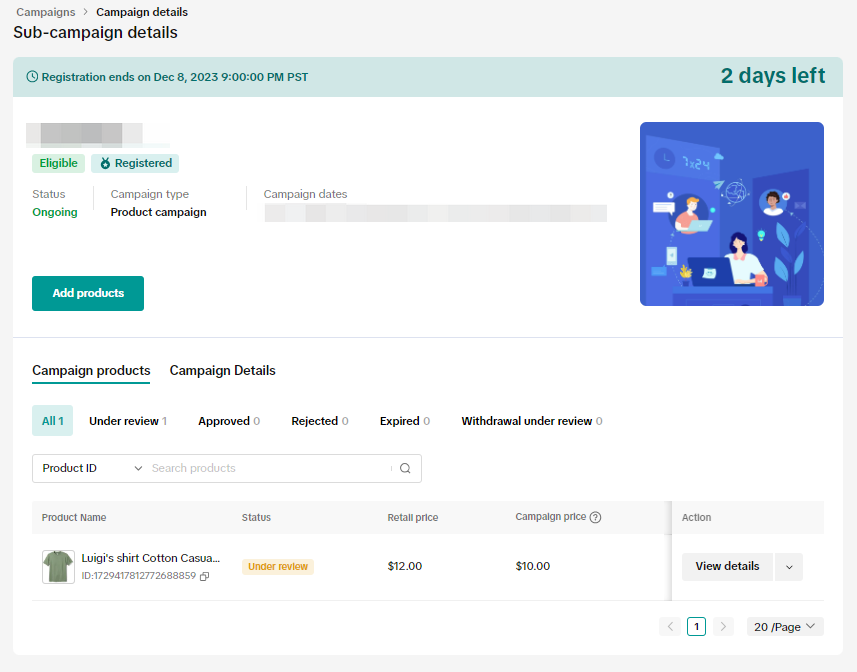
After submitting your products into a campaign, you can visit Product/Shop Campaigns page to keep track of your campaign application(s).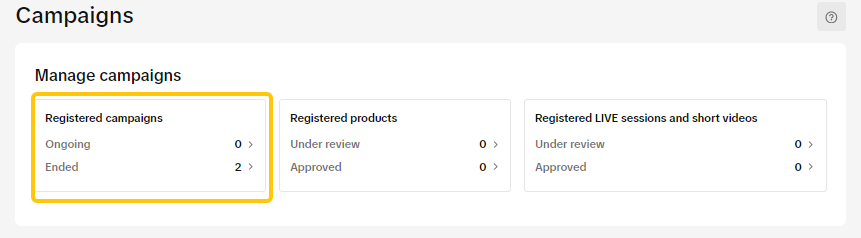
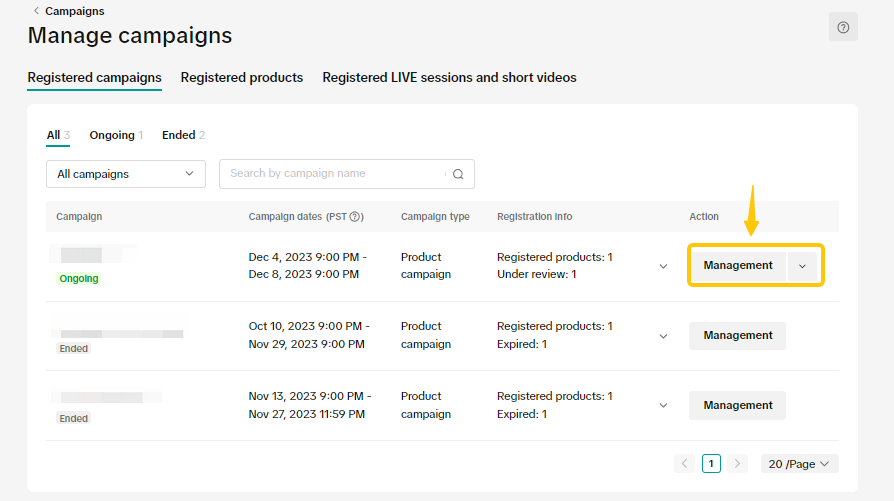
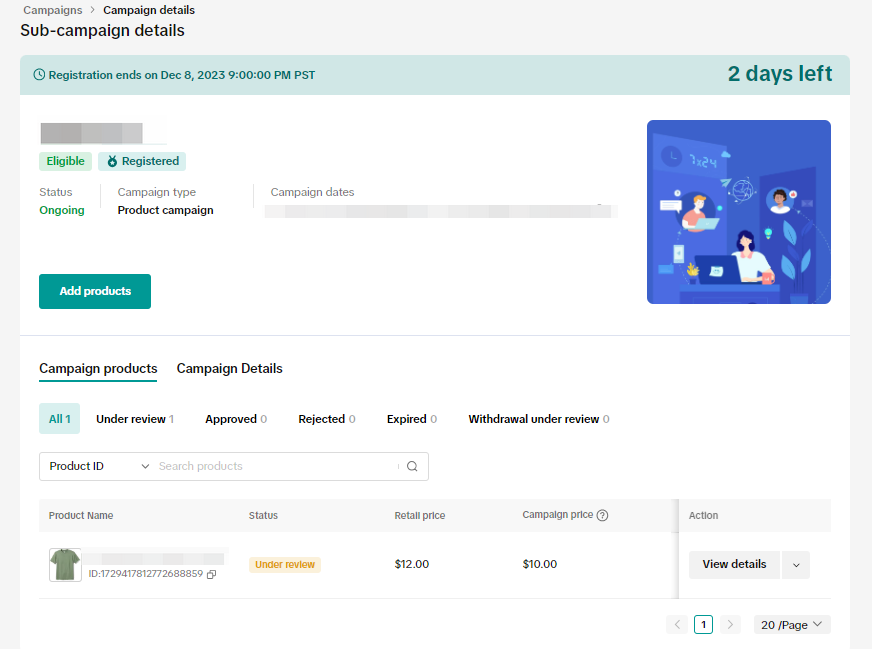 You can also click [Continue registration],if the campaign is still ongoing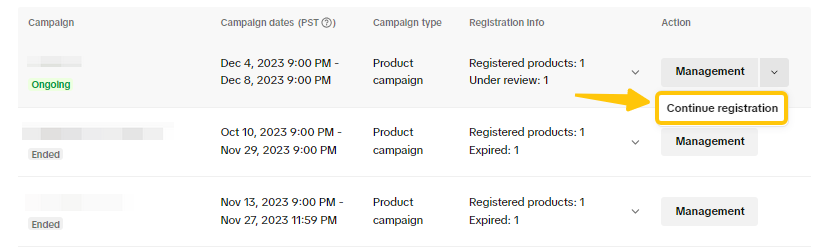
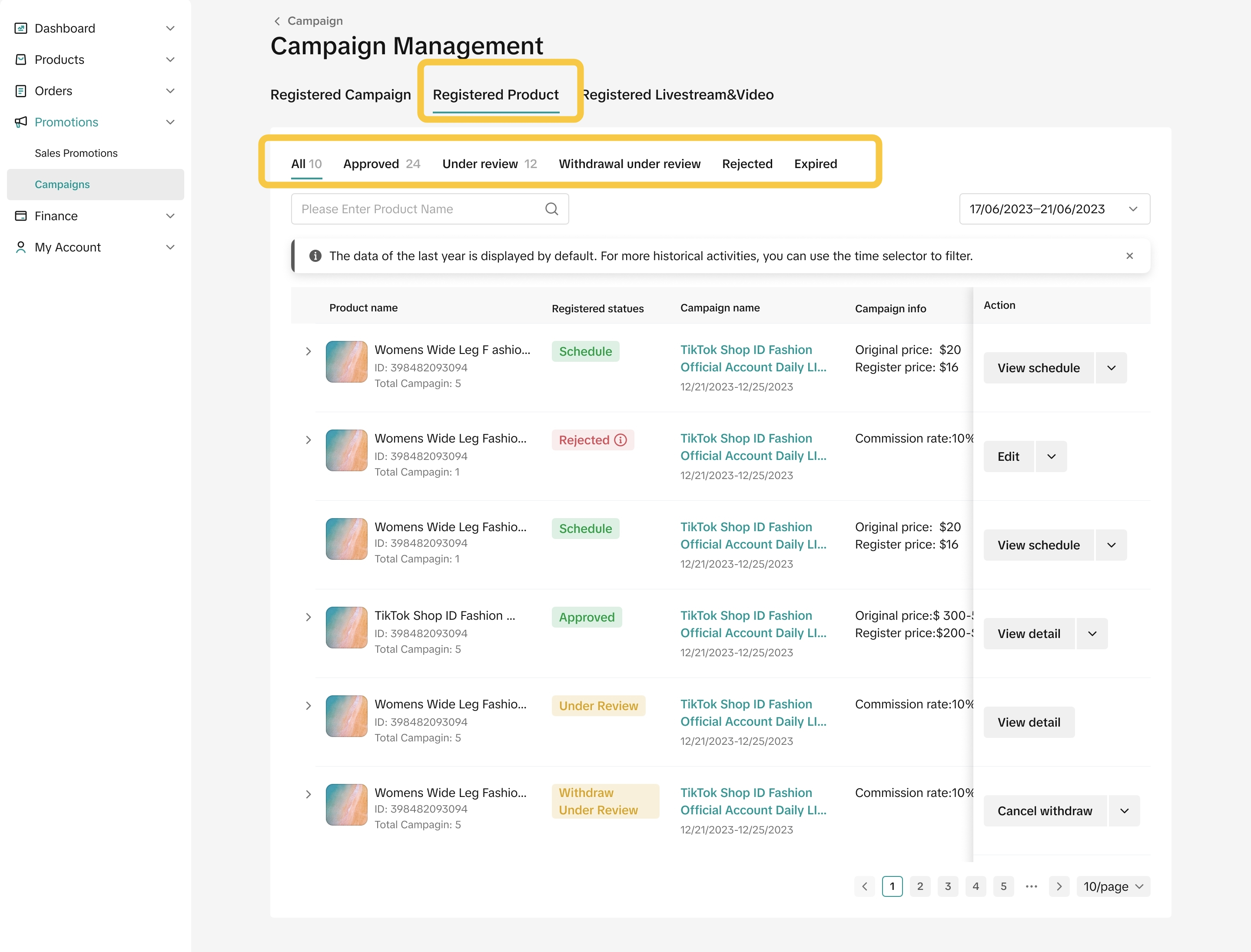 You can filter for products submitted by the Product ID/Name.
 Based on different registered status,you can do different actions for the products
How to View Products in Co-Funded Campaigns on Seller Center App
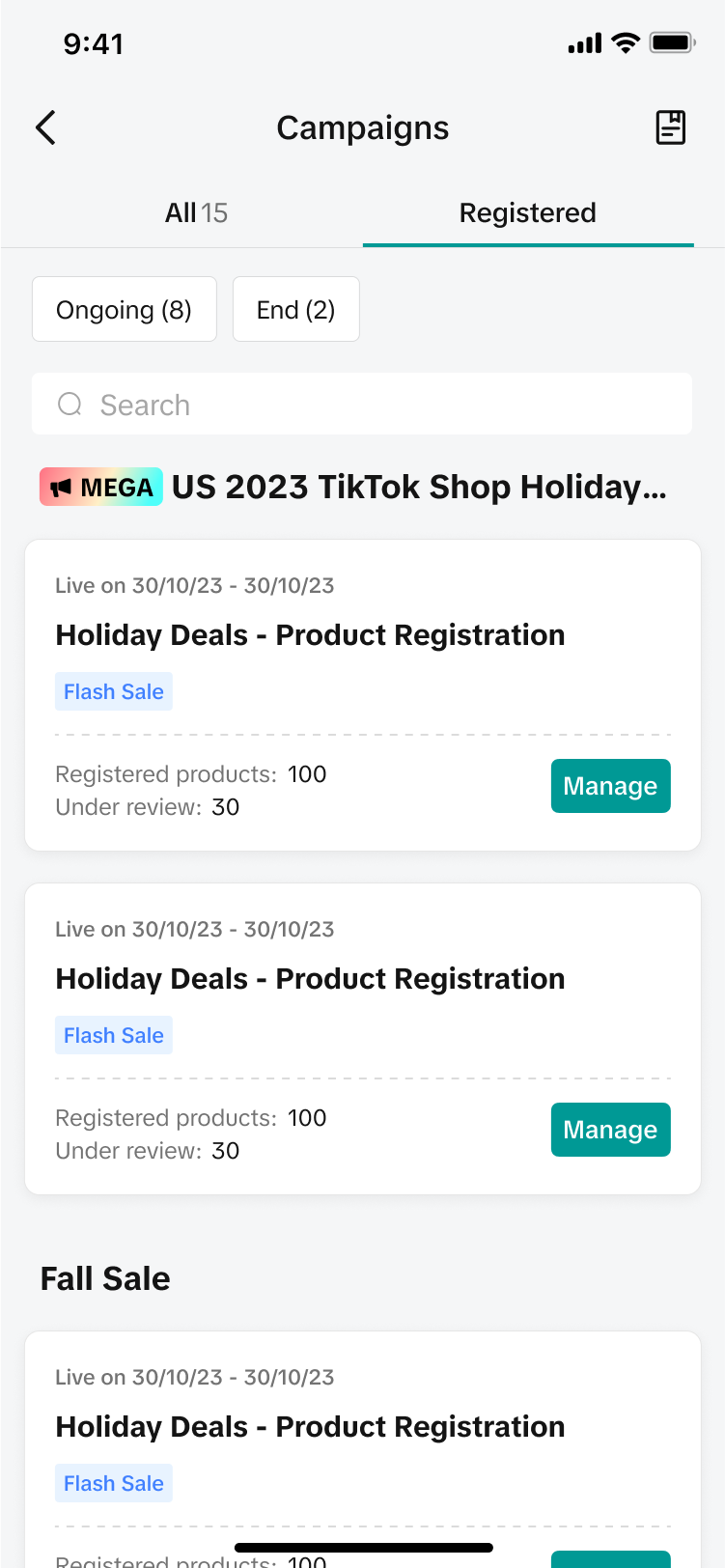
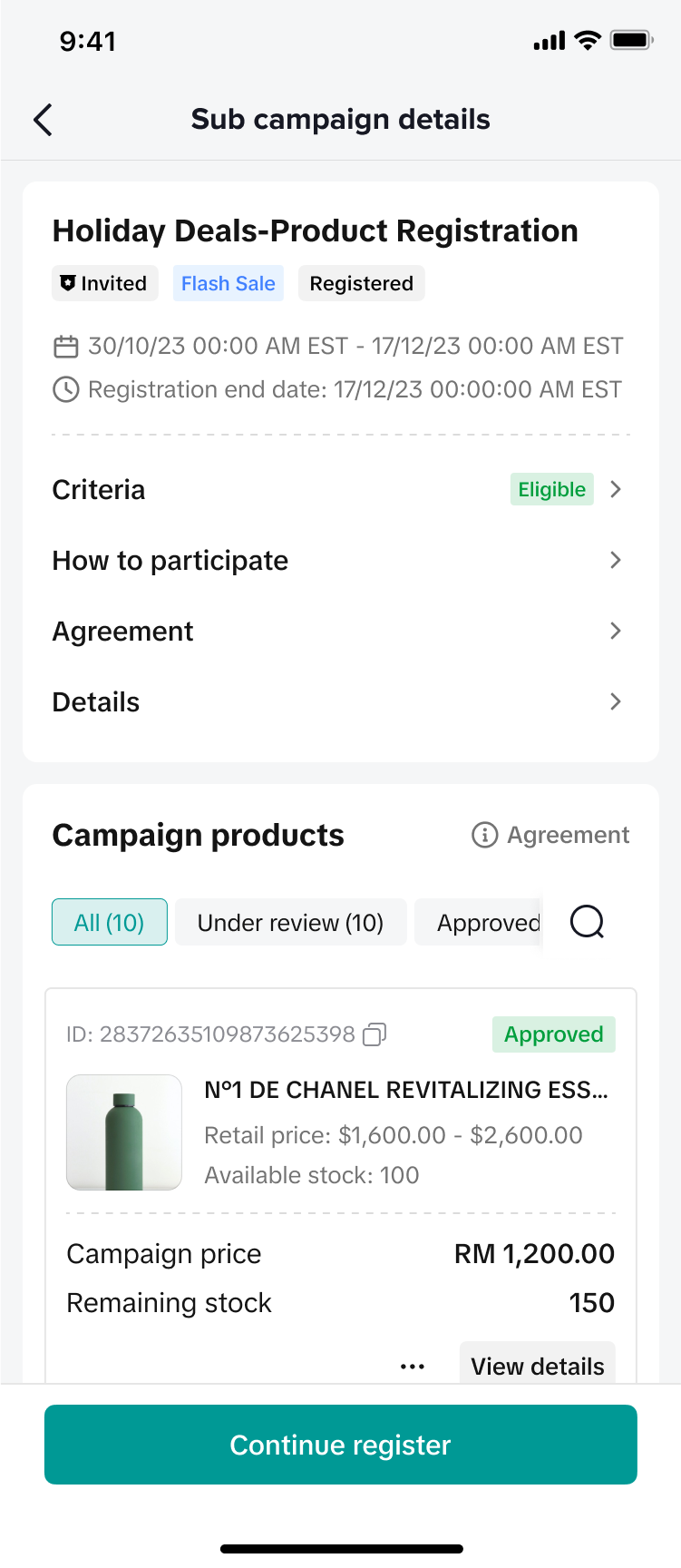
Similar to PC, after submitting your products into a campaign, you can visit the Registered page to keep track of your campaign application(s).Click on Management for the relevant campaign.
 |  |

How to Edit Products in Co-Funded Campaign
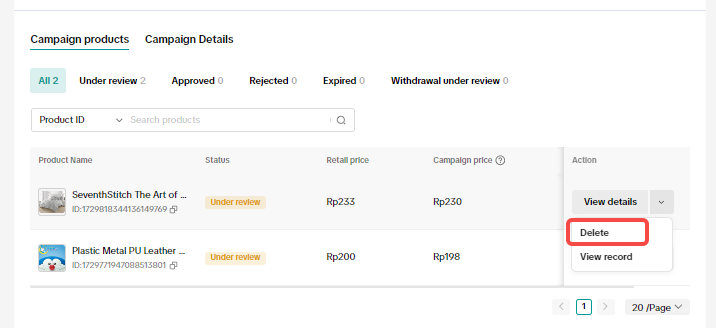
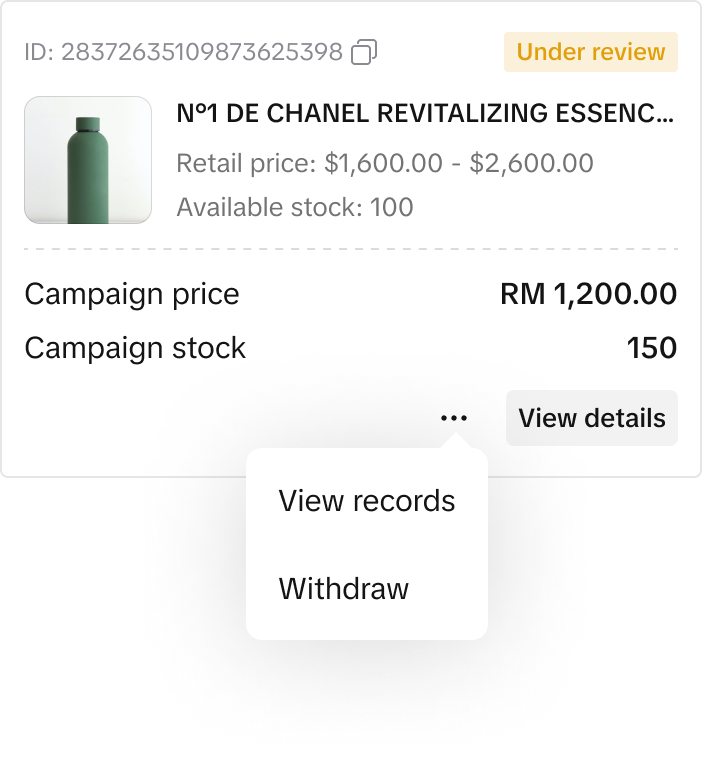
Only certain sellers can edit product information during a certain "status" after the campaign submission. The status and editing conditions are as follows: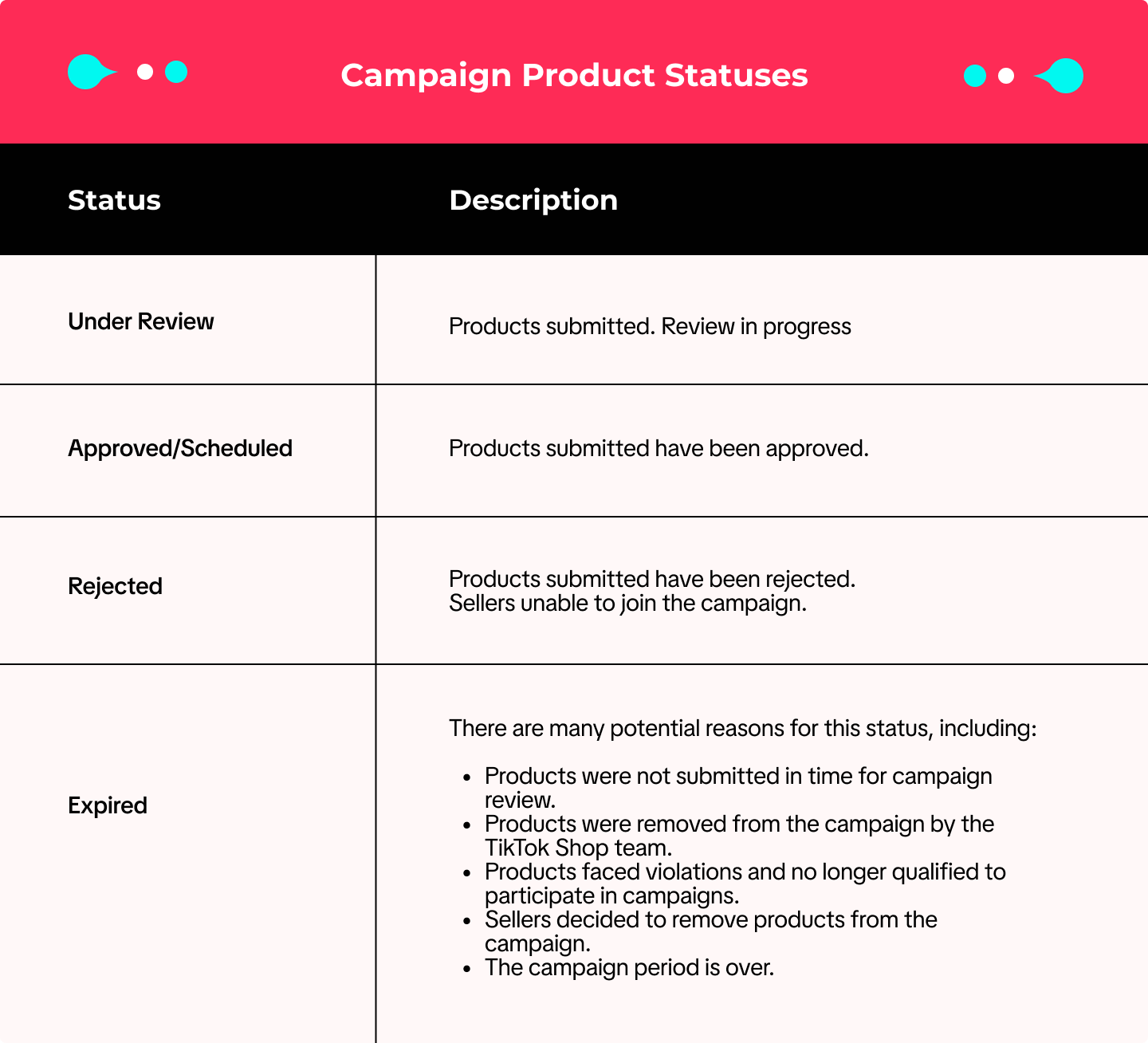
- You are allowed to increase campaign quantity or commission rate by clicking the "Edit" button. Changes are updated immediately and do not require the platform's approval.
- You are not allowed to adjust campaign price or decrease campaign quantity or commission rate.
 |  |
 | 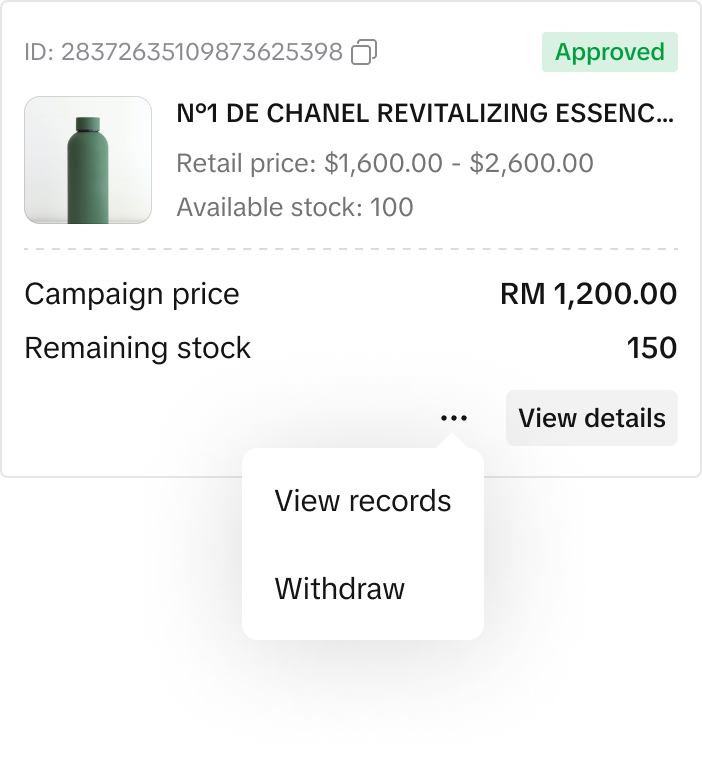 |
If the request to delete your product from a campaign is approved, the status will change to Expired. If the exit request is rejected, the status will return to Approved.

How to Review Recommended Products
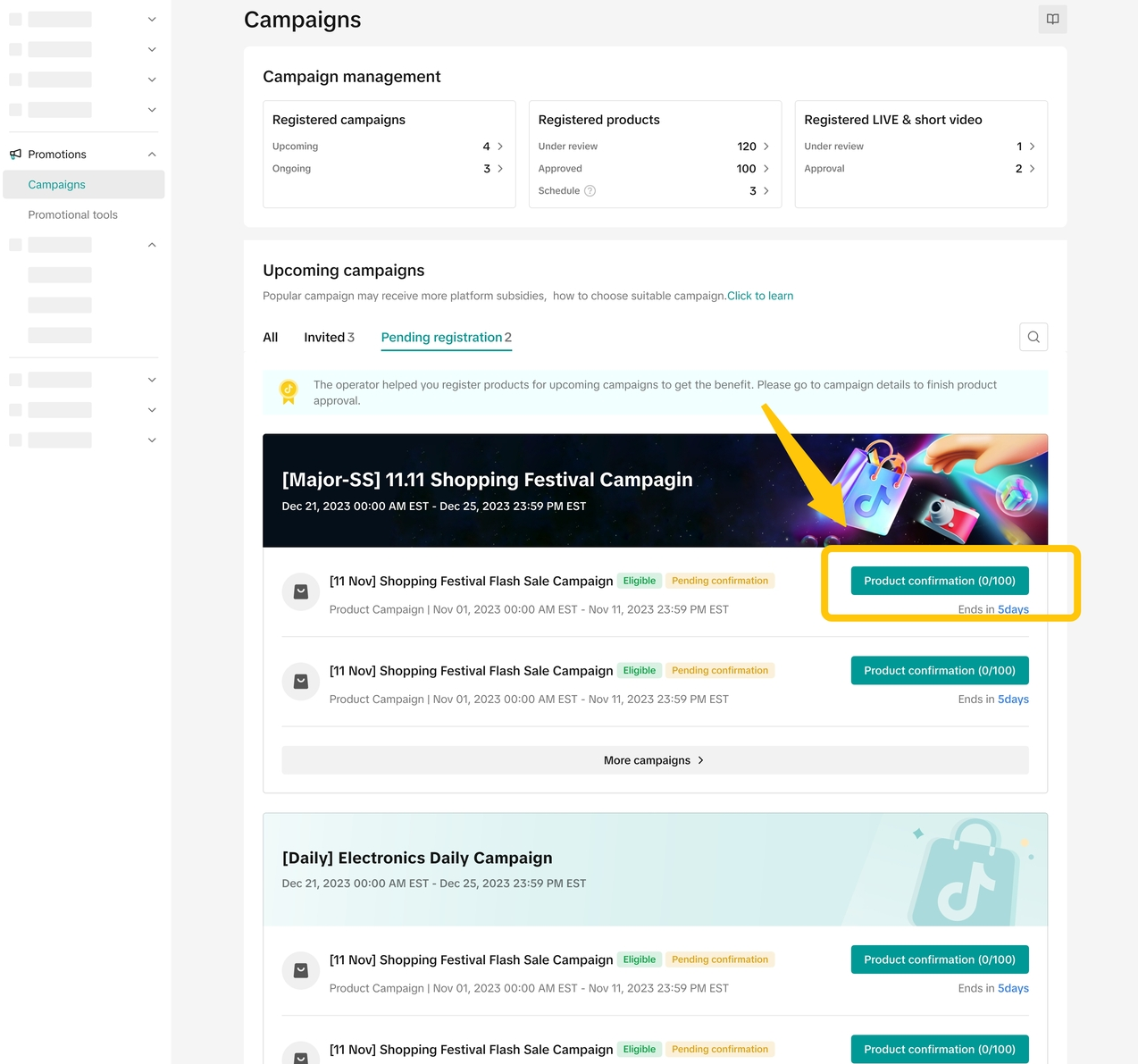
TikTok Shop's operations team may also register products on your behalf for product campaigns. This means you can now participate in campaigns with ease and save time on the registration process. Product registrations are subject to your approval.To review recommended products for a campaign on the Seller Center on PC, visit the Campaigns tab. Click Product/Shop Campaigns.In the Pending Registration tab, you will see the campaigns where we have recommended your products to join.
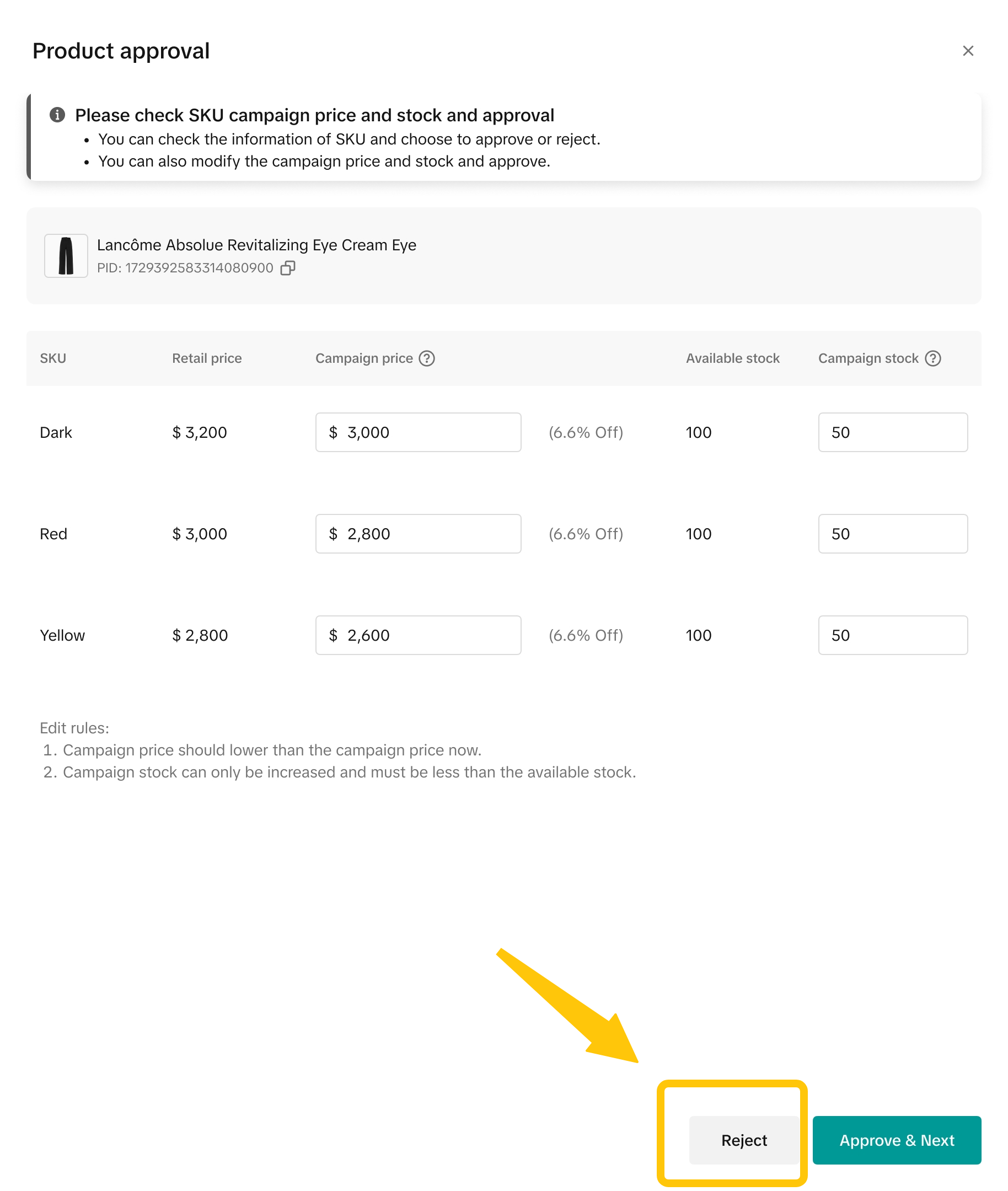
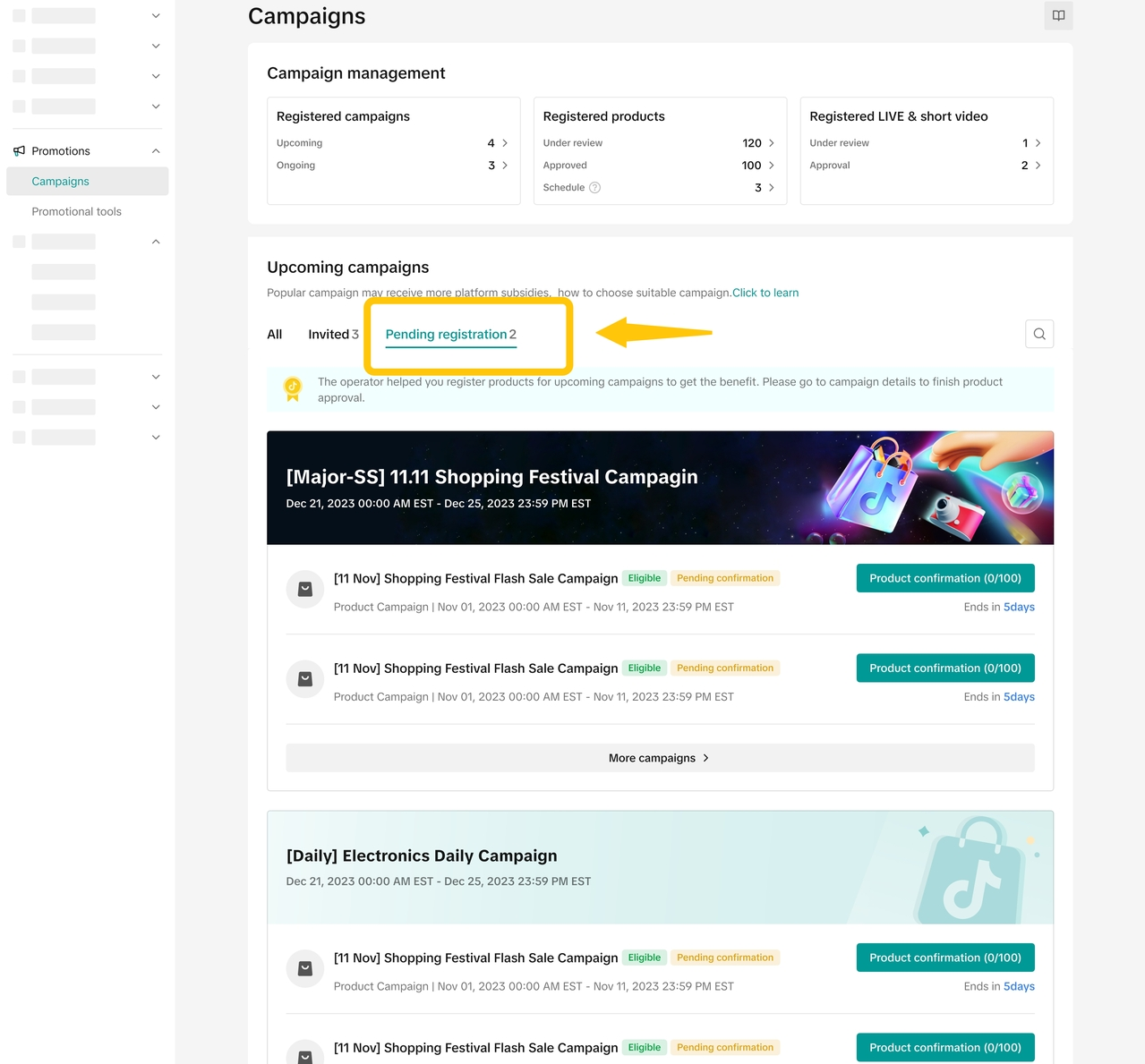 Click Product confirmation to review recommended products registered by our platform.
 Please double-check the following information for each product:
- Product Name / Product ID
- Retail Price / Campaign Price
- Available Stock / Campaign Stock
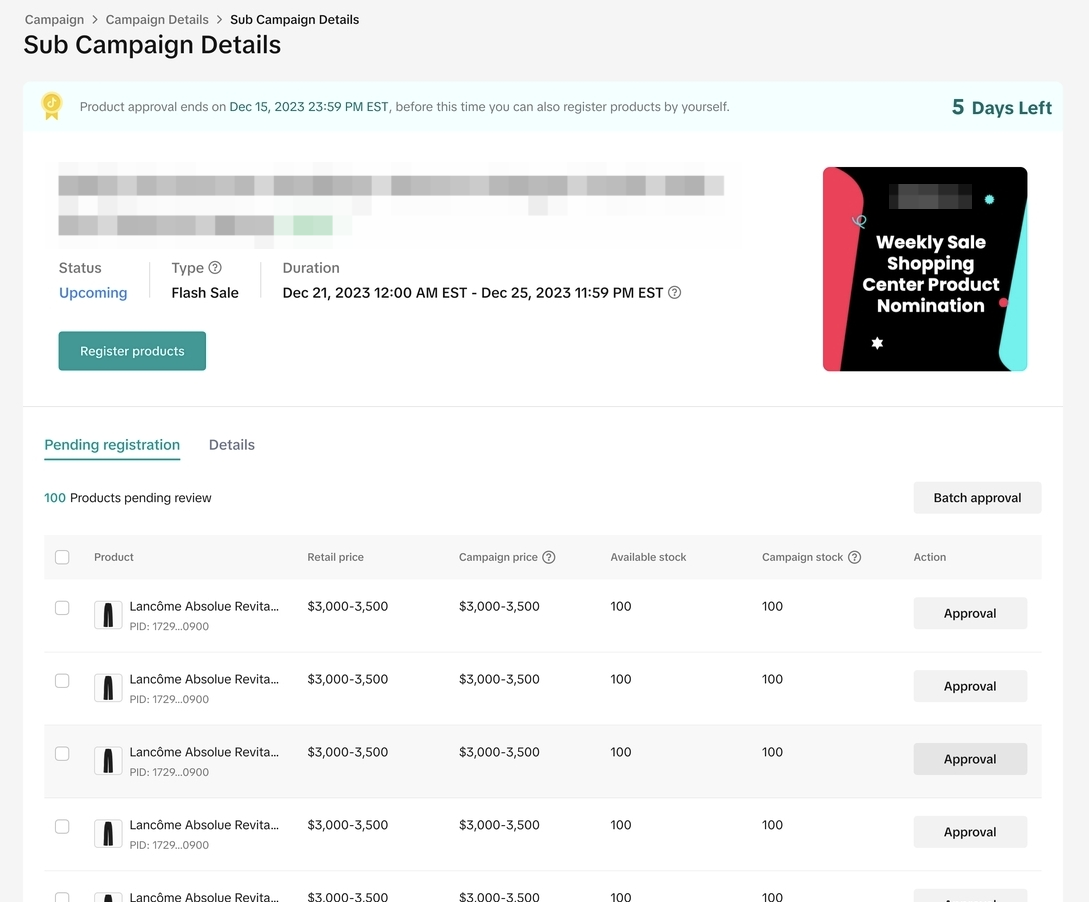
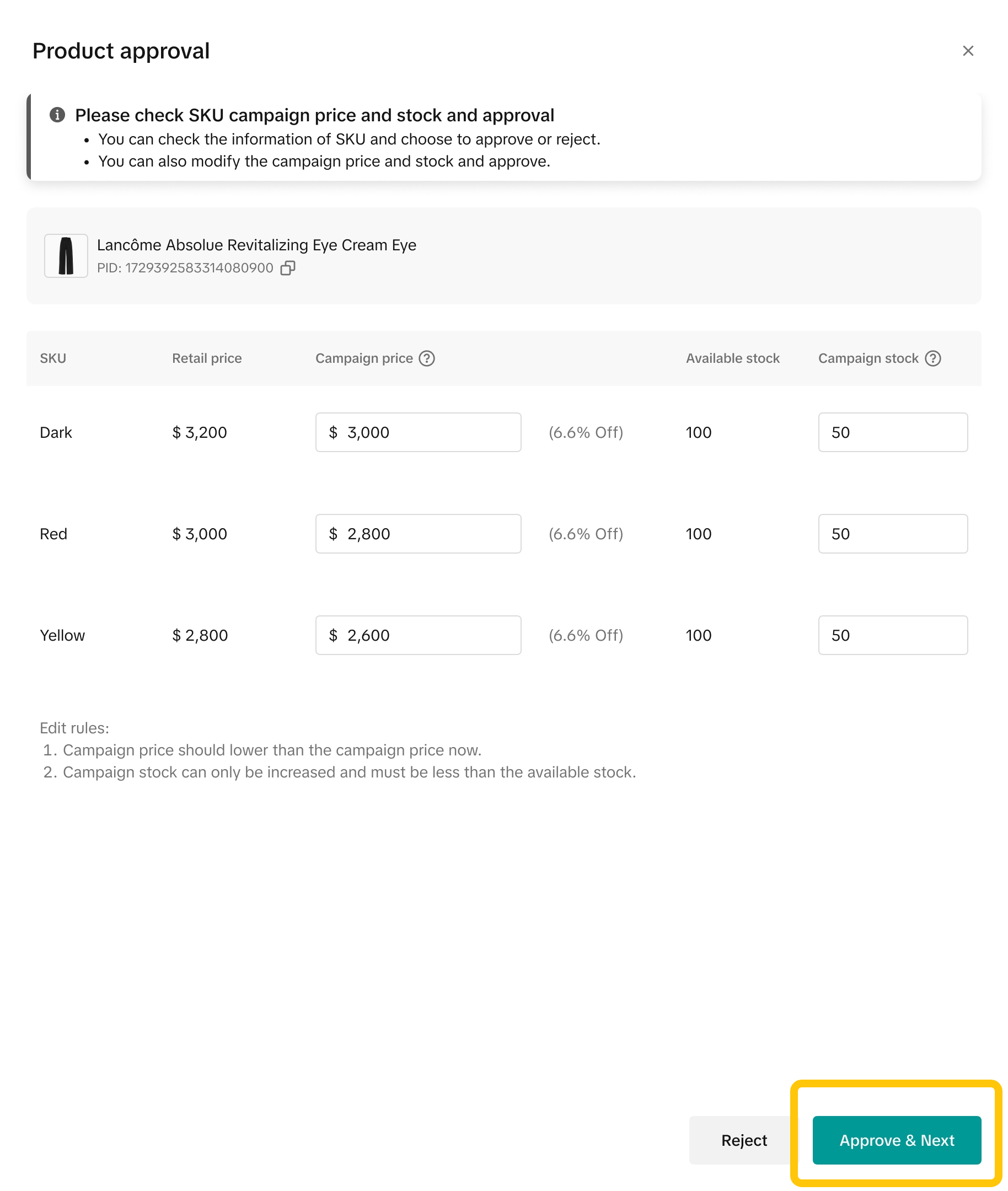
- Option A: Agree to the request for an individual product
- Click Approve to agree with the product registration.
- If needed, you can click View to check the detailed SKU information of the product.
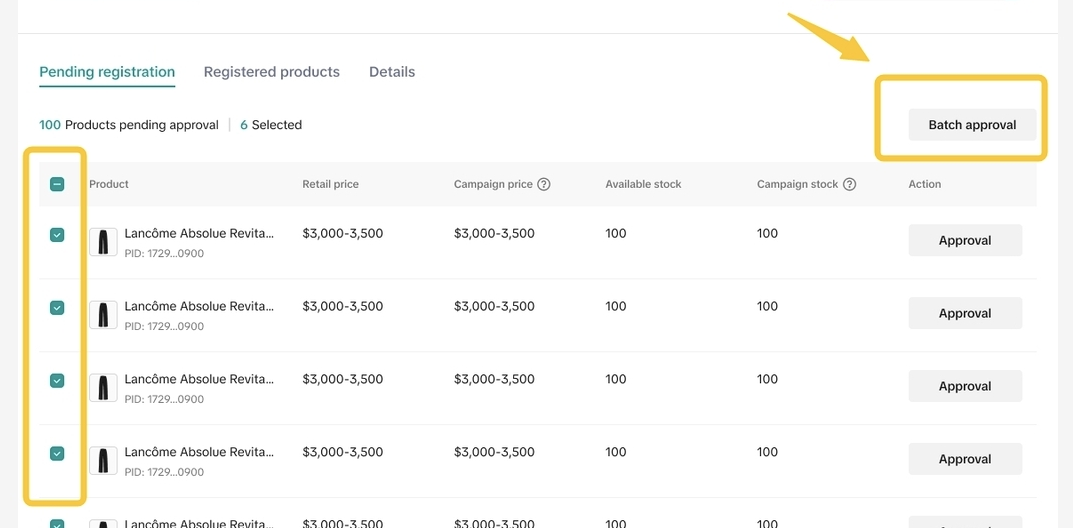
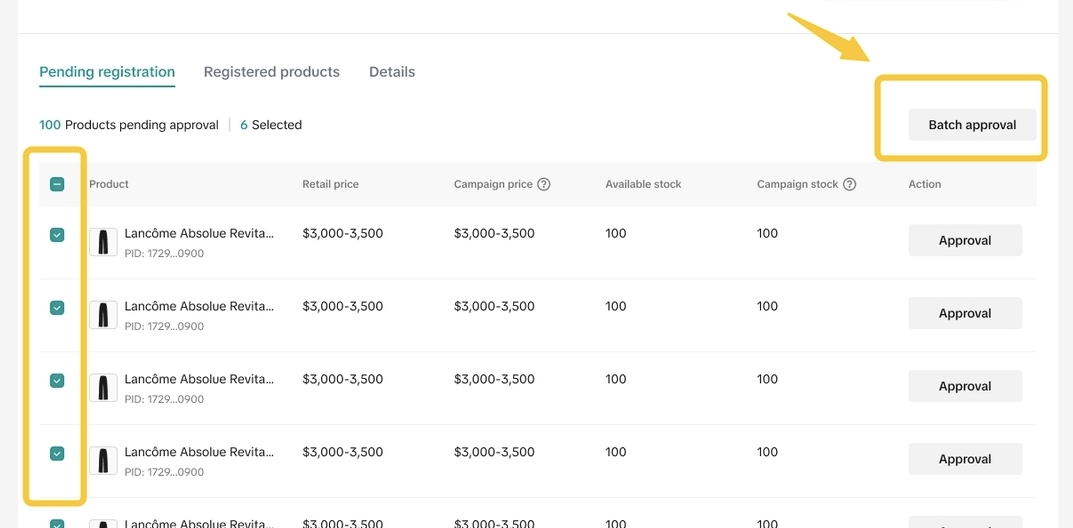
- Option B: Agree to requests for multiple products in bulk
- After checking multiple products, click Batch Approve to agree with the product registrations.
If the product does not meet your expectations, you can choose to reject:
- Option A: Reject the request for a single product
- Click Reject to reject the request for the product.

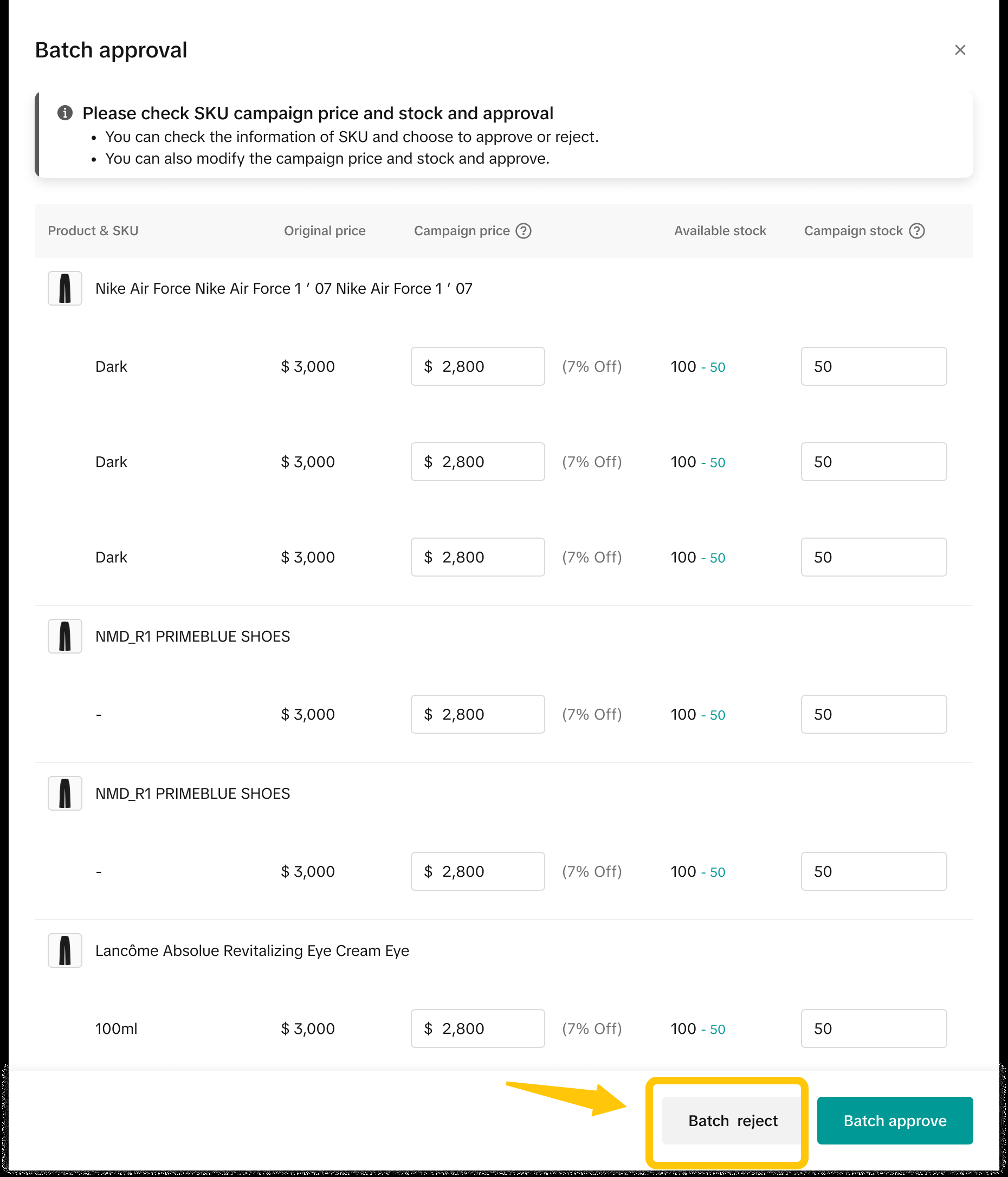
- Option B: Batch reject requests for multiple products
- After checking multiple products, click Batch Reject to reject the requests in batches.
- You will need to provide a reason for rejection.

Bulk Import Your Products
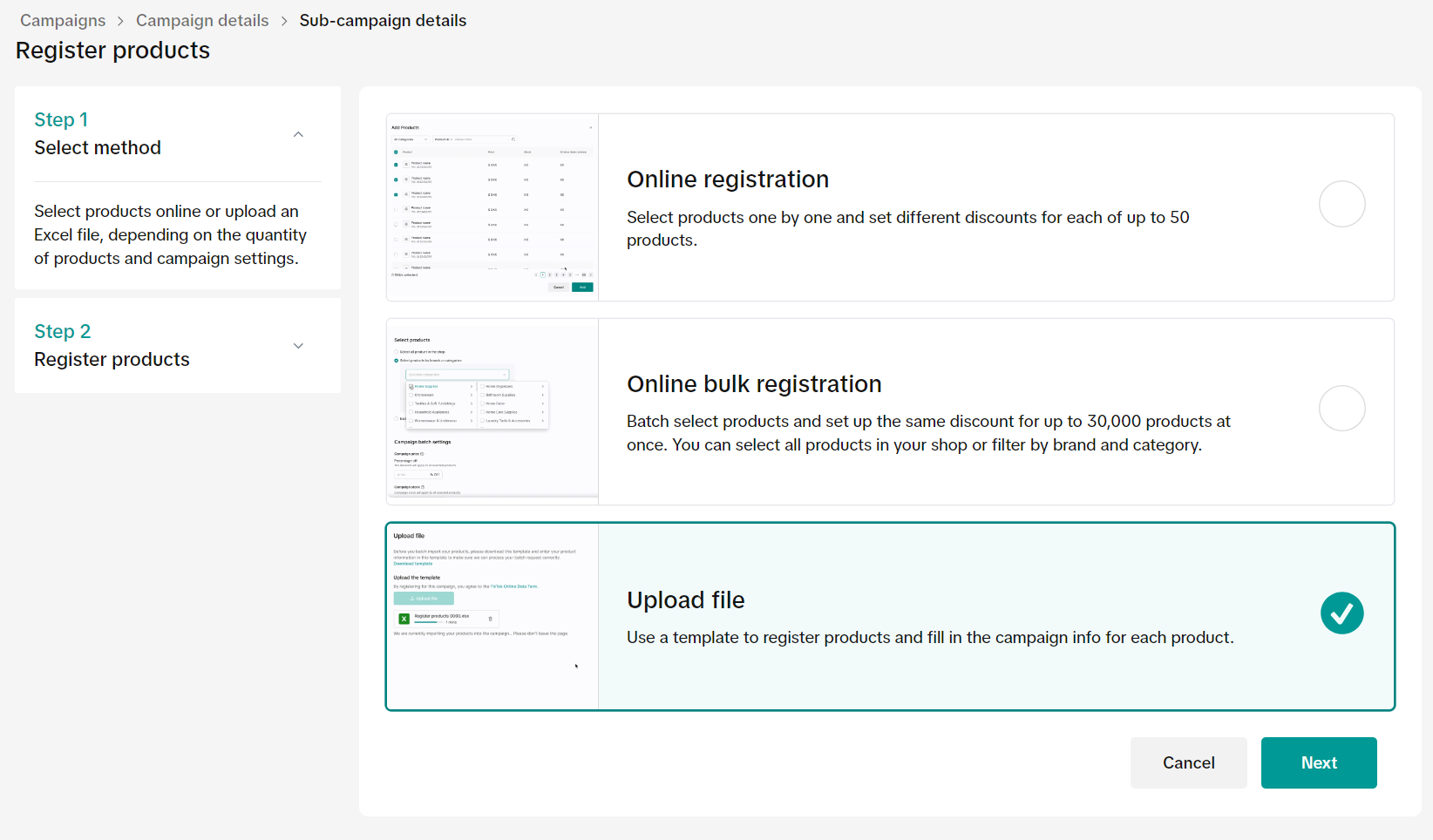
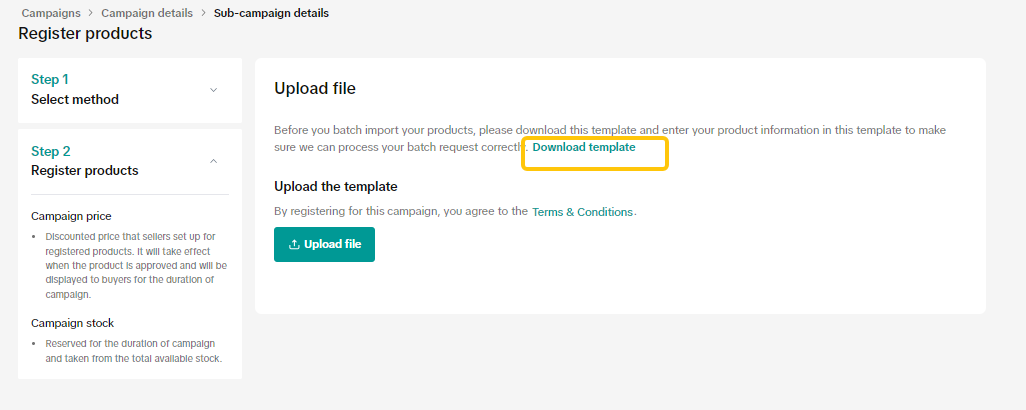
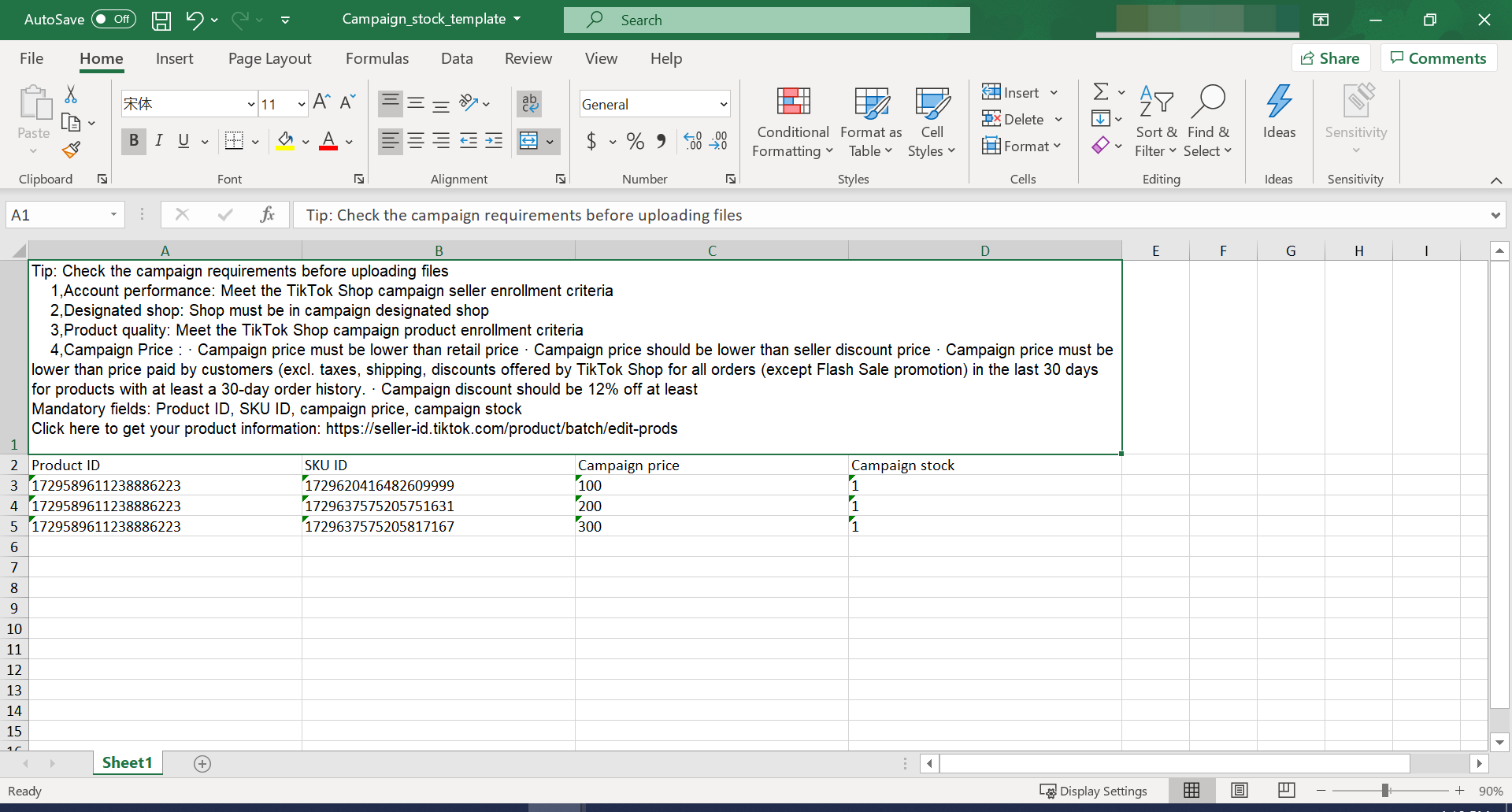
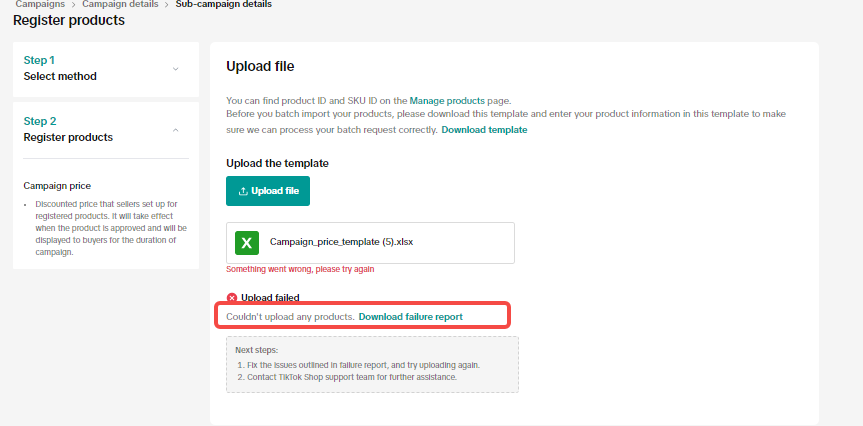
Bulk Import within Seller Center:On the campaign details page, click Register products and select Online bulk registration.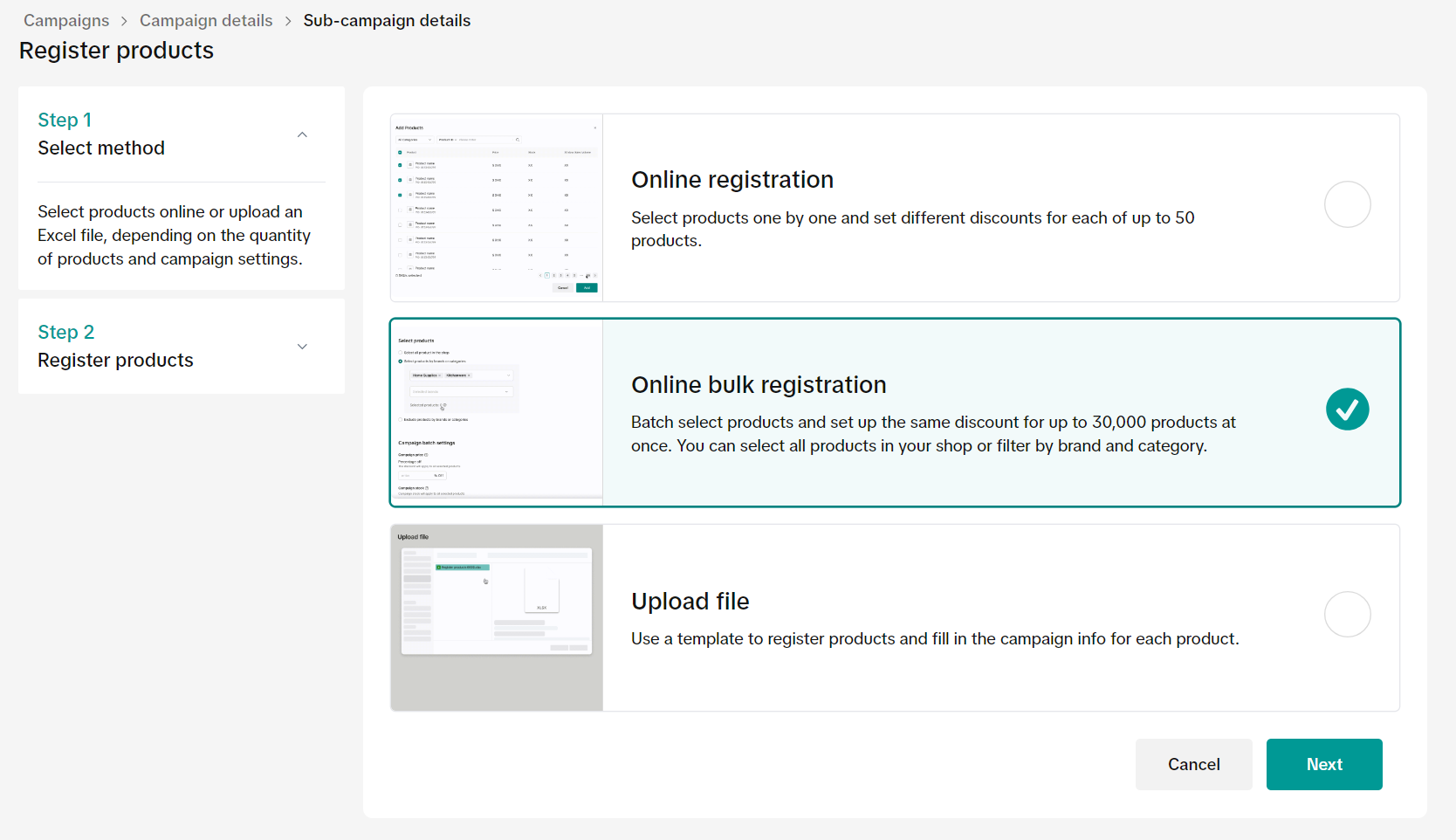
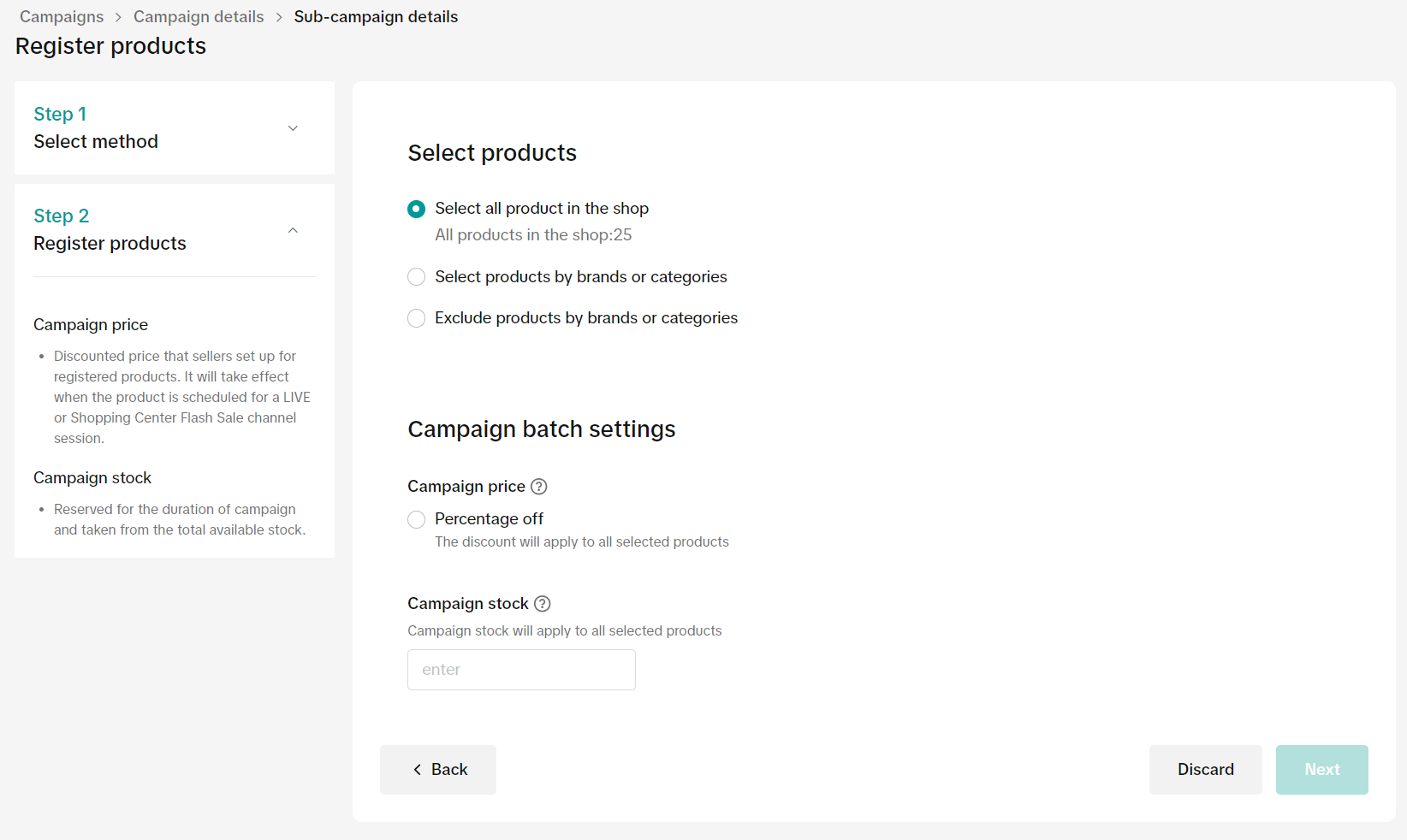
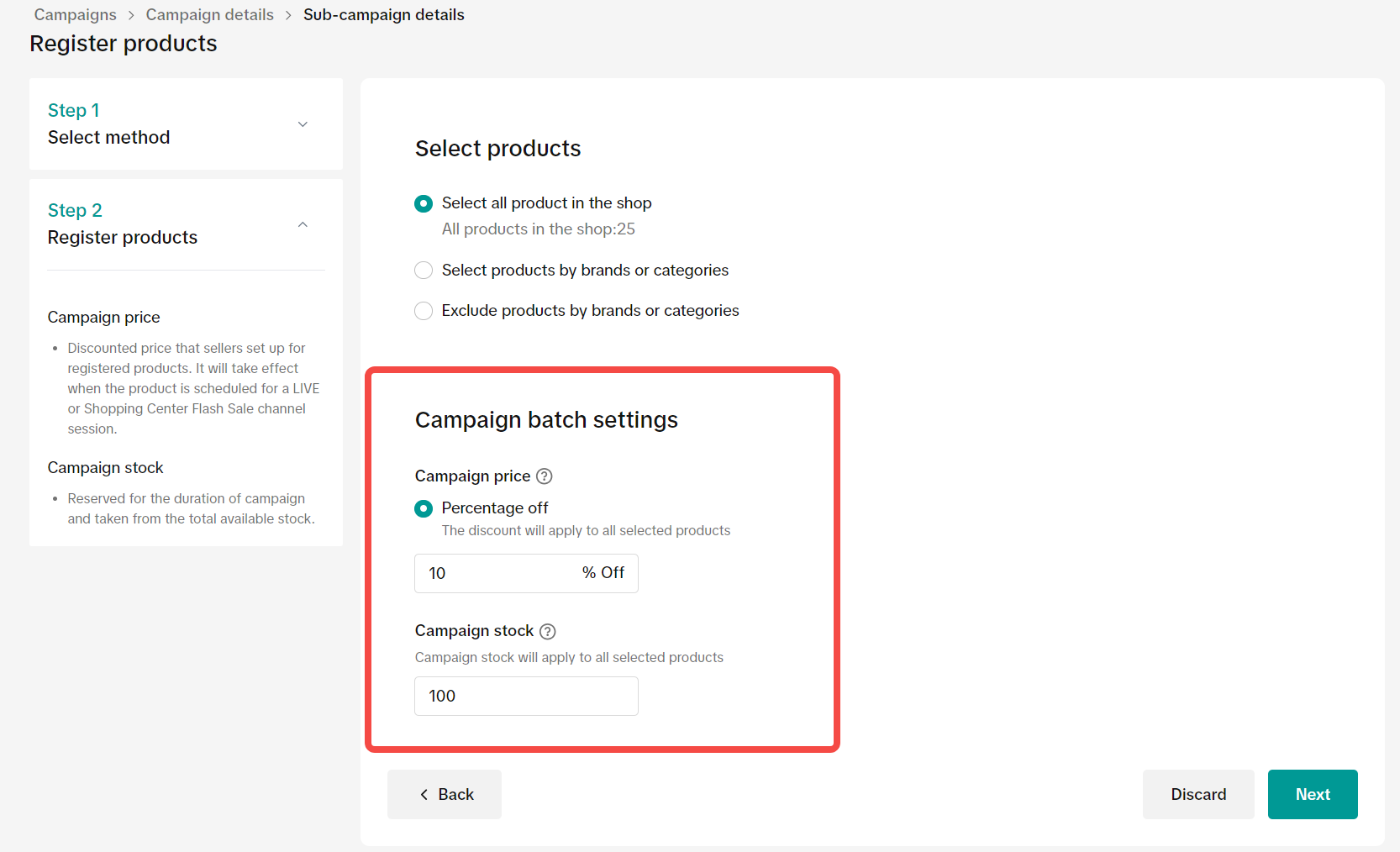
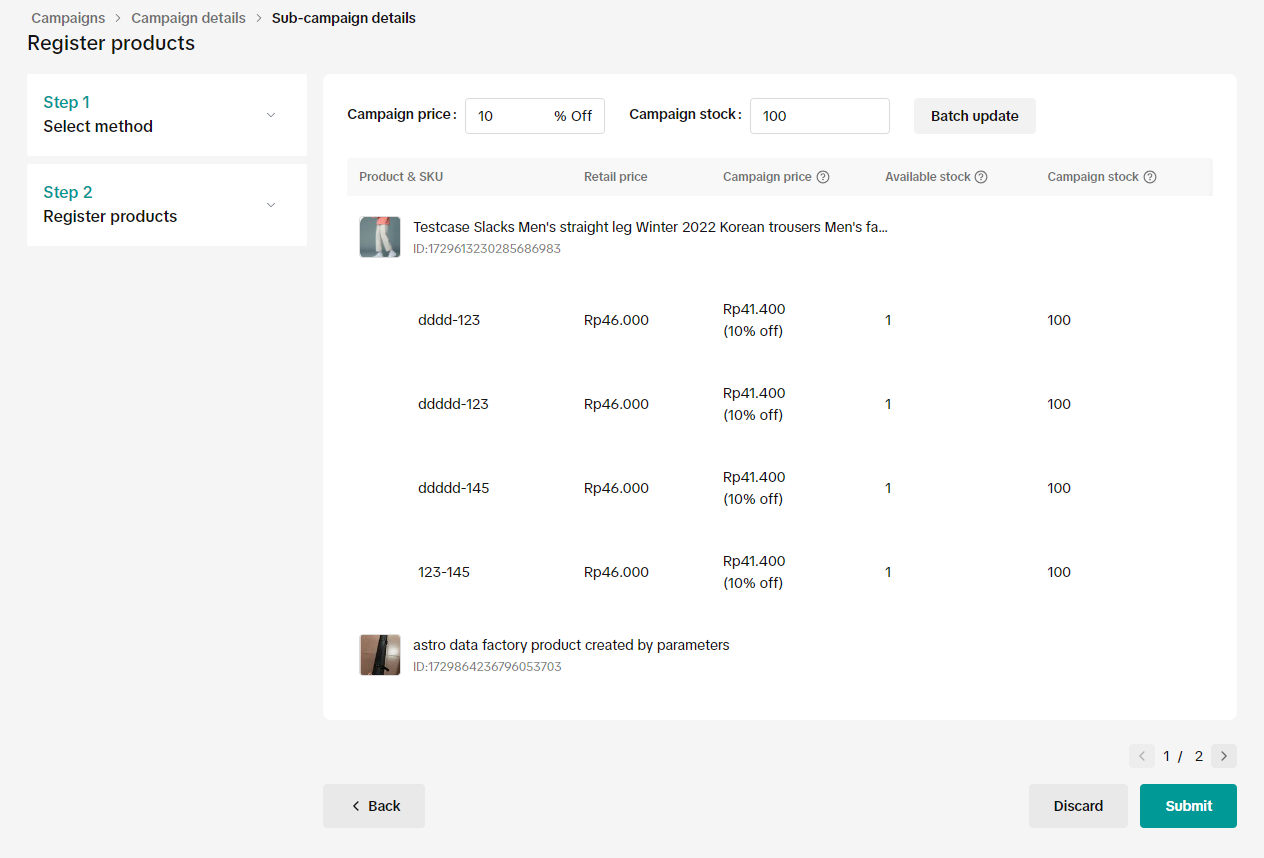
- Campaign price: Percentage (%) off discount will apply to all selected products
- Campaign stock: enter the amount of stock you would want the discount to be applied to

How to Track Campaign Performance
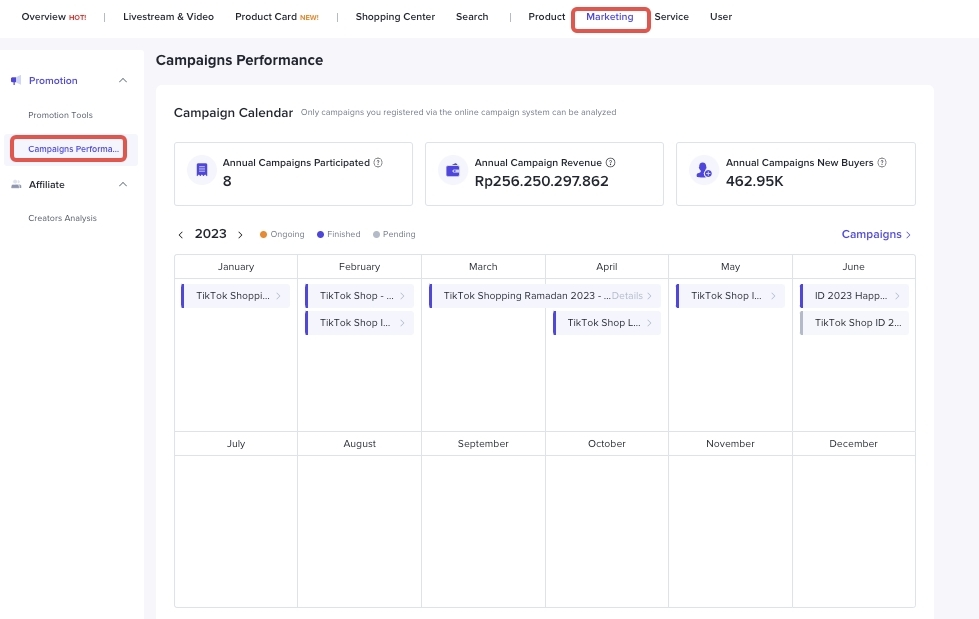
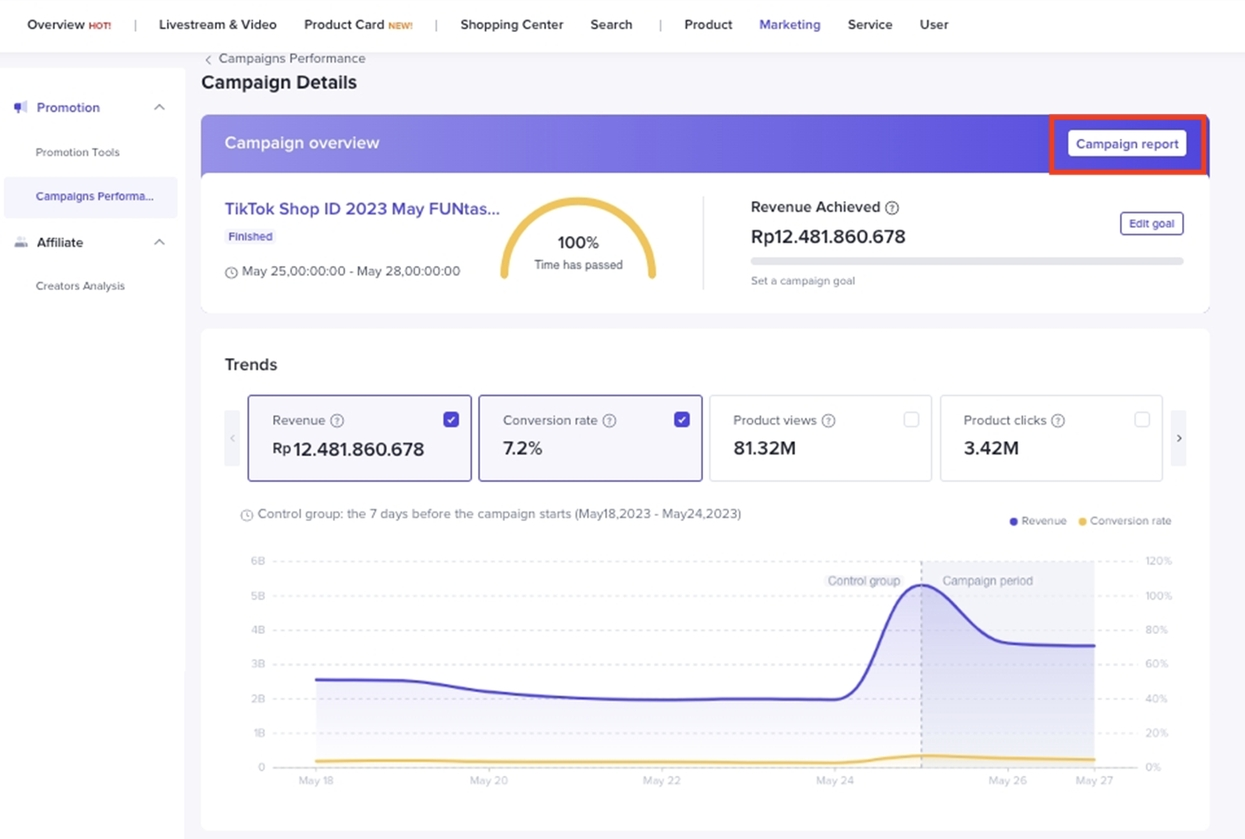
You can view data related to joined campaigns in Data Compass. Click on Marketing tab and select Campaign Performance under the Promotions tab.All previously joined campaigns will be shown. Campaign details will be available by clicking on each specific campaign.
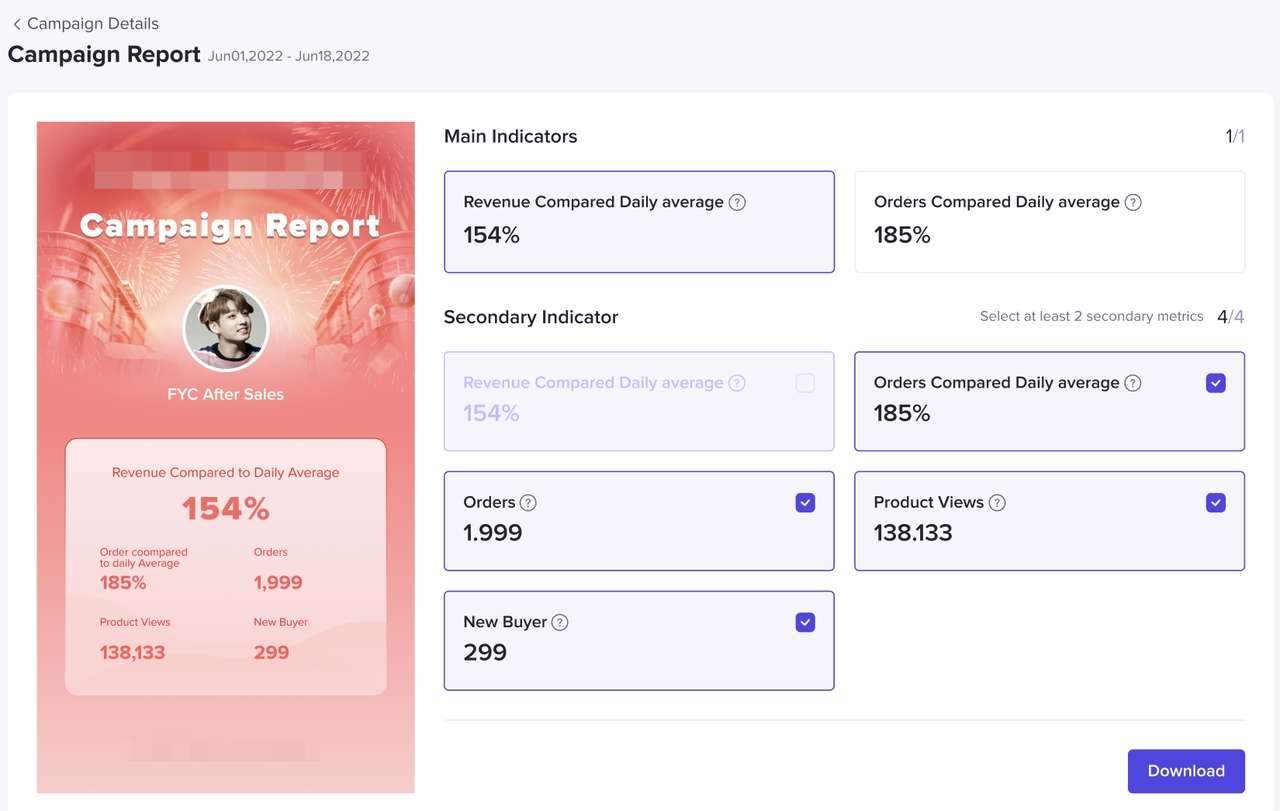
 You can click on "Campaign report" to see the summarised campaign metrics.
  You can also download and share the report with others.
 Learn more about analyzing your products' campaign performance in this feature guide.
FAQ
- Am I allowed to join more than 1 campaign?
Campaign A
| Campaign B
|
- Can I set up other seller promotion tools if I join the campaign?
Campaign
| Flash Deal
|
You may also be interested in
- 1 lesson
Campaign and Cofunded Program
Join campaigns and cofunded programs for greater product exposure!
- 8 lessons
Campaign
Learn how to participate in and maximize the impact of official TikTok Shop by Tokopedia campaigns.

How do campaign co-funded vouchers work?
Sellers will first need to register and add products to the respective campaign page. Once the prod…

What if the campaign period overlaps with other promotional…
After approval, the price will take effect in accordance with the campaign dates. Campaign prices ar…

Marketing Benefits Packages
This article teaches you what Marketing Benefits Packages are, how it works, as well as how you, as…
Periodic Payments
This guide explains how to use bank transfer payments for Marketing Benefit Resource Packages, speci…

Product Campaigns
This article teaches you how to participate in platform product campaigns to increase sales in your…
Understanding Payments
This article introduces the different payment methods available for our Marketing Benefits Packages.…

Livestream Campaigns
This article teaches you how to use Livestream Campaigns to increase traffic and conversions in your…