

TikTok Shop by Tokopedia Mega Campaign Registration & Withdrawal Guide
03/09/2026
Introduction
The TikTok Shop by Tokopedia Mega Campaign is a high-impact, time-limited promotion designed to elevate seller performance by boosting product visibility, attracting new customers, and increasing sales. Participating sellers benefit from platform-driven exposure, exclusive tags, vouchers, and access to promotional tools.This guide aims to help sellers navigate the registration and withdrawal process in a clear and systematic manner through the Seller Center.
How to Join Mega Campaign?
| How to | Guidelines |
| Step 1: Go to Seller Center Log in to your Seller Center account. This is where all campaign actions and product submissions are managed. | 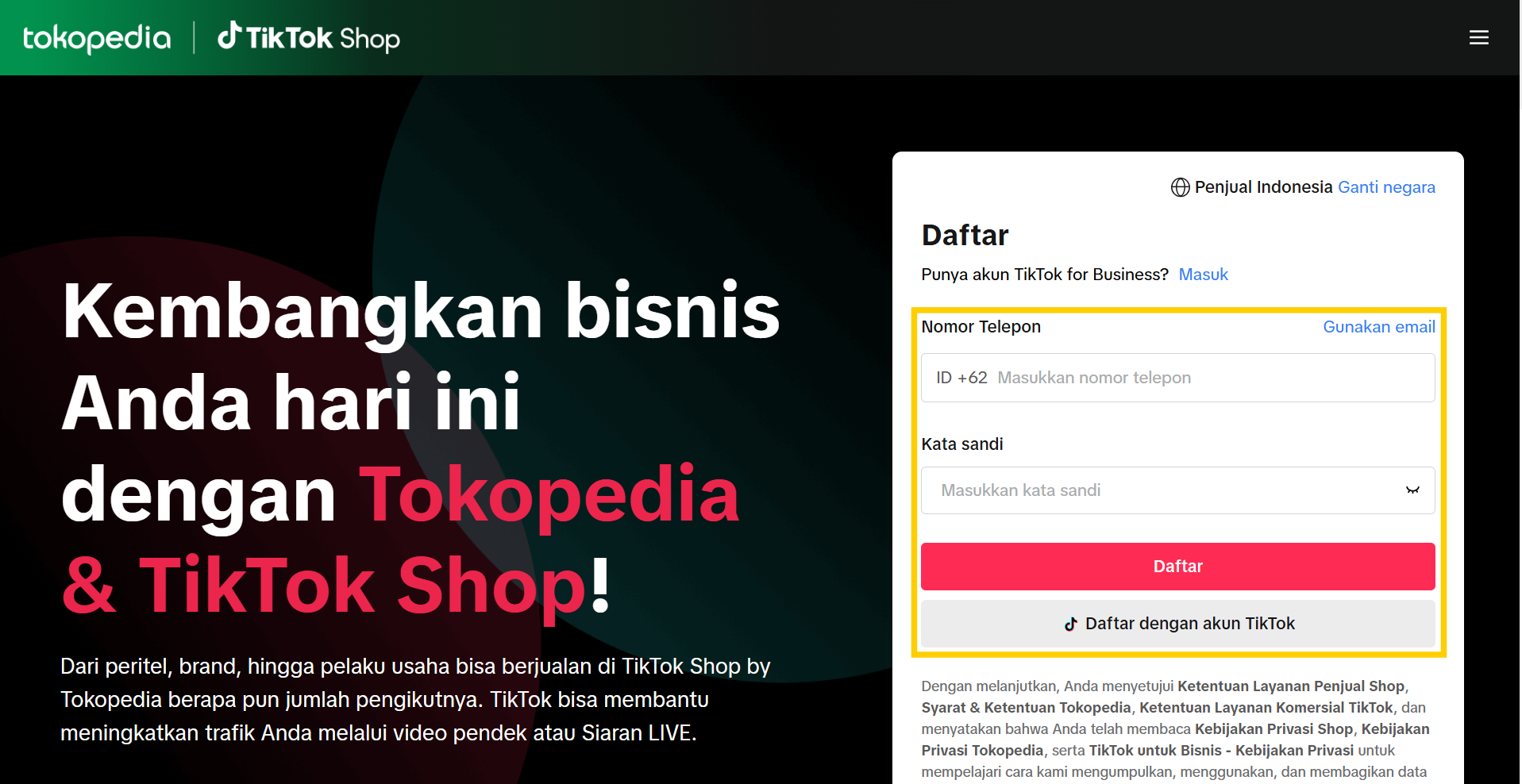 |
| Step 2: Click on the "Campaign" menu on the left From the left-hand navigation bar, click on the “Campaign” section to see available and ongoing platform campaigns. | 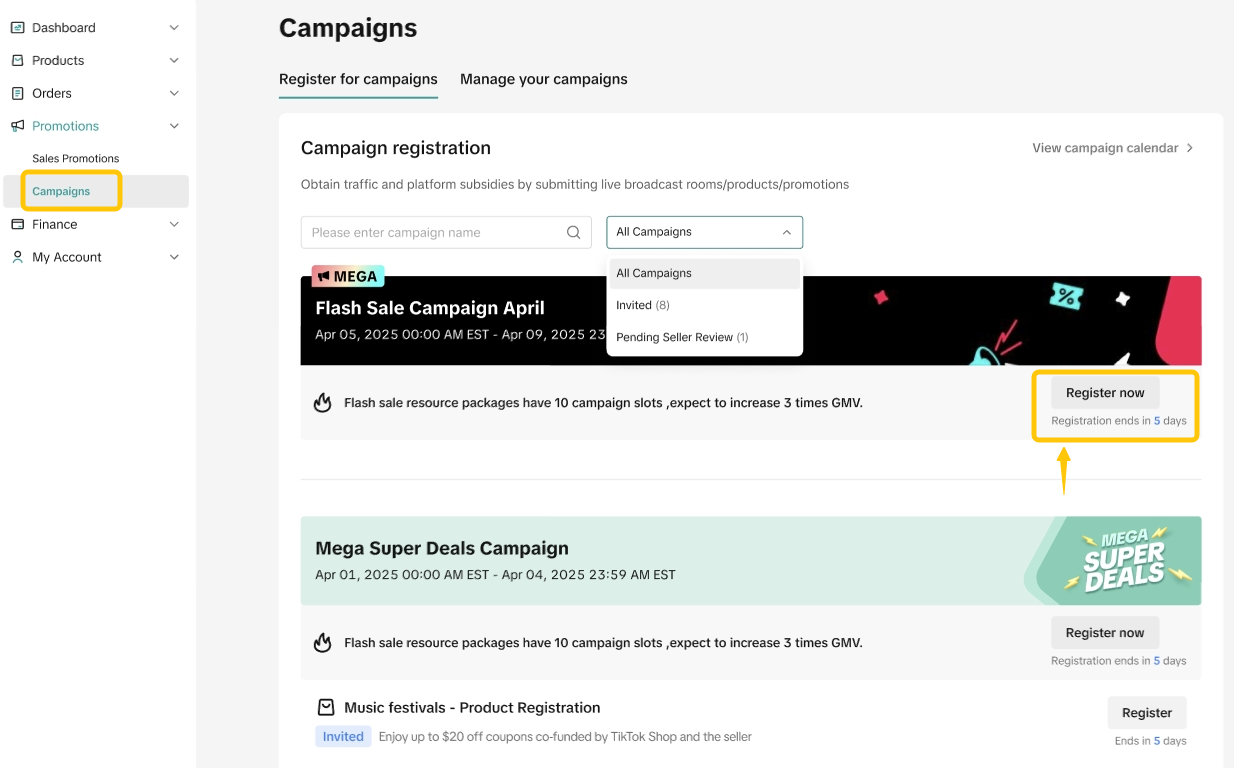 |
| Step 3: Click “Register Now” on the Mega Campaign bannerScroll to locate the Mega Campaign (e.g., 7.7 Guncang Sale, Payday Sale) you want to join. Click the “Register Now” button on the campaign card. This opens the campaign overview page. | |
| Step 4: Review the campaign detail pageCarefully read the campaign timeline, pricing requirements (e.g. L30D rules), subsidy type, and seller eligibility. This page will also indicate whether it’s a TikTok-only, Tokopedia-only, or joint campaign. | 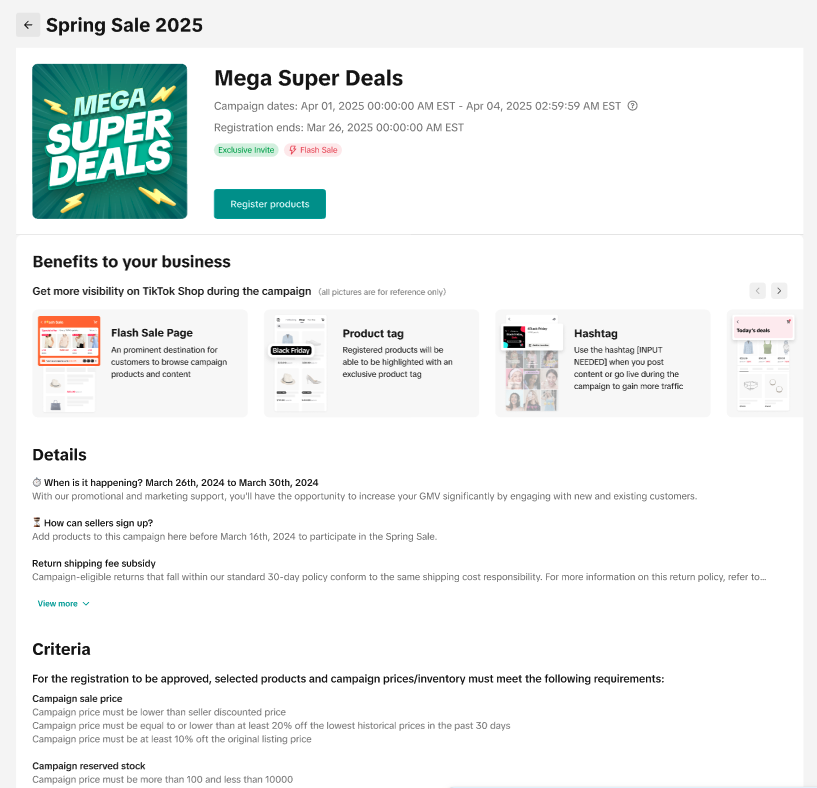 |
| Step 5: Click “Register Products” to proceedOnce you’ve reviewed the campaign, click “Register Products”. This takes you to the product registration interface, where you’ll nominate SKUs for participation. | |
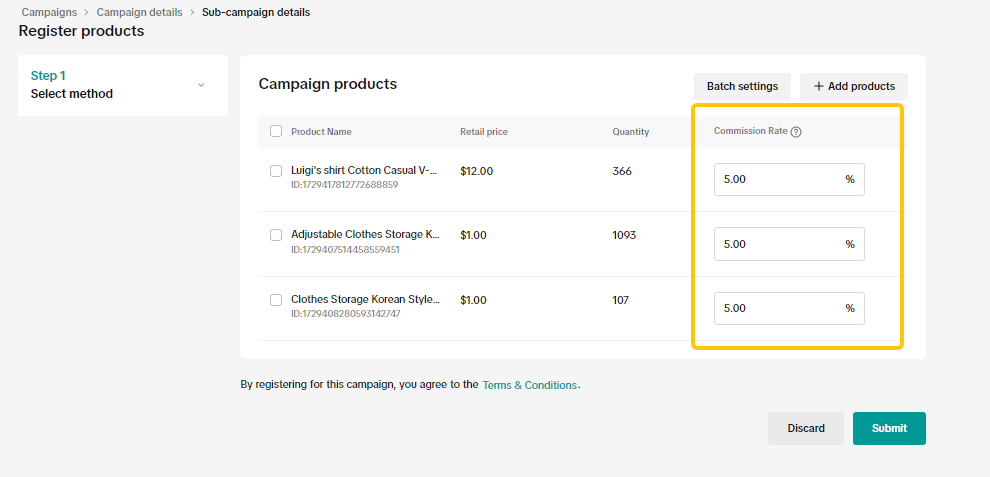
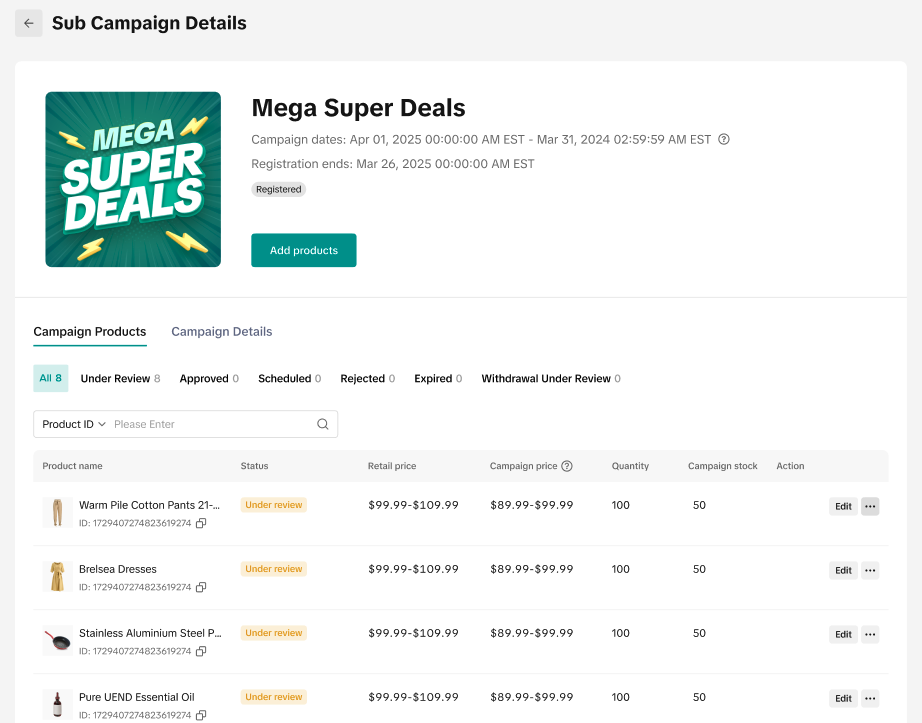
| Step 6: Input campaign price, quantity, and submit Fill in the campaign price (usually based on price gap rules like PA5%, PA10%, PA30%) and assign the available campaign stock. Platform will review your submission before approval. | 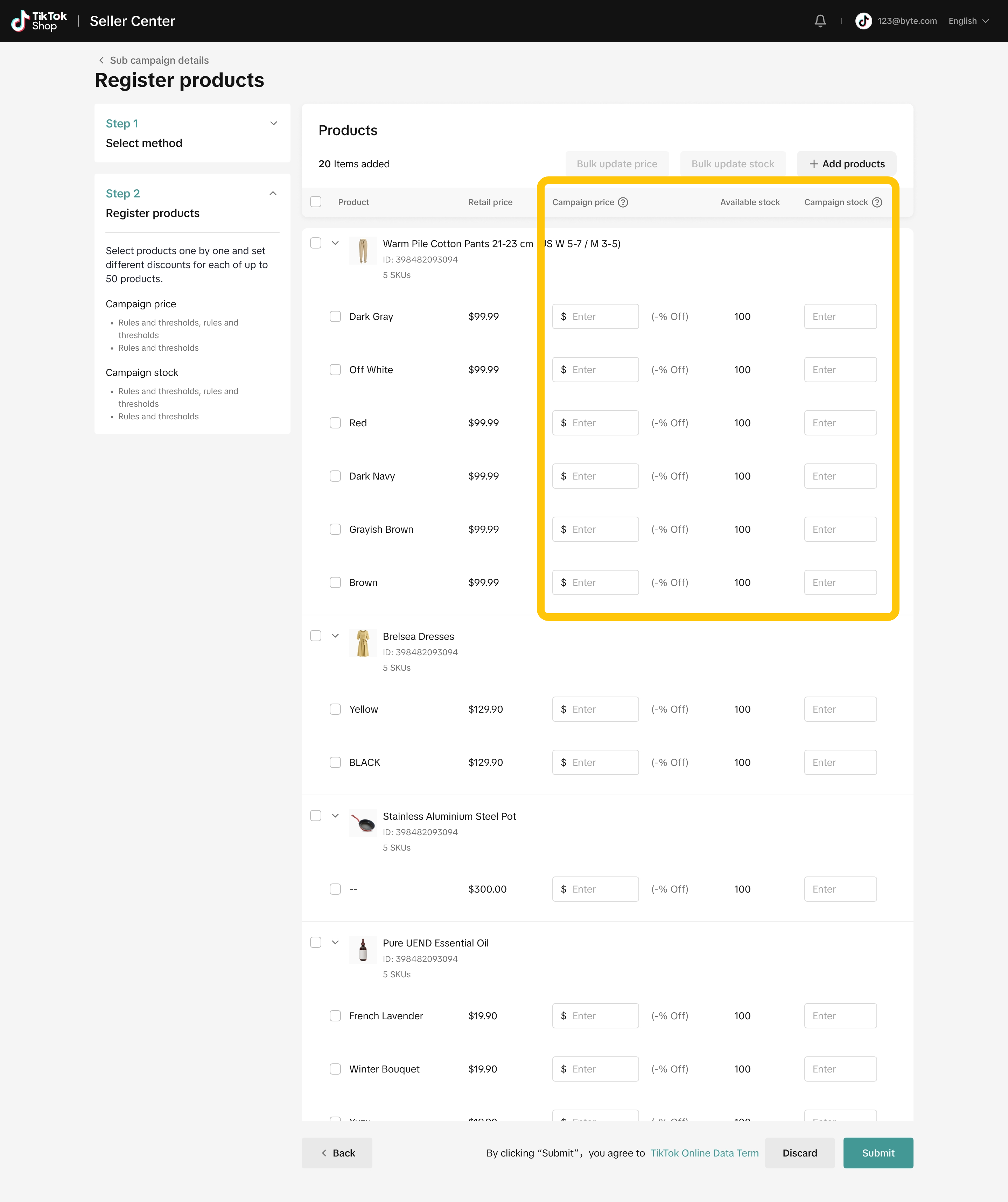 |
 | |
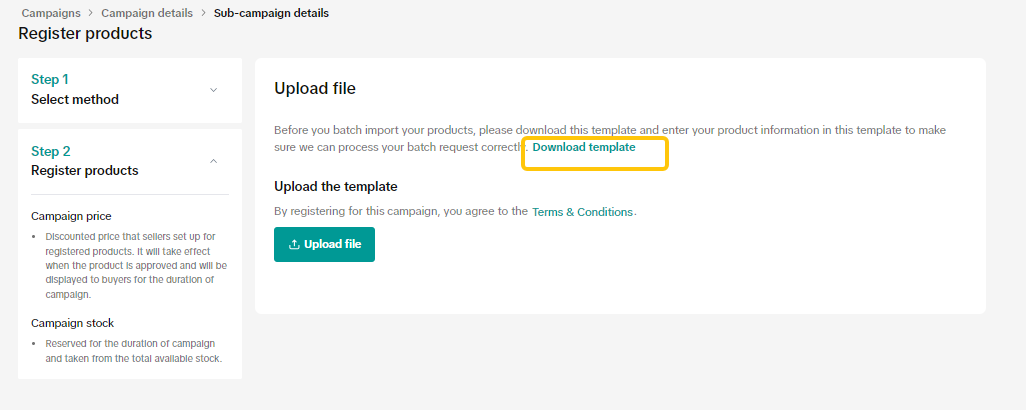
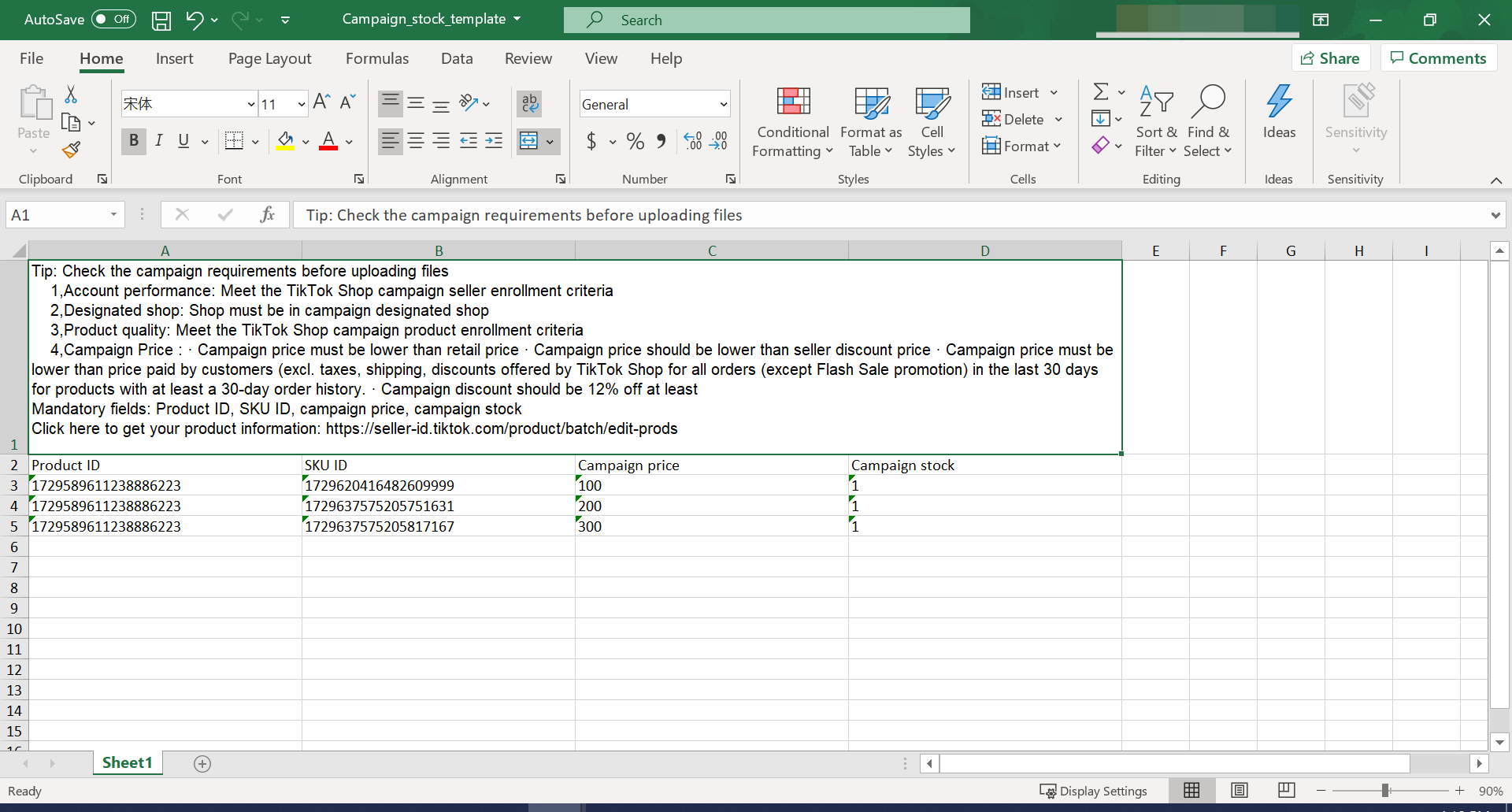
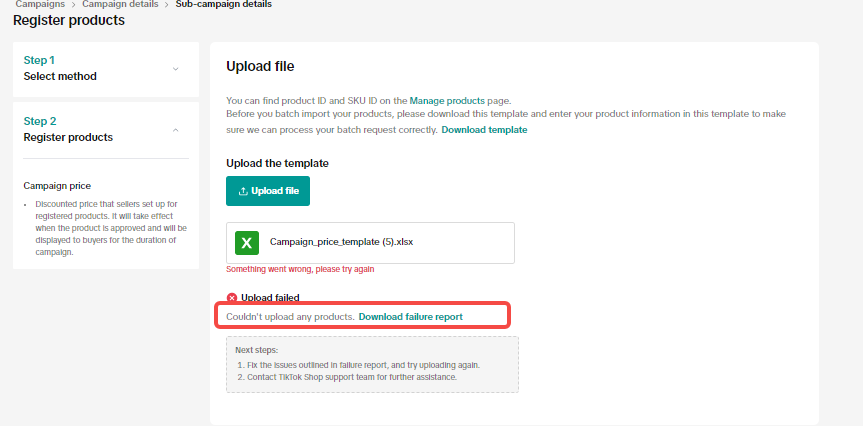
| Step 7: (Optional) Use Bulk Import via Excel for mass submissionFor large catalogs, use the Excel template option to register multiple SKUs. Download the template, fill in Product & SKU IDs, campaign prices and stock, then upload it back to the Seller Center. | 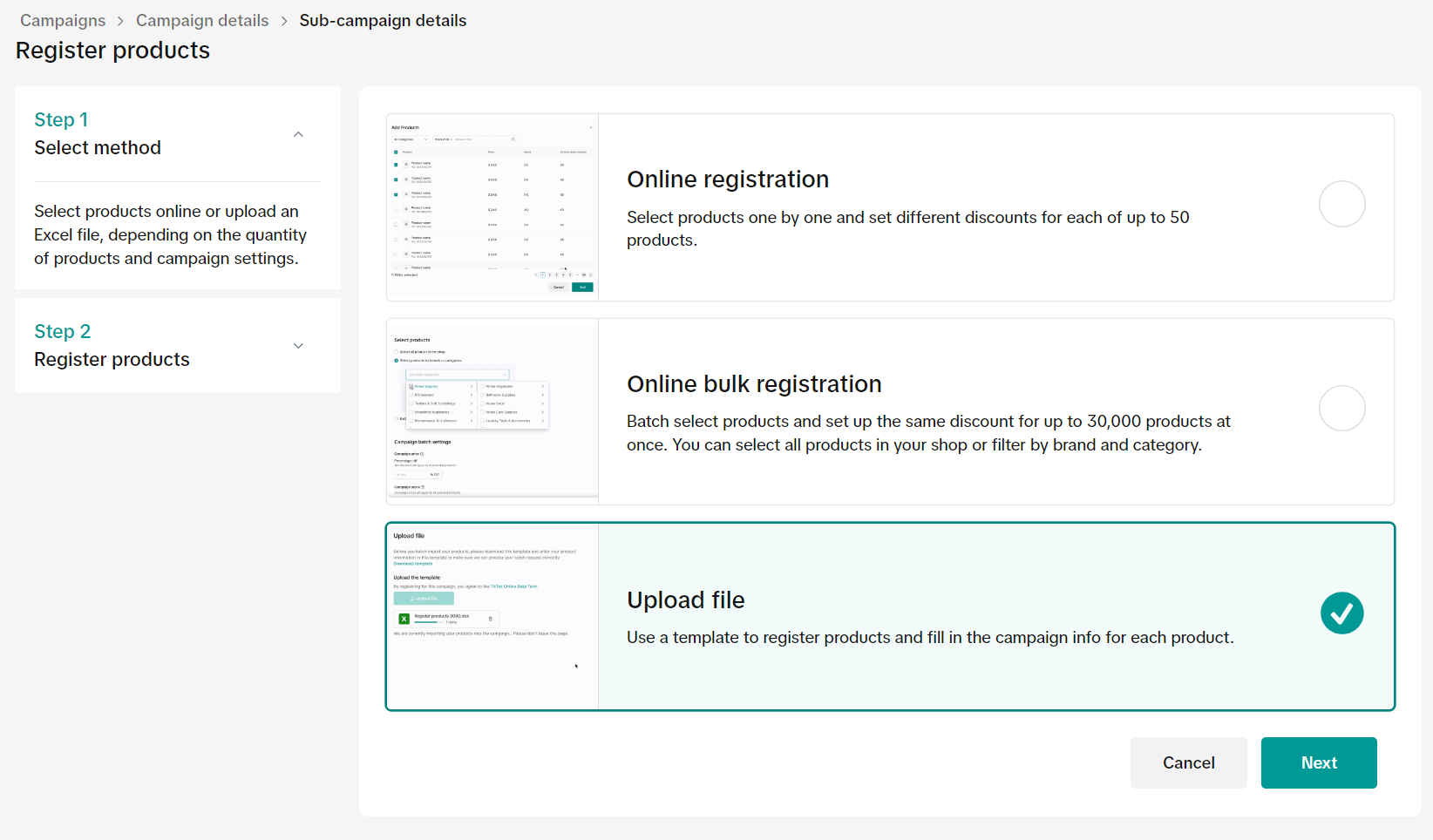 |
 | |
 | |
 | |
 |
Notes - Mega Campaign Registration
- The platform records submitted campaign prices, which may be used as a reference for future campaign participation. Ensure accuracy before submitting.
- Once approved, campaign stock will be locked. Quantity can only be increased (if permitted); reductions are generally not allowed.
- All submissions are subject to platform review. Approval depends on eligibility criteria such as pricing, product performance, and seller history.
How to Withdraw from Mega Campaign?
| How to | Guidelines |
| Step 1: Go to Seller Center Start by logging in to your Seller Center. Ensure you’re using the correct account linked to your TikTok Shop by Tokopedia store. | 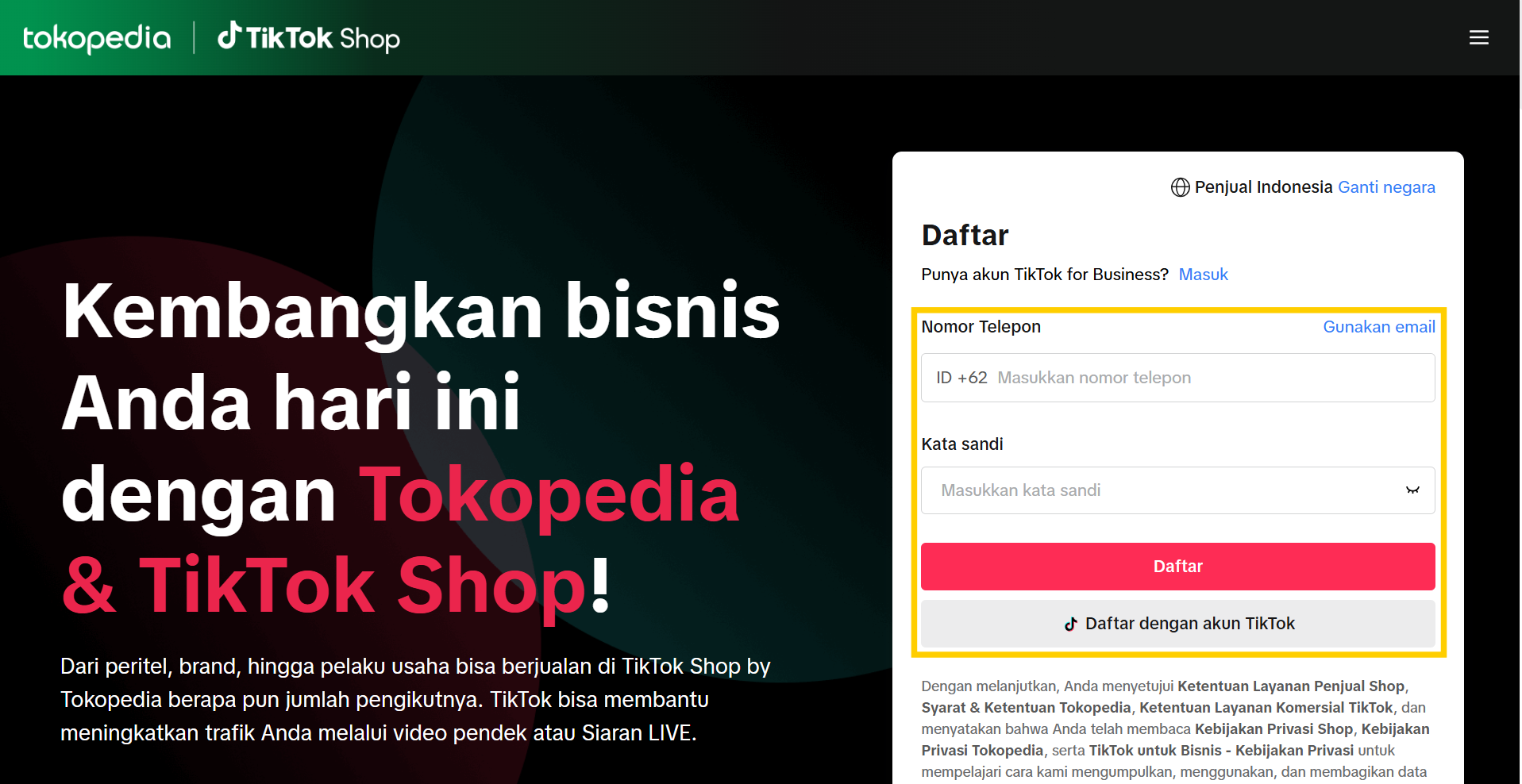 |
| Step 2: Open the “Campaign” tab on the left-hand side menuOn the Seller Center dashboard, navigate to the “Campaign” section from the main navigation menu. This is where all your active and past campaigns are listed. | 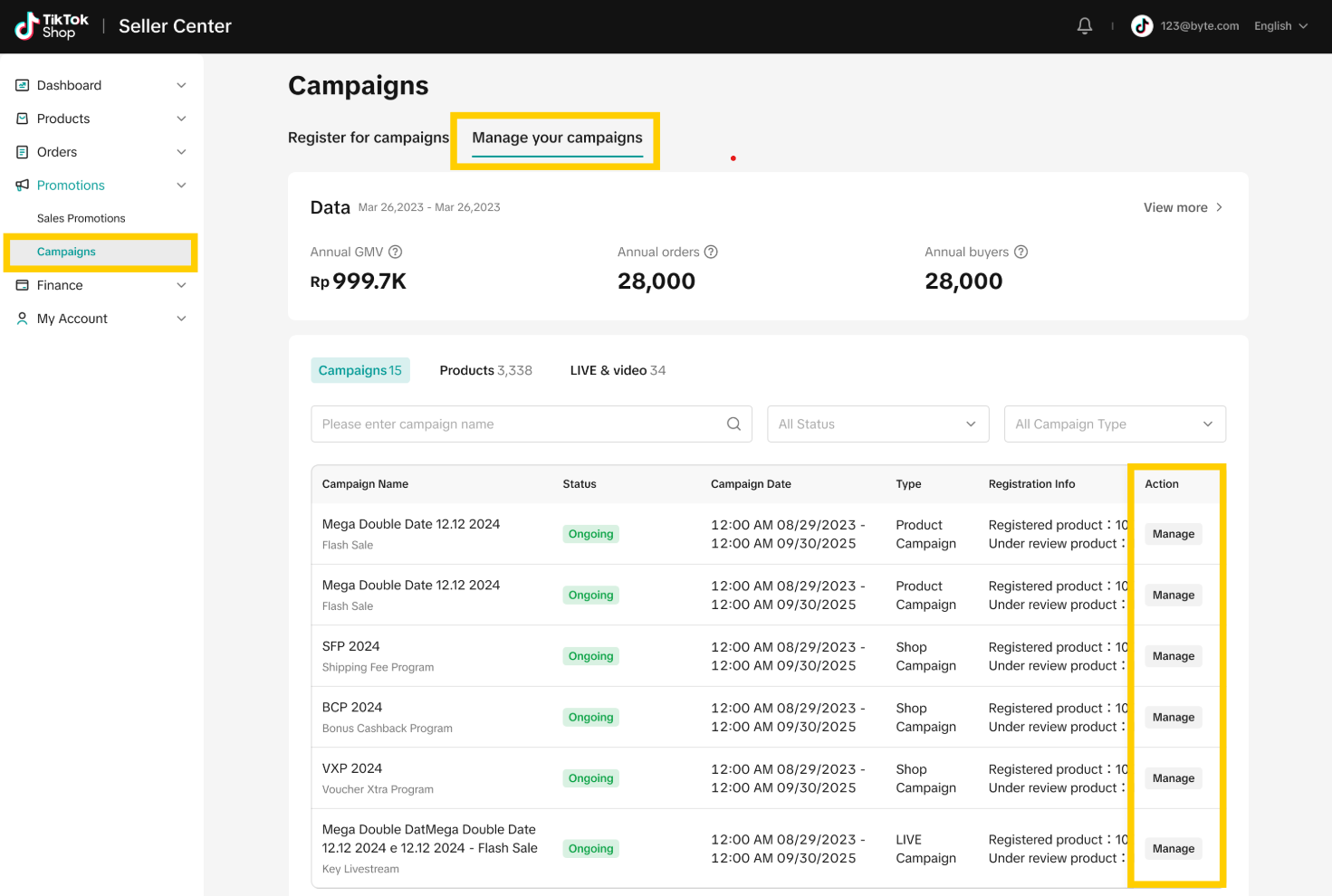 |
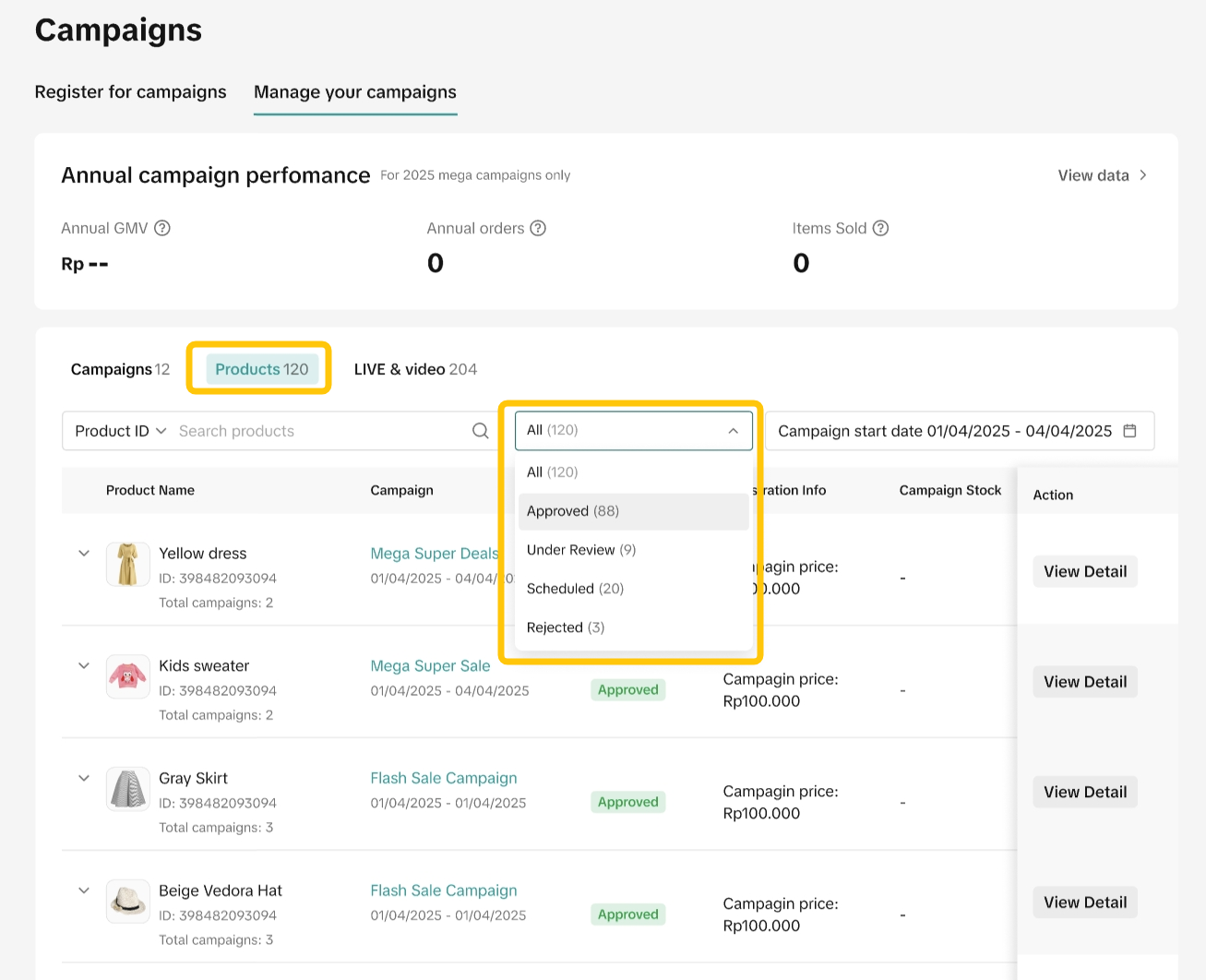
| Step 3: Click on the “Manage Your Campaign” tabWithin the Campaign section, locate and click the “Manage Your Campaign” tab. This view allows you to see your campaign application status and manage registered products. | |
| Step 4: Select the relevant campaign and click “Manage”From the list of active campaigns, identify the one you wish to withdraw from. Click the “Manage” button beside that campaign to access detailed controls. | |
| Step 5: Click the “Withdraw” buttonOn the campaign control page, locate and click “Withdraw”. This action will initiate the process to cancel your participation in the selected campaign. | 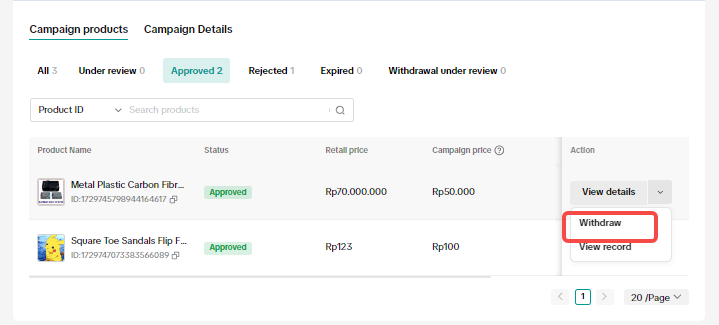 |
 | |
 |
Notes - Mega Campaign Withdrawal
- Withdrawal is only available before the system locks the campaign (typically up to H–3). After that, the "Withdraw" option may no longer be visible.
- Some campaigns, particularly those involving platform funding or Merchant Package benefits, may restrict withdrawal entirely.
- Approved withdrawal will cancel the product’s inclusion in all campaign placements and remove locked pricing and stock.
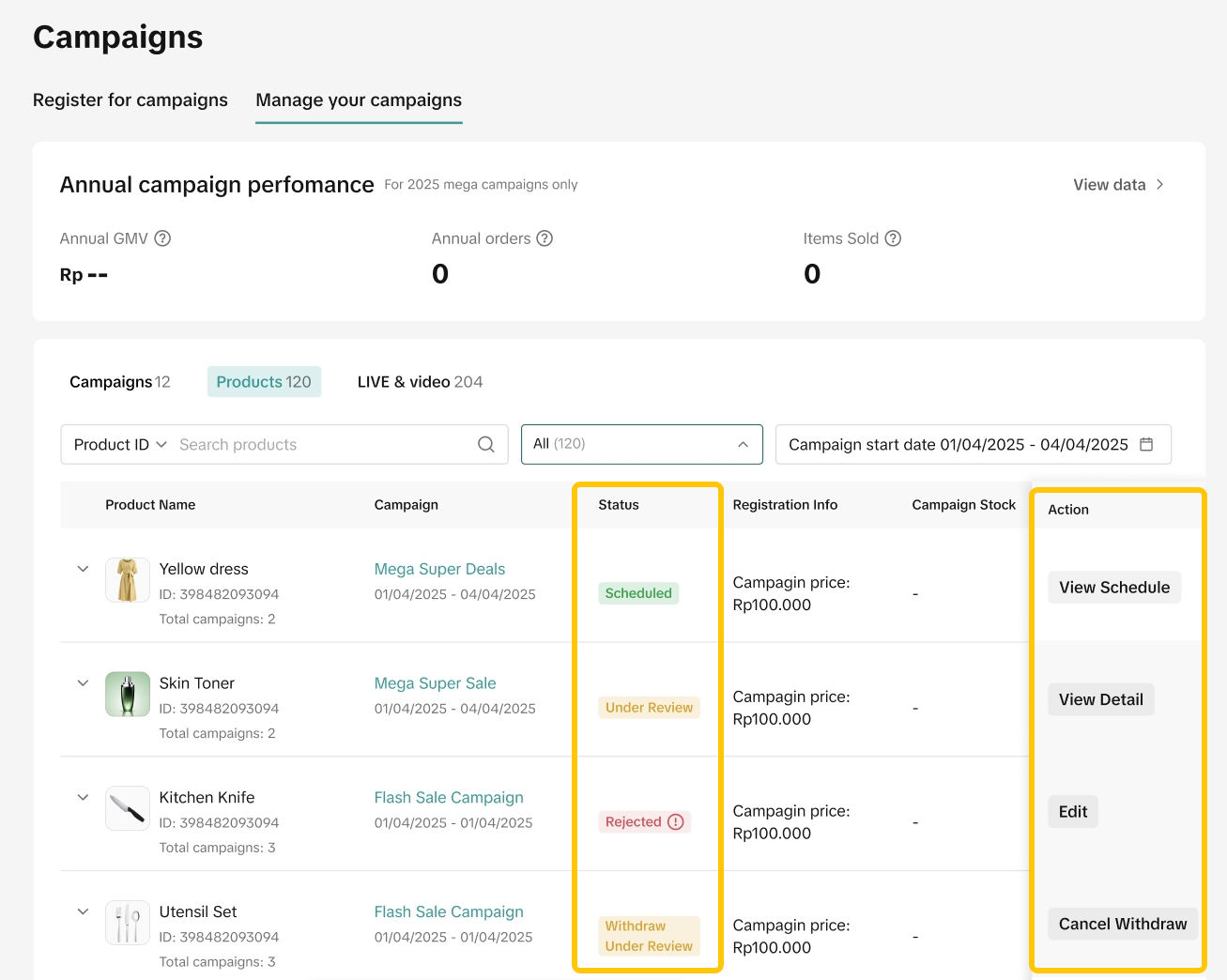
- Changes in withdrawal status may take time to reflect on the system. You can track updates under the “Manage Your Campaigns” tab.
You may also be interested in
- 1 lesson
Campaign and Cofunded Program
Join campaigns and cofunded programs for greater product exposure!

How do campaign co-funded vouchers work?
Sellers will first need to register and add products to the respective campaign page. Once the prod…

What if the campaign period overlaps with other promotional…
After approval, the price will take effect in accordance with the campaign dates. Campaign prices ar…

Marketing Benefits Packages
This article teaches you what Marketing Benefits Packages are, how it works, as well as how you, as…
Periodic Payments
This guide explains how to use bank transfer payments for Marketing Benefit Resource Packages, speci…

Product Campaigns
This article teaches you how to participate in platform product campaigns to increase sales in your…
Understanding Payments
This article introduces the different payment methods available for our Marketing Benefits Packages.…

Livestream Campaigns
This article teaches you how to use Livestream Campaigns to increase traffic and conversions in your…