

Tokopedia Product Shopping Ads on TikTok Ads Manager
06/05/2025
Product Shopping Ads on Tokopedia are available for:
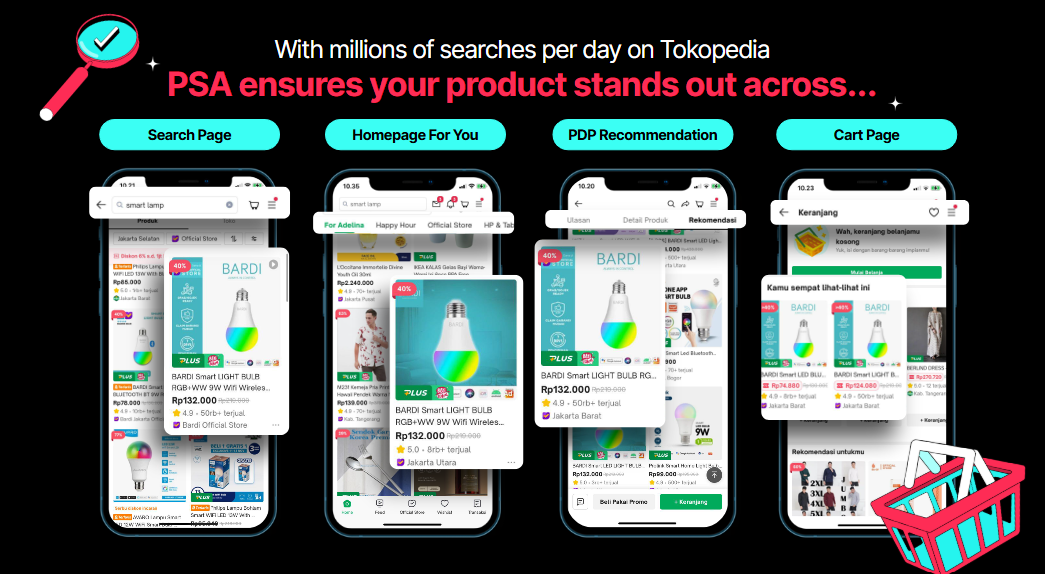
When sellers create a Product Shopping Ads campaign, the system will automatically suggest the best audience settings and optimize the ad placements across various pages in Tokopedia. It will also continually identify high-performing search keywords based on shopping behaviors such as user interests, product relevance and historical performance.

Note: Seller Center interface might be different if you have not completed the Shop Integration and Ads Integration Setup. Please read the following articles for details: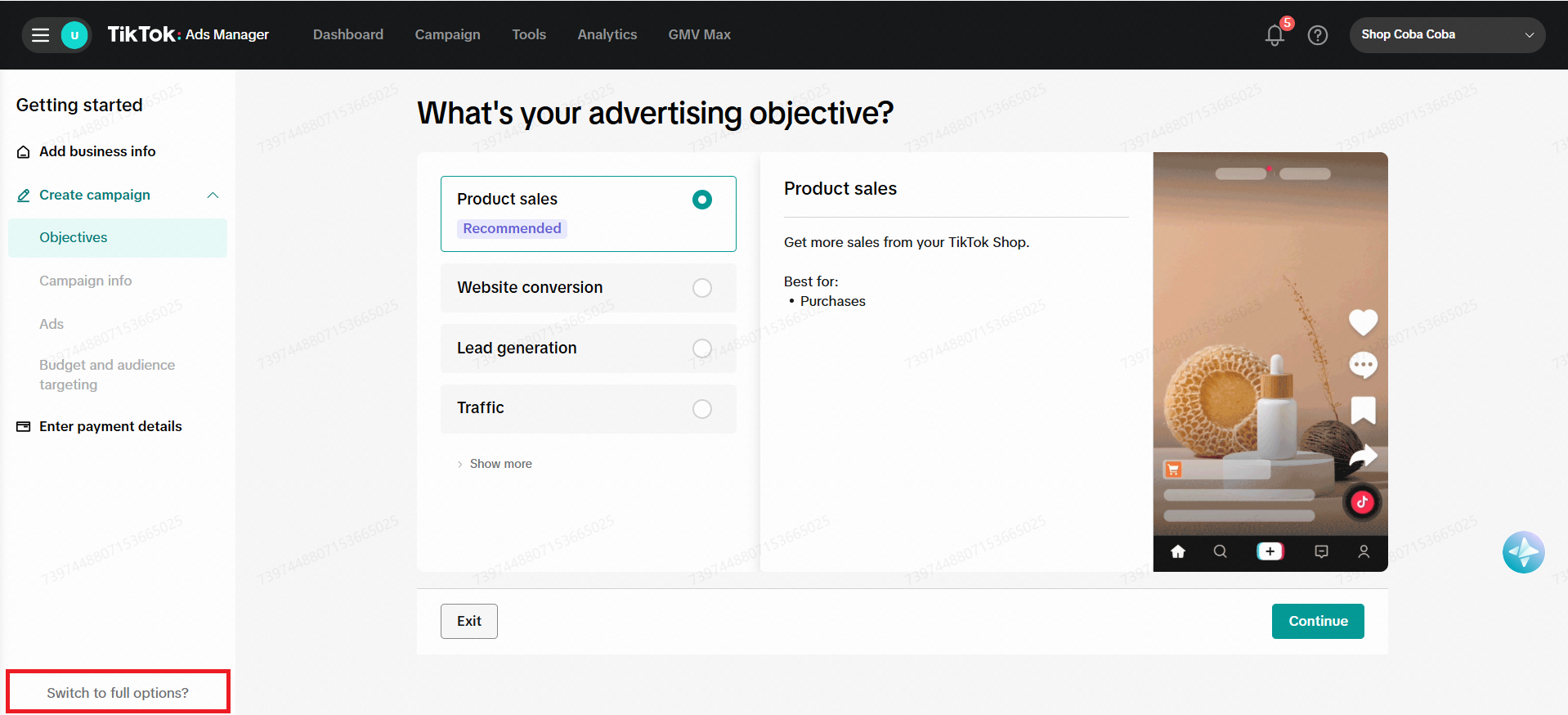

There are 3 payment methods that advertisers can use to fund ad campaigns, i.e.
Account Budget management can be done through Business Center. You can access Business Center from TikTok Ads Manager by hovering on your User ID on top left corner > Business Center. For details set up, please visit Budget Manager Set Up page.
Tips:

1. Maximising GMV with Return of Ads Spend (ROAS) target. ROAS = Gross Revenue/Ads Cost
2. Maximising Purchase with Cost per Acquisition or Purchase (CPA) target.
3. Maximising Clicks with Cost Per Click (CPC) target.
Rest assured, the system will automatically optimize campaigns to align results with the selected objectives, eliminating the need for manual keyword optimization.
Campaign optimization normally takes about two weeks. We recommend that sellers keep their ads active at least for two weeks before analyzing the result to allow the system to optimize effectively.
Note: Tokopedia ads management on Tokopedia Seller Center has been deactivated on 13 June 2025. Any unused ads credit will be automatically refunded or transferred to TTAM. Please refer to this article TopAds Deactivation
The tax treatment for TikTok Ads services depends on which entity sellers' contracted with i.e. PT MP Games or TikTok Pte. Ltd. For more detailed information, please refer to the full guide here.
Visit Troubleshoot GMV Pay page for more details. Our recommendation, please use other payment methods if your daily transactions is unstable.
- Tokopedia Sellers that have completed the Shop Integration process between their TikTok Shop and Tokopedia accounts. This process will be available gradually based on invitation from Tokopedia Seller Center. Complete Shop Integration guidelines can be found here. Afterwards, sellers need to ensure ads pre-requisite steps have been set up accordingly. Please visit this guide here.
- TikTok Shop Sellers, both who don't have and already have shops in Tokopedia. TikTok Shop Sellers will have access to Integration to Tokopedia function, which will allow sellers' products to appear and purchasable in Tokopedia automatically. Manage product status through the Manage Product menu on the seller center. Complete Integration to Tokopedia guidelines can be found here.
Why activate Tokopedia Product Shopping Ads:
- Reach and maximize exposure to high-intent users
- Start campaign effortlessly
- Leverage goal-driven optimization setting
When sellers create a Product Shopping Ads campaign, the system will automatically suggest the best audience settings and optimize the ad placements across various pages in Tokopedia. It will also continually identify high-performing search keywords based on shopping behaviors such as user interests, product relevance and historical performance.
Product Shopping Ads Tutorial Video
Watch the following video to learn how to activate Tokopedia Product Shopping Ads.Note: Seller Center interface might be different if you have not completed the Shop Integration and Ads Integration Setup. Please read the following articles for details:
- Shop Integration: here
- Ads Integration Setup: here (applicable for sellers who went through Account Binding process. Sellers who went through the Fast Onboarding process can directly create ad campaigns as the TikTok Business Center account and Advertiser ID have automatically created and linked to seller center)
Product Shopping Ads Creation
Access Product Shopping Ads through:
- Directly to TikTok Ads Manager (TTAM): Create > Campaign
- Tokopedia & TikTok Shop Seller Center: Shop Ads tab > Create Custom Shop Ads. Sellers will be directed to TTAM
- TikTok Business Center: Assets > Advertiser Account > Ads Manager. Sellers will be directed to TTAM
- Tokopedia & TikTok Shop Seller Center App from mobile devices. Read here for guidance.
Steps to Create Tokopedia Product Shopping Ads:
- On TikTok Ads Manager: go to Campaign tab > Create.

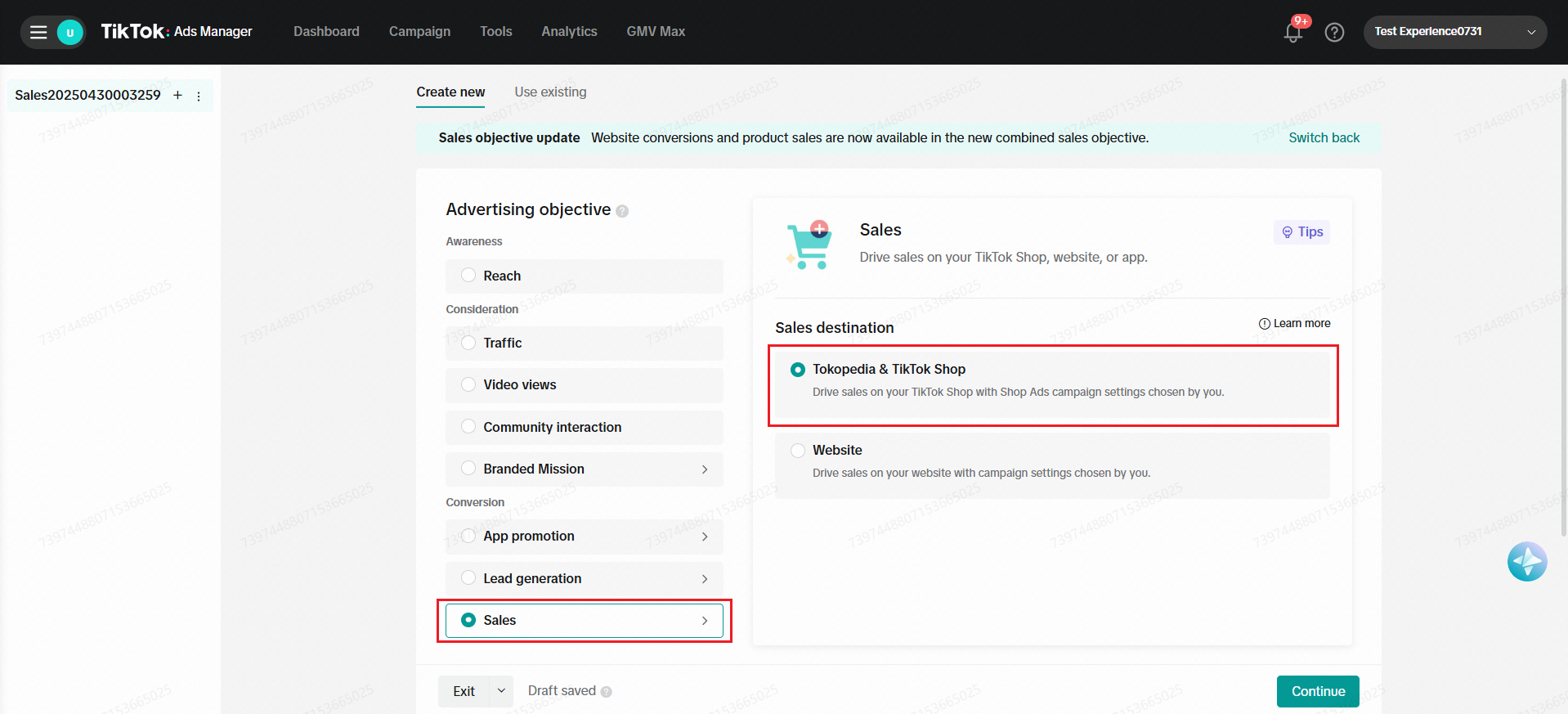
- Select Product Sales as advertising objective, then choose Tokopedia & TikTok Shop as product source. Click Continue.
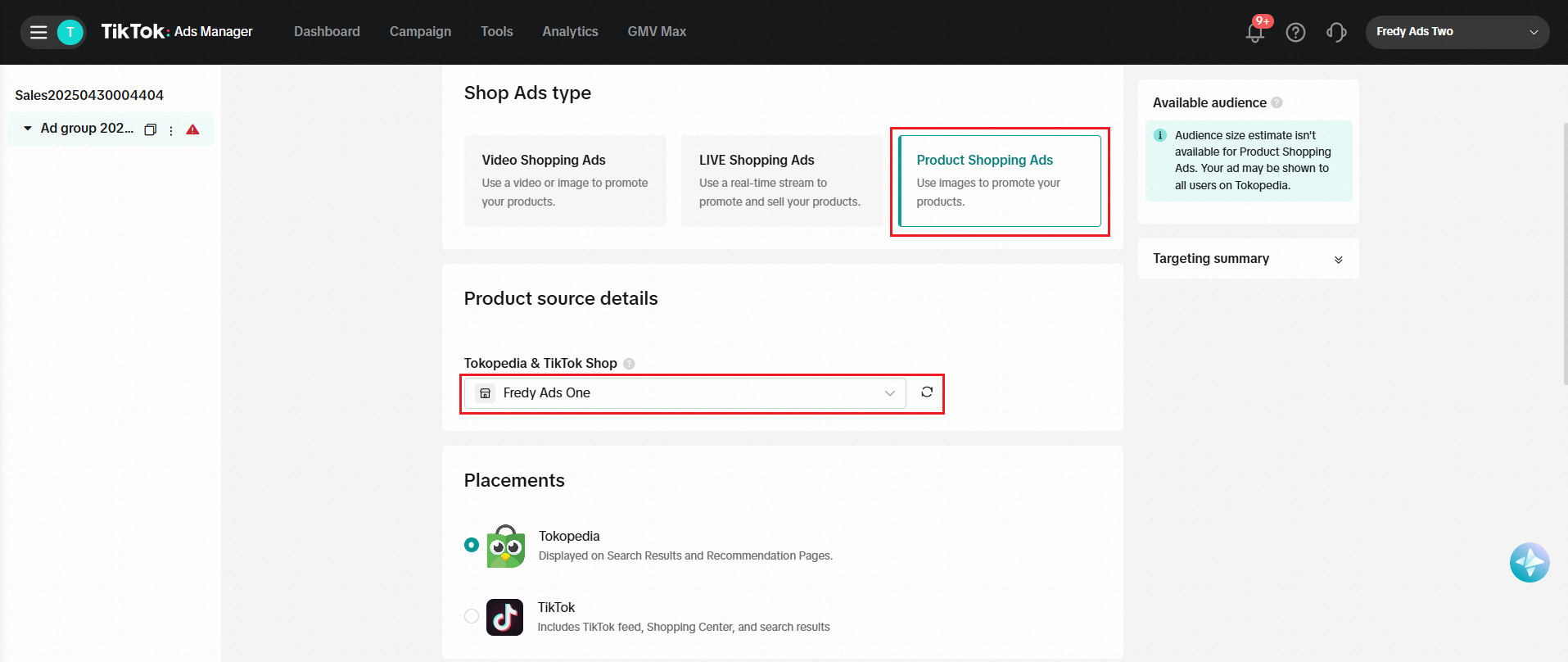
- On Ad Group, select Product Shopping Ads as the shopping ads type, then choose Tokopedia & TikTok Shop account with active products in Tokopedia, and choose Tokopedia as product placement.
- Set up ad group budget and schedule accordingly.
- Use the daily budget instead of a lifetime budget for better control over ad spend and optimization.
- For budget, we recommend starting at IDR 50,000 or 20x cost-per-goal. Gradually adjust based on performance insight.
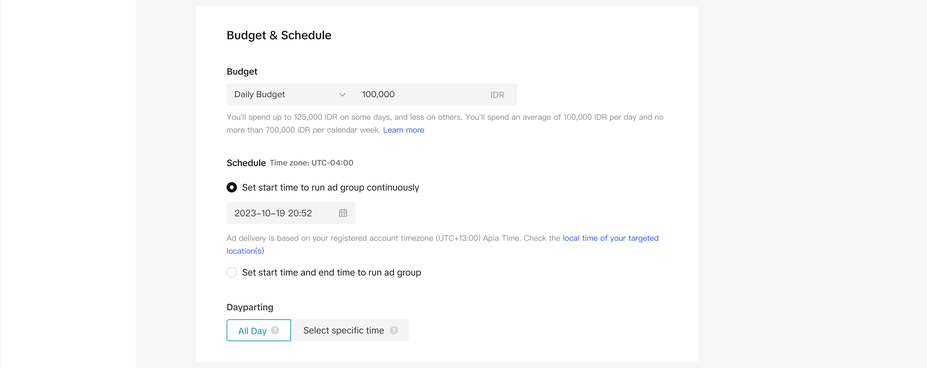
- There are three optimization goals to choose from, and then click Continue.
- Maximising Gross Revenue with Return of Ads Spend (ROAS) target. ROAS is an expected Gross Revenue generated at a given Ads Cost (ROAS = Gross Revenue / Ads Cost).
- Maximising Purchases with Cost per Acquisition or Purchase (CPA) target, or
- Maximising Clicks with Cost per Click (CPC) target.
- Set a target to control spending effectively. Avoid making them too restrictive (too high for ROAS, and too low for CPA or CPC), as it may limit ad delivery, or too lenient (too low for ROAS, and too high for CPA or CPC), which could lead to budget being used inefficiently. Finding the right balance ensures optimal results at a controlled cost.
- Adjust the target after one or two weeks, to give the system sometime to optimise your campaigns. Avoid adjusting the target too early or too often. It is recommended to start with a more lenient target and adjust to your ideal target gradually.
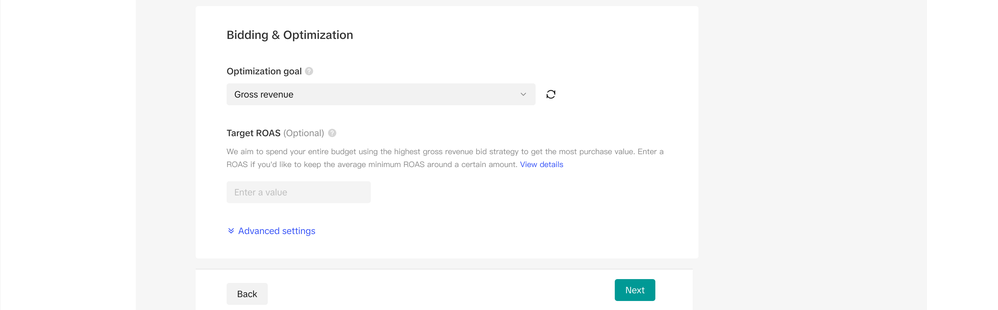
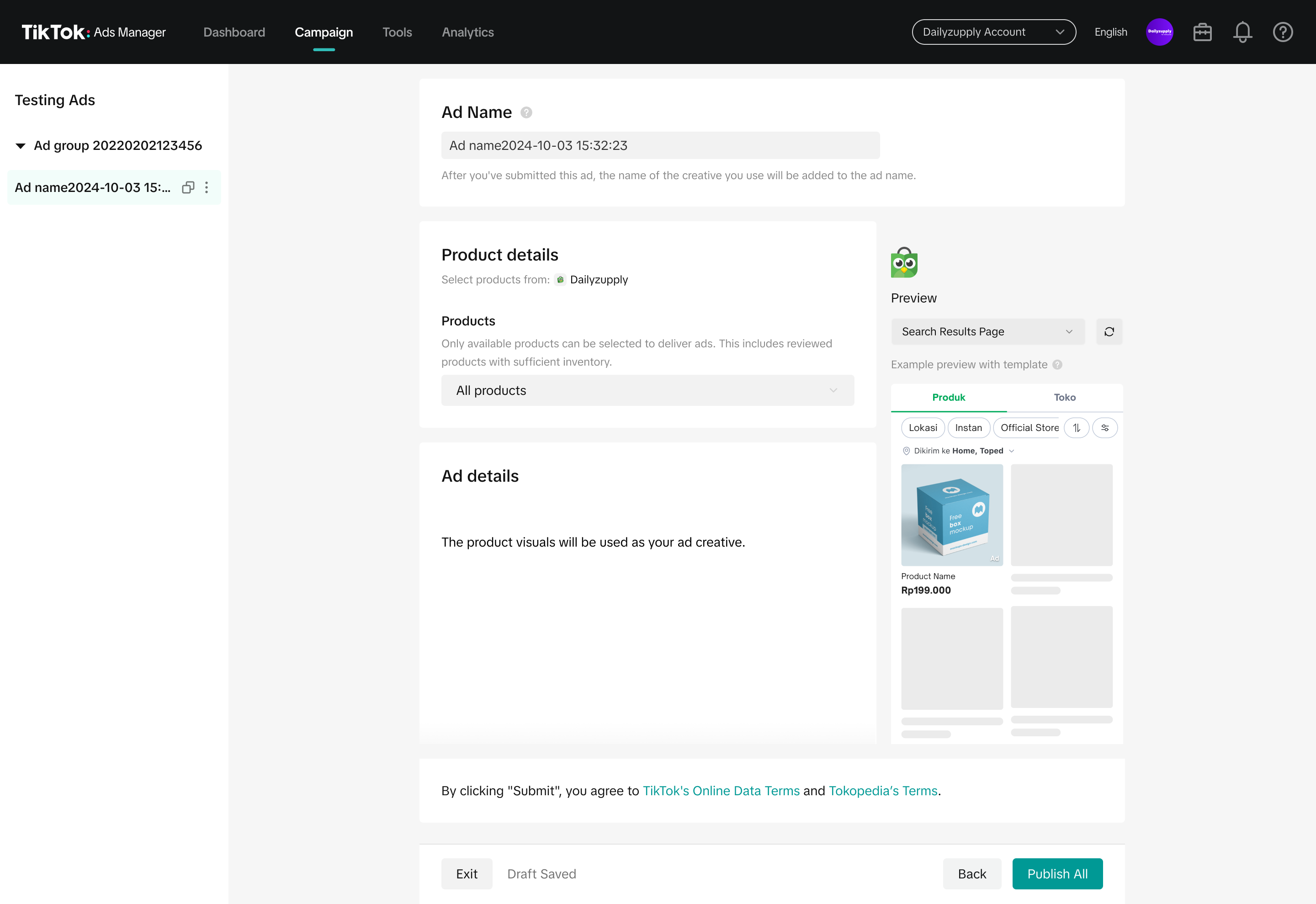
- On Ad, select either all products or specific products. Then click Publish
- Run at least one active campaign using all products to maximize ad exposure. Selecting more products increases the chances of products being shown.
- Use specific products for specific deals or new launches. Add a minimum of 10 products per ad group for better delivery and performance.
- Products that are active on GMV Max ads campaign, cannot be advertised in Product Shopping Ads.

Measurement and Reporting
After publishing the ad, performance metrics are available under Campaign tab. Select Shop Ads.- Default attribution is 7-days-click and 1-day-view based on user interaction
- Default "Shop Ads" metrics are:
- Cost: Ad Spending
- Impressions
- Clicks (Destination)
- Product page views (Shop)
- Check out initiated (Shop)
- Purchases (Shop): Order Transaction Count
- Gross revenue (Shop)
- ROAS (Shop): based on TTAM attribution
- CPM
- CPC (Destination)
- Cost per purchase (Shop)
- CTR (Destination)
- Purchase rate (Shop): Order/Click
- Average Order Value (Shop) = Gross revenue (Shop)/ Purchases (Shop)
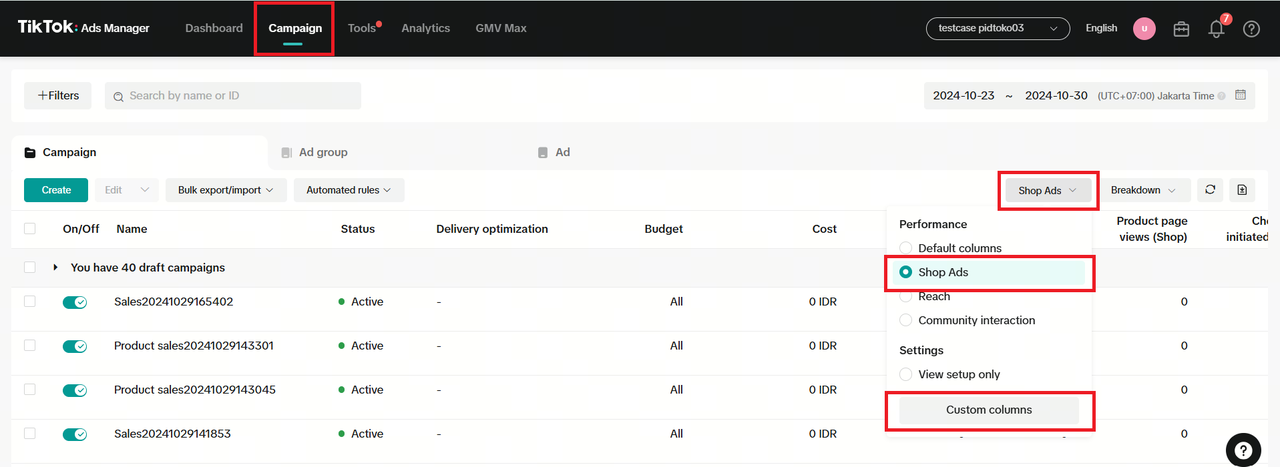
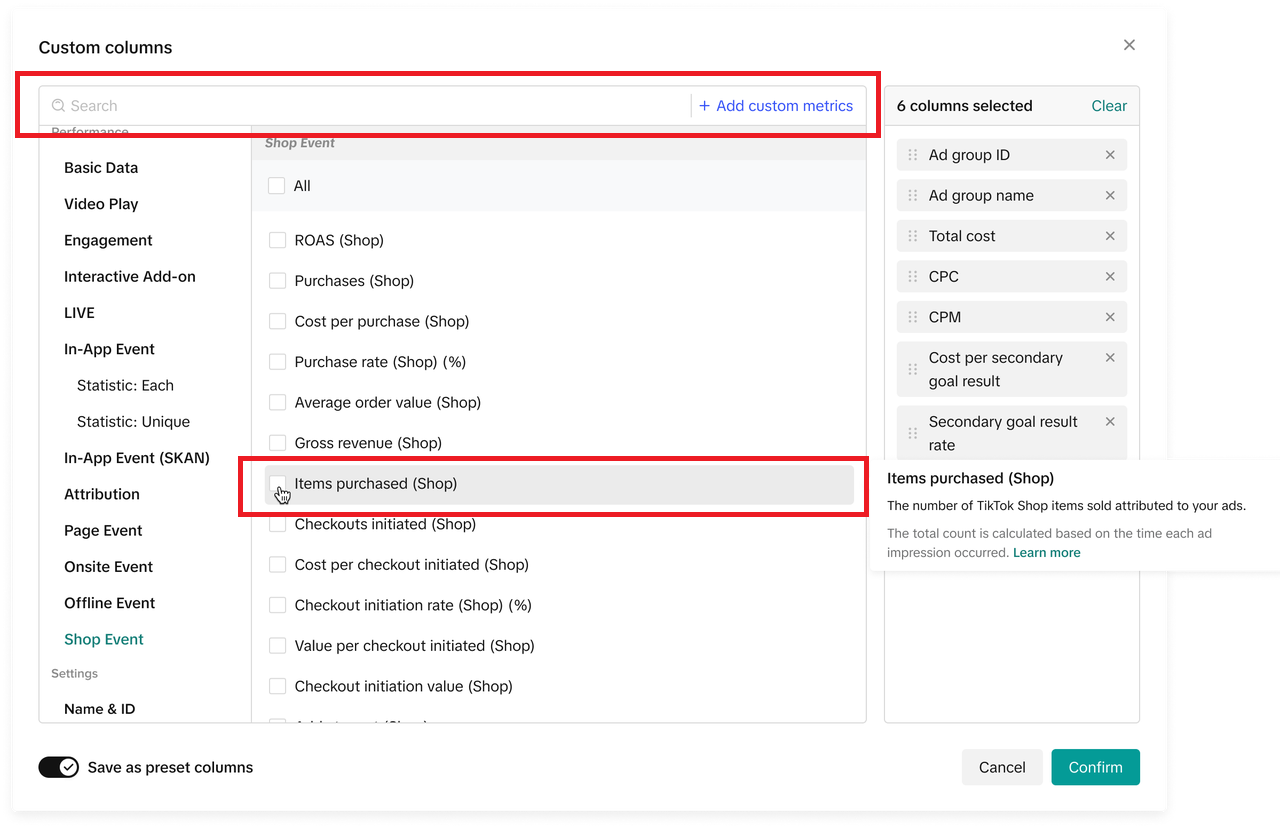
- Sellers can include additional metrics such as Item Purchased (Shop) in Custom Columns
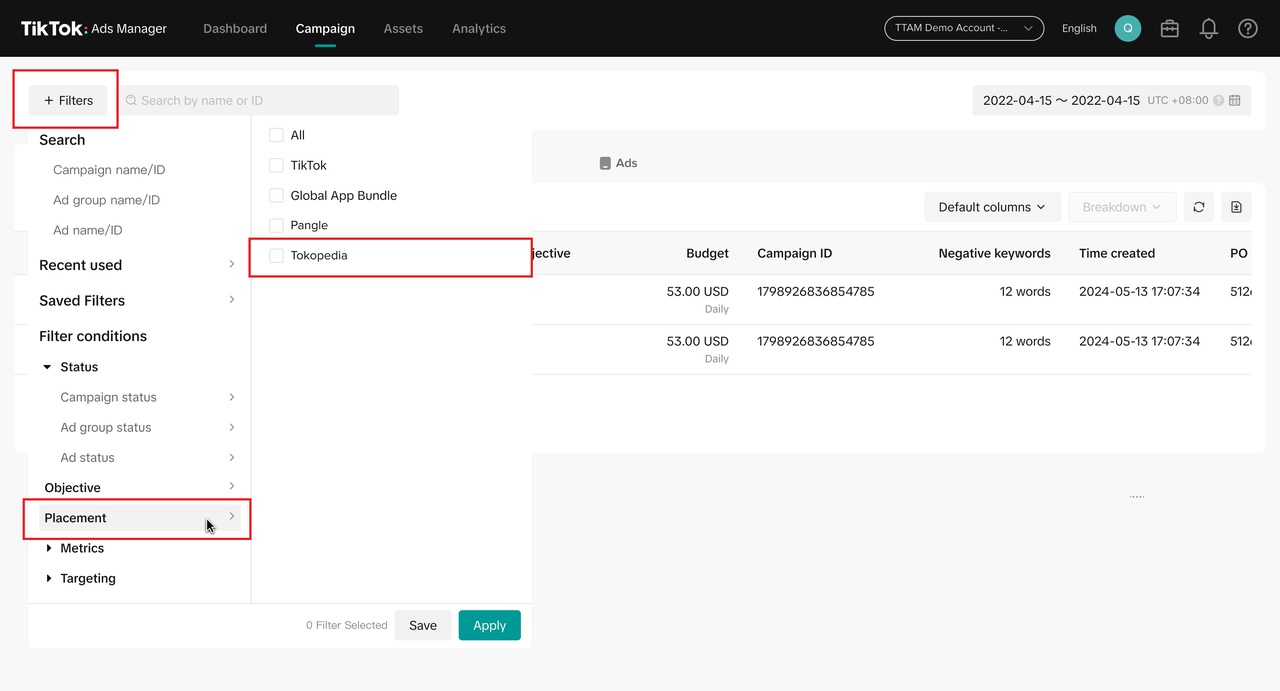
- Sellers can also filter the report to see Tokopedia performance only. Go to Filter > Placement > Tokopedia
Finance and Billing
Payment Method
Manage your payment by opening the menu Tools > Finance. Successful payment will be reflected in the Available Cash Balance that displays a certain amount or "sufficient" if you manage it from Business Center.There are 3 payment methods that advertisers can use to fund ad campaigns, i.e.
- Manual payment,
- Automatic payment, and
- Monthly invoicing (only applicable for selected sellers, please contact your Brand Partnership Manager for details and set up)
Account Budget
Account Budget allows advertisers to control total ads spending at Advertiser ID level on a daily basis or at a certain preferred period. When your ads spending reaches the account budget level, your campaign will be paused and ads will not be displayed. Check your Account Budget from TikTok Ads Manager menu Tools > Finance.Account Budget management can be done through Business Center. You can access Business Center from TikTok Ads Manager by hovering on your User ID on top left corner > Business Center. For details set up, please visit Budget Manager Set Up page.
Tips:
- Other than the Campaign or Ad Group budget, please always check your Account Budget level to ensure it accommodates your normal ads spending, so your campaigns can stay active to reach relevant audiences OR
- Select Unlimited Account Budget, and control ads spending only through the Campaign or Ad Group budget.

FAQ for Tokopedia and TikTok Shop Sellers
Product Eligibility and Restrictions
- Are all my Tokopedia active products eligible to be advertised through Tiktok Ads Manager (TTAM)?
- Given that Tokopedia allows the sale of some restricted items under certain conditions while TikTok Shop does not (e.g., e-cigarettes, prescription medicine), will this prevent me from opening a TikTok Shop account for Shop Integration in the future?
Campaign Management
- Can sellers run both Tokopedia and TikTok Product Shopping Ads within the same TTAM account?
- Can sellers run both GMV Max and Tokopedia Product Shopping Ads at the same time?
- Sellers need to deactivate GMV Max campaigns that use all product catalogs, and create a new GMV Max only for selected products.
- Sellers then can activate the remaining products not active on GMV Max campaigns for Tokopedia Product Shopping Ads
- Creating a new GMV Max campaign for selected products will not restart GMV Max algorithm learning on their previous GMV Max campaign.
- Can sellers advertise the same product using different Ads Features?
- Can sellers target Tokopedia users specifically on TTAM?
FAQ for Tokopedia Sellers Only
TikTok Ads Feature Access
- When will TikTok Ads features available for Tokopedia Sellers?
Campaign Management
- Will there be any changes to the ad format between Tokopedia Product Shopping Ads and TopAds Product Ads?
- Can sellers continue to setup Product Ads on both Tokopedia Seller Center?
- Are there any differences in targeting options between Tokopedia Seller Center and TTAM?
- Without keyword targeting, how can sellers ensure the targeting is effective
1. Maximising GMV with Return of Ads Spend (ROAS) target. ROAS = Gross Revenue/Ads Cost
2. Maximising Purchase with Cost per Acquisition or Purchase (CPA) target.
3. Maximising Clicks with Cost Per Click (CPC) target.
Rest assured, the system will automatically optimize campaigns to align results with the selected objectives, eliminating the need for manual keyword optimization.
- How will the integration affect my ads performance?
Campaign optimization normally takes about two weeks. We recommend that sellers keep their ads active at least for two weeks before analyzing the result to allow the system to optimize effectively.
- How can I compare ad performance between Tokopedia Seller Center and TTAM?
- Will historical performance data from Tokopedia Seller Center be available on TTAM?
Finance and Billing
- Will Tokopedia Ads (TopAds) credits transfer to TTAM?
Note: Tokopedia ads management on Tokopedia Seller Center has been deactivated on 13 June 2025. Any unused ads credit will be automatically refunded or transferred to TTAM. Please refer to this article TopAds Deactivation
- How will billing, invoicing and taxation change with the transition to TTAM?
The tax treatment for TikTok Ads services depends on which entity sellers' contracted with i.e. PT MP Games or TikTok Pte. Ltd. For more detailed information, please refer to the full guide here.
- GMV balance on TikTok Seller Center shows sufficient amount, but unable to complete ads payment using GMV Pay (balance is zero).
Visit Troubleshoot GMV Pay page for more details. Our recommendation, please use other payment methods if your daily transactions is unstable.
Help Center
What should sellers do if there are issues with the new setup in TTAM?
Please contact the help Center through one of these channels:- Tiktok Ads Manager. Log in to TTAM. On the top right, select (?) > Customer Support > Submit Ticket > eCommerce & Partner Integration > Shopping Ads, and explain the issues by mentioning "Tokopedia Product Shopping Ads"
- Tokopedia & Tiktok Shop Seller Center. Log in to Seller Center. On the bottom left, select Help Center > Select Ticket Log > Contact Us > Select Topic: Ads - Custom Shop Ads - Product Shopping Ads, and by mentioning "Tokopedia Product Shopping Ads"
- TikTok Business Center. Log in to TTBC. On the top right, select (?) > Advertiser Support > eCommerce & Partner Integration > Shopping Ads, and explain the issues by mentioning "Tokopedia Product Shopping Ads"
You may also be interested in
- 1 lesson
Optimize Shopping Ads
Best practices for improving the performance of your shopping ads to increase click-through rates an…
- 6 lessons
Shopping Ads Type
A breakdown of the different types of shopping ads you can use to promote your products.
- 1 lesson
Product Shopping Ads Adoption
Introduction to setting up and managing Product Shopping Ads on Tokopedia.
- 3 lessons
Optimize Targeting in Shopping Ads
How to refine your targeting in shopping ads to reach the right audience and maximize returns.

How to Setup Ads in Tokopedia & TikTok Shop Seller Center Ap…
Before Getting Started Eligibility: Product Shopping Ads is available to invited TikTok and Tokopedi…

Advertising on Tokopedia and TikTok Shop after Shop Integrat…
Starting December 2024, Tokopedia Product Shopping Ads (formerly TopAds Product Ads or "Iklan Produk…