

Video Diagnosis for Creators
01/08/2025
Video Diagnosis is a feature that provides helpful recommendations to improve video quality and create more engaging content as a Creator. This article will help you understand what the video diagnosis prompts means, so you can use these suggestions to your advantage and optimize your videos.

The video diagnosis banner will display the number of videos that can be further optimised, based on the video performances from the last 7 days.

We recommend taking the suggested actions when producing any videos in the future to help increase engagement with your audiences!

How do Creators Access Video Diagnosis?
Navigate to: Affiliate Center > Performance Data > Data > Video Diagnosis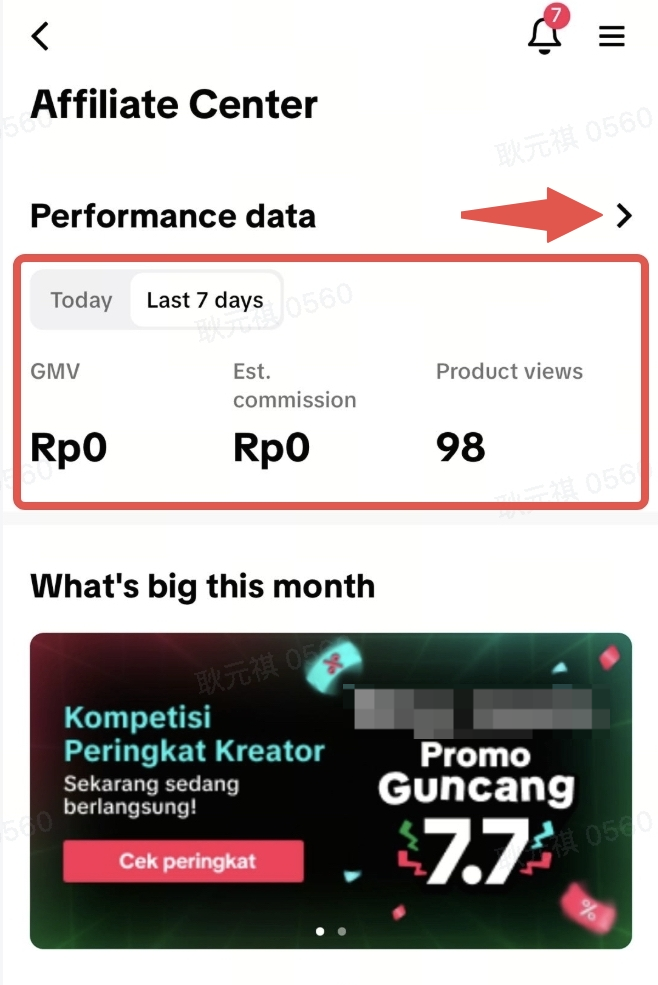 | 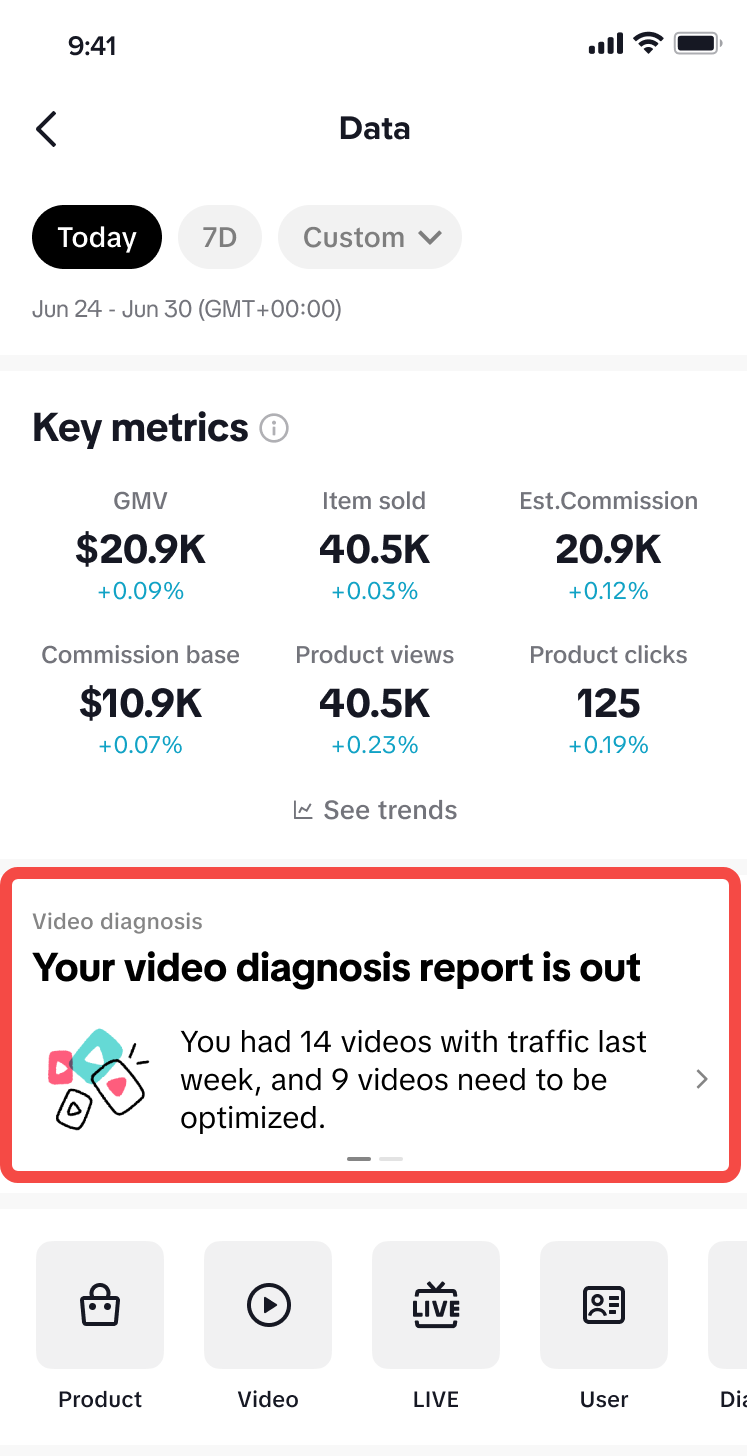 |
| Step 1: Affiliate Center > Click into Performance Data | Step 2: On the Data page, Video Diagnosis can be found under Key Metrics. |
How to Use Video Diagnosis?
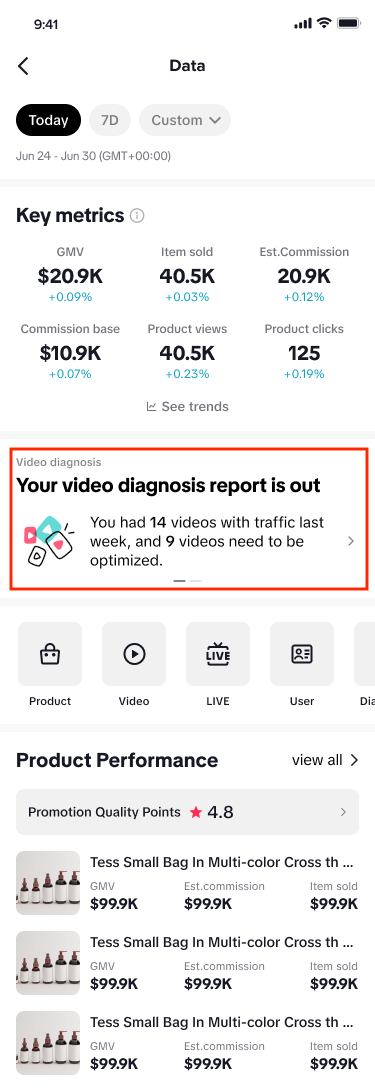
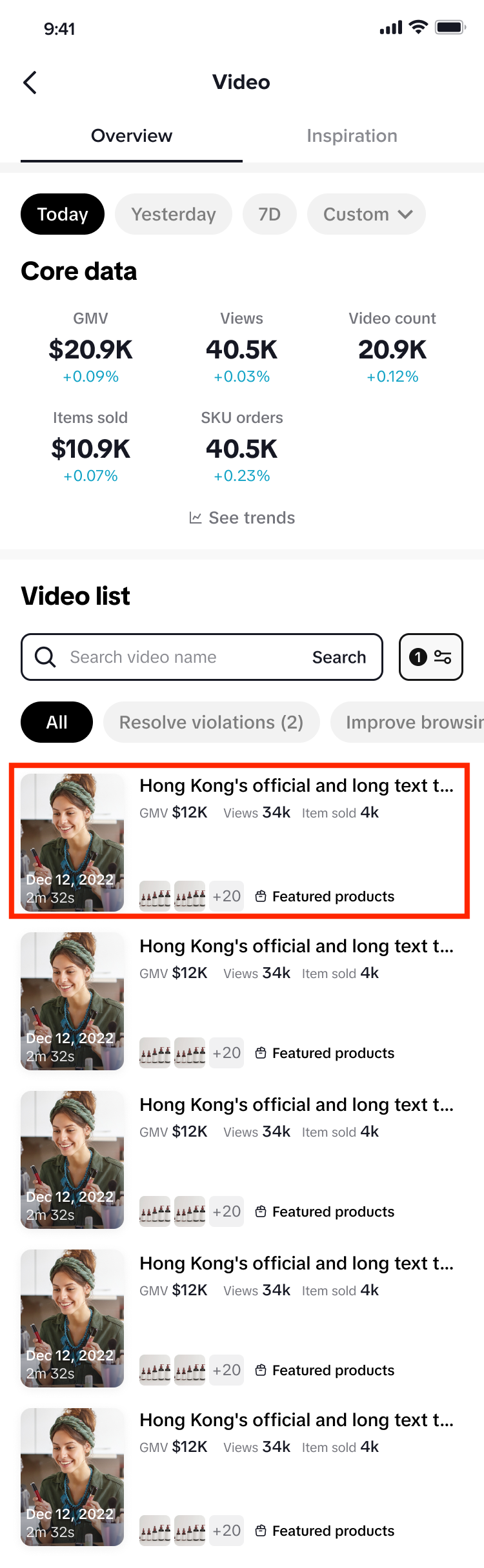
- Once you select the Video diagnosis banner, you will be redirected to the Video page.
- On the Video page, it outlines:
- The [Core data] metrics relating to all the videos you have published on your account.
- The [Video list] that shows all videos that have diagnosis suggestions only. This list excludes any videos that are high performing and do not require improvement.
Video diagnosis banner -> Video details page | |
 | 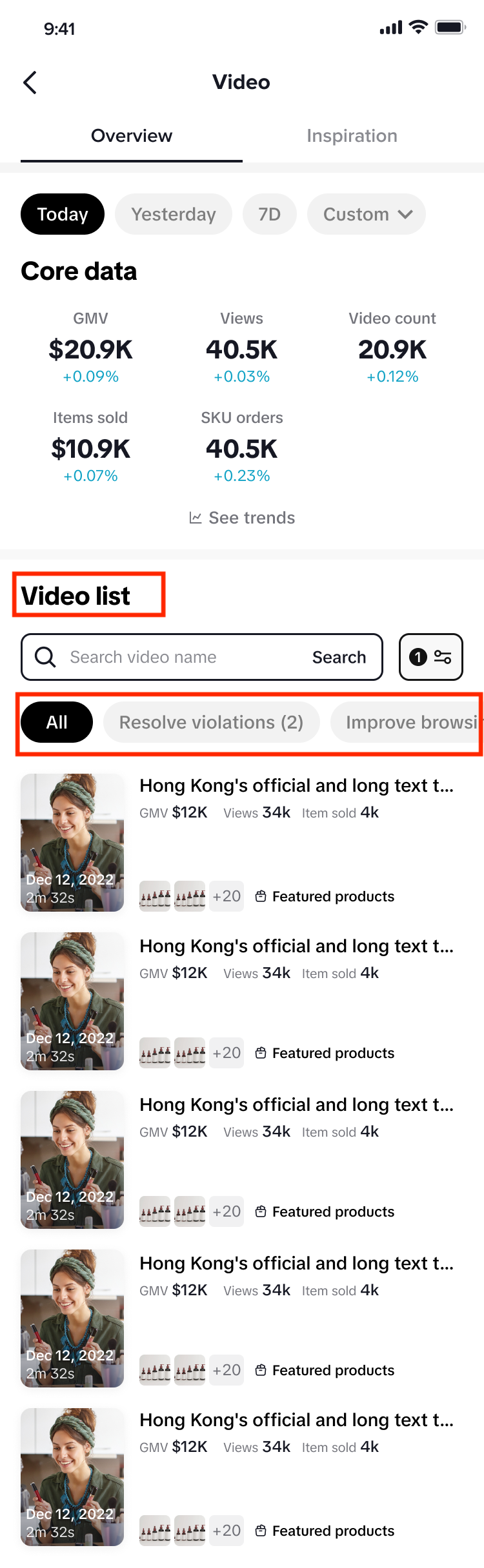 |
- You will notice that there are a number of filter selections in the [Video list] section and you can use these to quickly shortlist the videos that can be improved:
- All - these showcases all the videos that can be improved
- Violation - these videos contain violations
- Low VV - these videos have low video views
- Improve clicks - these videos have low click through rate on the products you are promoting
- Improve conversions - these videos have low click to order on the products you are promoting
- Improve GMV - the GMV on these videos is low and has potential to be improved
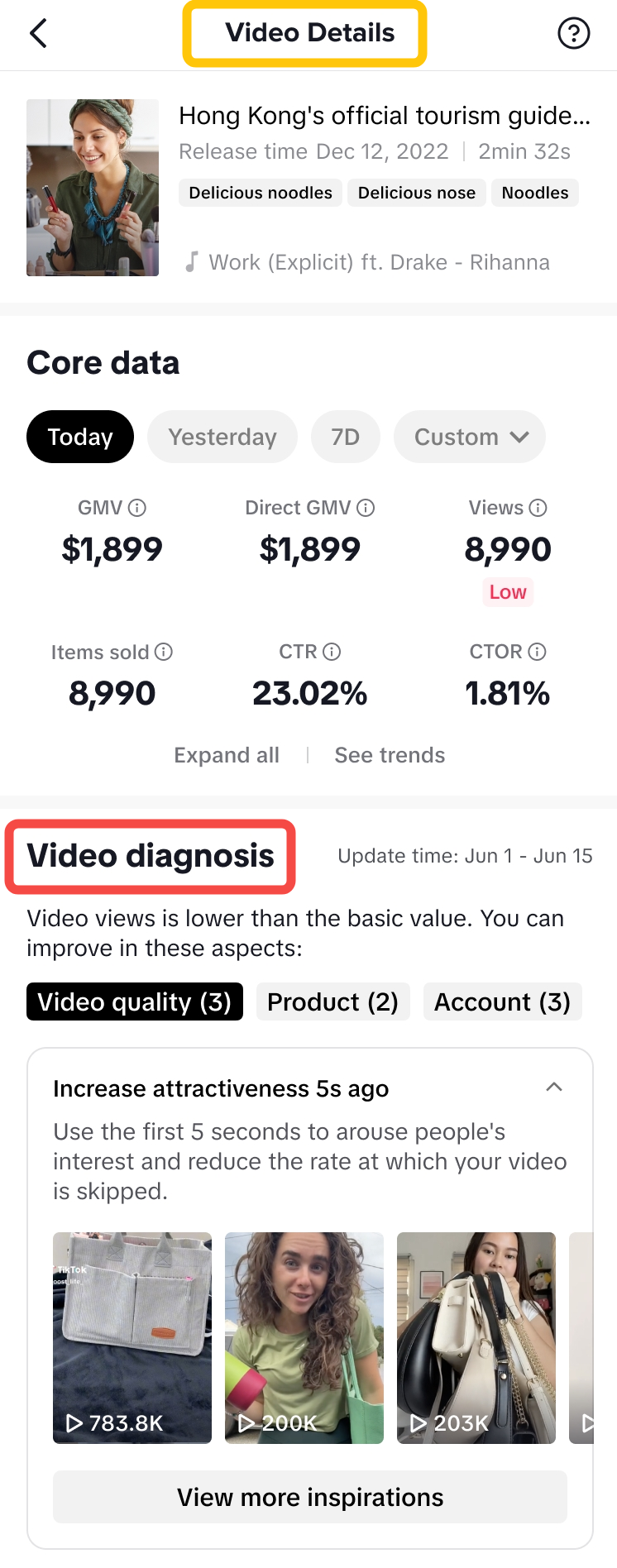
- When you click on a video under the Video list, you will be directed to the [Video details] page to get further insights about the overall performance of the video, including its core metrics.
Click on a specific video -> Land on Video Details page | |
 |  |
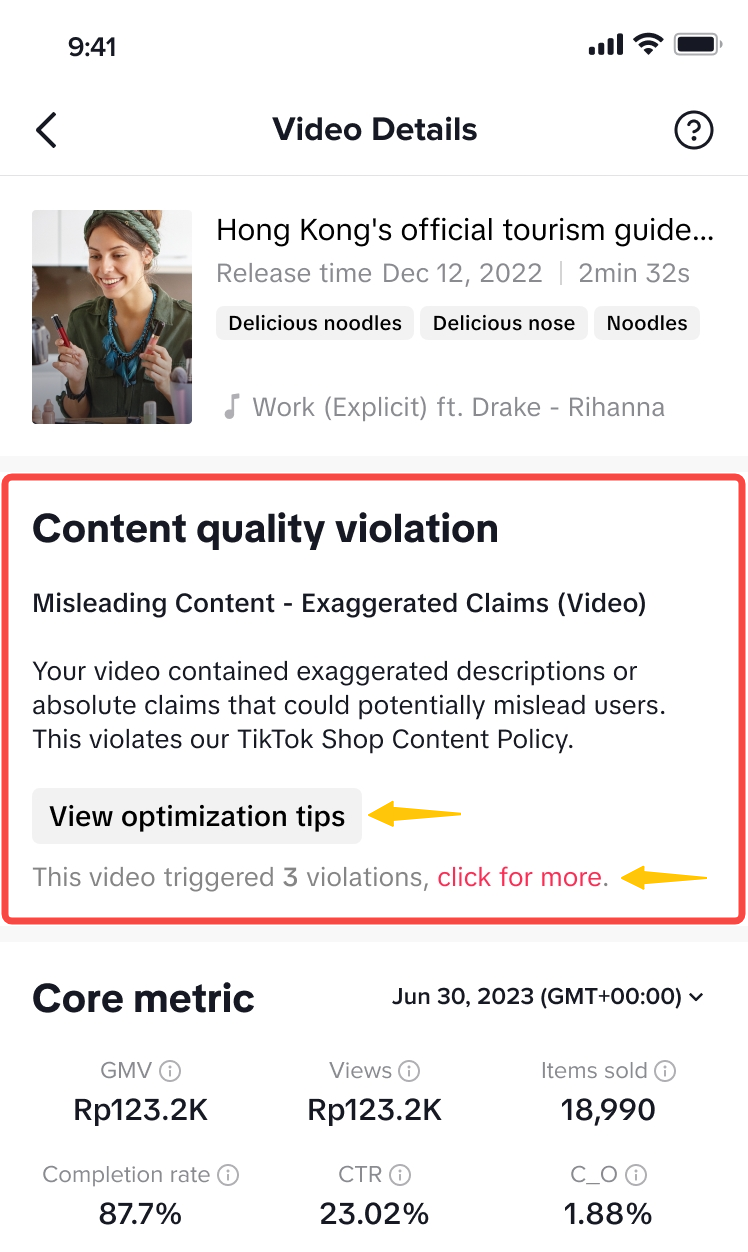
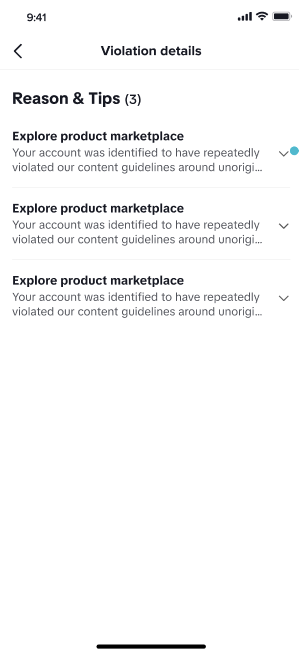
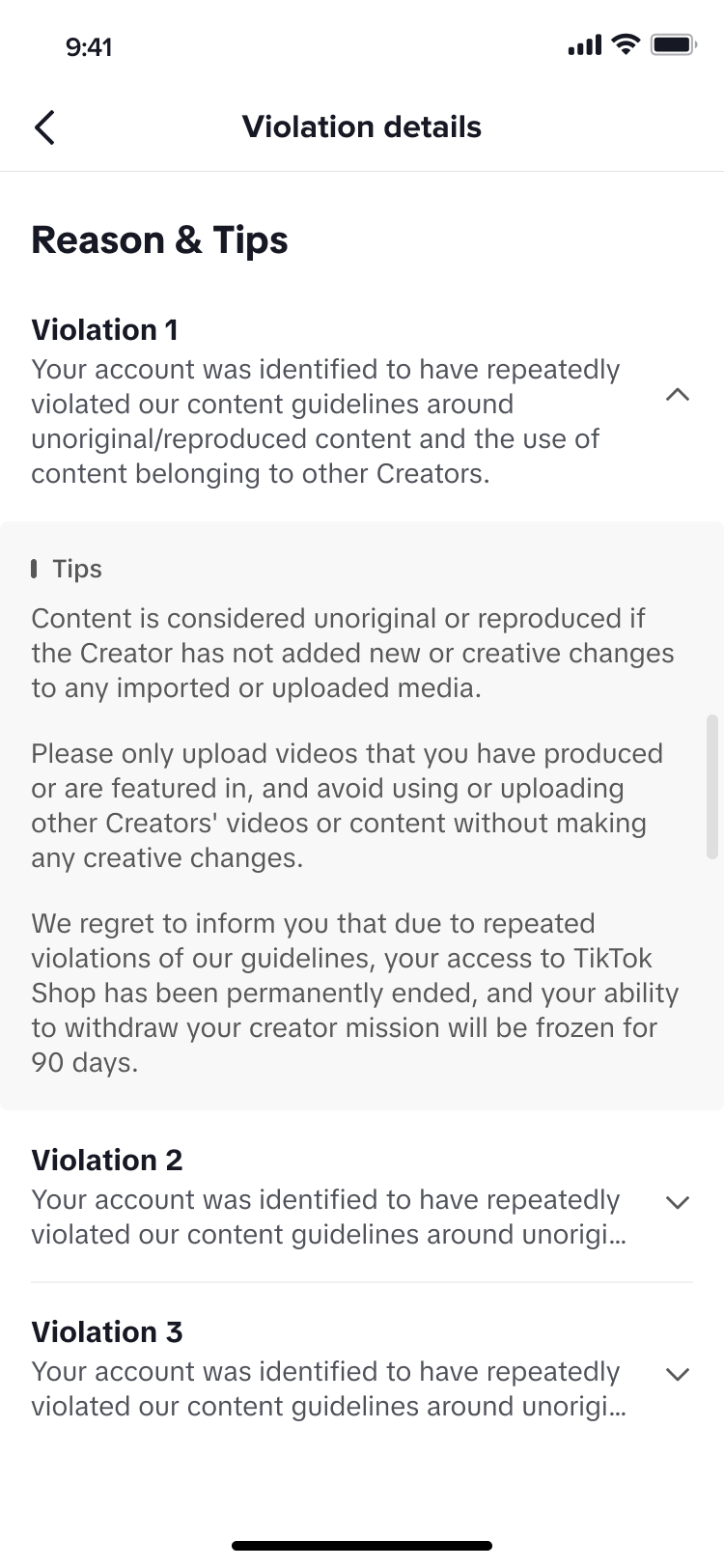
- If you have a content-related violation, this will appear to you before the Core data section.
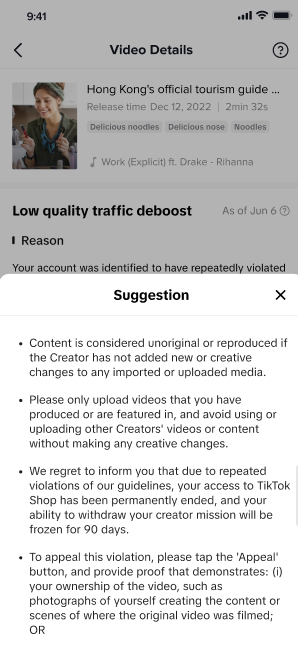
| Content quality violation | Upon clicking on "View optimisation tips", you will be able to view suggestions for improvement. | Upon clicking on "click for more", you will be able to view more specific violation details. Click into each violation for more information. | |
 |  |  |  |
- Below the core data section, you will find the [Video diagnosis] section.
| 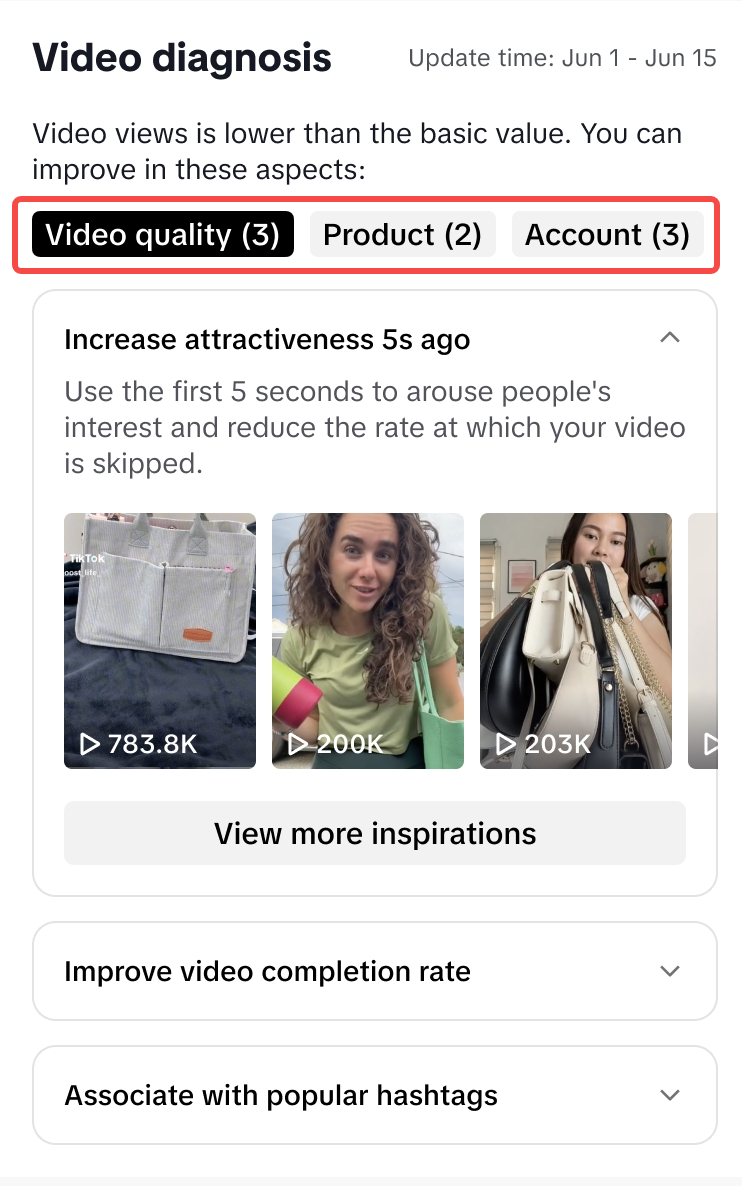 |
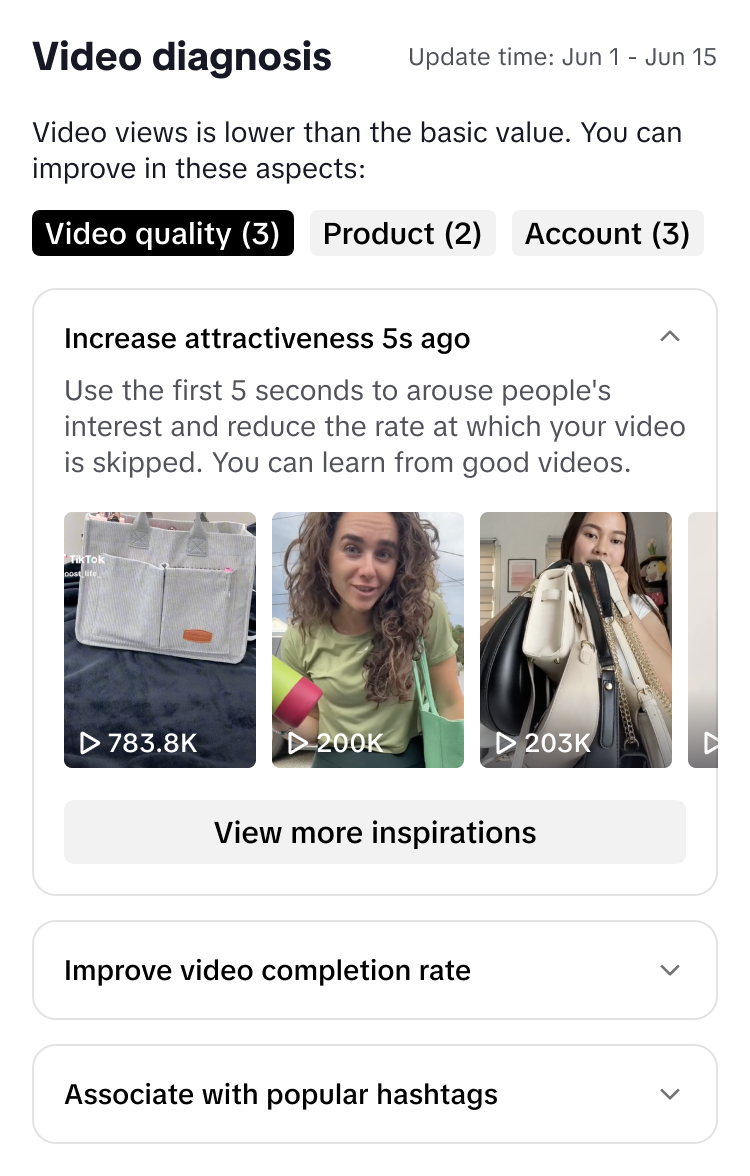
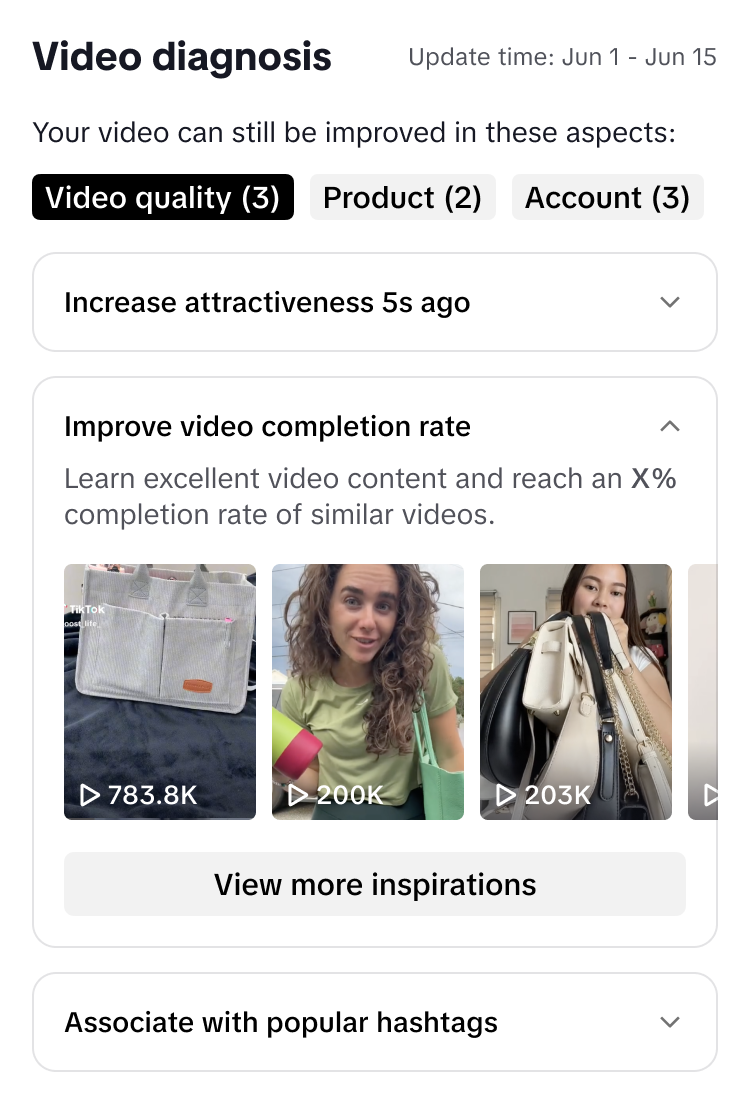
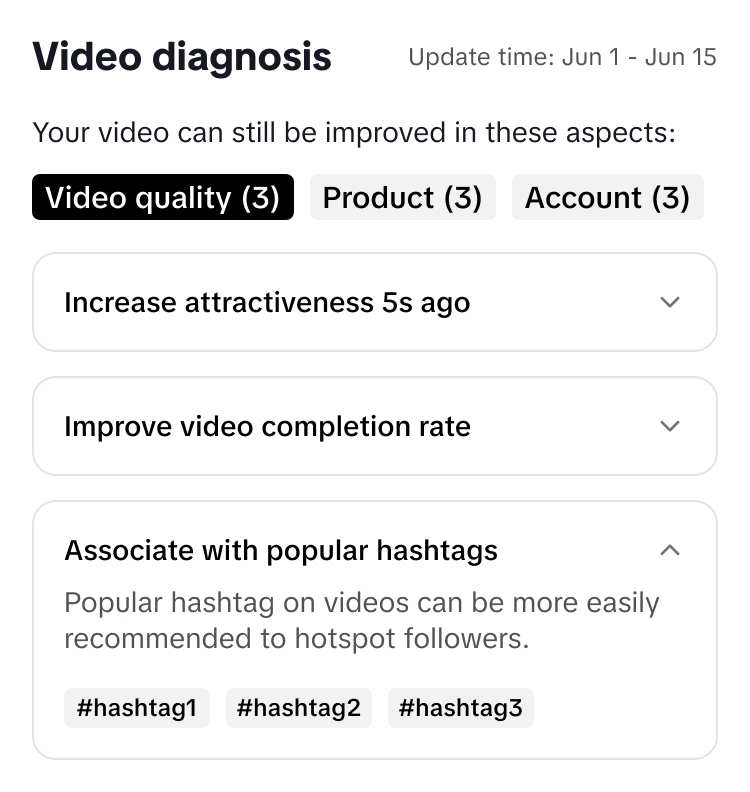
| Diagnosis Type 1: Video Quality | ||
Here you are provided with example suggestions on how to improve the quality of your videos | ||
Increase attractiveness | Improve video completion rate | Associate with popular hastags |
 |  |  |
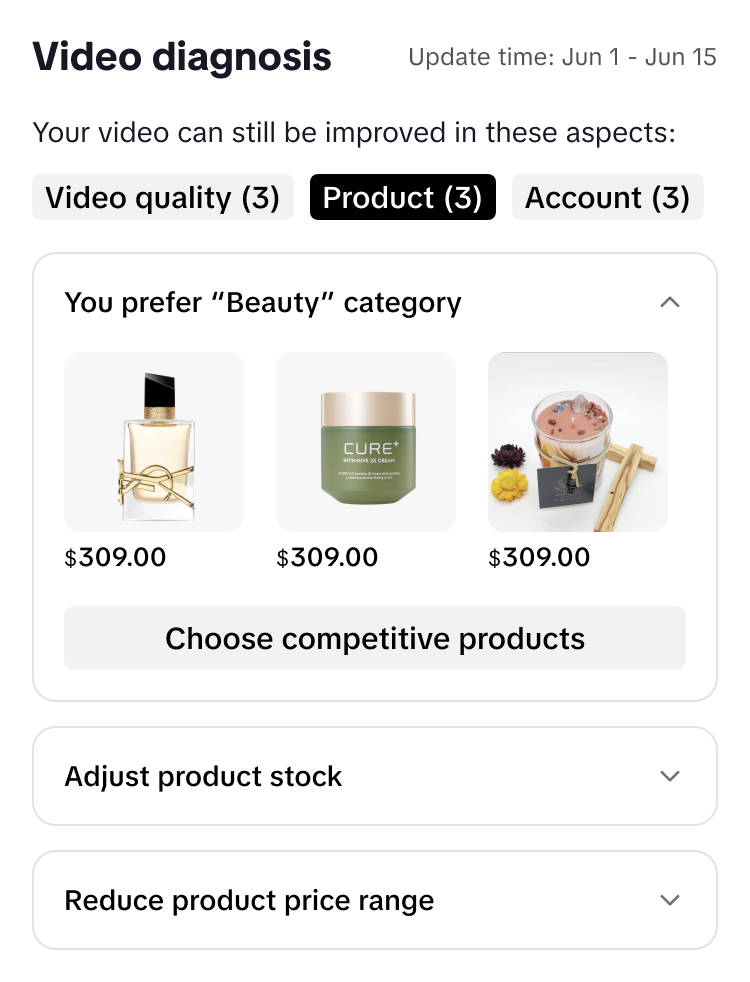
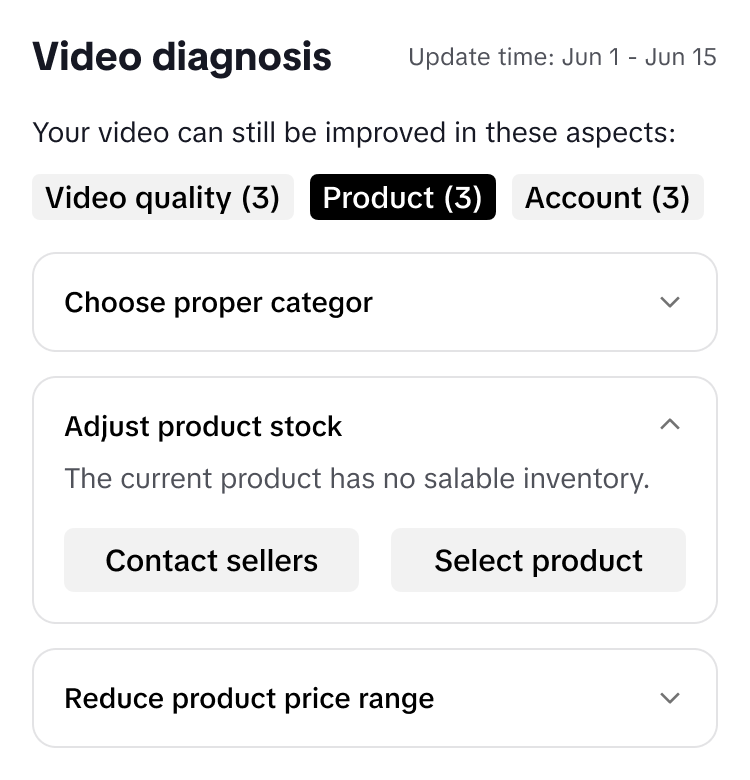
| Diagnosis Type 2: Product Issue | ||
Here you are provided with example suggestions on how to improve the product selections for your videos | ||
Choose a category | Check product stock availability or select products with more reviews | Reduce product price range |
 |  |  |
| Diagnosis Type 3: Account Issue | ||
Here you are provided with example suggestions on how to improve your account quality | ||
Increase followers | Increase posting frequency | Get support |
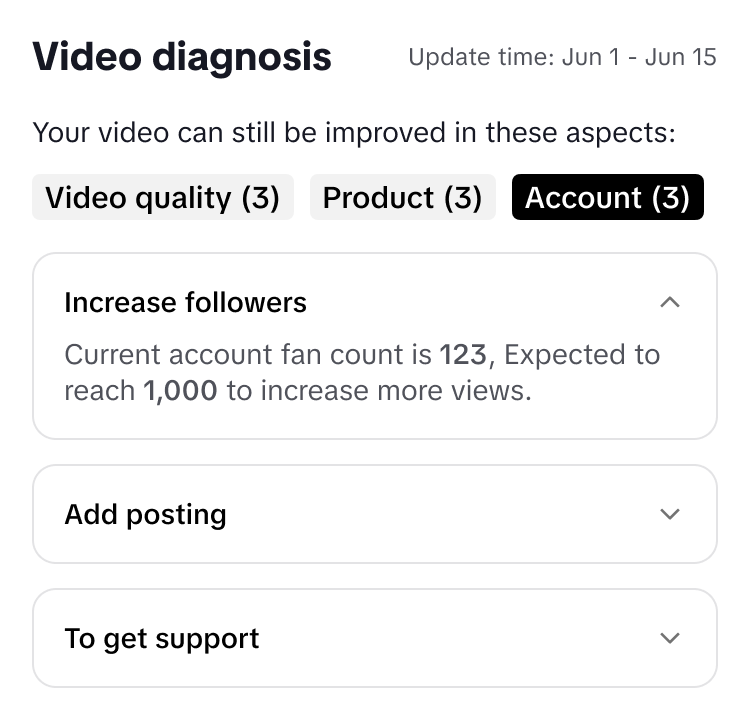 | 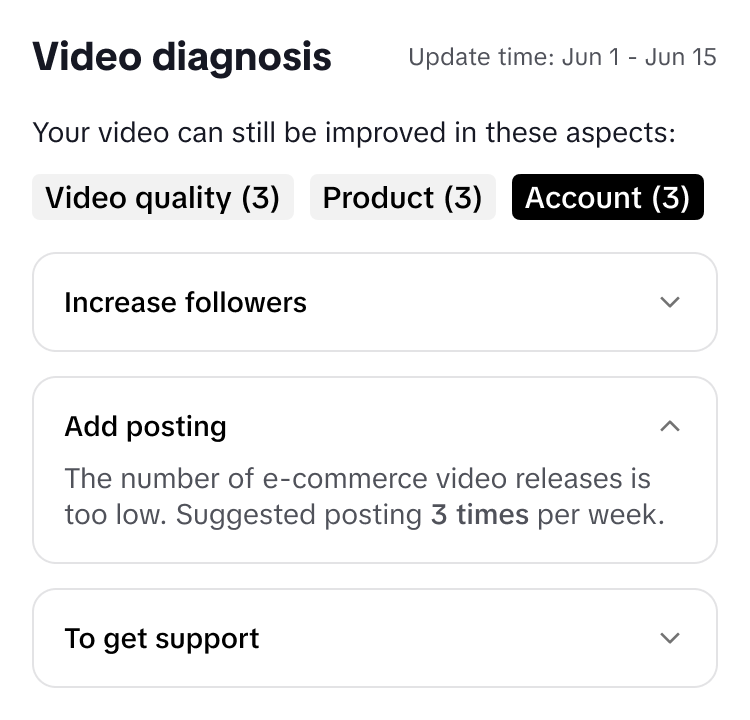 | 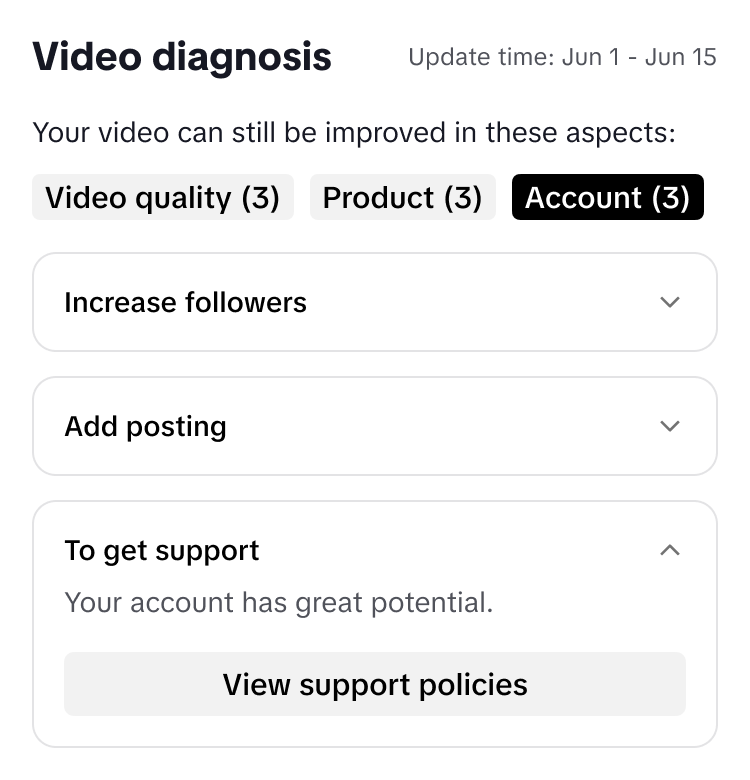 |
FAQs
- Is the data on Video Diagnosis real-time?
- Will I be shown a Video Diagnosis option if my videos are performing well?
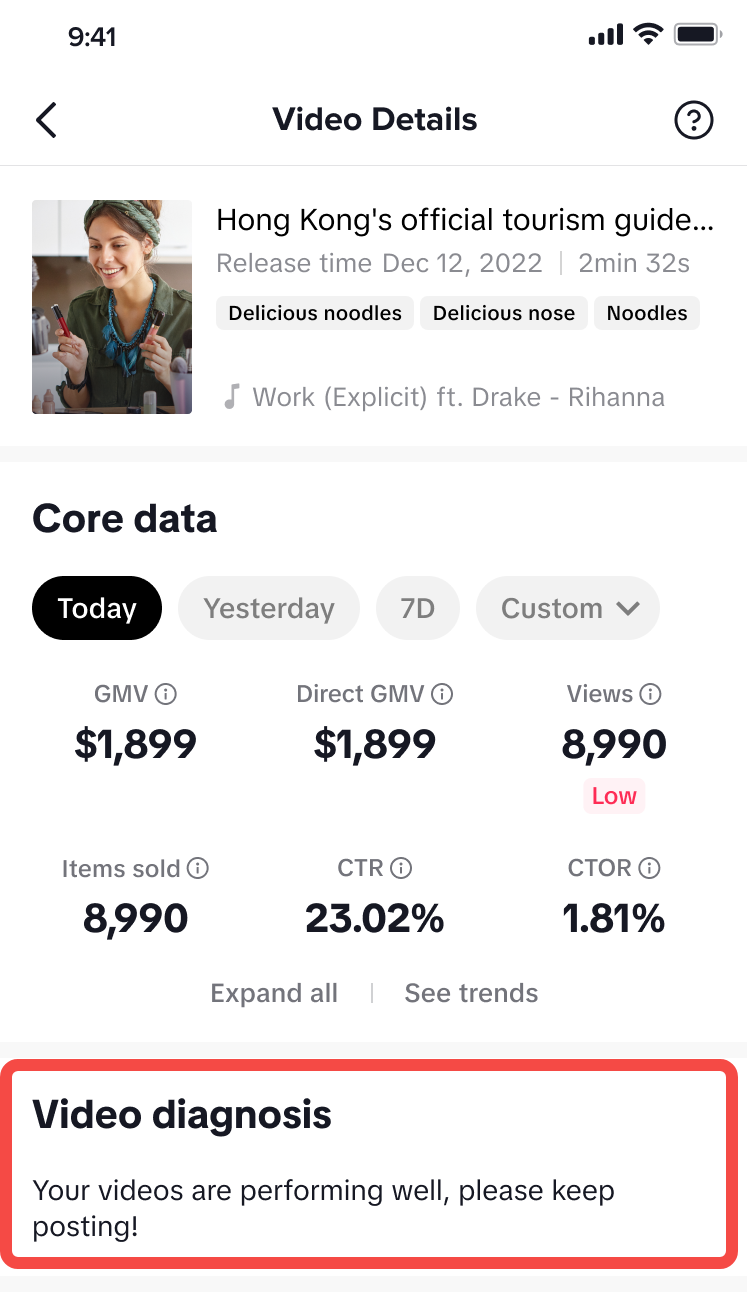 | If your videos are performing well and there are no suggestions for improvements, then you will be shown this display instead. Keep up the good work! |
You may also be interested in

Analyzing Video Performance for Creators
This article will show you how to use the Video Performance feature to understand how you can improv…

Strategi Menemukan Produk Trending
Kerjakan test pada link berikut untuk bisa masuk ke group edukasi ordal 'START': TEST: Kerjakan te…

3 Fitur Untuk Menemukan Konten Trending di TikTok
Selain kualitas dari video yang kamu post, tahukah kamu bahwa semakin 'relate' dan relevan konten ka…