

Inspiration Center
10/01/2025
This article will guide you on how to maximize the Inspiration Center on your Creator Center. The Inspiration Center is perfect for new Creators who want to learn how to promote both affiliate and non-affiliate products (the system will find similar products) by watching high-quality content from top-performing Creators.
It’s also a great tool for experienced Creators to discover fresh ideas and new strategies by seeing how others are driving results. You can take what works and apply it to your own next promotion.

Simply browse the Creator Center homepage or toolkit to find quick links that lead you to the inspiration you need.

What you’ll find on the LIVE Detail Page:
Types of Best PracticesBest Practices show how effectively a Creator maximizes their LIVE session. They can also serve as a guide for you, the LIVE user, to discover strategies for improving your own sessions. Review the good practices listed below and experiment to find the combination that works best for your viewers.

It’s also a great tool for experienced Creators to discover fresh ideas and new strategies by seeing how others are driving results. You can take what works and apply it to your own next promotion.
What is the Inspiration Center?
The Inspiration Center is a place where you, the Creator, can find top-performing LIVE and Short Videos to get ideas and inspiration from.Why use the Inspiration Center?
- Feeling stuck or unsure how to level up your content? Get inspired by top-performing and trending videos in the Inspiration Center.
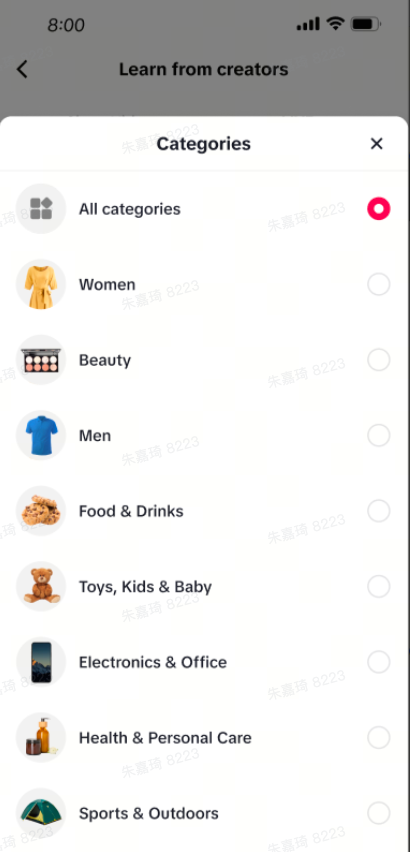
- Curious how other Affiliate Creators are promoting products in your niche? Explore how different categories are being marketed.
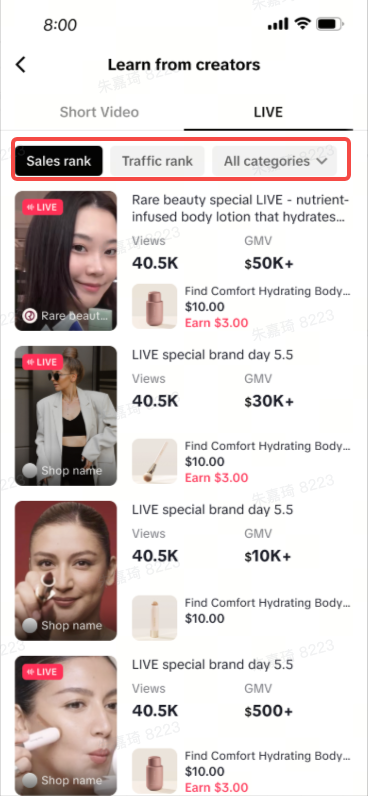
- Want to see what’s working in LIVE selling? Browse thousands of LIVE sessions and filter by sales or traffic rank to find the best performers.
Where to find the Inspiration Center?
You can access the Inspiration Center directly through the Creator Center. There are multiple entry points inside the Creator Center that will guide you to different parts of the Inspiration Center, including sections for trending content and top-performing LIVE sessions.Simply browse the Creator Center homepage or toolkit to find quick links that lead you to the inspiration you need.
| The Inspiration Center has an entrance under the Videos tab when you enter the Creator Center. | An Inspiration Center entrance can be found in the TikTok Shop toolkit. For the LIVE Inspiration Center, the entrance is the first button you will see as it is newly released.
| The LIVE Inspiration Center will also have an entrance under the Opportunities module on the Creator Center home page. |
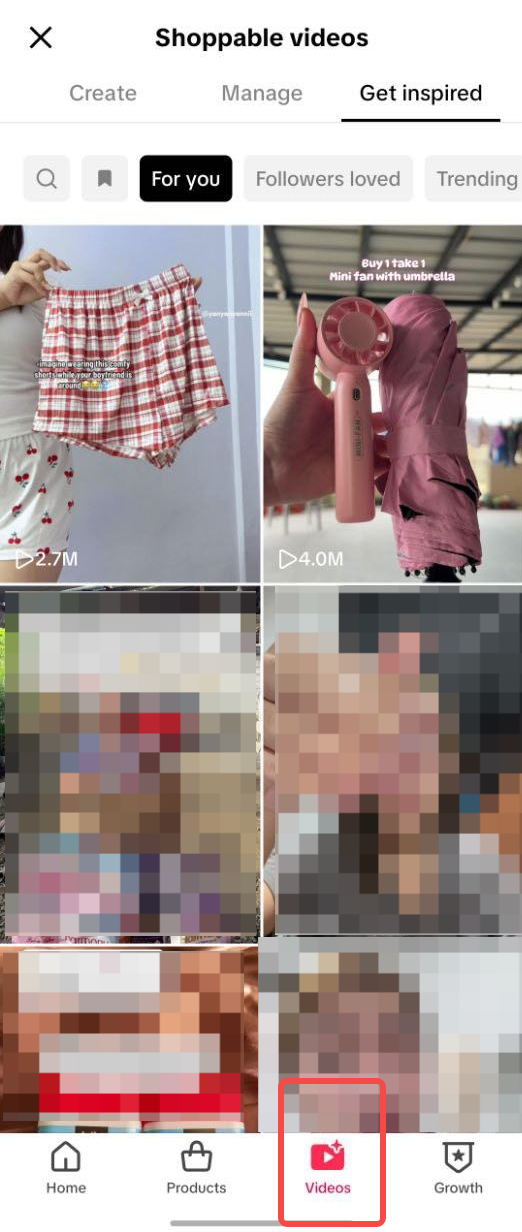 | 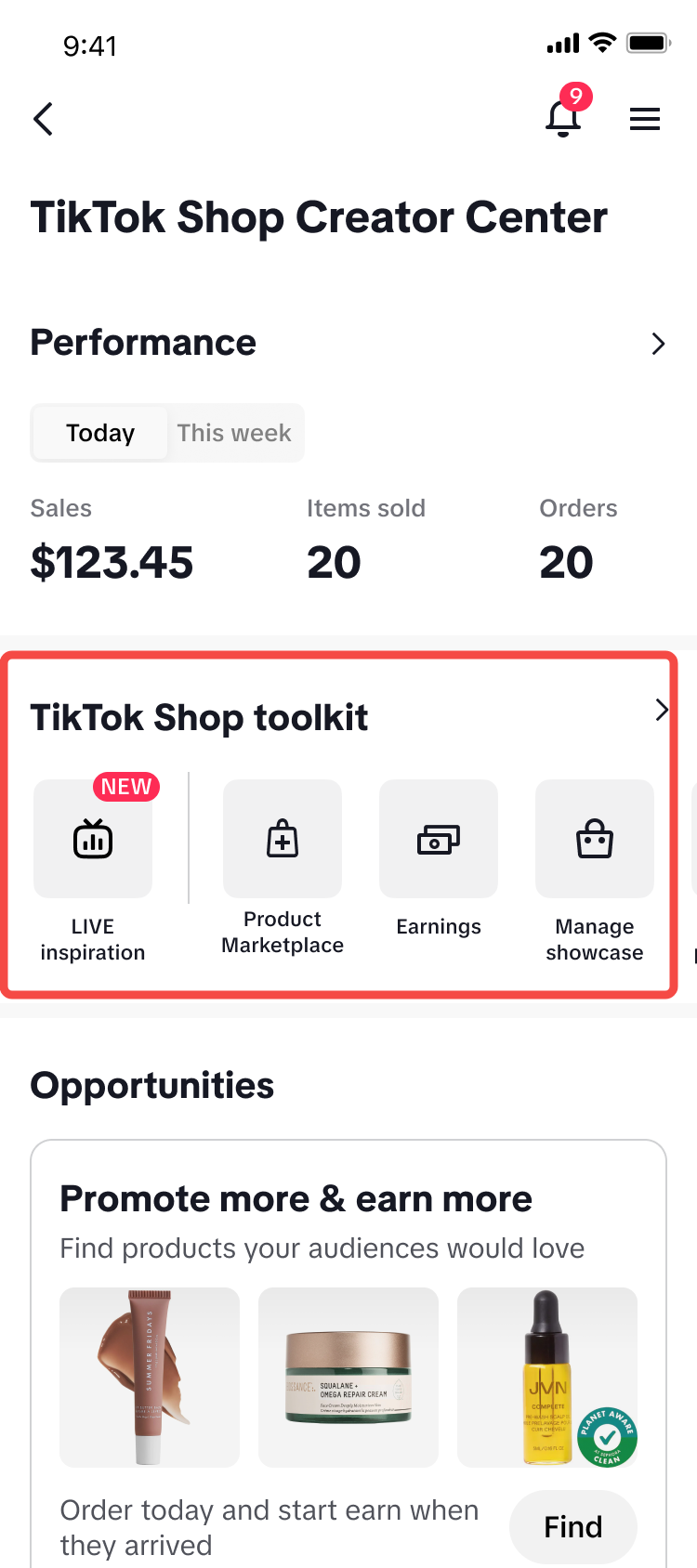 | 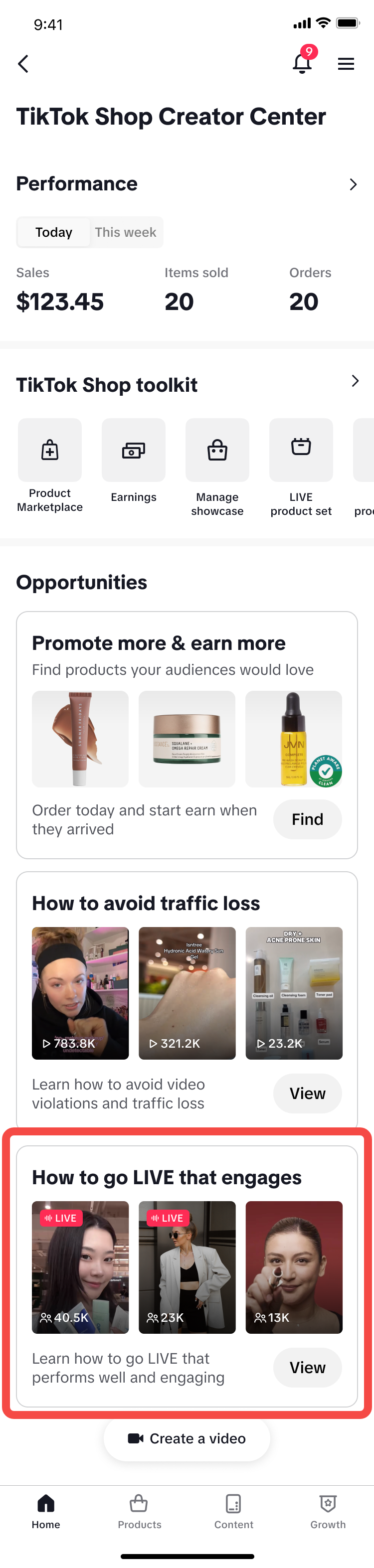 |
LIVE Inspiration Center
The LIVE Inspiration Center is a central hub for Creators to learn and grow by browsing through high-quality LIVE sessions.LIVE list page
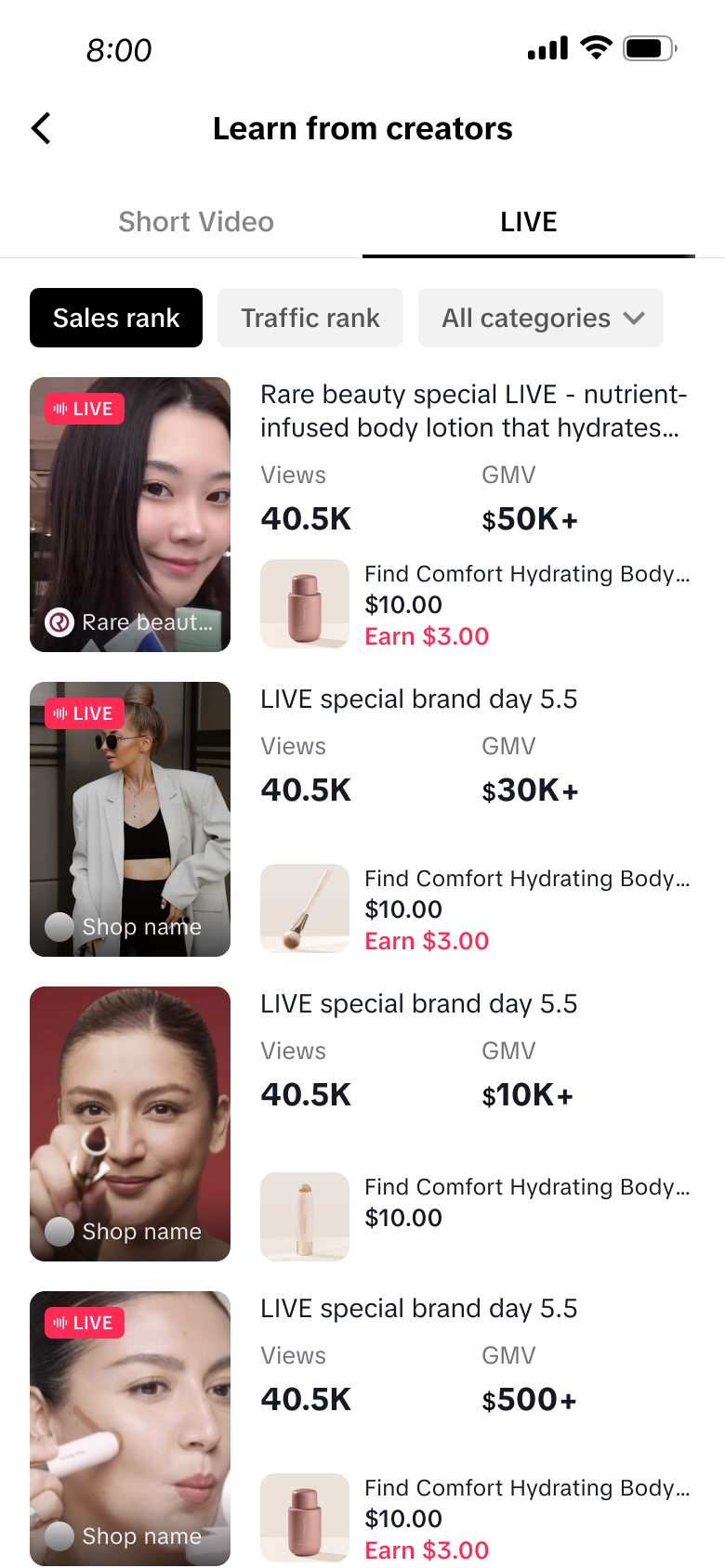 | What is it?The LIVE list page gives you access to a curated list of high-quality LIVE sessions, both ongoing and finished.How can you use it?Overview:Each session includes key metrics like Views and GMV, so you can quickly see how well it's performing.
|
LIVE Detail page
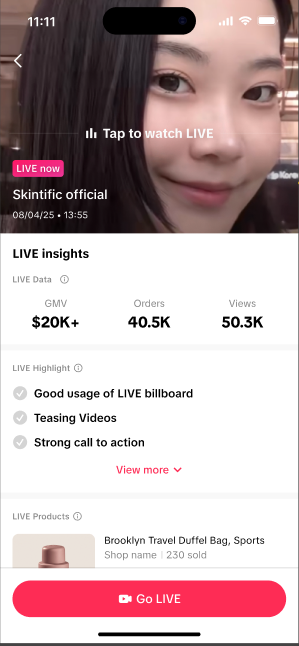
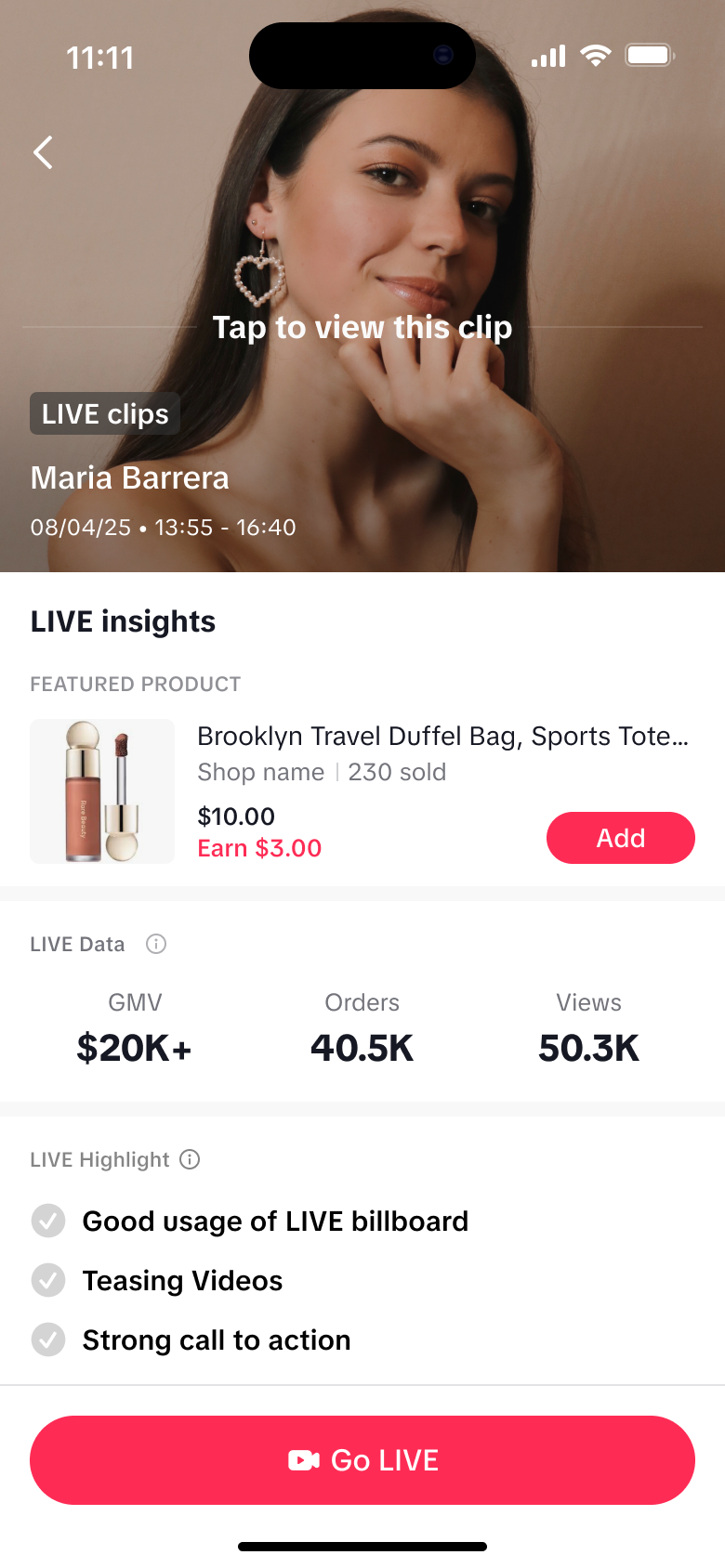
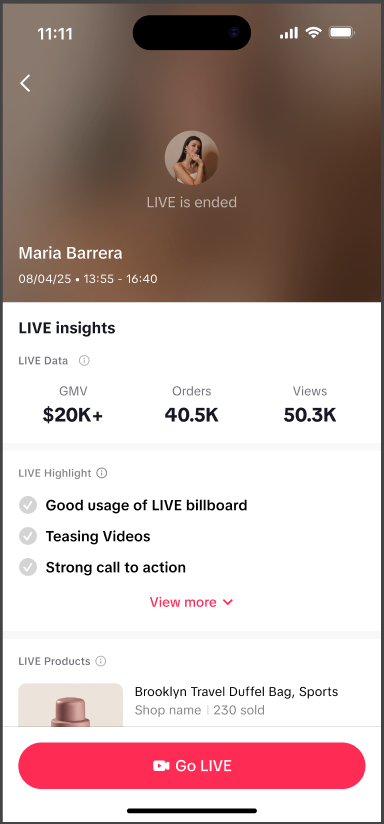
The LIVE detail page shows all the data from ongoing and past LIVE Sessions that the system deems as high-quality. This page helps you understand what worked by breaking down key results and performance metrics.What you’ll find on the LIVE Detail Page:
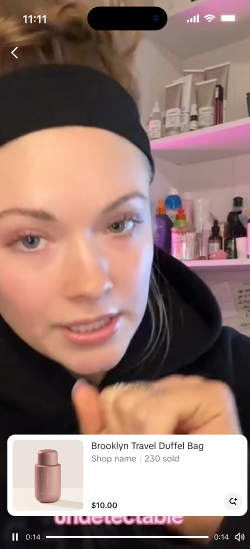
- Watch or Rewatch: If the LIVE is ongoing, you can watch it in real time. If it’s ended, you can view highlight clips showing moments when the Creator drove orders and GMV.
- LIVE Highlights: Key moments are marked to show what the Creator did well — based on system-detected best practices.
- Product Opportunities: Observe which products are driving the most sales for LIVE Creators, and use those as inspiration for your next LIVE.
- Go LIVE: Feeling inspired by all the LIVE session data you've read? Go straight ahead and start a LIVE session from the Inspiration Center!
| The detail page of an ongoing LIVE shows an estimate of its current sales (GMV) and order count | When you open the detail page of a finished LIVE, you'll be able to view clips from the session | For LIVE Sessions with no LIVE clips, it will simply provide the data for your insights |
 |  |  |
The figures shown here are merely an estimated range to provide a glance into the livestream's effectiveness, and does not represent the entire exact value. | ||
LIVE Highlight
Best Practices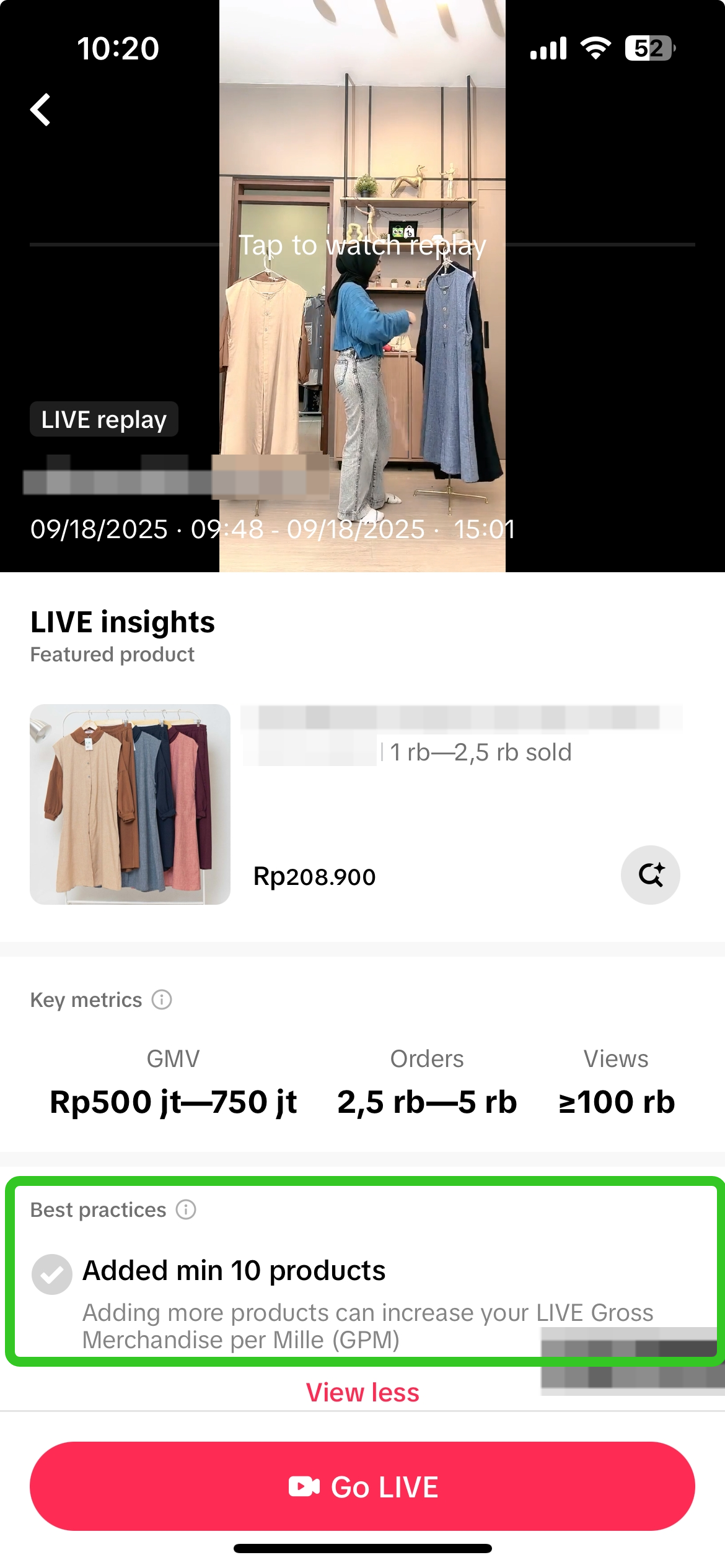 | What are Best Practices?
|
| Best Practices Type | Instructions |
Communicates in the local language | The LIVE user speaks in a common or local language most of the time (at least 80%). |
Host is visible and appropriately dressed |
|
Host is enthusiastic when interacting with the product or audience | The LIVE user shows excitement and confidence by smiling, speaking in a lively voice, or using energetic movements when talking about the product or with the audience. |
Host actively interacts with audience |
|
Clear product demonstration |
|
Strong call-to-action |
|
Use of creative content presentation formats |
|
Utilizes the Live Billboard feature | Used the LIVE Billboard/LIVE Board feature at least once during the session |
Utilizes Live Giveaway feature | Used the LIVE Giveaway feature at least once during the session |
Provides detailed product specs and features | Content Requirements: The LIVE session must give detailed product specifications so viewers can make an informed purchase. For Bags, Fashion & Beauty:
|
Clearly communicates the value of the product | Clearly explains the main benefit of either (1) a specific feature of the product or (2) using the product overall. Avoid vague or generic statements and make it clear how the product adds value to the user.Option 1 – Specific Feature + Benefit: Show one product feature and explain its matching benefit. Examples:
|
Highlights target users or usage scenarios | The LIVE Session should clearly state who the product is for, such as a specific age group, location, lifestyle, or need. The LIVE Session should show situations or scenarios where the product is useful or can be used. |
Promotes special deals, discounts, or bundles | The LIVE user must give viewers clear details about sales and promotions, including:
|
Shares information that builds buyer confidence (e.g. guarantees, certifications) | The LIVE user must share product fulfilment information to address customer concerns, including:
|
Does not violate content policies | Policies: No irrelevant promotions, still frames, or non-interactive content. |
Content is not of low-quality | Low Quality Content: Avoid replays or poorly produced videos. |
Effective livestream duration (>45 mins) | Live Duration: Each session must last at least 45 minutes. |
Covers peak viewer hours ("Golden Hours") | Start your LIVE session during the prime period at 19:00–23:00 local time.
|
Include at least 1 branded product |
|
Prices are competitive and attractive | The top-selling product in the LIVE session must be price competitive by meeting these conditions:
|
Products are clearly featured | At least one promoted product must be visible on screen most of the time. Ideally, it should always be in the main frame; at minimum, it should be shown for at least half of the live session. |
Background is clean and organized | The LIVE session setting should be tidy and free from distractions. Decorations should match the brand’s image or the product being sold. |
Livestream layout and visual elements are well-organized |
|
Livestream scenario is creatively designed | Create a professional and visually appealing LIVE session that engages and immerses viewers.Background Types:
Creative Scenarios:
|
Image is clear and products are in focus |
|
Image quality is stable and smooth | The LIVE session should be stable, without freezing, shaking, or camera movements that disrupt the viewing experience. |
Audio is clear and volume is appropriate |
|
Audio and visuals are synchronized |
|
Post teaser videos in advance to build anticipation | Post teaser videos up to 7 days before the live session, sharing product details, promotions, or key selling points to attract potential viewers. |
LIVE Clips
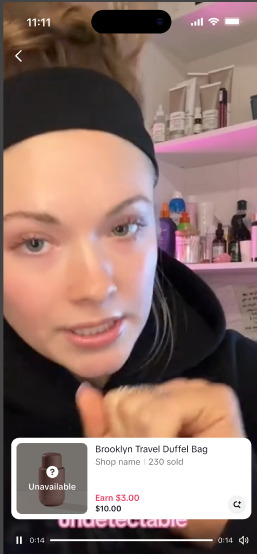
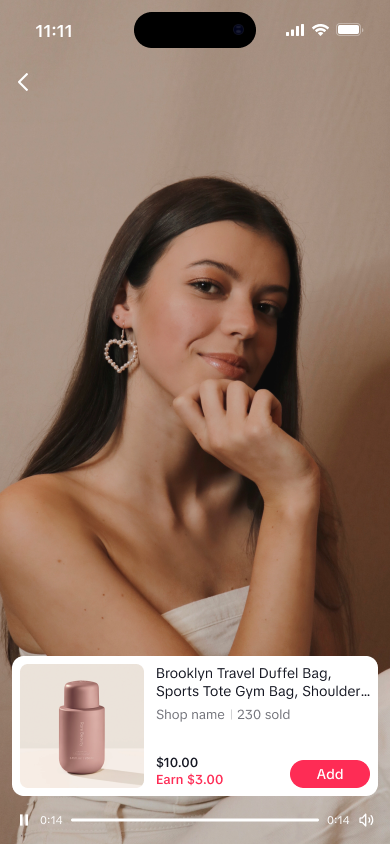 | LIVE Clips are carefully selected snippets from a Creator's past LIVE session
  |
Permission Settings
By default, all creators' content has been automatically enabled by the platform to be displayed across various channels such as the Inspiration Center, LIVE Diagnosis and potentially via other content for marketing or educational purposes. This allows you to easily access the LIVE Inspiration Center to explore top-performing content and discover fresh styles and strategies to elevate your own LIVE experience.Creators have the freedom and flexibility to toggle off this permission setting at anytime, by simply heading to Privacy Settings. Follow these steps below: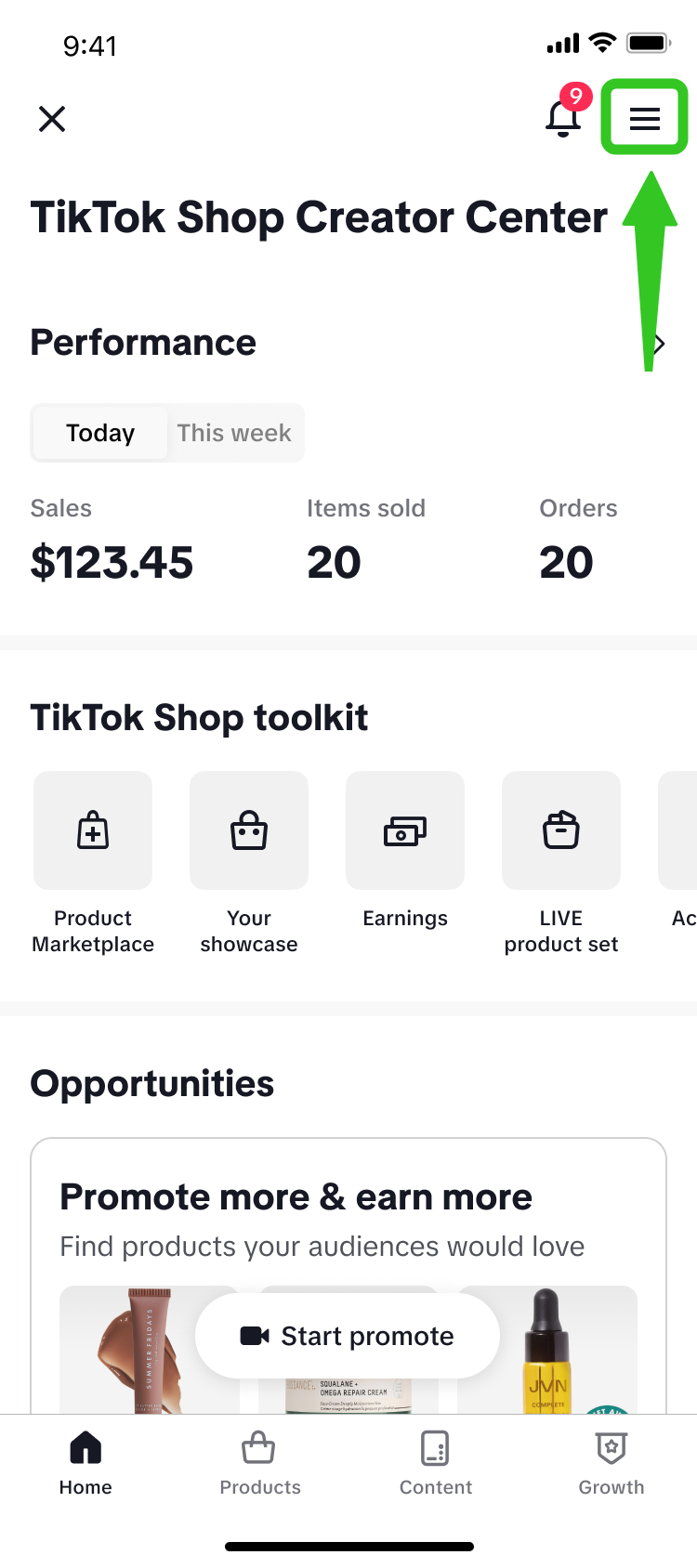 | 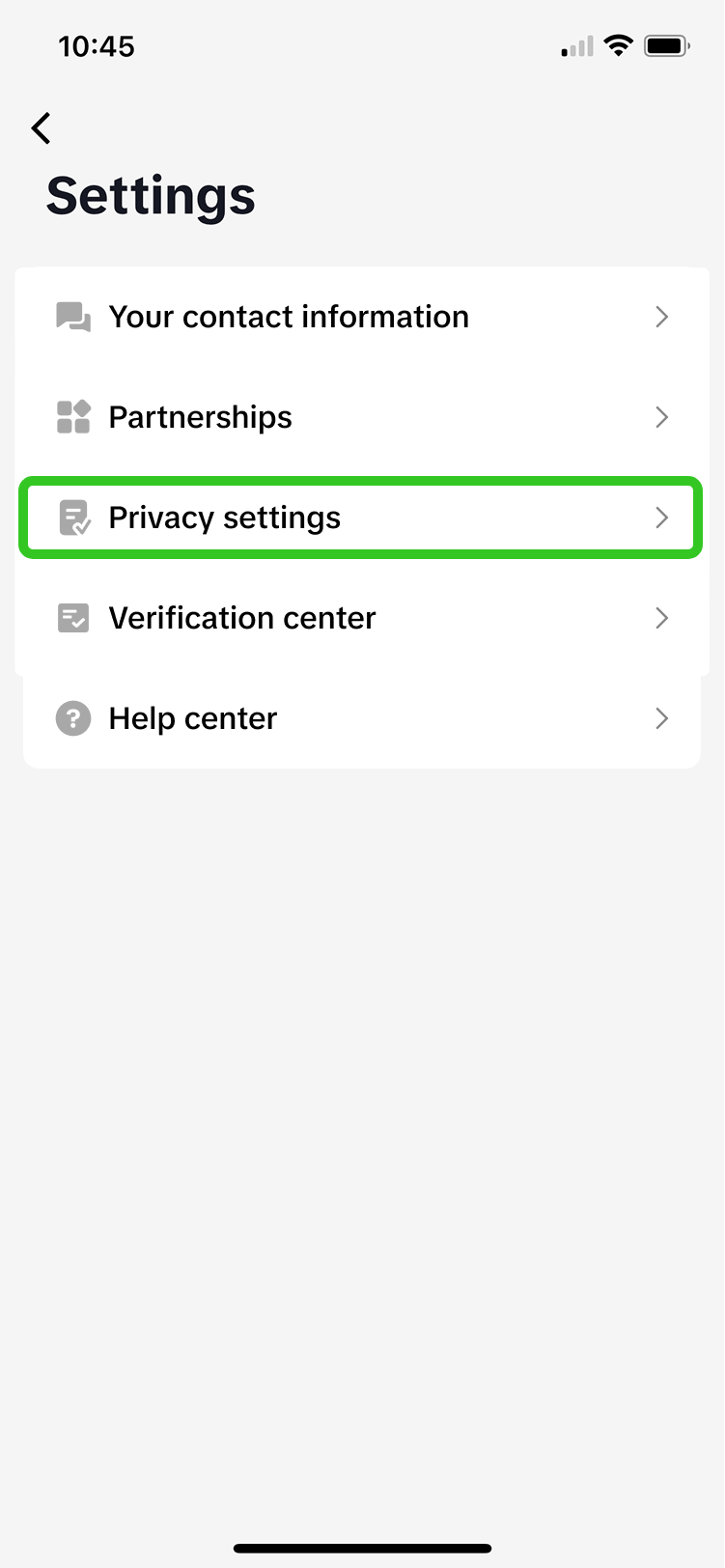 | 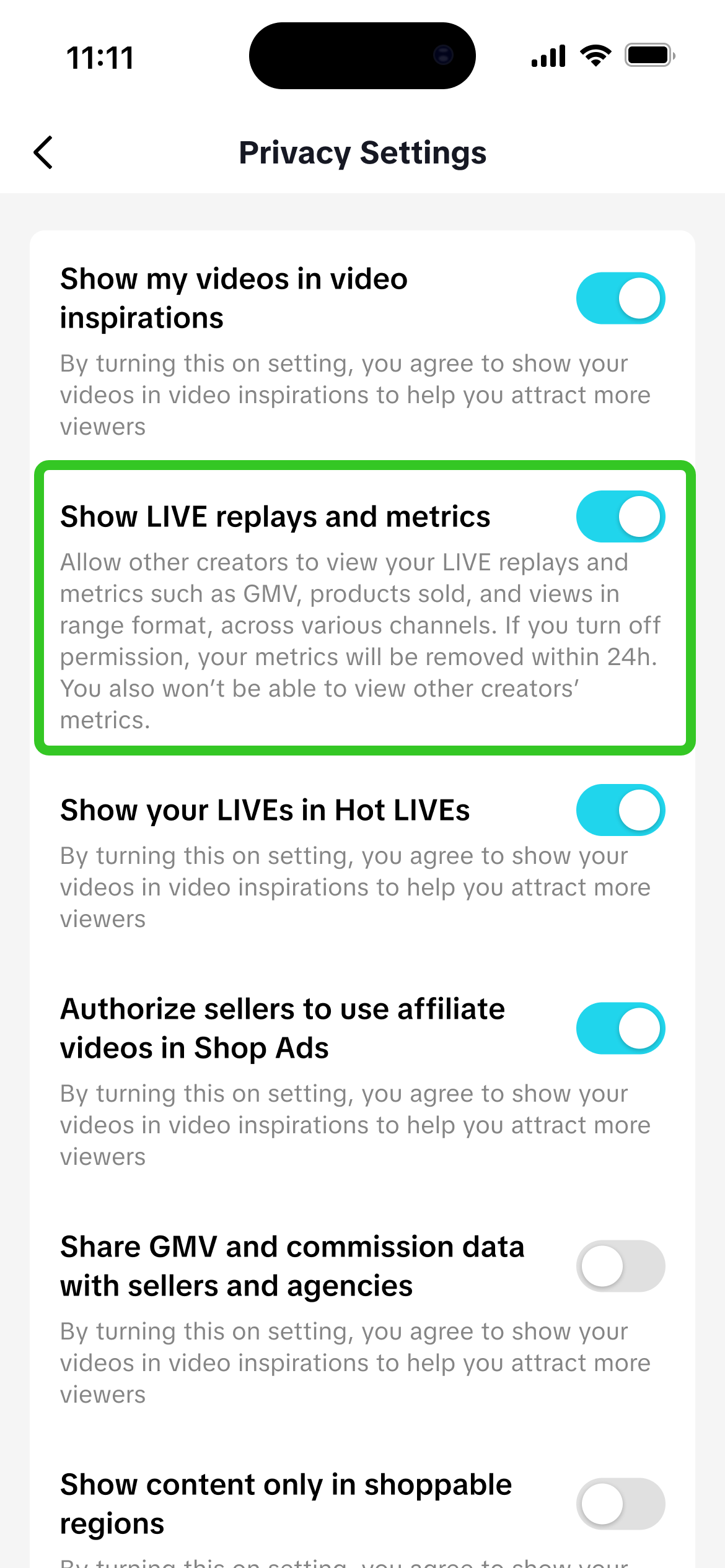 | 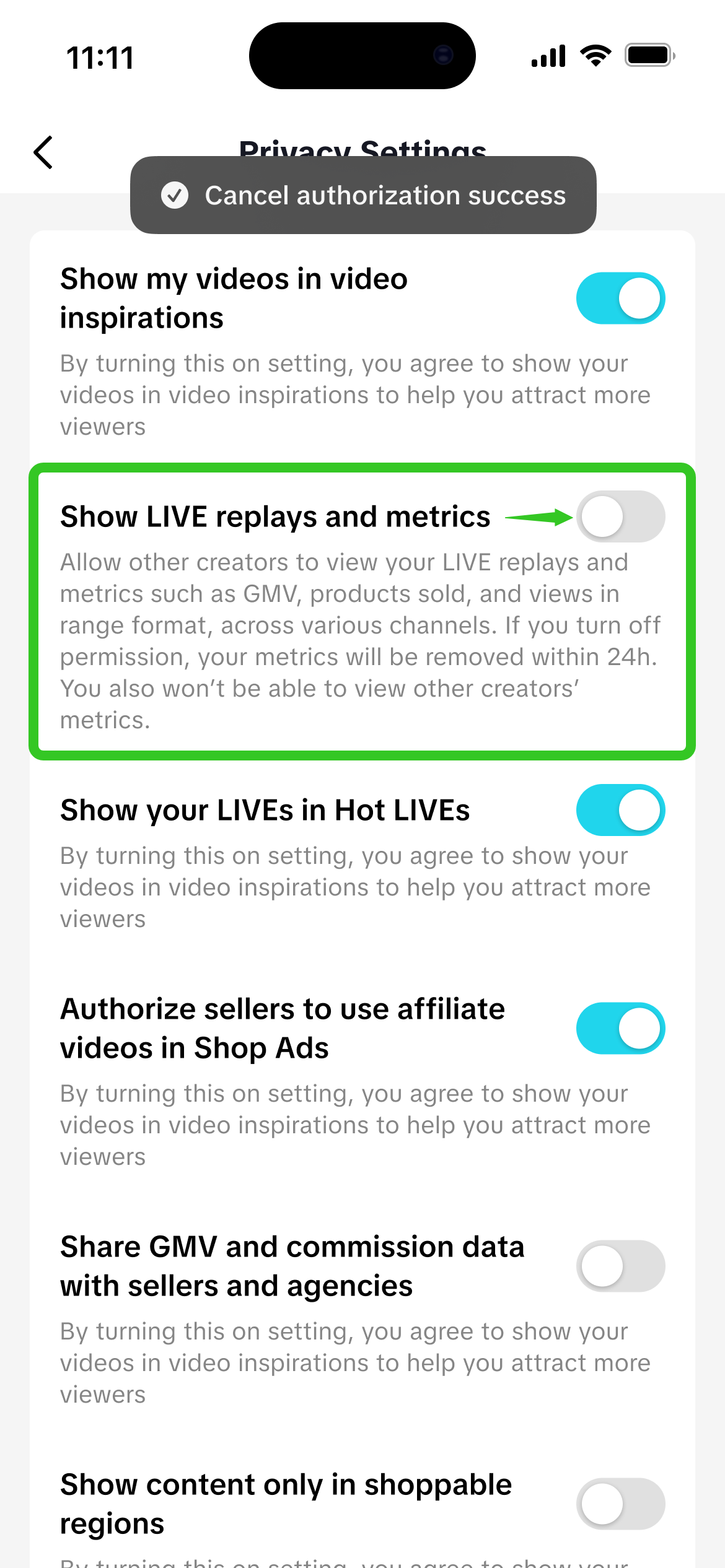 |
| Step 1:At the Creator Center, click on the 3 lines in the top right corner. | Step 2:Click on Privacy settings. | Step 3:At [Show LIVE replays and metrics], swipe left to toggle off this permission setting, upon which the toggle switch will have turned grey. It may take up to 24 hours for the system to fully remove your content from the LIVE Inspiration Center. | |
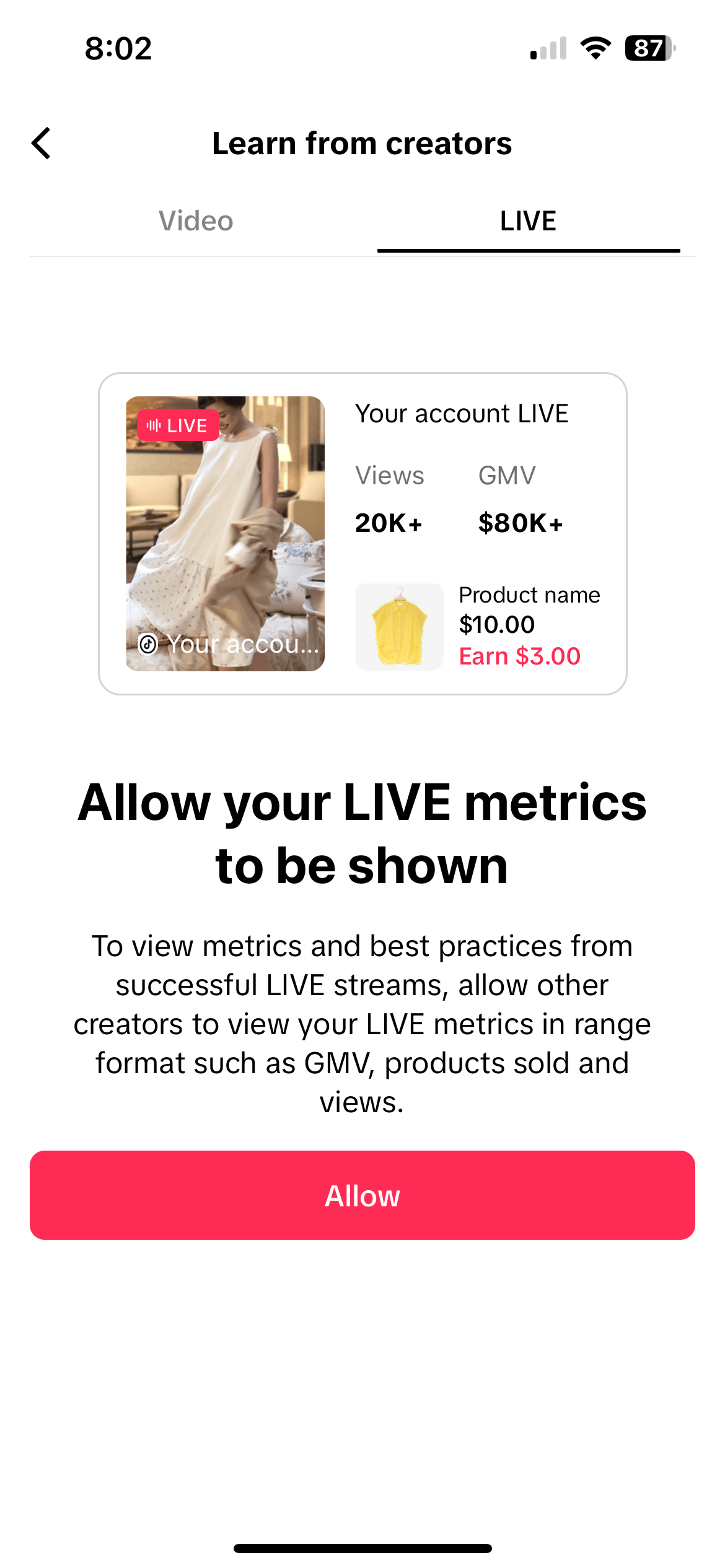 | Do note, if you have turned off the permission setting for [Show LIVE replays and metrics], you will be unable to access the LIVE list within the LIVE Inspiration Center and will see this page instead.However, you can still browse the Video tab to get inspiration from other creators' short video content. |