

Video Performance
01/16/2025
This article teaches you how to use Video Performance. Specifically, it will show you how to view your video real-time performance, track video details performance, view high-performing accounts, and more. By the end of it, you will not only understand your videos' performance better, you will also have actionable insights to improve them.

Where to View Video Performance
- On Data Compass, head to Livestream & Video, Video, then click on Videos Performance from the drop-down menu.
- On the right is a box showing top revenue and top video views videos.
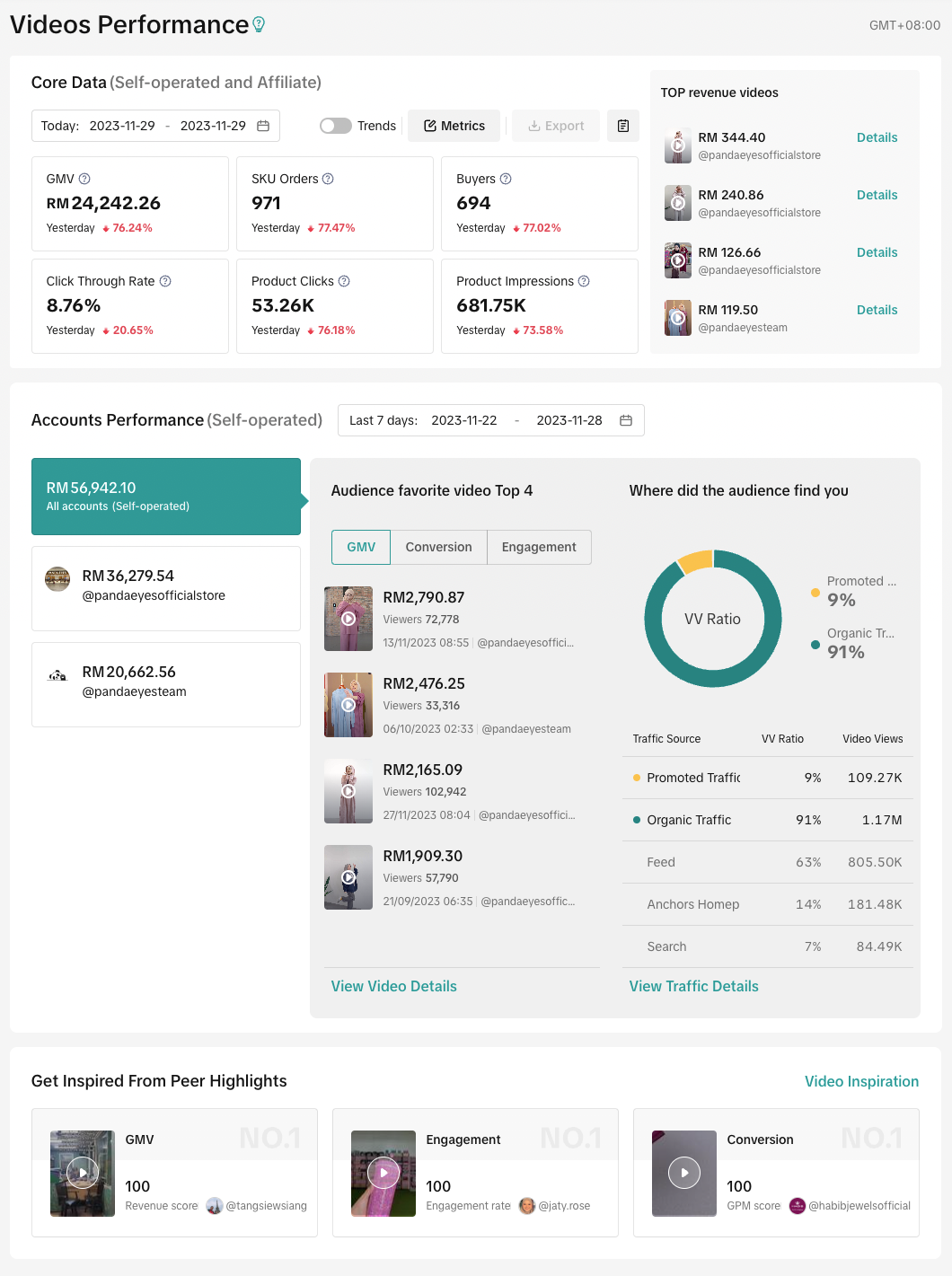
- There are three main tabs here:
Core Data
These metrics show the performance of your videos in real-time or a selected time period. There are 7 metrics by default: GMV, SKU Orders, Buyers, Click Through Rate, Product Clicks, Product Impressions and Click to Order Rate.
Hover over the ? to view the metrics' definitions.
You can download the performance and view trend charts.
You can also subscribe to a different set of six metrics or mix with the default ones. The other metrics include Video Views, Video Product Viewers and GPM.
Accounts Performance
Displays the total or each account's performance data. The time period by default is 7 days, you can change to 7 days or 28 days.
By default, you will see the performance of all accounts. To view an individual account, simply hover your mouse over it. Under each account, you will see their GMV and TikTok handle.
You will then be able to know the top 4 videos audiences love about the account, and this is sorted by GMV, Conversion or Engagement. Click on view Video Details for more information.
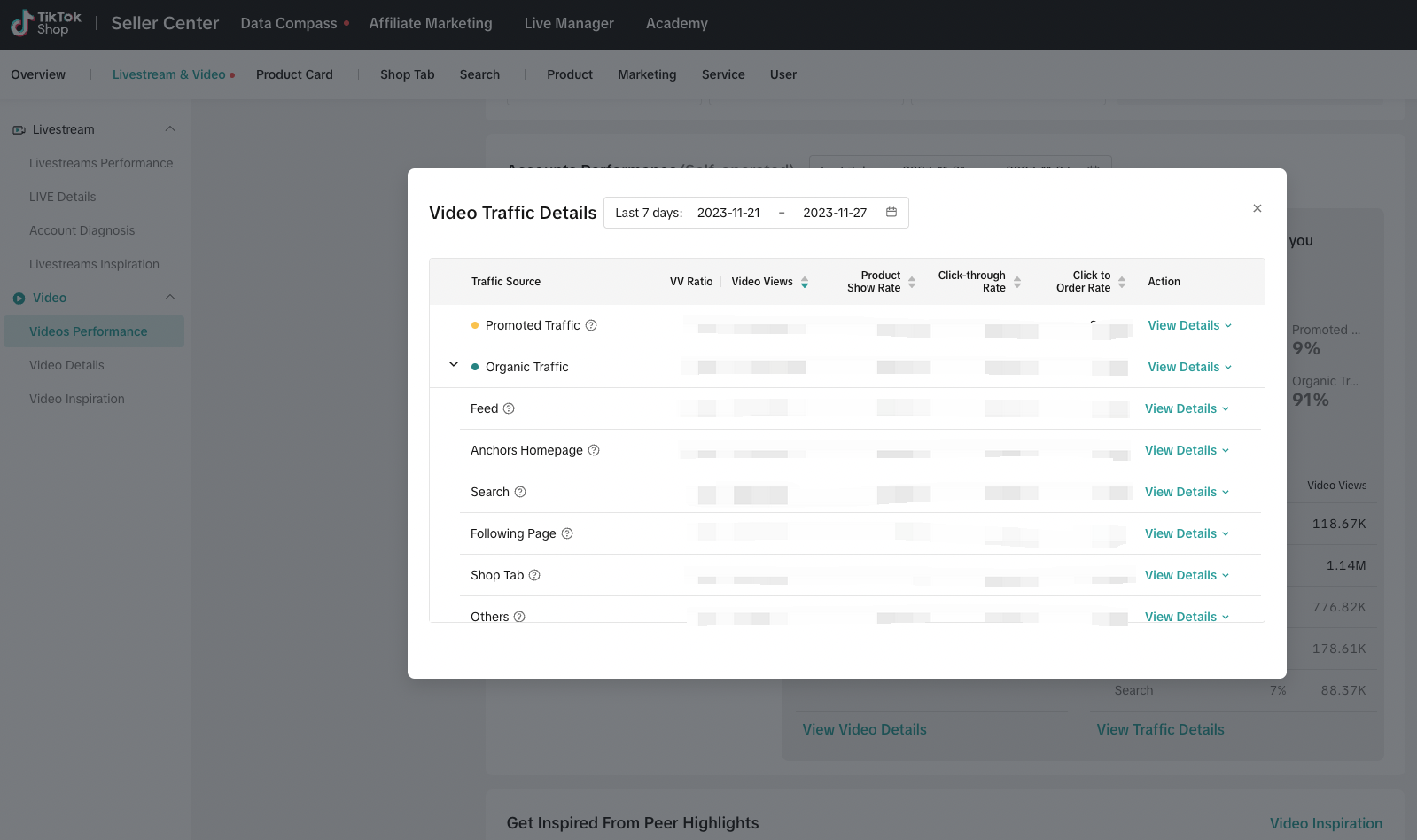
Subsequently, get to know where your audience found you, whether it's through promoted or organic means. The percentages are split in visual form for easy understanding.
Click on View Traffic Details for a detailed breakdown.
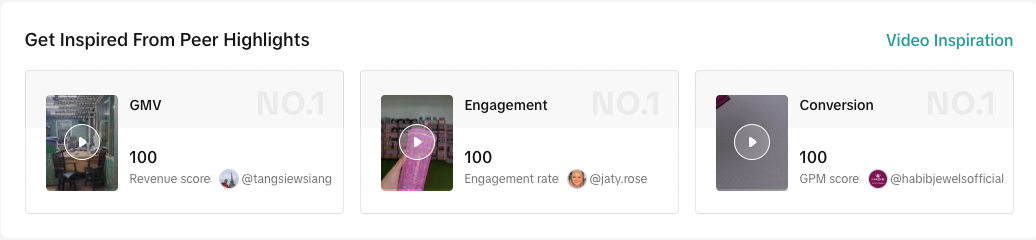
Get Inspired from Peer Highlights
- Here you can understand or track the videos performed by similar sellers as a form of inspiration or idea generation.
- Click on Video Inspiration for the detailed lists.

Rank Your Video with Video Details
- On Data Compass, head to Livestream & Video, Video, then click on Video Details from the drop-down menu.
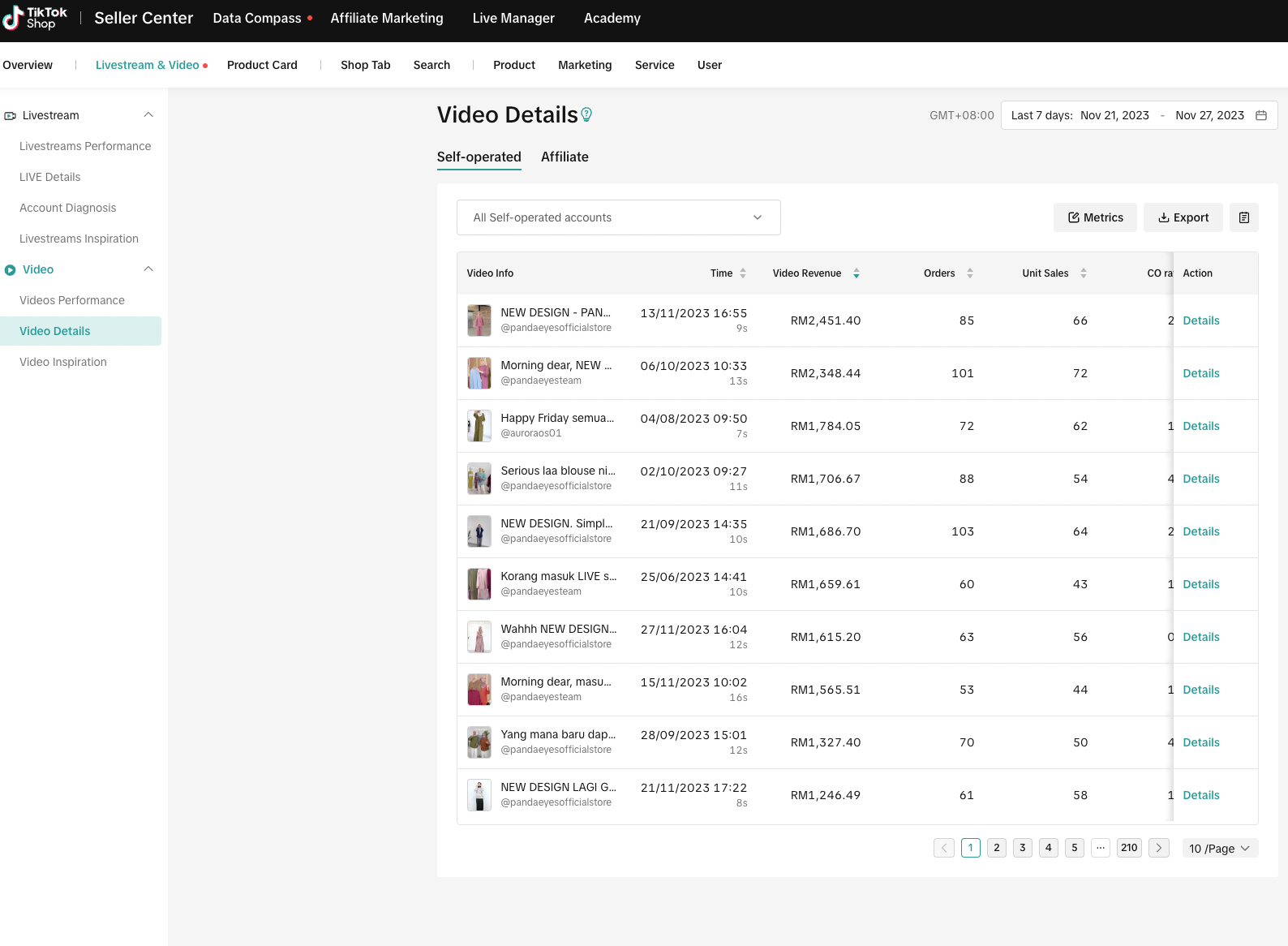
- Here you can view all your e-commerce videos in different settings and time periods. The main tabs are Self-operated and Affiliate. And under each tab, you can choose to sort it by metrics and export the data.
- Details such as a video's launched time, GMV, C.O Rate, Views, and more are visible. Hover over the ? for definitions.
- For ease of reference, click on Details to access the newly upgraded Video Details page.

View Detailed Performance of Your Videos
- On Data Compass, head to Livestream & Video, Video, then click on the Video Details button from the drop-down menu. You can view the corresponding video details performance.
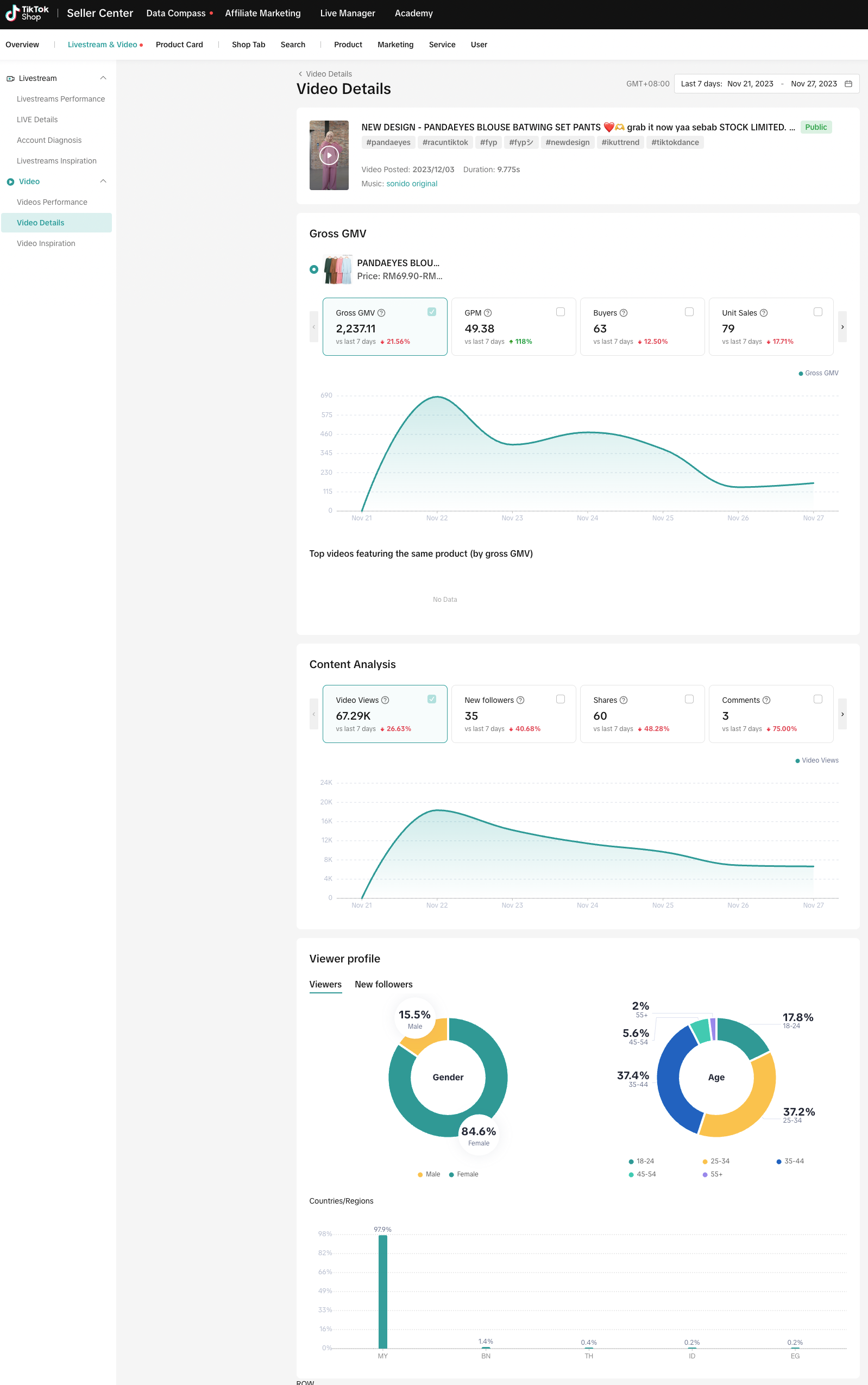
- There are three main tabs here:
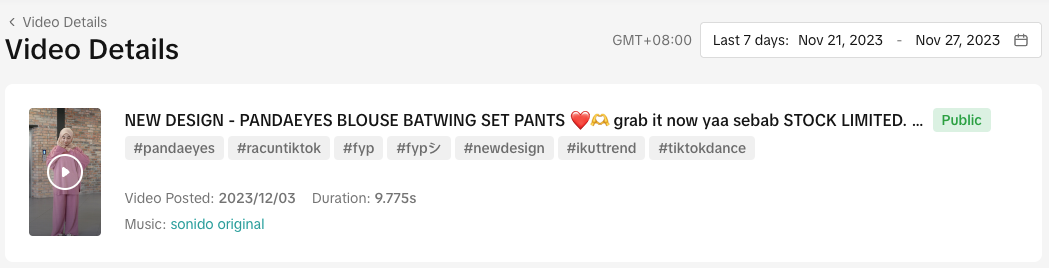
- Here you can view the basic information of this video, including video title, video status, video hashtag, video music and video post time.
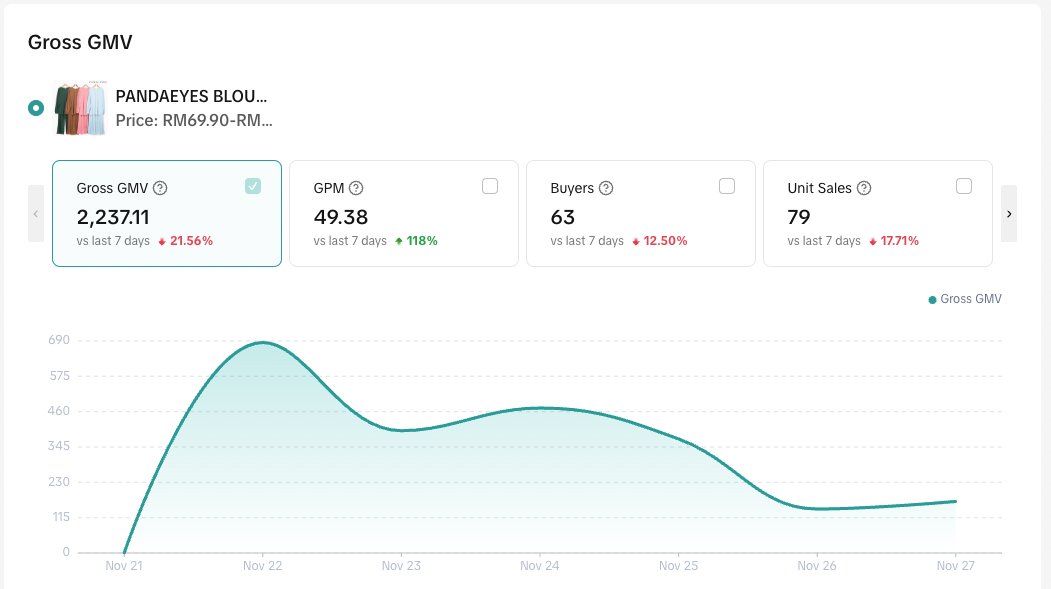
- We will show each product's performance in this video. You can check the product metric performance and view the metric trend charts.
- Hover over the ? to view the metrics' definitions.
- You can also subscribe to a different set of six metrics or mix with the default ones. The other metrics include Video Views, Video Product Viewers and GPM.
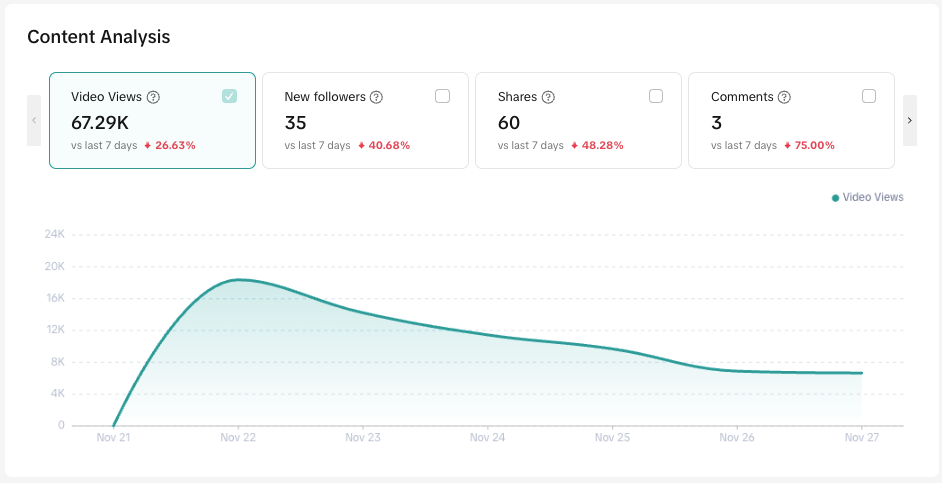
- We will show content metric performance in this video and you can view the metric trend charts.
- Hover over the ? to view the metrics' definitions.
- You can also subscribe to a different set of six metrics or mix with the default ones. The other metrics include Video Views, Video Product Viewers and GPM.
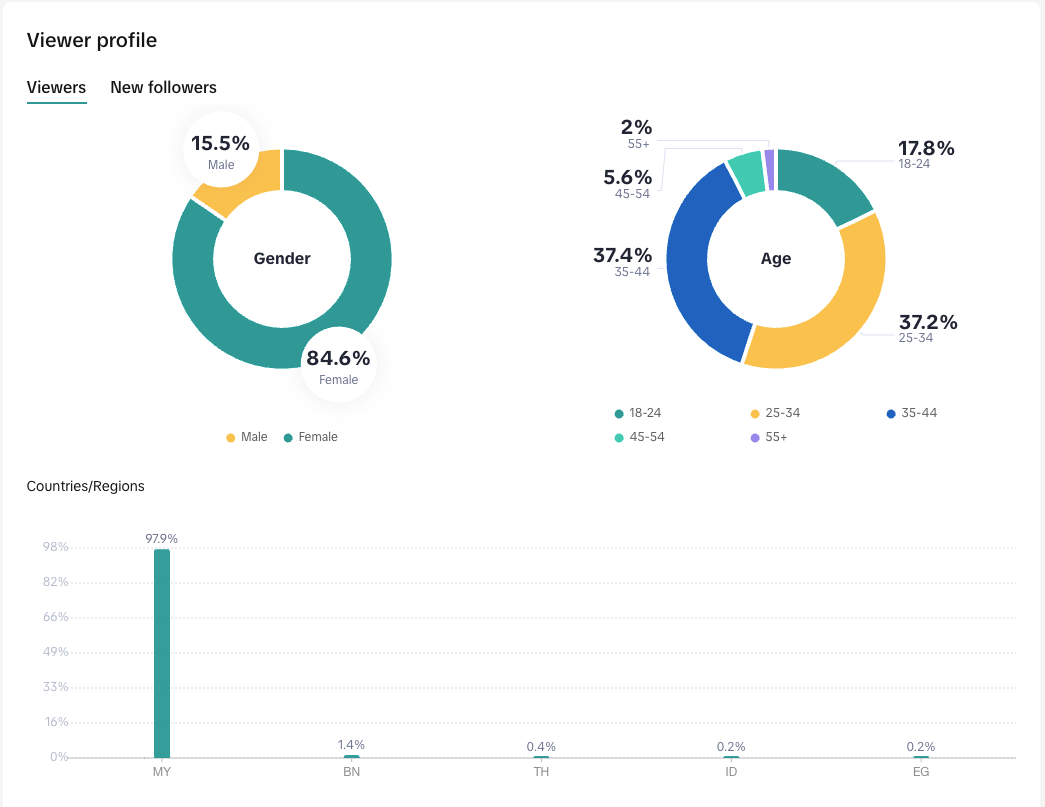
- Here you can view the viewer profile of this video, including viewers profile and new followers profile. The profile includes gender, age and countires/regions.

Understand What Audiences Love Watching with Video Inspiration
- On Data Compass, head to Livestream & Video, Video, then click on Video Inspiration from the drop-down menu.
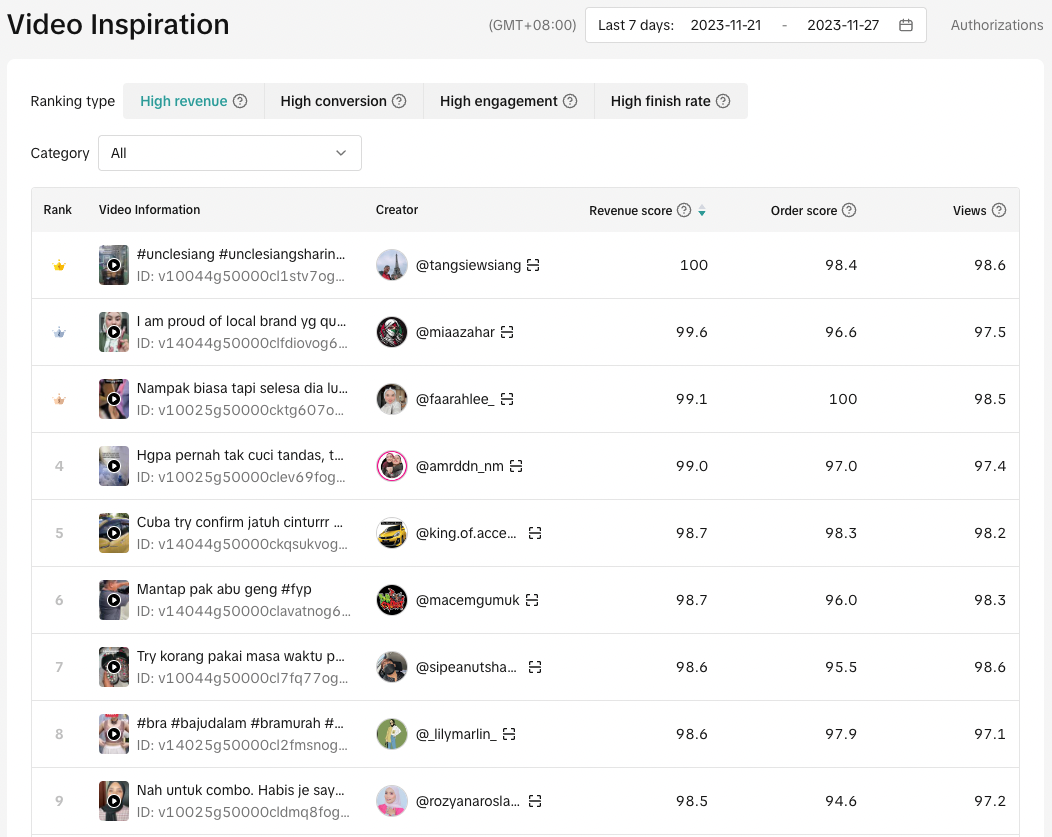
- Sort videos by category and ranking type (High revenue, High conversion, High engagement or High finish rate).
- Click on the thumbnail to view the video.

FAQs
- Where can I view Affiliate Video Data?
- Affiliate video data is available through the Video Details page or alternatively, you can access it via Affiliate Center > Insights > Video. By default the data is real-time. Alternatively, you can also set your preferred time period.
You may also be interested in
- 5 lessons
Data Compass
Introduction to data-driven decision-making tools for sellers to optimize their operations.
- 3 lessons
Short Video Diagnosis
Review and analysis of short videos to pinpoint areas for improvement.

Performa LIVE
This article teaches you how to use LIVE Performance. Specifically, it will show you how to view you…

Video Diagnosis
This article will show you how to use the Video Diagnosis feature to create more engaging content as…