

Complete Guide: Product Upload on TikTok Shop by Tokopedia
10/03/2025
Hi Seller!
Having great products isn’t enough—if your listings look messy or incomplete, buyers may get confused and move on. A clean and professional upload makes your products easier to discover, trust, and purchase. Let’s learn how to upload products on TikTok Shop by Tokopedia—whether one by one or in bulk!

The clearer and more complete your listings, the more likely they are to attract buyers!

📘 Need more help? See the full step-by-step guide and troubleshooting tips here if your upload fails or if you want a more detailed walkthrough.

💡 Remember: Mistakes are part of the process. Check, fix, and try again! 🎯 Try this todayChoose the upload method that suits your shop’s needs and make your listings clean, complete, and conversion-ready. With a professional catalog, your shop will stand out and attract more buyers on TikTok Shop by Tokopedia.
Having great products isn’t enough—if your listings look messy or incomplete, buyers may get confused and move on. A clean and professional upload makes your products easier to discover, trust, and purchase. Let’s learn how to upload products on TikTok Shop by Tokopedia—whether one by one or in bulk!
Choose Your Upload Method
Before you start uploading, choose the method that fits your product volume:| Upload Method | Suitable For | Advantages |
| Single Upload | New sellers or those with only a few products | Fast and easy, directly input into the system |
| Bulk Upload | Uploading many products at once | Fast and efficient, using Excel template |
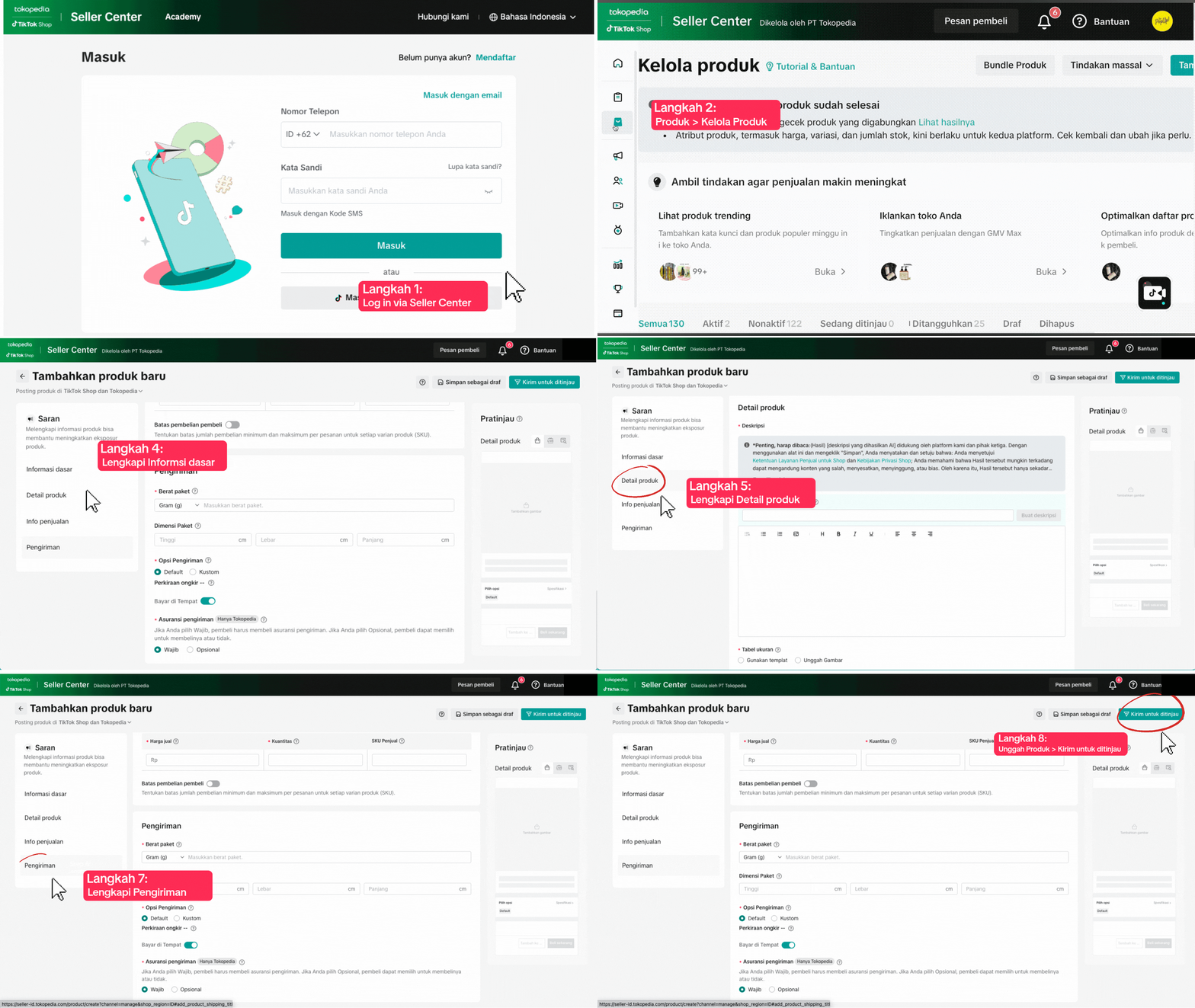
How to upload: Single Upload
When your product volume is small, use Single Upload to go live faster.| Step | Description | |
| 1 | Access Seller Center | Log in via Seller Center TikTok Shop by Tokopedia App or go to Seller Center Website |
| 2 | Add New Product | Click Add New Product on your dashboard |
| 3 | Fill in Product Details | Enter product name, category, description, price, stock, image, shipping, etc. |
| 4 | Save & Publish | Click Save to keep as draft or Publish when ready |
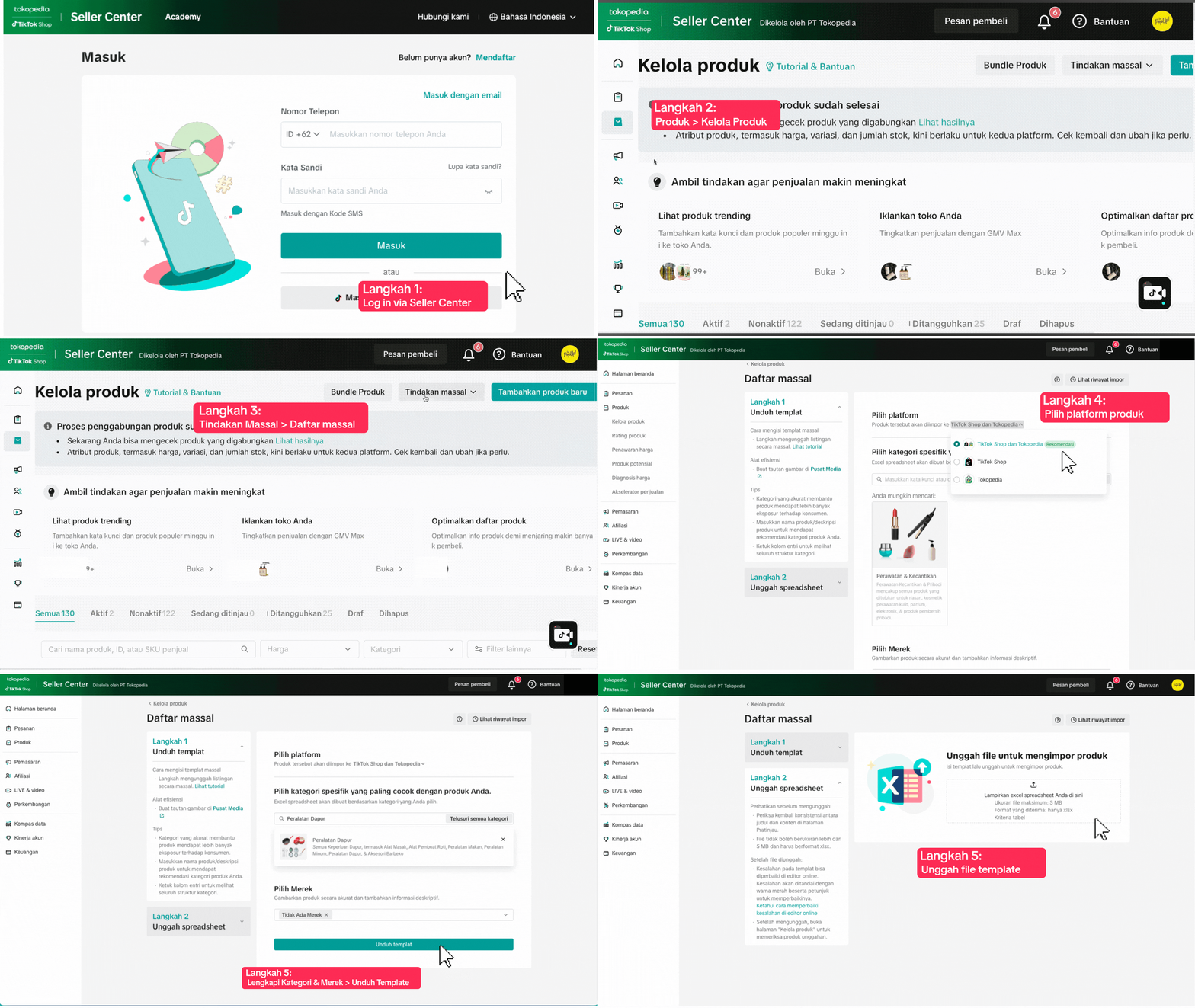
How to upload: Bulk Upload
When your shop handles many SKUs, use Bulk Upload to save time.| Step | Description | |
1 | Access Batch Tool | Go to the Batch Tool section in the Seller Center |
2 | Download Excel Template | Click "Download Template" and fill it out with your product data |
3 | Upload to Seller Center | Re-Upload the completed Excel file |
4 | Check Upload Result | Make sure products appear correctly with no errors |
Common Upload Issues & How to Fix Them
Running into issues during upload? Don’t worry—it's common and easy to fix!❌ Common Issue | 😕 Why It Happens | ✅ How to Fix |
| File Won’t Upload | Wrong file format or missing fields | Use the latest template from Seller Center and ensure all required formats are correctly filled |
| Image Doesn’t Appear | Image is too small | Upload images at least 1024x1024 px (JPEG or PNG) |
| Weak Descriptions | Too short or generic | Highlight product benefits and unique features |
| Wrong Price/Stock | Data entry mistake | Review carefully before clicking “Publish” |
🎯 Try this todayChoose the upload method that suits your shop’s needs and make your listings clean, complete, and conversion-ready. With a professional catalog, your shop will stand out and attract more buyers on TikTok Shop by Tokopedia.