

How to Register for CPAS Tokopedia
07/11/2025
Facebook CPAS is a part of Facebook Ads, where the campaign can use the products from your Tokopedia store as the catalog for advertising.
CPAS Ads also has the advantage of letting you see how many of your products have been viewed, added to cart, and purchased in real time from your Facebook Ads Manager dashboard.
If you're interested in running a CPAS campaign, you can visit this article and make sure your store is eligible to use the CPAS feature.
If all of the steps above have been completed, you are now ready to run CPAS ads with Tokopedia!
CPAS Ads also has the advantage of letting you see how many of your products have been viewed, added to cart, and purchased in real time from your Facebook Ads Manager dashboard.
If you're interested in running a CPAS campaign, you can visit this article and make sure your store is eligible to use the CPAS feature.
How to Create a CPAS Catalog
There are two ways to create a catalog, depending on the migration status of your shop in TikTok Shop:- If your store has not migrated yet, you can access the Tokopedia Seller page, select Promotions from the Ads and Promotions menu column, and click Facebook CPAS. Then, you will be directed to fill out the provided form.
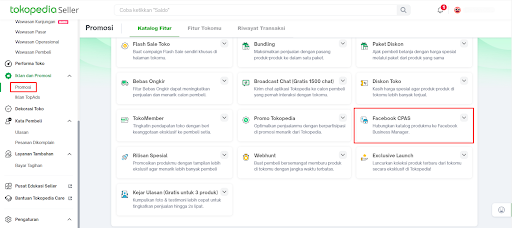
- If your store has already successfully integrated with TTS Seller Center, you can directly access the registration link at tkp.me/cpasregistrationform
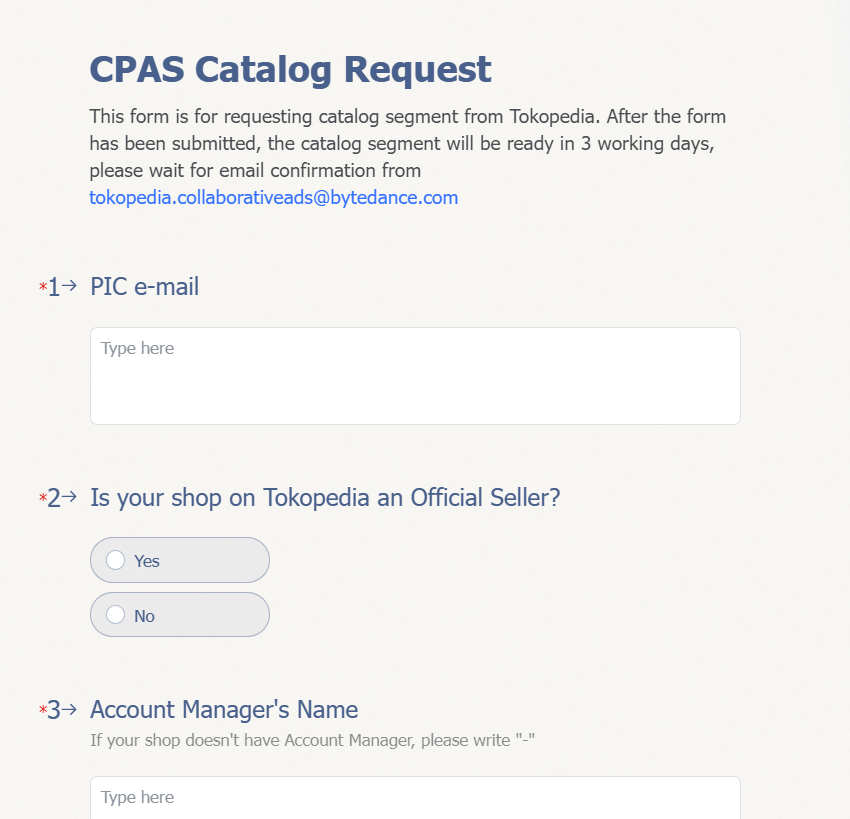
How to Fill Out the Registration Form
- There are a few things you need to prepare in order to create a new catalog, such as:
a. Email address of the person responsible for the CPAS ads
b. Name and email of your account manager (if your store is supported by a Tokopedia or TikTok Shop account manager)
c. Store name
d. ShopID number
e. Store link
f. Business Manager ID on Meta (you can find this ID [here])
g. Ad Account ID on Meta (you can find this ID [here])
h. Proof that you have shared your ad account with Tokopedia, in the form of a screenshot
- Please fill in all the required data, then click "Submit". The catalog creation process will take 3–5 working days for verification.
Make sure you’ve filled out the form correctly and have shared the ad account with Tokopedia’s Business Manager to ensure smooth registration.
- Congratulations! Your catalog is ready to use once you receive a confirmation email from tokopedia.collaborativeads@bytedance.com.
The email will also contain information about how to create URM/URL parameters.
How to Confirm the Shared Catalog from Tokopedia Seller
- On the Collaboration Center page, click Partners. You will see a request from Tokopedia. Click Accept assets.
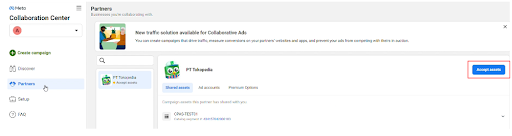
However, if the request does not appear in the Collaboration Center, go to the Business Settings page. You’ll see a notification—click on that notification.
- Click Confirm to accept the partnership request with Tokopedia.
- The seller can use an existing Ad Account by clicking Next, or click + New to create a new Ad Account. You must also check “Share viewing access with PT Tokopedia.”
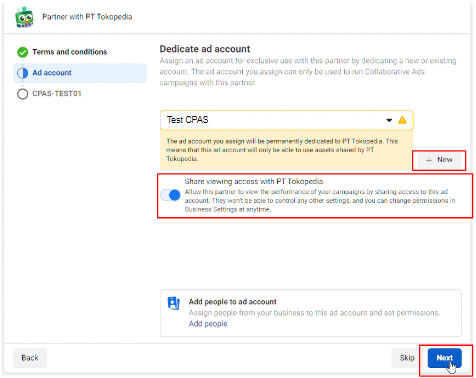
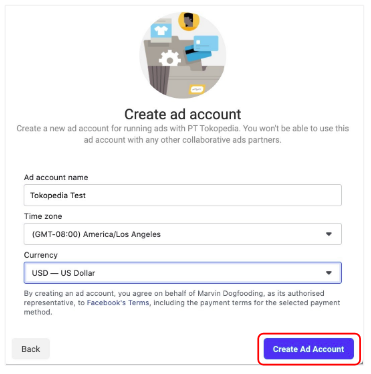
- If you choose to create a new Ad Account, you can configure the Ad Account details and then click Create Ad Account.
How to Create a URL Parameter
- On the page https://tkp.me/UTMGenerator, you can select the "UTM Maker (CPAS Only)" tab and click "Use this as template" to make a copy of the sheet.

- Please fill in all the detail columns using the format shared in each row.
- Guidelines are provided in Row 3, and examples in Rows 4 & 5.
- Double-check the format carefully and follow the instructions.
- Please do not change the format, so that your campaign can be tracked properly!
- Once all the details are filled in, you can use the format in Column H.

- Enter the format from Column H into your ad settings.
- At the ad level, in the "Tracking Section," click "Build a URL Parameter".
- Make sure to enter Campaign Source = "facebook", and Campaign Medium = "cpas".

If all of the steps above have been completed, you are now ready to run CPAS ads with Tokopedia!