

Simple Guide to Uploading Products on ShopTokopedia: Boost Your Sales! 📈
11/25/2024
Do you have a bunch of amazing products but struggling to get them listed on ShopTokopedia? No worries! ShopTokopedia offers two simple ways to list your products: Single Upload and Bulk Upload. With the right upload method, you’ll save time, make your products easier to find, and boost your sales potential!
Curious about which one’s best for you? Let’s dive in and find out how to get your products online efficiently!
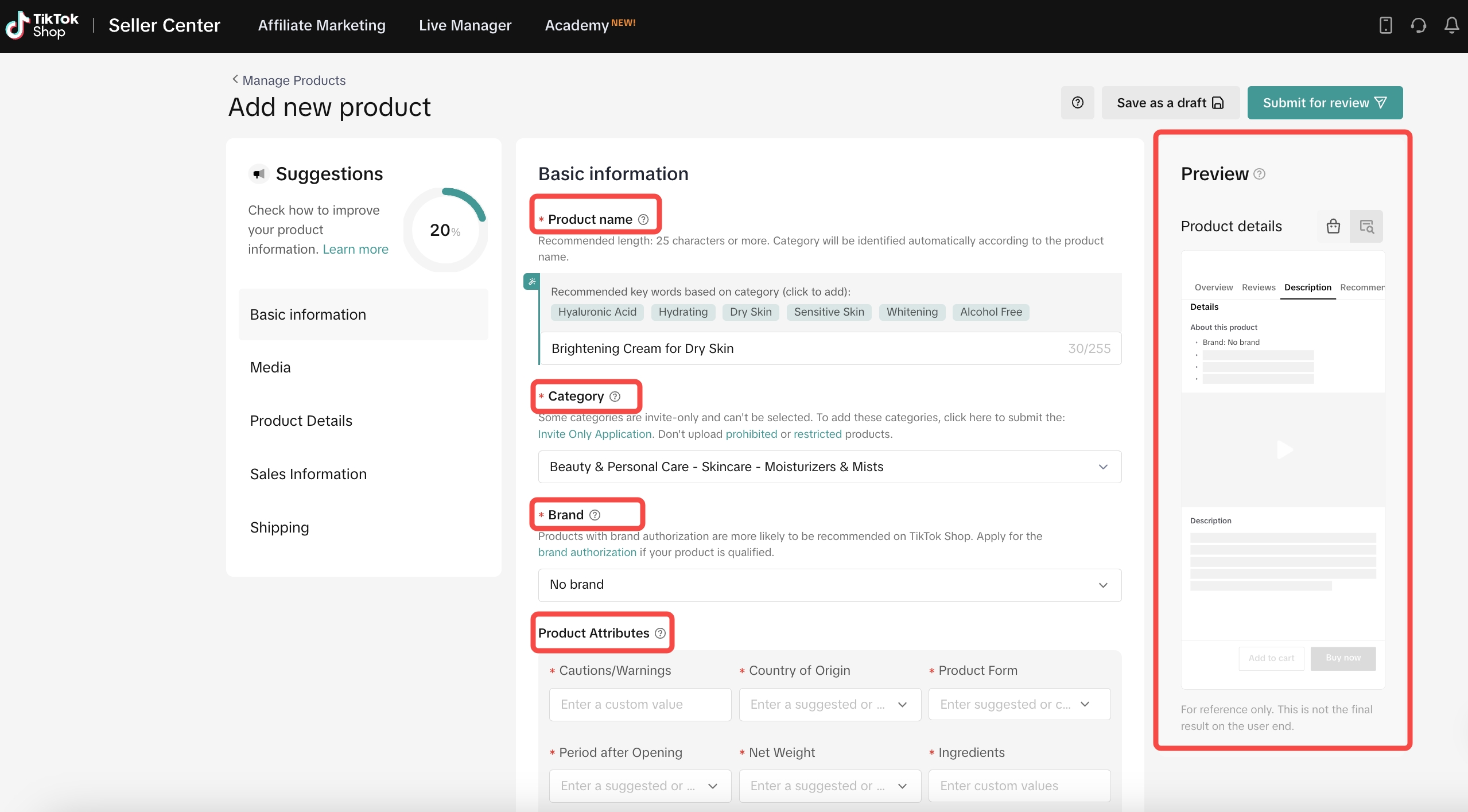 Enter all essential details carefully:
Read here for more information on the Media, Product Details, Sales information, and Shipping.
💡 Pro Tip: Use the Product Media Center to upload images and get URLs for easier reference! 🌍
Go to the Manage Products page to check the status of your uploads. ✅
To wrap up, if you’re just starting out or want more control over each product listing, go with Single Upload. For sellers with a large inventory, Bulk Upload is the faster, more efficient choice. By choosing the right method, you’ll save time and make it easier for customers to find your products! 🎉
Ready to start uploading? Learn more about product listing options here, and watch your business grow on ShopTokopedia! 🚀
Curious about which one’s best for you? Let’s dive in and find out how to get your products online efficiently!
Single or Bulk Upload: What’s the Difference? 🤔
ShopTokopedia offers two ways to list your products: Single Upload (adding one product at a time) and Bulk Upload (uploading multiple products all at once). Which one fits your needs? Here’s a breakdown of each method so you can choose the best option for your business.Single Product Upload on ShopTokopedia
The Single Upload method is perfect for new sellers, those with fewer products, or if you want to focus on the details of one product. This method allows you to upload each product carefully, ensuring each listing looks great and is filled with all the right details.- Open Seller Center on Desktop or Mobile
- Desktop 💻: Go to ShopTokopedia, log into your seller account, and click on Seller Center at the top.
- Mobile 📱: Open the Tokopedia Seller app, log in, and tap the Seller Center icon at the bottom.
- Add a New Product ➕
- Desktop: In the Seller Center, go to the Products menu, then click Add New Product.
- Mobile: In the app, select Products and then tap Add New Product.
- Fill Out Basic Product Information 📑
Enter all essential details carefully:- Product Name: Make it clear and free of typos!
- Category: Choose the best category so customers can find your product easily.
- Brand: If applicable, enter the product’s brand.
- Attributes: Add details like color, size, and material.
- Description: Write a catchy, informative description!
- Size: Specify product dimensions if needed.
- Price: Set a fair price for your product.
- Product Images: Upload high-quality images to make your product stand out.
- Shipping Info: Add weight and dimensions for accurate shipping fees.
Read here for more information on the Media, Product Details, Sales information, and Shipping.
Bulk Product Upload on ShopTokopedia
Bulk Upload is ideal for sellers with a larger inventory, making it possible to upload many products at once, saving you time and effort. If you have a variety of products to list, this is the way to go! 💪🏼Enter all the required product information:
- Download the Template 📄
- Go to Products > Manage Products > Batch Listing.
- Choose the product category you want to upload. You can search by keyword or browse through categories to find it.
- Tip: Add your brand name to build trust with buyers! 🌟
- Fill Out the Template 📝
- Product Name: Make it clear and engaging so customers can easily find it.
- Product Description: Include important details, benefits, and key features.
- Main Product Image: Use high-quality images to attract buyers.
- Weight and Shipping Info: Accurate shipping details are crucial for fair shipping costs.
- Variations: If your product has different options, list each one (e.g., colors, sizes).
- Price: Set the price for each variant.
- Stock: Enter stock quantity and warehouse location to avoid stock-outs.
💡 Pro Tip: Use the Product Media Center to upload images and get URLs for easier reference! 🌍
- Upload the Spreadsheet ⬆️
Go to the Manage Products page to check the status of your uploads. ✅
To wrap up, if you’re just starting out or want more control over each product listing, go with Single Upload. For sellers with a large inventory, Bulk Upload is the faster, more efficient choice. By choosing the right method, you’ll save time and make it easier for customers to find your products! 🎉
Ready to start uploading? Learn more about product listing options here, and watch your business grow on ShopTokopedia! 🚀